
 One of the best file managers on Android is ES File Explorer. Most people probably only use it to handle local files and maybe LAN shares, but if used properly, ES File Explorer handles so much more than that. With the proliferation of cloud-based storage such as Sugarsync, Dropbox, your 50GB Box account, and sync-enabled 25GB Skydrive account, ES File Explorer has gradually been adding little gems so that it handles Cloud Storage as well. Let’s step through how you can set this all up 🙂
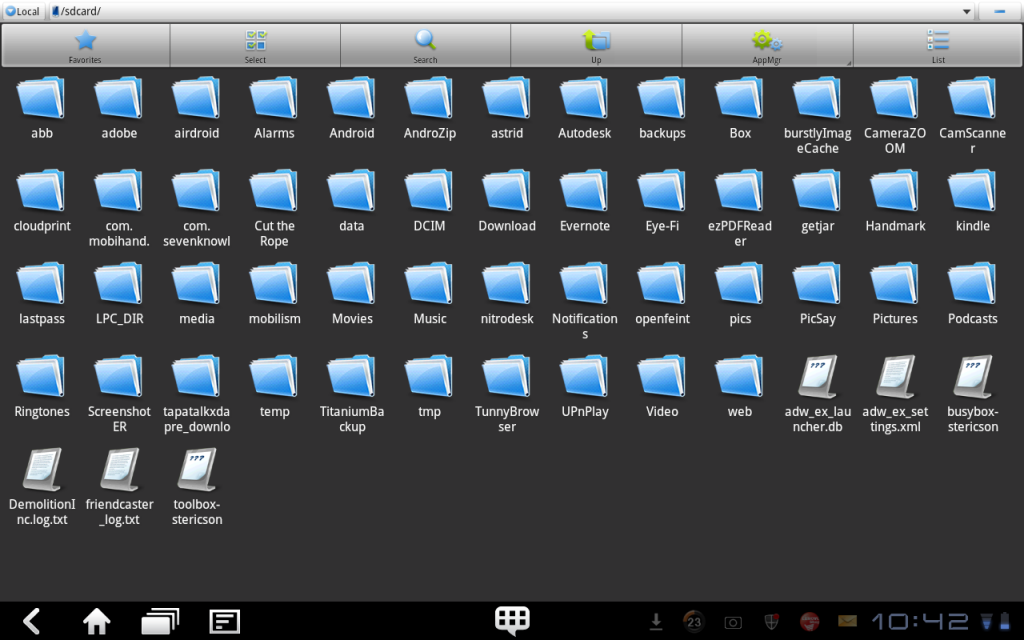 Here’s the screen that most ES File Explorer users are probably most familiar with. (Click on any of the pics to get enlargements). It’s the standard SD-Card directory with all your standard Android directories.
If however you click on the top left hand corner where it says “Local”……
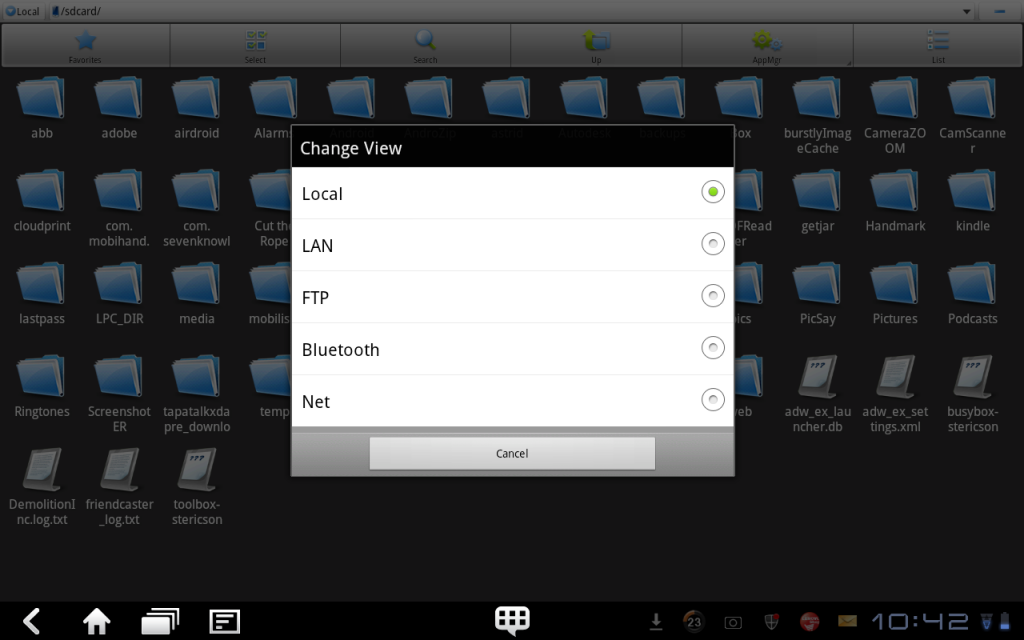 You’ll get a few different choices. ES File Explorer does a really good job of handling and even allowing you to play media from LAN shares like Windows SMBs. It supports FTP Servers and Bluetooth shares and even allows you to access root directories, if your device is rooted as well. But today’s lesson is all about accessing your cloud storage so the bottom option, “Net” is the one we’re looking for.
 You can see up in the top left, the “Local” has changed to “Net”, and I’ve now got access to my cloud storage drives. Here I’ve got two Dropbox, a Sugarsync, and a Skydrive account.
 By clicking on the “+ New” button, you get a choice of adding a new Box, Dropbox, SugarSync or Skydrive account. Once you’ve chosen one, you’ll be asked for your credentials, and voila! Your favourite cloud storage is available in the familiar ES layout. One thing to note is that I can’t actually get an authentication screen up to add my Box account at the moment. I keep getting a network error, but I’m sure that’ll be fixed or work soon.
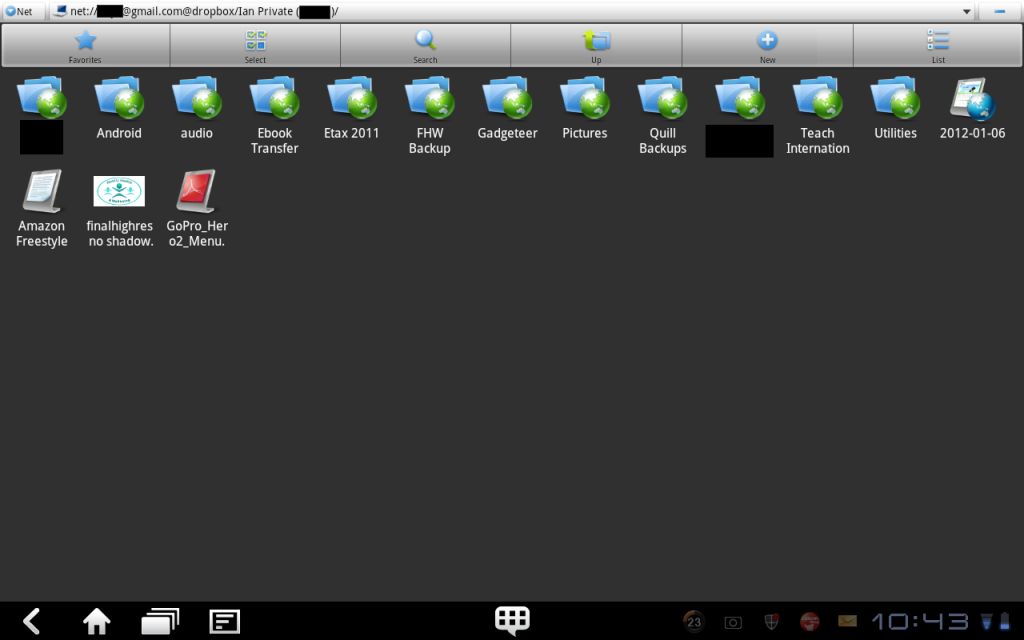 I can now just tag my way down into, say, my Dropbox account to an individual file level just like I normally would under ES File Explorer. From there I can manipulate all the files or directories just like normal: make directories, create or delete, copy or move, anything you could normally do with a file system.
So why is this all important and so powerful ?
- You don’t have to download all the individual provider apps
- You can use the familiar ES File Explorer interface to manipulate all your files both local, LAN, and cloud-based
- You can easily use multiple user accounts for the same provider, compared with having to login and logout of apps all the time.
- You can copy or move files between all your different cloud providers or your local storage without having to temporarily store it somewhere. Using the apps to move a file from one cloud provider to another, you’d have to download from one provider via their app to your SD card, then upload it to your other cloud provider from SD. Using ES File Explorer, it’s an easy copy and paste from one to the other.
One “shortcoming” to take note of is that the Dropbox and the Box apps keep local cached copies of file structures when you’ve got no network connectivity. As such, you can actually still upload files into these apps when you’re not connected, and the apps will sync your files once you’re connected again. ES File Explorer needs to be connected to the internet to be able to do anything with your cloud storage.
To me ES File Explorer was always the best option for a file manager, but now with Cloud Storage support I’m on cloud 9. 🙂
Updates 04/21/16
This article still gets heaps of hits, even 3 years after being written. ES File Explorer has gone through quite a few transitions since then (many would say NOT for the better) but is still one of my essential Android applications and still contains all the abilities written about in this article. For me it’s still much easier than having seperate client apps for all you cloud based storage.

Motorola Moto G Play | 2024 | Unlocked | Made for US 4/64GB | 50MP Camera | Sapphire Blue
(as of May 31, 2026 19:00 GMT -05:00 - More infoProduct prices and availability are accurate as of the date/time indicated and are subject to change. Any price and availability information displayed on [relevant Amazon Site(s), as applicable] at the time of purchase will apply to the purchase of this product.)

Gadgeteer Comment Policy - Please read before commenting
What an awesome find! Thanks for the great review. Now, add Google Drive and it will be just perfect!
Great review.
I have been using it to wirelessly connect to my lan network – Tried numerous other options that would only work occasionally, however using their Lan option hasn’t let me done yet. And as it is a pretty decent browser in other terms too, Astro (one of the original browsers) and File Explorer have been dropped.
What an awesome find!
Try http://www.primadesk.com you can easily drag and drop files between services. They also do full content search across all these providers. There is support for photo and email services too.
There has been some updates to the app, now it supports 8 cloud services including google drive
@Christopher – Thanks for giving everyone the heads up 🙂
Much is the pity it’s too hard to keep reviews up to date (especially with things like Android apps) so the review has to be taken as a moment in time.
I useES File Explorer and connected my Dropbox, but im not sure how to share files from ES to Dropbox? My goal is to share apps from my phone to my Kindle Fire. How do I do this with ES and Dropbox?
@Ashley – Open up ES in “local mode” so you can see the files on your phone, find the the file you want, long press on it and press copy. Swipe your screen across till you get to
“net mode” and your Dropbox. Find the location in your Dropbox where you want to paste the file and press paste ( in the menu bar at the top). On your tablet, open ES and go to “net mode”, open your Dropbox and find the file you want, long press and choose copy, swipe your screen to “local mode”, find the place you want the file and press paste in the tool bar 🙂
Or just share them via the Dropbox if it’s more a shared file.
Hope this helps.
I installed ES File Explorer and was going to use it for a minimal amount of things such as image files and some of my manuals related to the phone and cameras. The files are kept on SD micro card and the folder of Manuals shows up nicely. Later I added another folder of some images to the SD Micro card which shows up in “My Files” on the Motorola Razr but for some reason does not show up as a folder of images in EXFE. I have be unable to locate a method of making sure the files show up in both places although if push comes to shove, EXFE is not something I have to keep on the system. However, any advice would be appreciated.
how can i get my tablet to see my phone and vice versa using ESfile explorer?
Sorry rod, not something I’ve tried. I’m not sure if you could use the Bluetooth function:
Bluetooth file browser. You can copy and paste files between Bluetooth ready devices. It supports OBEX FTP for browsing devices and transferring files between Bluetooth devices.
i’m using this for file transfer using LAN.. 1 thing i noticed on my phone is that when copying files, there are no transfer status on the app itself, though in the phone notification bar there’s the file transfer status, but it kinda isn’t stable (it dims out, shows up and dim out again; not a steady status)..
anybody else having this issue?
and one more thing, the ‘folder’ needs to be ‘refreshed’ manually to see the files which are already transferred, i.e it doesn’t update on the fly after each file transfer..
i’m using ES 1.6.2.2
I was told I should put this program on my tablet so I could delete an empty photo album I have in my gallery but have no idea how to do that, I’m not good at getting in so deep with computers and this program is very over whelming to me, all I want to do is delete an empty album in my gallery and I could do a lot of harm with this program.
Hello,
ES File Explorer seems really great for clouds.
I face one problem: when I copy music from my Google Drive to the local Music folder using the ES File Explorer, Play Music (or other players) does not recognize the files. If I copy the files via USB everthing works fine … Seems to be an ES issue. Can anyone confirm that? I’m using Android 4.2.2 on a Galaxy Nexus.
Thank you, Christoph
Ahh, found a post regarding my issue, see also here:
http://forum.estrongs.com/thread-70212-1-1.html
Cheers, Christoph
CloudFuze is the ultimate app to manage multiple cloud storage services over multiple devices.With CloudFuze you can sync multiple accounts of Google Drive, Dropbox, Box, SugarSync and FTP at one point and access Over IOS mobile devices.
http://www.cloudfuze.com/
Could you please show me how to set up the FTP function for this ES File Explorer to work? I am clueless. Thanks
My copy of es file explorer looks nothing like what is being shown here or even the devlopers site I can’t even copy with mine because i can’t work out how to Not impressed with it at all
I’m stumped on what seems to be a basic function. I just want to move some files from my son’s Samsung Centura’s phone storage to the SD card, to free up space. How can I use ES File Explorer to do that?
Samsung s4 with ex file explorer and dropbox paid version insalled.
I get to the cloud and click the plus to add dropbox and it acts like I am gong to be able to log in or something. I end up with a white rectangle with nothing it and never get to log in or add my dropbox. New to smart phones and es file explorer. Anyone have any ideas how to get dropbox added to the ex file explorer cloud?
I have a Galaxy Tab 4 and I just installed ES File Explorer on your advice. How do I set it up to be able to play music without using the ES media player?
Is there a way to restrict ES file explorer to use wifi data when performing activities like streaming media (music) from the cloud?
Can someone use es file explorer to direct my messages or notifications e.g emails, sms’ mms’ to his phone if he downloaded the app on his phone without my permission?. If yes how can i prevent that or undo it?.
Hey Bernice, no ES File Explorer isn’t made to handle any email or sms/mms , only files . If in doubt, remove the app from you tablet/phone.
ES file manager can communicate with your PC only when your PC is on the same network as your phone. When you need to transfer files between your PC and Mobile, use PC To Mobile Transfer- it works wherever your device is located, on any network, and even when there are firewalls in between the device and PC.
https://play.google.com/store/apps/details?id=deskshare.com.pctomobiletransfer
To send files to Android TV, Amazon Fire TV or Fire Stick use TvExplorer app.
use the WifiShare feature on the app to send files from your mobile or computer to your TV device.
you can browse and download the files in your TV device to your mobile or PC too.
its fast and super easy.
to know more on how to send files checkout this link:
https://medium.com/@deepakpk/how-to-send-files-to-your-android-tv-8075b019d868
https://medium.com/@deepakpk/tvexplorer-an-android-tv-exclusive-file-explorer-8e1b2996b7e7
get the app @:
Google Play Store:
https://play.google.com/store/apps/details?id=com.deepakpk.tvexplorer
Amazon App Store:
https://www.amazon.com/dp/B078WF5BXB