
There have been so many times that I have needed to transpose written text from
a document in hand to a document on my computer. When it is an entire document,
such as a lease on which I am changing terms before returning, I’ll generally
scan the entire document into Word using my desktop scanner/printer combo and
edit from within the document itself. But when it is only a couple of sentences
or a few random phrases which need to be transferred from hard copy to my
desktop, I will generally just enter them via keyboard because it is a pain to
scan an entire document to extract what might amount to just a few lines worth of text.
I am not exactly a touch typist – six fingers are more my speed – so anything
that will make my time at the keyboard easier is a welcome addition to the
gadget bin.
When I was offered the chance to review the
IRISPen
Express Text Recognition Pen Scanner, I thought it might be interesting to
see if using such a device would be that much more convenient than just biting
the bullet and entering the text myself. According to the manual which
accompanied the IRISPen, when the pen is slid over a line of text, the text "is
entered into your application instantly, as if keyed in but up to 30 times
faster. Up to a 100 characters can be entered per second. Cut from paper, paste
to Windows: can you imagine a simpler way of entering text?"
And that quote? Yah…I scanned it directly from the manual into the
FrontPage document I am using to write this review. However, what you see above
was edited a bit from what was actually copied. How much did I have to
edit to get the final result? We’ll get into that further into the review. For
now, let’s take a look at the IRISPen itself.
The IRISPen Express is one of four different versions offered by I.R.I.S.,
and it is designated as the version for home users.
Also
available are versions for executives, Asian executives and those involved
in banking or similar industries. The
specific features of each version are slightly different, therefore in this
review I will be focusing solely on the Express and its capabilities.
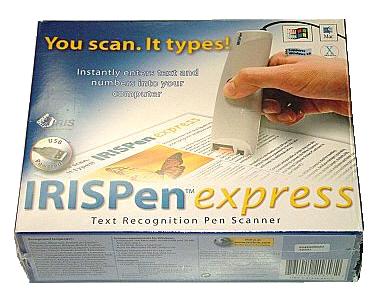
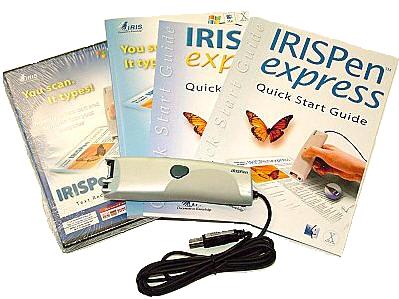
Included in the box are the IRISPen with its USB tether cable, the CD with
necessary desktop software, PC & Mac quick start guides and a user manual.
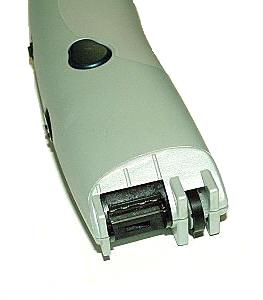
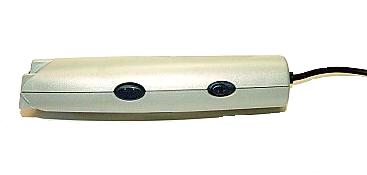
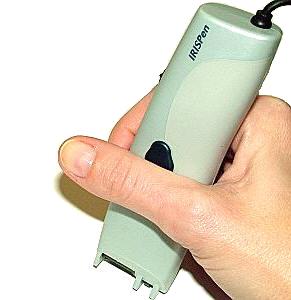
The IRISPen measures approximately 5" long x 1.5" wide x 1" thick and weighs
3.1 ounces including its cable. The head of the "pen" includes a roller which
operates as a "start switch", which turns on when rolled across paper, and turn
off when it is lifted. Above the roller ( to its left in this picture) is the
scanner view window, which emits a green beam when the scanner is activated. The
ridge in the middle of the scanner window is the line guide, and
according to the manual, "the IRISPen recognizes the text line closest to the
line guide." Yes, I scanned that, too – no editing necessary.
The button on the side of the IRISPen is user programmable, which means it
can be set to perform one of eleven functions with a single click, and a
second with a double click. I have mine set to the default functions, which are
<Enter> with a single click and <Tab> with a double.
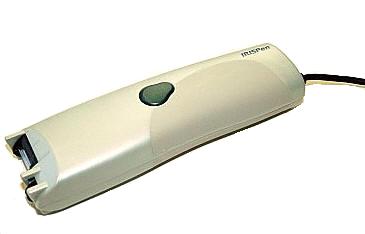
The forward button on the pen is also user programmable, and once again I
have left it at the default settings, which are <Space> with one click and
<Cursor Left> with a double click. The sliding button to the rear is a
mystery – I could not find any reference to it in the manual and it did not
appear to do anything to the input or output that I could discern. Since all of
the manual’s pictures of the pen in use show it positioned toward the rear of
the pen, that is where I kept it while doing actual testing.
This is the software screen from which the buttons are assigned:

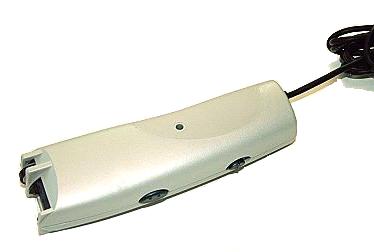
The back side of the IRISPen has no buttons or features – just a hole in
which a structural screw has been placed. There are almost seven feet of USB cable
running from the rear of the scanning pen, so there should be enough even if the
computer’s USB ports are located under the user’s desk. For convenience, the IRISPen will work
properly from a hub.
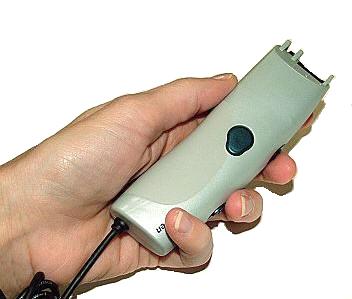
The IRISPen is fatter than a typical pen, but overall it fit in my hand quite
comfortably.
Setup is accomplished by installing the accompanying CD, which must be done before plugging the IRISPen into the USB port.
During install, the following window will pop up…
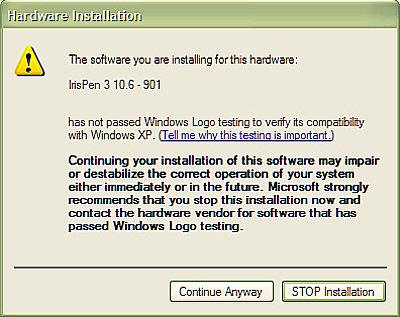
…just hit Continue Anyway and install the software. At this time, the
IRISPen may be plugged into an empty USB port, and the Hardware Wizard will run.
Leaving the CD in the bin, hit "Next".
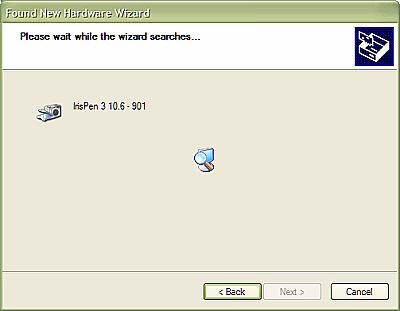
Once the Hardware Wizard has run, everything will be set up and ready to go. The following icon is
installed on the desktop…

…which when pressed causes the following window to appear.
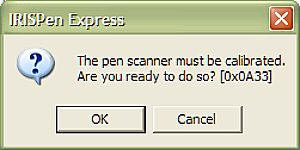
Calibration simply involves pressing the IRISPen to a blank piece of white
paper and pressing it down. An incremental bar will show as progress occurs, and
once 100% is reached, the device is calibrated and ready to operate.
When the IRISPen program is on, a moveable toolbar will appear on the PC’s
screen which displays the current mode of the pen. Double-clicking on the menu
will pull up the scanner’s menu.

In order to use the IRISPen properly, you must practice! After
calibration, a scan test should be performed in which the user runs the pen over
the words in a steady rate. I kept the line I was scanning lined up with the
line guide and the IRISPen was set to Alphanumeric and English.
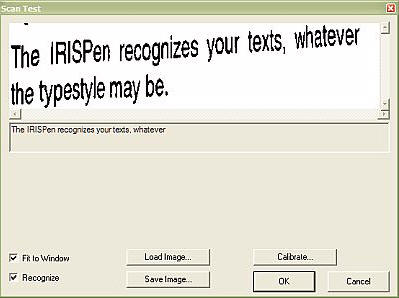
According to my test scan, I seem to have the hang of this. Now it’s time to
try entering text into my document. To use, the IRISPen must be held like a
pencil, but almost vertically. According to the Quick Start Guide, it is best to
"hold the pen almost vertically. of less than 5 for scanning."
Hmmm…that didn’t scan very well. It should have said, "hold the pen almost
vertically. angle of less than 5 preferred for and scanning." Nope…that’s not
it, either.
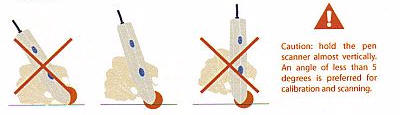
In case you didn’t catch it, I was trying to scan the wording under the
exclamation point in the picture above. One last try – "hold the pen almost
vertically. angle of less than 5 is preferred for .nd scanning."
All right…I don’t think the IRISPen likes red ink so much. Anyway!
The scanning alignment is set on this screen, which allows the choice of
where scanning will or won’t stop on a particular line of text.
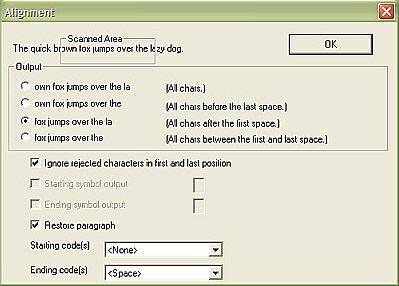
Since I am scanning directly into this review, I selected Application – mode
1. Clipboard is for scanning items which need to be saved – such as small images
or signature files.
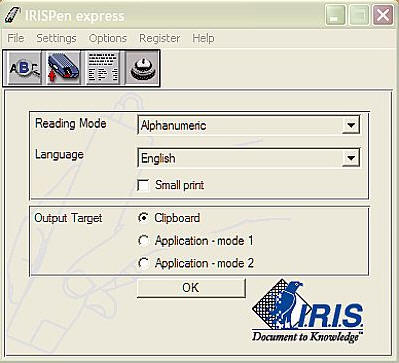
…which removes scanned text from the clipboard…
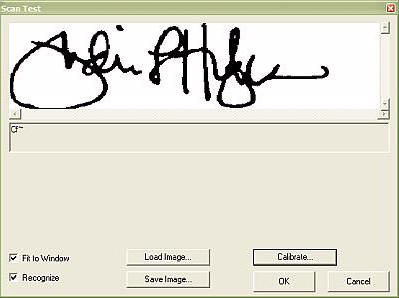
…and allows it to be saved as a bitmap file, like this.

However, for typing directly into a document like I am doing for this review,
the Output Target "Application – mode 1" should be selected. Using just the
slightest angle from a complete vertical, I scanned items from the included
practice sheet in as straight a row as possible in a slow and steady swipe.
1. What I am scanning: Big bold letters at the top of a page.

What I got:
Learn how to write again with your
Second Try:
T Jearn how to write a~ain with vour IRISPen!
Third Try:
Learn now to Wrlle agalll Willi yuur .lKl~ren!
Fourth Try:
Learn hOW to write agaIn with your IRISPen!
Fifth Try:
Learn how to write again with your IRISPen!
Conclusion: Multiple tries, but I eventually got it.
2. What I am scanning: This will be a little bit trickier, as this
sentence is parsed like a short paragraph which will take several scans to
correctly enter. In order to show each line as it was originally printed, I will
start each scan on a new line. However, had I wanted to, the scans would have
followed each other on the same line.

What I got:
fhe IRISPen is a unique hand-held OCR developed by I.R.I.S.; to date, it is
both the USB based and the only greyscale pen
Conclusion: Not bad! Only the first letter was messed up – which
should be simple to correct. I decided to set the pen to accept "All characters"
in output menu, hoping that would correct the problem.
3. What I am scanning: A Bold heading with italics following.
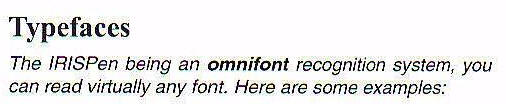
What I got:
Typefaces
rhe IRISPen being an omnifont recognition system, you
an read virtually any font. Here are some examples:
Conclusion: Even with the IRISPen set to scan "All characters", it
still seems to be dropping or mangling the first letters in a series. It is also
dropping the letter formatting, but that was to be expected. I was impressed
that it was able to read the formatted letters, though.
4. What I am scanning: Another paragraph style sentence which will
require multiple passes to enter. However, there is another sentence above it
which may also be picked up by the scanner.
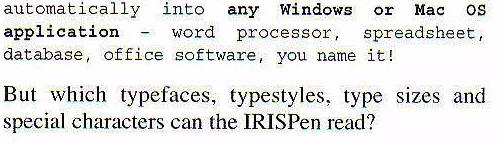
What I got:
But which typefaces, typestyles, type sizes and
pedal characters can the IRISPen read?
Second Try:
ut which typefaces, typestyles, type sizes and
special characters can the IRISPen read?
Third Try:
ut which typefaces, typestyles, type sizes and
specIal characters can the IRISPen read?
Fourth Try:
But which typefaces, typestyles, type sizes and
special characters can the IRISPen read?
Conclusion: Still dropping first letters at times, and it sometimes
takes multiple passes to get a sentence to appear correctly.
5. What I am scanning: A tricky paragraph style which will require
multiple passes as well as correct reading of special symbols and punctuation.
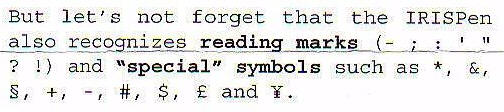
What I got:
Die deutsche Sprache hat Symbole wie 0, a, B und A. (<– picking up
words from the line above the one I am trying to scan!)
lut let’s not forget that the IRISPen I (<–correct line now…)
lso recognizes reading marks (- ; : ‘ "
and "special" symbols such as *, &,
, +, -, #, $, £ and ¥.
Second Try:
llso recogni zes reading marks (- ; : ‘ " (<– read the wrong line)
But let’s not forget that the IRISPen
also recognizes reading marks (- ; : I" ;
ilso recogni zes reading marks (- ; ~ I 11 (<– read the wrong line)
l) and "special" symbols such as * I &,
§, +, -, #, $, £ and ¥.
Third Try:
But let’s not forget that the IRISPen "
But let’s not forget that the IRISPen . But let’s not
forget that the IRISPen ) !) and "special" symbols such as (<–I could not
get it to pick up the correct second line)
? !) and "special" symbols such as *, &,
§, +, -, #, $, £ and ¥.
Fourth Try:
Butt let’s not forget that the IRISPen
Iso recognizes reading marks (- . . , "
? !) and "special" symbols such as *, &, I
;, +, -, #, $, £ and ¥.
Fifth Try:
It let’s not forget that the IRISPen
ttlso recogni zes reading marks (_ . . ‘" I
? !) and "special" symbols such as *, &, _’"
, +, -, #, $, £ and ¥.
Conclusion: Feh. Multiple tries and some were better than others – but
none were exactly right and it took a lot longer to do than I would have liked.
Honestly, it got to be pretty frustrating.
6. What I am scanning: The IRISPen is programmed to be able to
recognize up to 55 languages, including Afrikaans, Albanian, American English,
Basque, Brazilian, Breton, British English, Bulgarian, Byelorussian, Catalan,
Corsican, Croatian, Czech, Danish, Dutch, Estonian, Finnish, French, Frisian,
Galician, German, Greek, Hungarian, Icelandic, Indonesian, Irish (Gaelic),
Italian, Lithuanian, Luxemburgh, Macedonian, Malay, Mexican, Norwegian, Nynorsk,
Polish, Portuguese, Romanian, Russian, Scottish (Gaelic), Serbian, Slovak,
Slovenian, Spanish, Swahili, Swedish, Tagalog, Turkish, Ukrainian, Bulgarian –
English, Byelorussian – English, Greek – English, Macedonian – English, Russian
– English, Serbian – English, Ukrainian – English, Numeric. This time I decided
to change the language to French, and see how I did scanning the exotic letters.

What I got:
Les français aiment le é, à, î et E.
Conclusion: Why did I have better luck scanning French than I did
English? Near flawless
So what do I think of the IRISPen, will it be my new text entry system when I
am trying to move small chunks of written text to my computer? Probably not. The
reason being that for what this gadget cost, for the amount of times I had to
rescan items to get them to show up correctly, and for the amount of aggravation
caused when I thought I had done a flawless scan only to have gibberish
returned…I probably would do better just to continue manually typing when I
have small amounts of information to transpose.
IRISPen manuals may be downloaded
here.

2-Pack LED Video Light Kit, NiceVeedi Studio Light, 2800-6500K Dimmable Photography Lighting Kit with Tripod Stand&Phone Holder, 73" Stream Light for Video Recording, Game Streaming, YouTube
(as of June 8, 2026 12:59 GMT -05:00 - More infoProduct prices and availability are accurate as of the date/time indicated and are subject to change. Any price and availability information displayed on [relevant Amazon Site(s), as applicable] at the time of purchase will apply to the purchase of this product.)
ALTSON 60 LED Portable Selfie Light Video Conference Lighting with Clip & Camera Tripod Adapter Rechargeable 2200mAh CRI 97+, 3 Light Modes for Phone iPhone Webcam Laptop Photo Makeup
(as of June 8, 2026 12:59 GMT -05:00 - More infoProduct prices and availability are accurate as of the date/time indicated and are subject to change. Any price and availability information displayed on [relevant Amazon Site(s), as applicable] at the time of purchase will apply to the purchase of this product.)Product Information
| Price: | 149.99 |
| Manufacturer: | I.R.I.S. |
| Requirements: |
|
| Pros: |
|
| Cons: |
|

Gadgeteer Comment Policy - Please read before commenting
Post your comments here on the I.R.I.S. IRISPen Express Text Recognition Pen Scanner.
http://www.the-gadgeteer.com/review/i_r_i_s_irispen_express_text_recognition_pen_scanner
Just click the POST REPLY button on this page.
That French scan isn’t flawless: the accents are messed up. (Missing on the ‘E’, wrong on the ‘i’. Sorry, I don’t know how to type them under OS/2…)
Ha! Good catch…obviously I don’t par-lez vous fran-say.;)
I noticed a lot of lariats in your signature – Cowgirl, huh?:
http://www.inquiry.net/outdoor/spin_rope/throw_lariat.htm
Ha! Are you making fun of my loopy signature? 😀
I honestly figured a graphologist would come on here at some point and have something to say about it. :p
I’ve read a few books on handwriting …
My best buddy Dave was into racquetball. His D had a little handle on it.
My J is swept back, as a good aircraft leading edge should be (I am in the Aerospace business).
I knew a guy who was very family oriented. He initialed his work with a big C surrounding his first initials. His last name was Carbajal.
People seem put certain of their interests into their signatures.
JK
Not trying to make fun of anyone as your reviews on products are some of the best I have read…
I have to admit however, that what was supposed to be scanned and what was scanned was the funniest post I have read in quite sometime! The product recognizes 55 languages and it seems as if some of those 55 appeared in the scan.. I could not help laughing as I have had the same problems with Calligrapher for Pocket PC…. I finally would end up just trying to print the letters and even that was to no avail…
@oopscdaz – That’s quite all right! I got a good laugh seeing some of the results I got, too. 😉
Hi Julie. I was about to order the IRISPen but I read your review and … I did not. I am a poor typist and I am looking for a scanner to put into Word quotes from books I am reading in which I have the unfortunate habit to underline paragraphs, sentences or words that I may want to use as quotes at a later date. Sometimes I am just marking the paragraph in the margin though, which is probably a more practical way to do it for scanning. Do you have a suggestion for a usable scanner? I looked at a Cannon available for $50 on Amzon.com and also at Plustek Optiblock 3600 which at $250 would have to “walk on water” to merrit its price. Any help that you can, would, dedain or agree to give me? Thanks, Robert
Robert, it just so happens that Julie will be posting a review on another compact scanner, the docupen, this evening…
I don’t know what she thinks of it yet, but it may be one to consider, or to mark off the list. :0)
Hi Judie
this is a great review. Comprehensively tackles the key issue of how effective these pens are at character recognition in practice. I wanted to use the pen to scan transaction details from receipts (name, amount, date etc).
However, as others have said, I will refrain from buying one of these pens based on the less than 99% reliability of the scans. But could it just be that the IRIS Pen Express is not as good as other pen scanners (e.g. c-pen, Wizcom)? What is your opinion about that? My guess would be they all have a similar level of performance but I’d like to know what you think.
Bill.
Hi there, thank you for a great review!
I have a question re: the IRISpen Executive Asian.
Does it have any competitors that scan Japanese and translate into English? If anyone knows of any, if you can tell me, that will be a great help, thank you! The IRISpen Executive Asian is expensive, and from reviews, apparently causes some of the frustrations mentioned in this review. However, I live and work in Japan, and am learning Japanese, but am only beginning. Every day I receive many papers on my desk, in Japanese. So, a translating scanner might be so helpful that I am considering buying the Irispen Executive Asian, even with its high price and frustrations. Before I buy it, I would like to know if there are any other scanners available anywhere that scan Japanese characters and translate them into English, to make a choice of which scanner to purchase. So far, I have not been able to find any; some translate English into Japanese, but no others I can find translate Japanese into English. Thanks for your help!
Hi,
I am a new member, could anyone tell me if the newly release irispen 6 this month is any better in accuracy and worht buying for?
appreciate much
:unsure:
Great evaluation. Almost as good as trying the thing out for myself. The report being dated 2005, can you tell me if this was the IRISPen Express 6 ? Wondering if they improved their product since this report.
thanks,
Ron
hi, I know if I need to scan tables like this one
Choice 1 Choice 2 Choice 3
Choice 1 1 2 3
Choice 2 4 5 6
Choice 3 7 8 9
is it going to cause problems, the lines will they find a good place and towards the right information
thank you
I take short handwritten notes when I read. Will the pen scan them accurately? Do you have suggestions? I’ve looked at tablets but most options are for PCs and I’m a Mac User.
Thanks
The pen proved in my case to be a complete disaster. It neverw worked, during calibration I got the message ‘not connecte” and a pop-up appeared with the message debug bulkhead reader. I complained several times however I never got a reply from the factor in Belgium, however they acknowleged the receipt of my complaint. I would be very careful with this product and company.
Is this pen also recognize hand writing ??
Hi Ron,
This is not the irispen 6. If you look at the picture of the box it is a very old edition of the pen. I have been searching google and have seen a lot of reviews of this pen, such as http://www.irispenscanner.com , most of them are good reviews, saying the pen does exactly what is advertised. I can see how this old generation of pen would have some flaws. The best thing you can do is read up as much as you can about what the express 6 does and decided from there. Remember it takes some getting used to, like learning to hold it at the right angle etc. And if it is still not doing what you expect then you should send it back definitely.
This pen is worthless, and worse than the fact that it will not work, is the fact that the 800# support redirects you to online queries, and then hangs up!
When I called the sales department the man was rude and refused to offer any options.
We are returning this product to the store.
Will there be a version for the Android Platform. I want to use one on a Tablet PC.
How can buy iris pen scanner please tell me
Hi, i just get an old IrisPen like this and i have contact with IRIS Support but i only get news about their products…. no software, no solution… i have installed the driver that is in IRIS website and it’s ok but the system doesn’t recognize the new device as camera or scanner, so … i need the software, that’s what i am asking to IRIS Support without answer.
Have somebody a copy of the software or the original CD of this device?…
Thanks.