
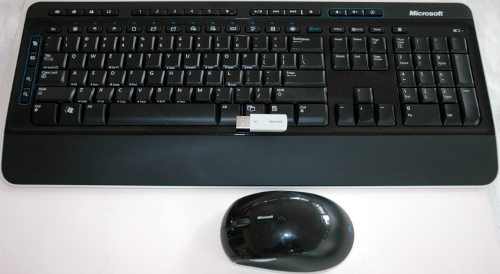
The Microsoft Wireless Desktop 3000 is a bundle of the Wireless Keyboard 3000 V2.0 and the Wireless Mouse 5000. MS3K jokes based on the cumbersome name aside, this is a very nice if somewhat large wireless keyboard and mouse that worked with everything I could find.
The intro photo above shows the contents of the box less the CD, which I somehow managed to lose within minutes. In other words you’ll find the keyboard, mouse, USB dongle, 4 AA batteries, and the CD with Windows/Mac drivers. If like me you misplace that CD, the drivers are downloadable from Microsoft’s website.
Setup/Install
Setup consists of inserting the batteries and then plugging in the small USB dongle. If you want to customize the keyboard, you’ll need to install the drivers (Mac/XP) or some extra software for Linux – I’ll come back to that later.
Tour
First let’s take a closer look at the keyboard and mouse.
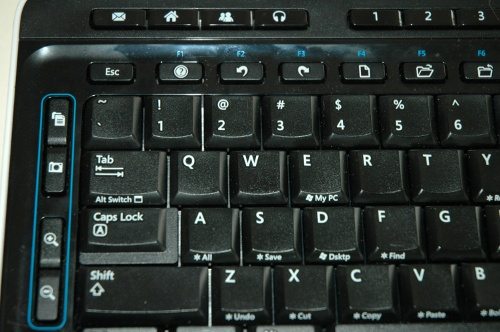
There’s a detailed look at the left side of the keyboard. You can that there’s a bank of special keys to the left of the standard left edge keys, a bank of “task” keys across the top, and a row of funky dual-purpose function key/menu short keys where you would normally find full sized Fn keys. The keyboard keys themselves are in a standard layout/spacing, with perhaps a tad shorter travel then a normal keyboard. I’m no high-speed typist (shh…. I don’t even touch-type in the standard way… I’m one of those four-finger-programmer/touch typists!) but to me the basic keys feel more like a high end “desktop replacement” laptop keyboard. That’s not a bad thing, it’s just a difference. Also, those extra keys on the left are under my left pinkie (which used to pretty much hug the left edge of the standard keyboard I usually use) so that took a bit getting used to.
The tiny Esc/Fn Chiclet keys really take some getting used to. First off, you need to hit the small blue F Lock key once to lock in the Fn Key behavior, instead of the menu shortcuts.
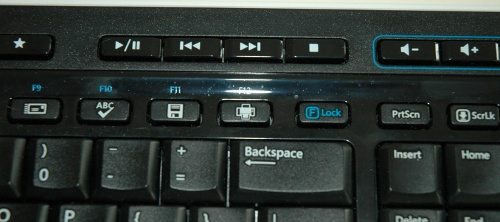
Then you’ve got to try and SEE the soft blue “F5” (for example) since the Fn keys aren’t grouped into sets of four keys as in a typical keyboard.
For comparison here’s the keyboard I usually use:
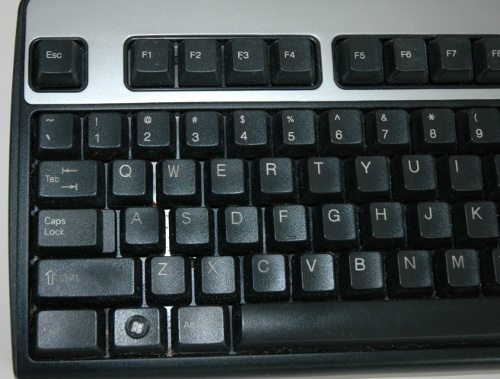
All that said, after an hour or so I was up to more or less my usual speed and error rate. I still need to take a peek to hit F5/refresh. Oh, and those wonderful special purpose keys? They sit there mocking me. Yes, they work, but no, I don’t use them. They replace keys that exist in whatever GUI I’m using, and that GUI already provides keyboard shortcuts anyway. All this keyboard is doing is providing a hardware key that generates the typical key-code (ie, Ctrl-C for Copy, etc…) that I would type if I didn’t want to move my hands out of typing position.
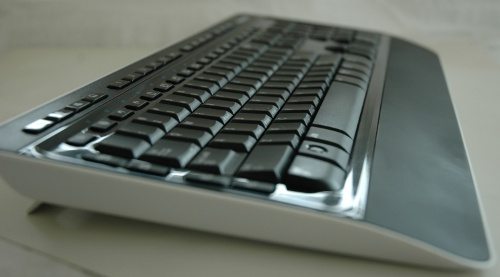
The keyboard has one feature I thought I would hate but actually like – the built-in wrist rest:
And again, for comparison, a typical 101-key keyboard:
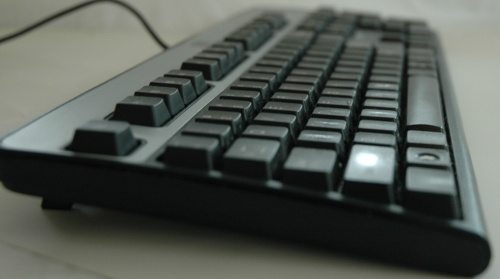
The integrated wrist-rest, subtle curving of the keyboard, and rounding off of the bottom row of keys makes for a very comfortable typing experience.
The keyboard does not have any indicator LEDs for the state of the various lock keys (ie, NumLock, Caps, Scrl…) which makes sense for a battery powered keyboard. It does have one LED, which when lit means your battery is low. If you must have some feedback on the state of your locks, you’ll need to use some software to show it on your desktop. I ran without any such software for more then a week without trouble.
Next up, lets take a closer look at the mouse. This is a largeish mouse, with decent heft, and of course no tail. The sides are textured for easy grip, and the top is one large plate that can be clicked left or right for the L/R mouse buttons. The top has a scroll wheel that seems loose – it wobbles a bit. That’s because in addition to being a wheel and the middle button when pressed, you can tilt the wheel left or right to fire the 6th and 7th (or 8th and 9th if you count scroll wheel up/down) mouse buttons.
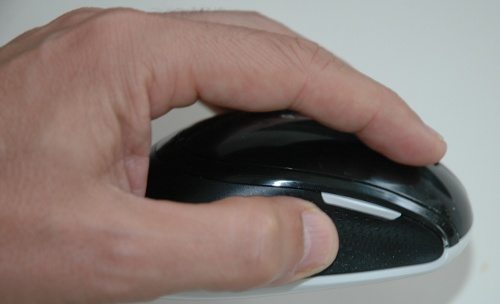
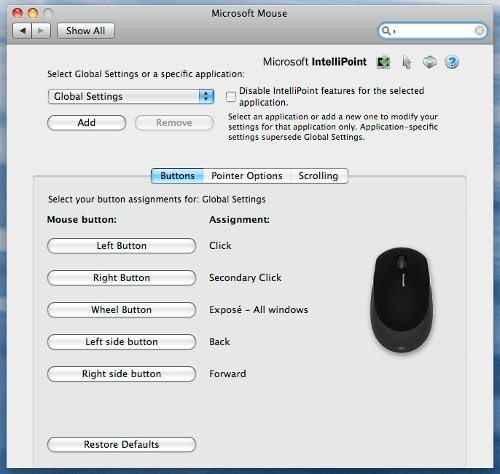
Mapping all those buttons to different functions/actions might require the Microsoft driver. Ubuntu Linux (my home) understands them all and maps the extra buttons as back/forwards for the side buttons, Page down/up for the scroll wheel, and left/right scroll for the wobble buttons on the scroll wheel. This seems to be how Firefox interprets them as well in all the OSes I tried. Maybe my finger is multifunction-challenged, but with all that scrolling and clicking and whatnot, it’s hard to remember that you’ve got two more buttons there as well!
Flipping the mouse over, we see:
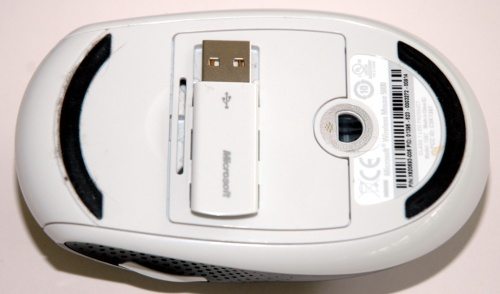
Well, ok, this is what you see if you tuck the USB dongle into the slot in the bottom of the mouse. This depresses the off switch, and makes a transportable package. Makes sense if you just bought the mouse, but maybe less so with the bundled keyboard.
Microsoft touts the blue laser (BlueTrack) used as being able to work on more surfaces then that old-school red laser. Since I used to use one of those old school red guys, I can tell you they both seemed to work on any surface that wasn’t glassy or reflective.
Wireless and Battery Performance
This is a standard 2.4 Ghz unlicensed spectrum wireless system. In my home I’ve got way too many wireless gizmos, and this thing neither bothered my N or G wifi, or 5Ghz phones, nor did they seem to bother it. I’ve not seen a single error in normal use (range under 5′) nor while testing the “let’s control the Mac Mini in the bedroom down the hall” test. The only concern is that Microsoft doesn’t specify what, if any, security is used on the wireless link. There is no “partner” button, the various devices just seem to link up to the dongle when everything is powered on. For that reason you might want to consider the security of using this product, especially in if you are in a high density area. The range can be up to 30′ so you might want to take a walk around outside (or down the hall!) and see just how far you’re leaking key-presses.
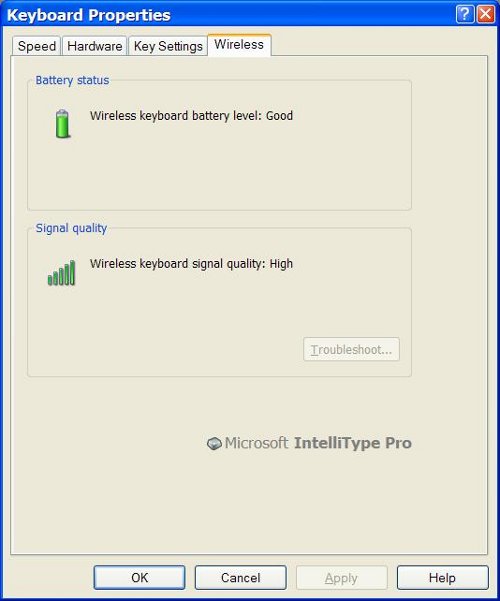
Battery performance has been excellent. I’ve been using the set as my main keyboard/mouse for two weeks and the keyboard battery meter(shown in the Windows Driver) is essentially still at 100%. I have no idea what the mouse is at, there isn’t a battery meter for that anywhere.
Software/Drivers
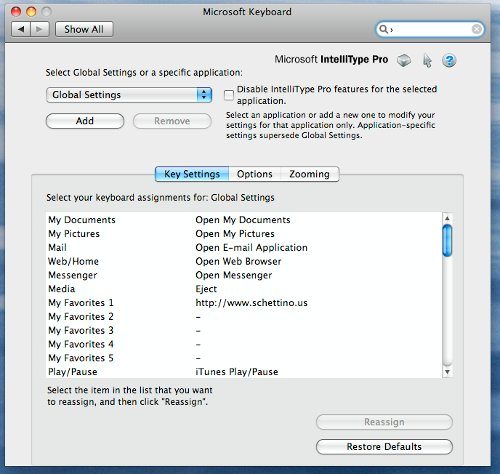
Microsoft does provide a driver for the unit for Windows and MacOS X, and under Linux these types of keyboards (including most of their special keys) are also well supported with a package or two to allow customization. Without this software the combination should work with any device that supports USB “HID” (human interface) devices, and that’s exactly what I saw when I plugged the dongle into my three test devices. Under Ubuntu/Linux, Windows XP, and MacOS X plugging it in yields some activity and then it just works as a keyboard and mouse. Pressing the pre-defined special keys generates some key-presses that are more often then not interpreted the right way.
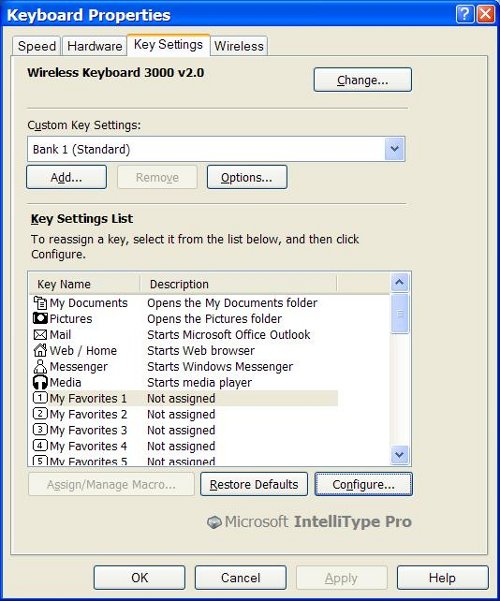
So, why bother with the software? It will let you change the functions for the special keys, and it will give you the ability to map the five user-macro keys to a string or function. And you’ll be able to see the keyboard battery level, at least on Windows.
Windows Software
MacOS X
Ubuntu/Linux
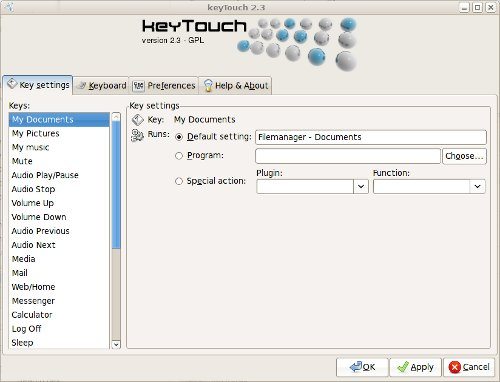
Note: KeyTouch is not Microsoft software, it’s just an example of how this keyboard is supported by open source software!
Final Thoughts
I like this keyboard/mouse. I’ve used some off-brand 2.4 Ghz multimedia keyboard/mice combos (in fact, I have one on my HTPC) and the Wireless Desktop 3000 is a noticeably better designed keyboard & mouse ergonomically speaking. The use of Chiclet keys for the Fn keys is the only complaint I have for the keyboard itself, and the integrated wrist rest makes that easy to over look.
Gerber Gear Suspension 12-in-1 EDC Multi-Plier Multitool with Pocket Knife, Needle Nose Pliers, Wire Cutters and More, Gifts for Men, Camping and Survival, Grey
(as of June 10, 2026 18:48 GMT -05:00 - More infoProduct prices and availability are accurate as of the date/time indicated and are subject to change. Any price and availability information displayed on [relevant Amazon Site(s), as applicable] at the time of purchase will apply to the purchase of this product.)
Gerber Gear Diesel Multitool Needle Nose Pliers Set, 12-in-1 EDC Multi-Tool Knife, Survival Gear and Equipment, Black
(as of June 10, 2026 18:48 GMT -05:00 - More infoProduct prices and availability are accurate as of the date/time indicated and are subject to change. Any price and availability information displayed on [relevant Amazon Site(s), as applicable] at the time of purchase will apply to the purchase of this product.)Product Information
| Price: | $69.95 |
| Manufacturer: | Microsoft |
| Requirements: |
|
| Pros: |
|
| Cons: |
|

Gadgeteer Comment Policy - Please read before commenting
I have the wired version of the keyboard and loved it. I say “loved” as M$ have not released a new driver for Mac OS X 10.5.7 which makes half the buttons on the top/side non-programmable and unresponsive. Gone back to my simple Aluminium wireless mac keyboard and bought stock in Duracell 🙂
Great review John!
I must say, I like the style of the keyboard, especially with the integrated wrist rest. Currently, I use the Optical Wireless mouse V2.0, but my keyboard is just standard (Only as I use a laptop so generally don’t use the keyboard that often anyway) so I’m thinking of getting one of these.
One question to the author. Can Wireless Mouse 5000 work with one AA battery or only with two AA battery? (I hate heavy mice). Thanks for answer.
wow… interesting. I just pulled one out, and indeed it still works.
That said, its a huge mouse anyway, and it doesn’t feel much different with one or two batteries.
I couldn’t find the combo package so bought them separately and so now have 2 tranceivers. Alas, both USB tranceivers need be plugged in 🙁 How did they avoid that situation with the combo? I don’t find an option in either keyboard or mouse control panel functions to make one tranceiver work for both.
Hi Bob… I wondered about that too. It seems most manufacturers have moved to “factory paired” devices for the 2.4ghz type wireless kbd/mice. Microsoft is one of those. There is no way to re-partner the device to a different dongle.
Thanks for your review John, I’ve been looking for wireless mouse & keyboard and this seems to meet my requirements, though I have one question: Did you / could you try if the keyboard recognizes more than two keys pressed at once? This is pretty importat especially while playing games and you can’t hold three keys pressed at once.
Hi Eli: I checked and, at least under linux, it seems as though the keyboard repeats the last key pressed no matter how many you hold down at once (aside from the modifier keys like shift/alt/ctr, which do stack as expected.)
Hello John, thank you for your reply. The reason for why I was asking was that I have at the moment Microsoft’s wireless keyboard & mouse (though it’s pretty old), it recognizes only two keys pressed, so I wanted to make sure before buying this that it would be better for gaming.
Thanks, and keep up the good work!
I really love this desktop set, however I have found that the USB dongle is not very robust… I have now destroyed 2 of them – one was fried when I plugged something in to the adjacent USB slot, and another time to an inadvertent ESD zap.
As mentioned above, there is no way to pair them to a new dongle. So now the mouse and KB are useless trash 🙁
The warranty was still in place, and MS sent new replacement units, but I really hate the fact I have to throw the entire desktop away.
I find that I have to change batteries about once a week in both the keyboard and mouse. I have tried both cheap and expensive batteries and get about the same results. With other wireless keyboard setups I usually get over a year of service out of a set of batteries.
I’m not seeing that here. With heavy use (daily, 8+ hours/day) I was seeing month+ on rechargeable hybrids, 2-3mo on disposables on the mouse. The keyboard ran for 4 months on the disposables shipped with it. Not sure what’s up.
I have a no-name wireless kbd/mouse on the HTPC that gets used maybe 1-2 times a month and both of them are still on their original batteries going on 2 years now… clearly the more you use these things the faster the batteries die.
Logitech 100 vs Microsoft desktop 3000.
Personally i just got this key board and wasnt sure of the batterylife. I upgraded from the logitech 100 which was half the cost. But the difference between the two , at least for me, is night and day. Or something for us car folk, like comparing a lexus to a toyota. Yeah it does the same stuff but this one really is well thought out. The keys feel very easy and not as loose as the logitech. Also, like john had mentioned the wrist attachment isn’t obtrusive. The mouse is incredibly responsive. I’m use to using an optical so the bluetrack is like comparing a ball mouse to an optical. I also dug the grip positioning of the mouse that microsoft has claimed.
I think for the money (and mine was 60 bucks) this product was worth it.
I like the feel of the keyboard and the mouse works great! However, that darn “Show My Favorites” box pops up every time I hit a few keys rather quickly. It is wanting me to assign my favorites….I don’t want to do this. Is there any wasy to disable the notification??????
J, that’s definitely a driver issue. Try uninstalling the driver, reboot, check the keyboard – nothing weird should happen with multiple keypresses – if it does that’s likely a hardware issue and you should check w/microsoft to see if you can get it fixed/replaced. If nothing odd happens, download and install the latest intellitype pro software from Microsoft: http://www.microsoft.com/hardware/download/download.aspx?category=mk
just purchased the 3000 v 2.0 wireless with mouse5000 blue.
40.00 at a local store. works great…. how do you know the battery level , it does not show anywhere that I can find. Help me out. thanks
Hey Larry,
There are a couple of LED indicators, however there is also the 100% fool-proof “it just stops working” method. When using rechargeables you might get one or two blinks from the LED(s) before the battery is flat, but you sure won’t miss it not working any more 😀
There is (I believe) a battery gauge on the control panel for Windows, maybe also for Mac, but in the end just forget about it, and swap when it dies.
I purchased the set and the Transceiver got bumped and broke. I purchased the mouse Wireless 5000 seperatley and as you said the new mouse works but not the keyboard. Can you buy the correct transceiver from Microsoft or do I now have a $60.00 Microsoft boat anchor.
Try contacting Microsoft, but the set is sold pre-paired, and there is no way to partner a device with a new receiver.
Most of the RF wireless devices have done away with pairing, so this is “industry standard” now.
Two questions John. But first, thanks for the great review.
1: Can you program the USB mouse to cold boot or to power-on the computer? I’m not talking about ‘from idle or sleep mode.’ There’s a provision in my PC’s BIOS for a keyboard power-on but the USB port doesn’t seem to support it. My own Logitech cordless trackball/mouse can power-on but its transceiver uses the PS2 port. Left clicking twice allows it to power-on the computer but won’t do it using the PS2 to USB adapter that came with it.
2: Is there a button on the keyboard to open/close the disc drive drawer? You didn’t mention it in the review. This is a handy function that my Logitech kb has. It should be standard on most multi-media keyboards IMO.
I built a multi-media computer for a neighbor for his 25 foot long living room. He uses his 60″ TV as a 2nd monitor and to stream movies. He loves the reach of the Wireless Desktop 3000 and mouse because he can sit on his sofa and control his computer. My friend loves it because he can turn his computer off from the sofa but he has to walk over to the computer to turn it on. It’s a matter of convenience to him.
My Logitech kb and mouse lose reception from their transceivers after about 6 feet, so I would consider the Microsoft keyboard and mouse for my own use if it could power-up my computer with a simple double-click. If not then I’ve stick with the cordless PS2 interface–just for the convenience.
Rick,
There is not a specific open/eject key, but there are 5 user-assignable keys. You could map one to do something like this: http://www.tipandtrick.net/2008/how-to-add-keyboard-shortcut-hot-key-to-eject-cd-or-dvd-drive/ which would give you an “eject/open” key.
As far as power-on from USB keyboard, that is a specific BIOS feature that would depend on the computer hardware. If the BIOS supports power-on from USB keyboard/mouse, then it would work using the MS Keyboard/mouse (it looks like a USB keyboard/mouse to the BIOS.) You can search for the terms:
BIOS power on via USB mouse
To research this – I scanned a few results, and it seems that USB-based power on isn’t very common. I checked a couple of my own machines with recent BIOSes and found support for PS/2 but not USB based power-on.
The BIOS indeed works with this k/b. At least mine does so my comment is anecdotal at best. Your mileage may vary….
Thanks for your quick response John and for the links. I tend to research potential purchases to death to avoid returns. Your reviews are very appreciated.
My 3000 Keyboard worked fine out of the box then stopped working after a week or so. I’ve tried moving the usb gadgit to a front location, re downloaded the drivers, restarted, nothing? I don’t know what else to do but plug in my old wired keboard that works fine. Anyone have any idea’s, I like the keyboard.
Microsoft keyboards come with a three year warranty
http://www.microsoft.com/hardware/Warranties.mspx
If its dead, they should fix/replace it. The only troubleshooting there is on these things is
1) replace battery with fresh one
2) try it on a different computer
if neither of those makes it work, then it’s likely in need of some repair.
can the usb dongle be repaired for microsoft wireless desktop 3000.
Just installed the 3000 keyboard/mouse combo. The mouse works fine but a coupe of keys do not respond (so far the space bar and tab key). I’ve tried reinstalling the drivers and rebooting but no luck. Any ideas?
Thanks
I’m also getting problems with the tab key and space bar not working. Tried uninstalling then reinstalling the drivers but no luck. Any ideas guys?
Which OS? With no drivers, it should just work like a USB keyboard. Also, swap the battery just to be sure it’s not weak.
Its Windows 7. I’m upgrading from a Microsoft 1000 keyboard.
I’ve switched the batteries and tried the keyboard on another computer. No luck. I get the same issues arising. The windows key, tab, number 4 (or 5) plus v and space bar.
I guess it must be a fault with the keyboard.
If you can, plug it into any other computer that can use a USB keyboard and try it without any drivers.
I just got the combo set of the ‘Wireless Desktop 3000’. Installed the software, keyboard works. Received an error regarding the mouse. Keyboard is ok, mouse will not properly install. I have the system requirements, what could cause this?
No idea. Mac? Pc? What error message? Try them on some other machine?
The two work as a set, so if one or the other doesn’t work, you can’t just replace that one item. Return it if you can for a swap or refund might be the safest option, if you can.
It’s a PC. Windows XP 56Bit. I received error (actually for both keyboard and mouse) saying that the driver could not be installed. In receiving those errors, the keyboard still is working (using now) the mouse, is not. I have already tried downloading the software directly from Microsoft and end up getting the same error.
*Device Install Error
Windows could not load the installer for Mouse. Please contact your hardware vendor for assistance.
Uninstall the drivers, remove the USB dongle, reboot. Just insert the USB dongle w/o installing any drivers. It should work as a plain USB keyboard/mouse.
Contact Microsoft to see if they have any ideas on the driver.
Unfortunately the keyboard only works with USB only. Possibly the mouse is defective. Will be returning. Love the keyboard though, so kind of bummed. Thanks for your suggestions.
Correction to last post:
Mouse not defective. Computer defective. For some reason another keyboard/mouse wireless bundle didn’t work either. The keyboard worked just fine, the mouse did not. Just my luck.
Wow, that is odd. Sorry to hear that.
Can i connect the wireless keyboard to a ps3
Hey John, GREAT write up! I had just read this review and it convinced me to order it online. Got a great deal too for around $30 🙂
Anyways, had a quick question if you dont mind. Since the USB dongle is a bit fragile is there anything negative about simply taking out the batteries from the mouse everyday once you power down the PC, to force the mouse to shut off and not consume the battery power and its life? So that I could just leave the dongle in the PC at all times.
you’ll need to pull both batteries, because it will work with (and drain) just one. The standby time is not really an issue – I used rechargeable batteries, and they last for a month or more between charges. I expect disposables would last for many months.
Just an update: I purchased (then returned) 3 different keyboard/mouse combinations. With all of them the mouse did not work with my computer. Even though I had these new keyboards, none compared to my first choice which was the 3000. I returned the other ones and re-purchased the 3000. Regardless of the issues with the mouse, the layout of the keyboard is exactly what I was looking for and happy I have it!
I hope someone’s still following this thread ’cause I’ve tried EVERYTHING — changed batteries first hoping for the easy fix, but no joy. Subsequently tried dongle in another port, uninstalled and reinstalled software from CD, downloaded most recent drivers, and still nothing. Tried the dongle and mouse in another computer and they worked fine, so it appears there’s a problem with Windows 7 (64-bit, desktop). Also tried the wireless Logitech mouse I use with the laptop and it worked on the desktop. Desktop just decided it doesn’t like the 3000 set-up for some reason. When I stopped working last night, everything was functioning correctly. This morning, neither the mouse nor the keyboard worked. Any ideas beyond what I’ve already tried?
That is very odd, because the three should work without drivers, and you’ve verified they do work in another computer… You’ve done all the troubleshooting I would have tried.
Beyond contacting microsoft for help, I’m stumped.
Hi there. I am looking at buying one of these keyboards and after reading your great review, it looks like it’s the one for me!
The only question I have is also the only one somebody else has asked which hasn’t been answered:
Will the keyboard work successfully on my PS3?
Look forward to hearing your comment!!!
Thanks heaps!
Hi John – i broke the usb for my keyboard/mouse and I would like to replace it, but I can’t find a replacement. Any thoughts/suggestions?
thanks!
Hi Brian,
I’d contact Microsoft to see what they can do. You cannot replace any single item of the set, the keyboard and mouse are permanently paired to the usb dongle they ship with.
Help please, I bought this keyboard a few days ago and I run windows xp keys up, down, and mute the volume. Anyone know why?
I tried it in Windows 7 and it works perfectly.
Help please .
I recently purchased the Microsoft Wireless Desktop 3000 and would like to add something to the comments section.
My previous keyboard was the discontinued wired Microsoft Digital Pro Media which I’ve had for about 2 years. I’ve used mainly Microsoft input devices with the exception of one cheap Logitech keyboard and a Logitech MX-518 gaming mouse that I still use today.
I’ve always shunned wireless keyboards and mice due to their lag, which is undesirable if you’re a hardcore gamer. I play FPS games occasionally and keyboard lag is a total no-no for me.
The MS Wireless Desktop 3000 v2.0 isn’t my first wireless combo. I tried one Microsoft wireless keyboard/mouse some years ago and it was horrible, so I donated it to my dad. Since then I went though one wired keyboard to another.
It’s 2011 and I was confident that RF technology in wireless keyboard had improved significantly. I’m already using two Microsoft Wireless Mouse 4000 for both of my laptops and they didn’t lag in response.
Upon the recommendation of the saleslady, I got the Microsoft Wireless Desktop 3000 v2. I didn’t want to spend more on anything fancy (if I did it would be that cool backlit Logitech K800) so the WD3Kv2 was an easy choice.
I paid MYR159 (USD51) for it as computer items aren’t that cheap in Malaysia, where I’m from. I didn’t bring my reading glasses with me and I didn’t notice that the Fn keys were printed in blue, which made it hard to identify which key was which.
With my former Microsoft keyboards, the Fn keys were traditionally grouped and positive identification of the individual Fn keys was a cinch. Not so with the Wireless Desktop 3000! I don’t know which idiot at Microsoft decided that blue font was an easy readable color (it’s not). It wouldn’t be so bad if they printed the Fn labels in thick, white font for contrast.
I had to buy a set of keyboard template chiclets and label the Fn keys, because I use them extensively for the old games that I play.
Aside from the small and almost-impossible-to-read Fn key labels, I like the travel and tactile feedback of this keyboard. It’s not as mushy as the old Microsoft Digital Pro Media keyboard which I just retired. I’m a touch typist, coming from my background as a mainframe applications programmer and a writer, therefore the keyboard feel is just as important to me.
Battery life is not a concern as I’m sure the Wireless Desktop 3000 v2 set uses as little power as possible compared to Microsoft’s earliest designs. I prefer to use long life, disposable alkaline AA’s instead of rechargeable NiMH AA batteries due to the latter’s self discharge properties.
The Wireless Mouse 5000 has substantial weight due to the AA batteries and is obviously heavier than my Logitech MX-518 gaming mouse. I use the WM 5000 together with the MX-518 (I found out that both can be used simultaneously, yes!) and grab my trusty MX-518 only for playing games.
I also discovered that the Bluetrack Wireless Mouse 5000 can operate on a single AA battery! This appears to be a 1.5 volt device and the second battery, which is probably wired in parallel serves to double the battery life.
Installing the Microsoft Intellipoint 8.1 software online proved to be disastrous. It refused to install and gave an error message upon every attempt. I resorted to the supplied Intellipoint 7.1 CD and it worked! Windows 7 automatically upgraded to ver 8.0 online and everything is now smooth sailing.
The zoom keys don’t function as intended with Firefox browsers and I do miss that keyboard sleep/hibernate button on my old Microsoft Digital Media Pro keyboard. Assigning one of the programmable keys to run a command shortcut “shutdown -h” to hibernate solved the problem.
All-in-all, if I were reviewing the Wireless Desktop 3000 v2 I’d give it 3 1/2 stars out of 5. It’s a good combo for your money. Now, if only Microsoft thought about the labeling the Function keys properly!
@BIGFish
Lexus is Toyota….
i got one yesterday and its incredibly good
mouse can operate on one battery
snapping the receiver into place turns the mouse off, there is no button
bluetrack…first time to use it, not as advertised at all my logi g500 works on more surfaces than it does, but it does its job well
i really liked it, i use microsoft products for normal work, but my gaming rig is loaded with logitech
Hi, there, is the mouse wheel notched or not?
I believe it is, but I need to check… Will post back again!
Edit: it is NOT… smooth scroll wheel action… I never even noticed that.
Just wanted to comment that my transceiver (dongle) has died. This set is not very old (2 years I think) and I am devestated that I now have to throw away a perfectly good mouse and keyboard all because the tiny USB transceiver has died. In response to Joe Key’s statement on July 29, 2010, he was asking if he could just leave the transceiver plugged in at all times since it’s fragile. If it’s a desktop, sure, if it’s out of the way of being hit. If it’s your laptop, I wouldn’t recommend it. I use this on my laptop and that is what I was doing at first. However, as it sticks out of the side of the laptop, it was constantly getting bumped. Even while in use. Being as it’s so fragile, that probably contributed to its death.
Thank you for all of these postings. They helped answer my question as to whether or not I could replace the transceiver. I guess I’m off to the store to go spend more money to replace perfectly good hardware.
I have lost my usb dongle for microsoft 3000 wireless combo , could anybody help me out with this
Hi Guys,
Anybody try this keyboard mouse combo with a KVM switch.
I have a both a PS2 and a USB 2port KVM, any ideas if i can plug the Transceiver into the KVM.
Any help will be appreciated
73 year old with first p’c. is there any literature i can get to famiarize with my microsoft 3000v20 wireless symbolesll
I purchased one of these to replace an earlier unreliable bluetooth model on my home PC. The original batteries on the MS3K lasted well over 6 months in the mouse and about 8 months for the keyboard. The only annoyance was a lack of indication that the batteries were about to fail. Not a problem as I had spares on hand.
The MS software makes it very easy to change settings on both mouse and keyboard – important to get the sensitivity on the mouse correct. I don’t use function keys a lot so I keep F-lock off and use them as shortcuts.
I like both the keyboard and mouse so much I recently purchased a second combo to replace the horrible wired set in the office. Now many of my colleagues want the same thing – petty cash will take a big hit this month!
Hey man this review is awesome. I do have a question though regarding the Microsoft wireless keyboard/mouse 1000 combo. I don’t know if you’ve used it or not (I kinda skimmed though this article and comments) but I have an issue with the keys. While playing a game (BF3 is the only one I’ve tested) and with a test using notepad, I figured out that I can’t hold down a key for to long before it stops responding. Then I have to wait to use the key again, is there anyway to fix this?
how to put a sleep button keyboard 3000 v2
@Ron, not sure what you mean. If you’re using windows,
Win, →, →, S Will sleep it.
“This is a standard 2.4 Ghz”-no,it’s PROPRIETARY-will not work with bluetooth dongle.
@degd, The review clearly states “This is a standard 2.4 Ghz unlicensed spectrum wireless system. ” – Unlicensed spectrum, not Bluetooth. The review also states “There is no “partner” button, the various devices just seem to link up to the dongle when everything is powered on.” and in the comments I further expanded that the devices are pre-partnered and cannot be re-partnered with other dongles. Bluetooth is completely different than unlicensed 2.4ghz.
Just liked this bundle on first sight without reading any review and Loved it. First i had “Microsoft’s Wireless Laser Desktop” which was heavy and dull. This is sleek, light weight, easy to use. My daughter cleaned the mouse with water and later that died. So had to buy a new set. Loved it that much.
Only one con for me.. No indicator for CapsLock, Num lOck etc.
Excellent and thorough review. Unfortunately, you can’t know up front what will happen to the device over time. I bought one about a year ago and I liked the light weight (since I use it in my lap). One day I spilled my coffee on the keyboard (DOH!) and even after taking it apart to dry it out, it would not work. I liked it so much I had to buy a second one to replace it. About a week later I decided to test the original again and it had miraculously recovered. So now I have two sets. But after leaving one the new one sitting inactive for about two months the keyboard wouldn’t connect. The mouse works fine – just the keyboard stopped working. Apparently I am not the only one that has this issue and it looks like Microsoft has no solution for this other than to replace it. MS support gave me a run-around – no help at all. They just have me this number.
MicroSoft Replacement 800-360-7561
Business hours: Monday-Friday 5 AM-7 PM PST
nice review. I need a new keyboard and I’ll probably buy one MS Wireless 2000 or 3000 🙂
Can I use this keyboard- with my mac mini without plugging the dongle in?
my mac mini has bluetooth so is there a way to connect without dongle, so i can free up a usb port.
thanks!
This is not a bluetooth keyboard/mouse. If you want a similar keyboard/mouse with bluetooth, that would be the “5000” series Microsoft keyboard/mouse. This pair only works with the dongle.
Hellow, just wondering. Loved your review. Nice pictures. But John used also a HP keyboard. Witch one gave more support to the wrists and lower arms?
Did you keep using the Microsoft keyboard after the review, or did you go back to you standard keyboard?
Hi. I’ve bought the Microsoft Wireless Keyboard 3000 v2.
I love how the keyboard feels, but unfortunately it occasionally becomes unresponsive, as if the signal was disconnected.
This happened even when it was new with fresh batteries.
I’ve installed the Firmware, and I use Windows 7.
Any idea what might help solve this issue, or what might be causing it?
How far away from the dongle is the keyboard?
i have the same problem but in my case is in a certain area of the table i use my pc on, can it be possible that the keyboard is enterfering with the mouse signal because this mainly happens when i play games….. what actually is happening….. the mouse pointer stil have movement when i move the mouse but is not going where i want it
Thanks for the review. But like Alex, I find it sluggish and unresponsive. My dongle is about 30 cm from the keyboard in direct line-of sight. There are noticeable lags in many things I do. Probably subsecond, but enough that my typing, pasting maneuvers have had to slow down. My hard wired keyboard and mouse have no such trouble. Not very happy about that. Or the frustratingly dark and ungrouped Fn key names. But the keyboard otherwise has a nice feel.
i’ve bought this desk set 5 month ago and im happy with it but there is a problem, im using windows 8, drivers wont match i think thats why i cant use my combo full…
if someone have found drivers or something else plzzz replay to me, i cant find drivers for win8 even in microsoft’s site….
My laptop has a connection for an external monitor. However, there were inconveniences to overcome. The laptop would automatically display both monitors simultaneously with my 19″ monitor connected. The computer would automatically detect the best screen resolution for both monitors. This was fine and I liked what I saw, a definite improvement over the laptop display. The 19″ monitor was the one I preferred to use but the laptop keyboard was inconvenient because this required the cover to be open. Also, the 19″display was not “full screen” . Step one: Discovering that the laptop cover could be configured to “do nothing” when the laptop was plugged and the the cover closed. With this configuration and the cover closed, the 19″display became full screen and the resolution was perfect for my old eyes. The on screen virtual keyboard is available as part of Windows 8 operating system, but the virtual keyboard is not really convenient either. I used the on screen keyboard temporarily, then decided after a bit of on line research, that the Microsoft Wireless 3000 Desktop combination of wireless keyboard/mouse would solve my problem. Good choice.! Open the box, install the batteries, plug in the transceiver an GO!
Composed testing my new Microsoft Wireless 3000 Desktop keyboard/mouse combination, looking at the full 19′ screen display and enjoying it..
I’m using the 3000 keyboard for awhile without any problem but recently it stop working. Mouse is working fine, change new battery still not working.
Restore driver and my XP laptop detected the keyboard but typing the key is not responding.
FYI, Control Panel > Keyboard shown the keyboard exist, keyboard properties display Speed – Hardware – Keysetting – Zooming, didn’t show the “Wireless”.
Any advise and assistance will be very much appreciated.
Perhaps the comment of ‘William’ above is a window into reality. In Win 8.1, CP is completely oblivious to any ‘wireless’ keyboard or mouse – since of course the product DOES NOT COME WITH DRIVERS !!!!!!!!!!!!!!
Which means, nooby, that you CANNOT USE ANY OF THE FANCY KEYS or other fancy stuff AT ALL.
Have fun if you’re a sucker who actually bought one.
Not only is there NO DRIVER SOFTWARE for this ‘system’ for windows 8/8.1, the reviewer above neglects to mention that his pet ‘keytouch’ software only works on LOONIX, not windows.
Hence, anyone who is foolish enough to buy this ms misfit, leftover, useless so-called ‘wireless desktop’ will find all the extra functions and keys are TOTALLY USELESS in Win 8/8.1, and NO SOFTWARE exists to make that any different.
The “microsoft” response ?? (from India or someplace) “you can use the drivers for Windows 7 with compatibility mode…”
Anyone who has any experience with ‘compatibility mode’ knows that this is not a useful ‘solution’ at all.
Don’t waste your money on ‘wireless desktop 3000’ (or, for that matter, 2000, or 800 either.)
John,
I LOVE this bundle. use it daily with my MacBook and my pcs. The battery in the keyboard only lasts a couple of days. any thoughts or tips? Thanks.
@ John Waller,
It has been 5 years since I posted my personal review of the Microsoft Wireless Desktop 3000 above, but here goes:
I’ve never come across a wireless keyboard or mouse with a battery life lasting only “a couple of days”. Assuming that your batteries are the premium (alkaline) AA type and are not from a bad or nearly expired batch, it could be that your keyboard’s battery contacts have oxidized badly and cannot conduct electricity properly.
Try cleaning the battery contacts with a Q-tip soaked with a bit of rubbing alcohol (methanol) or methylated spirit. If that doesn’t work, you could try rubbing with a pen eraser or a finely grained sand paper. If you can see greenish or white deposits on the battery terminal contacts, use some diluted vinegar with a Q-tip cotton bud.
If none of the above suggestions solves your abnormal battery consumption, its electronics may have gone bad due to age. That said, I have long replaced my Microsoft Wireless 3000 with a low cost, Logitech wireless keyboard. I ended up replacing the Microsoft keyboard as its keyboard letters had worn out badly (it didn’t malfunction).
I switched to Logitech as Microsoft keyboard and mouse hardware were no longer imported to my country. As odd as it sounds, no computer peripheral importer (not even Microsoft Malaysia) were interested in bringing in Microsoft accessories since 2012. I was caught by surprise a few years back when I decided to change the Wireless 3000 keyboard – and not a single computer store at the local IT mall carried the Microsoft brand.
According to one salesperson working for the largest IT store in that mall whom I asked, there had been more complaints and warranty claims against Microsoft hardware products compared to other brands, including generic Chinese branded ones. Flash forward to 2016, the Logitech brand has since dominated the mainstream and gaming keyboard and mouse market in Malaysia.
Nevertheless, I hope to see Microsoft’s hardware making a comeback to my country in the near future with improved quality products. Both of my Microsoft Wireless 4000 mice (for laptops) had since failed and I had to replace them with the Logitech m545 wireless mice.