Program Requirements:
Desktop:
Windows 98, 95 or NT with CDrom
Psion has been developing handheld computers since 1984. Their current range of
computers includes the Siena, Series 3 and Series 5 with the Series 5 being their latest
model. Psion handhelds are the most overlooked of any palmtop products. But they seem to
be more popular in the UK than in the US. I had a Series 3a Psion palmtop quite a few
years ago and found it to be a powerful tool. The Series 5 is quite a step up in hardware
and software.
Hardware Specs
Processor:
32-bit RISC-based ARM 7100 CPU, running at 18.432MHz
Operating System:
EPOC32
Internal Memory:
ROM: The built-in applications are stored in a 6MB ROM.
RAM: 4Mb or 8Mb (capable of storing 2,000 pages of text, 40,000 appointments, or 20,000
database records)
CompactFlash slot:
1 slot (CompactFlash standard)
Display:
640 x 240 pixels – view full page width
Backlit, touch sensitive
100 characters x 26 lines with rich text and multiple zoom levels (magnification)
133x50mm (5.25″ x 2.0″) active area
Keyboard:
Touch-type laptop-style ‘expanding’ keyboard with a large vertical travel
9 off-screen application quick access buttons
5 command buttons to the left of the screen
Audio:
Microphone for digital sound recording
External buttons for record, stop/play and rewind and silencing alarms
Internal speaker
Power:
2 x AA size alkaline batteries, one month typical life (35 hours)
Standard 3v Lithium backup cell protects RAM while changing batteries (CR2032)
Optional external power supply (6V DC + or – 10%, 1A)
Communications:
RS232 Fast Serial Port interface to computers, modems and mobile phones plus printers to
communicate at up to 115 kbps.
IrDA-compliant Infrared port
Size & Weight:
170x90x23mm (6.7″ x 3.5″ x0.9″)
12.5oz including batteries
The Series 5’s case is made of plastic and has a matte charcoal colored finish. It is the
same type of finish as the Newton MP200x and has the same tendency to pick up grease and
smudge marks. I’ve read in the newsgroups where people complain of their case coating
peeling. The S5 that I have shows no signs of this malady, but it is still brand new. The
case feels solid and is not the least bit ‘creaky’.
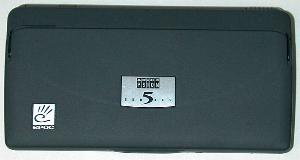
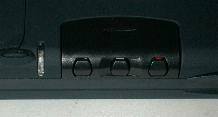
The front bottom half of the case has 3 small buttons and an LED. These buttons allow you
to record voice notes / sounds when the case is closed. A cover protects the buttons from
accidental activation. This cover slides back into the case when you want to use the
buttons to record or play back a voice note. I had a heck of a time trying to figure out
the sliding cover. I thought you were supposed to slide it off the unit when in fact it
slides back into the unit. From left to right, the buttons are PLAY, STOP and REC.
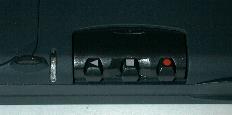
The microphone that you talk into is on the right side of the unit. This makes it easy to
hold the S5 vertically in your hand so that your thumb has access to the voice note
buttons while you’re talking.
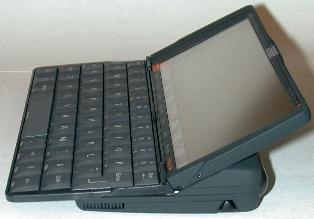 (the
(the
microphone is on the bottom left)
The speaker is on the back of the unit. Audio is nice and loud. The speaker allows alarms
to be easily heard from a good distance. I did a test where I set alarm and left the S5 in
my computer room on the desk. Then I went into my kitchen and and started making dinner.
In the process, I got a phone call (I hate insurance salesman!). While I was on the phone
AND cooking, I heard the alarm go off quite clearly. So, with the S5, I don’t think you’ll
have trouble missing any alarms.
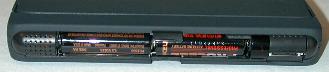
The left side of the S5 has a AC adapter (sold separately) connector. On the bottom of the
unit there is a slide out door that reveals the lithium cell backup battery. The reset
hole is also located in the same battery compartment.
The right side of the S5 has the microphone and stylus silo. The stylus silo is very
similar to the stylus silo on the Newton MP200x. The stylus clicks into the spring loaded
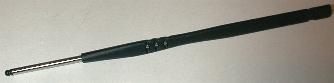
silo and is ejected when you press it in. The actual styli is made of plastic and metal.
It is about 5.5″ long which is a nice length. There are finger grip notches cut into
the plastic which make holding the stylus comfortable. On the bottom of the unit there is
a standard compact flash slot.
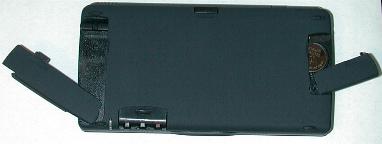
The back of the S5 has the microphone, battery holder, IR port and serial port connector.
The battery holder is interesting because the cover rotates back into the case. Inserting
and removing two AA batteries is very easy. The serial port connector also has a cover
that slides back into the case. I found that it was a little difficult to plug the serial
connector into this port. The cable has a thin flat connector that can only be inserted in
one direction. The fit was a bit tight on my unit. Removing the cable is also a little
hard. because it requires you to press in on the sides of the connector while pulling out.
I’m sure this would loosen up with use.
The IR port allows short range (up to one meter) printing and transfer of information
(single entries or whole files) wirelessly from a Psion to a suitable printer or another
Psion Series 5. Infrared may also be used for email and web browsing with the Series 5
Message Suite software and a suitable GSM cellphone – such as the Ericsson SH888, or an
alternative mobile phone combined with the DI127 infrared adapter.
The keyboard on the Series 5 is what sets it apart from other palmtops. This keyboard
slides out when the cover is opened. The keyboard is more like a notebook / laptop style
keyboard that the typical ‘chiclet’ keyboard on most palmtops. When the Psion is totally
opened, the keyboard is at a very slightly elevated angle and the screen is at a
comfortable viewing angle. Although the keys are smaller and more closely spaced than a
normal desktop keyboard, real touch typing is possible. I’m a very quick touch typist and
was able to type about half my regular speed on the S5. It did take a bit of getting used
to though because the keys are very close together and don’t have all that much travel
(distance that the key goes down when you press it).
I did have a few problems with the keyboard. I noticed that while typing some of my
keypresses would result in some letters being skipped. I think it’s probably just that the
keyboard is stiff and needs to be worn in a bit. One other small little niggle is that you
have to be a bit careful how you close the S5… if you aren’t, the S5 bites the palm of
your hand 🙂 This happens when you have the S5 resting on the palm of your hand and then
close the cover with the other hand. Sometimes the keyboard will pinch the flesh of your
palm as it’s sliding back into the case.
All in all, I’d have to say that the Series 5 keyboard is the best I’ve tried out of
all the palmtops in its size range.
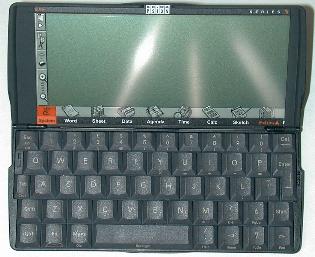
The display which is 640×240 is a bit disappointing as far as visibility. It is quite
hard to see due to screen glare. I believe the Series 3a that I used to have had a
superior display. The background color is very similar to the PalmPilot display. But the
foreground color on the S5 isn’t as bright (the blacks aren’t as dark) which makes it
harder to see. I found myself squinting and tipping the whole unit forward and backward
trying to find a suitable viewing angle. Using the backlight helped some, but not enough.
The backlight on the S5 is bright and even. I really think the display is the main
drawback to the S5. If you can’t comfortably read the display, the unit won’t be as useful
to you. This is really unfortunate because the GUI that the Series 5 has is terrific. I
think it really beats WindowsCE hands down.
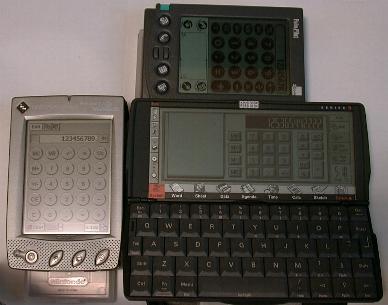
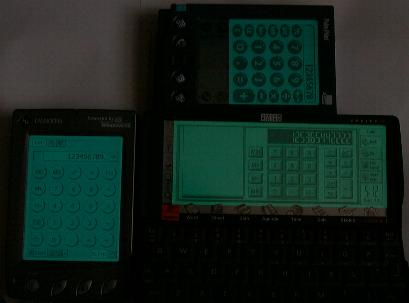
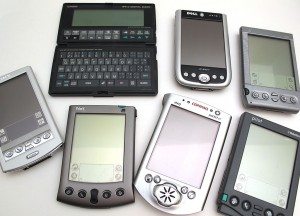
If you look at the pictures above, you can see the S5’s display compared to the
displays on the Casio E-11 and PalmPilot Pro. I’ll admit that from this angle, they all
look about the same as far as visibility. But, I took this picture with the S5’s display
at the same angle as the others which is flat. I tipped the unit backwards and prompt it
up underneath the keyboard. I then sat the E-11 and PalmPilot Pro on some props so that
all the units would be at the same level. At this level, the S5 looks pretty good but a
person would normally have the S5 sitting on a desk at a different angle.
The display also has 9 silk-screened buttons along the bottom which allow you to easily
launch the built in applications. There are also buttons on the left side of the display
that let you zoom the screen in and out, bring up the menu for the current application,
beam info and copy/cut/paste info. As far as the sensitivity of the screen for screen taps
etc, it is excellent.
The Series 5 is powered by 2 AA batteries. Psion claims that you will get 35hrs of use
out of each set of batteries. A very nice battery monitor program is included that allows
you to see your current battery level, total time batteries have been used while the unit
has be on, current used, etc.
Software Specs
The Series 5 has several built in apps. I’ll talk briefly about each one.
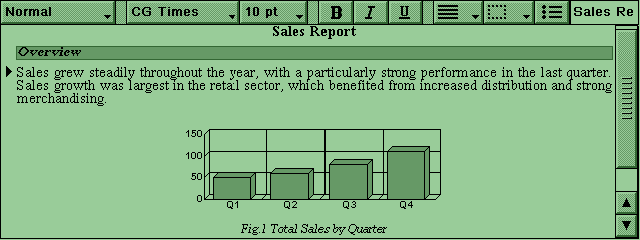
Word is the Series 5’s word processing program. It has many
editing features such as COPY, CUT and PASTE. There are also FIND and REPLACE commands.
Word has many powerful formatting features too. Text can be set to bold, italic or
underlined. You can also switch between 3 different fonts: Arial, Times New Roman, or
Courier New with different point sizes. Text can be formatted into subscript, superscript,
strike through, or colored (black, grey, or light grey). Borders can be drawn around
sections of text and you can also change the background color of a paragraph. The great
thing is that you can mix all these formatting features throughout your document.
Another great feature of Word is the ability to insert a drawing from the Sketch
application, a graph from the Spreadsheet app or even a voice note right into the middle
of your document. These inserted objects can then be easily resized. The ability to add
objects really makes your docs look professional.
The S5 also has a built in spell checker and thesaurus that you can use to proofread your
documents. You also have the ability to add new words to the dictionary.
When you want to print your docs, you can set the page size, margins, headers, footers,
and page orientation. Word is quite a powerful word processor. Its features and ease of
use are far better than the Pocket Word app that comes with WindowsCE HPCs.
Word files can be transferred to your PC and converted to several formats including:
Ami Pro 3.0, 3.1
Rich Text Format
ASCII
Works for Windows
Word Perfect 5.1, 5.2, 6.0, 7.0, 8.0
Word for Windows 2.0, 6.0, 97
I did a test where I created a document with all the different font styles, colors,
formatting options, and imbedded sketch object. I then copied it to my PC and converted to
to Word 6.0 format. Everything transferred over just fine including the imbedded sketch.
Sketch is the drawing application. This app has several nice
features that make it a quite a bit better than average PDA drawing packages. The basic
features include freehand drawing, airbrush, box, circle, line, and text inserting. The
more interesting features include the ability to select an area and move, resize, rotate,
flip horizontally, flip vertically, zoom, cropping, reverse colors and make transparent.
Another really nifty feature of Sketch is the clipart library. There is a small library of
pictures that you can use in your own drawings. The quality is pretty good as they are all
in grayscale. It would be even better if you could add to this library with your own
little images.
You can transfer your creations to your PC which will allow you to convert them into
.BMP files.
Sketch is easy to use and a lot of fun. It is also quite a bit better than the Paint
program that comes on HPCs.
Sheet is the spreadsheet application. This program will let
you create worksheets on your S5 and transfer them to and from your PC. These worksheets
can be converted to the following formats on your PC:
Lotus 123
Excel 4.0, 5.0, 97
Quattro Pro
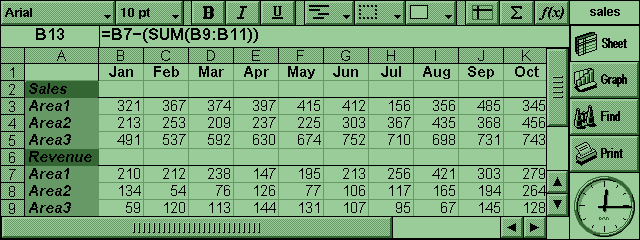
Sheet has two different views, the Sheet view which is the normal cell (grid) type view
where you put in your info. The other view is the Graph view, where you can create graphs
based on the information in the sheet view.
Sheet includes a variety of built-in functions. There actually 105 different mathematical,
financial and trigonometric functions that you can incorporate into your calculations.
There are quite a few formatting features in Sheet that you can use to change the way your
worksheets look. These features include alignment, fonts, borders, shading, and number
formats. You can also change width and height of rows. For large worksheets, you can
freeze panes so that certain information will stay on the screen even while scrolling
through the rest of the spreadsheet. You can also setup Ranges (rectangular block of
cells) for applying formatting, creating graphs, or including in formulas. These ranges
can be named.
Sheet has some security features that will let you protect your worksheets from changes.
You have the option to also just protect certain areas of the worksheet from changes. You
can also password protect each of your worksheets with an individual password. There is
one strange thing that I noticed about password protecting your worksheets… If you
delete the worksheet, you aren’t prompted for the password. This seems to be a big
oversight to me.
One of the most powerful features of Sheet is its graphing ability. From the worksheet
information, you can create line graphs, bar and column graphs, scatter graphs and pie
charts. You can also change the look of the graph with 2D, 3D, patterns, background
colors, text and line colors, titles, and labels.
I think Sheet is very easy to use and is quite powerful. I like it a lot, but it is
missing a few features that Pocket Excel for the WindowsCE HPCs have. Sheet doesn’t have
an autofit feature for data in columns. It also doesn’t have a way to sort or autofilter
the data.
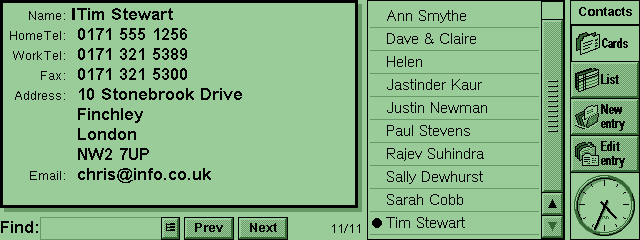
Data is the Database application on the Series 5. Data is
basically like an index card system. When you first use it, it is setup as a contacts
database to store names, addresses and phone numbers. But the great thing about the Data
app is that it isn’t limited to this. You can easily set up brand new databases to keep
track of anything you want from CD’s, books, videos, or whatever.
Data has two ways that you can view your information. Either card or list view. With card
view, you see a list on the right side of the screen. When you tap on an element in that
list, you will see the entire card on the left side of the screen. With list view, you see
all your data in a spreadsheet type grid. You can scroll up/down and left/right through
this listing.
To create a database, you first add the labels for the information you want to store. For
example, Name, Home Phone, Work Phone, Address, etc. There are 6 data types that you can
use. These include: text, number, floating point, date, yes/no, or memo. You can set
certain options for each datatype. For instance, you can specify a range for the number
type or how many characters to use when sorting entries for the text type. You then have
the option to arrange the order that these labels will appear in the card and list views.
When you want to enter information into the database, you are given a form with slots for
all your labels. You have the option to change the font for each slot. You can also insert
an object (sketch, graph, sound, or word file) into a field. This is a neat feature
because you could setup a label called Picture in your contacts database and then insert
each person’s picture into their record.
Data also has some basic sorting and filtering options. You can use the FIND feature to
filter your data. By typing some letters or numbers into the FIND box and pressing Enter,
the list will be changed to display only those records that have those letters or numbers
in them. To sort the data, you have the ability to sort on up to 3 different labels. You
can then set each label criteria to be ascending or descending.
Data doesn’t have any security features such as password protecting of databases.
You can transfer Data databases to your PC which will be converted into one of the
following formats:
CSV (comma separated file)
Access
dBase III, IV, 5.0
FoxPro 2.0, 2.5, 2.6, 3.0
I find Data to be a great application. It is easy to use and has just enough features to
make it really useful for keeping track of all types of lists.
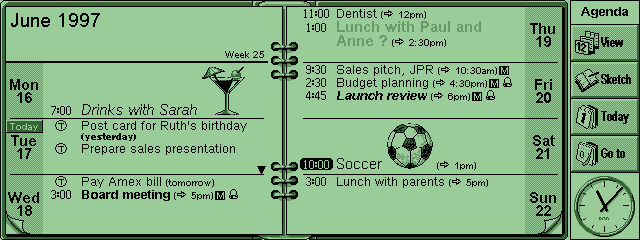
Agenda is the datebook program for the Series 5. This
application has alot of great features that will help you keep track of meetings, events,
birthdays, etc. It also keeps track of your list of things to do. You have a choice of
views in Agenda. There is a day view, week view, year planner, anniversary view and to-do
view.
Agenda lets you add 3 types of entries for appointments and events. You can add timed
day entries which have a duration of up to 31 days associated with it. Untimed day entries
are for appointments without a duration and Events are for entries that you want to
specify a number of days with but not start and end times (ex. holidays). When you
add an entry, a little icon shows what type of entry it is. If a timed entry crosses
midnight, it is marked with a special symbol on the subsequent days. You can also pencil
in a tentative entry that you can later confirm it. Repeating entries (monthly meeting)
are also easy to set. You can set an entry to repeat daily, monthly, weekly etc. You can
also set the repeat to monthly by date (7th of the month), monthly by days (the first
Monday of each month), yearly by date (once every year on the same date) or yearly by day
of the week (the third Tuesday in march every year). You can set repeating events to
repeat forever or you can specify how many times you would like them to repeat.
Of course, you can set an alarm to remind you of an entry. You’ve given a choice of 6
different alarm sounds or you can record your own with the voice recorder application.
There is one bad thing about setting alarms with Agenda. You’ll need to keep this program
running in order for your Series 5 to play the alarms when the unit is turned off.
Agenda also helps you keep track of your to-do list. What is neat is that you can
create different to-do lists. So you could have a to-do list for just work related tasks
and then a separate one for home related tasks. Tasks can have a due date, priorities and
alarms assigned to them. Your to-do lists will show up in the day and week views.
As with most of the other built in applications, you can insert objects such as word
files, sketches, graphs and sound bites into your agenda views. This is a great feature
for adding more meaning to your entries. For example, say you had a meeting somewhere you
hadn’t been before. You could create a map in Sketch and paste it right into your Agenda
view.
There is also a option to create separate agenda files so that you might have one for
home activities, work activities, sports events etc. I prefer to keep all my activities
together because I don’t like to look in 3 different places to find out what appointments
I have for the day.
What happens if your agenda gets cluttered with lots of old events? Well, you can
easily purge events by date, type or status.
You can also print your agendas to actual paper by date or range.
Record is application that you use to make sound recordings,
voice notes or alarm sounds. There are two different compression options that you can
choose for your sound files. The default method will save 2mins of sound per megabyte. The
other method called ADPCM will store 4mins per megabyte. The later method does cause the
sound file to be a bit fuzzy with some static in the background. The default method is
very clear. Sound files can be transferred to your PC as .WAV files.
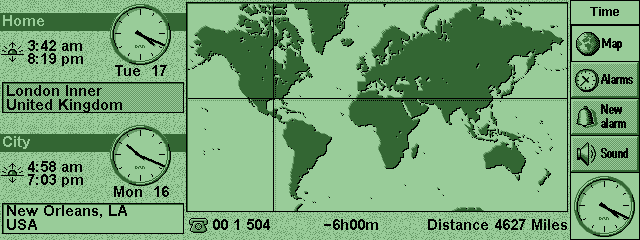
Time is the Series 5 time/world time/alarm application. You
can set various alarms (separate from Agenda events) that will sound an alarm. You can
also see a map of the world and check the time in different cities. Any alarms that you
set will go off even when the Time application is closed and the Series 5 is turned of.
Calc is the calculator app. You can choose between two
different calculators. The desk view is a desktop calculator which has a ‘paper roll’ type
output on the side so that you can see all your calculations. The scientific view is a
scientific calculator with 26 memories, trig and logarithm functions.
Bombs is the only game that is included on the Series 5. It
is a minesweeper clone.
OPL is the programming language that you can use directly on
your Series 5 to create other programs that you can run. OPL is a Basic like
programming language. The programming manual is included on the PSIWIN CDrom that comes
with the Series 5.
PSIWIN is the program that allows you to interface your Series
5 with your Windows PC. This software will allow you to see the files on your Series 5,
drag and drop files to and from your S5, install new programs on your S5, synchronize
Agenda files with your PC PIM. PSIWIN will synchronize your Agenda and Address book with
Outlook 97, 98, Microsoft Schedule+ 7, 7a, 7.5, Lotus Organizer 97, or 2.1.
The PSIWIN CDrom also includes some extra software that you can install:
Messaging Suite which integrates fax capabilities with email and web browsing clients.
Diary Companion 98 – 6month free version
LINKWISE – The LinkWise Plugin is the easiest and most efficient way to synchronize your
Psion Series 5 with Novell GroupWise 4.1a or 5.x. The CD contains the 30 day trial
versions.
I found PSIWIN easy to use and quite a bit faster than WindowsCE services.
Overall Impressions:
Hardware-wise, the Psion Series 5 is a very well made unit. It feels solid and has a very
good keyboard. The S5 is also pretty snappy as far as running programs. I would say that
it feels a bit faster than Philips Velo 500 that I
reviewed. The only real disappointment was the display which is hard to see due to glare
problems.
Software-wise, the built-in applications are great. I can’t really fault any of them. They
have all the features you’d want and then some. You can tell that the Psion S5 is a mature
product that has had time to create very robust software. But, (isn’t there always a
‘but’?)…one thing that the Series 5 sorely lacks is some sort of handwriting recognition
software. After all, it does have a touch screen… Other than that, I really like the the
S5 and would recommend it to anyone looking for a full featured clam shell type palmtop.
Price: $
Pros:
Great full featured built-in applications.
Easy to transfer files to/from a PC.
Good battery life.
Cons:
Display has glare problems and is dim.
Must keep the Agenda program open in order for alarms to sound.