
Many people have wanted to connect to the Internet with their Pocket PC’s, but don’t know do not know how to, or they have some questions. Many of these questions are regarding the “extra steps” that are required to connect to a MSN ISP. I use
MSN too, so in the bold words you can find the extra steps that are required for MSN. Well, lets get started!
I have a Casio CF modem (which I highly recommend, by the way) that I connect to my E-115. When I first got the modem, I wasn’t able to connect to my ISP. This problem is most likely with MSN, so I went hunting for information. I went to many websites and tried everything written, but I wasn’t able to find anything that worked. Well, finally I found what I was looking for, but more on that later.
Here are the steps to “get connected”:
1. Insert your modem
2. Go to Start>Settings>Connections>Modem
3. Click on “New Connection…”
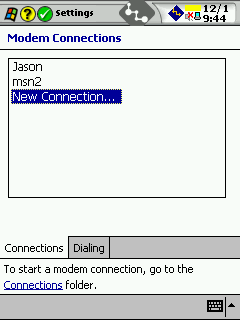
4. Select your modem. If you have a CF modem, it should appear in the drop-down menu.
5. Select your baud rate. I put my baud rate at the fastest setting since the modem will automatically connect as fast as possible.
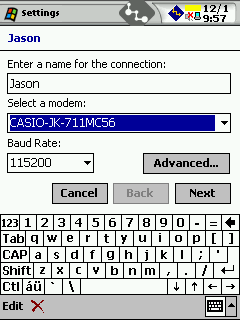
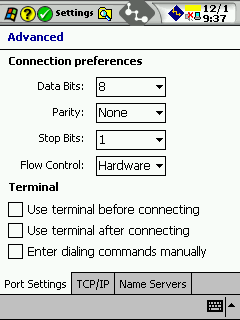
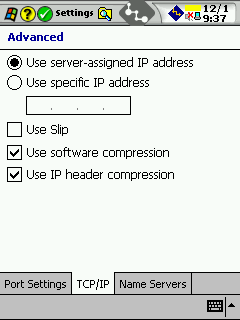
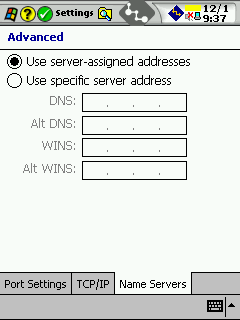
6. Press “Next.” (I didn’t find any need in clicking “Advanced” and going through all those weird questions. If you want to know what my connection has, here it is:
(this might help MSN users)
7. Put in your ISP phone number. This is the problem that I didn’t find any help for anywhere. This problem was pretty weird. I am using the same ISP that my PC modem uses, so when I had to fill out all this information on the bytes, speed, and number, I just copied what was on my computer. This should have worked, but it didn’t.
I finally found a MSN site that had the phone numbers for its servers. I entered my area code and about 5 servers came up. I found the one I was dialing into (this one wasn’t working), so I picked a different server to dial into. I put the new server’s phone number into my Pocket PC and pressed “Connect” and it connected! This is
http://supportservices.msn.com/us/phoneaccess.asp.
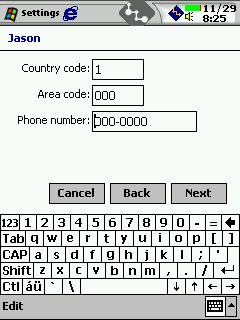
8. Click “Next” I didn’t have to change anything in this part, so you shouldn’t at first. Just make sure you don’t need to change anything, but if your Pocket PC doesn’t connect, then it would be smart to fiddle around with these settings.
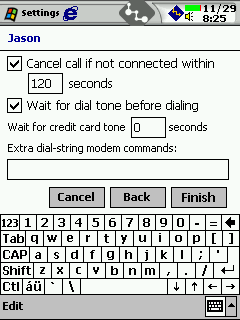
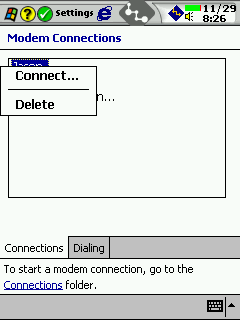
9. Press “Finish” and you are back at the “Modem Connections” page. The next step is to tap-hold on the connection you just made and click “Connect.”
10. A window pops up showing the Status. Eventually it will get to “User Authenticated” and then it says “Device Connected.” At that moment, you are ready to surf the net!
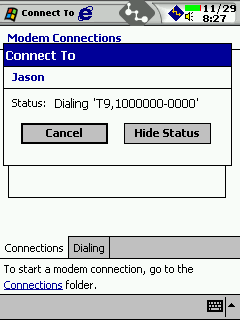
11. Now, go to Pocket Internet Explorer and start browsing the web!
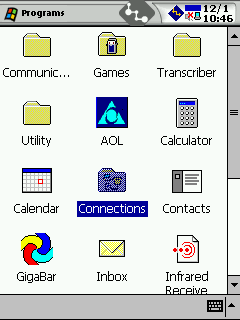
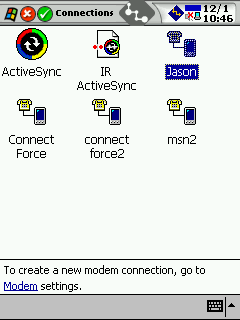
There are two other ways to get connected: one is through the “Connections” folder that is found under Start>Programs. You click on the “Connections” folder and then on the connection you want. You then go to a screen that asks for your username, password, and domain. You don’t have to fill out the domain. After you are done with that, press “Connect.”
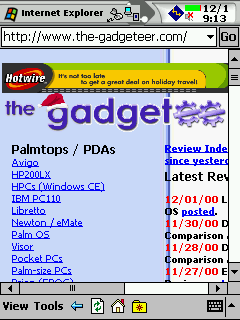
The second way to connect is through Pocket Internet Explorer. Go to Internet Explorer, then Tools. The top button is labeled “Connect.” Click it. You then go to a screen that asks for your username, password, and domain. You don’t have to fill out the domain. After you are done with that, press “Connect.”
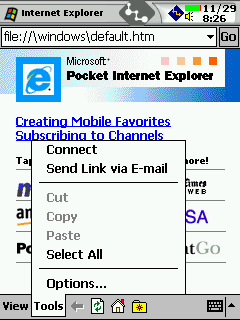
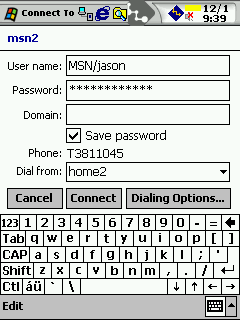
When you press “Connect”, you will get a window similar to the first time, so I don’t have to go over this again.
You are now connected to the Internet! Have fun!

Zip Ties Assorted Sizes(4”+6”+8”+12”), 400 Pack, Black Cable Ties, UV Resistant Wire Ties by ANOSON
(as of June 8, 2026 13:53 GMT -05:00 - More infoProduct prices and availability are accurate as of the date/time indicated and are subject to change. Any price and availability information displayed on [relevant Amazon Site(s), as applicable] at the time of purchase will apply to the purchase of this product.)

Gadgeteer Comment Policy - Please read before commenting
Post your comments here on the SLIMP3 Network MP3 Player Review.
http://www.the-gadgeteer.com/slimp3-review.html
Just click the POST REPLY button on this page.
Julie the holy grail for what you are seeking (particularly with your Wi Fi network to enjoy those PC MP3s on your stereo has to be the HP Wireless Digtal Media Receiver model ew5000 at USD300. On hp.com under home networking. It looks a very cool gageteer device.
Sits with your stereo pulling MP3’s off your PC and plays via your stereo also shows photos on your TV which I think is where you see the track list.
In terms of PC to Stereo quality sound which the SLIMP3 doesn’t seem to provide I recomend checking out the Xitel HiFi link see xitel.com. Just brought one and the MP3’s are sounding great in comparison to connecting headphone out on my Vaio to my stereo. Only downside is with PC in another room no reference to tracks. I’m happy though as my PC is a laptop and one day it will be a HP Wireless Digital Receiver or a similar.
ps The Scotland trip article was great.
There are reviews on the net but no one does it the way you do.
I haven’t had any complaints about the sound quality with my slimp3 player. I’ve had it for a few months.
A few people have mentioned skipping problems like you mentioned on the user mailing list. The usual fix has to do with adjusting the MTU value on the server.
http://www.slimdevices.com/su_faq.html#troubleshooting-mtu
I have an old iMac set up running the server, and it’s great. I can change the music from anywhere in the house via the web interface with my laptop.
When listening to MP3’s through a higher quality hifi, you begin to notice the problems with the MP3 files themselves.
This is noticeable especially if the MP3 files have been created using inferior software and with too-low bit rates.
If you do it right, you get indistinguishable sound from MP3’s, but that does require a; ripping the CD’s with a good error correcting ripper software like Exact Audio Copy and then b; encoding them properly, preferrably as VBR (variable bit rate) files using the Lame encoder; binaries for Lame can be found either here or here.
If you have poorly ripped (pops, clicks and errors) low bitrate (muted, perhaps even distorted sound and poor high frequency reproduction) files, you will of course hear that when listening to them on a high quality sound system.
flyingkiwi:
Thanks for the heads up on the HP Wireless Digtal Media Receiver. Wireless really seems like the way to go. I’d also like to look into a Windows Media Center PC.
nbast:
You must have me mixed up with someone else. I didn’t post any messages in the user forum and haven’t noticed any problems with skipping.
lorcro2000:
The sound quaily problem is not with the MP3s themselves. They sound terrific on my PC and thru a Pocket PC or Tungsten | T. I think the SLIMP3 tries to drive the speakers too hard or something.
I also had problems with the SliMP3 when I first got it. Contacted SlimDevices. They are very responsive.
Turns out that it matters which amp you use in your reciever/amplifier. I started by using the phono amp, but after switching to the tape amp, the sound is very nice.
I also have all of my MP3s encoded at 320Kbps (max). It is really not fair to compare anything less to a CD
In the end I built my current system around the use of MP3s. My main workstation also acts as the file server with all of the MP3s on a 80 GB Raid1 array (my 3ware 7500-4 can do two reads at the same time in Raid1). This allow seamless access to music from the SliMP3, my workstation, and my wife’s laptop. The only problem that I have is that if my machine is heavily loaded, we may have problems. I’m looking into moving the Raid1 array to an old P2-400 that is currently collecting dust.
-Mike
The phono amp is EXACTLY the one I plugged into! 😮 I’ll try using a different one (I think the only other one I have open is the VCR amp) tonight and will report back!
The phono amp is very different from the other inputs. The output from a turntable is not as strong as other components so the phono input is designed to handle lower “volumes”. That is no doubt the problem. Use either tape, cd or aux inputs instead for anything that isn’t a turntable.
Ah well, perhaps someone will read my previous post and switch to some really great MP3 encoding tools and help dispel the “MP3 sounds inferior” myth. 🙂
I get so worked up when some clueless reporter (no, not you, Julie 🙂 ) compares something like an MD player with an MP3 player, without even thinking about where the MP3 files came from. The MD player will have much more bandwidth available than 128 kbit MP3 file, so of course it sounds better. Then use a Xing encoder to make the MP3 file and you are really in trouble.
A comparison with a Lame-encoded VBR MP3 file would not be nearly as clear cut, however.
Oh, one more thought; there are wireless bridges available as well for people who want a Slimp3 but want to use it without wires. The bridge is just an external box to which you connect a short run of normal ethernet cable and then it converts that to wifi.
I’m talking about something like a Linksys WET11.
The problem was trying to run the unit through the Phono input connections on the back of my receiver. I just plugged it into the VCR connection and WOW! It’s a BILLION times better! Now I definitely don’t want to send it back!!! :p
homepod ( http://www.gloolabs.com/Customer.php ) do the same thing but wireless with wifi. it’s much mre interesting.
That product does look interesting, but I think that one of the best features of the SLIMP3 is its bright LCD display. With it, I can sit in my recliner and see the song title from 10 feet away. I can also use the remote to scroll thru songs and search for songs.
That is my biggest problem with the HP wireless media receiver mentioned above. Otherwise great, but you need to have the TV plugged in to see what it is doing as it has no display.
By the way – can the Slimp3 play back streaming data off the web? Shoutcast? Would make it extra useful if you could listen to one of the many web radio stations using Shoutcast.
(edit: whoops, never mind, found that the answer is yes by going through their FAQ.)
Did you test that, Julie? If not, would be interesting to hear how it works. Tons of stations over at http://www.shoutcast.com
No, I didn’t test the streaming internet radio with the SLIMP3. I’ll try it this weekend and report back.
Streaming audio works just fine.
Been using Slimp3 now for 4 months and all is well.
Just to preface, I’ve been using a couple of SliMP3s for over a year know, and it’s been my favourite gadget for that entire period.
The WiFi thing has been done to death on the SliMP3 forums. The reason it doesn’t have it was purely to keep the costs down at the start. If you want it that badly, you can stick an Orinocco bridge in. My view is that if the product had it, it would absolutely trounce the opposition because it already beats them on every other level:
User interface – The Slimpy’s big win. The vfd is unbelievably clear. The navigation is simple – if I want to hear a track, I just search for it using either remote or website. Shortly there will be a PDA skin, and I will use that on my iPaq to control the SliMP3s through a bluetooth access point (no battery slaughtering WiFi for me!).
Storage – there are no local drives, so there’s no copying from my main store. I don’t have to create snapshots of my collection for the device. I can see the same collection in any room where there’s a SliMP3. If I run out of space, I just add another drive to my main machine.
Support – The SliMP3 community is amazing and they are supported by two guys (Dean and Sean) at the company who can’t get enough of helping everyone. I’ve never experienced customer service this good – truly a godsend.
Features – Streamed shoutcast, playlist support, LAN flashable: the architecture means that the sky’s the limit with this system. I already stream BBC news across the screen as a ticker from the internet. You can do the same with stock prices, the weather, and one of the community has even configured it to display his phone book in a navigable format. I could write pages and page about this stuff.
Sound Quality – this is subject to the quality of your rips, and dependent on being able to wire it up properly (sorry Julie). I use EAC to Rip, and Lame to encode; the configuration wasn’t easy (and I’m still tweaking). That said I’m getting very good results: It does not compete with my Arcam CD player, but it is indistinguishable from the (pretty good) Sony mini system CD player in the bedroom. In blind tests I felt the Slimpy was slightly better – think Denon DM30 – it’s that good.
Cool – You can see track names, artists and album titles from the comfort of your lazyboy. When mates come round, they go “WOW”. You can sync them up around the house so the same tunes are played simultaneously everywhere. This thing was developed in a garage by a guy pushing the limits, and it doesn’t get cooler than that for me.
In summary, there really is nothing out there to compete with this product. The WiFi issue is an annoyance, but not a big deal. The other advantages (and the option to bridge) mean that if you’re in the market for a product like this, there is only one choice.
I’m falling in love with the SLIMP3 more and more every day! Since I already purchased and ran the 50 ft of CAT5 from my computer room to the stereo, I don’t even care that it doesn’t have WiFi built in. Although it would be cool to use my T|T (with Bluetooth) to search a list of songs to play while sitting in my recliner 😎
What’s great about it is the fact that it’s totally transparent to me while I’m working on my PC. I do not notice a performance hit at all.
Oh, there is a cool little background story about Dean who works for Slim Devices. He actually attributes The Gadgeteer to getting his job there at the company! He saw the SLIMP3 featured as a new gadget awhile ago and contacted the company to offer them some ideas and they hired him! 😀
I have over 80 gigs of mp3s all encoded at 320 kbps straight from my CDs and I currently have a box running in my living room. I’d love to find a replacement for this loud beast, but it does give me an optical out. Perhaps I’m a little too extreme of an audiophile, but couldn’t we have better outputs than RCA on the slimp3? I’d like to see an optical output — I mean, all of the audio is complete digital until then. :rolleyes:
The phono inputs also have RIAA equalization in addition to the different sensitivity:)
Can you tell that I’m not an audiophile? 😮 Live and learn!
That’s ok, you do stuff that others only dream about! My wife is a handheld junky now, but did not even know her device HAD batteries for the first three months…
PS: Loved your vacation article, feel like I’ve been there.
Wow, she must have had an older Palm device if it worked for that long! 😀
Thanks for your review of the SLIMP3. I’m just curious if you’ve heard about the Turtle Beach Audiotron . I really like the stereo component form-factor. It also offers “Analog and digital optical S/PDIF audio outputs for audiophile music quality.” There also appears to be an open source community developing for this device. Turtle Beach has released an HTTP based set of API’s. Basically the Audiotron can be controlled through HTTP requests. My only gripe is the lack of support for gigabit ethernet. 😀
Thanks and keep up the good work.
—
Manny
The Turtle Beach Audiotron DOES NOT support Mac OS X, Linux, or other *nix platforms. Its also a very big box! I like the Slimp3.
BUT, the Slimp3 needs native AAC support added, the LAME encoder is far too processor intensive. S/PDIF out would be nice too.
The following is from the Turtle Beach website:
” While the AudioTron will work with other operating systems that support Windows File Sharing (such as Mac OS and Linux) Turtle Beach only provides support for the above operating systems.”
Turtle Beach
—
Manny
Which means NO, but you can frig it!
Its really time that manufacturers followed open standards. MP3 is cross platform, so why make the Turtle Beach ‘windows file system only’ when it uses TCP/IP???
Hello. I have a line running strait from the speaker port of my laptop to my sterio. I was wondering, would there be any extra benefit for me to purchase this product? From waht I have seen, it looks REALLY nice, however I am not sure if I would have any real benefit from it. What do you think? [COLOR=#990000]
~Draco[/COLOR]
This product is product gives you an LCD display and a remote control… Neither of which might be considered much of a benefit if your computer and stereo are in the same room though.
While the concept for the device is a good one, buyer beware. Once you have the device don’t expect service or support. Here is my saga, and, unfortunately, it is continuing. After purchasing my Slimp3, I received an announcement for the Squeezebox. I called customer service at Slim, and was informed I could receive $100 off the purchase of a Squeezebox but that I had to keep my original unit(????). I did not need 2 devices so I kept the original. After a number of technical issues which were never really resolved, I resigned myself to the poor performance. Round 2. About 2 weeks ago I receive an unsolicted email with an offer for a display upgrade, to “enjoy the full potential of SlimServer 5.” So, I thought that this might help with my problem and I opted for the upgrade. I received the unit, and being an electrical engineer, I disassemble my Slimp3. What a kluge! Then I found that display was different from that in the upgrade. Reading the instructions, I found the small print that stated the unit would not work with my Slimp3 – arrrggggghhh! Why send me the offer! Now my Slimp3 is in pieces and assembling it is near impossible since spacers that are required need the screws in place and you can’t put them in place until the unit is inside its case – who designed this? Anyway, I bring my issues up to Slim and after waiting for 3 days they make me the gratious offer of refunding my money (even though they say it is my fault!) but I will have to pay to repair the Slimp3.
Stay away from this company!!!!!!!!!!!!!!!!:mad:
I have always recieved great service from SlimDevices.
We have all of our music on the server now with the CDs put away out of sight. At some point (when I have the cash again), I will get another couple of Slimp3s or the newer Squeezebox.
Sorry to hear of your troubles bug045. If the display was not for a Slimp3 what was it for? Was it an upgrade to the Squeezebox display?
The upgrade was for the Squeezebox. Slim finally resolved the display issue and gave me credit and re-assembled my Slimp3. They could not resolve my play issues and I just had no more time to wait for techincal support. I recently sold my Slimp3 on eBay and replaced with an Apple Airport Express which worked perfectly right out of the box. The Apple connection kit also came with an Toslink optical connection which fit nicely into my receiver/amp. I’m glad it worked for you but my overall experience soured me on this company. They kept pushing the problems back on me and I only got service when I started screaming.
i have a pocket pc and i want to schare computer internet network to the pocket pc and i want help