
Clarification added 12/04/04: The Razr V3 that I
purchased was from Expansys-US. This means that the version I got was for the UK
and came with the standard Motorola packaging and accessories. The US models of
this phone seem to be repackaged and so does not come with the nice metal box
and perhaps even some of the accessories. The phone itself may also be modified
depending on the carrier and their wishes.
Additional Clarification added May 21, 2005:
I am a user of the Razr – I am not affiliated with any carrier or Motorola. I do
not know any Motorola plans or Carrier plans on the future of this phone or
anything related to it. I did not test the Pro version of the Phone Tools
synching, only the Mac iSync which worked very well.
Additional update added 12/12/04 appears at bottom.
About three weeks ago I put into my hands for the first time the hot new Motorola
Razr V3 flip phone. Lets first detail the specs before I get into what my impressions
of the phone are and what I feel are its strengths and weaknesses.
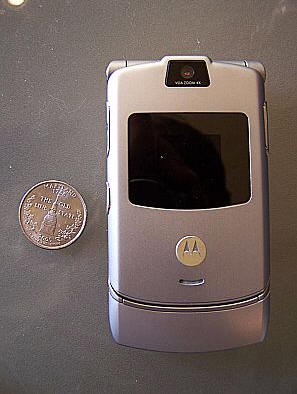
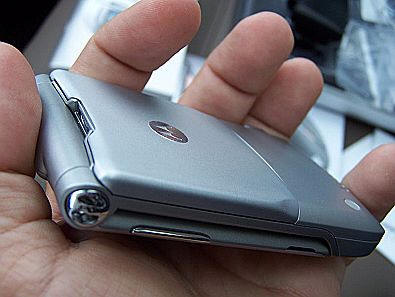
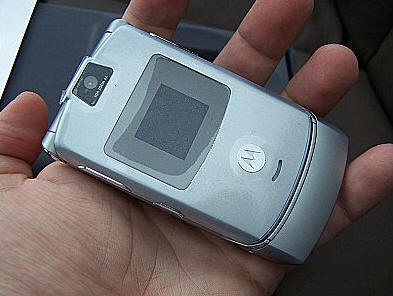
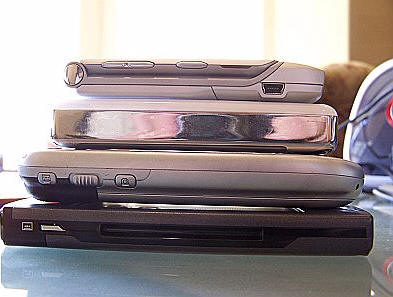
The phone is half an inch thick and made of anodized aluminum – the
same material as an Apple PowerBook G4 laptop. It is a quad band GSM phone with
Bluetooth and pretty much every other feature a modern phone can have such as
Java support, voice dialing, speakerphone, WAP browsing, email, MMS/SMS, and
of course a camera.
First Impressions
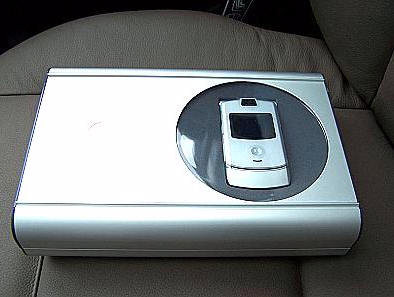
When I first got the phone I was taken aback by the all metal retail box the
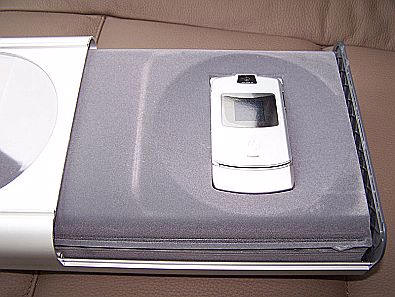
phone comes in. Its quite cool looking and definitely a keeper. Then I opened
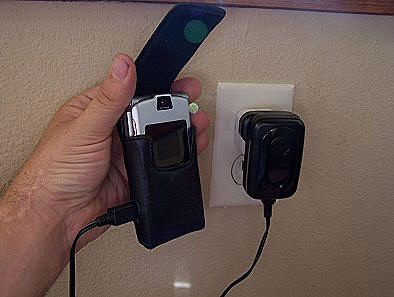
the box and got the phone out with its accessories. It comes with a decent leather
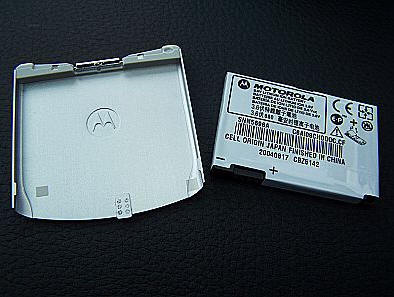
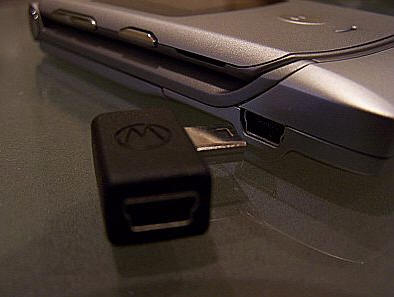
case, AC adapter, mini-USB adapter, USB -> miniUSB cord, battery, back cover,
and headphones for hands free use.
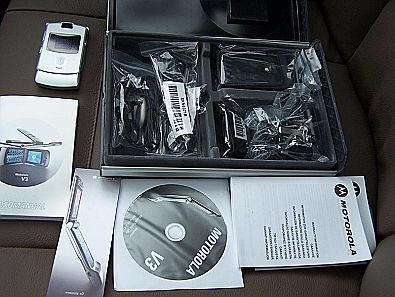
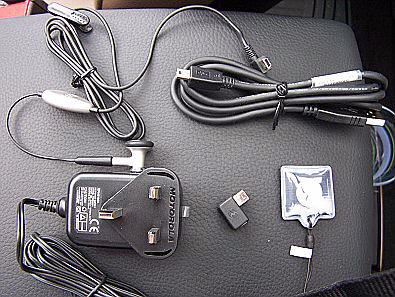
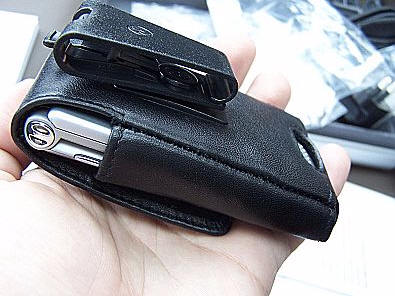
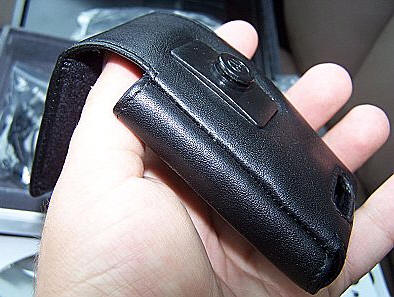
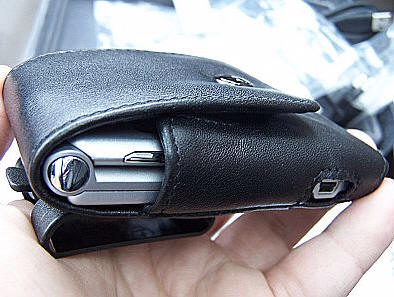
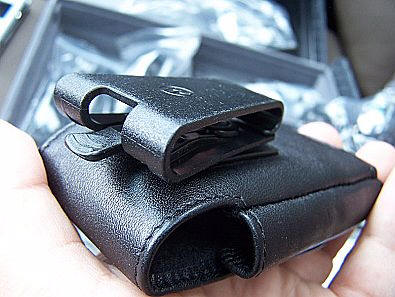
Along with the hardware the phone comes with
a CD of the Motorola Mobile PhoneTools which is an interesting piece of software.
While still sitting in the car I unwrapped the phone from the plastic surrounding
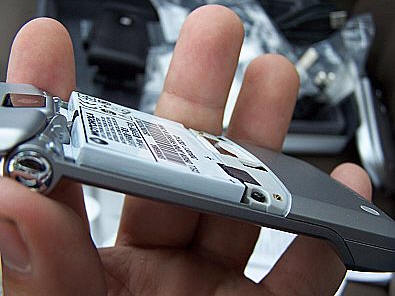
it and put it together. I found it a tad difficult to get the back cover over
the battery and spent quite a few minutes getting it on correctly. Once it snapped
on it felt very secure and over the past three weeks I haven’t found any
cause to wonder if it will come off, unlike some other phones I’ve used.
I have even dropped the phone once in Walgreen’s with nary a scratch or cover
flying off.
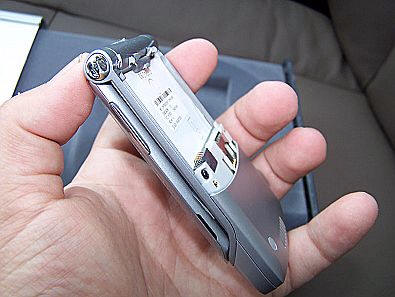
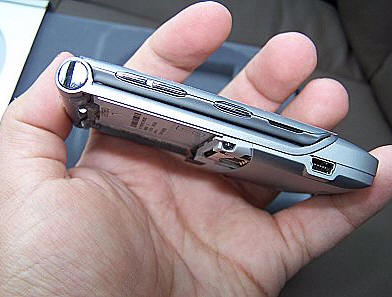
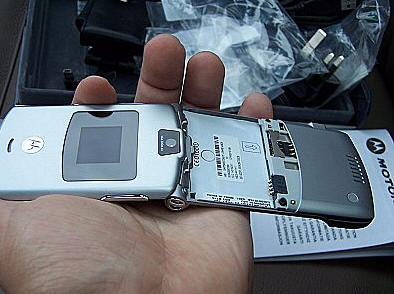
Turning the phone on (press and hold on the red Call End key) brings up a
gorgeous LCD screen. This screen rivals any PDA screen for color and contrast.
Of course its resolution is relatively low, but for a phone screen it’s
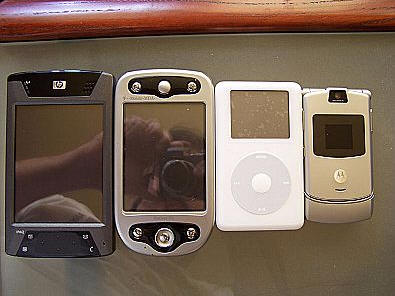
really gorgeous. Just holding the phone is an experience. Its so thin, so light,
and really truly beautiful.
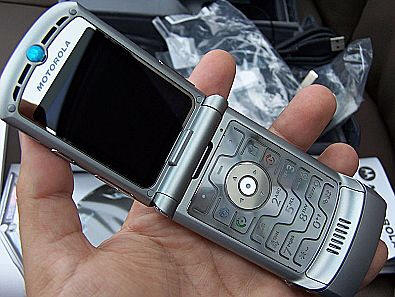
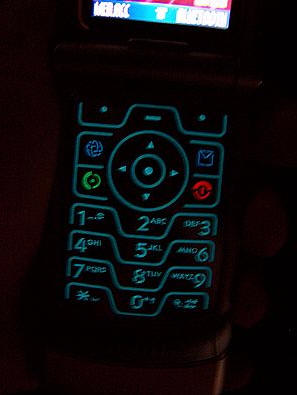
I had read on many sites that the keypad was acid burned to keep it thin and
so I had wondered how it would feel and was very pleasantly surprised to find
it very good. In fact, its probably the best keypad I’ve ever felt on
any other phone I’ve ever used. I am also happy that unlike other Motorola
phones the Start Call and End Call buttons are finally in the right positions.
You may start feeling this review is going to be just a bunch of praises for
this phone and truthfully – it may turn out to be that way. This phone
is that good and for the price it better be!
Setting It Up
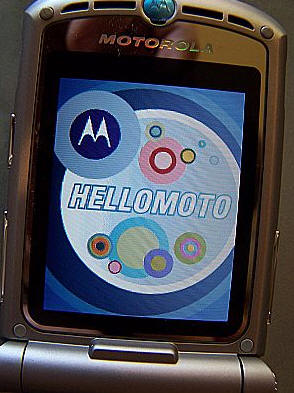
The Razr uses the standard Motorola v600 phone OS with a few tweaks. The home
screen shows the standard battery level, volume level, signal level, Bluetooth
activity, carrier name, and date that you expect from a normal phone. On the
screen you also see two soft keys and a menu key in the middle with 4 icons
in the middle situated in a circle to denote actions for the arrow keys. To
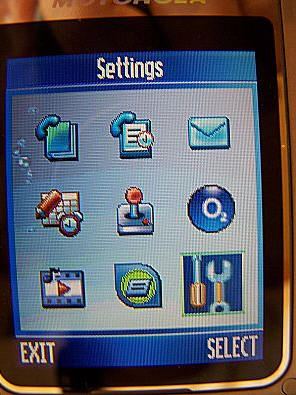
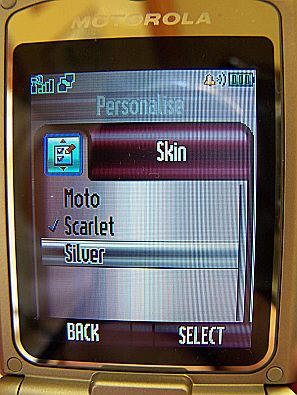
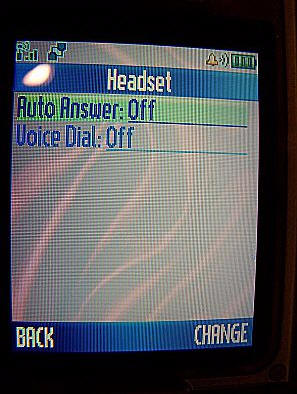
setup the phone you first go to the main menu and choose the Settings icon on
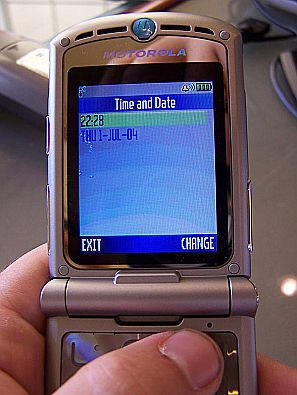
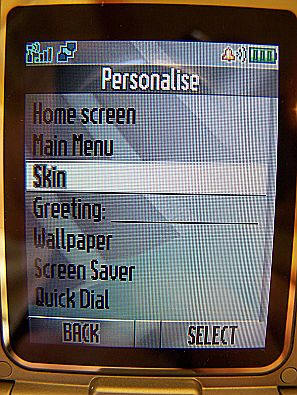
the bottom right. Personalize the phone with your themes, colors, button assignments,
home page icon assignments, and so on. Setup the ring styles for your favorite
ringer. And pretty much you’re done.
Synching and the Address Book
So now you’ve got a phone that works and looks the way you want to.
Of course unless you keep your address book in your head, you’ll want
a way to import phone numbers, assign them voice commands, and speed dial numbers.
At least for me this was the most difficult part. I first tried to send my address
book from my HP hx4700 via Bluetooth. I turned on Bluetooth and paired the two
devices together which worked splendidly. I went into Pocket Informant and selected
all my contacts and chose “Send Contact via Bluetooth” from the
Tools menu. And it did…sort of. The Razr required my acceptance of every
contact that was beamed over while the 4700 kept sending them without checking
to see if they were being accepted. After it was all done I was only fast enough
to accept 4 of my contacts out of about 300. Obviously that wasn’t going
to work. So the next thing I tried was the Motorola Phone Tools.
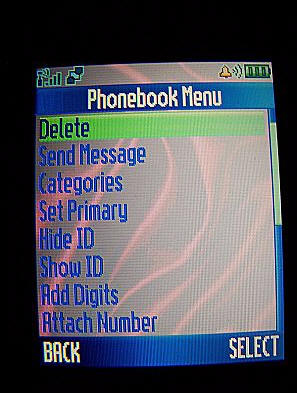
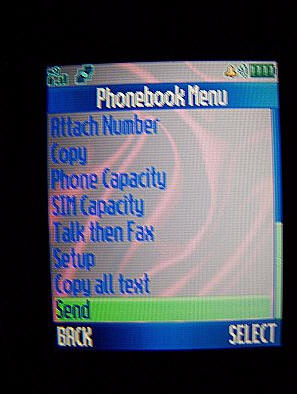
Motorola Phone Tools is an interesting app that once installed gives you a
virtual view of your phone on your desktop and access to all the call logging,
setup, address book, calendar and more via a relatively decent Windows user
interface.
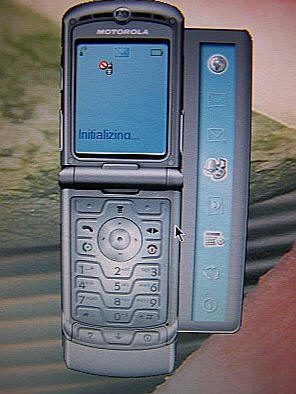
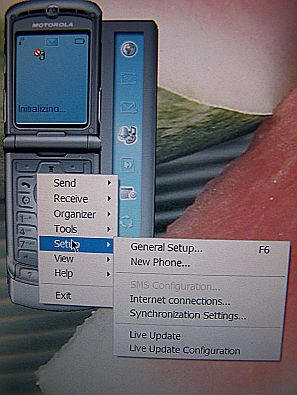
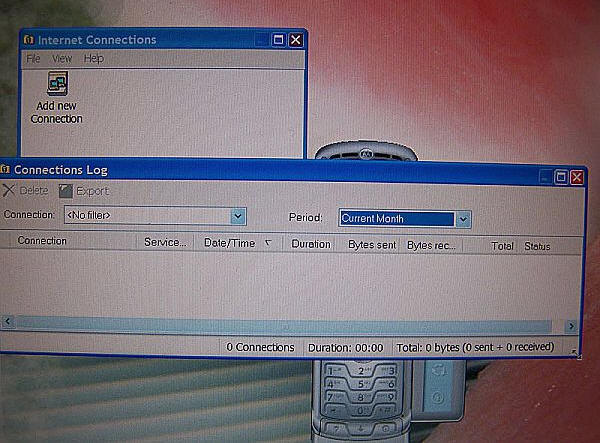
Call logging is especially nice as you can export it to a text file for
billing and or archiving. According to the documentation this application also
would setup a sync between Outlook and the phone. After two hours of trial and
tribulation I could not get this to work. I could dial from my desktop, I could
set it up, and I could even sync entries with the Phone Tools’ address book, but
I could not sync with Outlook. Finally, I decided to try my PowerMac G5.
I have an interesting setup for my PIM information. My master PIM information
is in Microsoft Entourage on my PowerMac. All my calendar and contacts live
there. I then sync that to the Apple Address Book so that all the OS X apps
that integrate with the system address book will use them. I then sync Entourage
with my hx4700 since that is my primary PDA. And finally my hx4700 syncs with
Outlook on my development PC. That’s a lot of synching!
At first I was going to go the wireless route and attempt to sync via Bluetooth
on the Mac, but I decided that since the USB cable charges the phone as well
I’d go ahead and just hook it up via USB. The phone was recognized instantly
as I opened up iSync. I set it up to sync my Contacts and within about 5 minutes
all my Contacts were on the phone. I was a bit disappointed that none of my
contact pictures made it over as the phone does support that, but nevertheless
the synching worked. Only on my Mac, though. I’m sure that the Motorola
Phone Tools work better for others.
After I got my contacts synched the next important step was to access them
quickly. I was able to easily setup voice tags for my most important contacts
and I have never found this to fail no matter how loud or windy the area I’m
calling from was. I found setting speed numbers to my contacts quite a bit more
difficult. Nothing in the manual really helped me here. Eventually I found out
that I had to set the phone to get its speed numbers from the phone memory and
not SIM memory. Once I made that setup change, setting speed dial numbers was
quite easy. I do find myself using the voice tags more often though as its very
simple to use and requires little thought.
Phone Basics
The Razr does pretty well in all the basics. I’ve found the reception
better than my XDA II, and about as good as my Nokia 3360 was. The buttons are
easy to press except for the side buttons for volume control as they are
a bit too thin and also have more resistance to them. Even though it does make
it harder to use, I find this a good thing as it makes sure that while the phone
is in my pocket or in its case, it will not change volume just due to my movement.
The ringer is extraordinarily loud and can be customized with many ring tones
of course.
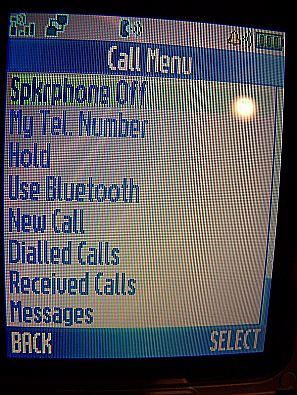
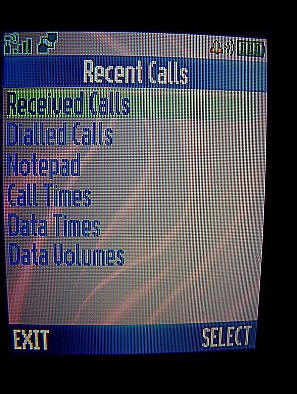
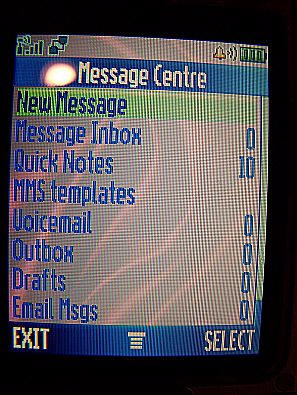
Getting to the recent dialed, received calls and the timers is pretty simple
and convenient as it should be. The one thing I prefer about a Windows Mobile
phone over the Razr is the access to a favorite dialing list. Except for the
normal address book, there is no such list. Even with voice dialing and speed
number dialing, having a favorites dialing list would prove very helpful. The
Razr’s address book does support groups, but I could find no way to make
it work as simply as the Windows Mobile speed dial list.
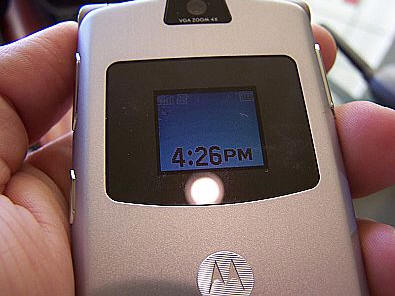
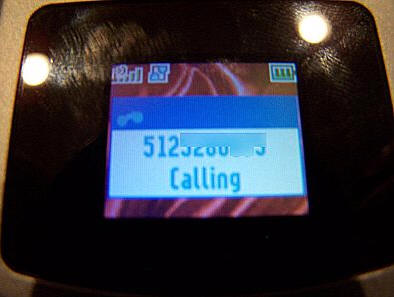
One of the reasons I wanted a flip phone is to make it easier to use for me
(flip open to answer, flip close to end and no locking of buttons necessary).
The problem with many flip phones is you have to open it to see who is calling.
The Razr comes with a full color LCD screen on its flip cover. This screen shows
you who is calling as well as almost all the indicators of the big screen inside.
Very cool.
Finally the battery life seems to be very good. I charge it daily, but even
with heavy use for GPRS and voice, I find that I’ve got plenty of battery
life left. One major issue is that I can find no accessories for this phone
as it uses a mini-USB port instead of the standard Motorola connector so I’ve
had to charge it only when I get into the office.
Everything else
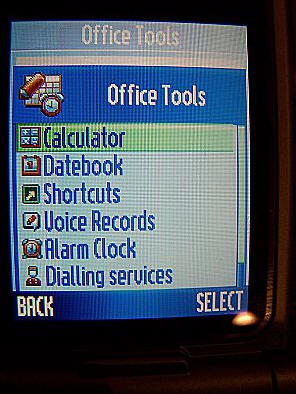
Of course being a smart phone, the phone contains the normal calculator,
Datebook,
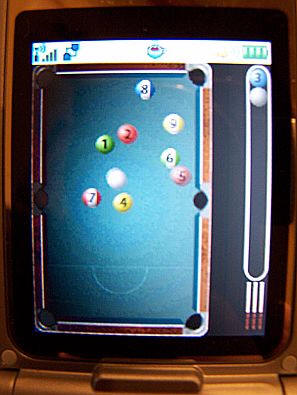
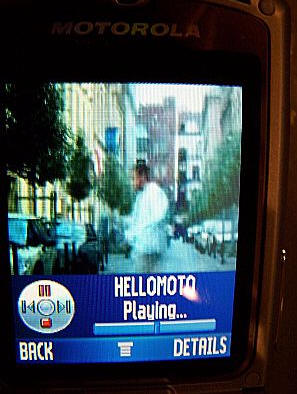
voice recording, alarm clock, IM, WAP, MMS/SMS/email, games, and such. It also
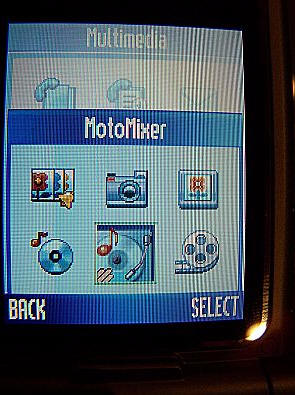
contains some Motorola specific apps like the Moto-Mixer and graphics apps that
let you do some interesting music mixes. I really don’t get its usefulness,
but I wanted to at least mention it.
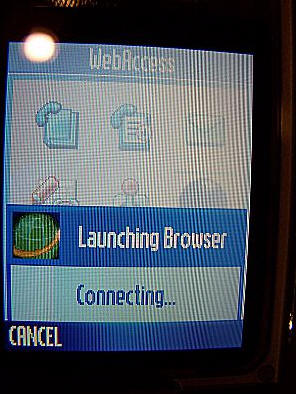
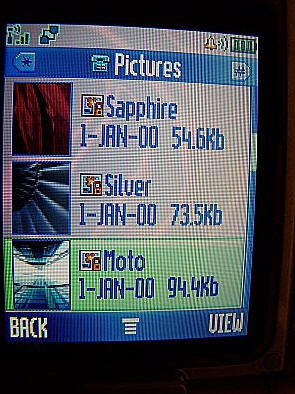
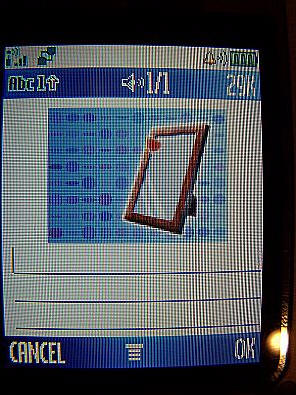
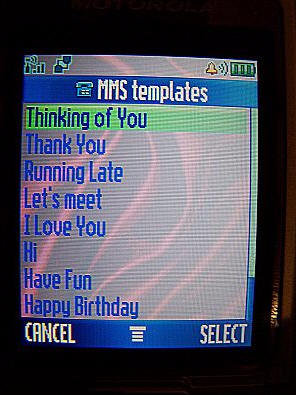
The WAP features work relatively well converting regular HTML to its version
just like the WAP browsers in the Nokia or Symbian phones. The MMS editor was
very nice and pretty full featured, but nothing I’d personally use a lot.
One interesting application that seemed to get top billing in the menus was
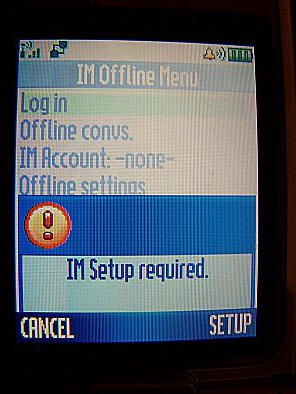
IM. It seems to use a proprietary carrier specific protocol or perhaps AIM,
but I couldn’t tell as the setup didn’t work for me and the help
was less than helpful.
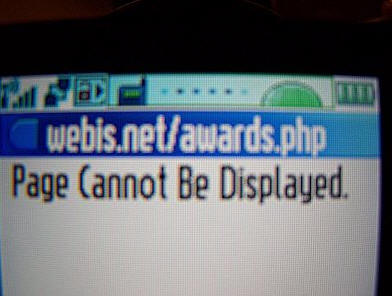
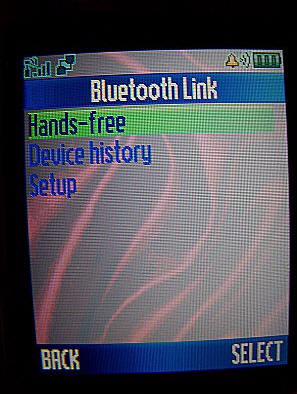
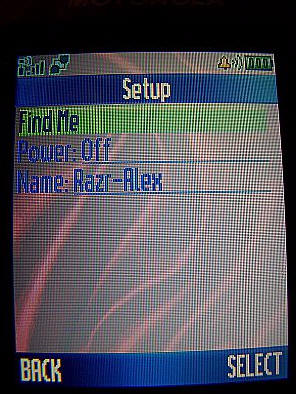
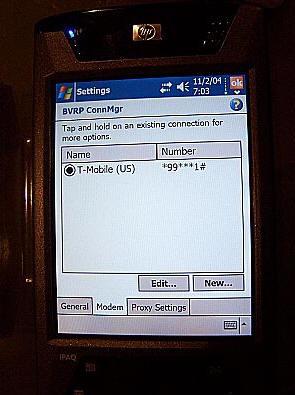
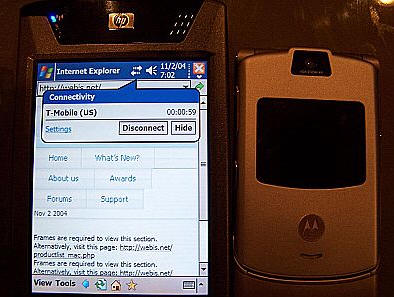
One of the reasons I purchased this phone was to use with my hx4700 for internet
access while on the road. I tested this quite a few times using Bluetooth and
except for a few setup snags (on the 4700 side) it all worked very well. The
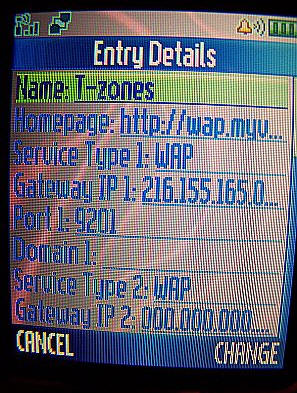
4700’s Bluetooth Phone Manager incorrectly sets up TMobile data connections
so I had to do that myself, but once setup it worked very well and I’m
very happy with the interaction of the two metal beasts.
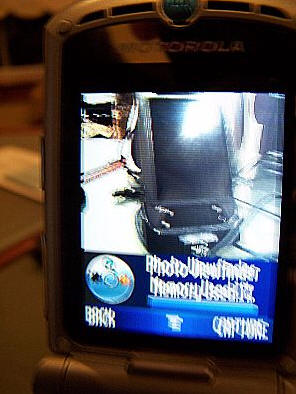
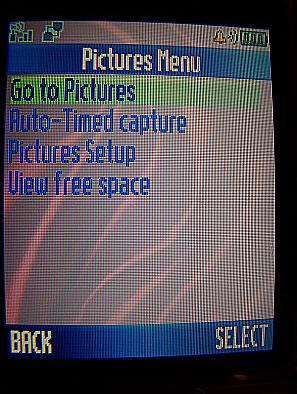
I never really use my phones for taking pictures so I cannot really comment
on the camera’s quality. I found it to be about par with other camera
phone pictures I’ve seen which is not saying much.
Conclusion
I love this phone. Its thin, its light, its feature-full, and does its primary
job better than my previous phone – the XDA II. I do wish synching would’ve
worked better on my PC just so I could have tested that more and I do wish I
had an easy to get to favorites contact list. But other than that, it is hard
to find fault with this phone. The battery life seems good. Reception is great.
The UI is great in most areas. The LCD screen on both the inside and outside
is fantastic. And knowing that I can take this phone anywhere in the world is
pretty nice too. All that said, you know you’re paying for the look of
the phone and its size. Just like an iPod Mini. But just as an iPod Mini was
worth it for my wife, the Razr is worth it for me.
Update added 12/12/04: Here is an update to the
Motorola Review after spending a full 6 weeks with the phone now. Since the
review went up I’ve had all sorts of questions about the phone about features I
didn’t even know existed. Thanks to those questions I’ve spent a bit more time
in those areas and have now been able to provide a bit more info. My happiness
with this phone still stands and I’m truly ecstatic about using it to the point
that I’m seriously considering forwarding my business land line to it. But a few
problems have cropped up that may affect others usage of the phone. Here they
are:
First, the phone is capable of handling GIF wallpapers like many other phones,
but unlike some other phones it cannot animate GIF89 pictures. Second, the small
LCD panel used when the phone is closed lights up for only 10 seconds or so and
cannot be set to stay on indefinitely or for longer. You can press the smart
button for the LCD to light up again, but some people seem to not care for that.
Finally – and this one I do consider a bit problematic – the Inbox application
does not let me set a mail server for it to retrieve mail from. I can go into
the settings and set every single other field in the Inbox settings, but any
change I make whatsoever in the “Receiving Mail Server” field just kicks me back
to the Messages menu. I do not know if this is unique to my UK targeted phone or
if Cingular customers will see the same thing.
| PHONE | CARRIER | PRICE |
AFTER REBATE | |
|
Motorola RAZR V3
|
 |
$99.00 |
FREE |
 |
 |
$0.00 |
FREE |
|
|
 |
$49.00 |
FREE |
|

Product Information
| Price: | 750.0 |
| Manufacturer: | Motorola |
| Pros: |
|
| Cons: |
|

Gadgeteer Comment Policy - Please read before commenting
Post your comments here on the Motorola Razr V3.
http://www.the-gadgeteer.com/motorola-razr-v3-review.html
Just click the POST REPLY button on this page.
I’ve had my eye on this phone ever since the first glimpse. VERY cool. The only reason I will probably look for something else is the obscene price. My current phone works very well, with the exception of not being able to handle a sustained GPRS connection for more than a few minutes. Any problems with dropping the connection or rebooting the Razr when using it as a modem for your handheld or laptop?
Altema, I think Cingular will be or is selling this phone for a lot less ($500 range)…but then, you may not like or want Cingular.
I am so glad Alex wrote this review for us – I would kill to own this phone. Okay, well maybe not kill – but close! 😉
Yeah, I first saw the phone via a Cingular ad and fell in love :love: . I’m due for an upgrade, but $500 is a bit steep, especially with Christmas near and 6 kids… We don’t spend a lot, but it would be hard to justify not getting them ANYTHING! :unsure:
To me, $500 is an obscene price for a cell phone, with or without discounts. But, I suppose it’s worth it for some people.
I’m using a Nokia 3395, old as dirt but still kickin’ 🙂
I’d pay it in a minute if it would work with Sprint. I would not even think twice… :love:
Altema, I hear you. Maybe after the first of the year they will be even less… 😀
Next time use a different camera to take those pictures. They are doing the camera no good.
Besides that great review.
Cheers
Jeff
Uh oh…I just checked the Texas map, and even though we don’t have a Cingular Dealer here, we do have coverage – and it looks about the same as (or better than) Sprint PCS. :wow: I can even order the Razr online!
http://onlinestored.cingular.com/html/Maps/Central_Texas/Texas/region_WTX.htm
If I can keep my number, I am switiching! :wow:
Which iPod is in the comparison picture? (they vary in thickness.)
Very nice to see the phone in actual hands! The usual preview pictures have a “too good to be true” look 🙂
Expansys has a US model for $699, and an “EU” model for $740…
Judie:
you can keep your number, just take your most recent Sprint bill to the Cingular store. Or if you order online, it’s all done for you. I’ve never done it online before though.
So does this mean the gadgeteer will finally get more GSM Smartphone reviews? I can hardly wait!!! Whoo!!
I’ve had the phone for about two weeks now and want to point out a couple of things.
1. Judie is correct. The phone is $499 with a 2 yr. agreement from Cingular.
2. The phone being reviewed is a European version. The model being sold by Cingular doesn’t include most of the accessory items shown in this review. The Cingular version comes with the phone, battery and charger. No case, no metal box, no headphones, no Motorola phone tools and no USB to PC cable.
-The European version also includes some preinstalled games (Billiards and Golf.) The Cingular version includes no games.
-The European version includes a 3-D phonebook. This is a java application. Cingular decided to remove this application.
3. The reviewer refers to the phone as a smartphone, ” Of course being a smart phone, the phone contains the normal calculator, Datebook, voice recording, alarm clock, IM, WAP, MMS/SMS/email, games, and suc…” This isn’t really a “smartphone” in the sense of the mpx220 or other smartphones.
4. One thing I didn’t see in the review was mention of the fact that the phone comes with an AIM application preinstalled. It’s a very nice application and works well. Perhaps this is missing from the European version and is only included on the Cingular version.
5. The RF of this phone is superb. It’s as good as any phone I’ve used (and that’s a lot of phones.)
6. In regards to the missing data cable in the Cingular version. Most cables used for digital cameras (that use the mini USB port) can be used with this phone for connection to a PC.
7. Bluetooth works great with then phone in all aspects. Transferring ringtones, games and wallpaper from my PC to the phone via Bluetooth is a breeze. I also use a Motorola Bluetooth headset (HS810) and speaker (HF830) with it and they work perfectly as well.
8. Accessories for the phone are just starting to become available. Cingular now stocks a mini USB car charger, mini USB headset and pouch style case. The OEM Motorola case included in the European version can be found on Ebay.
-Also in regards to the mini USB port. Motorola sells a Y adapter which contains a mini USB port at one end and another mini USB and a standard vxxx plug at the other. This way you can use both types of chargers.
That’s all I can think of right now. Your review is excellent and so is the phone.
P.S. Judie, you should have no trouble porting your number from Sprint to Cingular.
Well guys, I just found out that I can’t switch and keep my number if I do the process online. I was all set to switch the three phones on my family plan over, until I found out that I could not keep my main number. Ugh. :dry:
However, I am not giving up! It just means that I have to drive Abilene (90 miles away). They have 4 Cingular dealers there. If they say I can’t switch with my numbers, then that will be that. Otherwise…GSM, here I come! 😀
Judie,
You may be able to port you number simply by calling Cingular Customer service/sales.
I’d give that a try before making the drive.
1-866-CINGULAR
Yah, Julie and I were just talking about that. 😉
I need to go to Sam’s (yet another thing Abilene has that we don’t), so I wouldn’t be making a special trip. But I will go ahead and call. 😀
😀
I love Cingular. But be sure to get the phone insurance. It’s worth the extra $4 a month. Trust me.
I hate to say it but Cingular is NOT offering insurance on the Razr. The company who handles Cingular’s insurance, Lockline, decided the phone is too expensive to insure. The same thing happened with the Treo 600. It is not an insurable phone via Cingular/Lockline either. 🙁
Well, I just called and Cingular is saying that my number is not “portable.” 😡
I thought it was the law that all of our numbers would be. The CS guy said I have to call Sprint and ask why it isn’t portable. I can sense a “just because it is, shuttup lady” coming on. 🙁
that insurance thing stinks. just don’t lose it
Judie,
I bet if you threatened Sprint with a hefty lawsuit they’d find a way to make it portable 😉
It’s probably something to do with the exchange.
The ported number must stay in its original local area.
Cingular probably does not have rights to sell local service in your area. They don’t have any local exchanges for that area, and as thus can not offer service since they couldn’t hold you to a contract.
If you really love the phone bite the bullet and get a new number. 🙂
yeah, it would only take maybe 2-3 weeks for everyone to learn the new number. after that, it’s smooth sailing 🙂
I honestly can’t change my number…so I guess I will have to wait for now. Plus I believe that means I would no longer have a local number. Since my cell phone is also my home phone, that won’t work. 🙁
too bad. 🙁 . Maybe you could try switching to AT&T (and getting an unlocked razr)? Just a shot in the dark.
(yes I know at&t wireless and cingular are the same company–but they are still “seperate” maybe they have different portability requirements)
As for the local # thing, I’m not so sure about that. My cell phone Cingular affiliate is based in Concord (about 30 miles away, NOT a local call) and I have a local number…
but it could be different in your area. cell phone companies are very inconsistent 🙁
Okay, I just called Sprint and they assure me that my number is portable, so I think the problem is exactly as lgreenberg pointed out. Ah well… :p
The Razr is a very cool phone, but WAAAAAAYYYY too expensive. This thing isn’t even a smartphone. The price for a Razr with a contract is too much, but without one, just ridiculous – I don’t care how thin it is.
Great design, though.
I am due an upgrade in January and was considering this phone to replace my V600. The one thing that annoys me intensely is the buttons on the side to change the ringer profile. They are so damn touchy I keep bleeping or changing profiles frequently everytime I sit down or move around. the V3 appears to have the same buttons – are they as sensitive?
God no. They are SO stiff it’s almost difficult to depress them at times.
Judie, you must really want this phone! My old one is starting to act up now (crashed thrice today), but unless someone wants to give me an early Christmas present … 😀
Altema, I really want the phone, but it would appear that I am SOL. Oh well… :dry:
A few questions….
1) I am being told the Cingular version of the phone does NOT come with the CD that I saw in some review photos. Anyone know what that CD would be for and where I could get it after my phone arrives? I am thinking it helps with setting up multiple phone numbers, etc.
2) Any negative comments regarding reception, clarity, volume, etc OTHER than the price?
Thanks for your help…..I had to frain the keyboard twice due to excessive salivation waiting for a new toy! 😀
1. That is correct. The Cingular version DOES NOT include the CD ROM. The CD included Motorola Phone Tools. This software in conjunction with a USB cable allows for syncronization of the phone with Outlook as well as the transfering of ringtones and wallpapers from a PC to the phone. The software and cable can be purchased directly from Motorola.
2. Nothing bad to say about the phone. It is regarded as having the best reception of any phone around.
I got the RAZR from WireFly for only 299 with a one year ‘new’ contract signed with Cingular. My number was ported by Wirefly.. they did all the work and I just sat back and enjoyed!
I just checked and that is not an option for my zip code.
It sounds like you got a special deal, since Wirefly is showing Cingular Razr’s priced at $399 after a customer loyalty rebate.
I’m glad you had a good experience with Wirefly. I have heard nothing but BAD things about them.
There are several poor comments about them on Cnet’s review page.
I think Amazon is the best place to get it right now. It’s a little more but safer.
I want this phone! If I buy it unlocked, can I use it on T-Mobile? (No Cingular coverage in my area 🙁 )
Absolutely.
I think I just might get Santa to bring me one. 😉
I’m surprised that folks don’t know that Cingular sells its “world phones” unlocked.
Amazon.com sells the V3 for $599 without signup for those peple who don’t want to go thru the dance of Cingular signup and cancellation under 30-days to get the ‘subsidized’ price ($499).
I did this with my purchase of the Cingular branded Mpx220 phone thru Amazon.com. You can check it out too, just call a Cingular store and tell them that you are thinking about migrating to their service but travel abroad a couple of times a year and you need to confirm that if you were to get a unit you can use a “Europe/Asian” local pay-as-you go SIM card when you are over there. If you get a well informed sales rep they well tell you that it is no problem, all you have to do is pop in the new SIM and you are good to go! This means that the unit is ‘Unlocked’ and not locked to any providers network exclusively. The only thing that makes the unit Cingular is the logo on the phone, the preconfigured network/internet settings (you are free to set your own by putting in the config settings of your own service provider), the default wallpaper (which you are free to change also) and no software!
The MobilePhone tools Lite software that comes with the European version is buggy and crippled and just doesn’t seem to work if you wish to synchronize all your MS Outlook data with the V3, if you already have a mini-USB PC cable (scanners, gps, etc devices come with them) you are in luck, you can purchase the full MobilePhone tools Deluxe software online and download it, it works flawlessly.
It’s a very nice phone, either way you try to justify it, it’s horribly overpriced but if you are like me and have more disposable income than sense, and you’ve just gotta have it rest assured it will work on other GSM networks without a problem. I’ve tried a friends Cingular unit on both tmobile and AT&T without an issue!
Here is the URL to buy that MobilePhone Tools Deluxe 3 software, it’s a download version so comes with no cable and costs $30:
http://www.bvrp.com/customers/motorola/v3/buy/default.asp?language=US&typeoflicense=NO_PREVIOUS_SOFTWARE
There is a version with the mini-USB cable that costs $50 but as of now, motorola lists it as out of stock (12-09-04), go to a circuit city or Best Buy and buy a mini-USB cable.
Here is the link to the Motorola store that has the MobilePhone Tools for sale as CD-ROM and mini-USB cable for shipment ($50) for those of you that need it.
http://commerce.motorola.com/cgi-bin/ncommerce3/ProductDisplay?prrfnbr=253453&prmenbr=126&accessories_cgrfnbr=22&zipcode=&phoneID=&search_string=238320,238596,24,29,25,26,27,28&type=262380
Cingular recently stopped the practice of selling unlocked phones.
Any new phones they get are now locked.
Be careful.
I am thinking about buying the V3 through Cingular, but have a few questions that I can’t get answered through Cingular or Motorola:
1- Will the V3 charge when connected via USB link to a PC? Motorola says charger only, but this surprises me. If it doesn’t charge via USB connection this is a massive design error.
2- Can one buy the unlock code for a V3 purchased through Cingular? how? Can Cingular re-lock the phone through its system? Do they as a matter of practice?
Thanks in advance for the help…
1. Yes, you can charge the phone via a computer’s USB port. I use a cable from a digital camera to connect my computer to the Razr’s mini USB port. The connection is the same as most digital camera cables, USB hubs etc.
2. Cingular used to sell all their world phones unlocked. They just recently began the practice of locking all their phones. If you buy the phone from Cingular there’s a good chance it will be locked.
hey i just got the razr v3 and i did not get the software cd but i got a usb that hooks up to it and wondering what i need to hook the phone to my comptuer and i’m wanting to take some pics i got on here to send to my razr v3 how do i do it or do i need that cd or can i just download it somewhere any help will do plz thanx
The software you need is called “Mobile Phone Tools.” It can be purchased from either http://www.bvrp.com or http://www.motorola.com
If you set up the Razr’s e-mail client you can e-mail the pictures from the phone to yourself until you get a cable.
There is tons of helpful information on the Razr available at http://www.howardforums.com
well i can e mail pictures from my phone to my pc but how i e mail picutres from my pc to my phone
Oh sorry.
To get pictures from your PC to the phone you have two ooptions:
1. As I previously mentioned, a cable and “Mobile Phone Tools”
2. A bluetooth adapter on your PC.
My razr is 2 weeks old and I am starting (at last) to like it. I would like to use it for email with my Palm T3 – and can work SMS with the Palm T3 OK.
The review is good and I found it very helpful.
The razr syncs beautifully with iSync on Mac OSX for my address book.
It is the email function I can’t get going so any comments appreciated. My carrier is Telstra – Australia.
Also, the phone book seems clumsy to scroll as each person’s’ number (home, work, mobile etc) comes up as a separate entry. Am I missing something here?
Roger
Yep, you are.
In the PHONEBOOK SETUP. Change the view to PRIMARY. The you’ll see each person’s name listed only once. You can then, while highlighted on the person’s name, use the right arrow button to scroll through the other saved numbers for that person.
Also, I beleive this only works with names/numbers which are stored on the phone not the SIM card.
Thank you very much. Fantastic – works like a dream!
Just one more point, Green Lantern.
Now I have my contacts nicely assembled, do you know how I can change a contact’s primary number (ie the one which appears in the contact listing) from home to mobile or work?
Thanks again
Roger
😀
yea my friend got the razr but the ting is that he got at& but the phone from cingluar and i was wondering if any1 can get me the unlocking code so his at& sim card work on tthe razr v3 anything help alot thanx
Can you please help? Got motorola V3 for christmas. I am on ATT and phone is cingular, asking for subsidy pw, need unlock code. IMEI code is 354904001631063 any1 can get me the unlock code plz e mail me r post it back on here for me thanx
It may be unlocked already. Cingular only recently started the practice of locking all their quad band phones. Did your friend try the AT&T SIM?
If it is locked check out here. Any of the vendors listed should be able to help you with unlocking.
You could also try calling Cingular and asking them for help. Since it’s an AT&T SIM and they are now the same company it should work.
Good review, but since I’m a Nokia user, I was wondering if the menu direction pad has a customizable feature. For the Nokia I have, pressing the right direction key will go to the calendar and left, to text messaging. I was playing around with the razr in a Cingular store and pressing right for me went to AIM. I don’t plan on using AIM much, but I use the calendar a lot. Anyway to change it where it goes?
On the Razr under SETTINGS, PERSONALIZE, you can assign anything you want to the four arrows on the directional pad and the two soft keys.
I’m just curious for those with the internation version, the one with the 3D phonebook. I heard cingulars doesnt have that. How do you guys like the 3D phone book?
True, the 3-D phonebook application on comes on the unlocked version. Cingular decided to remove it from their phones probably because it’s worthless. IMO. It only gives you space for nine names and it’s a java application. So in order to look up a number you have to launch your java apps. Not the quickest way to go about a number look up.
yea i dont care for the 3d appl either, i would hope if i bought a phone on ebay thats international that it also has a 2d version for convenience. do you know if it has both?
Oh yeah, the normal phonebook is still in the unlocked version of the phone. 🙂
I jsut recently purchased my RAZR and whereas I like the size and quality, I was disappointed that I was limited on the number of contacts that I can voice dial. I like the Motorola V710 voice dialing much better. I assume there is no way to have the V710 voice dialing on the RAZR? 🙁
I agree Moto. The voice dialing capabilities of the v710 are far bette than those of the Razr.
As for your question, it depends on your provider.
For example, Cingular offers a service called “Voice Connect” which allows for something like 500 voice dials, computer syncing address book etc.
This phone is quite impressive. Lots of functions and sleek. However the colour screen deestroys this phone. My cousin bought the new sony erricson for about the same price, but the colour screen quality is extremely sharp, easier to use and has even more functions. The bad things about the sony erricson is that is this a bit large.
I have a ? about the RAZR, does Europe get the same COOL metalcase for the phone as UKs does. I’am bying a RAZR tomorrow and would like to know this before hand. :confused: Motorola V3 RAZR :wow: :love: 😎 is the nicest phone i ever layed eyes on. Does anybody know if the metalcase is the same in Denmark as in UK??????
MegaJoy
Owner of mobiles:
Sony Ericsson T610
Sony Ericsson P900
Samsung E700 SGH
Sony Ericsson Z1010 (2 of those)
:wacko:
Do you mean the box?
If so, the unlocked/European version comes in a metal box. It should also includes things like the pouch style case, Y adapter etc. Only the Cingular version sold in the United States comes in a cheap paper box. If you’re buying the phone in Europe it should come in the metal box.
It should look like the one here.
Thanks…
You just made my day. Please if you would and if you know it answer the next question!!!
Do anybody know if i can upload JAVA games to the RAZR with just the stuff i get with the phone (the miniusb and phonetools or what they are called) or if i have to invest MORE money 😮 ??? :confused:
😀
The review for this phone is making me want to purchase this phone now – However, the biggest problem i see with motorola is their phonebook. I checked with Motorola and it seems that you can only search for a name using the first letter of the name and that’s it. Imagine trying scroll thru 50 names before you reach the number of the person you want to call ? and this phone can hold up to 1000 phone numbers.
Does Motorola have any firmware updates to resolve such issues or does Motorola not care ?. Has anyone who owns this phone found a way to resolve this. Your feedback please.
Cheers
gadgetluver 🙁
There are two ways to upload games to the Razr.
1. With a bluetooth adapter or built in bluetooth on your PC. No software is required. You just use the bluetooth Windows Explorer like interface to transfer the games.
2. With a USB cable you need to use software called “Midway.” It’s a bit more complicated.
There is tons of information on both the Razr and loading games, ringers and software here.
Bottom line.
There’s no way around it. No fix, no patch no hack.
It’s probably the biggest complaint I see about Motorola phones. Their phonebook simply stinks.
Thanks for the feedback – wish there was some way around it – this V3 phone is just too good to let go.
I am in the market to buy a new phone and being a Nokia user for many years I cant stand the models they bring out now a days – one almost every month and the material all plastic.
Hi everyone. Just bought new moto razr in UK. Can anyone help me with problem of using voice tags. I am able to record voice tag to phone book entry which registers on the list but am unable to access via headset or using voice button on right side of phone. It just keeps coming up ‘no voice entries in phone book’. Motorola say my phone is faulty. Am I doing something blindingly wrong or what.
Anyone got the patience to list one by one the steps you have to take to add a voice tag? And any problems! The prompts on the phone and the supplied instructions don’t match anyway!!!!!!
I would appreciate anyones help. Thanks Jenny
I just got this phone and would like to thank lgreenberg for all the useful posts and for pointing me to Howard Forums, which led me to MotoX’s site and Motomodders. I use the phone with T-Mobile and was annoyed to have the Cingular branding and shop links. Now I have it as stock Motorola, which is much nicer, plus video recording ability.
As for the phone, it’s nice, but I don’t think it justifies the high prices it had until very recently. Especially in Cingular’s cheapish version, which doesn’t offer Mobile Phone Tools (I paid $29.99 for it) and not even a game.
Glad I could help Hans.
Enjoy your new phone. 🙂
lgreenberg, I have the impression that originally my phone had a picture viewing screen that showed photos in full display. After I upgraded it using a monster pack from MotoX, I get pictures only on a small part of the screen, with the rest taken by the little circle that mimics the control pad and the picture information, like the same screen for videos. Am I wrong or was there indeed a full screen viewing mode? And if so, how can I restore it? It annoys me that I can’t get to use the big screen of the phone for showing photos.
If you are using phone tools to put numbers from Outlook into the V3, you do have an option to reverse the name order.
In Q4, 2005 Motorola will begin shipping the RAZR H3 companion Bluetooth headset for the RAZR V3. This styling of this new slick headset complements the RAZR.
To view this new headset, visit: http://www.razrcellphone.com/Motorola-Razr-V3-Accessories.htm#H3
I am still trying to get my Razr to communicate with my Palm T3 to beam contact details. I have tried the various programs for email and SMS with limited success – but my major need is the simple transfer of data from the T3 to the Razr. Please – any advice??
Roger B
You should not need any additional software for sending contacts. If you have already paired your phone and T3, the delete the pairing from each device in the trusted devices list (remove the Razr from the T3 list, and the T3 from the Razr’s list). Next, make sure the Razr has the BT radio on and that BT is in the the “Visible” or “Discoverable” mode.
On the T3, tap the Preferences icon, then tap Bluetooth, then tap Trusted Devices, then Add Device. If the Razr is in the proper mode as mentioned above, you will see it in your list. Tap your phone name in the list and then tap OK.
The T3 will ask you for a passkey. Go ahead and enter a passkey of your choice, tap OK, then enter the same passkey on the Razr and confirm.
Your phone and T3 are now paired, and you should be able to send contacts and other info even when the Razr bluetooth visiblity is turned off or hidden. Note that you do not HAVE to pair two bluetooth devices to send data, but the receiving device MUST have bluetooth turned on and discoverable.
I’m having problems with my v-mail icon on my black v3. I believe it is a european model. I have t-mobile as a carrier. When someone leaves me a v-mail the icon will not appear. I’ ve called my carrier and there is no help. Any suggestions.
Thanks
I have never seen a definitive statement as to the number of voice tags that can be set up on this phone. Some reviews (and Moto’s online PDF user’s manual) imply that you voice dial any number in the phone book; other sources state there is a restriction on the number of voice tags but don’t state what it is. Does anyone know? I referring to the U.S. version (Cincular).
Also, I’m with Sprint now, and I have Voice Command, which is an online address book for up to 5000 phone book numbers that can be dialed by voice. Does anyone know if Cingular offers something similar for the V3?
Thanks much.
Great review, btw.
Cingular calls is “Voice Connect.” It’s the exact same thing.
Thanks, lgreenberg. So, do you know how many voice tags can be recorded for the V3?
Ok, I am into the beatles/ john lennon as you can tell. I have just ordered a black V3 Razr. I am checking online for real beatles mp3’s but then realized that because of there rights, no one has them. I own every beatles cd, so I was wondering if there was anyway for me to transfer one of my beatles mp3’s from my computer, onto my new Razr.??
I have my new black V3 now and can answer my own question! It maxed out at 20 voice tags.
I, too, have a question about putting mp3’s on the V3. Can that be done with Moto Phone Tools software?
I’ve had my Razr V3 for about 10 days now. I got a pair of them through an independent vendor for t-mobile. My wife is still goofing around with hers like she did when she got her new car! We both are! It’s a splendid piece of technology! I didn’t get the Motorola PhoneTools kit with the phones – I’m still awaiting arrival for that. I read the review by Alex and it was spot on! I noticed one thing though – Second, the small LCD panel used when the phone is closed lights up for only 10 seconds or so and cannot be set to stay on indefinitely or for longer. You can press the smart button for the LCD to light up again, but some people seem to not care for that. If you go into “Tools” and then “Intial Setup” you can change the backlight duration and screen light duration up to 60 seconds and 2 minutes respectively. I love this phone! Can’t wait to get my hands on the software! I’ve heard people complain about too many complicated bells and whistles with this phone. That’s because it’s not a disposable lighter like so many phones I’ve had in the past. It’s a complex piece of technology. The best analogy or cliche I can think of is “you get out of it what you put in.” If it was simple, it would be cheap, and if it was cheap it would be useless. What would be the point. If you want a chunky, throwaway phone, they are easy enough to find. If you want a multi-tasking, attractive, personalized instrument that serves you well, look no further. I love it! :wow: 😀
I recently brought Moto Razr. I have more than 500 entries for address book. Its been really very difficult for me to add one by one manually in the RAZR phone. Is there any tool which we can use to type in the web and download directly onto the phone?
Mobile Phone Tools.
You’ll need a data cable (you can use one for a digital camera since most use mini USB.)
I have MPT now and it’s awesome! But, here’s a few things I can’t quite figure out: :unsure:
1. My carrrier is T-Mobile and they don’t provide game downloads
(yet.) Is there somewhere else I can get games, arcade stuff,
etc.?
2. Is there anyway to increase video capture length? I’ve tried
looking for (Video Setup>MMS>…) but that function doesn’t
exist on my phones menu. I have Auto Repeat, Lighting
Conditions,Exposure, Resolution, and Sound. No entry for
Video Length. I would really like to record more than 5 – 7
seconds of video.
MPT is a really useful App. – I especially like the fact that while I’m working, I can plug the phone in and text someone who isn’t in an appropriate situation to hold a conversation, or only needs a quick response to a question. All from the computer keyboard. Excellent! Go Moto! Any help with games or video would be appreciated. 🙂
Hi there-
Two questions about the review. It stated that he synched with a G5 Mac, which is just what I’m trying to do, but I had two problems:
1) Each phone number came across as a different person (that is, if I have John Doe work and John Doe cellphone on my Mac, I got 2 different John Doe entries on the Razr).
2) (more important) is there a way to get the mailing address field to come over as well? I got this phone for my wife and she just wants all her useful PIM information in the phone, and we both were surprised to see that all we could bring over were phone numbers and email address. Is there a way around this?
1. Do you have the option in the phonebook set to view PRIMARY only?
2. Don’t think so.
1. I didn’t. I’ll check that and see if it works.
2. Are you serious?! With the ability to listen to music, have an AIM chat, take pictures, etc….there’s no way to have ‘address’ be a field in someone’s contact info?
(rant) Why can’t phones be phones first and gizmos second?
(answer) No one makes money from my having addresses in my phone.
Can anyone else confirm that there’s no way to get (mailing) addresses onto this phone?
I can confirm. There is no option for mailing addresses on the Razr V3. The only substitute I’ve found, and I admit it is lame, is to do the following:
1. As a secondary phone number entry, substitute the persons email address.
2. As an email address, truncate the mailing address and use it as an entry instead.
As I said, it’s a bit lame, but in a pinch it utilizes the options I have instead of leaving me without information. Hope this helps. 🙂
When saving my phonebook numbers to the sim, I see both sim and phone numbers in the phone list. Is there any way around this? I would like to have my numbers saved on the sim, but I do not want duplicates (sim numbers) visible. Maybe I missed something in the settings?
btw, thank you for the Primary NUmber setting info in the past comments. Very helpful.
Thanks in advance for your help.
GreggyD
You can’t tell the phone to show only one list of numbers (SIM or Phone.) It’ll always show both. You’ll have to save your numbers to one location only.
thank you very much.
G
Hey I want to buy this phone for my dad and from what I read its really good for the basic uses ” Call somebody . Answer a Call . Adress Book ” that sort of stuff.
Anyways Is there anywhere I can buy this phone <u>WITHOUT</u> a plan for under $250?
He already has a good plan on his old phone, we just want to switch phones.
Thanks.
I beleive the full retail price of the phone is $299 right now.
I’d try Ebay.
There also seem to be several web stores selling them for under your price:
http://froogle.google.com/froogle?q=razr&btnG=Search+Froogle&lmode=unknown
I have a question, I have the razr, bought it from cingular, got it unlocked to work with my AT&T sim card. The phone works and everything, I just cant log on to the internet. Does anyone know what I can do to fix that problem???
TIA
This problem is actually common when a phone is unlocked and/or moved to another carrier. Your phone still has the internet settings for Cingular access stored in the phone itself, not the SIM card. You will need to either look up the correct settings on the internet, or call customer support and have them walk you through correcting the settings.
Paul
You can find the proper internet settings for Cingular Blue at http://www.howardforums.com
hi people….
just kinda looking thru the site…and happend to come across this topic.
Fyi
i just got a razor from compusa ….for 29.99$ instantly
with new contract.
i my self am trying to find software for sinking my phone via usb.
I have a firewire cable that is connected to my comp and phone, but no software. I want the software…….guess i have to buy it.
Anyone know of some free “trial” software that i can get.
You’ll need Mobile Phone Tools by BVRP.
And you’ll have to purchase it.
I just got a new motorola razr v3 and I was wondering if I could import pics from my phone to my computer. I have the program mobile phone tools and I have a usb cable that fits into the phone. so far I am only able to put pics from my computer into my phone but not the other way around someone please help
You should be able to take them off the phone using Mobile Phone Tools just like you put them on.
thanx that might work but I dont know the process to get the pics on my comp
Have you tried the manual for Mobile Phone Tools?
You use the Multimedia Studio. Open the Mobile Exlporer feature. You’ll see the files on your computer on the left side and the files on your phone on the right side. The images on your phone will be located in the “picture” folder.
At the top you’ll see the “copy to phone” and “copy to computer” options. Use those.
Great review of the phone. This review finally convinced me to go ahead and buy the phone from eXpansys. I have a question for Igreenberg. I currently have a Cingular branded Motorola V400. I understand that the Razr only comes with two games, but I would like to have the game Bejeweled that came with my V400 on the Razr. Can you tell me how can I do this? I have MPT and a data cable for the V400. Thanks in advance.
1. You can not use MPT to transfer games.
2. You can not pull a game off one phone and put it on another.
You have a few options.
1. When you get the Razr simply purchase Bejeweled from Cingular’s Media Net Media Mall.
2. Find a copy of the game somewhere (the .jad and .jar files) (I’m sure it wouldn’t be hard) and transfer it to your phone one of two ways.
a. Via BT and the OBEX transfer option.
b. Via a USB cable and “Midway.”
Good Luck.
Thanks for your reply Igreenberg. I found the .jar file as well as a .zip online. Tell me how to do it with the bluetooth OBX transfer option. I have a Pocket PC with bluetooth that I could do it with, or is it better to use the PC? Thanks again.
You’lll need to use a PC to transfer and you need both the .jar and the .jad files.
Look plain and simple…I have this phone and I thought it was great. Until the front lcd screen cracked after dropping it…on carpet!!! that i can live with though since it was my fault and the screen still works but there are two “vents,” one on either side of the screen above the buttons, i guess they are to help keep the screen cool or something but all it does is let in dust and now there is so much in there that I cannot see my screen unless I am in a dark room!…is this a factory defect? a design flaw? am i entitled to a new phone or anything at all because this is not my faut? any feedback would be nice
edit: i have had it since christmas, dust particles are mainly collected in the bottom right corner and cover an area about the size of a quarter, the rest of the screen is cloudy, in san antonio tx there are dead spots along i10 and 1604 and if you are in a building forget it…ill be going to my cingular store tomorrow to discuss the matter then post my results.
So much dust that you can’t see the screen?
If that’s the case you have a defective phone. I’ve heard of some dust getting in. It happens to a lot of devices. But so much that you can’t see the screen. That I’ve never, ever heard of.
I’d call Cingular and find out about getting a warranty exchange.
hi, i just got my razr and have added my contacts in the address book. some i did manually, some i transferred from the sim to the phone. i’m having problems tho coz some contacts keep getting deleted for no reason. i stored all my contacts on the phone yesterday and today when i checked, about 5 or more of them are gone. it happened twice already that some contacts just vanish. does anybody else have this problem? is there anything i can do to prevent it from happening again?
Hi, I’m new here and I hope you guys can help me out. I bought a motorola RAZR V3i 2 days ago, I turned it on and set the time but after couple of hours it was late 9 mins, I keep adjusting it for the next couple if hours ’till I gave up. The following day, I brought back it from the shop that I got it, the people there don’t know also why the phone is like that so they just replaced my phone with a new one but when I got home, its still doing the same thing. I tried reading the manual and got nothing, I also notice that my phone doesn’t have an Autodate. Can someone please tell me what to do, I would really appreciate it.. Thanks.
I bought a Motorola V3i 3 days ago, I set the time but after couple of hours it was late for about 9 mins. I tried to set it again to the right time but still goes late, the following day I brought it back to the place I got it but even the people there can’t figure what’s wrong with it so they just replaced it with a new one but after couple of hours, it does the same thing. I was hoping that you guys can help me with this, I cannot locate the autoupdate in the manual. I will really appreciate it, thanks..
I had some similar problems with my V3 but recently I have found a great tech support site that deals with this kind of problems.
Here is the page for Motorola RAZR V3 Support
Hope it helps
Mary
Motorola V3 is an awsome phone. It’s easy to use and have every feature I need. This is a fantastic phone. Not only does it feature a bright and beautiful 262k screen, a fantastic camera and a great sound throughout, bu it is one of the thinnest phones in the world (if not the thinnest). It fits very comfertably into your hand despite it’s wideness but it is also very light. Only improvements would be video capture and more memory, although i’m suprised how much they managed to fit into this small package. Beware of the software that comes with it, however, as it is a bit dodgy and may have you roaming the world wide web in search of an answer to your problem, but i personally don’t think it should put you off from buying this beautiful piece of hardware.
I love it but I lost my charger short time after I bought my phone.
I looked into ebay and other websites. Since I also needed a car charger, I looked for both and discovered a great site.
I comes with a fast Motorola OEM car charger (Genuine Motorola Original Manufacturer’s Equipment) and and they send the A/C adapter for home use.
These are essential items when you go on the road for travel, take them while you are drving and when you check into a hotel.
It’s only $15.99 for both and the greatest thing is FREE SHIPPING! Check it out!!
http://www.oemcharger.com
I too love this phone, but I wonder if anyone can tell me how to make my ring go for longer? I have tried using a long ringtone but the phone will still go to messagebank before I get a chance to get to it. Any clues? Thanks for the help!!
Phonebook issues:
…However, the biggest problem i see with motorola is their phonebook. I checked with Motorola and it seems that you can only search for a name using the first letter of the name and that’s it. Imagine trying scroll thru 50 names before you reach the number of the person you want to call ? and this phone can hold up to 1000 phone numbers…
…Bottom line…There’s no way around it. No fix, no patch no hack.
THERE IS A SOLUTION!!!
There is one fix. Go to your “phone book” then “phone book menu”. find “SetUp” and select it. Under “search Method” hit find and change. Now when you go to your address book and begin to type a name, it will type those letters that you typed. hit search and it will bring you there.
How can I download an updated mobile phone tools for my Motorola razr V3c so that I can transfer pics fromphone to computer? Thanks
Does anyone know where I can get a download for instructions for a replacement lcd screen for Moto V3 Razr. I dropped phone and main screen is constantly white. I can still receive calls and small outer screen is ok. Also had problems with transferring phone book on phone to PC, important stuff stored and I cant access it. HELP. Thanks
@Els Google is your friend. 🙂 I found this site with instructions. http://www.ryanbibbey.com/2006/10/27/how-to-replace-your-motorola-razr-lcd-screen/
I love this phone I got the pink LE v3 a while back at kaleeko.com this phone has a great feature that you can change the front picture so I just change it when I get bored super easy the speakerphone is great and the number pad is big enough.
My Moto Rze v3i is showing main screen (inner one) in white color. Whereas I am able to send/receive calls. And Small LCD screen (ecternal one) is also working fine.
Is it a virus / software / hardware problem.
Any solution, please suggest.
Regards
Kaps
OK…I love my razr and have bought several of them online after my original one got wet and stopped working. On the original, when going through my phone book, there appeared a textbox up top and if I were to start typing, it would auto-match the best result. With the new razrs that I’ve bought, I have to either scroll to the name after typing the first letter of the name OR I have to go through a search modal.
How do I get the search field on my new razr?