I don’t need another list of 20 iPhone tricks. I want one small tool that changes a daily task without asking me to learn a new app, buy an accessory, or rebuild a workflow. The onscreen keyboard’s hidden trackpad fits that test.
Apple documents the feature in its iPhone keyboard guide, but the company doesn’t put it on the keyboard itself. You touch and hold the Space bar until the keys turn light gray, then slide your finger across the keyboard to move the insertion point. The keyboard stops acting like a set of keys and starts acting like a tiny editing surface.
That sounds minor until you try to place a cursor inside a long address, a caption, or a paragraph with one wrong word in the middle. Tapping the exact spot is a game of fingertip accuracy. The hidden trackpad turns that job into a short drag.
The keyboard is hiding a precision tool
The feature’s power comes from a change in control, not from a new capability. Your iPhone already lets you edit text. The Space bar trackpad gives your thumb a better way to reach the insertion point, especially when the target sits between two small words or beside punctuation.
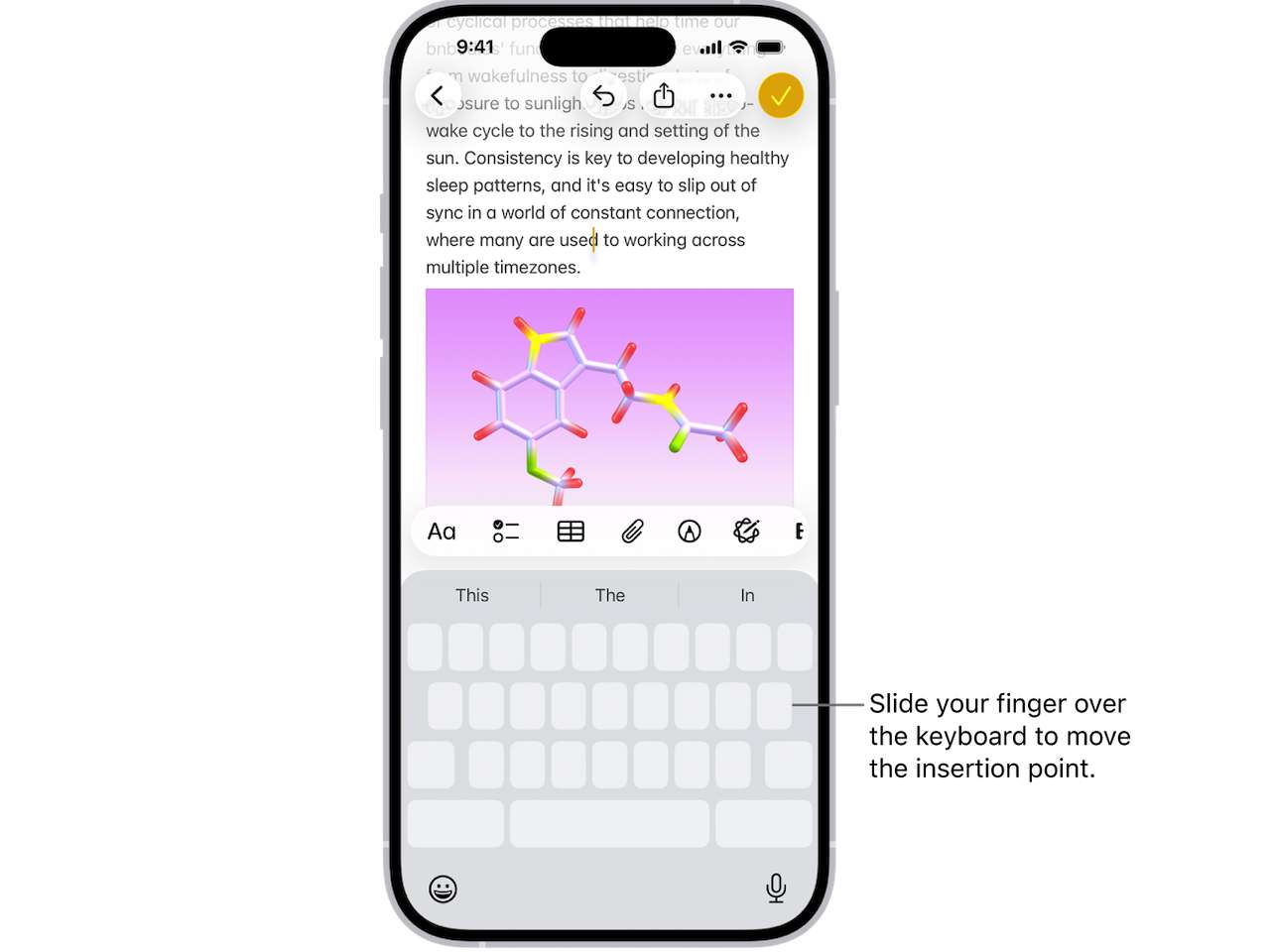
Touch and hold the Space bar with one finger. Wait for the keyboard to turn light gray, then slide without lifting your finger. The cursor follows the movement. Release when it reaches the right place. Apple’s guide also describes a two-finger version for selecting text, which turns the same gesture into a faster selection tool instead of a cursor tool.
The distinction is useful. One finger moves the insertion point. A second finger changes the gesture into text selection. That gives the feature two jobs without adding another button or menu.
Why this beats tapping the screen
Screen tapping asks you to aim at the final destination. The trackpad gesture asks you to steer toward it. That difference gets larger as the paragraph grows, because the keyboard gives your finger a broad horizontal surface while the text line itself stays narrow.
The tool also keeps the edit in context. You don’t need to zoom, open a formatting menu, or leave the app. You stay in Messages, Notes, Mail, or any other text field that uses the onscreen keyboard. For a reader who writes on an iPhone often, that short path is the whole argument.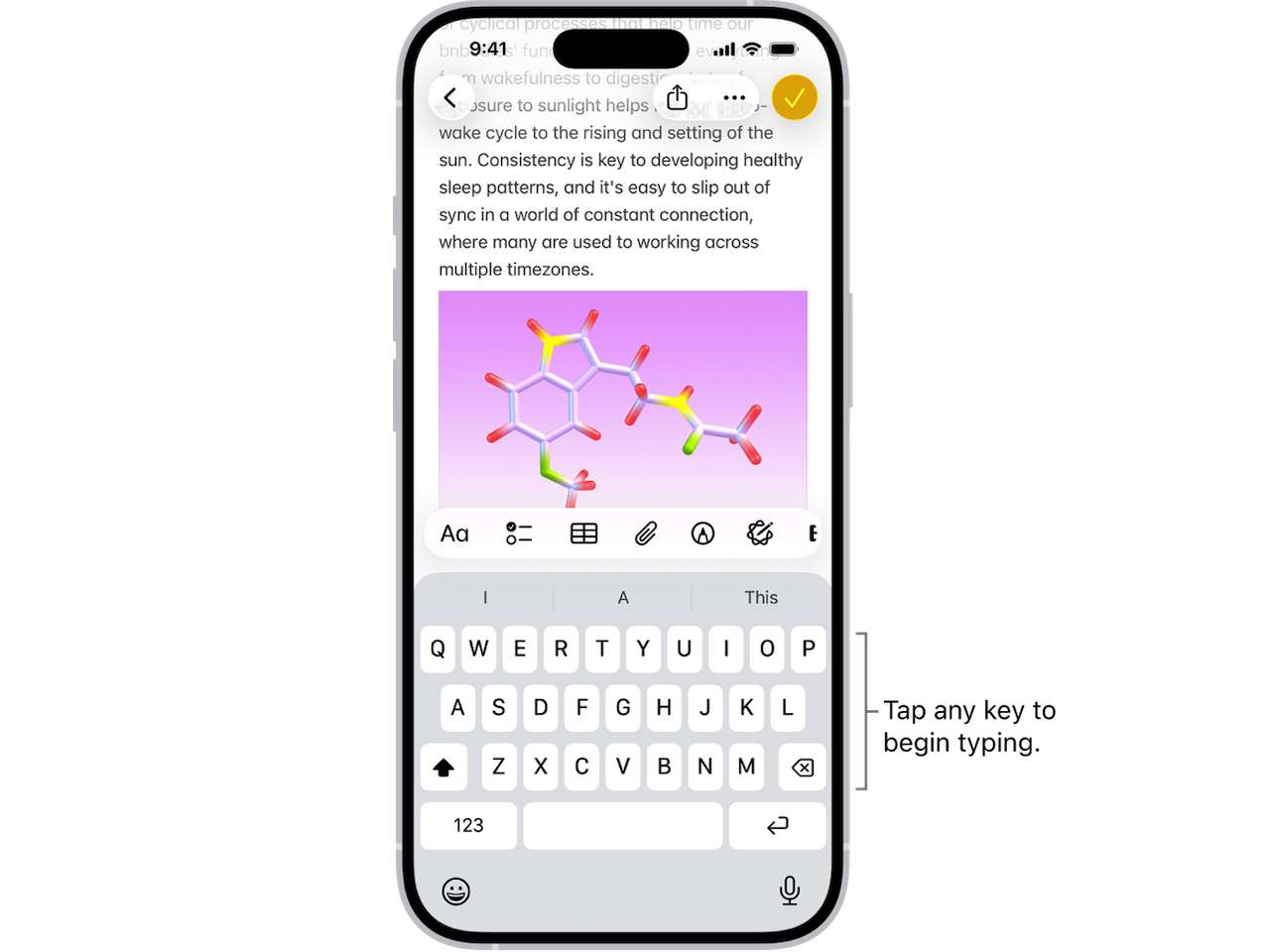
It also fits the broader direction Apple has taken with iPhone software. The company keeps adding small controls that hide behind familiar surfaces, a theme that shows up in recent iOS coverage from The Gadgeteer. The iPhone Hidden Trackpad is less flashy, but it solves a sharper problem.
The feature has limits
The trackpad doesn’t replace every editing gesture. It doesn’t turn the iPhone into a desktop text editor, and it doesn’t give you a permanent cursor mode. You still need to touch and hold the Space bar each time you want the control. That small reset keeps the feature easy to discover once you know it, but invisible if you don’t.
It also depends on the onscreen keyboard. If you use a physical keyboard, a third-party keyboard with a different layout, or an app that handles text in its own unusual way, the same gesture may not apply. Apple’s guide describes the feature as part of the onscreen keyboard, so readers should treat it as a software interaction rather than a universal iPhone control.
Three related tools worth remembering
The iPhone Hidden Trackpad deserves the attention, but three nearby tools follow the same design idea: use a familiar surface for a second job. Back Tap turns the back of the iPhone into a shortcut surface. Live Text turns words in a photo into selectable text. Notes can scan paper documents and save the result as a PDF.
Those tools aren’t secret modes and they don’t require a new iPhone. They sit inside features you already use, which explains why people miss them. The phone’s most useful upgrade can arrive as a gesture, a long press, or a small icon instead of a new hardware button.
Use this before you buy another writing gadget
If you type on an iPhone and regularly fix words inside long messages, learn the Space bar gesture first. It won’t make the phone a laptop, and it won’t solve every text-editing frustration. It will remove one specific annoyance with a control Apple already built into the keyboard.
That makes it a better first step than buying a new keyboard or changing phones for a problem that lives between your thumb and the cursor. If you’re deciding whether a future iPhone upgrade adds enough daily value, compare that small software convenience with the larger hardware changes covered in The Gadgeteer’s current iPhone reporting before spending money.
The hidden trackpad isn’t a gimmick. It’s the kind of quiet control that earns a permanent place in your muscle memory because it makes one irritating job shorter.
[Images from Pexels, Apple]