
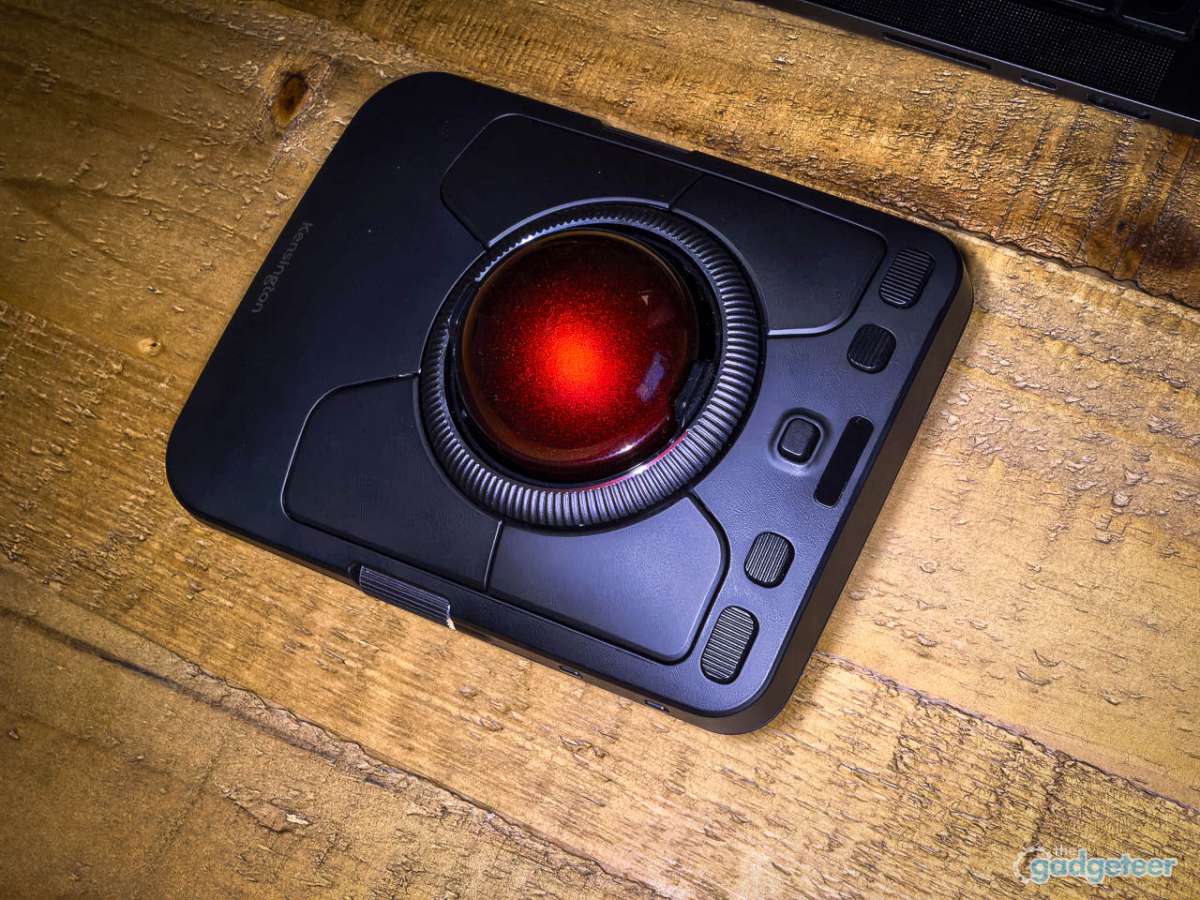
REVIEW – If you’ve spent any significant time at a desk, you’ve probably felt it: that dull ache creeping up your forearm after hours of pushing a mouse around. Maybe you’ve tried ergonomic mice. Vertical mice. Mice shaped like spacecraft that cost more than your first car payment. Maybe you’ve resigned yourself to the ache as the price of productivity.
Trackballs exist for exactly this problem. Your wrist stays planted. Your fingers do the work. And Kensington has been making them since before most of us knew what RSI stood for.
The Expert Mouse TB800 EQ is their latest flagship. $149.99, quad connectivity, dual design awards (iF and Red Dot), and enough buttons to intimidate a NASA control panel. After three weeks of daily use across editing sessions, spreadsheet work, and general productivity tasks, I can tell you whether it’s worth clearing desk space for. The short answer is yes, with some caveats worth knowing about. The longer answer involves a sensor quirk that Kensington is openly investigating.
⬇︎ Jump to summary (pros/cons)
Price: $149.99
Where to buy: Amazon
The trackball market has always been a niche within a niche, populated by users who swear by the ergonomic benefits and those who tried one once and never looked back. Kensington occupies a unique position here: the brand essentially defines the finger-operated trackball category for most people. The TB800 marks the first major refresh of their Expert Mouse line in years, and the company has clearly been paying attention to what power users have been requesting. Multi-device switching without re-pairing sits at the top of that list, followed closely by better customization software and refined scroll mechanisms.
The Trackball That Takes Up Real Estate
The TB800 doesn’t fit in your laptop bag. It doesn’t pretend to be portable. This thing measures 4.89 inches wide by 6.42 inches deep, weighs just over a pound, and demands its own chunk of desk real estate. It’s a statement piece that says “I take my input devices seriously and I’m not apologizing for it.”
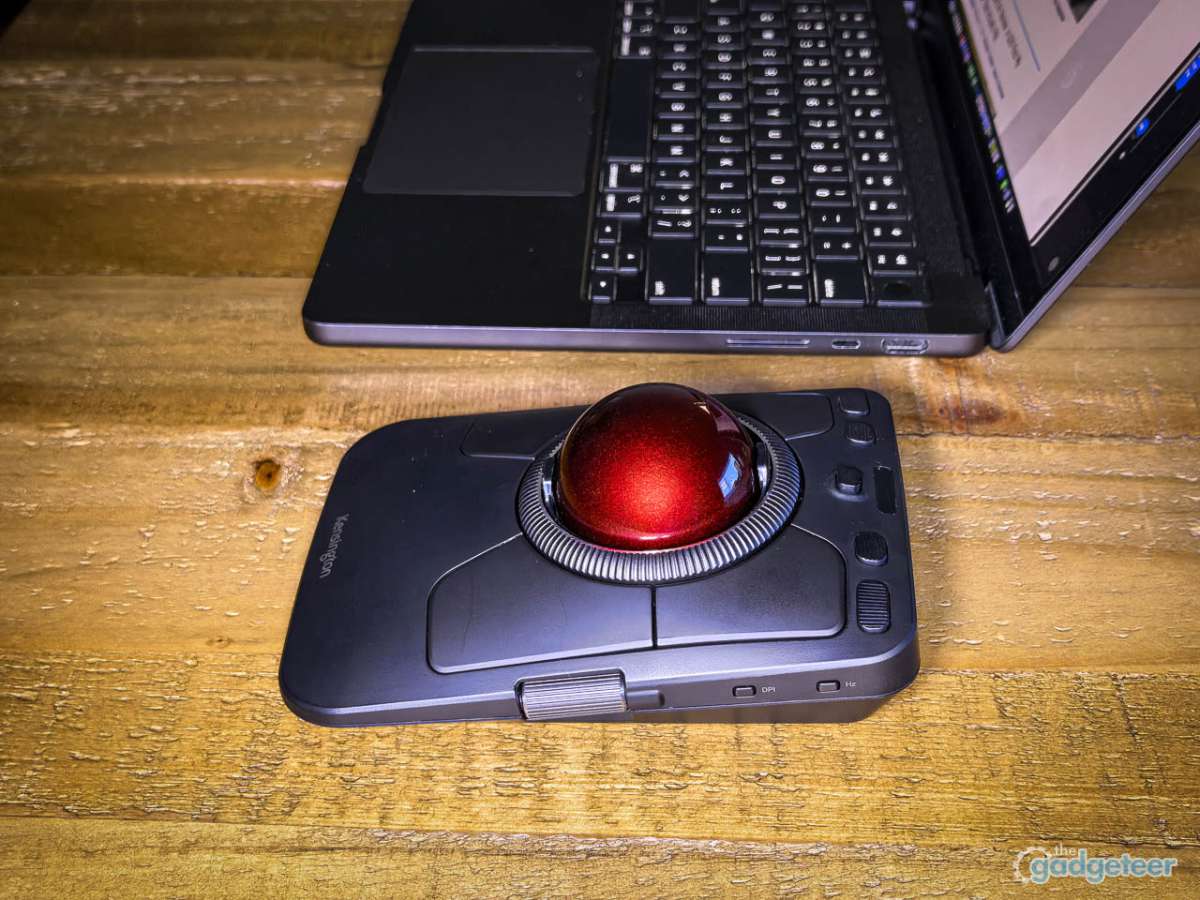
Here’s the thing: that size serves a purpose.
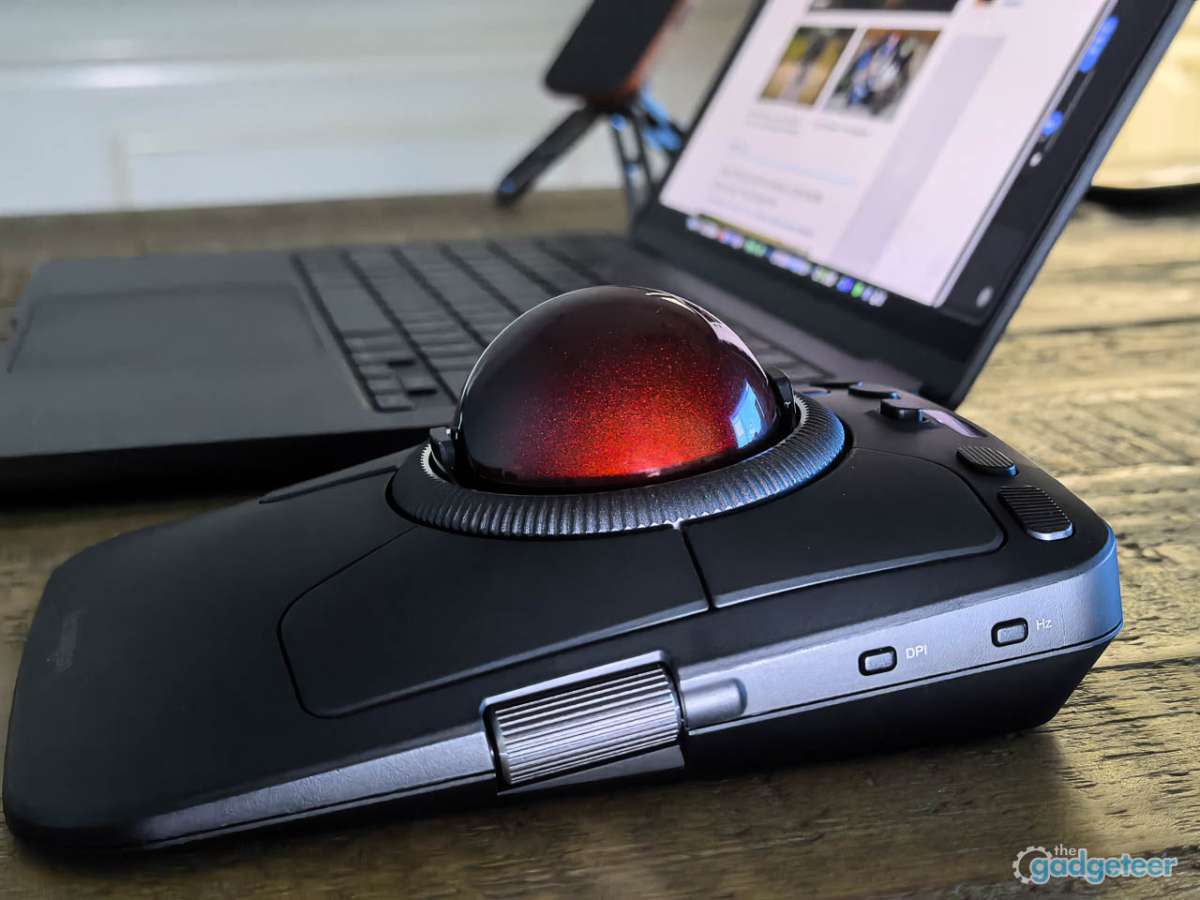
The 55mm ball sits in a well surrounded by a scroll ring, flanked by two side wheels, peppered with fourteen programmable controls. Your hand rests naturally on the curved surface while your fingers manipulate everything without your wrist moving an inch. After a four-hour editing session, my forearm felt… fine. Not “managing discomfort” fine. Actually fine. That’s not something I can say about most pointing devices after extended use.
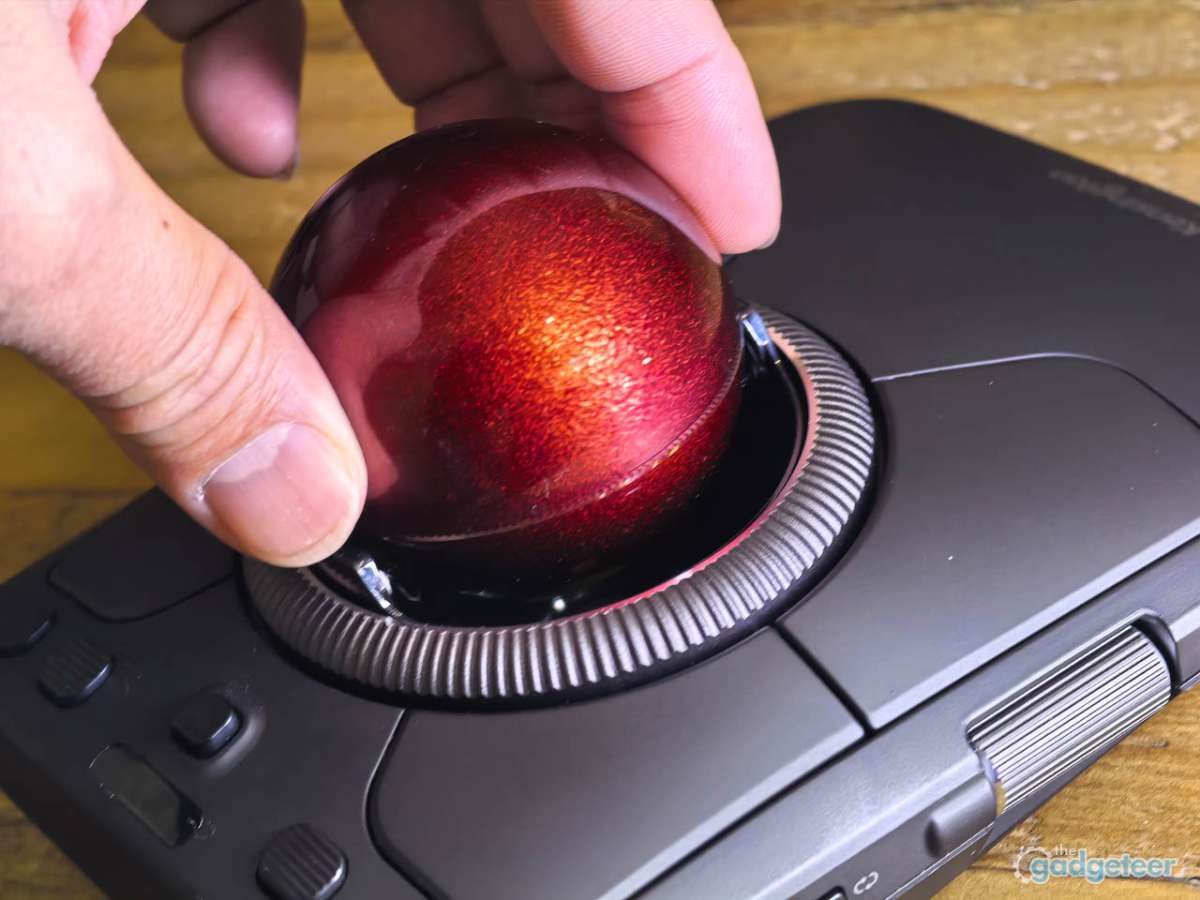
My review unit came in the red Amazon exclusive finish, which adds some visual pop to what could otherwise blend into any desk setup. A gray version exists for retail and B2B if you prefer something more subdued. Build quality feels appropriately solid throughout, with no flex or creak when applying pressure to any surface. The ambidextrous design works well for both hand orientations, though the learning curve will vary depending on your existing trackball experience. What strikes you immediately is the button density: Kensington has packed an impressive number of controls into the chassis without making the layout feel cluttered or overwhelming.
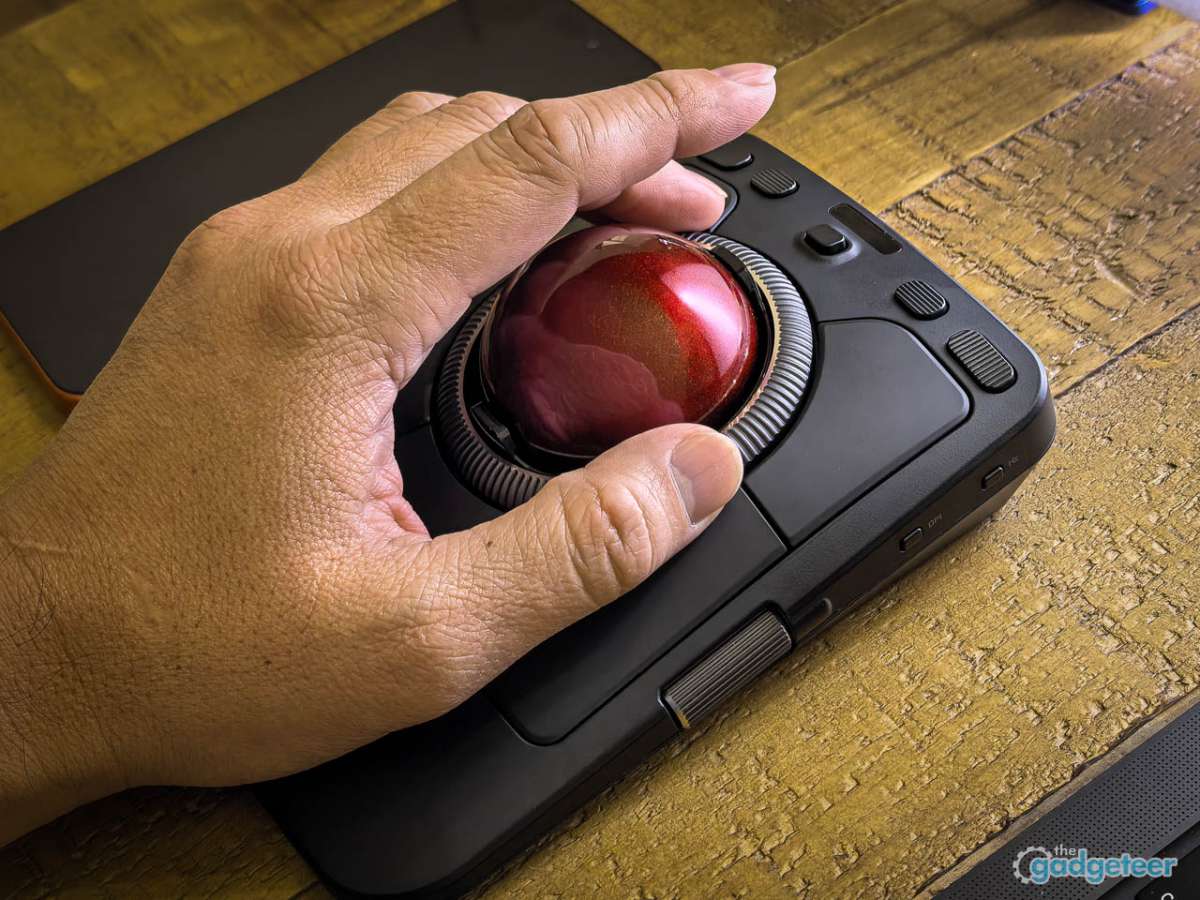
Kensington explicitly targets average to larger hands here, and that’s honest marketing. If you’re on the smaller side, the reach to certain buttons might feel like a stretch. The weight distribution keeps the unit planted firmly during use, eliminating any tendency to slide or shift during rapid cursor movements. One subtle touch worth noting: the ball pops out easily for cleaning, and the socket stays remarkably free of debris buildup compared to some cheaper trackballs I’ve used.
The Scroll Ring Changes Everything
You notice the scroll ring immediately because it dominates the interaction surface surrounding the ball. This isn’t some afterthought wheel tacked onto the side. It’s a primary control surface that wraps around the ball itself, and once you get used to it, going back to a regular scroll wheel feels primitive.
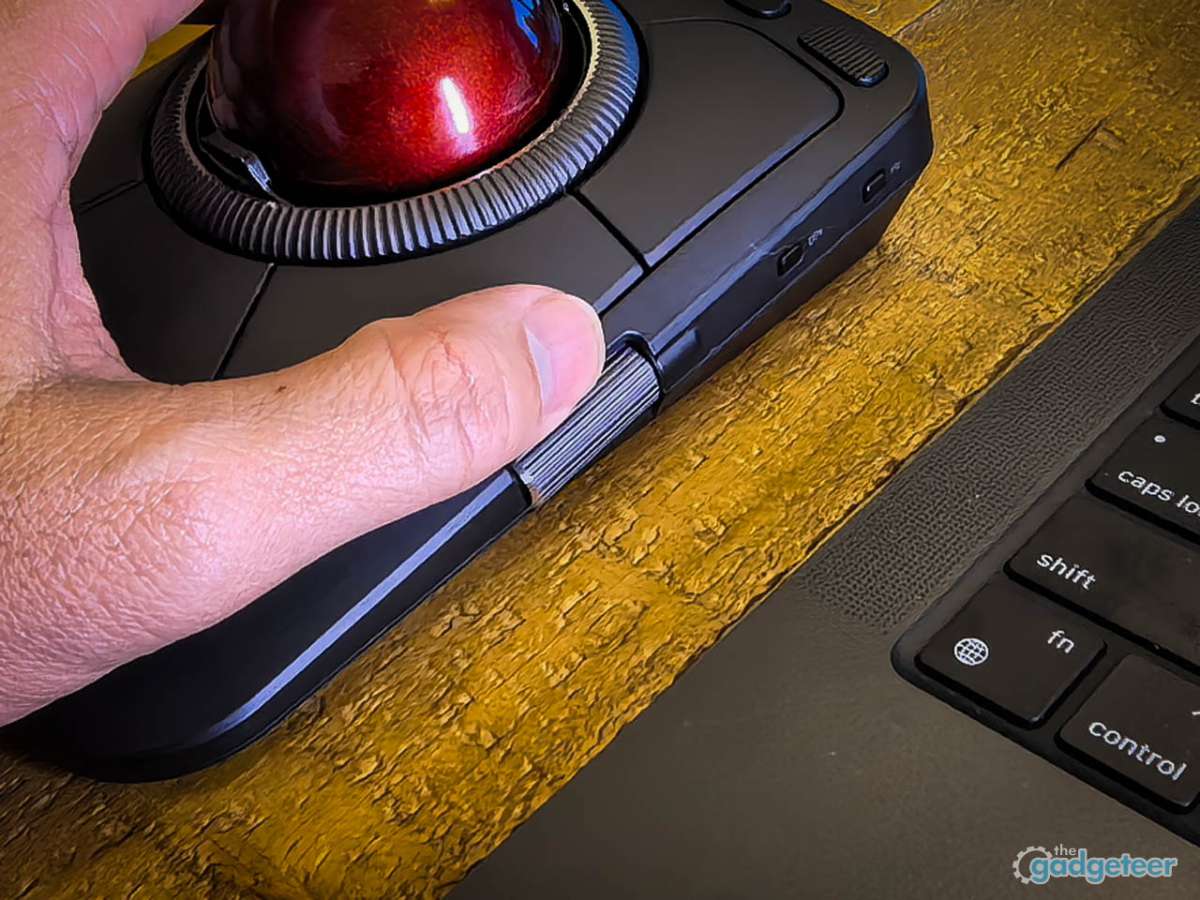
The ring offers two modes: notched (line-by-line) and smooth scrolling, toggled via a dedicated physical switch. Notched mode provides tactile feedback that works well for document navigation where precision matters. You feel each click, which helps when you’re trying to scroll exactly three lines to position something on screen. Smooth mode feels better for blasting through long pages or media timelines. Both modes register inputs reliably without the inconsistent behavior that plagues some competing scroll implementations.
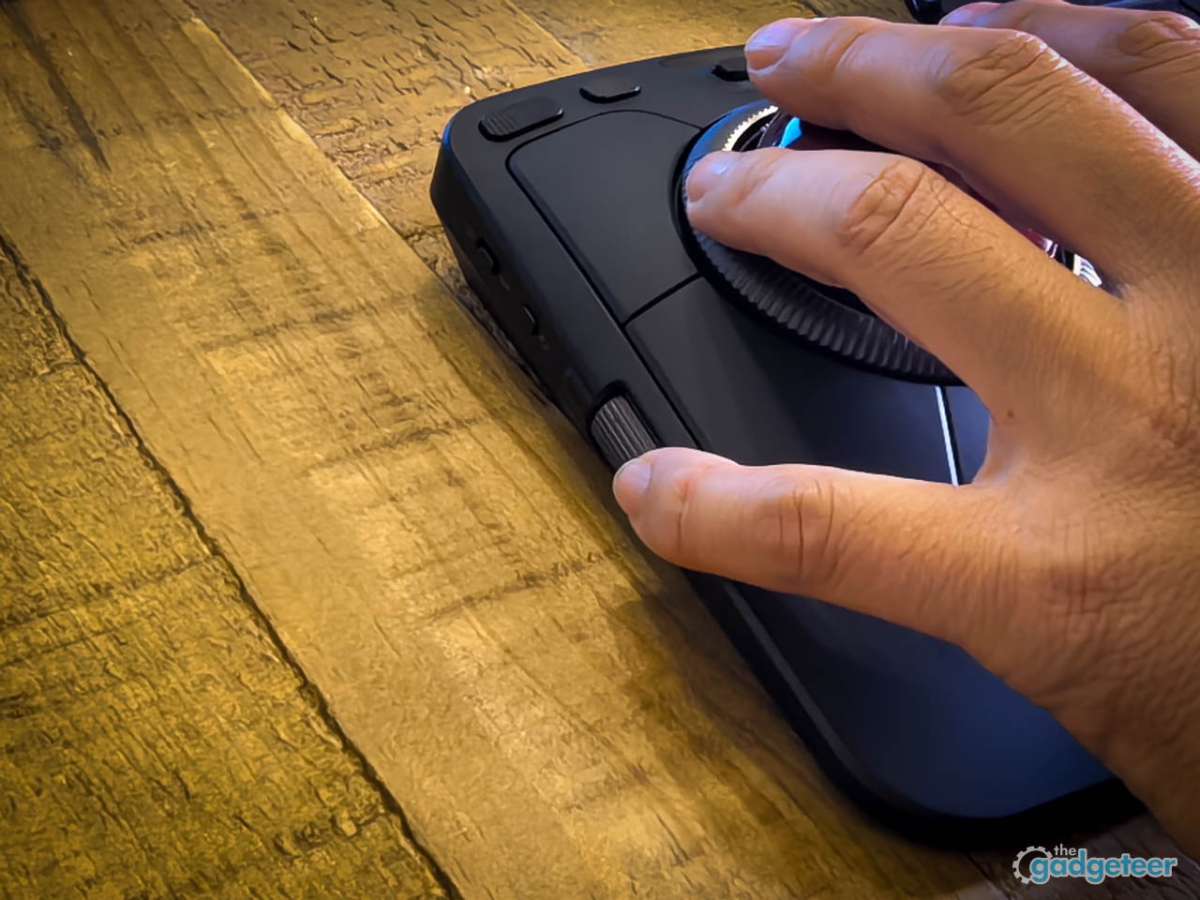
Here’s what really sells it: you can scroll while keeping your fingers positioned for immediate cursor work. With a mouse, you scroll, then reposition, then move the cursor. With this ring, your hand stays in the same spot doing both. Once muscle memory kicks in, workflows get noticeably smoother.
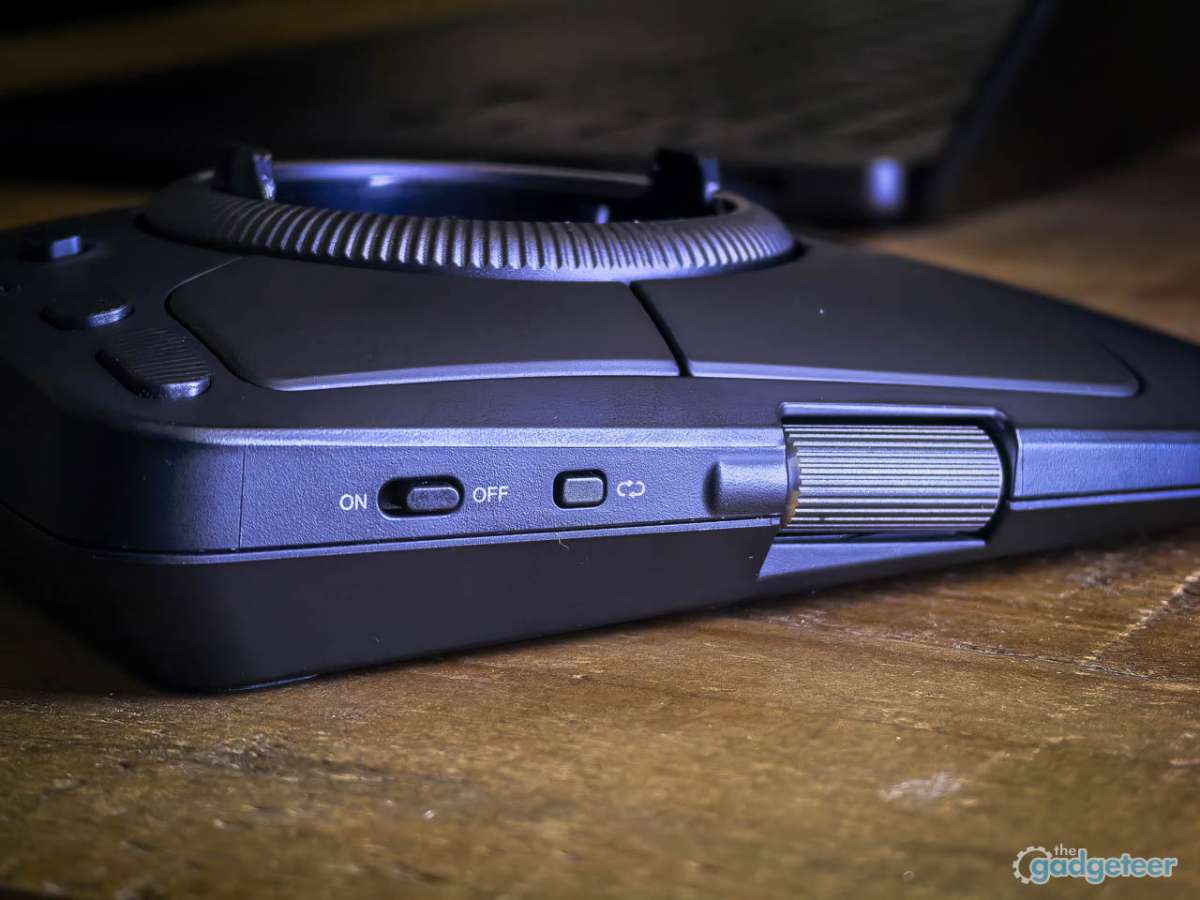
The ability to physically disable the scroll ring via a switch prevents accidental inputs during precise cursor work. If you’re doing pixel-level adjustments and don’t want an errant scroll to mess things up, flip the switch. Same goes for the two side scroll wheels that handle horizontal scrolling and zoom functions by default. These smaller wheels sit at natural thumb and pinky positions, making activation intuitive once you learn where they are. Physical disable switches for each side scroll add a thoughtful layer of customization for users who find themselves triggering them accidentally.
Buttons. So Many Buttons.
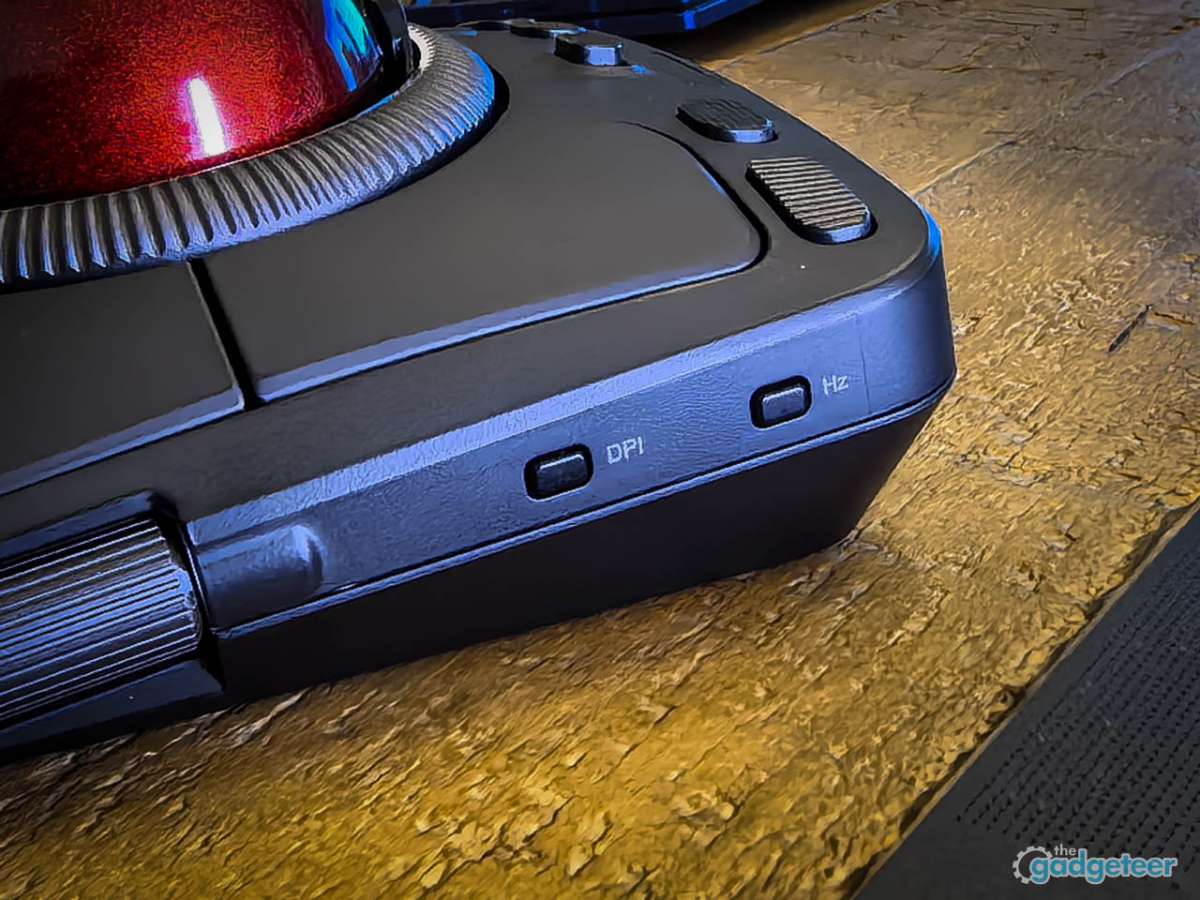
DPI cycling (400, 800, 1200, 1600). Polling rate adjustment (250 to 1000 Hz on wired or dongle, fixed 133 Hz on Bluetooth). Scroll mode toggle. Media controls: play/pause, volume up, volume down. Browser forward button. Channel switching for connection modes. Individual disable switches for the scroll ring and side wheels so you don’t accidentally trigger them during precise work.
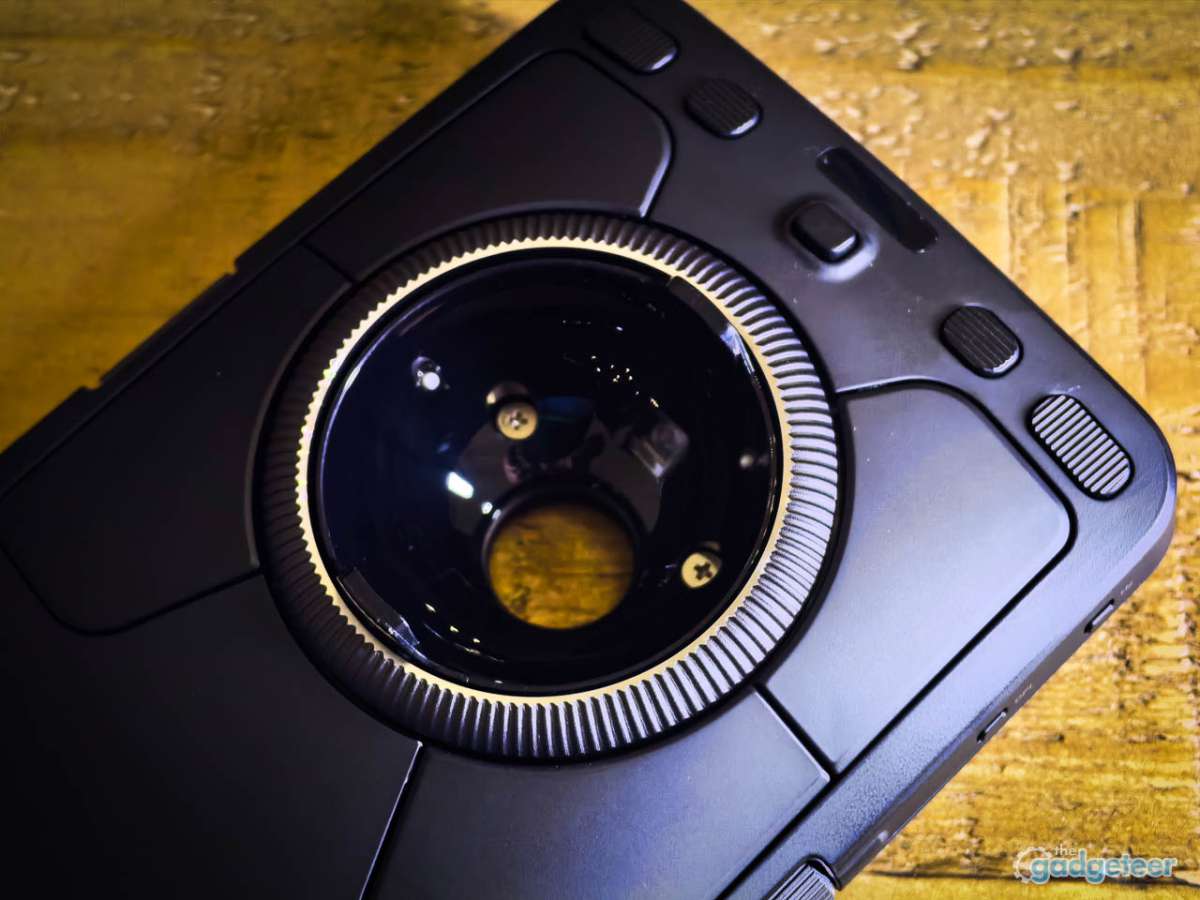
Sounds overwhelming. It isn’t.
Each button has a distinct shape or position that allows blind identification after a brief learning period. The channel switch button sits where your thumb naturally rests during idle moments. Media controls cluster logically along the perimeter. DPI and polling rate buttons live on the top edge where you’re unlikely to hit them accidentally but can reach them intentionally when needed.
The defaults work fine out of the box. Kensington’s Konnect software handles the rest when you’re ready to customize. Sixteen profiles. Full button remapping. Application-specific configurations that switch automatically based on which program you’re using. The software detected the TB800 immediately on both my Mac and Windows machines without requiring manual driver installation.
Pointer speed and acceleration curves adjust through the same interface, and finding comfortable settings required some experimentation on my part. The default acceleration felt slightly aggressive for my preference, but the adjustment range accommodates both slow-and-precise and fast-and-loose styles. Button remapping works reliably: assigned functions trigger consistently without the occasional misfires that plague some customization software.
Four Devices, One Trackball
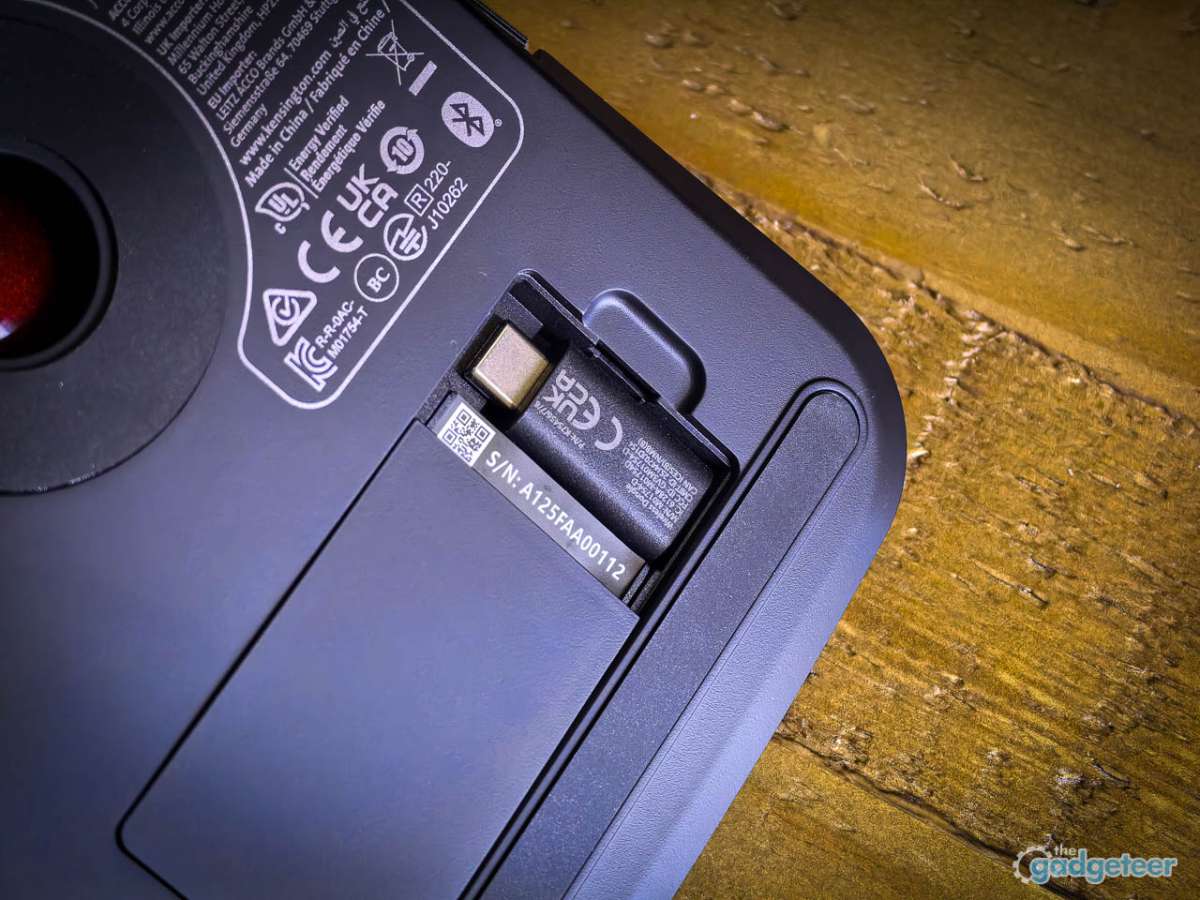
Four connection options define the TB800’s multi-device ambitions: two Bluetooth 5.3 channels, one 2.4 GHz wireless channel via USB dongle, and one wired USB-C connection. The dongle tucks neatly into a storage compartment on the underside when you’re not using it. This matters if you’ve ever lost a receiver the size of a fingernail and spent an hour searching through drawers for it.
Bluetooth pairing follows standard procedures and completed without issues on both macOS and Windows machines in my testing. The 2.4 GHz connection offers 128-bit AES encryption for users in environments where wireless security matters. USB-C provides both data connection and charging, allowing continuous use while replenishing the battery.
Device switching happens via a dedicated button, and the transition is genuinely seamless. Tap. Watch the LED change. Cursor appears on the other machine within a second or two. No re-pairing required. No software intervention needed. This workflow becomes second nature quickly: tap to switch from desktop to laptop, finish a task, tap to switch back. If you work across multiple computers throughout the day, this feature alone might justify the price.
The LED indicators clearly communicate current connection status: white for USB-C, green for 2.4 GHz, blue for Bluetooth with different flash patterns indicating pairing mode versus connected state. Battery status shows via the same LED system, with red indicating sub-5% charge and green confirming full charge. The breathing red LED during charging provides clear visual feedback.
The catch: Bluetooth caps at 133Hz polling due to protocol limitations. The wired and dongle connections hit 1000Hz. You can feel the difference during fast movements or precise positioning tasks. For general productivity like browsing, email, and document editing, Bluetooth works fine. For creative work requiring fine cursor control (photo editing, illustration, detailed spreadsheet work), the higher polling rates available via dongle or cable provide a noticeable improvement. This tradeoff between convenience and performance represents a reasonable compromise given current Bluetooth constraints.
Battery life claims “up to 4 months” and depends heavily on usage patterns. After three weeks of primarily Bluetooth use, I haven’t hit the warning indicator yet. USB-C charges while you work, so downtime isn’t a thing. Drop it on any USB-C cable overnight every few months and you’re set.
Real-World Setups That Actually Work
All those buttons mean nothing without context. The TB800 isn’t just a pointer: it’s a per-app control surface if you set it up right. Here’s what actually works.
Why Trackballs Fit These Workflows
People lean on trackballs anywhere they need high precision, long sessions, or lots of screen travel without arm movement. Graphic designers use them for fine control when adjusting sliders or nudging masks. Mix engineers and video editors use them to scrub timelines and move clip edges with less wrist strain. Office users like them for multi-monitor setups where a quick flick can traverse large distances.
The TB800’s button density and scroll hardware let you offload frequently used shortcuts, map OS-level navigation, and create per-app layers. The ability to disable scroll elements frees mental budget to use the remaining controls more aggressively.
Sample Button Mappings
These are starting points. Tweak based on your actual workflow.
| App | Scroll Ring | Left Side Wheel | Right Side Wheel | Buttons |
|---|---|---|---|---|
| Photoshop / Lightroom | Smooth: canvas scroll / Notched: brush size | Zoom in/out | Brush size or exposure | Spacebar (hand tool), Undo, Toggle panels (Tab) |
| Premiere / Resolve / Final Cut | Timeline scrub | Timeline zoom | Previous/next edit | Razor tool, Ripple delete, Fullscreen viewer |
| Pro Tools / Logic / Ableton | Scrub or marker jump | Timeline zoom | Track volume/pan | Play/stop, Record arm, Split clip |
| Excel / Sheets | Notched: row-by-row | Horizontal scroll | Shift+scroll (fast travel) | Insert row, Delete row, Save |
| Chrome / browsing | Notched: page scroll | Back | Forward | Close tab, Reopen tab, Task view |
Advanced Mapping Tricks
Layers / chords: Some users create alternate layers triggered by holding a specific button, effectively doubling your functions. Normal layer for global OS shortcuts, chorded layer for app-specific macros.
Drag-lock: Map a button to “hold left click” so dragging long distances or selecting multiple items doesn’t require physically holding the main button down. Game changer for timeline work.
Double-click and macros: One button can trigger a double-click or a multi-step macro (new layer, rename, assign color label) depending on your software’s support.
Konnect lets you save application-specific profiles that auto-switch when you change programs. Set it once, forget it exists. The TB800 becomes a different tool depending on what you’re doing without manual intervention.
The Dead Zone You May or May Not See
I’m going to be direct here because you deserve to know before buying.
Some users have reported a sensor dead zone when rolling the ball through the 10 o’clock to 1 o’clock arc. The cursor stutters or requires a second input to complete the movement. Kensington acknowledged this publicly and sent me their official statement: they’re investigating firmware tuning, sensor calibration adjustments, and software-based tracking profile alternatives. No timeline. No promises of a complete fix. They explicitly avoided making commitments they couldn’t keep.
In my testing? I haven’t encountered the dead zone at all. Three weeks of daily use across multiple connection modes, and the sensor has tracked consistently through every arc. Maybe it’s unit-to-unit variation. Maybe my interaction style just doesn’t trigger it. Either way, my experience has been clean.
That said, enough users have reported the issue that it deserves mention. Kensington’s transparency here actually earned some respect. Rather than dismissing user reports or making unrealistic promises, they documented the behavior, acknowledged the investigation, and communicated openly about what they’re exploring. The company characterizes this as interaction-style dependent rather than a universal defect, noting that grip style, hand size, and positioning all influence whether users experience the behavior.
If you’re considering the TB800, you might get a unit like mine that works flawlessly. Or you might encounter the dead zone some users describe. Creative professionals doing pixel-precise work (photo retouching, illustration, CAD) should factor this uncertainty into their purchase decision. General productivity users will probably never notice either way.
Oh, And You Get Pro Tools
Random bonus: the TB800 includes a free license for Avid Pro Tools Intro Plus, redeemable through Kensington’s website. Industry-standard audio production software. If you’re in that world, that’s a meaningful add that increases the value proposition. Pro Tools is expensive, and getting any version bundled with hardware represents real savings.
If you’re not in the audio production world, it’s a thing you’ll register and probably never open. But it demonstrates Kensington’s intent to position the TB800 as a creative professional tool rather than just another office peripheral. The bundle reinforces that positioning whether you use it or not.
Living With the TB800 Day to Day
Living with the TB800 as a primary pointing device reveals both its strengths and its learning curve. The first few days require conscious effort to unlearn mouse habits and develop trackball-specific muscle memory. You’ll reach for a mouse that isn’t there. You’ll try to pick up the trackball and move it. Your brain needs time to rewire.
Cursor accuracy improves steadily with practice, and the ergonomic benefits become increasingly apparent as wrist fatigue decreases during extended sessions. By the end of week one, I stopped noticing I was using a trackball. By week two, going back to a mouse felt clunky and inefficient. The scroll ring becomes genuinely difficult to give up once acclimated.
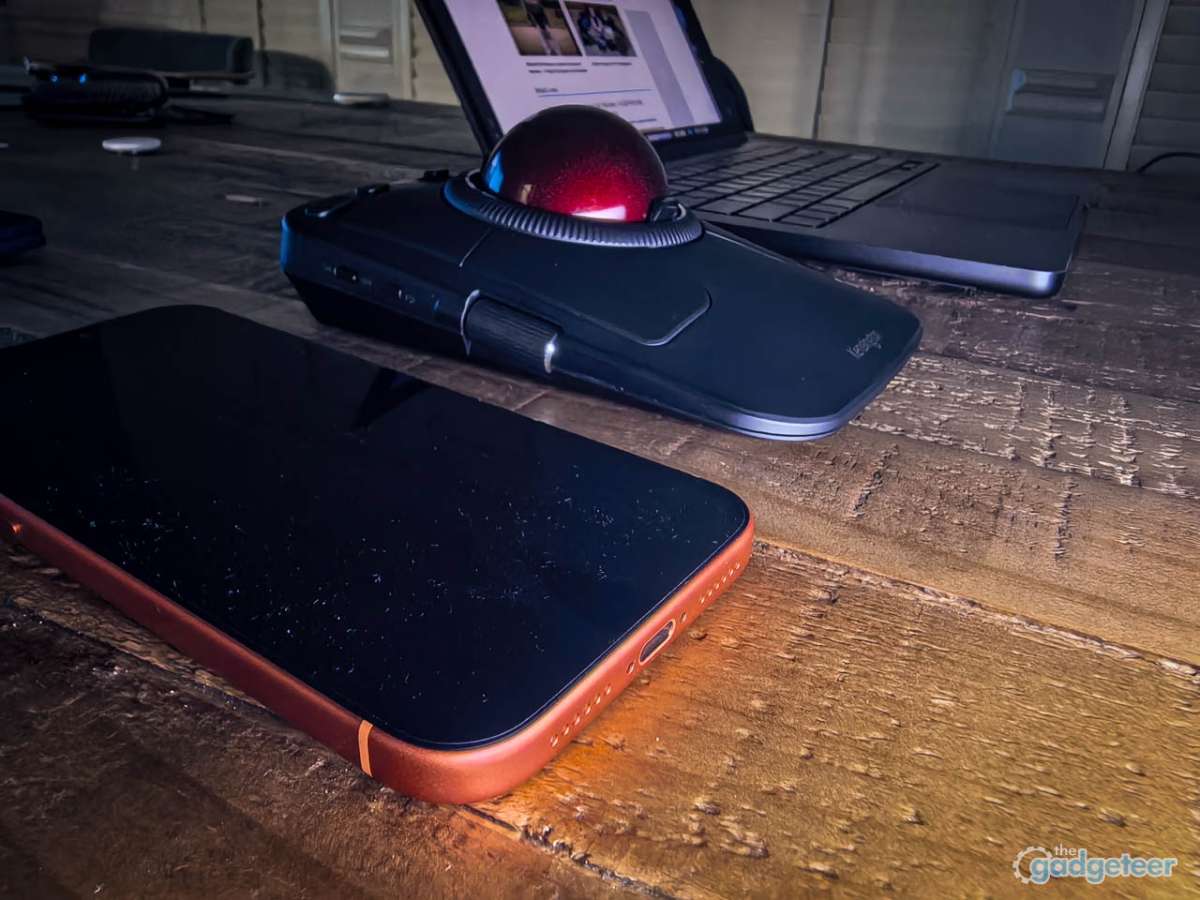
Multi-device switching transforms how you interact with a multi-computer setup, eliminating the friction of reaching for different input devices or fumbling with software-based KVM solutions. Desktop to laptop to desktop becomes a single button press. This workflow improvement compounds over time.
Negatives exist alongside the positives. The Bluetooth polling rate limitation creates noticeable cursor lag during fast movements, pushing power users toward the dongle or wired connection despite the convenience tradeoff. The reported dead zone issue, if you encounter it, could introduce occasional frustration during specific tasks. The size and weight that provide stability also eliminate portability as a realistic option. Button density requires an investment of time to master, and some users may never utilize the full customization potential.
These limitations don’t disqualify the TB800 from recommendation, but they do define its ideal user profile: desk-bound power users who value ergonomics, work across multiple devices, and are willing to invest time learning a new input paradigm.
The Gadgeteer’s Take
What works
- Your wrist will thank you: Four-hour sessions without forearm fatigue validates every ergonomic claim Kensington makes. The ball-and-ring design keeps your wrist stationary while fingers do all the work.
- Multi-device switching that actually works: Tap a button, cursor appears on another machine within a second. No re-pairing drama, no software intervention, no fumbling with cables.
- The scroll ring spoils you: Notched or smooth scrolling while keeping fingers positioned for cursor work changes how you navigate. Going back to regular scroll wheels feels primitive.
- Build quality matches the price: Solid construction, professional aesthetic, no flex or creak. Dual design awards (iF and Red Dot) feel earned rather than purchased.
- Customization without complexity: Sixteen profiles, full button remapping, application-specific configs. Konnect software works on Mac and Windows without driver drama.
- Dongle storage built in: Tiny receivers get lost. This one tucks into a compartment underneath when you’re using Bluetooth or wired.
- Battery life is honest: Three weeks of daily Bluetooth use without hitting the warning indicator. Four months claimed, which tracks with real-world usage patterns.
- USB-C charging while working: Zero downtime when you need to recharge. Plug in, keep working, unplug when done.
- Physical disable switches: Turn off scroll ring and side wheels individually to prevent accidental triggers during precision work.
What doesn’t
- Dead zone reports exist: Some users report sensor inconsistency at the 10-1 o’clock arc. I didn’t experience it, but Kensington is investigating and your mileage may vary.
- Bluetooth polling lags behind: 133Hz versus 1000Hz on wired/dongle means precision work wants a cable or the wireless receiver.
- This thing is huge: Nearly 5 by 6.5 inches and over a pound. Portability isn’t happening. This lives on your desk permanently.
- Learning curve exists: Mouse habits take conscious effort to unlearn. Give it a week before judging whether trackballs work for you.
- $150 is premium territory: This is flagship pricing that requires flagship commitment. Budget trackballs exist if you just want to try the category.
- Smaller hands may struggle: Kensington targets average to larger hands. Button reach might feel awkward if you’re on the smaller side.
Your mouse-induced wrist pain is still your problem to solve. But at least now you know where to look.
Price: $149.99
Where to buy: Amazon
Source: The sample of this product was provided for free by Kensington whom did not have a final say on the review and did not preview the review before it was published.
Specifications
| Specification | Detail |
|---|---|
| Ball Size | 55mm |
| Connectivity | 2× Bluetooth 5.3, 2.4GHz wireless (USB dongle), USB-C wired |
| DPI Options | 400 / 800 / 1200 / 1600 |
| Polling Rate | Up to 1000Hz (wired/2.4GHz), 133Hz (Bluetooth) |
| Battery Life | Up to 4 months (rechargeable lithium) |
| Dimensions | 4.89 × 6.42 × 2.41 in (124 × 163 × 61 mm) |
| Weight | 1.01 lb (0.46 kg) |
| Compatibility | Windows 10+, Windows 11 (64-bit), macOS 13+ |
| Software | Up to 16 sets of customizable functions via Kensington Konnect |
| Included | USB-C cable, 2.4GHz dongle, Avid Pro Tools Intro+ license |
| Colors | Gray (retail/B2B), Red (Amazon exclusive) |
| Awards | iF Design Award, Red Dot Award |

2-Pack LED Video Light Kit, NiceVeedi Studio Light, 2800-6500K Dimmable Photography Lighting Kit with Tripod Stand&Phone Holder, 73" Stream Light for Video Recording, Game Streaming, YouTube
(as of March 19, 2026 10:52 GMT -05:00 - More infoProduct prices and availability are accurate as of the date/time indicated and are subject to change. Any price and availability information displayed on [relevant Amazon Site(s), as applicable] at the time of purchase will apply to the purchase of this product.)

Gadgeteer Comment Policy - Please read before commenting
Your link to Kensignton at the bottom goes to Viofo…
As someone who’s had a Kensignton trackball since the 90’s, they’re good products. I do still miss the old acceleration curve editing that you used to be able to do in their software, but otherwise it’s been good.
I’ve been thinking of upgrading mine – I’m switching back to it from a tablet+Pen combo, since Wacom dropped the drivers on the one I had and none of their new ones have the same capabilities – just have to convince myself that my 10+ years old one is worth replacing…
Product doesn’t seem to be available anywhere. Too bad Kensington couldn’t coordinate availability with launch reviews etc.
Just found this online “Kensington is pausing production of its Expert Mouse TB800 EQ trackball. Some users have reported a potential dead zone in the trackball’s sensor when “interacting with the ball between approximately the 10–1 o’clock positions,” Kensington says in a statement. Inventory may be limited while the company’s “engineering teams are actively evaluating firmware, sensor calibration, and software options to determine what improvements may be possible.”
Kensington’s new trackball comes packed with scroll wheels” So, it appears that the availability will be somewhat constrained for the foreseeable future 🙁
Let me reach out and get the latest on this…stay tune.
Can you sell me your TB800? I want to make a video of it.