
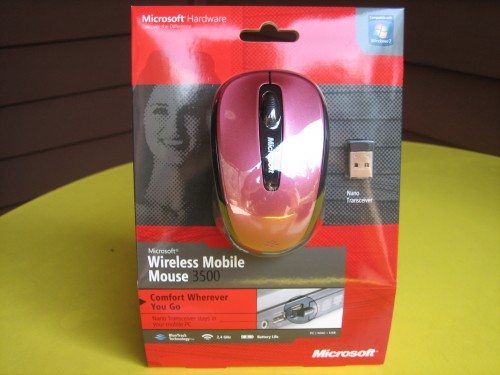
You’re probably saying “do we really need another mouse?”. These were my sentiments before I received the Microsoft Wireless Mobile Mouse 3500 (it is a mouthful). The device does have a hook that makes it a reasonable investment.
I spend a lot of time at the airport and get to see hundreds of business flyers every week passing through security. It’s not unusual to observe several of those flyers retrieve their laptops to put back in the bag and have them bemoan the fact that their mouse dongle was broken off during the process. The Mobile Mouse 3500 attempts to address this problem.
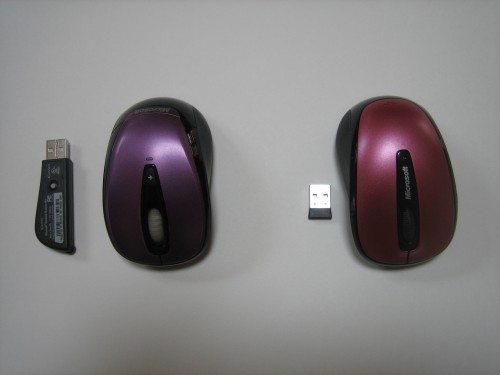
On the left is my previous version of the Microsoft mouse with the 3500 on the right. Notice the different in the receivers.
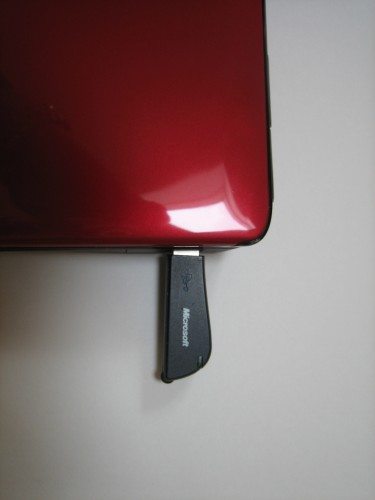
This photo and the next illustrate the contrast between the two devices as they are plugged into my laptops right side usb port.. You can see where the larger receiver would be prone to snagging on the laptop bag.
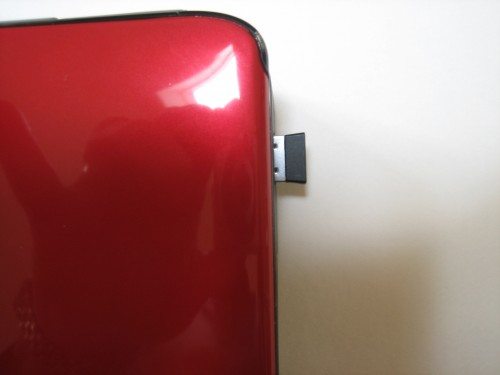
The 3500 receiver extends a modest amount, limiting the possibility of getting snagged.
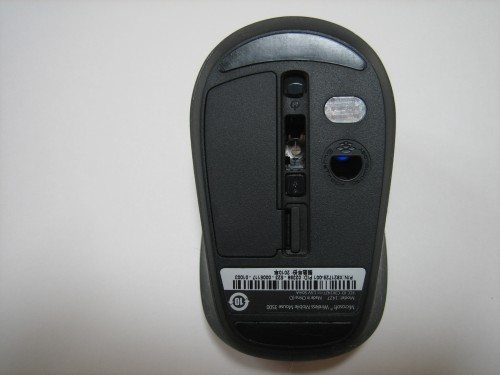
On the underside of the 3500 is a slot to insert the receiver if you need to take it out of your computer. I have personal experience of the need for this slot. While testing the mouse and while taking photos, I misplaced the receiver. If it’s not in the usb slot you may want to put it in the mouse. Sticking it in the slot turns the mouse power off. ( I got my mice confused). Also there is an on/off switch, so when you don’t use it for a while you can turn it off.
I had no problem using the mouse on my laptop. I plugged it in and it was recognized immediately by Windows 7. For greater control, I downloaded the Intellipoint software which allowed me to adjust several parameters including scroll speed, tracking speed and button configuration.
If you’re in the market for a new mouse, the Mobile Mouse 3500 is a reasonable choice. It comes with 1 AA battery which should last 8 months. It’s small enough to stuff in the laptop bag, but big enough to feel comfortable in my large size hands. Its laser tracking is precise and works on most surfaces ( not glass or mirrors). The 3 year warranty and modest price convinced me that this is a good buy.

Zip Ties Assorted Sizes(4”+6”+8”+12”), 400 Pack, Black Cable Ties, UV Resistant Wire Ties by ANOSON
(as of April 13, 2026 18:41 GMT -05:00 - More infoProduct prices and availability are accurate as of the date/time indicated and are subject to change. Any price and availability information displayed on [relevant Amazon Site(s), as applicable] at the time of purchase will apply to the purchase of this product.)
STREBITO Electronics Precision Screwdriver Sets 142-Piece with 120 Bits Magnetic Repair Tool Kit for iPhone, MacBook, Computer, Laptop, PC, Tablet, PS4, Xbox, Nintendo, Game Console
(as of April 13, 2026 11:29 GMT -05:00 - More infoProduct prices and availability are accurate as of the date/time indicated and are subject to change. Any price and availability information displayed on [relevant Amazon Site(s), as applicable] at the time of purchase will apply to the purchase of this product.)Product Information
| Price: | $29.99 MSRP |
| Manufacturer: | Microsoft |
| Requirements: |
|
| Pros: |
|
| Cons: |
|

Gadgeteer Comment Policy - Please read before commenting
I don’t get it. Don’t most laptops have Bluetooth by now? Why do you need a dongle at all?
Ben S,
I may be wrong, but I don’t believe a wireless mouse uses true bluetooth. I say that because I cannot detect my mouse when discovering bluetooth devices using my Palm T/X. As for laptops having native bluetooth, I haven’t come across one so far.
Logitech has had nano receivers for quite a while now and they look like they protrude less than this one. Their lowest price one is $5 less direct from Logitech: http://www.logitech.com/en-us/mice_pointers/mice/devices/6064
The reason Bluetooth isn’t as popular (at least with people I know) is that the pairing isn’t as reliable as a dedicated receiver. I suspect that until the Bluetooth 4.0 spec is widely deployed that there is additional power savings to using a dedicated solution instead of the Bluetooth standard.
I’m a tech writer and use my MS mouse abt 12 hrs daily. Being able to configure the buttons to suite my task saves lots of wear and tear and helps to prevent tendonitus. I especially appreciate being able to to set the wheel to double-click. No maker other than MS provides this facility.
I bought a tiny Targa optical mouse that plugs into the USB. It has a roll-up cord, and the whole contraption fits into a small pocket in my bag. It takes up less space than this wireless thing and I don’t have to worry about breaking or losing my dongle. Or batteries.
got a problem, my windows xp pro machine doesn’t recognize the mouse or dongle, what’s up with this? Thanks for any help.
@vtaillon,
Got me. Works on my XP system. Are you running 64 bit? If so, it’s not supported.
I have been using this mouse for the last 3-4 months. So far I love it. With the nano receiver, I do not have to worry about plugging in and out from the USB port.
The make and feel of the mouse is good.
Battery life is ok. I am still using the first battery provided when I made the purchase.
From the shop that I patronized, the logitech mouse with similar features is slightly more expensive. I believe the price of this mouse has fallen to compete with other manufacturers.
In conclusion, it is a good buy.
The 4000 and 3500 are the same, just different year, also they are severly limited in distance, for a laptop, no problem, but move more then 2 feet away and you’ll suffer mouse movement lag!
Why not use bluetooth? Because, you see, one reason may be that operating systems already understand USB mice. You can unplug a regular USB mouse and plug this in, and keep going without a hitch! There is nothing to install. One minute you are moving your pointer with your old USB mouse, or touchpad on your laptop or whatever, the next minute you’re moving it with the wireless mouse. With bluetooth, there is going to be some configuration headache. You need to install some mouse-over-bluetooth driver. Then probably do some silly bluetooth “pairing” ritual whereby the mouse and computer fall in love. But if you think that a bluetooth mouse is a great idea, you can certainly get them.
This is pointless, like asking why there are USB mice when we have PS/2 ports, or why there are PS/2 mice when we have serial mice …
Nearly every hole on your computer can be used for a mouse in some way, and someone will justify such usage in his particular setup.
I just bought three of these from my work.
Plugging the receiver into slot on the back of the mouse didn’t turn it off. Also I had some difficulty getting it to plug and play with Windows 7 32bit.
It wasn’t until I went into the Device Manager and pressed scan for hardware changes that anything started working.
Once I got one working it worked well and felt nice and light…
I’m concerned about the dongle, the 6000 series mouse dongle burned my finger.
branemen,
Just went and checked the dongle on my mouse. It’s not even warm. I’ve been using it continuously since the review with no problem on a Windows 7 64-bit laptop.
For those who care, the clicker is not silent when pressed.
I’m getting a mouse that turns off automatically after so long of no movement. This one won’t, but it still works perfect!
Hi,
Sorry for the silly question but I’m not very tech savvy. I just purchase one of these for xmas for my brother to use on his notebook. His notebook does not have a CDrom. Is there software in the package that needs to be downloaded or will he be fine to just plug it in?
Thanks!
Amity,
Just plug it in to the notebook and it will be recognized. You can download Microsoft mouse software from the Microsoft website. This will allow you to fine tune your mouse, but is not necessary for operation.
Window’s 7 is not recognizing my mouse either. No problems with my Windows Vista laptop
Bill K… I noticed you say you are using Windows 7 w/64 bit… me too. I have not been able to get this same mouse to set up on my laptop. Windows is not recognizing the mouse.. thought maybe it was the 64bit, but guess not… any suggestions??? Just bought it new.
susan,
Click Start. Go to Devices and Printers. Does it display a Microsoft Wireless Transceiver? If not, maybe you have a defective USB port or product. Switch USB ports. Just for the heck of it, download the mouse software from the MS website and see if that helps.
I had a usb port replaced due to the fact that it burnt 3 usb mouse sticks. It has been 1 year and now another usb mouse stick has burnt. Put in a older usb logitech stick and so far working fine in same slot. Have you heard of usb sticks (microsoft) burning up before?
Norma,
Haven’t heard of your problem. I’ve been using the 3500 daily since the review with no problems.
I bought this mouse.
The provided battery lasted for fifteen days.
I replaced it with a Duracell Ultra battery that lasted for 6 weeks.
I am a bit skeptic about the advertised “8-Month Battery Life”….
Seems like I change the battery in this mouse every couple weeks. Rarely can I remember to turn the darn thing off, but then I’m pretty much constantly on the computer, too. I’m also having clicking problems, but I’m not positive it’s the mouse. Sometimes I have to click on a link two or three times before there’s a reaction. The dongle is awesome, and I’m not ready to switch back to my old poking-out mouse, but I’m definitely looking for a mouse that turns itself off.
Nice mouse.. but battery life sucks..It lasts only for a month.. working 10 hours a day.. 🙁
I love this mouse. I bought one for home and one for work during the boxing day sales. I do however not believe the advertised 8 month battery life either. I’ve already had to replace my batteries. I wonder how much of that has to do with the surface though (maybe having to work harder on some). My battery at home (on a dark wood surface) died faster than my battery at work (on a light grey plastic surface – almost mouse pad like) even though I use my mouse at work WAY more than I do my mouse at home.
Oh and the mouse is not supposed to shut off when the receiver is stored so I’m not sure why the blog says that. Why would they waste space on two off switches? Personally I much prefer the manual switch anyway so I can shut it off when the receiver is still in my computer.
Hi I’ve lost my receiver that plugs into the computer. I do have a usb bluetooth dongle that connects with my computer. However the device discovery does not pick up the mouse????? will it work to try and connect the mouse with a normal bluetooth device? I’m using Win XP Pro. Thnx. P.s. I’m not heavy tech savvy so sorry for the silly Q’s
Hannes,
Unfortunately, you’re out of luck. The mouse doesn’t use “regular” bluetooth pairing, so it won’t work with a standard bluetooth dongle.
Hi, I have to clean up my middle wheel and I have no idea how to take it to pieces. I haven’t found any srew. Did someone solved this problem? Thanks in advance!
Hi guyz,
I had my 3500 mouse for about 2 months without an issue but, it started acting weird last week.
It completely stopped working, i replaced the original battery and started to work again.
After just a week the mouse just stopped working again and it feels like the mouse is overheating.
I can feel the heat on my palm while using it, i replaced the battery for the second time and it works.
Now it works but, for the last few days, it pause from time to time.
Thanks,
Dindo
Umm Hi, I just bought this mouse today and i tried using it and for some reason this mouse just doesnt want to work on my laptop i have Windows7 and it doesnt want to work i checked the Devices and Printers section in my Start menu and it had a Yellow Triangle and an Exclimation sign in it. I trouble shooted but it found no problems i also downloaded the thing from the microsoft site for this and it still refuses to work anyone get this sort of problem and any idea on how to fix it? Do i need to get a new Mouse?
@Geo: Sometimes other running processes can muck up the install of plug and play like devices. Leave the dongle plugged in (otherwise it won’t show up in the list), go into your device manager (I use xp so I’m not sure where this would be in windows 7). In there it should let you uninstall the device. Once it’s uninstalled (should only take a few seconds), unplug the dongle, give your comp a chance to recognize that it’s out and then plug it back in. Sometimes I have better luck plugging a device that I’m having trouble with into a different usb slot until I get it working (then it can go back to the one you want to keep it in). When you plug it back in, do it when your machine is idling and not trying to load something else so that the install won’t get interrupted. You shouldn’t need to install any software for the mouse to work. I know it sounds annoying but it may take a couple tries of uninstalling it and reinstalling it before it finally does what you want it to. Some machines are just picky (mine is one of those – it is rare when I can get a new device working the first time round lol).
i bought this wireless mouse and set it up. Everything worked fine. But 2 days later I had to return my laptop and get it replaces and now, of course, I cannot find the usb thingy that I need to set it up. Does this mean I have to go and buy another one?? its my first laptop. can someone please provide some direction?? Thanks
Faith,
I’m afraid you’ll have to buy another mouse. To keep from losing my USB receiver, I always stick it back into the mouse when it’s not in the computer. I learned that the hard way.
This mouse is driving me crazy! When I move the wheel one click, it advances down about 15 or so lines, which usually makes me have to go to the scroll bar and manually scroll back up so I can read what I missed. I tried everything suggested here, with no luck. I am used to seeing mouse software that allows you to choose how many lines you want to scroll when you turn the mouse wheel, but I can find nothing like that in the setup for this mouse.
Any ideas, anyone?
Doris,
You can adjust the number of lines for the wheel in control panel or using Intellipoint software.
Bill, thanks so much! I had tried to adjust all the settings, but nothing seemed to work. After your post I went in and slowed down the vertical scrolling (had to go to the slowest possible speed on that screen and the advanced screen), but it works – finally. It moves one line at a time, which is a little too slow, but now that I know how to change it I can tweak it until I have it where I want it. Thanks again!!
Help please. I just set up the mouse for my Mac. The cursor moves around great but the clicker doesn’t work. I can’t get anything to open. Could it be that I went from a one button mouse?
Barbara, read the post above my last one. If you will search the manuals.com website you will find the intellipoint software, which you should install. If your mouse is new, it should have come with the CD that has the software on it. The things you can do with the proper drivers installed are amazing.
Thank you, Doris.
I am unable to remove the battery compartment to change battery. Can someone please help? Thanks, Pamela
pamela,
Take a look at the picture in the review which shows the underside of the mouse. There’s a tab in the middle towards the bottom. Stick your fingernail under it and you will pop out the battery compartment cover.
Hi,
I am having the same issue as Dindo above… The battery appears to wear out pretty soon! I use it at work and it runs for about 10 – 12 hours per day. The previous battery lasted for about 2 – 3 weeks and it has started to die again!
The power indicator on top keeps on flashing and the mouse stops working all of a sudden. I then have to switch it off for about half an hour before it starts to work again for some more time! This has been the routine for the last couple of days! Thought I should get the mouse replaced, but since I see there others with similar problems, I am doubting if I should change the mouse completely!
Thanks,
Nithin
I had a lot of problems with my batteries dying quickly the first two months I had the mouse. At the same time I was also having signal issues where it was like it was missing a beat here and there. Since it was on my desktop machine at work which was on the ground under a steel desk, I bought a cheap USB extension from the dollar store so that the dongle could sit on top of my desk. Granted this kills the whole sleek feature of the mini dongle but it did the trick. My signal went back to normal and I have now been running on the same battery for over 5 months 😀 I had bought two of these and the other one is on my laptop. It had battery issues for the first two batteries and then magically I haven’t had any problems since. Not sure what happened to correct the issue on that one.
Hi. My friend just bought me this mouse for me. However, this mouse is not working until i did install the software. After that it works just fine. Until I shut down my laptop, and when i plug in the mouse again… it did not work. I’m using macbook pro, OS X version 10.6.4. Can someone help me?
Thanks!
Luna
Can I buy JUST the nano USB for my mouse?I lost my nano USB to my microsoft wireless mobile mouse 4000. I’ve been reading and trying to find the answer to my question but I’ve found different answers on different websites. Some say I can download a driver, some say I have to buy a new one. Well…will if I buy another one, will it work on the one that I already have? Any suggestions will certainly help! Thanks.
Rae,
Looks like you’ll have to purchase another mouse. You’re not the first one to lose the receiver :-(. Check out the comments here.
I bought one of these mice about a month ago, I’ve since had to replace the battery twice. The other downside, is that the mouse is way too sensitive, it will mess up if even the tiniest amount of liquid is touching the bottom side of the mouse. I suggest not to buy this mouse. Before buying the Microsoft
Mobile 3500, I was using a Logitech M505 and it was great, except for a glitch it has where it will sometimes automatically double click, which isn’t possible to fix. I’d try to find a similar model of the M505 and see how it works for you.
Hi there. I bought my mouse for 2 months. The total amount of times I used the mouse is less than 10. Yesterday, I tried turning it on but it wouldn’t turn on. No lights, nothing. Even after I replaced the batteries. Help?
Sabrina,
My best suggestion is to return it for replacement or get a warranty repair/replacement from Microsoft.
Got the mouse on sale. Like it but the battery life sucks!
I usualy get 1-2 weeks per battery. Should have bought the more expensive mouse from Logitec and would be saving on battery money!
Hi,
So I got this 3500 mouse for Christmas, I had no problems getting it to work with Windows 7 for a while…. And then it started acting up. I had to change USB drivers etc. to get it to function. Then it started just not working right when I was in the middle of using it. Now I can’t get it to function at all. The driver is updated and the computer says the mouse and USB are working correctly. Troubleshooting doesn’t help. Tried uninstalling and re installing. The mouse just wont move. Help!
Emily,
Sounds like a defective mouse. Can you test it in another computer? It does have a 3 year warranty.
I get great usage time out of my mouse with a Duracell battery. It is a high drain device so you need to pick a battery that can handle it. Since I’ve made the switch I now get a couple of months out of my work mouse. Still isn’t the 8 or 9 that they advertise, but I like my mouse too much to give it up over a battery lol
The battery life is so bad that I am considering to replace the mouse with a logitech one. I should have visited sites like these before considering to buy my 3500.
New Energizer battery only lasted 2 months. I turn it off at night and when I’m away from the desk for longer than 2 hours. Batteries do not last 8 months as advertised — maybe when you leave it off. 🙂
Excellent mouse. Brought it home, took it out of the package. Plugged in the dongle and away I went. Very smooth and sensitive. Comfortable grip and descent price. Highly recommend.
I purchased this item as it was advertized as superior to the lazer mice (it is supposed to be “blue light”) Batteries last about 5 days so returned for refund to Ebuyer and was told it was faulty but was sent a replacement. I have had a Logitec lazer for about 4 years and only replaced the battery 2 or 3 times and I never turn it off and have had no issues with it. It was much more expensive at the time but they are now comparative on price and far superior in use.
Our family has 4 of these mice now and I’ve seen a pattern that the first battery or two goes quickly and then they level out. The one I use every day at work has lasted the last 6 months (and still going) on one Duracell. These are high drain so don’t cheap out on your battery or your just gonna go through them faster.
hello i lost my nano recevir of microsoftt mouse 3500 plz tell me what i am use this mouse to another recever
sourabh,
The receiver and the mouse only work with each other. I’m afraid you’ll have to buy another complete mouse set.
The only problem I’ve had with this mouse after a couple of months of use is that the left button tends to get stuck. No good for gaming!
Dont buy this product…..They claim for a battery life of 8 months……Battery from premium brands never lasted for more even 8 days……..Microsoft Service & Support sucks……they bluntly say to live with this ISSUE…..they can not help!!!! Internet forums are flooded with such reviews…..BEWARE OF THIS PRODUCT
Can’t control mouse pointer/curser jumpy, intermittently lags. roller too hard. Not happy!
I used my mouse for a long time on my laptop. After traveling and replacing the battery, Windows 7 kept telling me that my device was not functioning and could not recognized it. When I tried the nano in a different port on the other side of my computer, it automaticallly downloaded a driver and the mouse started working. Maybe it was not making proper contact in the port. I really like this mouse and using alcaline batteries have not had a battery life problem–I try to remember to turn if off when not in use.
I had problems with battery initially. It seemed to resolve itself after updating to the latest microsoft driver. using rechargeable batteries will reduce battery cost.
DOES THIS MOUSE WORK ON WINDOWS 8 ?
douglas,
A quick check of the Microsoft website states yes, it works with Windows 8.
I love my mouse but Since I purchased it 9 months ago I have had to change the batteries 8 times and it is getting worse. I only use duracell and I am not turning it off when not in use. What also is pissing me off is Microsoft is giving me the run around.
Hi, i am having issues with my MS 3500. When i use alkalines bateries it works 100% perfectly, but with a rechargable Ni-MH 2100 MAh it stop working or start to make funny things. Any with de same problem or a solution?
I got this mouse as a gift with the purchase of my Thinkpad. The tracking is good but battery life is very short. Pack a spare battery when you travel and use a corded mouse at home/office.
Thank you so much for the information on how to open the battery cover! I was going crazy trying to push and pull things without breaking it!
Been using this mouse since April. It will only work in my 3.0 USB port and of course I forget to turn it off so my battery dies. Least of my problems. Now the pointer gets stuck at a spot as I try to move my mouse. Thinking I need a new mouse pad. It’s the 3500 model 1427 if that helps, and where can I get different pointers other then the the old boring one it comes with.
Thank you Hoping you can help in anyway. Mr. Bill E-B
Beware that current version of the 3500 does not work with XP.
I just purchased a replacement 3500 for my xp laptop only to discover that it is not recognized by Intellipoint driver. Looking for an update online, and drivers now only available for Windows 7 & 8! Package says it works with Windows 8, RT, 7, & Vista? Model numbers on the mouse are the same (1427) for old and new devices. Basic predefined functions work, but I want to redefine the wheel button as double click, and it cannot be done.
@Ralph: Could you not just install intellipoint from the disc that came with your first 3500?
Two months battery doesn’t so too bad to me. I use rechargeables for everything anyway so no big deal.
Probably a ridiculous question to some, but does the mouse work only when the nano transceiver is plugged into the USB?
Thanks.
Ben,
That is correct.
my mouse wont install, i plug it in. and then windows says that it failed, i have spent at least 2 hours looking through the windows help guide but it still hasn’t helped me fix the problem :/
Bought this mouse on 24 Sep 2014. So far after 5 weeks, I have had to replace the battery 4 times. Microsoft says the battery is suppose to last 8 months. I turn the mouse off when not in use but at this rate will spend more in batteries than the cost of the mouse. Guess I will just throw this piece of junk in the trash and go back to a regular mouse. Noticed on the web that other people are having the same problem with regard to the battery not lasting.
Hey, I’m using a hp pavilion laptop and cannot find a usb slot that will fit the nano receiver. Sorry I’m not that clever when it comes to these things!
Bought one about 3 dys ago. Wouldn’t work properly in a USb3 port, but in a USB2 it runs like a dream and i can’t fault it. On the top of my desk i use it, and it has become sort of shiny and my Logitech one hiccuped and stopped etc, this 3500 just wonderful.