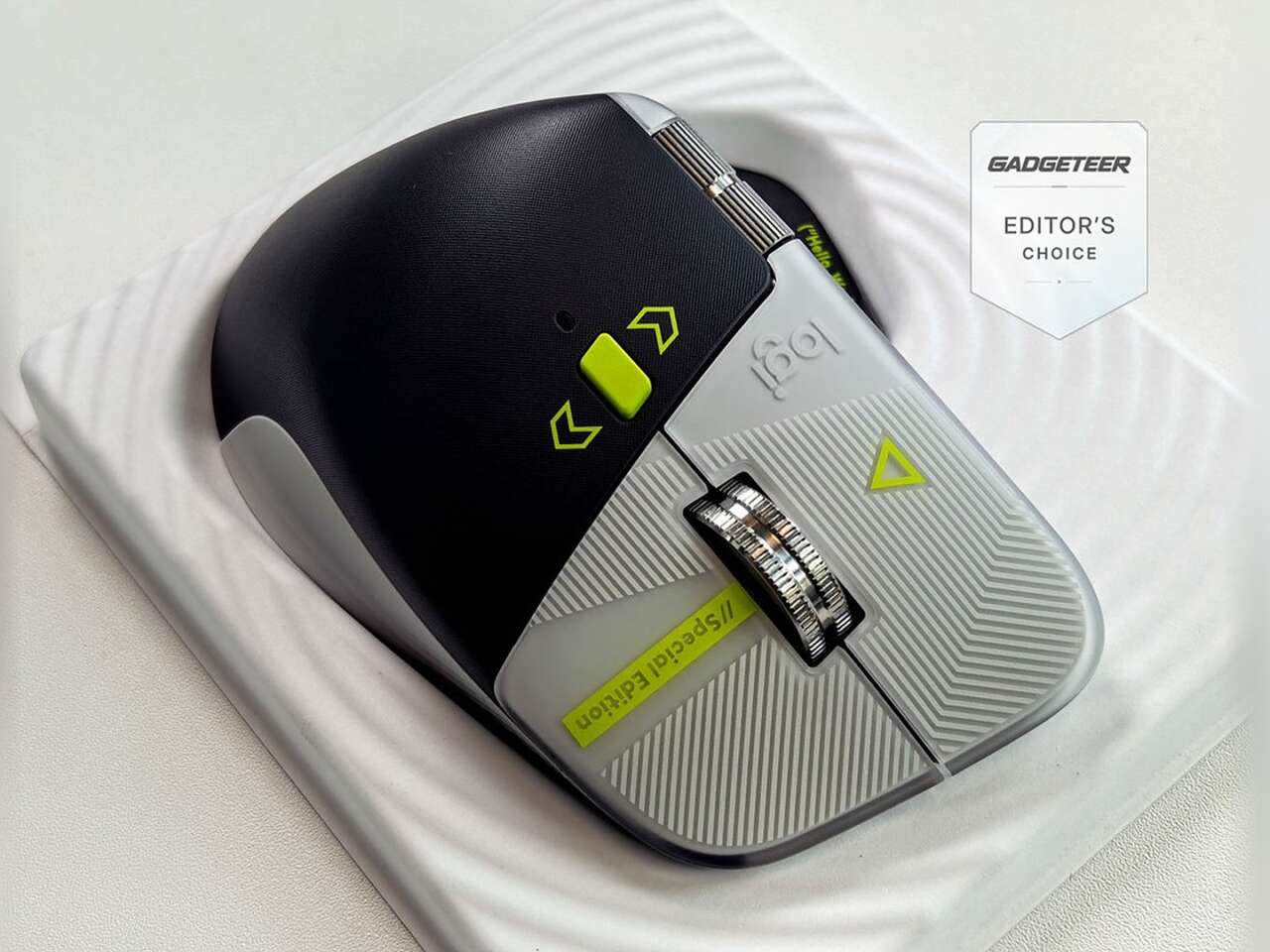

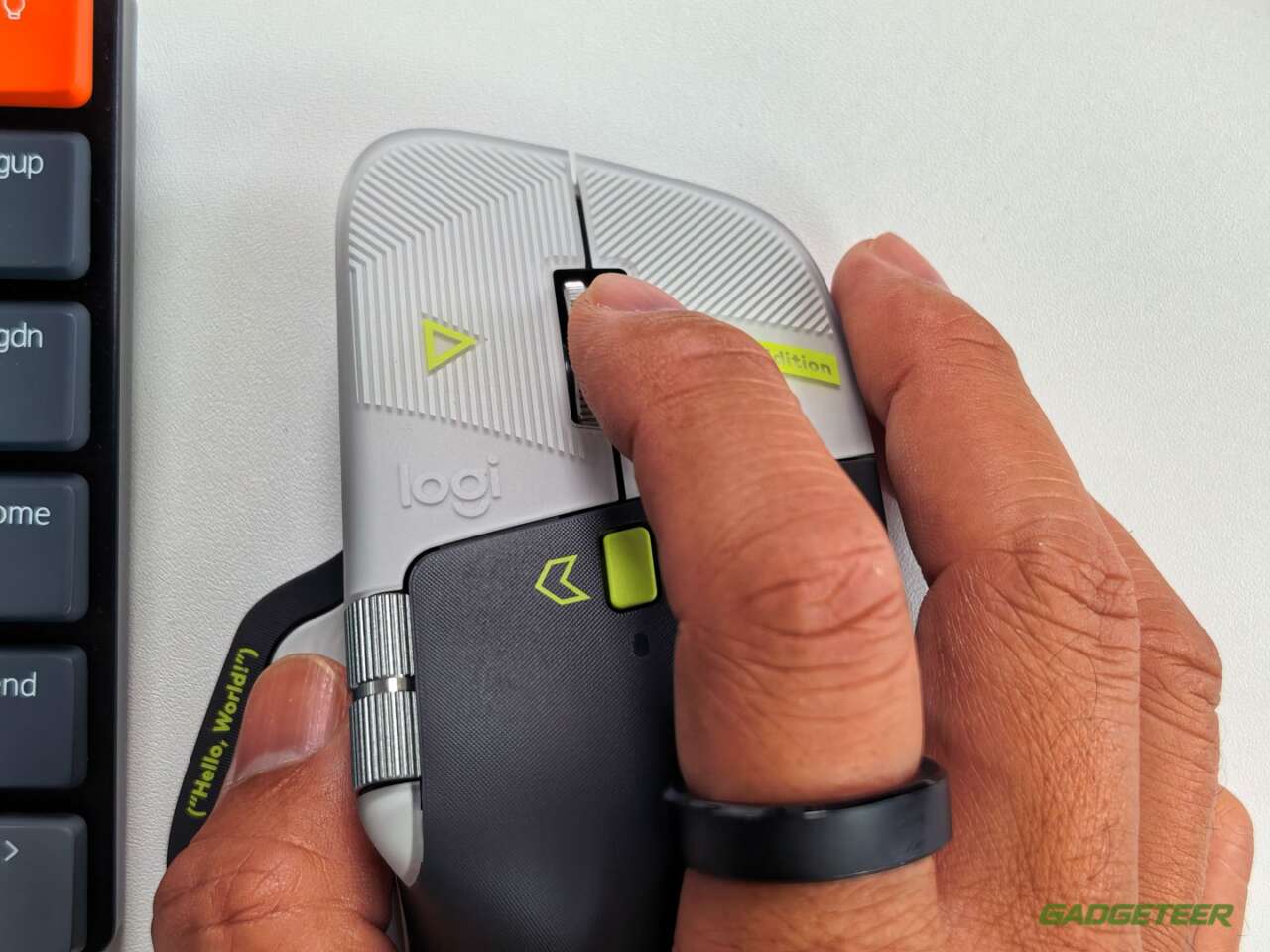
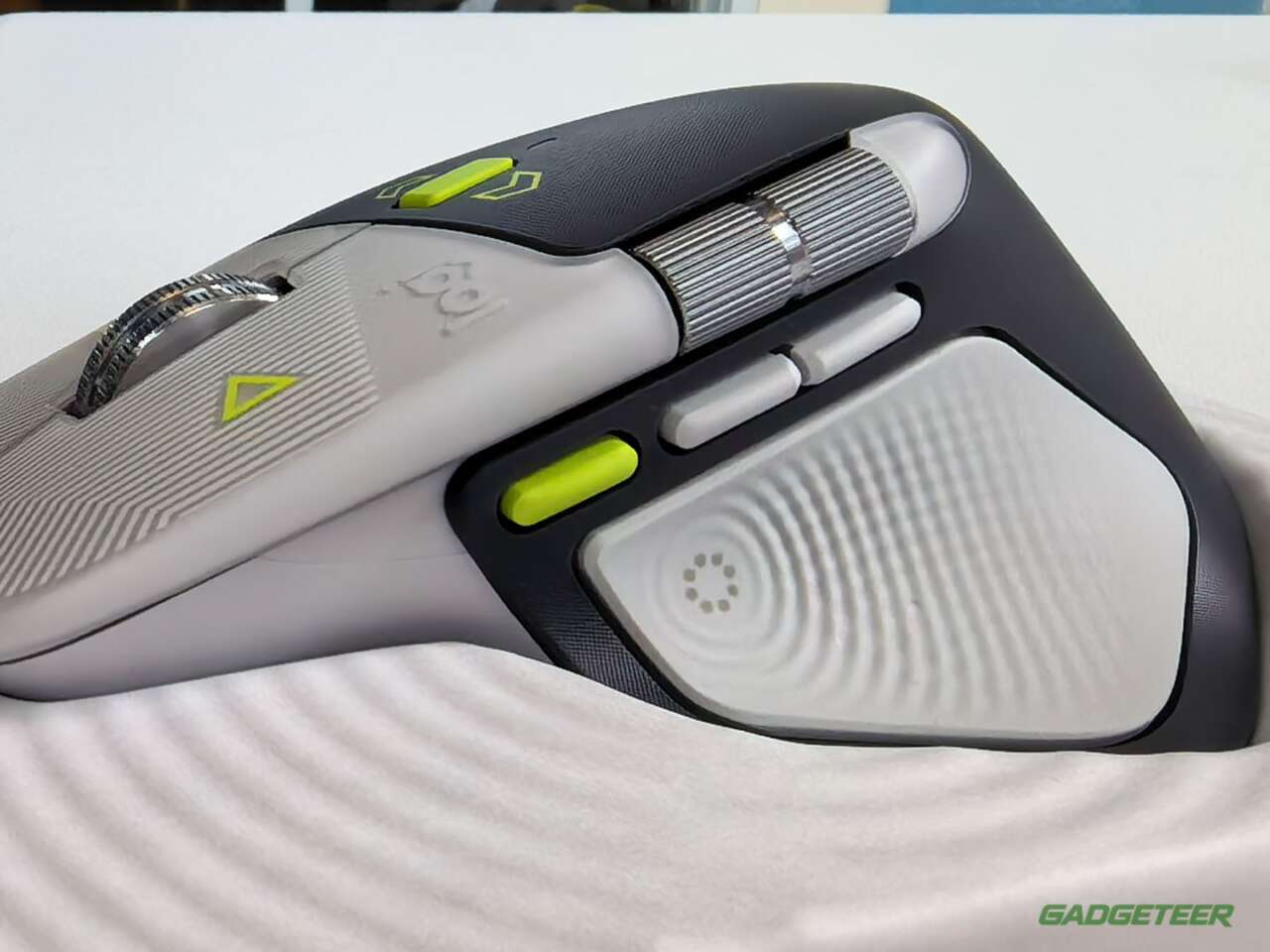
Logitech’s MX Master 4 is the productivity mouse I’d put on any desk, so the Developer Edition only has to answer one question: is a new shell enough reason to pick this MX Master 4 over the plain one? At $119.99, the same price as the standard model, the answer is yes. The sensor, the MagSpeed wheel, the haptics and the battery are identical. What’s new is the shell, with light gray and silver panels, a charcoal palm rest, lime-green accents and laser-etched code across the body. It looks stupid awesome in person.
Price: $119.99
Where to buy: Logitech
The etched shell is the whole upgrade, and it’s a good one
Logitech etched code over nearly every surface. Comment slashes and markup tags sit on the main buttons, circuit traces run across the side panels, and a {Hello, World} prompt is printed on the thumb rest. The right button carries //Special Edition, styled as a code comment. Three Easter eggs sit on the lower rim: 0xFF + 1 for World Programmers’ Day, 09.17 for the Linux kernel’s first release and !04.01 for World Backup Day.
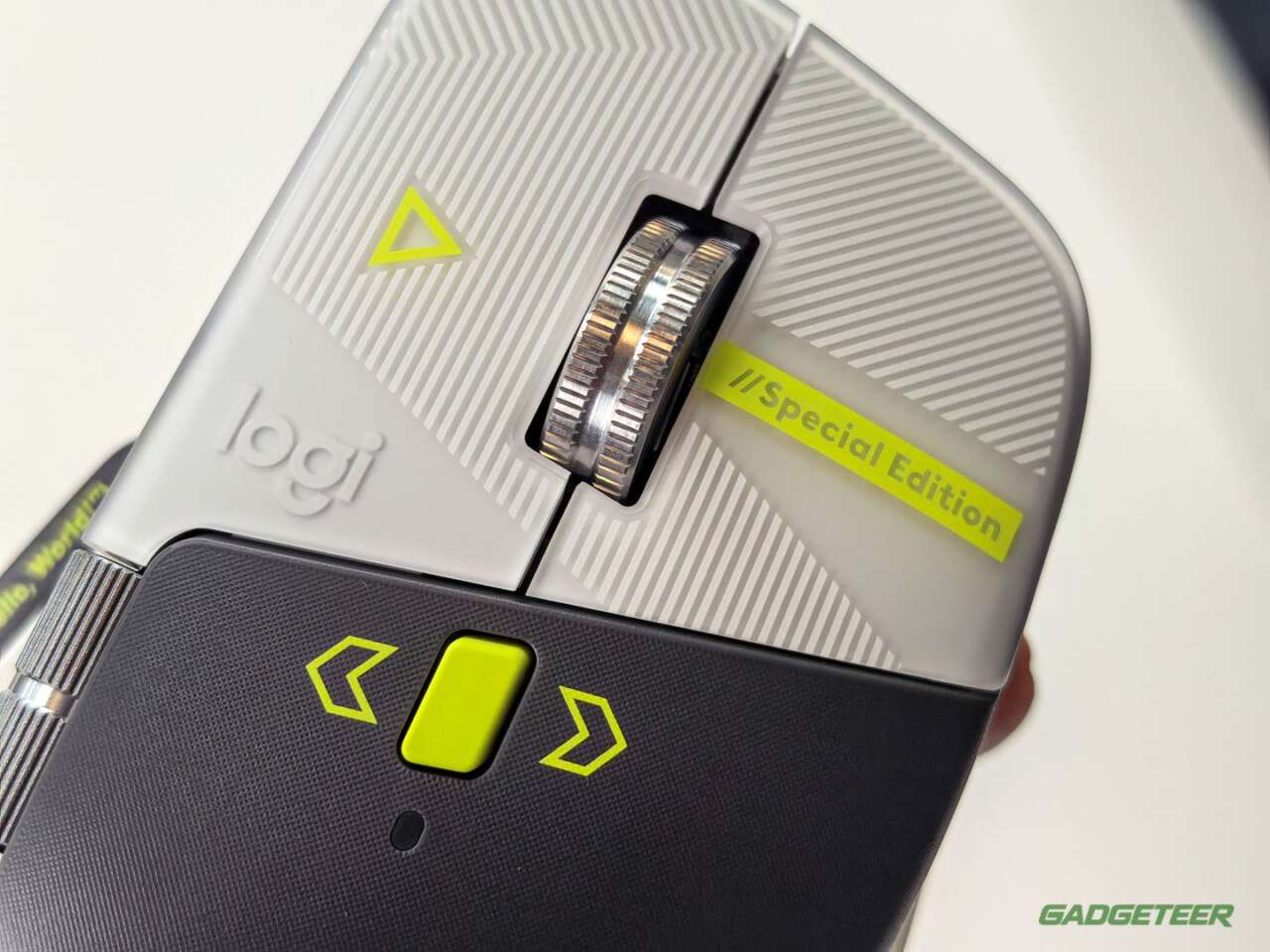
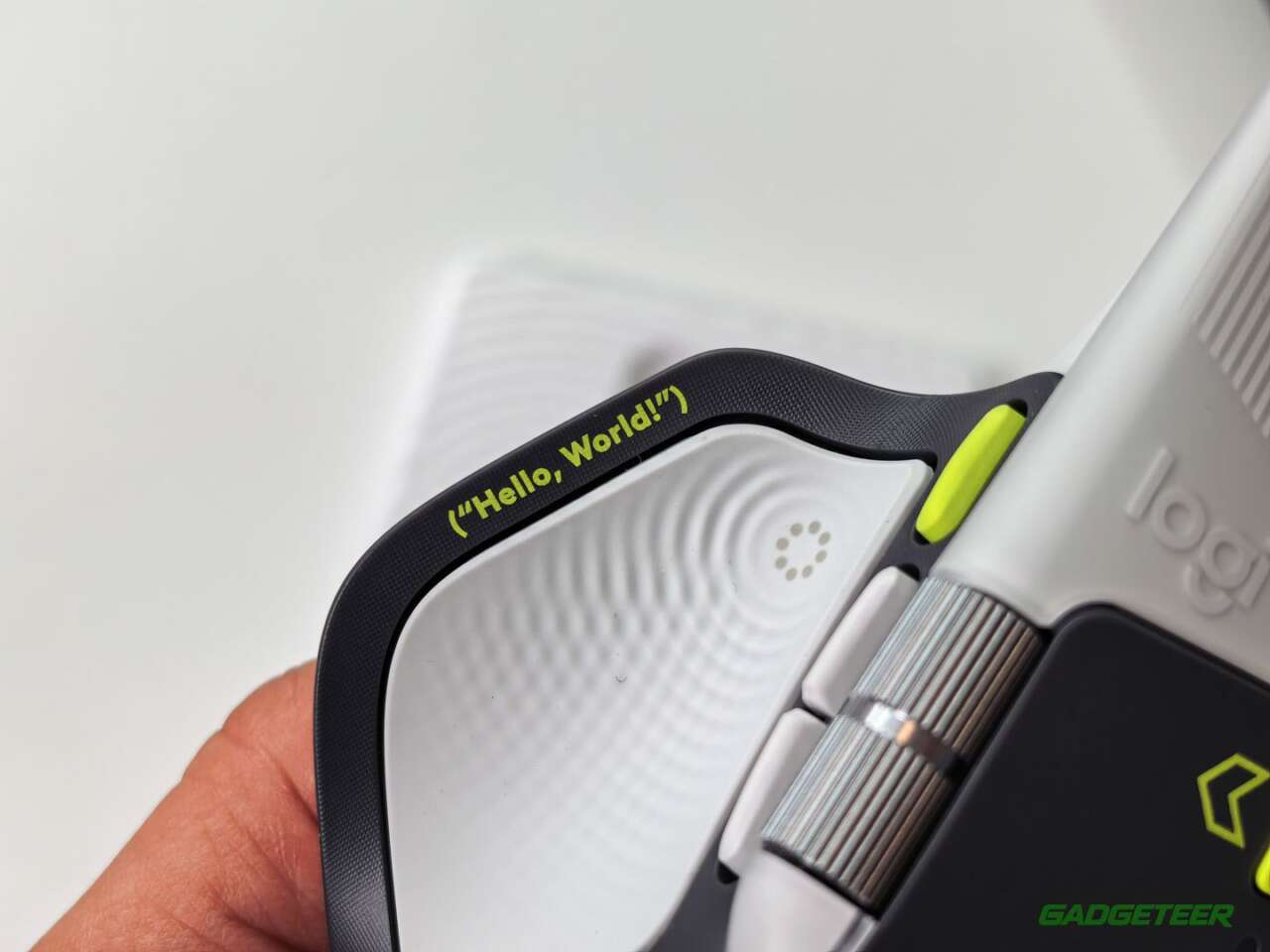
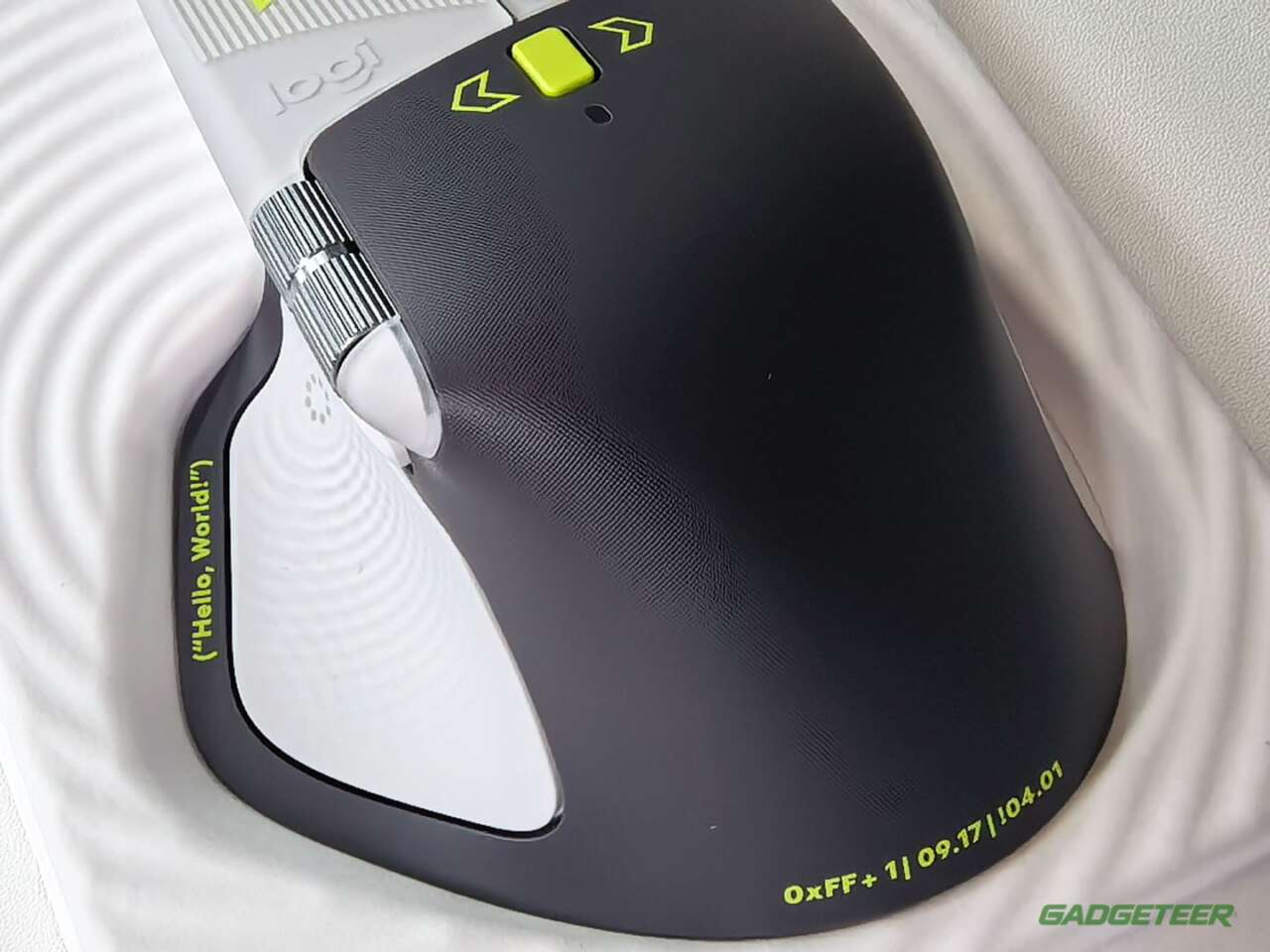
This is the first special edition in the MX line’s 20-plus years, and Logitech is selling it as a limited drop. The lime accents pick out the thumb buttons and the wheel, so the controls read faster at a glance than they do on the all-gray Graphite model. Nobody else at the coffee shop will get the 0xFF + 1 joke. You will.
The shape still does the comfort work
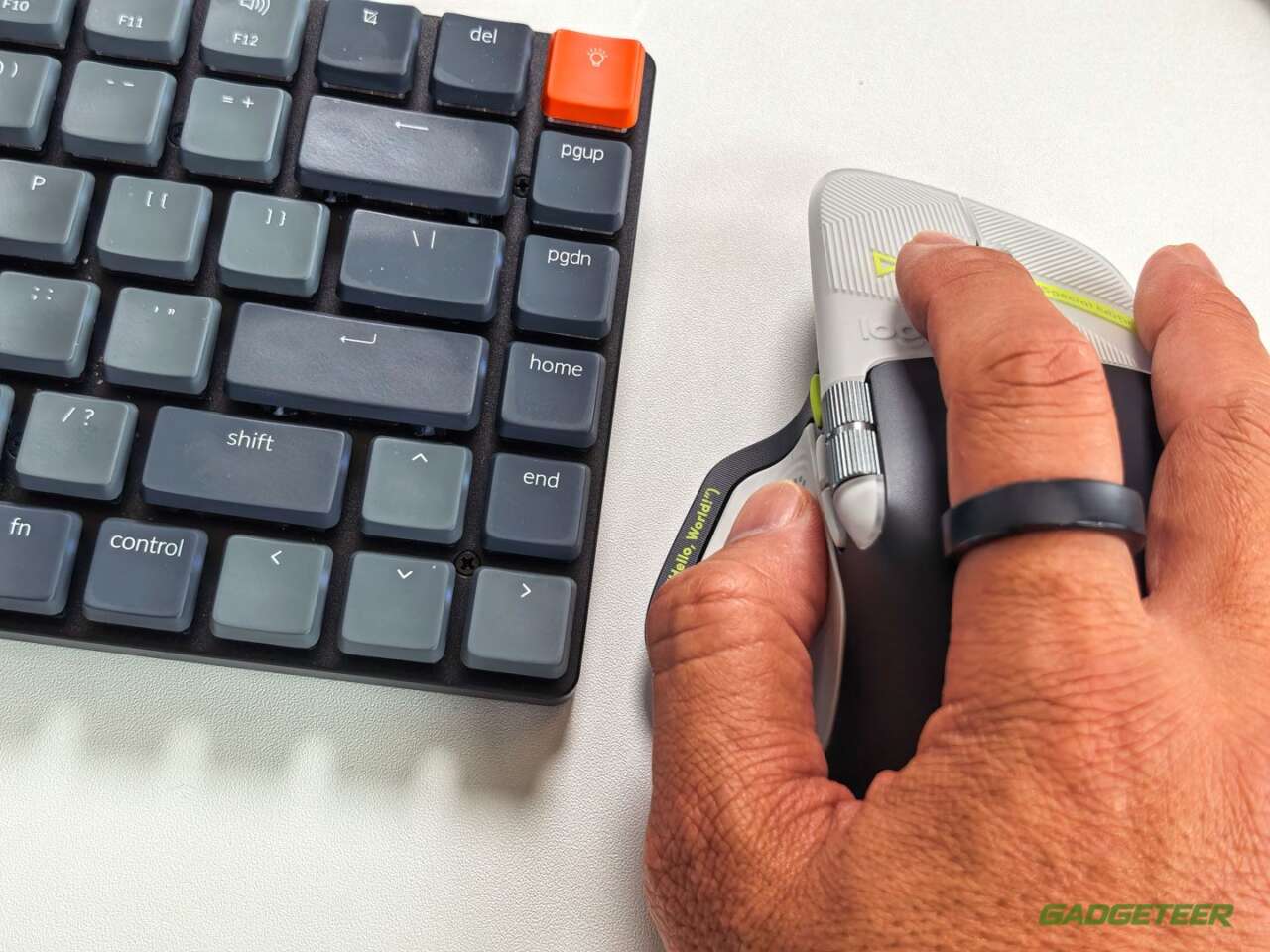
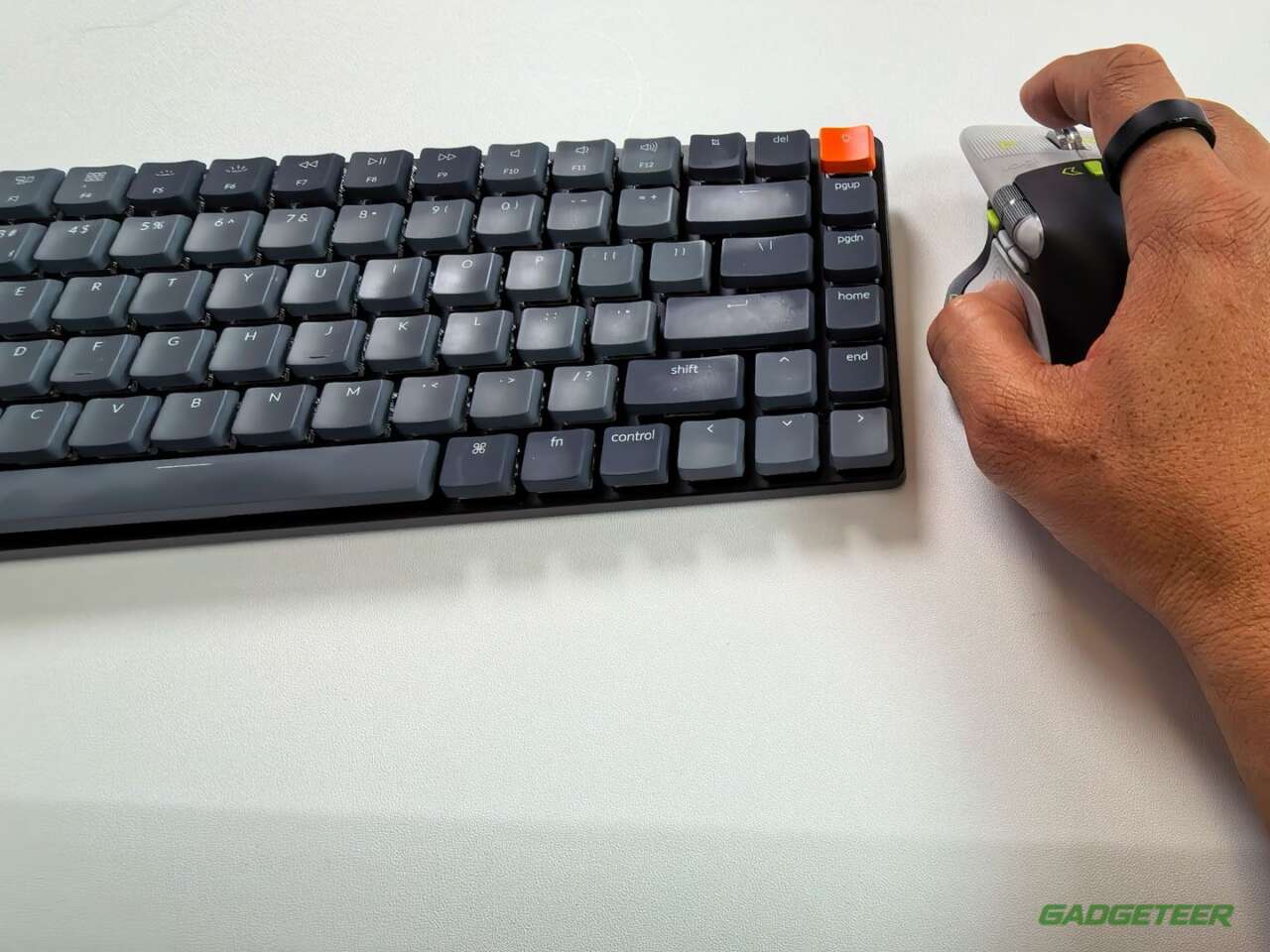
Under the finish sits the standard MX Master 4, the mouse our own review called a new favorite. It’s the same tall, right-handed sculpt with a wide thumb shelf, 150 grams and 128 by 88 by 51 millimeters, built for a palm grip in a right hand. Logitech now puts the soft-touch coating only where your thumb and ring finger land, so the shiny wear patches that marked up the MX Master 3S have far less surface to spread across.
MagSpeed and the haptic panel set the bar for buttons and scrolling
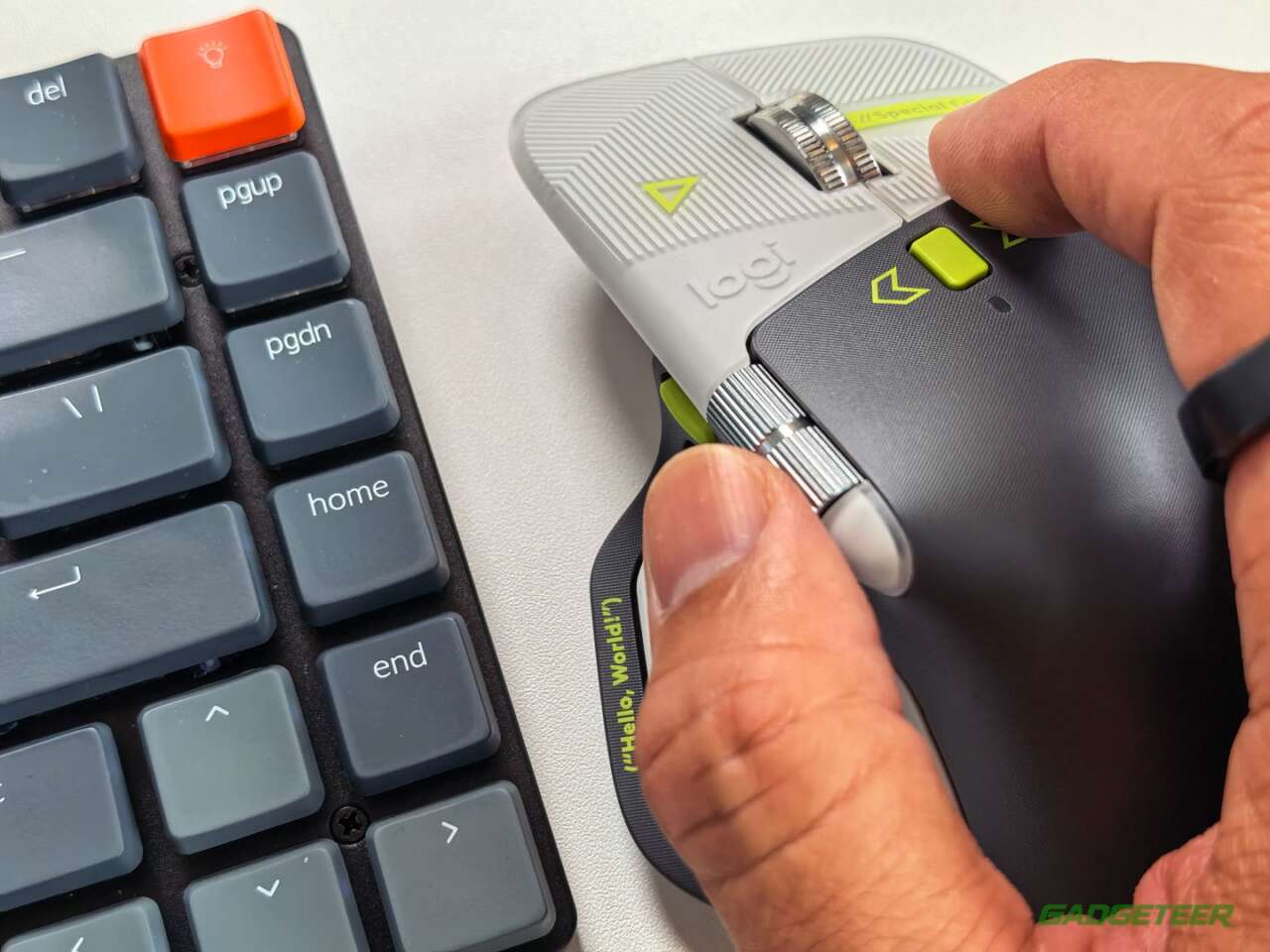
The steel MagSpeed wheel switches between ratcheted steps and free spin, and free spin runs at up to 1,000 lines per second. That sounds like a spec sheet flex until you’re at the bottom of a 4,000-line log file in two flicks. A thumb wheel handles horizontal scrolling across timelines and spreadsheets, the clicks are quiet, and the Easy-Switch button sits underneath where it can’t be bumped by accident.
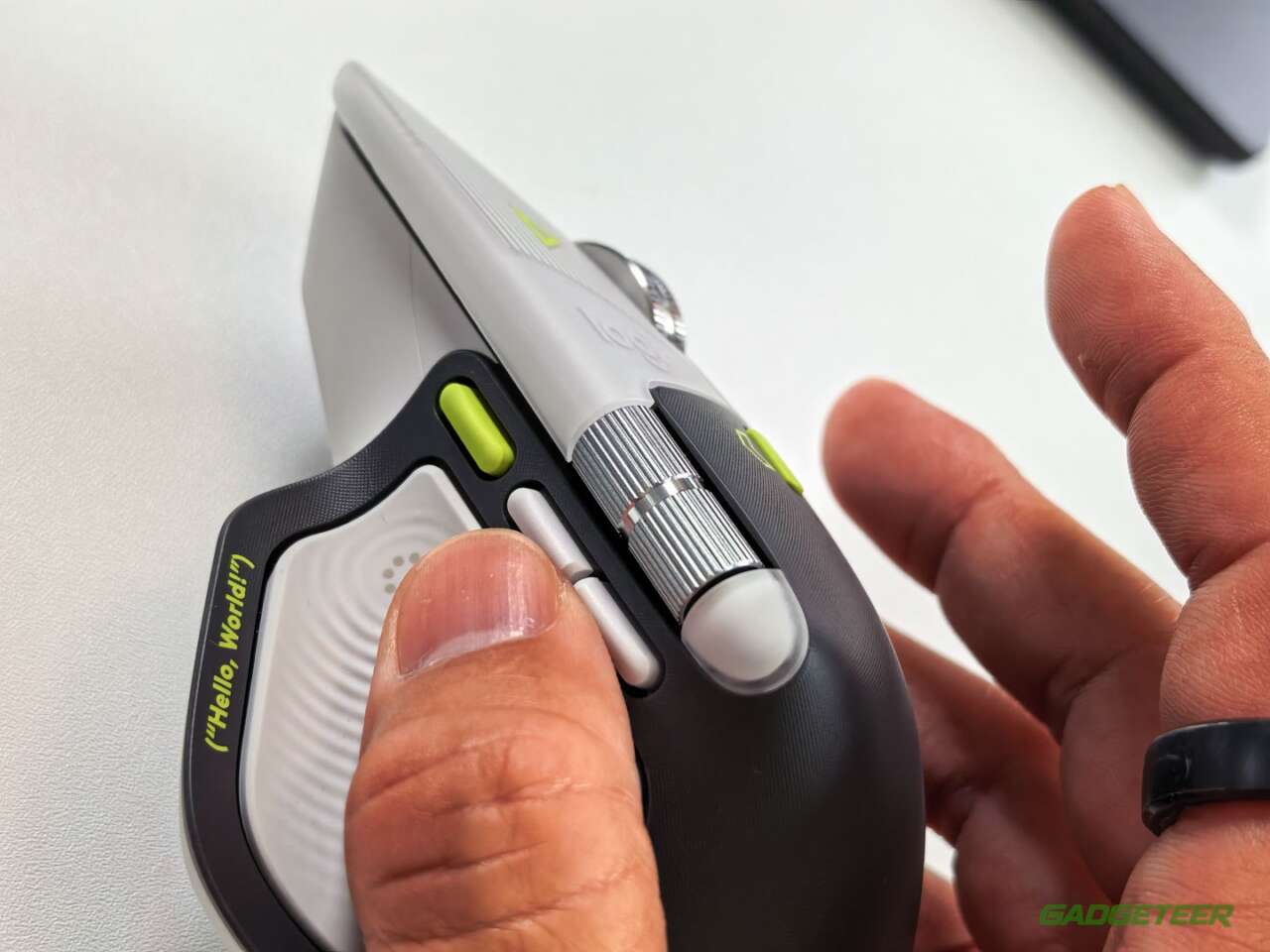
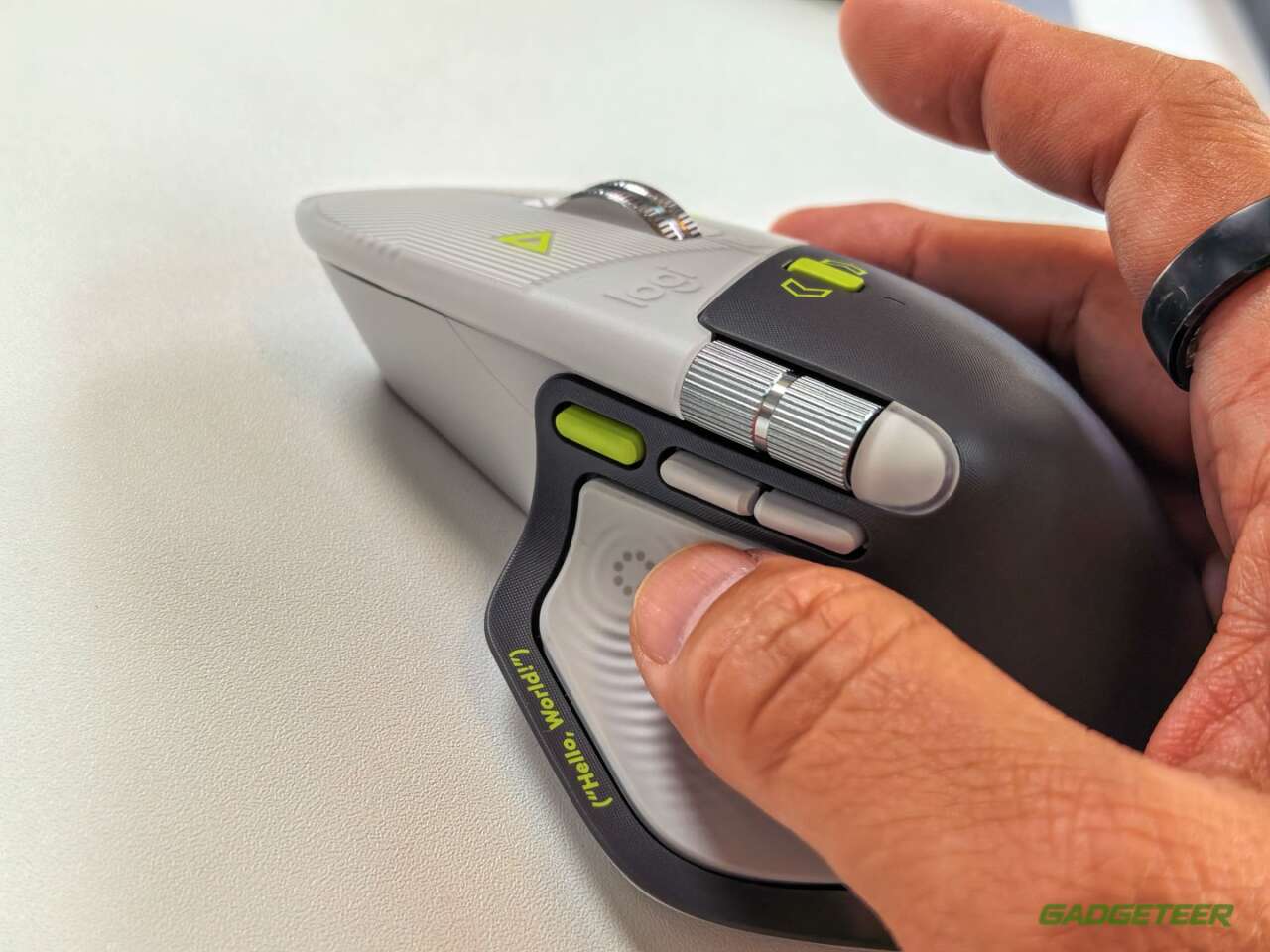
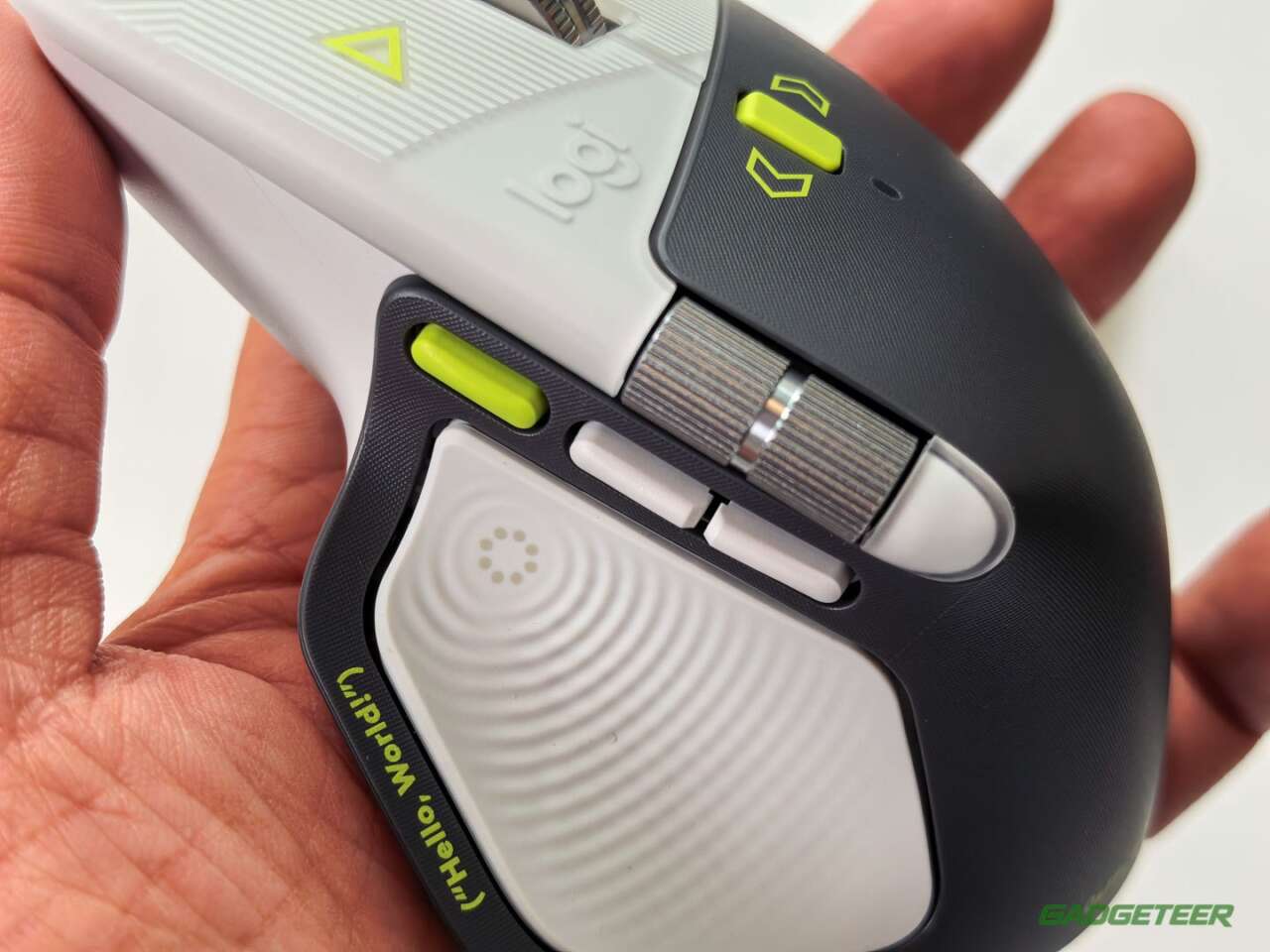
The Haptic Sense Panel under your thumb is the MX Master 4’s real advance over the 3S. It taps back when you snap a window, switch desktops or drag a slider to its stop, and Windows 11 builds from late March 2026 onward support those haptics natively for window management. Press the panel and it opens the Actions Ring, so the most useful new button on the mouse is also the one your thumb already rests on.
The 8,000 DPI sensor tracks on glass
Logitech’s Darkfield sensor runs from 200 to 8,000 DPI and tracks on glass at least 4mm thick, so a glass desk or a bare café table works without a pad. Set it high in Options+ to cross a big monitor with a flick, then drop it for pixel work in an image editor.
Options+ and the Actions Ring carry the AI pitch
Logi Options+ is where you set all of it. Every button, the haptic strength and the Actions Ring can be set per app, so the ring can hold Git commands in your code editor and a different set in Photoshop. Logitech’s 2025 Ergo Lab study of 37 MX Master owners puts the ring’s mouse-movement saving at up to 63%, because your shortcuts open around the cursor instead of in a menu bar across the screen.
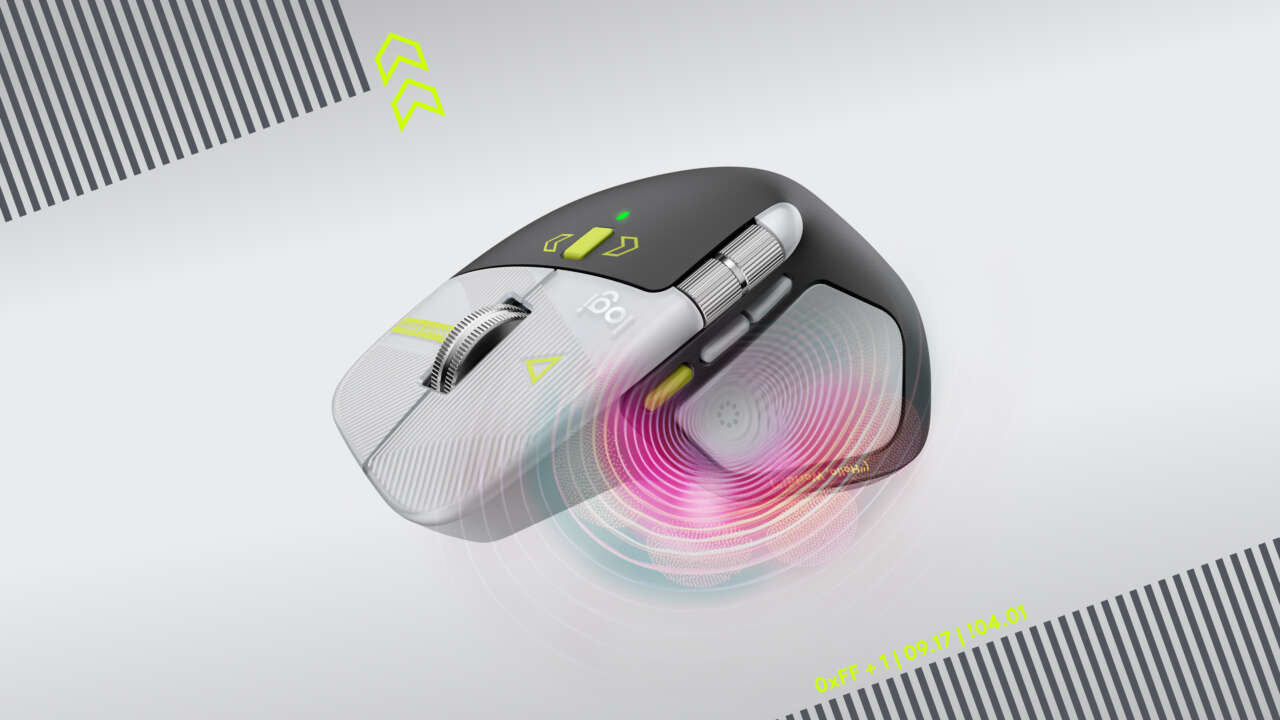
The Developer Edition’s AI angle lives in that ring. Map your coding assistant or agent to a ring slot and it’s one thumb press away inside any app. In China, Logitech adds a Tencent WorkBuddy plugin for meeting summaries, translation and document drafts, plus 500 WorkBuddy points in the box. The US product page doesn’t include that bundle, so here the assistant is whichever one you already use.
How I actually use it: Wispr Flow on a thumb press
Here’s my confession: I don’t use the thumb button for what Logitech intended. I mapped it to Wispr Flow, the voice dictation app, because I use Wispr for a big part of my day. The button behind the scroll wheel is a second Wispr Flow trigger, so voice is always one press away however my hand sits on the mouse. Of the three side buttons, one takes a screenshot, one pastes, and the middle one is my Enter key, which is really my Send button. Clicking the scroll wheel itself is my Back button, which gets more use than I’d like to admit.
That setup is the whole point for me. So much of my work now is talking to AI agents and chats, and voice with Wispr’s auto-edit is just easier than typing. I press, talk, let Wispr clean it up, and hit Send from the mouse, and I barely touch the keyboard. Wispr Flow is a key part of how I use this mouse, and Options+ is what lets me remap it that way.
70 days per charge and three computers at a press
The 650 mAh battery is good for up to 70 days per charge over USB-C, and one minute on the cable buys about three hours of use, so a dead battery costs you a minute, not a morning. It pairs with three devices over Bluetooth Low Energy or the Logi Bolt USB-C receiver that comes in the box, and Logitech Flow moves the cursor and files between computers through Options+. A spare Logi Bolt USB-C receiver is $14.99 at Amazon if the one in the box ends up in a laptop bag.
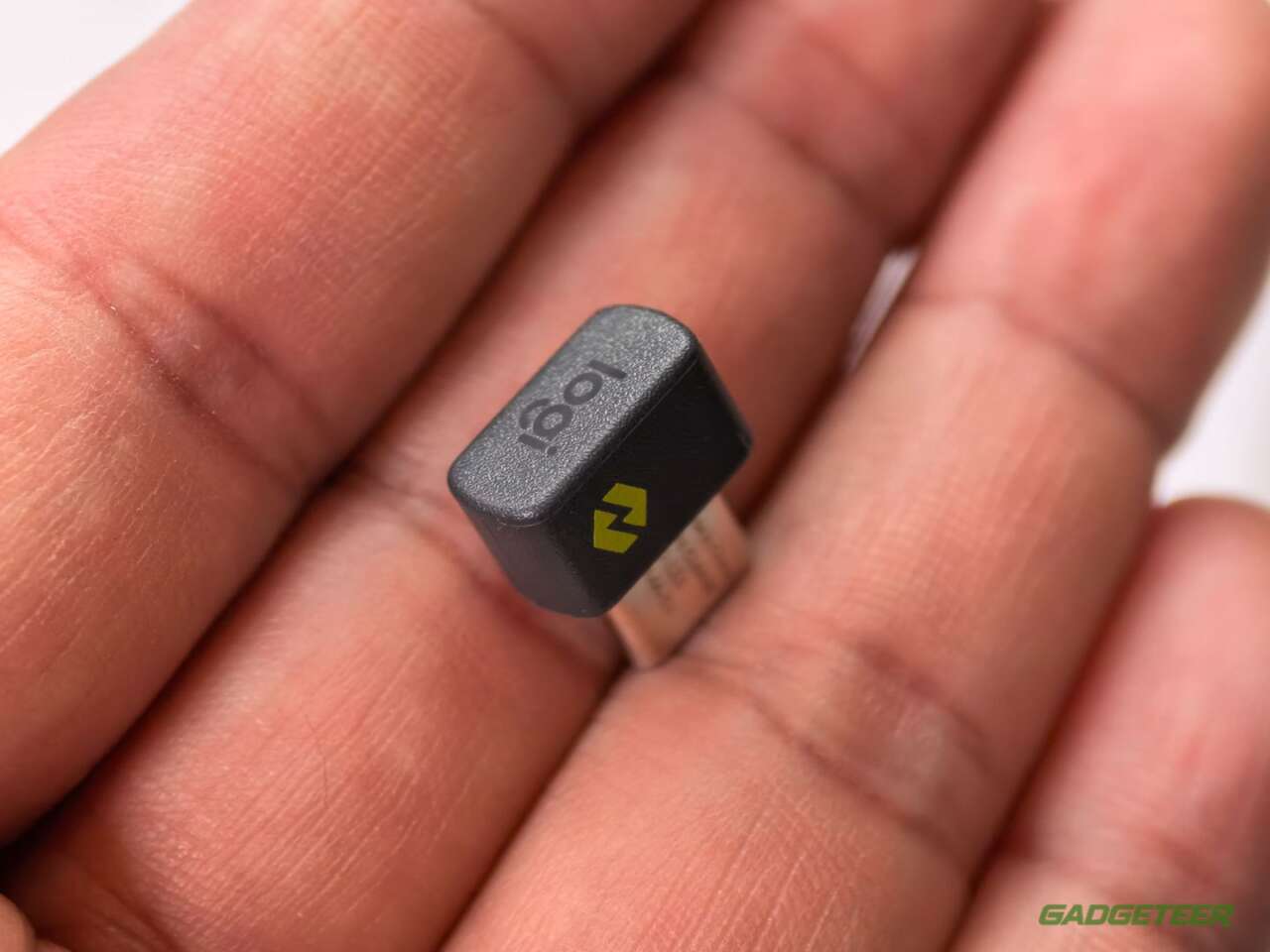
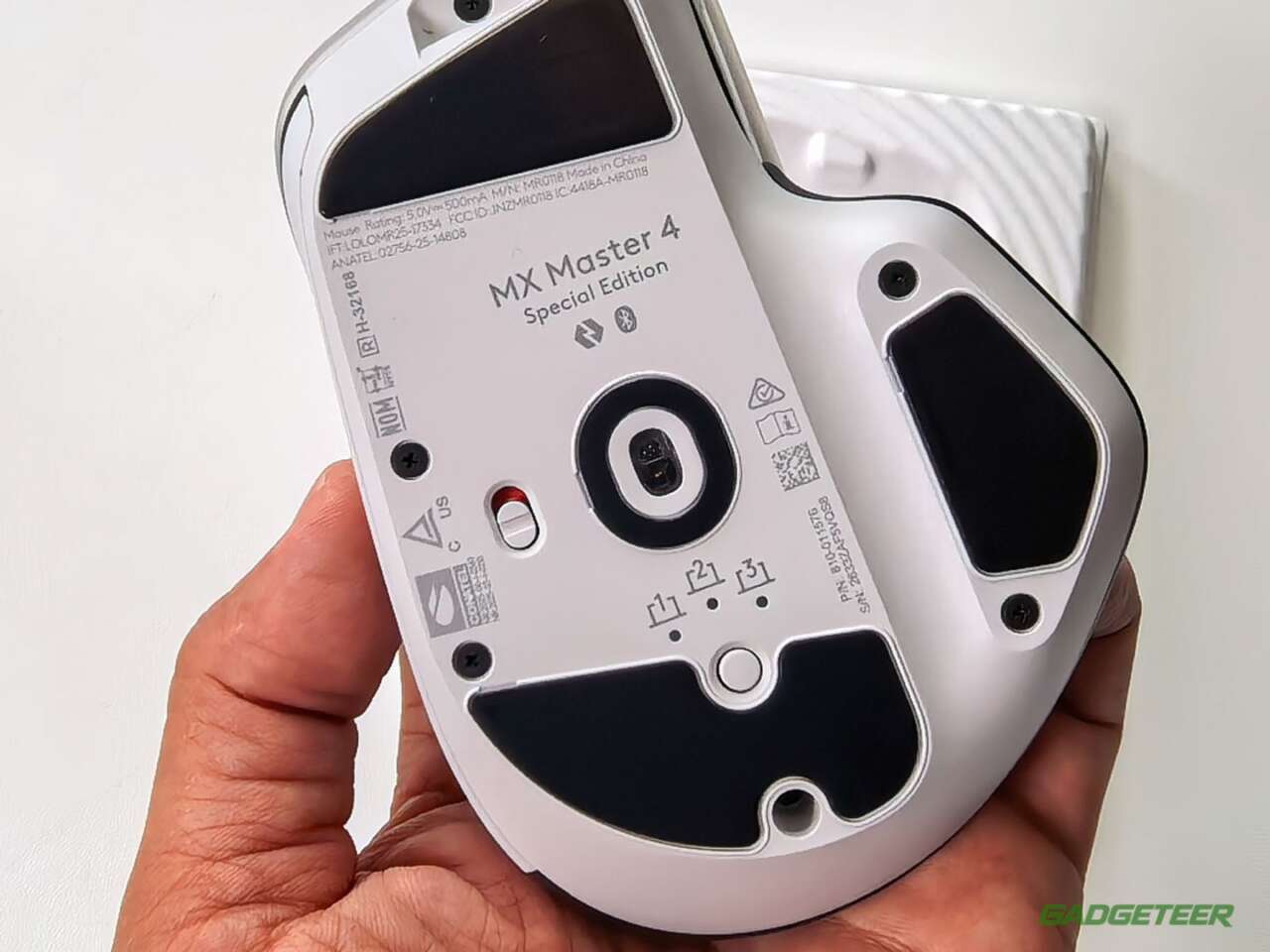
It works with Windows, macOS, Linux, ChromeOS, iPadOS and Android. Full button customization needs Options+, which runs on Windows and macOS.
Who should buy the Developer Edition, and who should save $40
If you were going to buy an MX Master 4 anyway, buy this one. It costs the same $119.99 as the standard MX Master 4 in Graphite at Amazon, and the etched shell is a free upgrade while it lasts. If the code art reads as noise on your desk, the Graphite model is the same mouse in a quieter finish.
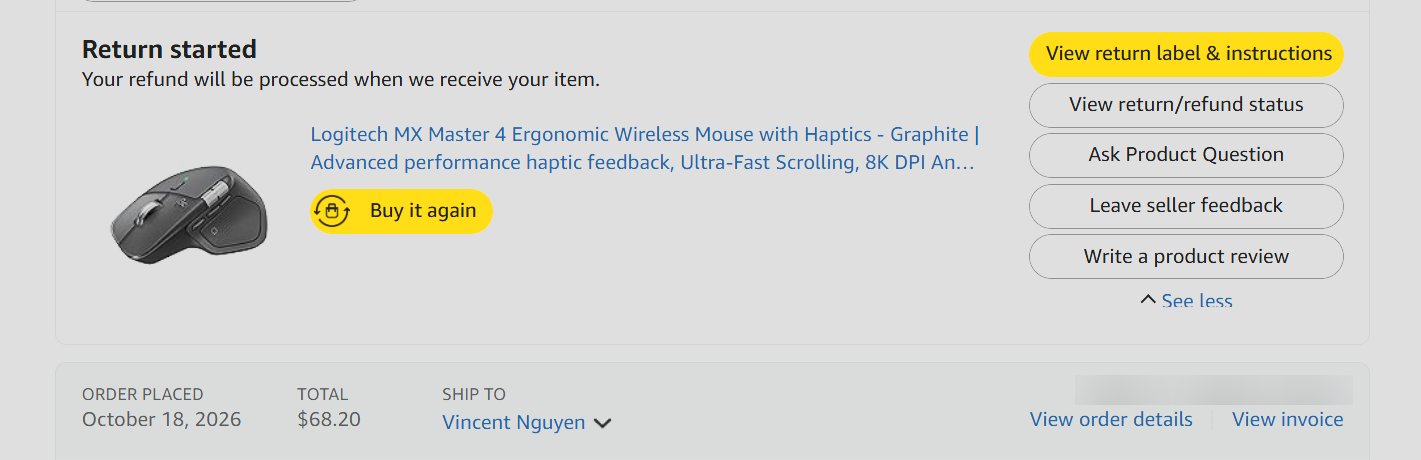
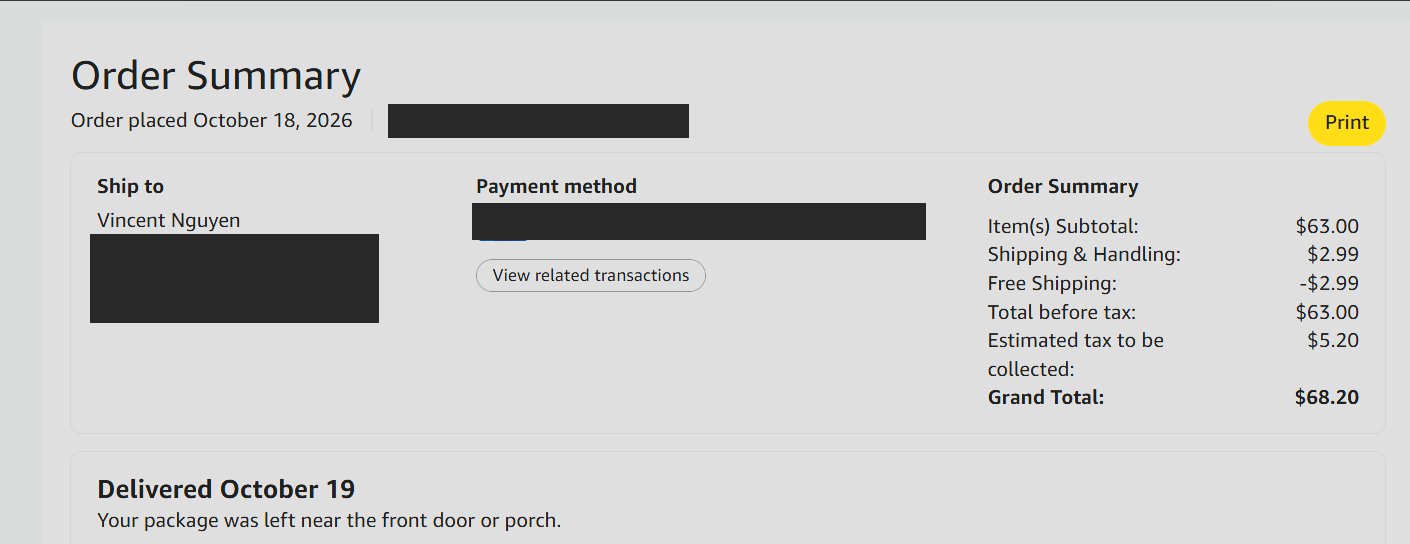
Ask me how I know. On October 18, I grabbed a regular Graphite MX Master 4 on Amazon for $68.20, a genuinely great sale price, right before Logitech dropped this etched shell. The bargain is going back anyway, because apparently I’d rather pay $119.99 for the same mouse than look at plain gray on my desk.
The MX Master 3S is $79.97 at Amazon, down from $99.99. It keeps the shape, the MagSpeed wheel and the 8,000 DPI sensor and drops the Haptic Sense Panel and the Actions Ring. That $40 gap is the real decision in this family. If you live in shortcuts, pay for the 4. If you just want the best scroll wheel on a desk, the 3S is the smarter buy.
Price: $119.99 (MX Master 4, Graphite)
Where to buy: Amazon
| Price | Finish | Haptics | Actions Ring | Sensor | Battery | |
|---|---|---|---|---|---|---|
| Developer Edition | $119.99 | Etched developer shell | Yes | Yes | 8,000 DPI | Up to 70 days |
| MX Master 4 | $119.99 | Graphite / Pale Gray | Yes | Yes | 8,000 DPI | Up to 70 days |
| MX Master 3S | $79.97 | Black | No | No | 8,000 DPI | Up to 70 days |
FAQ
Is the Developer Edition different hardware from the standard MX Master 4?
No. The sensor, wheels, haptics, battery and buttons are identical. Only the finish changes.
Does it work on a Mac?
Yes. It pairs over Bluetooth or the included USB-C Logi Bolt receiver, and Logi Options+ runs on macOS 13 and later.
Is it covered by the normal warranty?
Yes. Logitech gives the Developer Edition the same 1-year limited hardware warranty as the standard MX Master 4.
The best MX Master 4 costs nothing extra
The Developer Edition is the MX Master 4 I’d buy today: the same haptics and MagSpeed wheel in a shell developers will grin at every time they sit down, for $119.99. Buy it if an MX Master 4 is already on your list. Buy the $79.97 MX Master 3S if haptics and the Actions Ring aren’t worth $40 to you. Skip it if you already own an MX Master 4, because you already own this mouse.
It’s the overall package that does it. The mouse is the number one touch point when you’re working at a desk, and that’s why I’d call the MX Master 4 one of the most amazing inventions ever. The Developer Edition is that same mouse in its best shell.
Price: $119.99
Where to buy: Logitech
Amazon doesn’t carry the Developer Edition, so Logitech’s own store is where to get this shell.