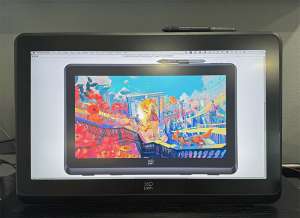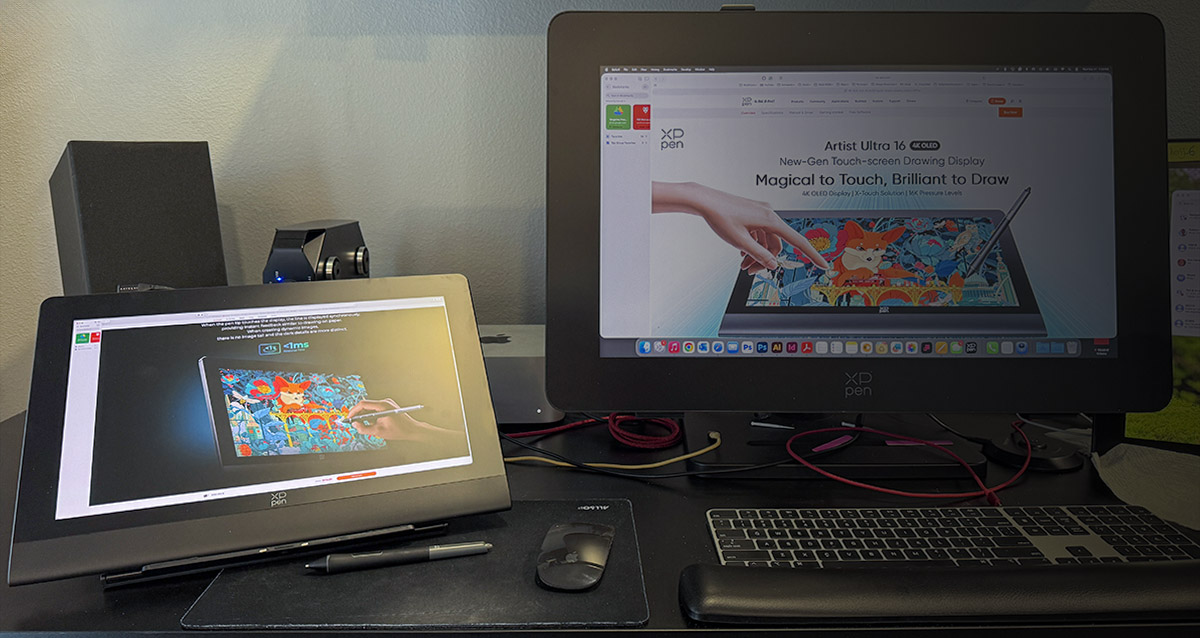
REVIEW – Is it possible for me to give an honest review of a drawing display from a company I admire? As good as XPPen’s new Artist Ultra 16 4K OLED Touch-screen Drawing Display is, I think I can provide a balanced review because some things bug me about it.
⬇︎ Jump to summary (pros/cons)
Price: $719.99 (XPPen); $749.99
Where to buy: XPPen Amazon
What is it?
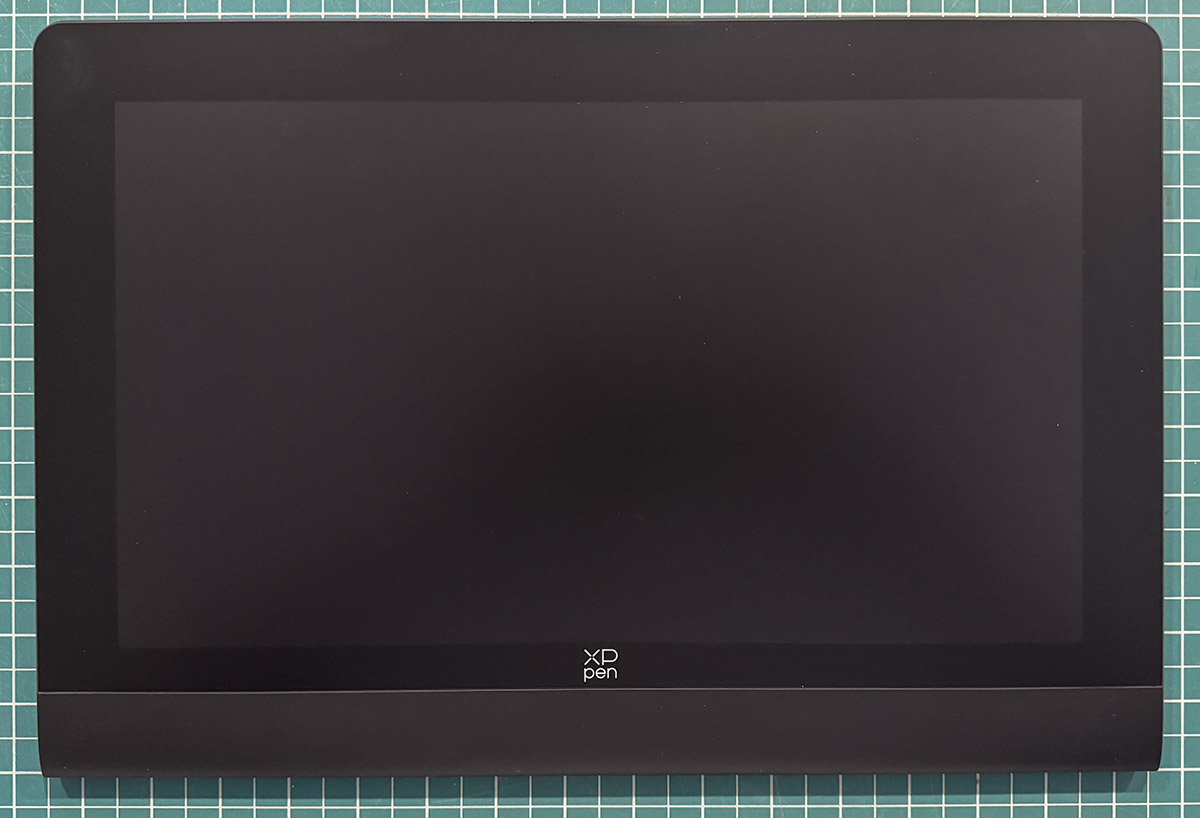
The XPPen Artist Ultra 16 4K OLED Touch-screen Drawing Display (that’s a mouthful) is a big leap forward for XPPen. It’s their first OLED display. OLED is known for incredible brightness, vivid color, and sharp image detail.
In addition to OLED, the Artist 16 screen features touchscreen support, 4K resolution, and 16,000 levels of drawing pressure sensitivity.
What’s included?
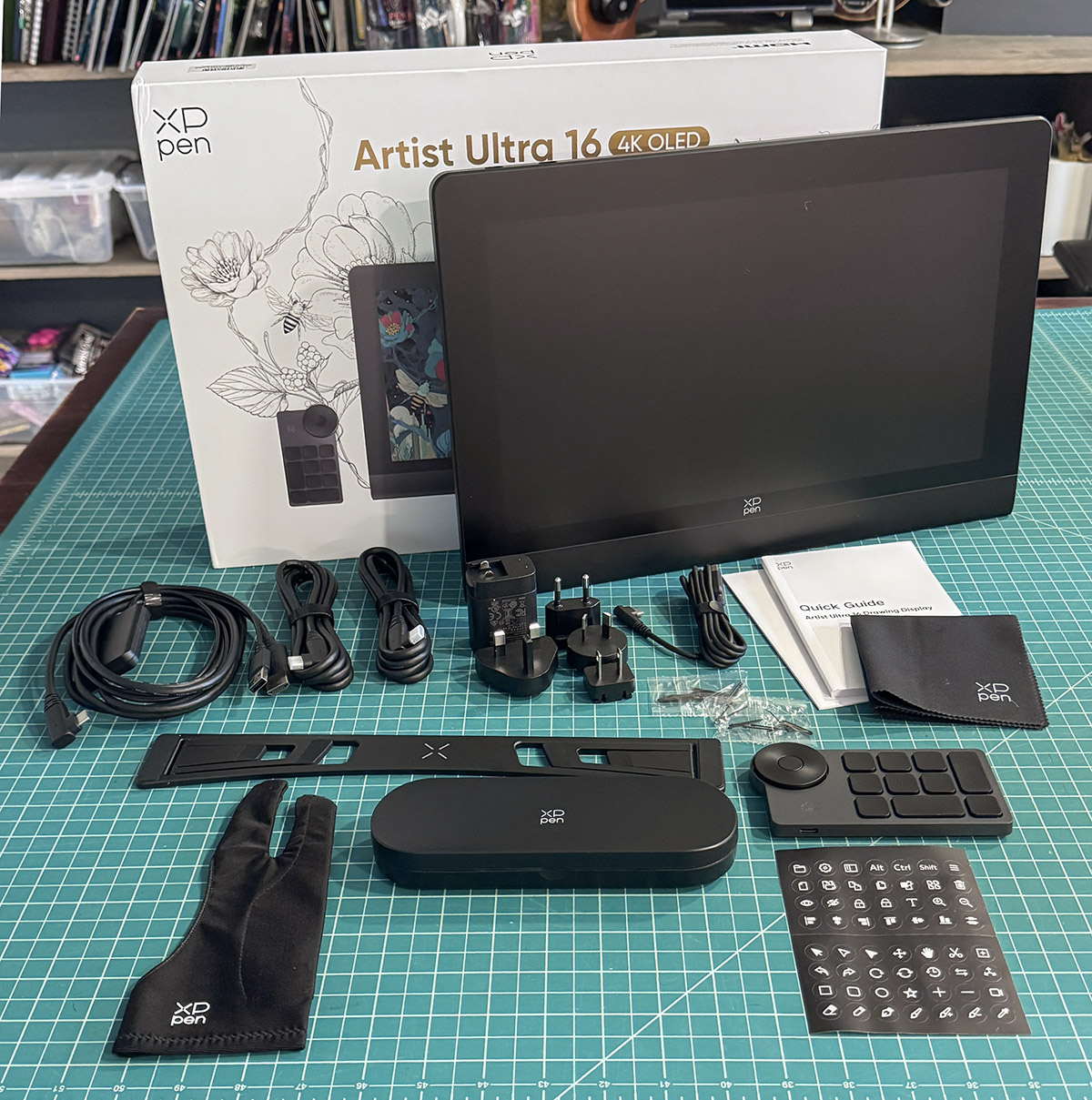
- Artist Ultra 16 Drawing Display
- X3 Pro Smart Chip Stylus
- X3 Pro Slim Stylus
- Pen case with nibs
- ACK05 Shortcut Remote
- Bluetooth Receiver
- USB-C to USB-C Cables (2)
- USB-C to USB-A Cable
- Power Adapter
- 3-in-1 Cable
- X3 Pro Slim Stylus nibs (10)
- X3 Pro Stylus Standard Nibs (10)
- Stand (Legs)
- Cleaning Cloth
Tech specs
- Display Size: 15.6 Inch
- Aspect Ratio: 16:9
- Resolution: 3840 x 2160 Pixels (4K)
- Refresh Rate: 60 Hz
- Color Gamut Coverage Ratio: 99% Adobe RGB; 99% sRGB; 98% Display P3
- 1.07 Billion colors
- Brightness: 350 nit
- Full Lamination: Yes
- Touch Screen
- Anti-glare glass
- Anti-fingerprint coating
- X3 Pro Smart Chip Stylus
- X3 Pro Slim Stylus
- Pressure Levels: 16384
- Ports: Full-featured USB-C (2)
- Compatibility: Windows 7 or later; MacOS 12 or later; Android 10.0 or later,; ChromeOS 88 or later; Windows ARM; Linux
Design and features
As I stated at the beginning of the review, I like XPPen—a lot. They not only make a wide range of drawing tablets and displays but also continue to improve year after year. Only a few years ago, XPPen was known for affordable tablets for those who couldn’t (or wouldn’t) pay exorbitant prices for the quality of a Wacom tablet. However, as Wacom improved slightly, XPPen improved dramatically! So much so that I can easily recommend an XPPen tablet or display without hesitation. Out of the three drawing displays on my desk, two are by XPPen.
My current drawing display is the 2.5K XPPen Artist Pro 24 (Gen 2) at 165Hz. It also doubles as my main monitor. It’s that good. As I said, XPPen keeps improving, and they have now released a 4K OLED drawing display. OLED is a gold standard in display quality, but I have thoughts I’ll share later.
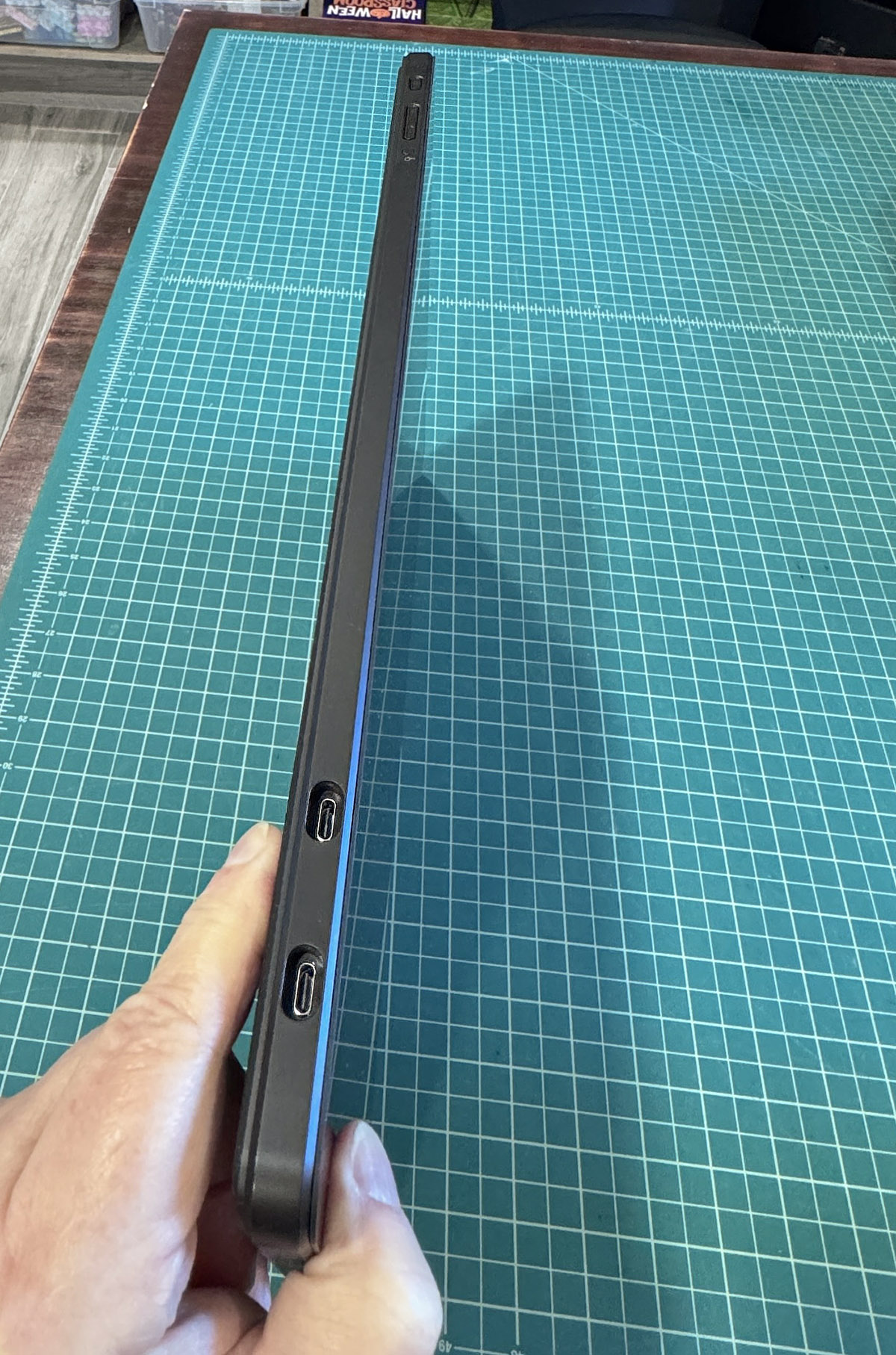
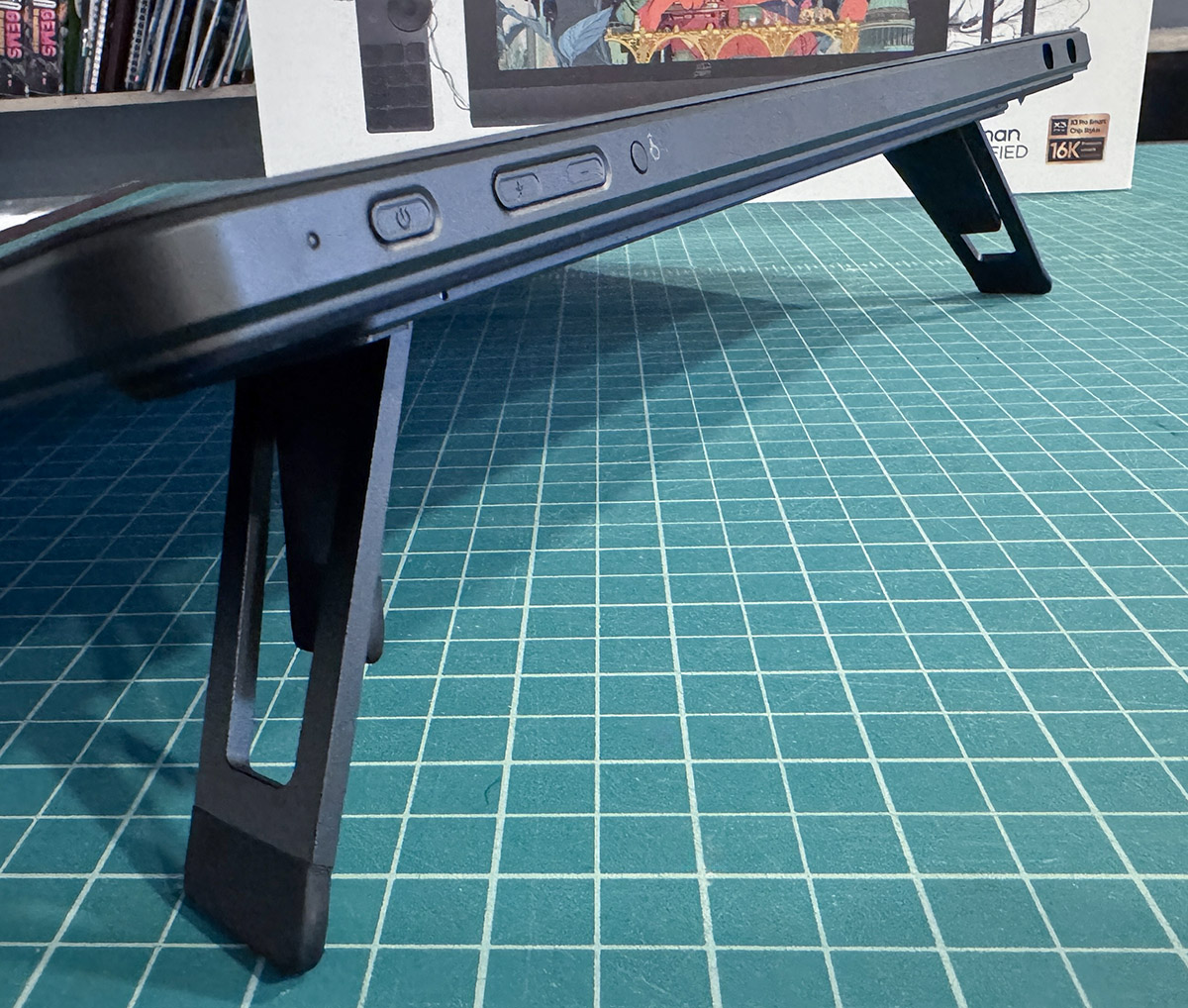
The Artist Ultra 16 display is ultra-thin. It’s heavier than an iPad but light enough to carry for portable work. Note that the Artist Ultra 16 is not a stand-alone tablet like Android or iPad tablets. It requires a connection to a laptop or desktop computer. It’s a monitor you can draw on.
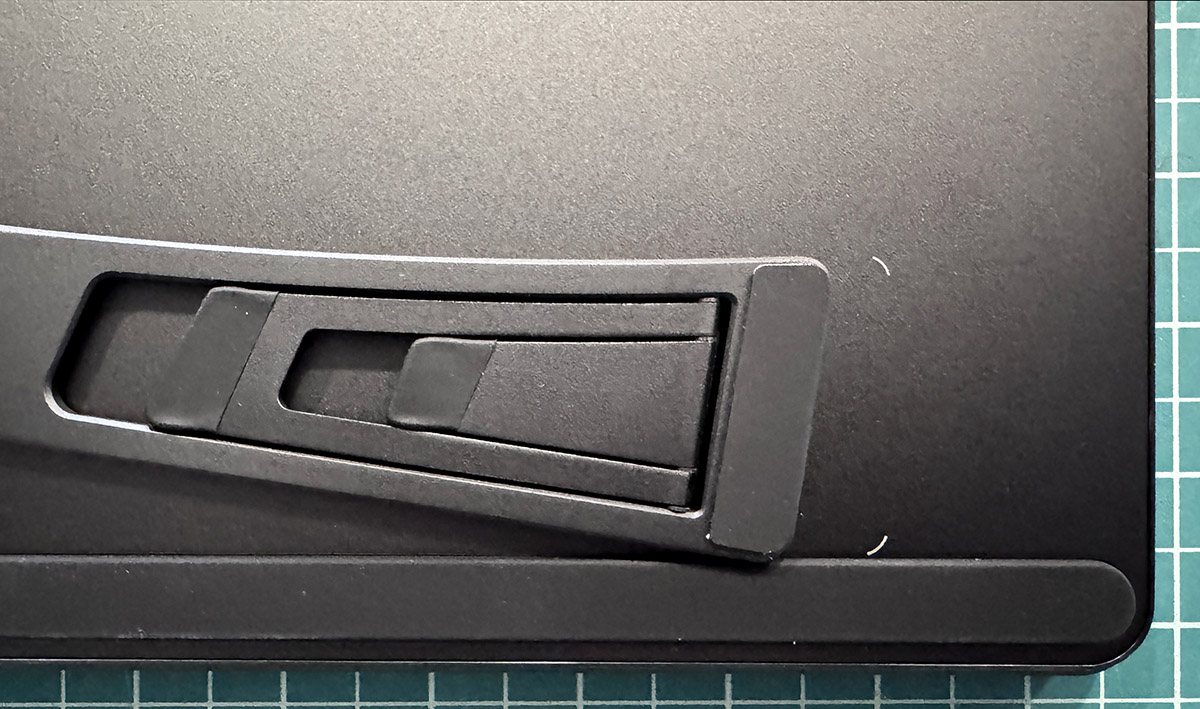
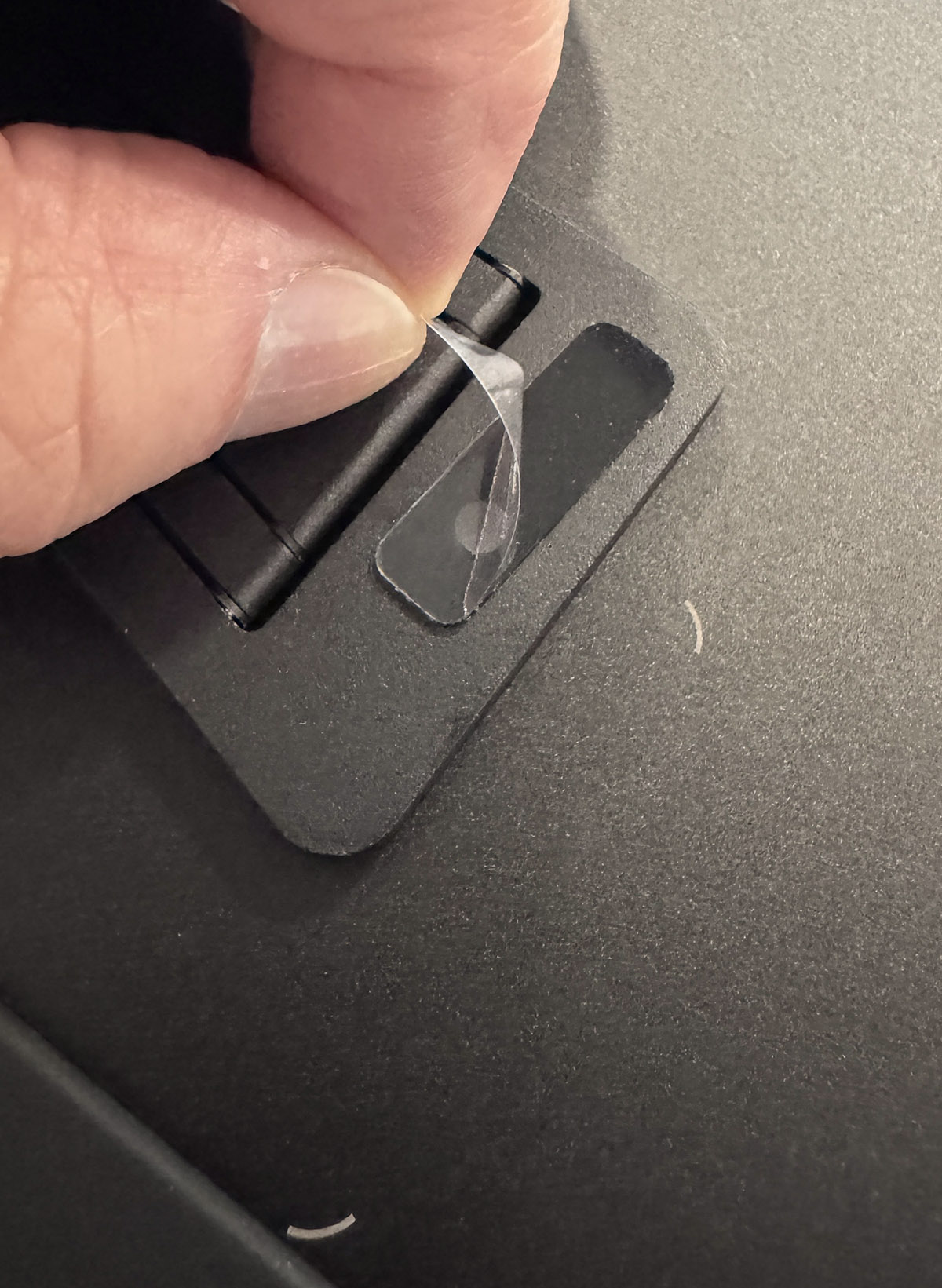
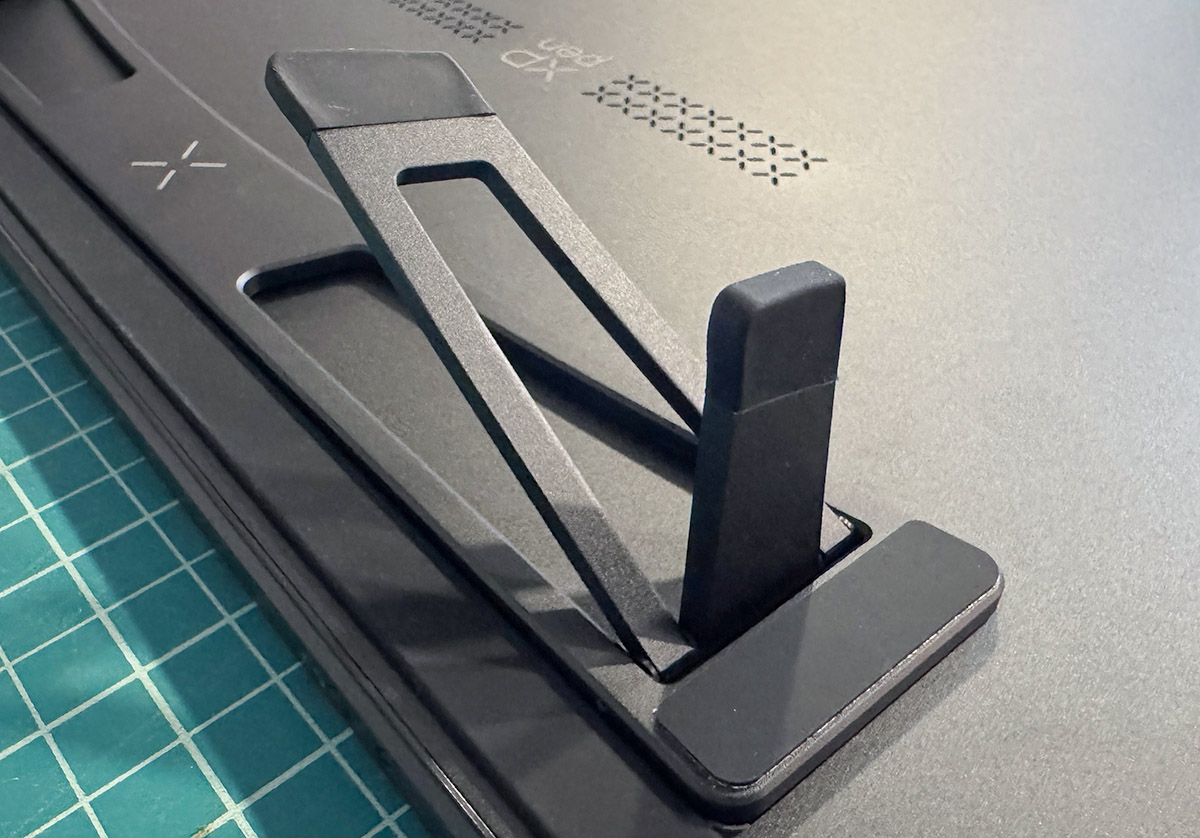
Many drawing displays come with either built-in or add-on stands. The Artist Ultra 16 does not. It does come with stick-on legs (XPPen calls it a stand) that prop up the display at two fixed angles. The legs work well, and the angles are usable. Unfortunately, the adhesive on the legs kept coming loose. I would have preferred a VESA-type mount, but it’s not available.
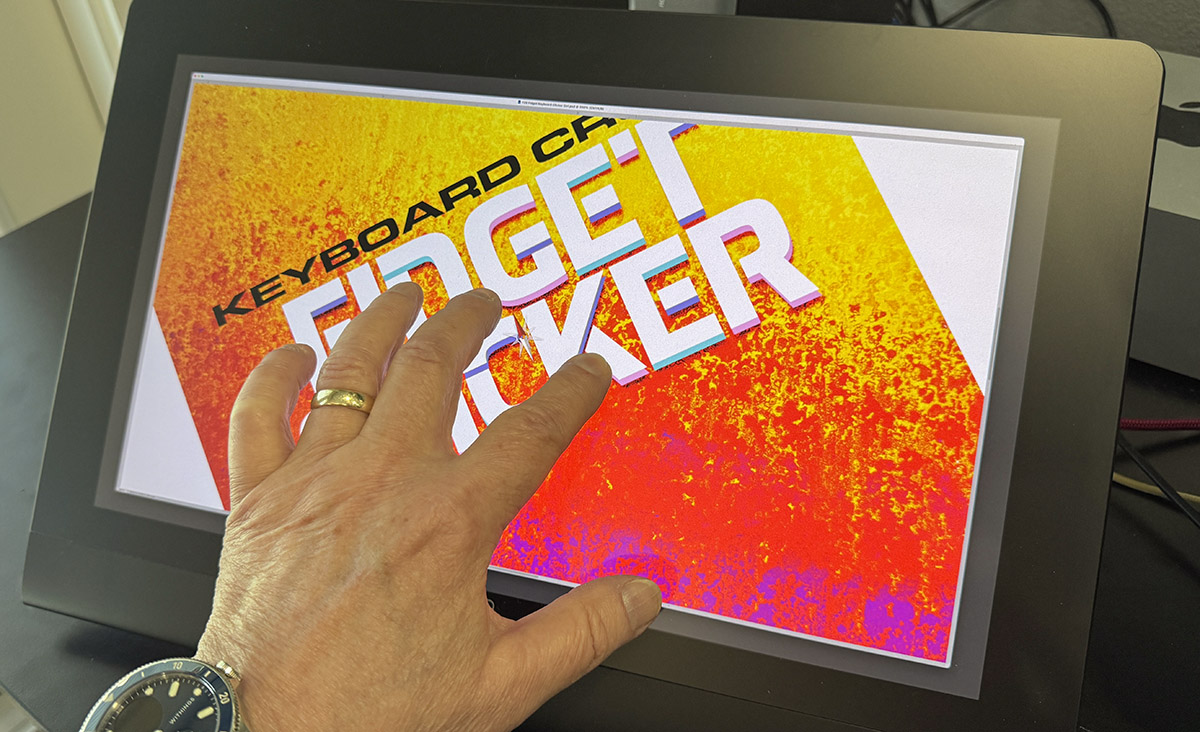
One of the most touted features of the Artist Ultra 16 display is XPPen’s X-Touch, which offers smartphone-style finger shortcuts for zoom, rotate, and more. The bottom line is that X-Touch works. However, Apple places restrictions on using touch with a Mac. First, a few settings need to be enabled for touch to work. Permissions are not automatic with Apple. The latest XPPen driver must be installed. Even after jumping through Apple’s hoops, X-Touch on the Ultra 16 is neither smooth nor seamless. It’s jerky, intermittent, and never feels as natural as drawing with the stylus. While using X-Touch in Photoshop, rotating an image is anything but smooth, and sometimes the image moves partially off the canvas. I never intended to move it; I just meant to rotate it. Ugh!
Using X-Touch with the MacOS desktop was simpler. I could tap to highlight, move, and open files with just my finger. While that was nice, 99% of the time I’m already holding my XPPen stylus or the Apple mouse. So why would I set the pen down just to use my finger? It’s counterintuitive. If X-Touch worked as smoothly as the pen or mouse, I might incorporate it into my workflow, but for now it’s a no-go.
Understand that this is an Apple issue, not an XPPen issue. In fact, if you are using Windows, X-Touch works great because Windows already has built-in touch support. Thanks, Apple. For now, I will not be using the X-Touch feature.
Note that the Artist Ultra 16 also supports Android, ChromeOS, Windows ARM, and Linux
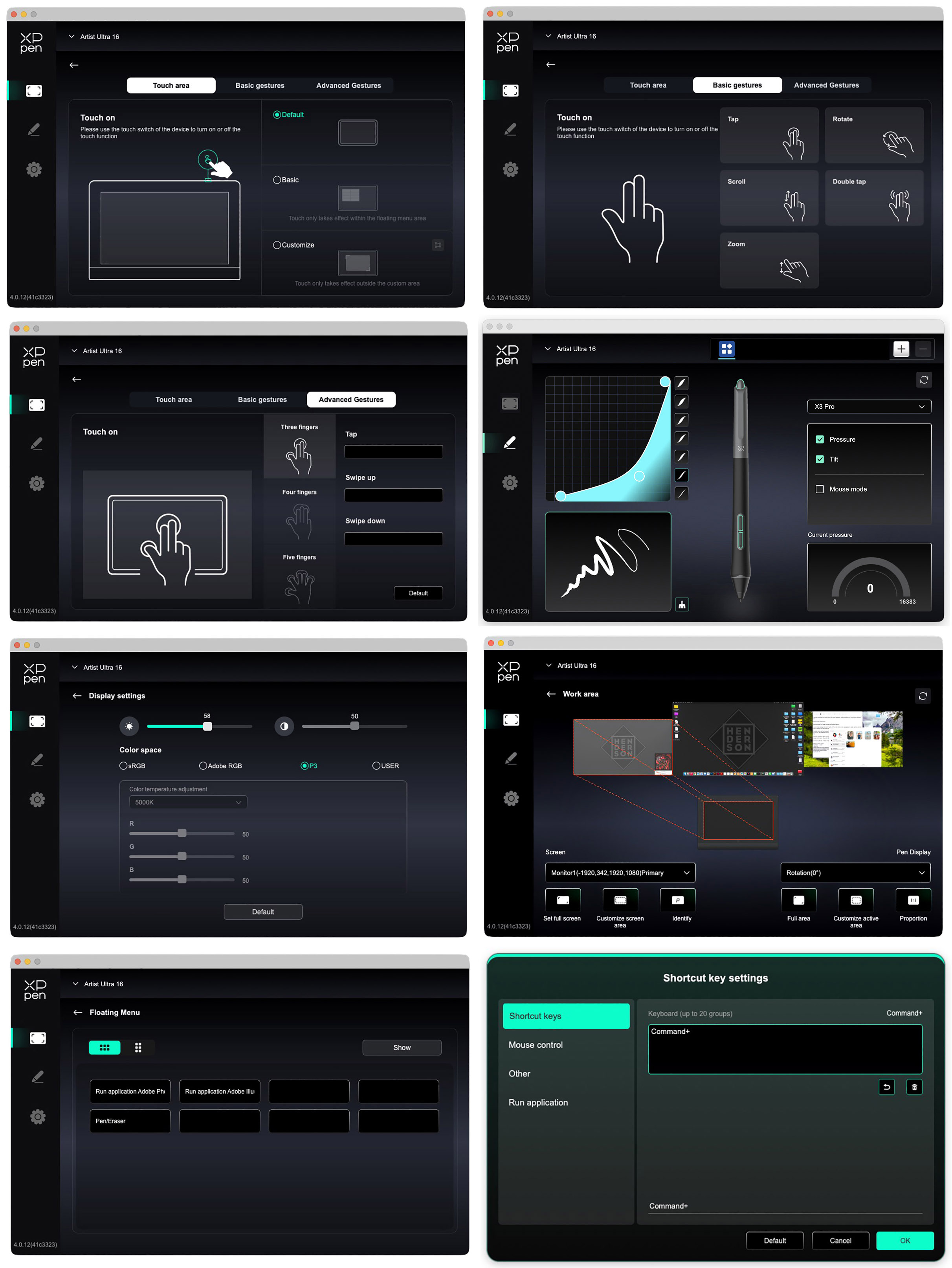
Setup on the Artist Ultra 16 4K is standard across XPPen displays. Once the drivers are up and running, everything works well (except for X-Touch). It’s pretty much a set-and-forget deal.
There are a myriad of choices for settings and shortcuts. Not only that, there are many settings options for different apps. In fact, there are so many options that they can easily be forgotten if a software glitch causes settings to be lost (it can happen). The good news is that once you have the settings all figured out, you can save them for later retrieval. That’s a considerable time- and frustration-saver.
The display is 4K. What exactly is that? On the Artist Ultra 16, 4K means a screen resolution of 3840×2160 pixels. The 3840 horizontal pixel count is rounded up to 4,000 (4K). This results in tiny pixels on the screen—so small they’re hard to see with the naked eye. The result is super-sharp images for drawing and photo manipulation. The downside is that much text is also small and challenging to read for those with less-than-perfect eyesight (like me).

On a 16-inch screen, 4K is much smaller than on a 24-27-inch screen.

OLED is another matter. OLED (Organic Light-Emitting Diode) is a display technology in which each pixel produces its own light. This results in super blacks (LED off) and brighter colors, with a contrast ratio of 100,000:1. That’s a lot of contrast. Blacks are blacker, not dark gray. OLED also means less latency from the stylus. When you draw, there is no noticeable lag. OLED reduces harmful blue light exposure.
The screen surface is AG nano-etched glass, which helps reduce glare in bright conditions (think iPad screen). Because it’s etched, drawing has a more paper-like feel due to the glass’s texture. Etching can slightly reduce color vibrancy, but the trade-off is worth it.
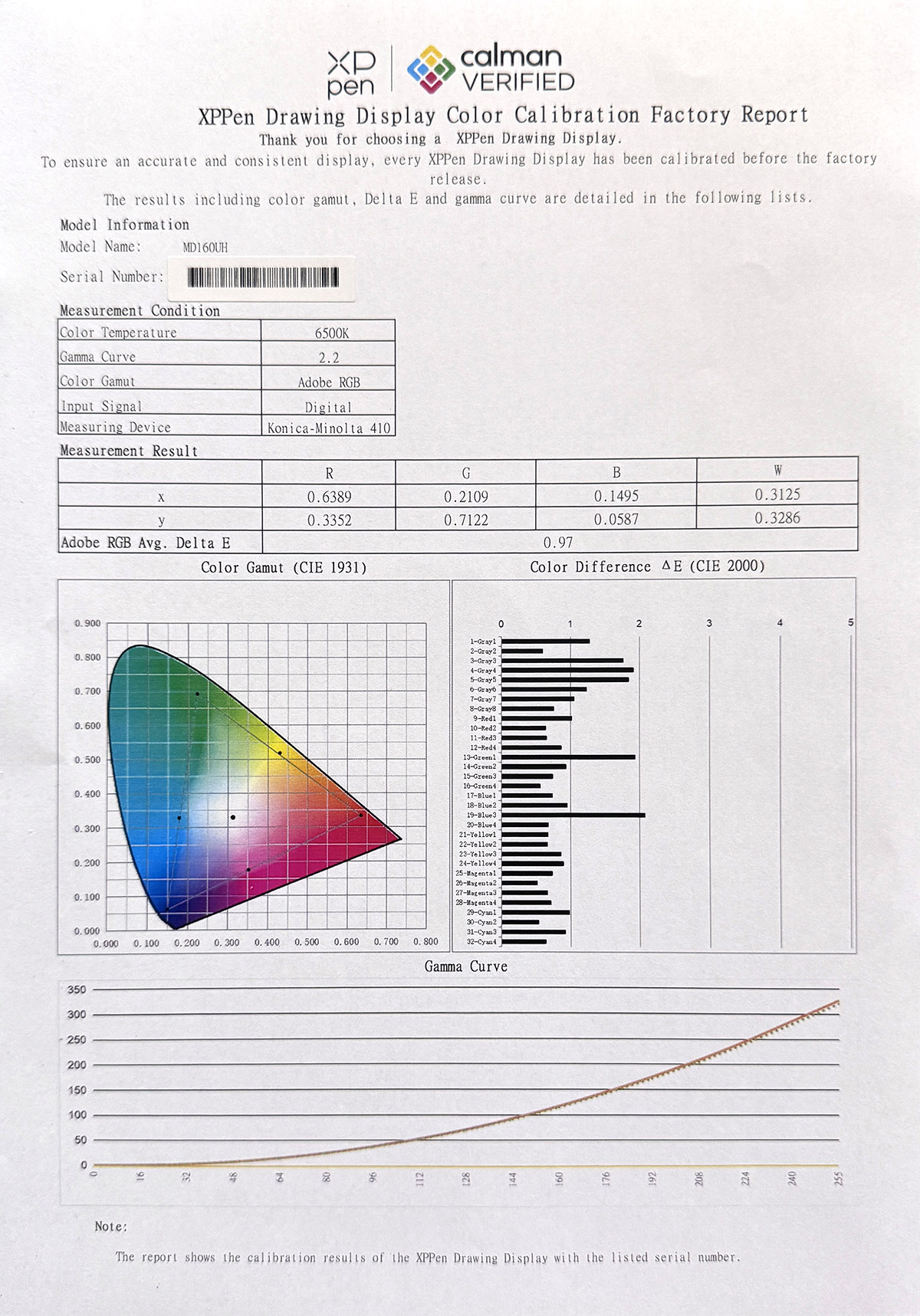
The 4K display can show 1.07 billion colors (10-bit) across three color gamuts: 99% sRGB, 99% Adobe RGB, and 98% Display P3. I use the P3 setting because it looks better to my eyes. There is no right or wrong answer, so let your eyes decide. Out of the box, color calibration is verified by Calman, an independent color-calibration service. XPPen provides a custom printout for each Artist Ultra 16 display sold.
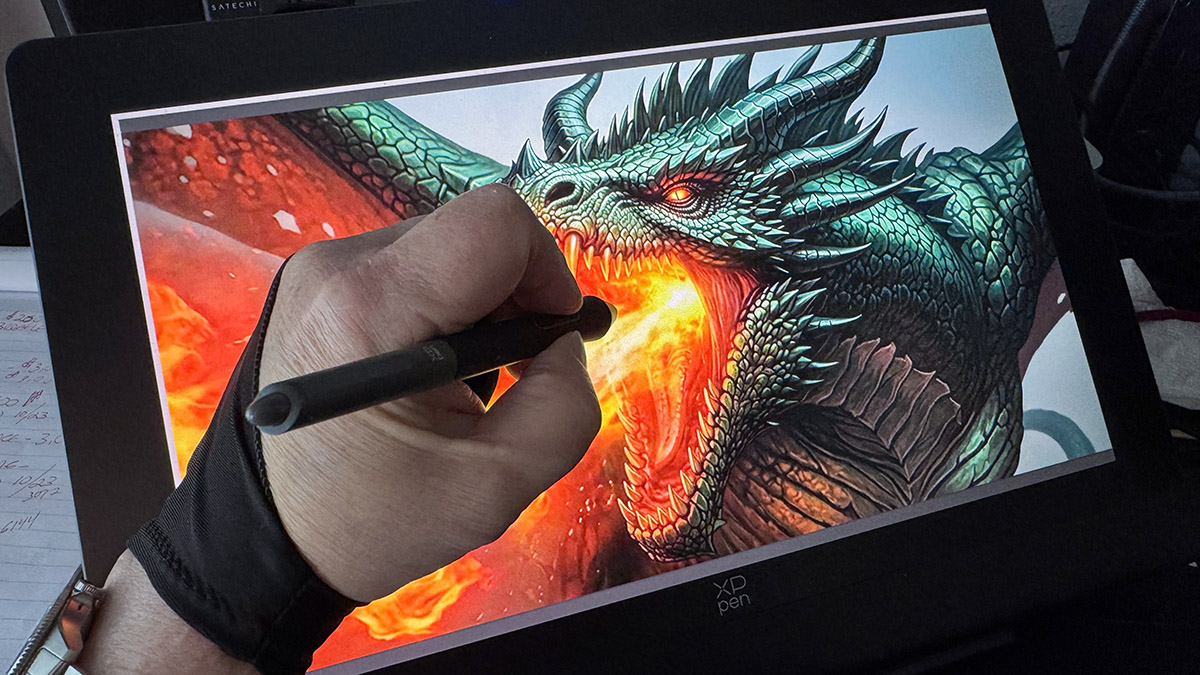
With all these impressive specs, how is drawing on the XPPen Artist Ultra 16 4K OLED Touch-screen Drawing Display? If you prefer a smaller 16-inch drawing display, it’s fantastic—as are most current XPPen displays. If you prefer larger displays, it can be a bit frustrating, which is why XPPen offers so many sizes to choose from. While I prefer larger displays, an artist friend of mine loves the 16-inch tablet size. It all depends on what you like, desk size, and budget.
At 4K, more detail is visible, but, as I said, things appear smaller. I prefer changing the setting to 2.5K (easily done in the Mac’s Display Settings). I still cannot see pixels, and items appear larger while remaining tack-sharp. Younger artists with better vision (I’m not jealous) may prefer native 4K.
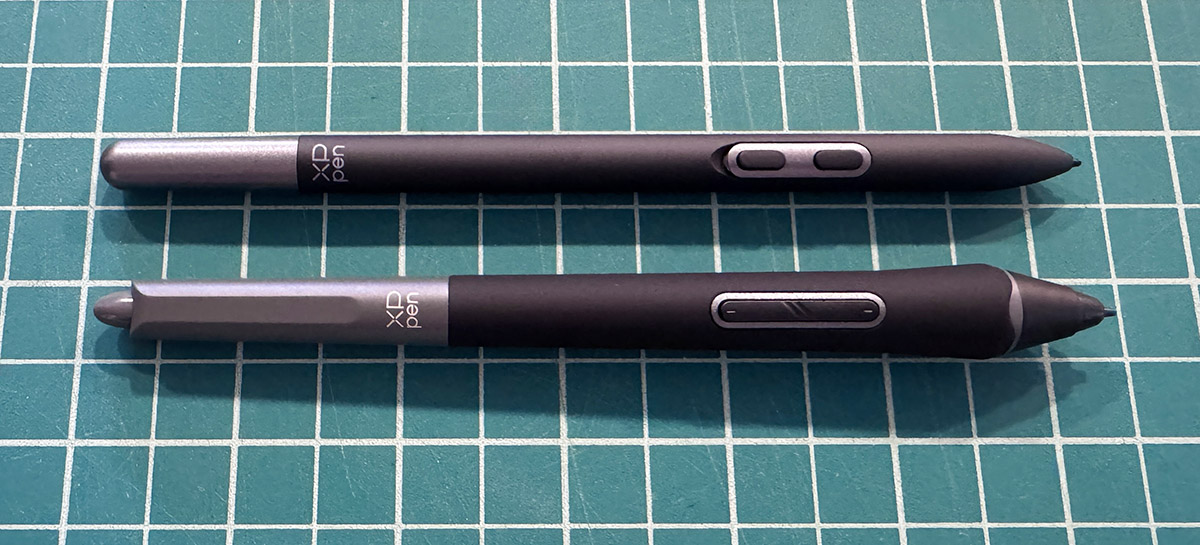
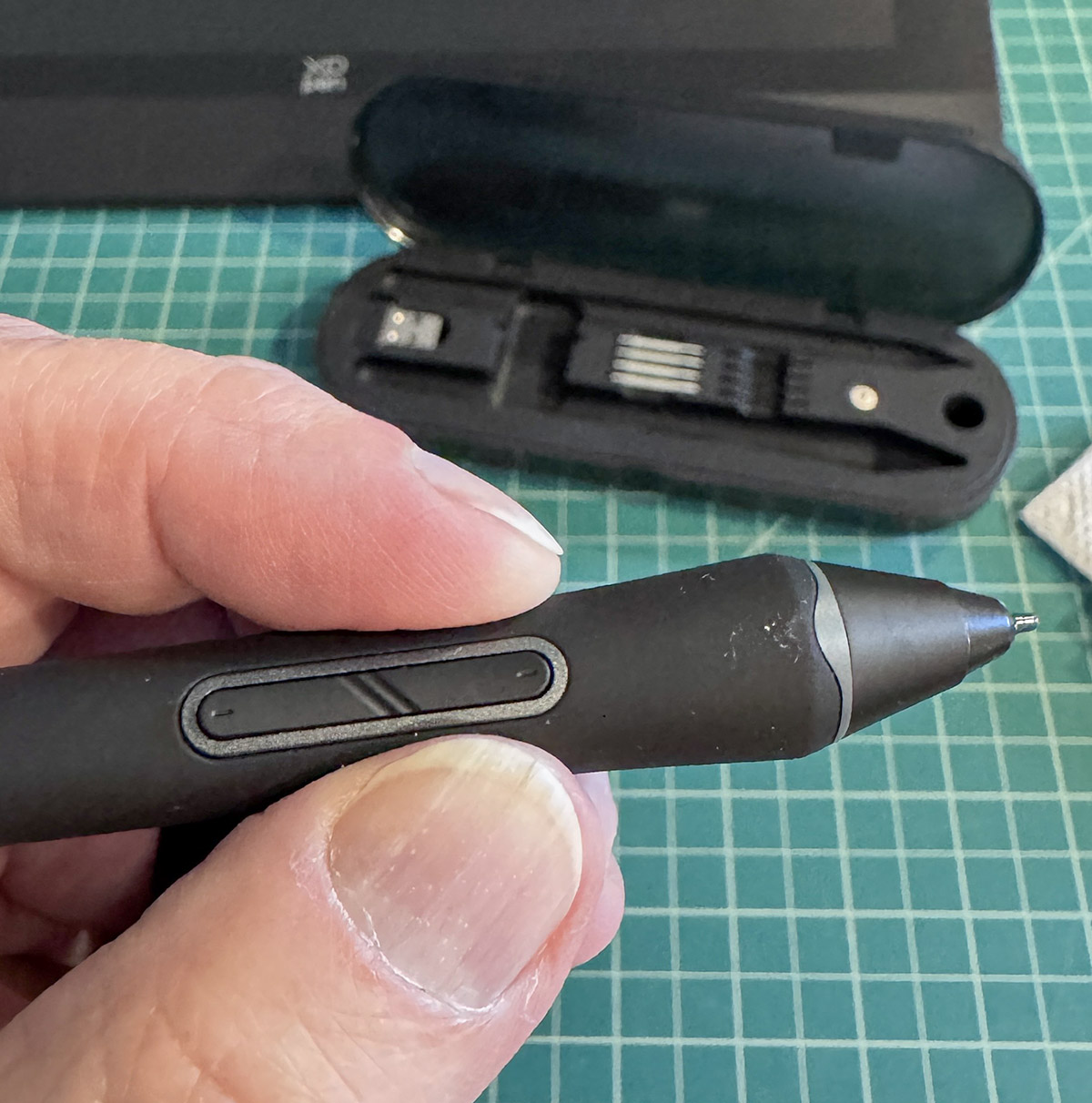
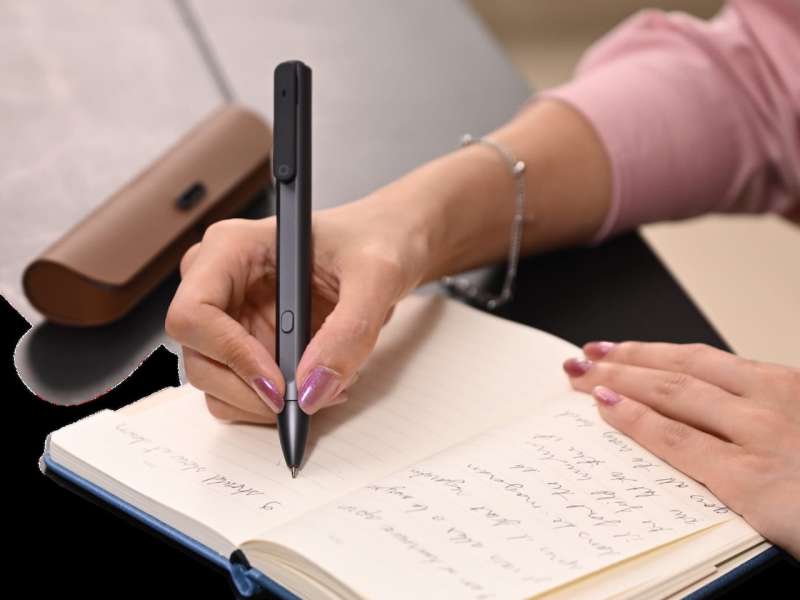
XPPen offers two pens. Their newest is the X3 Pro Smart Chip stylus. It has 16K pressure levels of sensitivity, which—on paper—provides a better experience drawing thin to thick lines. I think 16,000 levels is overkill. The previous 8K pressure levels were more than adequate. Gotta love progress. This stylus comes with two programmable shortcut buttons and an eraser—just like a pencil. While I find the eraser convenient, I don’t use it as much as I should. Old habits, I guess.
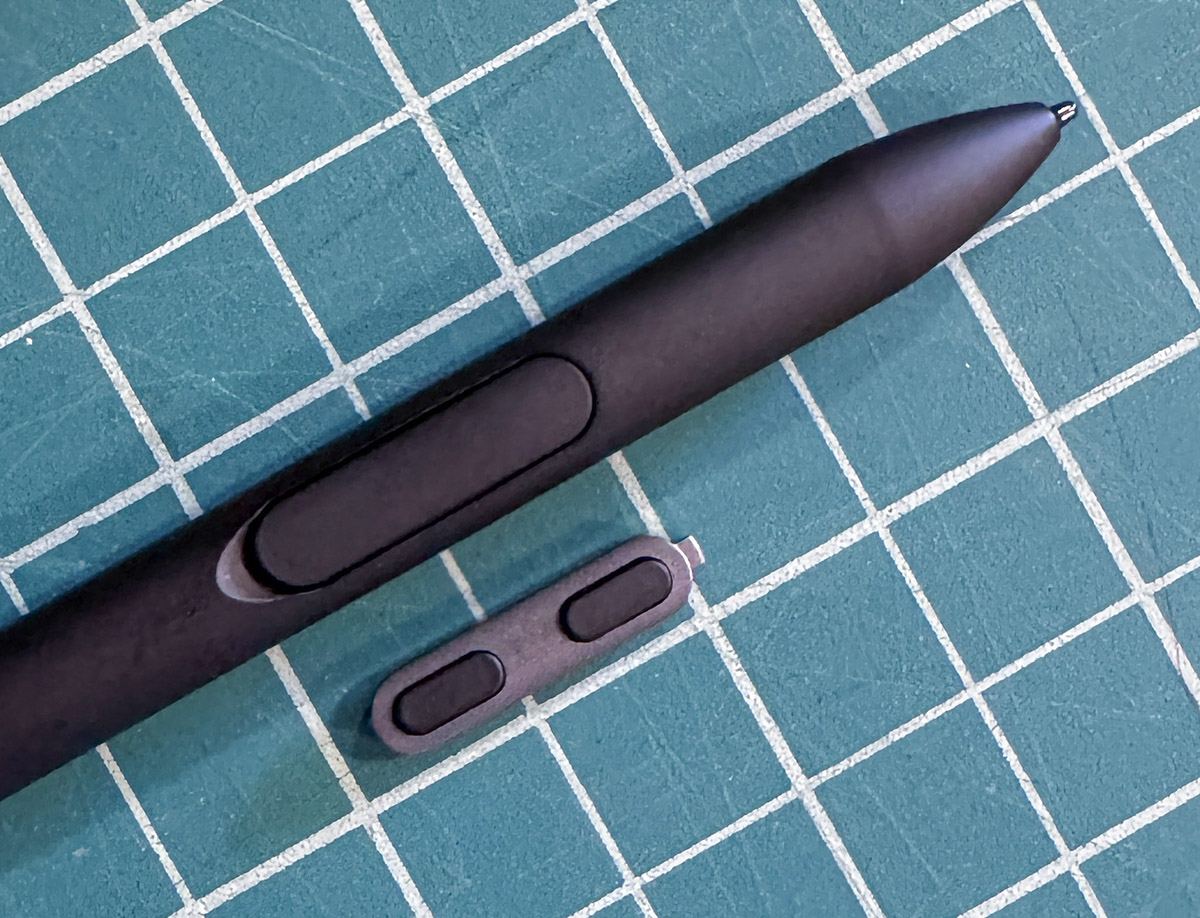
XPPen also offers a second stylus, the X3 Pro Slim Stylus. It shares many of the same features but in a slimmer form. It feels more pencil-like. Like the larger X3 Pro stylus, it has two programmable shortcut buttons, but no eraser function. If you prefer a more straightforward setup, these two buttons can be replaced with a non-functional plate.
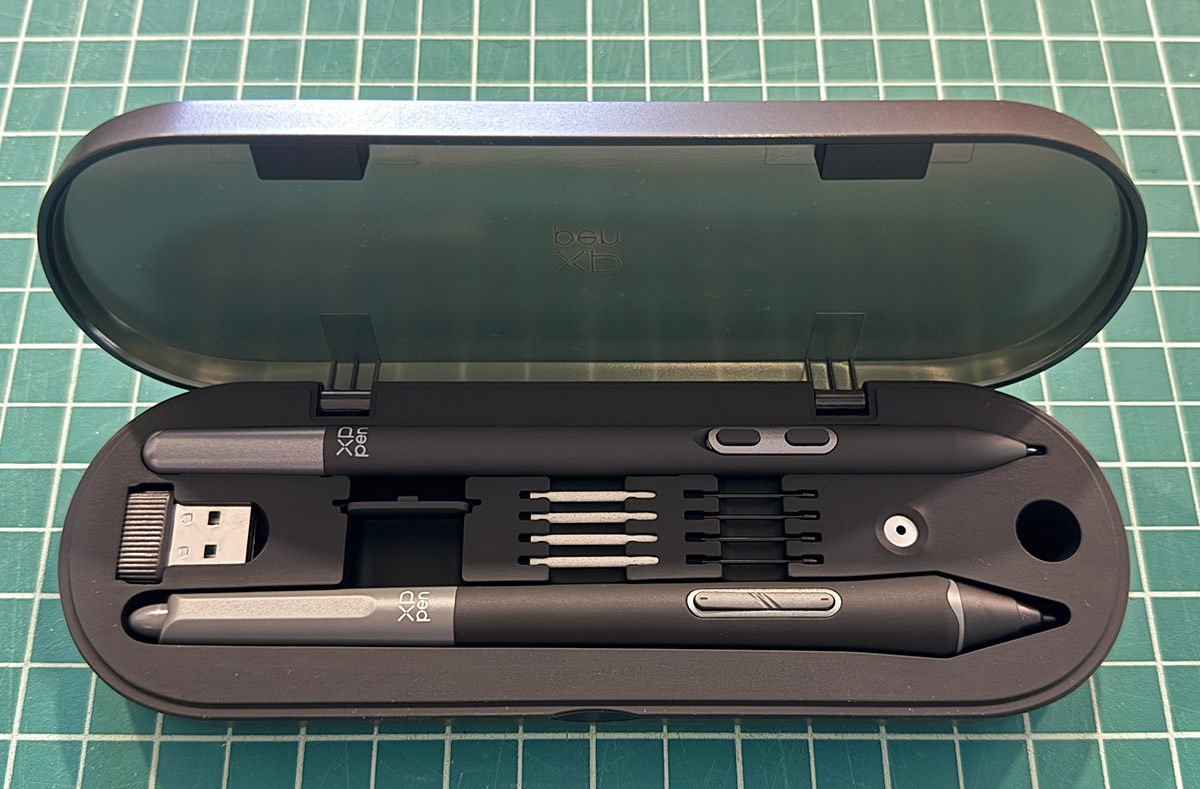
Both pens come in a nice clamshell case that also holds extra stylus tips (nibs) and a nib-removal tool. Of the two included pens, I prefer the thicker original stylus. The slim version makes my hand cramp.
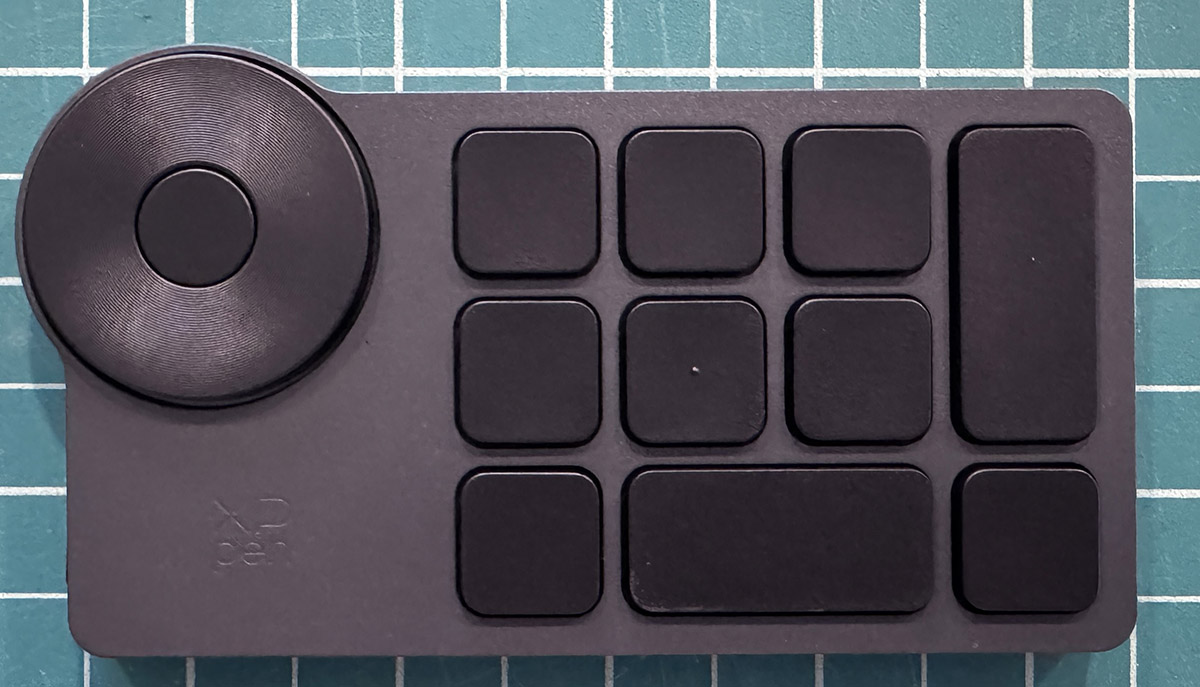
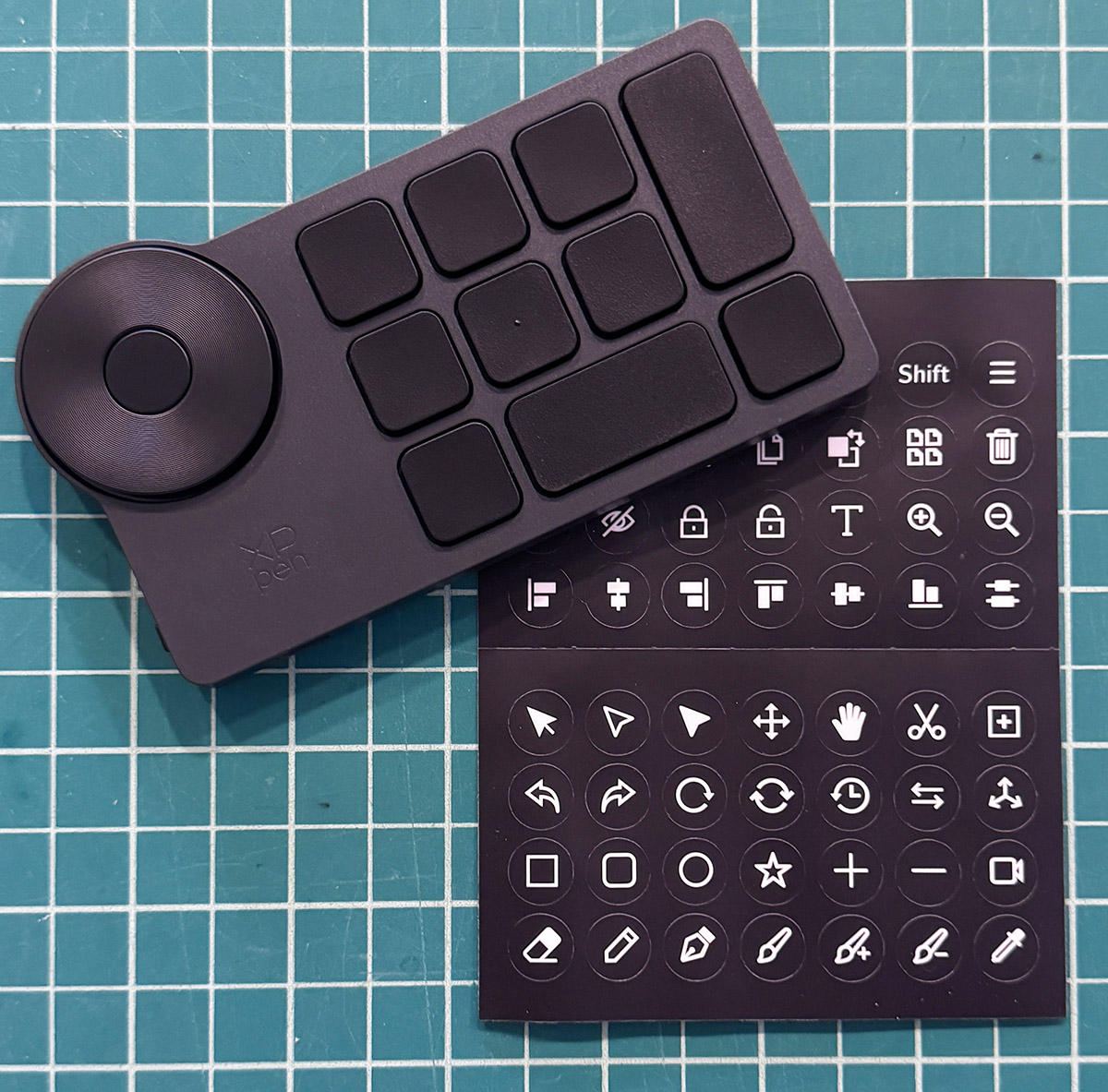
If the programmable stylus buttons aren’t enough, XPPen also includes the ACK05 shortcut remote. The multi-button remote has 40 customizable shortcut keys and can be operated with one hand. It can significantly improve efficiency for often-used shortcuts—except I don’t use it. As I have stated in previous drawing display reviews, I’m old-school. Over the years, I learned to use my keyboard for shortcuts and stubbornly refuse to relearn. However, many younger artists prefer remote shortcut devices.
Two types of nibs are included. Hard plastic nibs last a long time. Felt nibs replicate the sensation of writing on paper. I much prefer the felt nibs, though they need replacing more often.
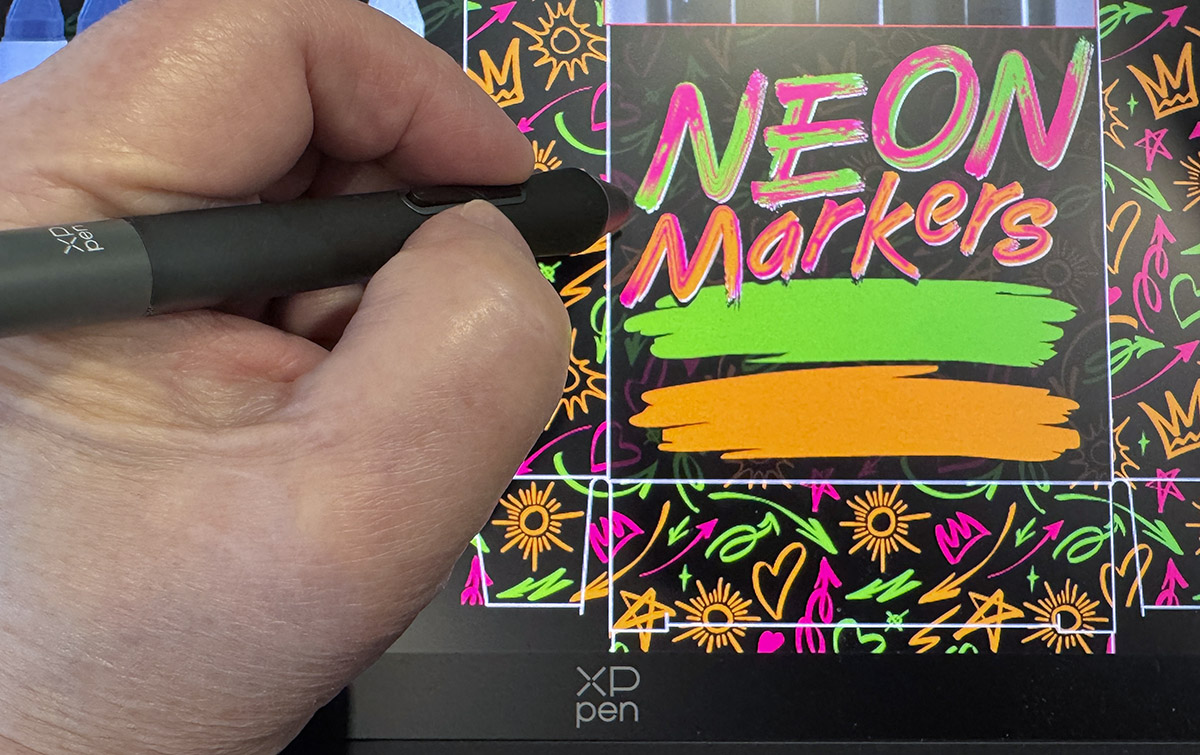
Let me say now that I am not an illustrator. I use drawing displays for Photoshop image manipulation and retouching. I can draw, but I prefer to avoid it whenever possible. The Artist Ultra 16 drawing display offered no surprises, which is a good thing. XPPen has consistently delivered dependable displays, and this is no exception.
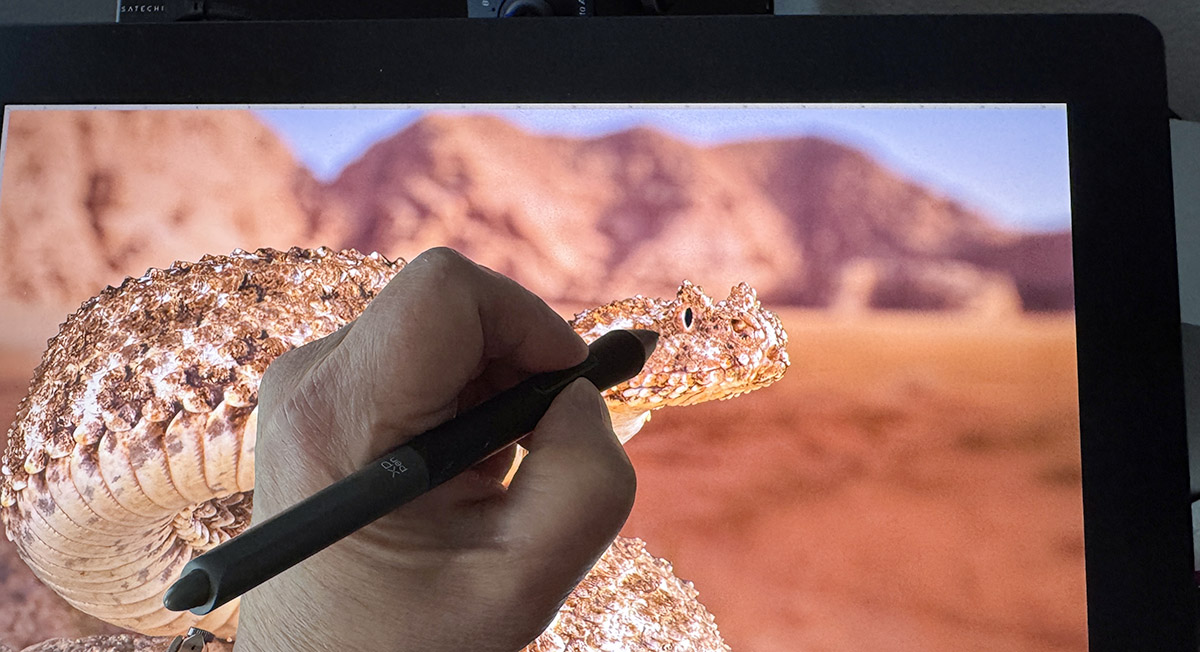
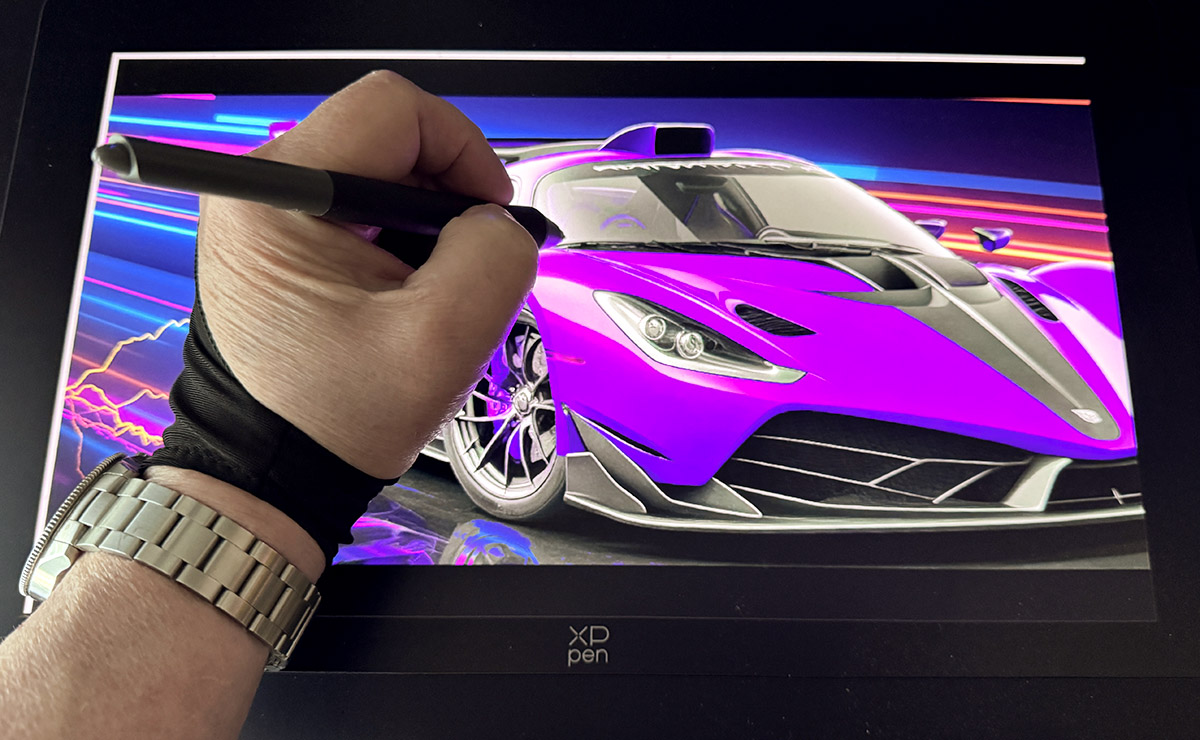
When using Photoshop, I’m able to get into my “zone” while working without having to think about XPPen. Everything just works. Gliding the stylus across the surface felt natural, as did tapping to activate buttons or other functions. The supplied XPPen glove greatly helps with hand drag caused by sweating. All in all, the XPPen Artist Ultra 16 offers a typical XPPen experience with the added benefit of 4K, OLED, and X-Touch (for Windows users).
Final thoughts
It’s becoming redundant to say XPPen has done it again. The XPPen Artist Ultra 16 4K OLED Touch-screen Drawing Display is the highest-quality display they’ve released—so far. I fully expect XPPen to release 19- and 24-inch OLED versions soon. With my artist requirements, that would be the holy grail in drawing displays.
What I like about the XPPen Artist Ultra 16 4K OLED Touch-screen Drawing Display
- It’s the best drawing display XPPen makes (so far)
- OLED
- 4K
- Two styluses
- X-touch (on Windows)
What needs to be improved?
- X-touch (on Mac)
PPrice: $719.99 (XPPen); $749.99 (Amazon)
Where to buy: XPPen Amazon
Source: The sample of this product was provided for free by XPPen. XPPen did not have a final say on the review and did not preview the review before it was published.