REVIEW – The BOOX Note Air5 C is a 10.3‑inch color ePaper tablet designed for reading, writing, and light productivity. It features E Ink’s Kaleido 3 display paired with BOOX Super Refresh Technology to reduce ghosting and improve performance. The tablet has a host of customized apps and also runs Android 15 with full Google Play access. I have one to review; read on to see what I think!
⬇︎ Jump to summary (pros/cons)
Price: $529.99 (standard cover) $606.99 (keyboard cover)
Where to buy: Boox, Amazon
What is it?
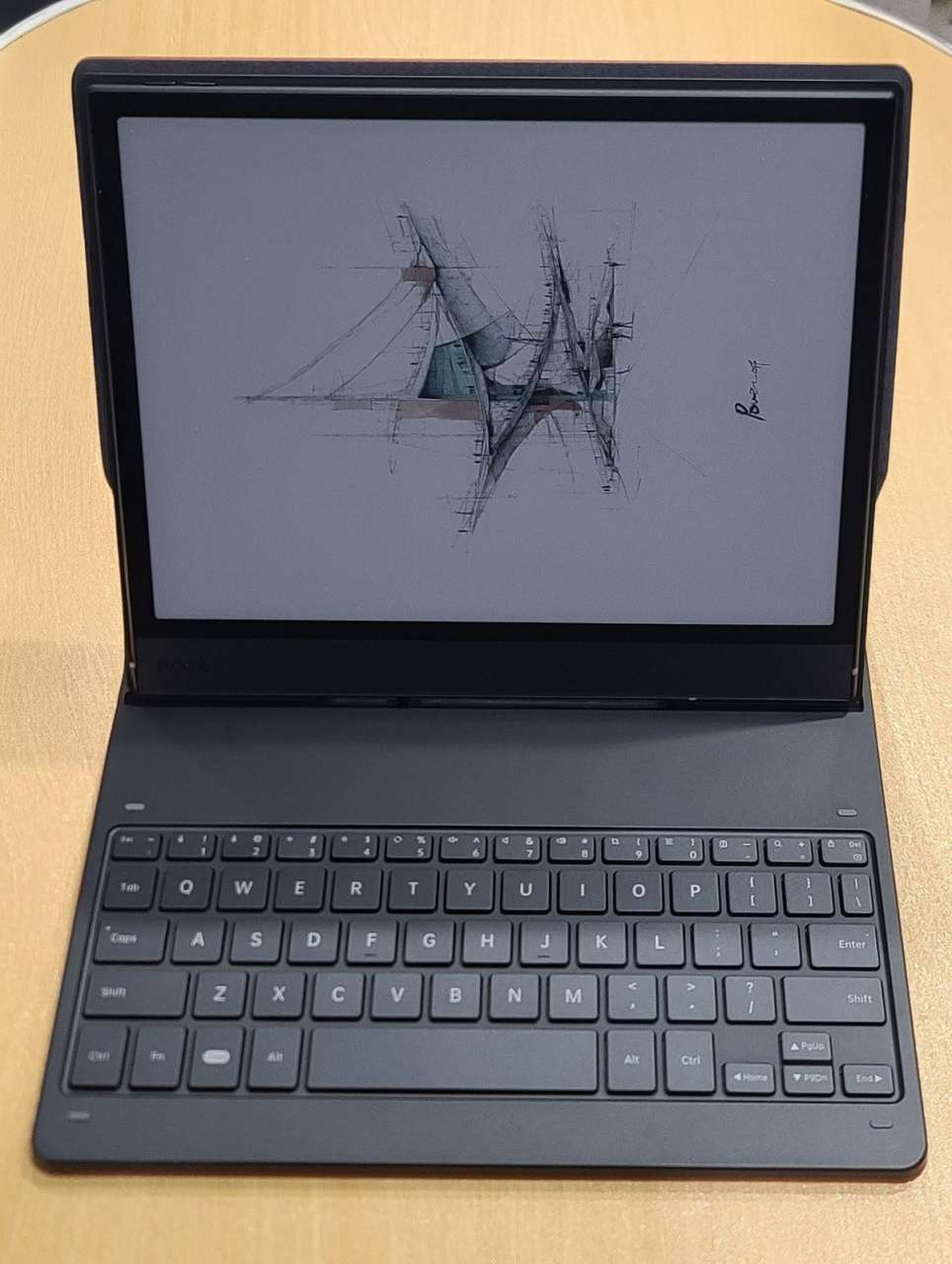
The BOOX Note Air5 C is a 10.3″ color ePaper tablet. It is designed with a state-of-the-art e-ink screen and customized software, allowing it to be reliably used for reading, note-taking, and productivity applications. The hardware interface and design are minimalistic, and the form follows the function of the Note as a tablet. Boox has optimized the E Ink Kaleido 3 screen for smoother, clearer reading and writing, and it can display videos. The Pen3 stylus and advanced note‑taking tools enable sketching, organizing, and Infinite Notes. Users can annotate multiple document formats, utilize AI assistance for reading, and multitask with split‑screen. The BOOX Note Air5c is powered by a Snapdragon 750c octa‑core processor with 6GB RAM and 64GB storage, and it supports microSD expansion and runs Android 15 with Google Play.
What’s included?
Standard Bundle
- BOOX Note Air5 C
- BOOX Pen3 Stylus with 4 tips (1 installed and 3 spare)
- Magnetic versatile stand case
- USB-C Cable
- Card Tray Eject Tool
- Quick Start Guide
- Warranty Card
Purchased separately
- Keyboard case
- 5 additional tips with an extraction tool
Add The Gadgeteer as a preferred source to see more of our coverage on Google.
Tech specs
- Screen: 10.3″ Kaleido 3 (4,096 colors) Carta 1200 glass screen with flat cover-lens
- Resolution: B/W: 2480 x 1860 (300 ppi), Color: 1240 x 930 (150 ppi)
- Touch: BOOX stylus touch (4,096 levels of pressure sensitivity) + capacitive touch
- CPU: Octa-core + BSR
- RAM: 6GB
- ROM: 64GB
- Connectivity: Wi-Fi + BT 5.1
- Front Light: CTM (Warm and Cold)
- G-sensor: Auto Rotation
- OS: Android 15
- Document Formats: PDF, CAJ, DJVU, CBR, CBZ, EPUB, EPUB3, AZW3, MOBI, TXT, DOC, DOCX, FB2, CHM, RTF, HTML, ZIP, PRC, PPT, PPTX
- Image Formats: PNG, JPG, BMP, TIFF
- Audio Formats: WAV, MP3
- 3rd-Party Apps: Supported
Design and features
Unboxing
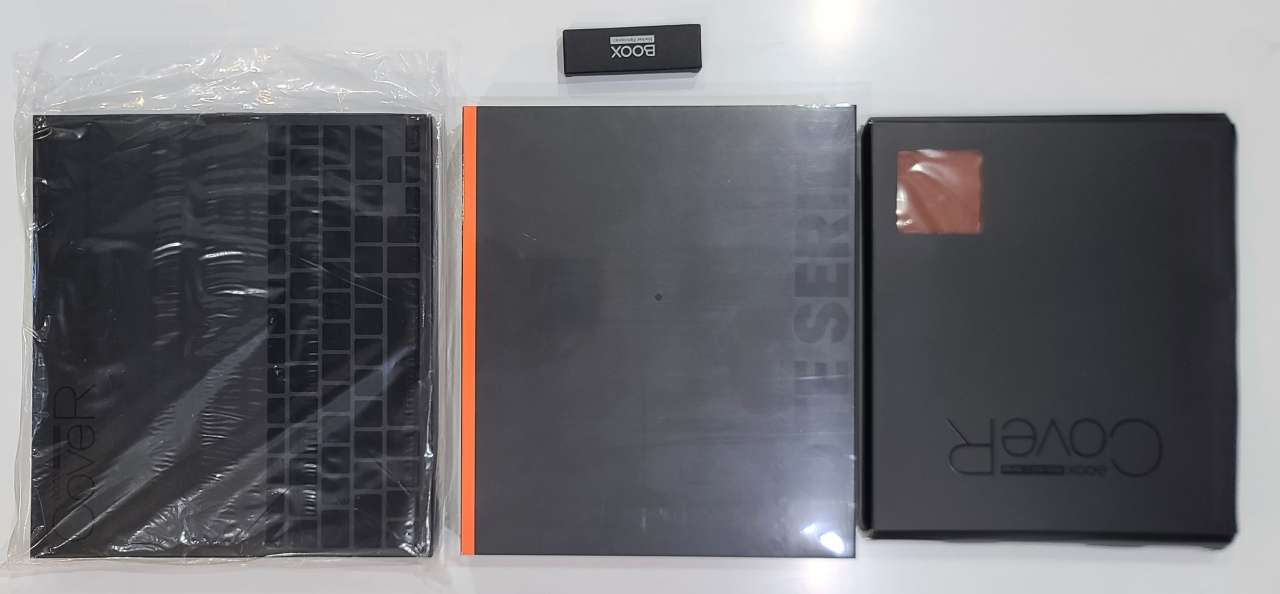
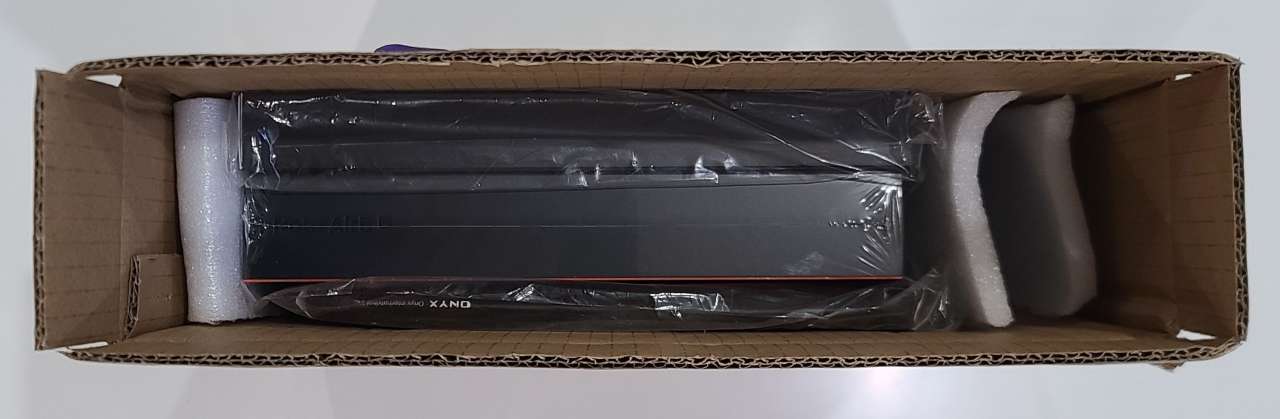
The BOOX Note Air5 C, the magnetic stand case, the keyboard case, and the extra pen tips arrived packaged together in a box directly from China.
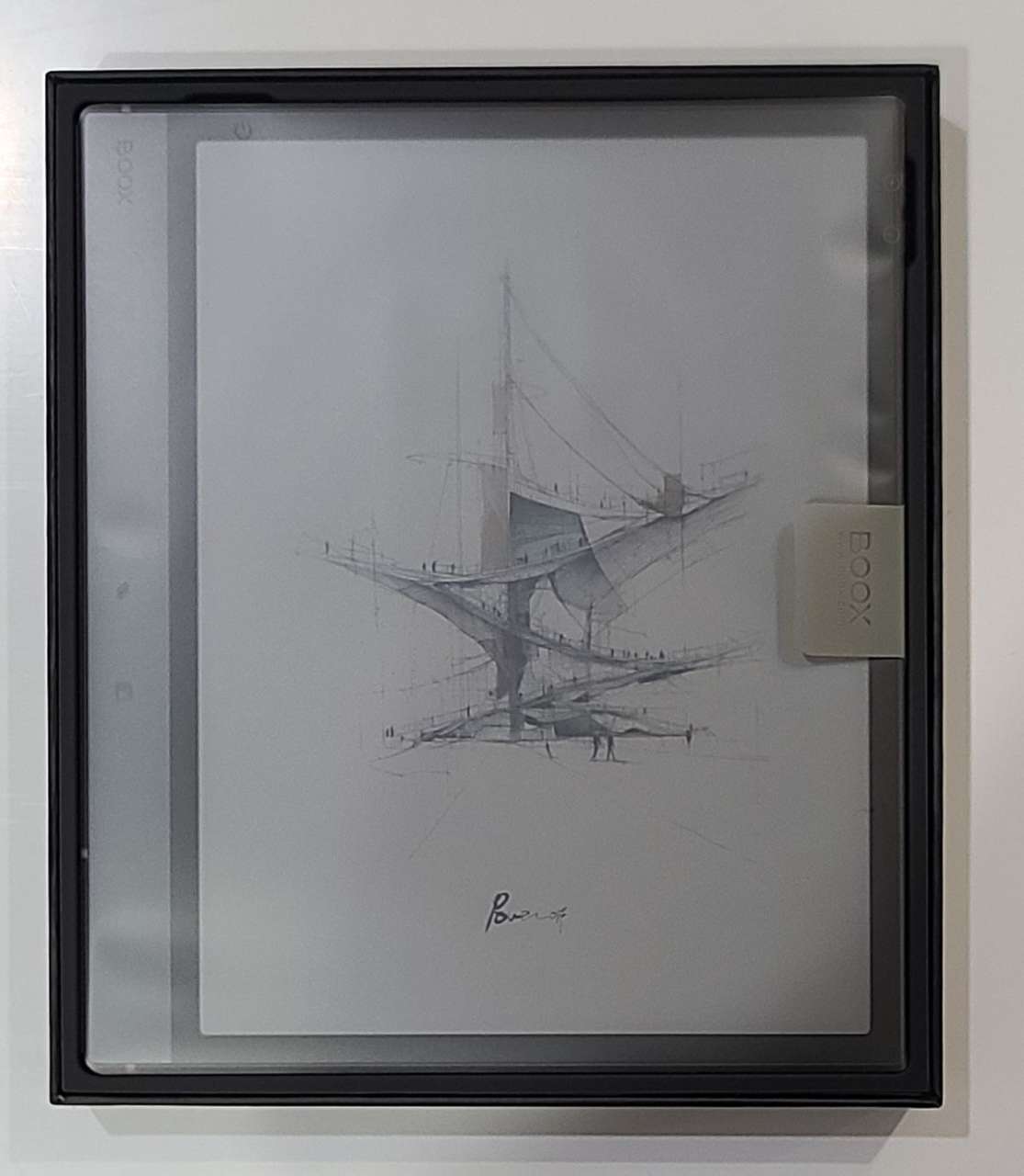
The tablet comes in a sleeved box with black-on-black labeling and an orange highlight, similar to the actual BOOX Note Air5 C.
 Below the tablet are two boxes – one contains the USB cable, and another box contains the pen and microSD tray ejector. The tablet comes with very little printed material, consisting only of a quick start guide and the warranty card.
The magnetic stand case box arrived crushed from the shipping. The box only contains the cover and the magnetic closure.
The keyboard case comes in another sleeved box, but this one opens like a drawer from only one side. The top of the box has black on black printing that looks like the layout of the keyboard. Inside the box is the keyboard cover and magnetic closure.
The spare tips come in a diminutive box with grey printing on the cover.
The back of each box lists the specifications, displays the regulatory compliance marks, and includes the manufacturer’s address.
Design
BOOX Note Air5 C
The tablet reminds me of an automotive or motorsport design because of the orange plastic antenna lines that run vertically along the back of the tablet. On the front of the tablet is a large graphite colored bezel that is labeled with the BOOX logo at the top. This graphite colored band is next to a 1/4″, 6 mm black surface that frames the screen. The plastic paper-textured film covers the entire front of the tablet except for about 1 mm on each side. The screen looks very “close” to the front of the tablet, meaning that there is not much parallax visible from where the pen tip makes contact with the plastic film and where the color ink appears on the screen below. This is an important consideration for how effectively the pen is used on the screen.
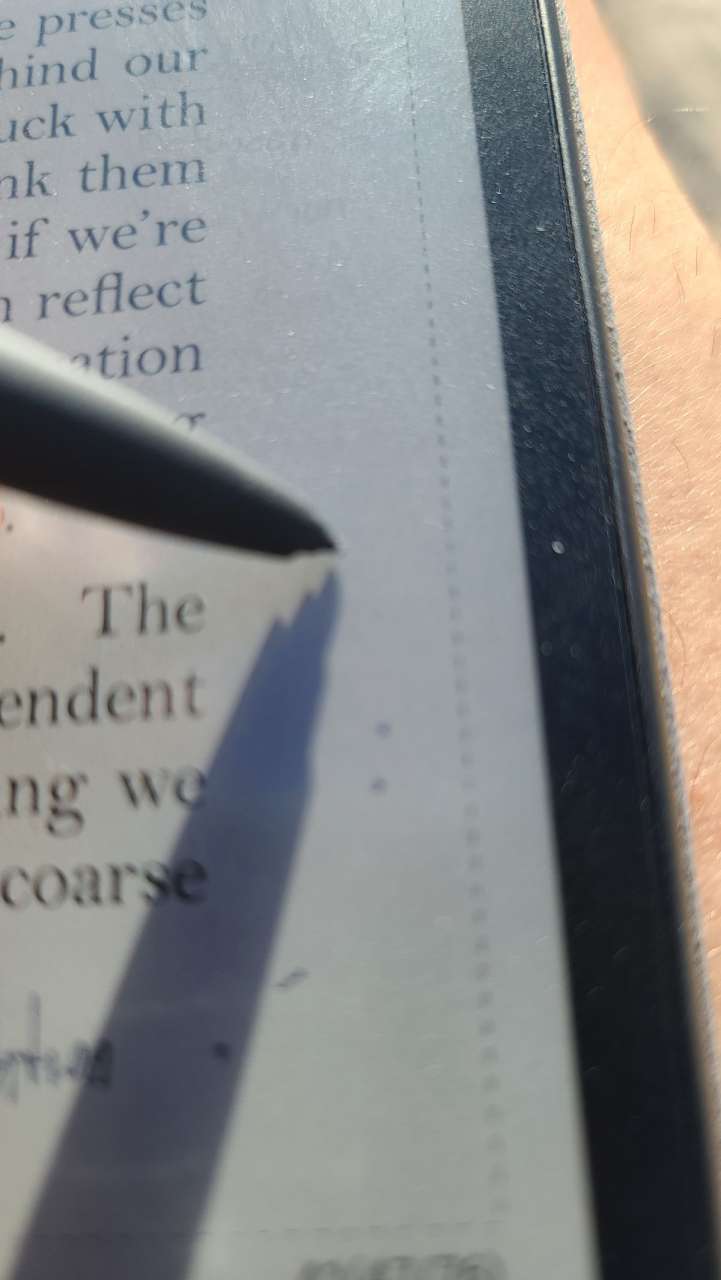
The screen is the highlight of this tablet. The screen is an array of capsules containing black and white colored electrically charged spheres. The capsules are covered by a film with an array of clear, red, green, and blue colored squares. You can see the array in this picture taken at about 200x

If the dots below the blue and green colored squares are made black, then only the red colored square is seen, and the screen looks red. Here is a magnification of the GMail icon.

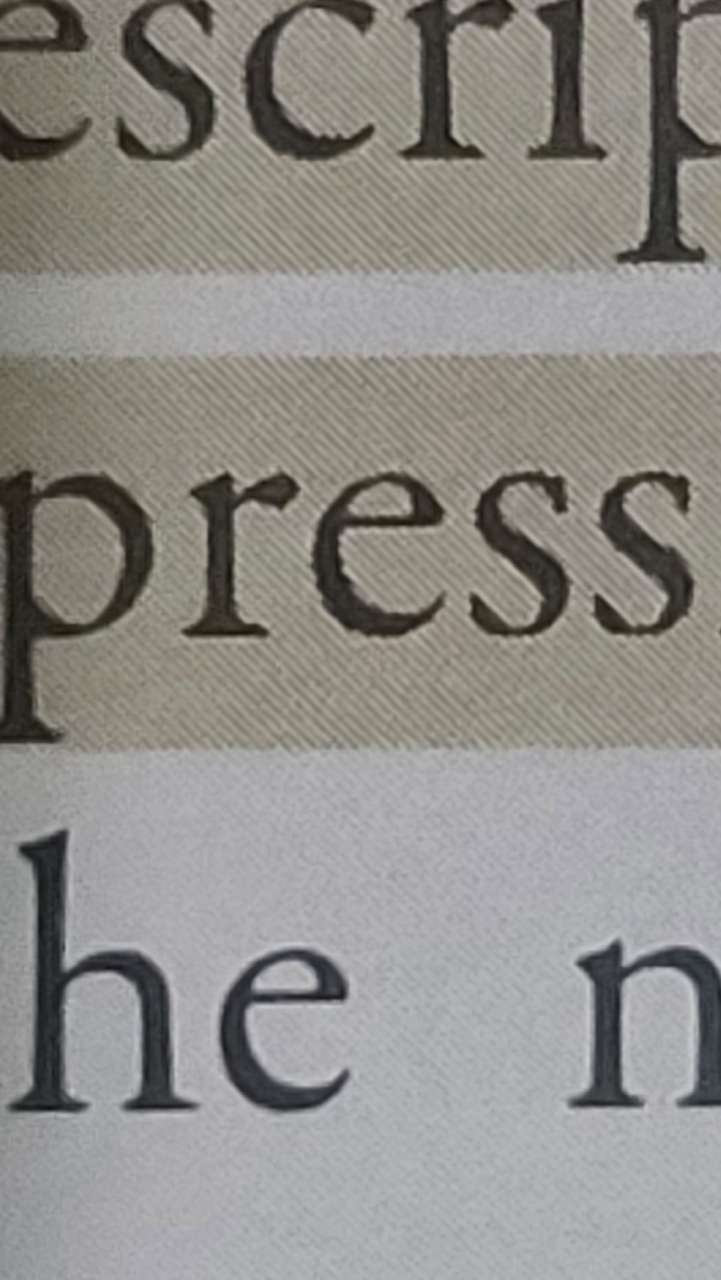
Since more screen area is required to make a color, the resolution of the color is less than the resolution of the black and white image. The black and white resolution is 300 DPI, which is standard resolution for printed documents. (600 DPI defined as fine resolution) This means that blank and white text looks as good on the BOOX as it does if it came out of your printer. The color resolution is 150 DPI. This image below illustrates that the resolution of the black and white image is superior to the image that is highlighted.
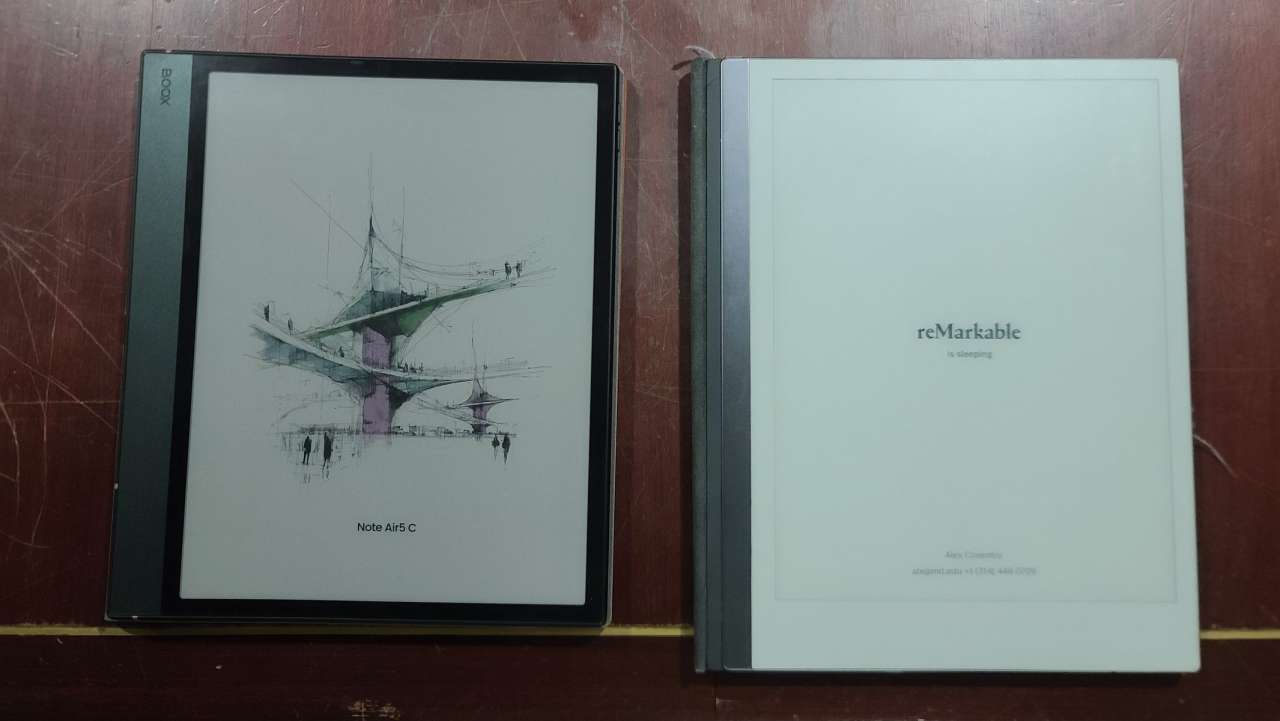
Note that the color array darkens the screen compared to units that have a black and white or greyscale screen. Compare the BOOX screen to the non-color reMarkable screen in the image below:
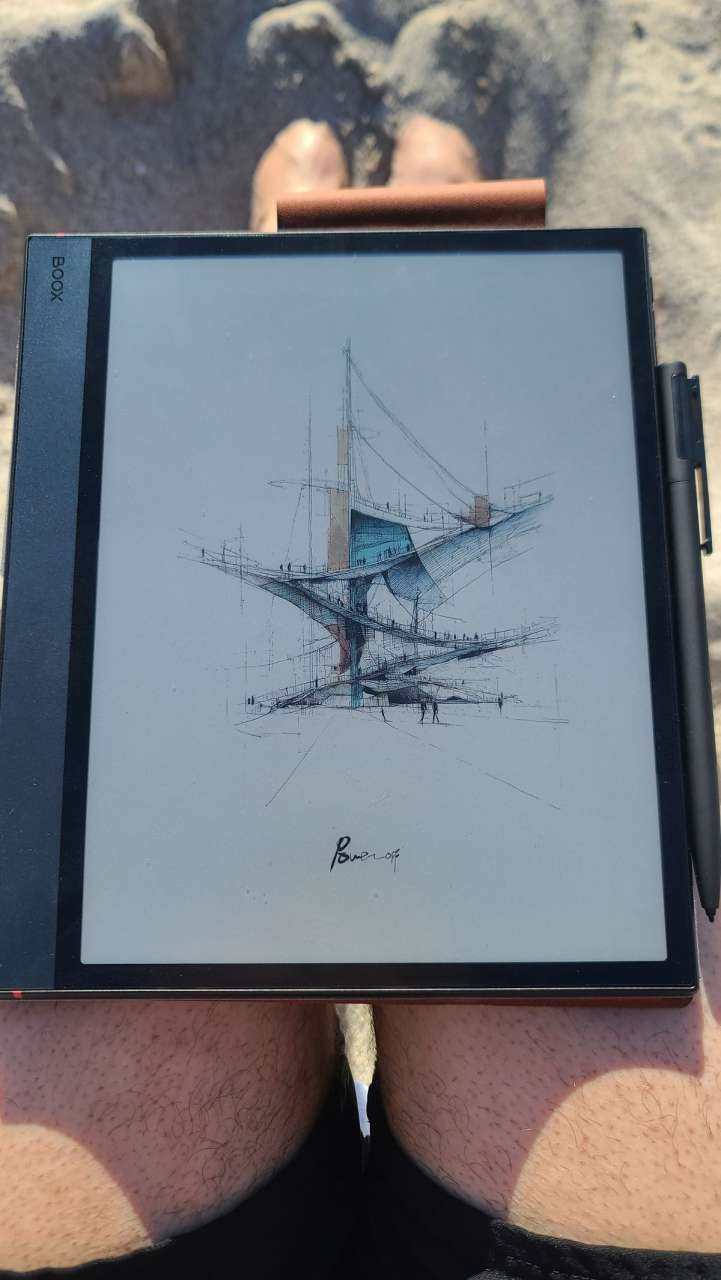
The screen can use ambient light to iluuminate the screen image, so the screen performs fantastic in bright sunlight as opposed to a cellphone which must battle the bright light of the sun to display the image. Here is a picture of the BOOX on the beach and the image appears bright and clear (and the power is not even on!)
One of the traditional challenges that e-ink displays have is that capsule movement is relatively slow and sometimes not always complete. This can result in ghosting of images when the screen changes. When the screen image is static, there is no challenge because the colored spheres are charged and maintain their relative position on the screen even without additional power. BOOX has developed BOOX Super Refresh technology to leverage hardware and software solutions for reducing ghosting. The technology even permits the viewing of movies on the screen.
The top of the tablet has a fingerprint-sensing power button, a microphone, and an LED to indicate the charging status. The power button is very responsive when used for fingerprint unlock. Note that the security settings are set up by default to not have a password or fingerprint unlock, and if this feature is not desired, it does not need to be used.
The left side has a speaker grill at the top and bottom of the side. The speakers do not have a lot of warmth and are adequate for TTS and voice recordings from audiobooks, but this will not be your new favorite audio player. In the center of the left side is the USB port, which has benefits and drawbacks. Because the USB port is on the spine of the magnetic stand case, there is a cutout in the case for the USB cable to pass through. This needs to be disconnected and reconnected if the tablet is charging while the cover is opened. However, the USB port does not interfere with the open case displaying the BOOX in portrait or inverted landscape orientations. Because the USB is in the center of the left side, it does not interfere with a person holding the BOOX in portrait or inverted portrait orientations. This port is blocked by the keyboard cover, but the cover has a passthrough USB charging port on the right side of the keyboard. The USB port also functions as an OTG adapter for keyboards, mice, and memory. (The mouse pointer works very well on the e-ink screen.) It is not DisplayPort compatible, but the BOOX software allows for casting the screen image.
Above the USB port are two holes for a microphone. The microphone is sensitive enough to record voice notes from the user in front of the BOOX Note Air5 C, but the microphone struggles if it is recording voices at a distance. For instance, if recording a meeting while taking notes in it.
Below the USB port is a MicroSD tray that allows increasing the storage up to 2 TB.
At the top of the right-hand side are two buttons that can be used for many system functions. I have changed the buttons to turn on the backlight since I use that more than the volume. Below the buttons are a set of magnets that are positioned to hold the Pen3 in place. Some online reviews have complained that the pen always hits the lower button. I did have this problem once (and powering the tablet on with the bottom button pressed will boot it into safe mode), but only once out of hundreds of times that I docked the pen on the side.
On the back are 8 gold pogo contacts for the keyboard and passthrough USB charging, the product name in orange, and the serial number etched into the back.
Inside the case is a Snapdragon 750C SOC. This is an older chipset, but given that this device is not being taxed with high refresh rate gameplay, it probably suffices. I have not noticed any lag in the operation of apps.
CPU-Z does report that there is only 49.14 GB of storage available out of a claimed 64 GB. Using about 15 GB for system apps is about 75% of the storage required on my Android cellphone. In addition, there are a bunch of BOOX apps that are part of that 15 GB.
BOOX Pen3
The BOOX Pen3 is an electromagnetic stylus, which means it does not need charging. The tip is protected by a rubber cap that I think is destined to get lost. It just barely fits on the tail end of the pen. Since the pen is filled with magnets, I would expect that a magnetically secured cap would work much better. The pen has no button, and this would be suitable to toggle the pen and erase modes, for instance.
The rear of the pen has a pen clip, and the rear cover is secured to the pen shaft by magnets. Under the cover are three spare tips. I appreciate the thought that went into adding this feature, but I think that threading the back cover on would be a more appropriate choice since the tips do not need to be accessed frequently, and the magnetic top tends to come off.
The feel of the Pen3 on the tablet surface is just like a pen on paper. I really like the feel of the plastic film and the pen tip.
The pen also provides 4096 levels of pressure sensitivity, tilt sensitivity, and low latency. When the pen is within range of the receiver, the screen automatically rejects touch input.
Magnetic versatile stand case
The BOOX case for the tablet is made from a vegan leather material. It has a brown color that is similar to a neutral tanned leather, like a traditional baseball mitt.
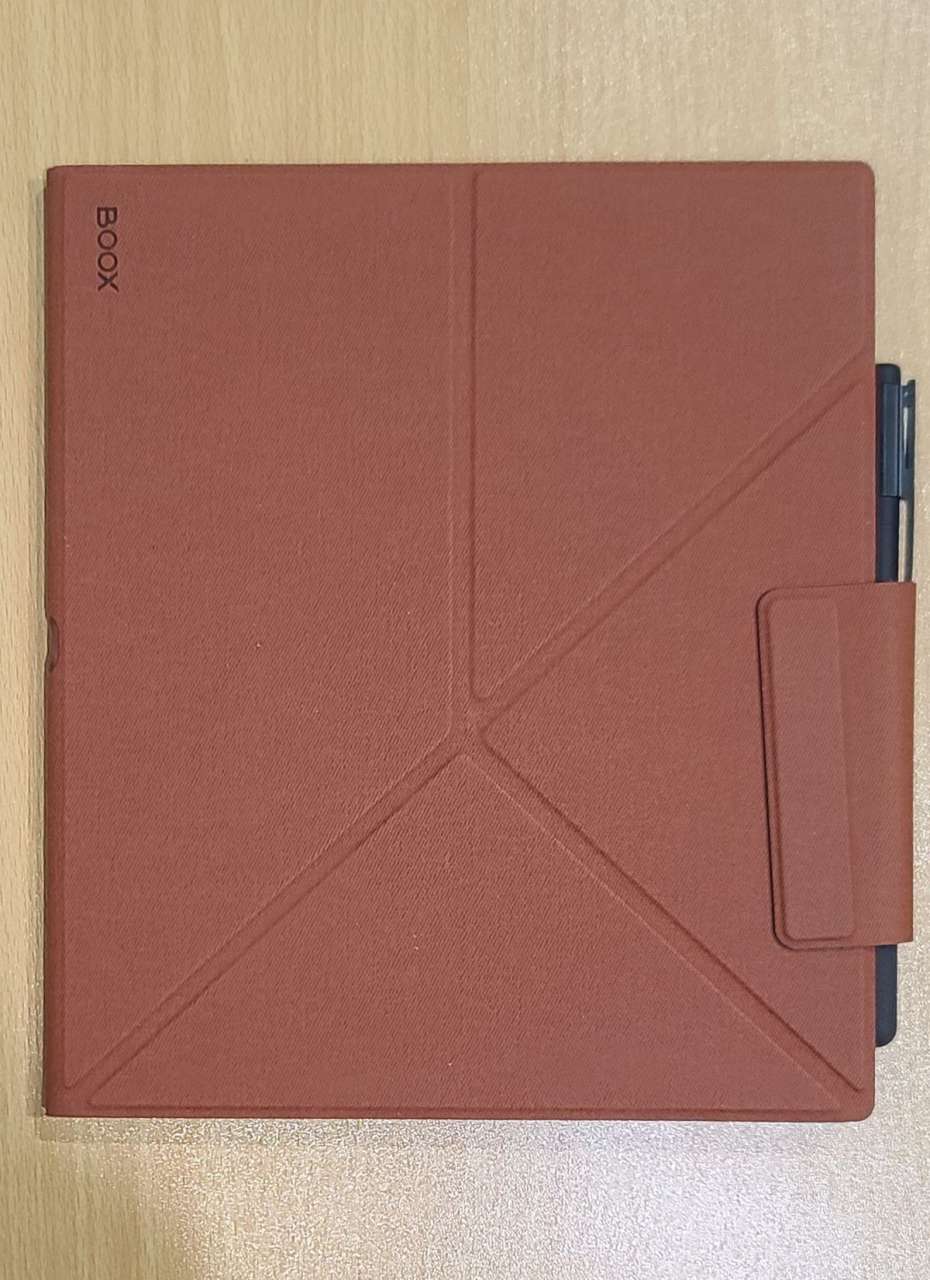
The BOOX case has a magnetic back that holds the tablet in place. Jerking the cover will cause the magnets holding the tablet in place to lose grip, but this is unlikely in day-to-day use.
The front cover can fold into a tetrahedral shape, and the base of this shape acts like a picture frame easel to prop the tablet up in landscape and portrait orientations. The magnets in the front cover can also hold the front cover securely against the back cover if the tablet is not propped up.
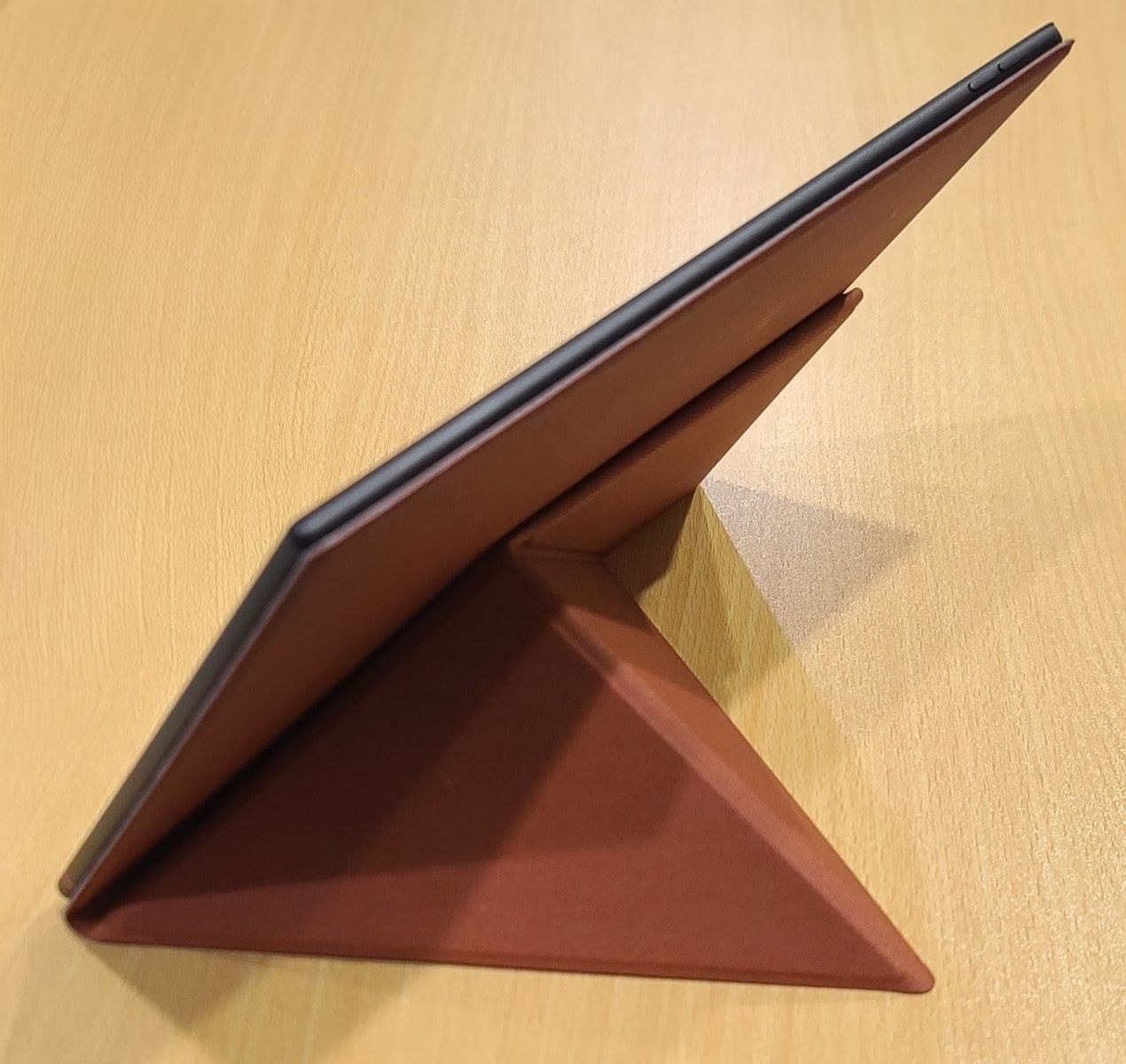
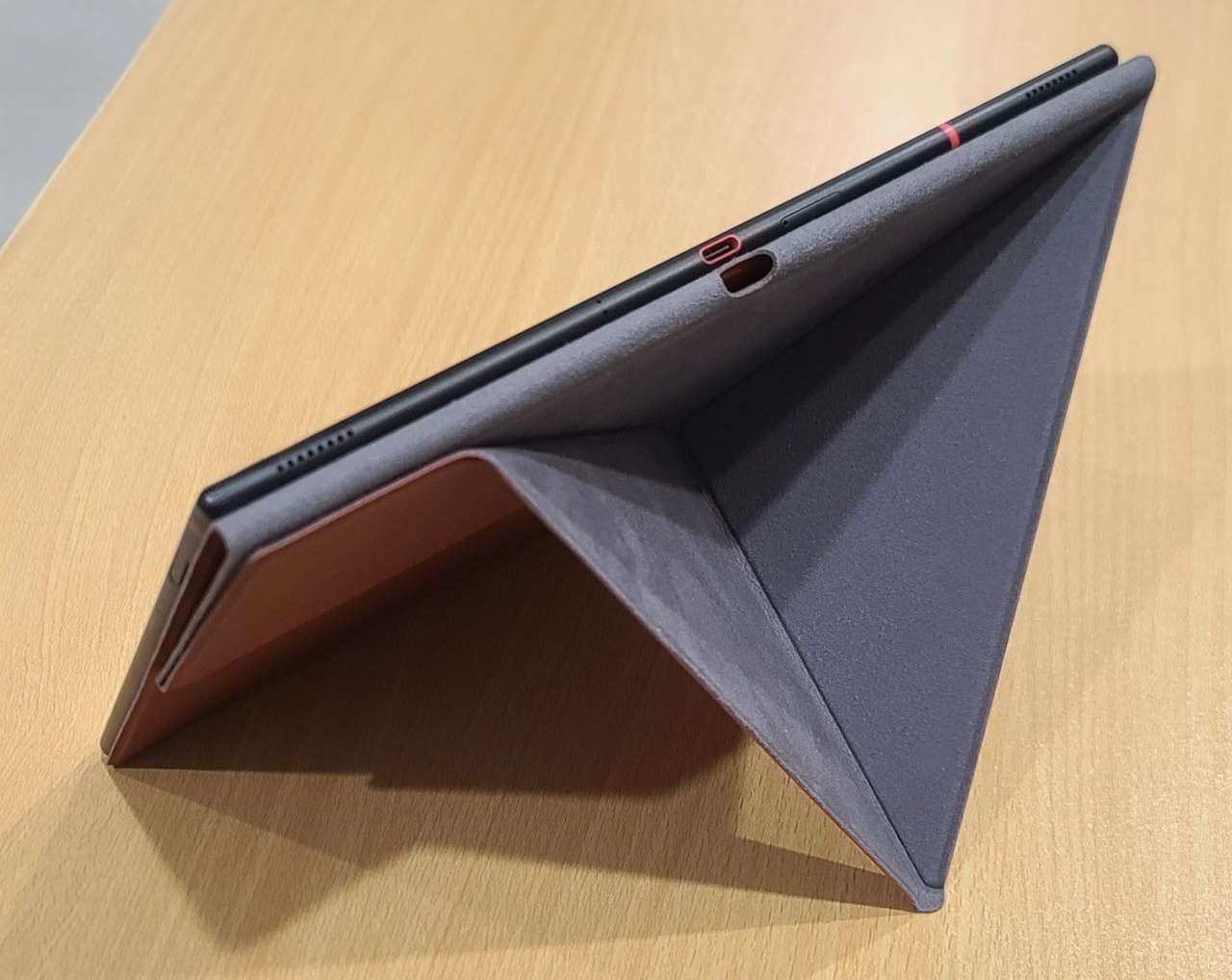
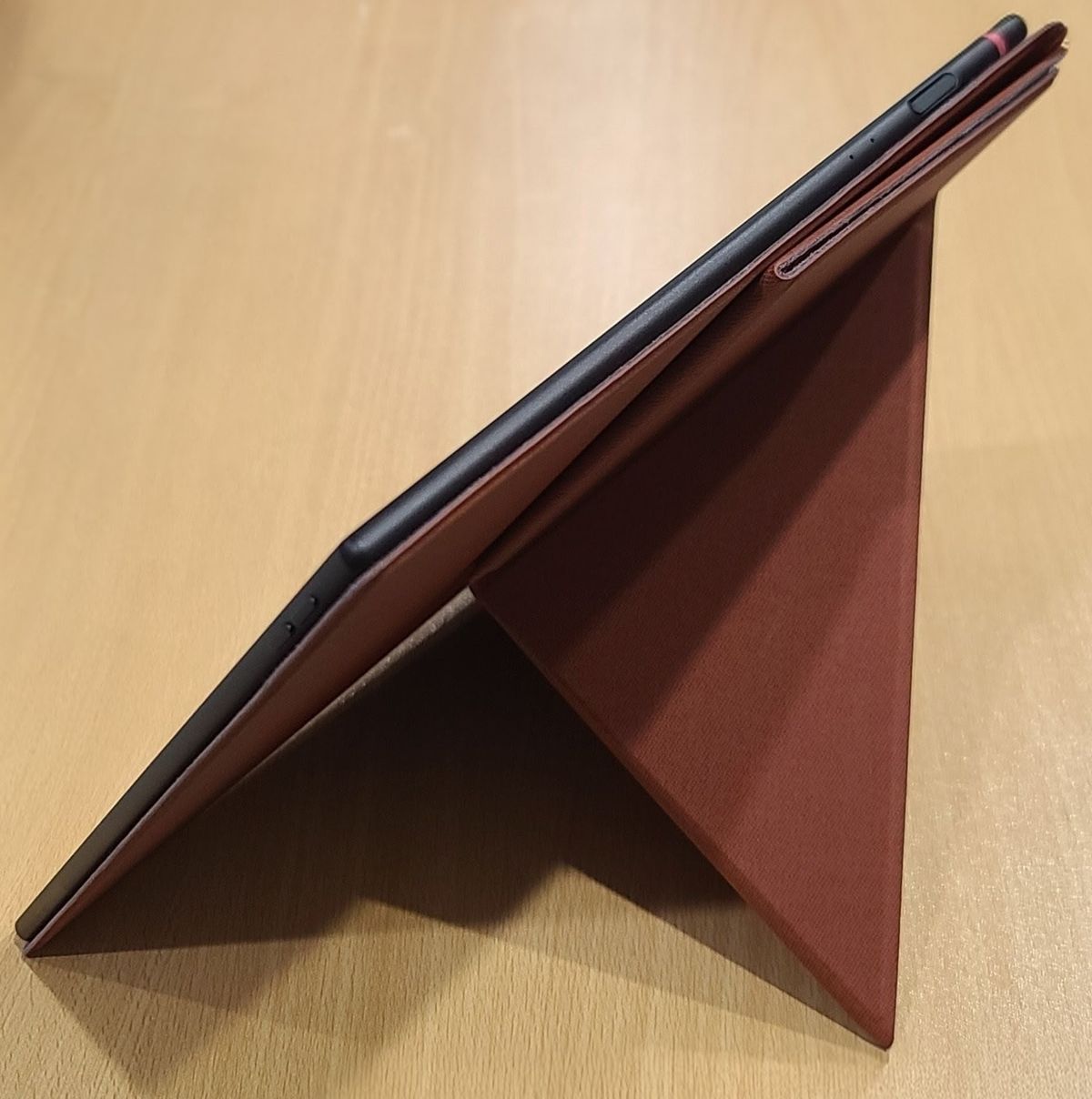
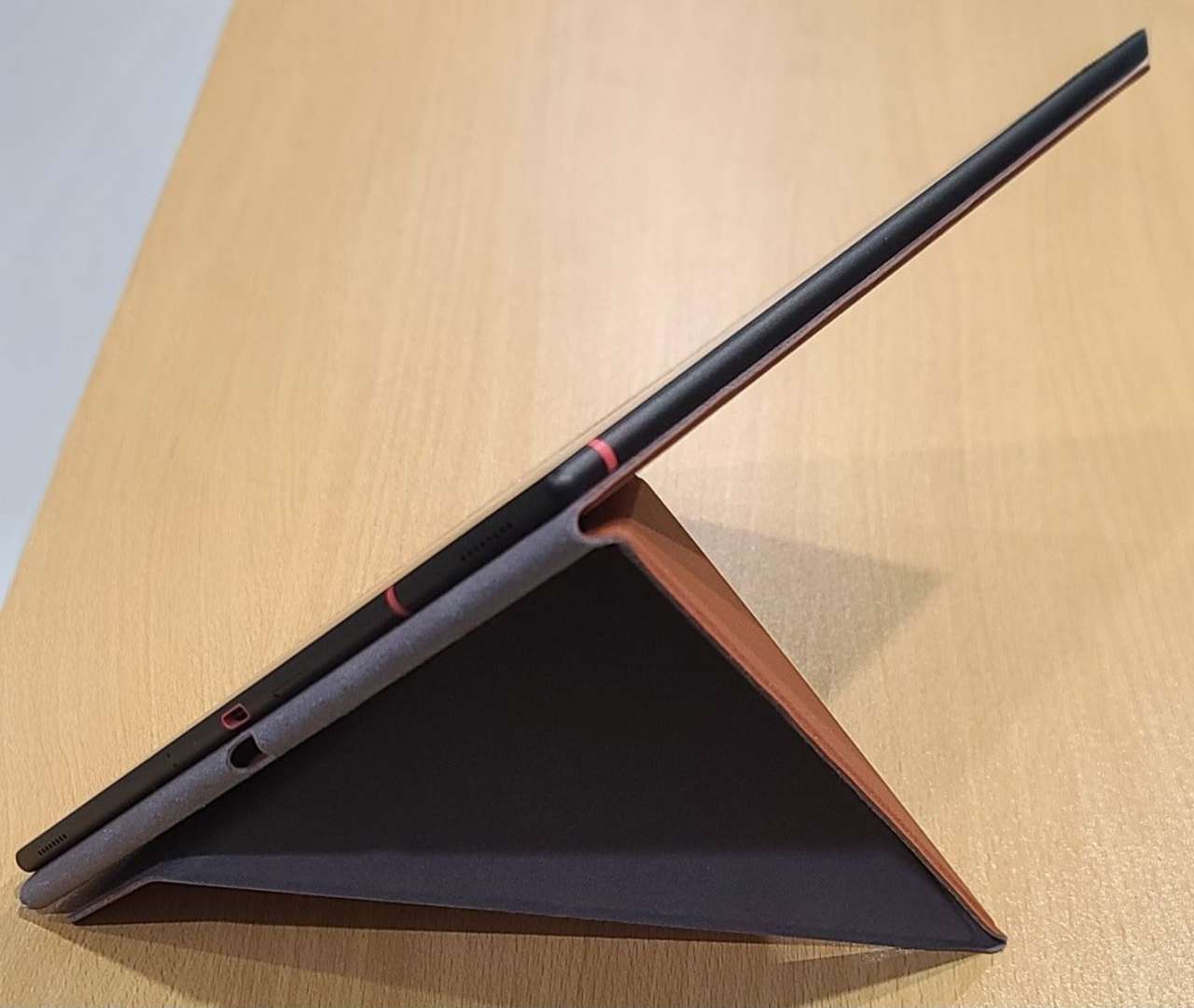
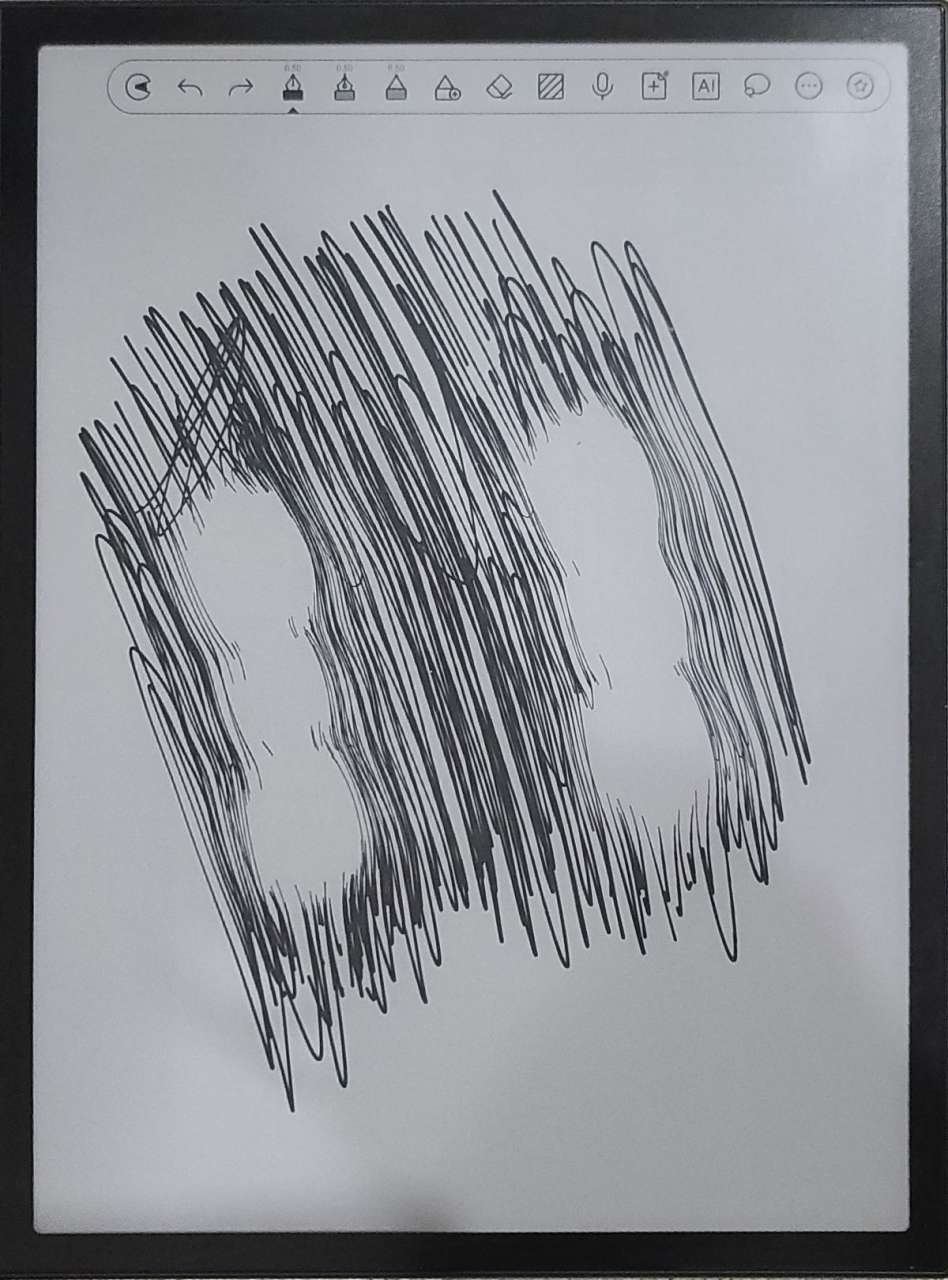
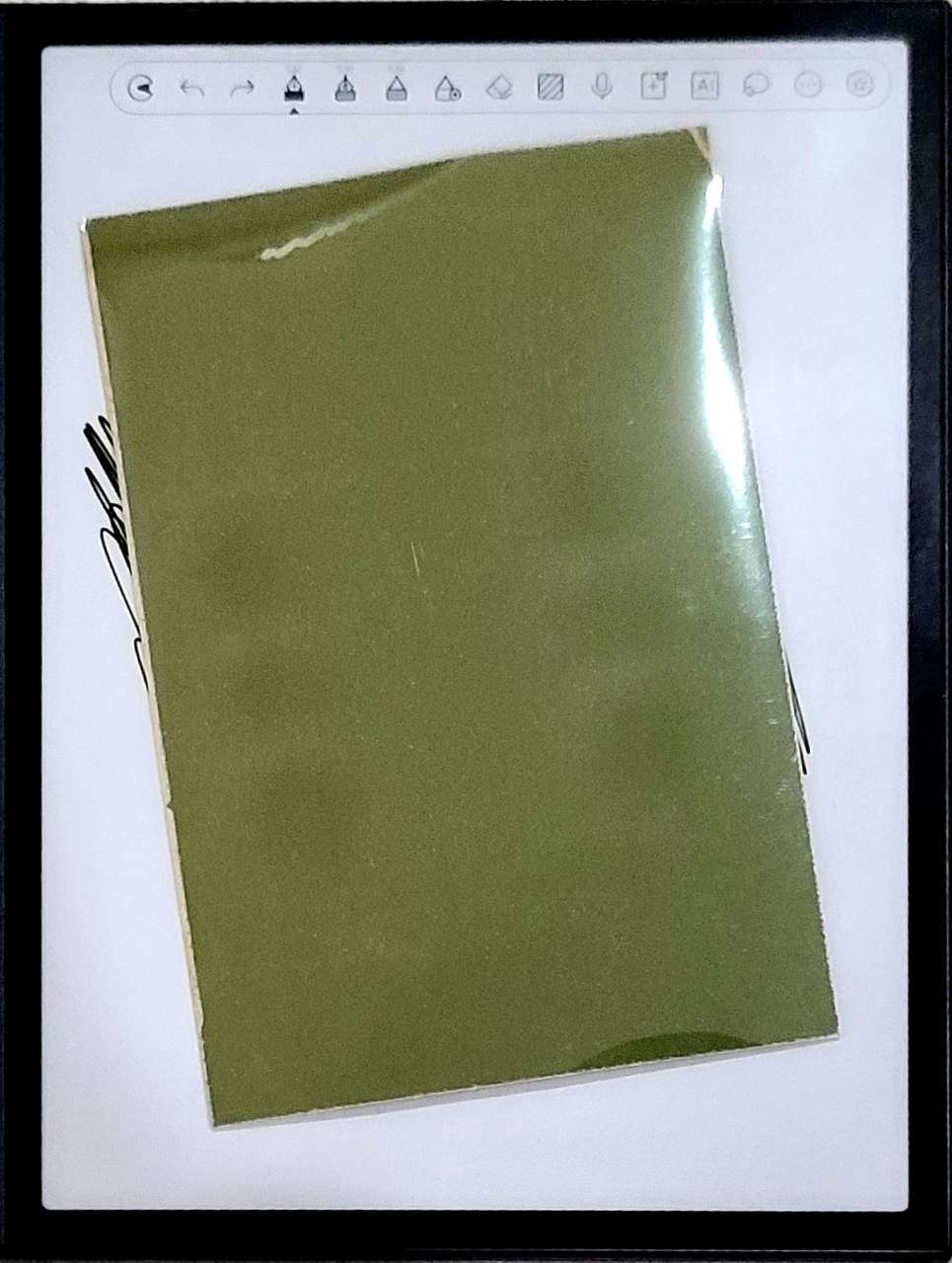
Both the versatile stand case and the keyboard case come with a separate magnetic closure that can be looped to hold the pen cap or strapped to the front and back of the closed case to provide additional security against it opening. I placed this open against the back of the case one day while taking notes and observed that the magnets in the closure create interference that prevents the pen from operating correctly. So, storing this on the side of the tablet is the best option.
Here is a demonstration of the interference the magnets cause, and a piece of magnetic sensitive paper showing dark circles where the magnets are detected.
Keyboard case
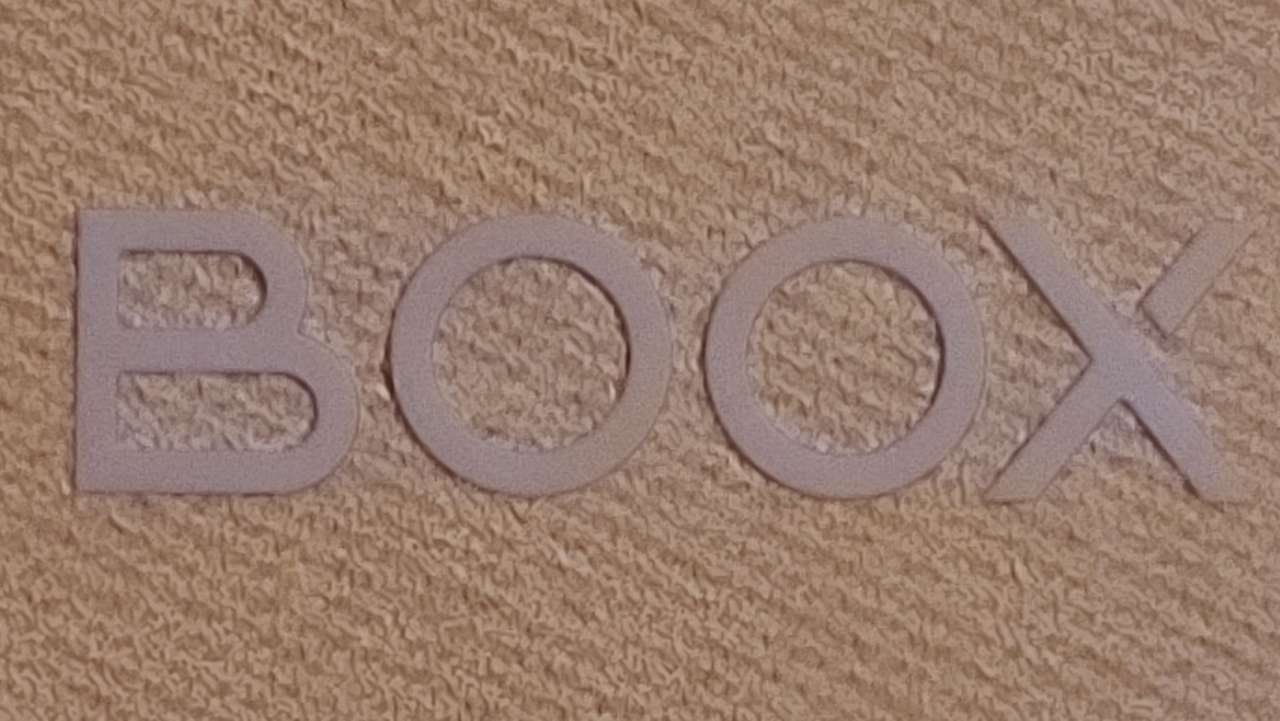
The surface texture of both cases is suggestive of the color laminate that is used on the screen. I am not sure if this is an intentional design element or merely a coincidence.
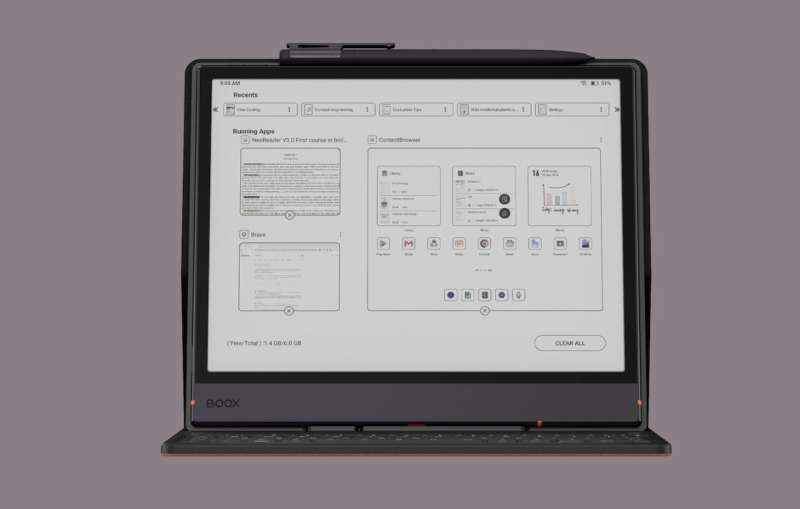
The keyboard case has the same exterior finish as the versatile case, but the inside is a darker shade of grey. There is a plastic cradle for the BOOX and a plastic keyboard on the other side of the case. The keyboard is a compact design with a reduced key size. While most keyboards have 4 keys every 3 inches (by measuring the edge of the A to the edge of the G key) the BOOX keyboard has these same keys in a 2 9/16 inch length.
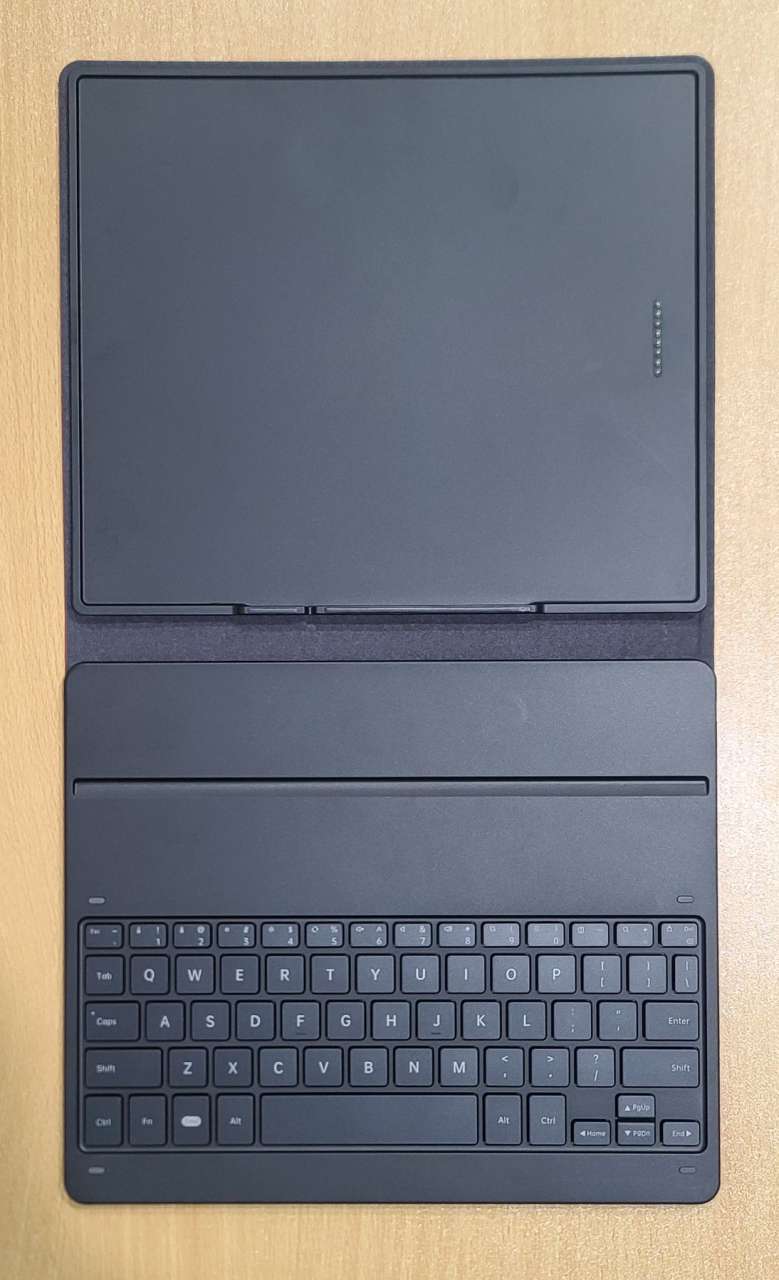
I find that the cradle for the tablet does not have a cutout for the power button, so there is difficulty using the fingerprint scanner.
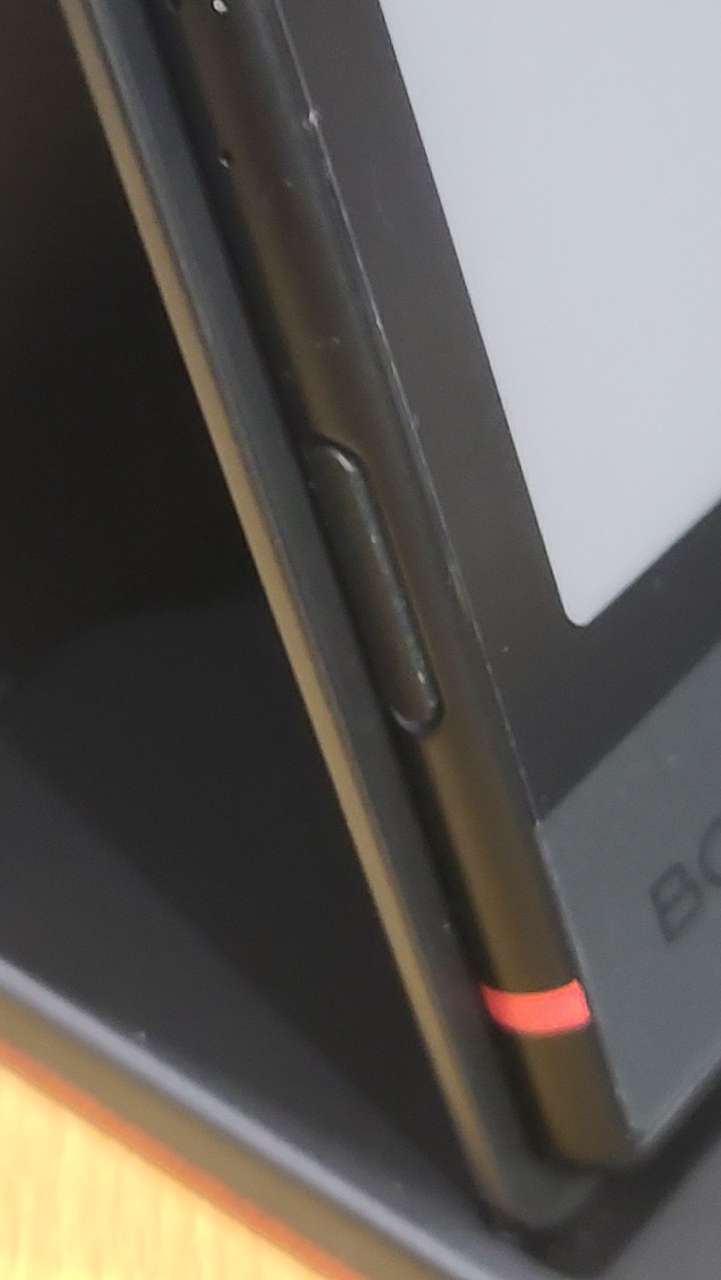
The speakers are downfiring but still about as loud as they are when not mounted to the keyboard case.
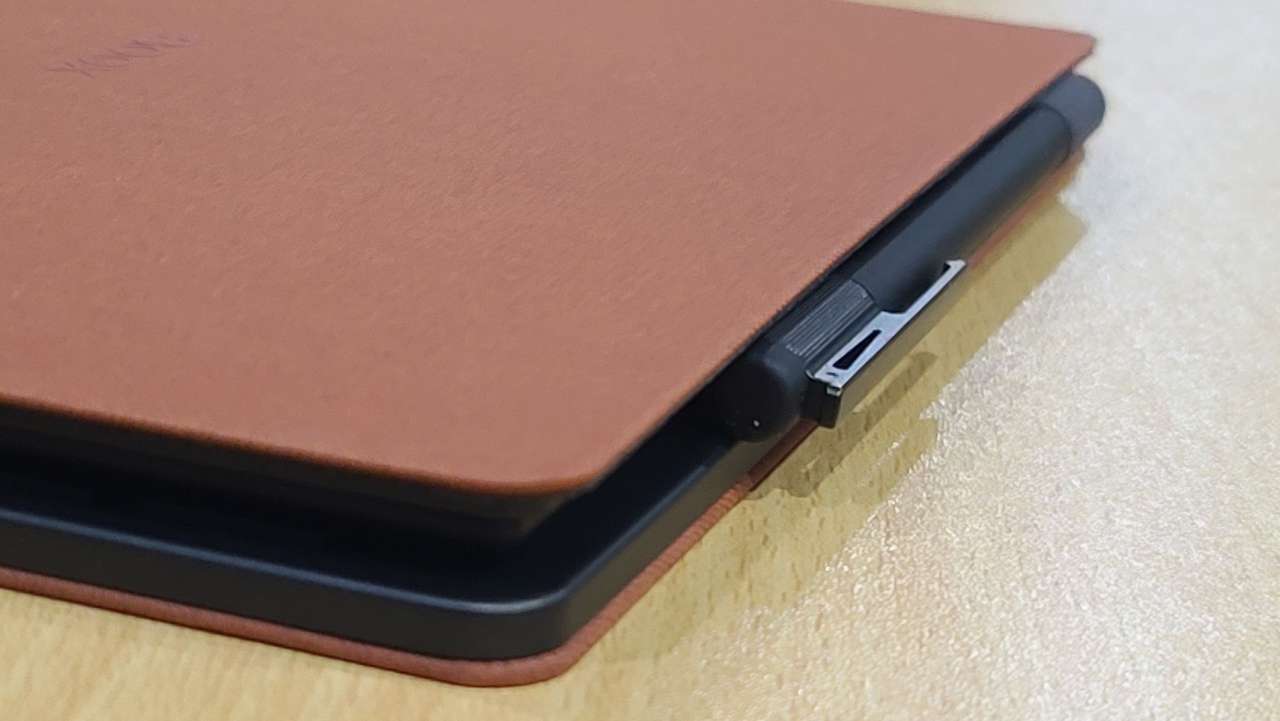
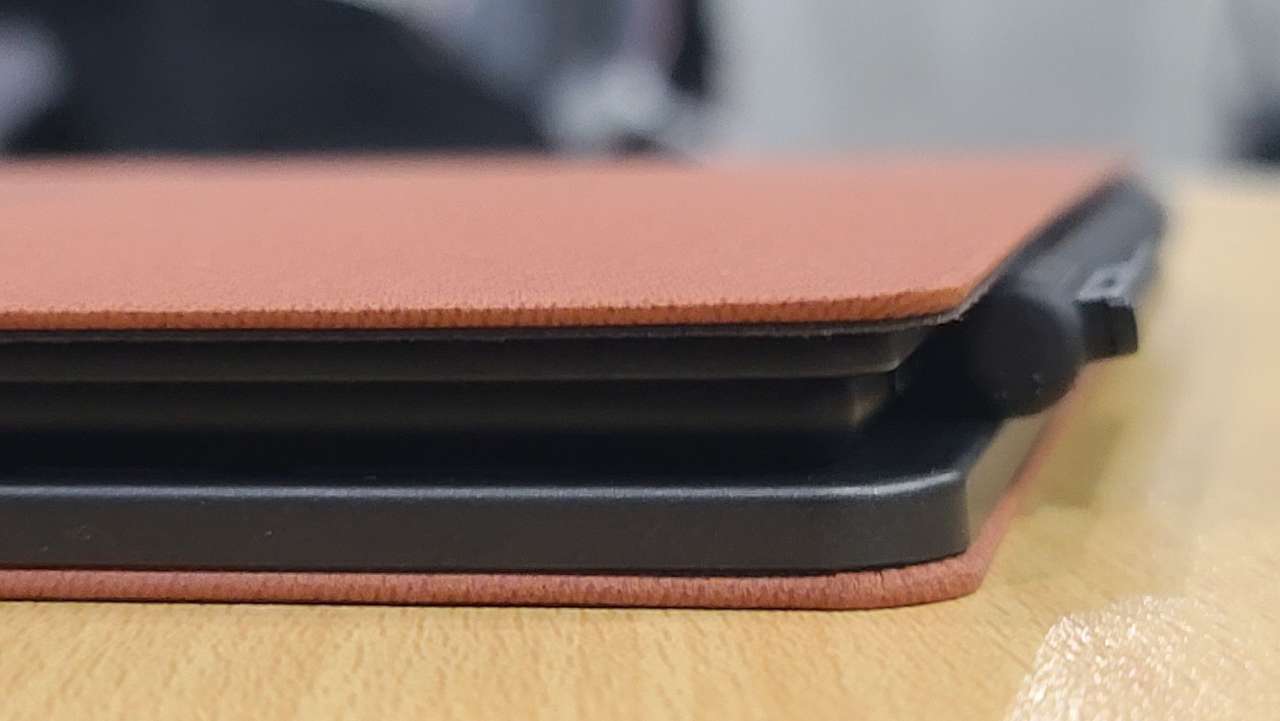
I found that the fact that the keyboard cannot be turned off may cause key presses to be registered when the case is folded back. In addition, the pen is pushed away from the magnetic storage area when the keyboard is fully closed. The picture below shows the folder slightly open.
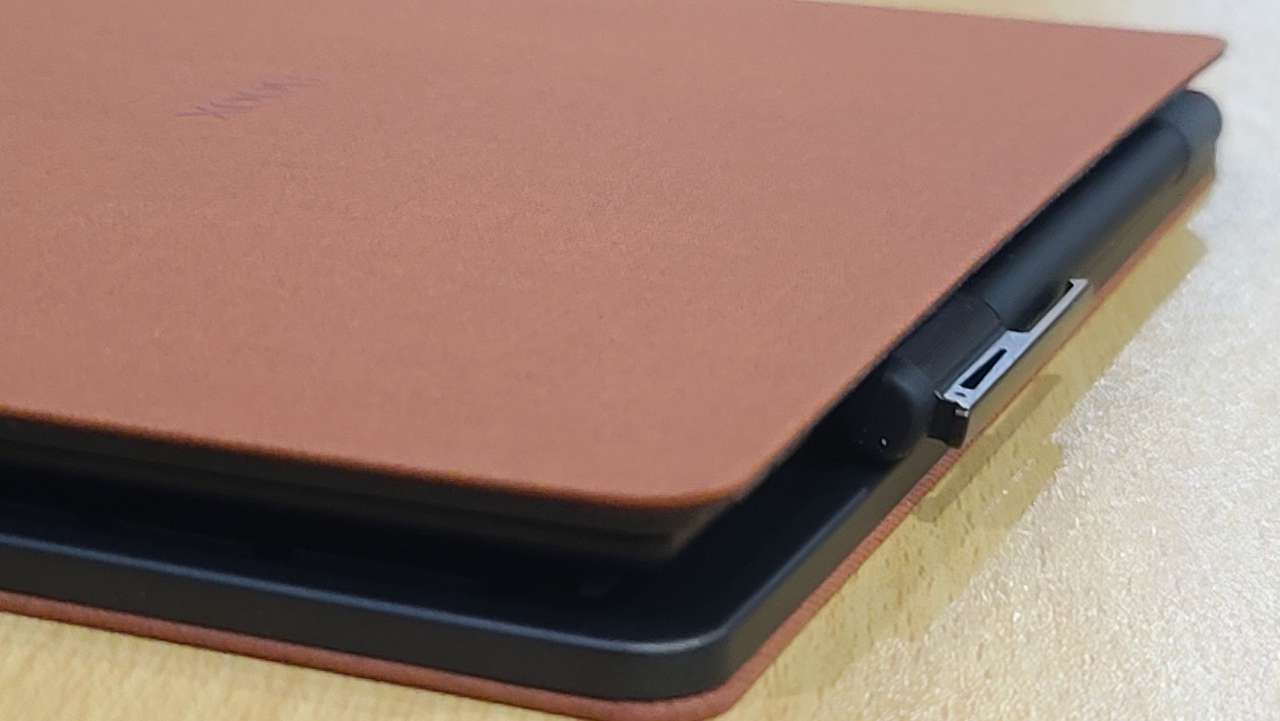
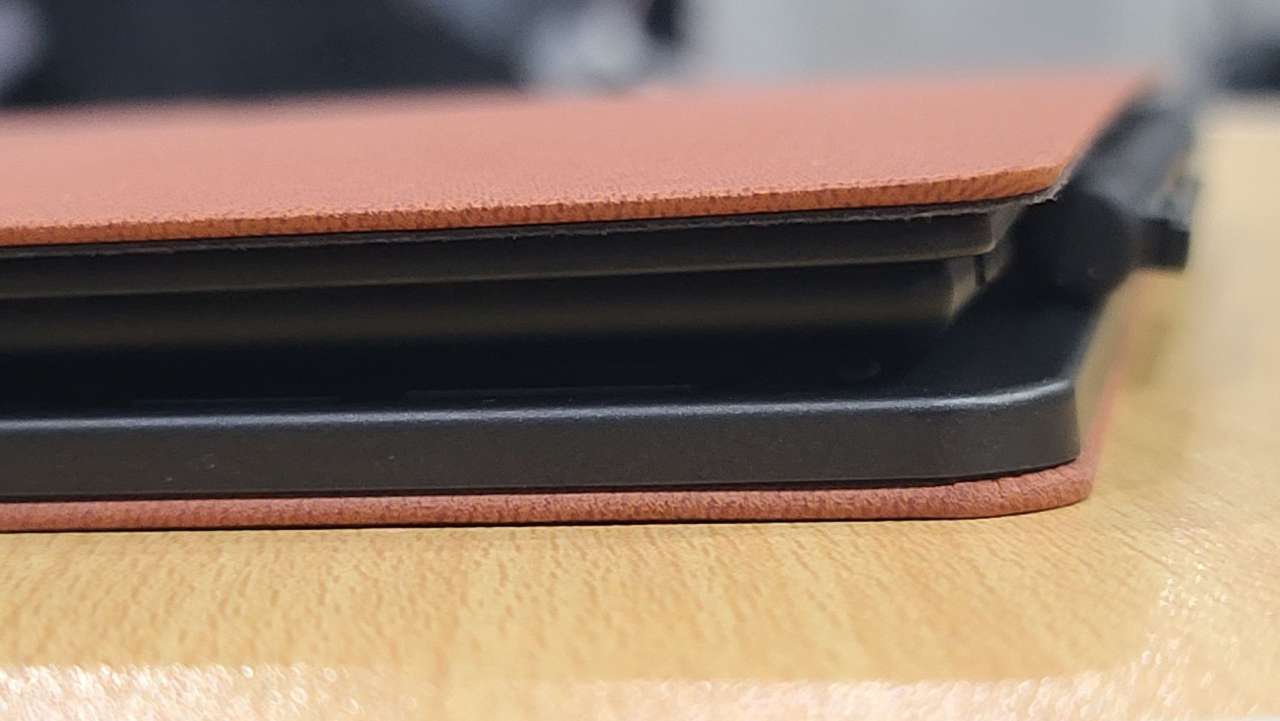
And here the case is shown fully closed
Operation
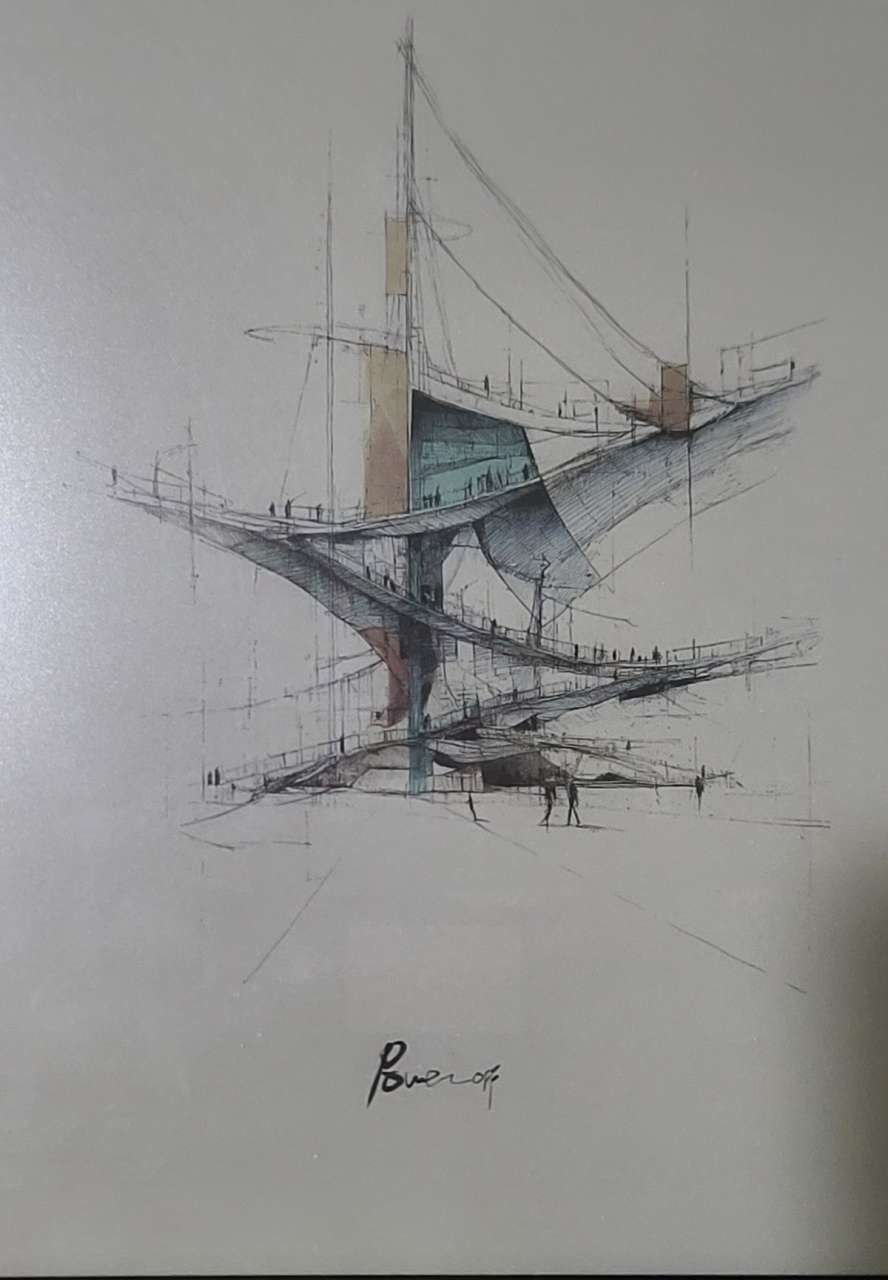
The BOOX Note Air5 C displays a conceptual architectural sketch when powered off, but this can be changed in the settings.
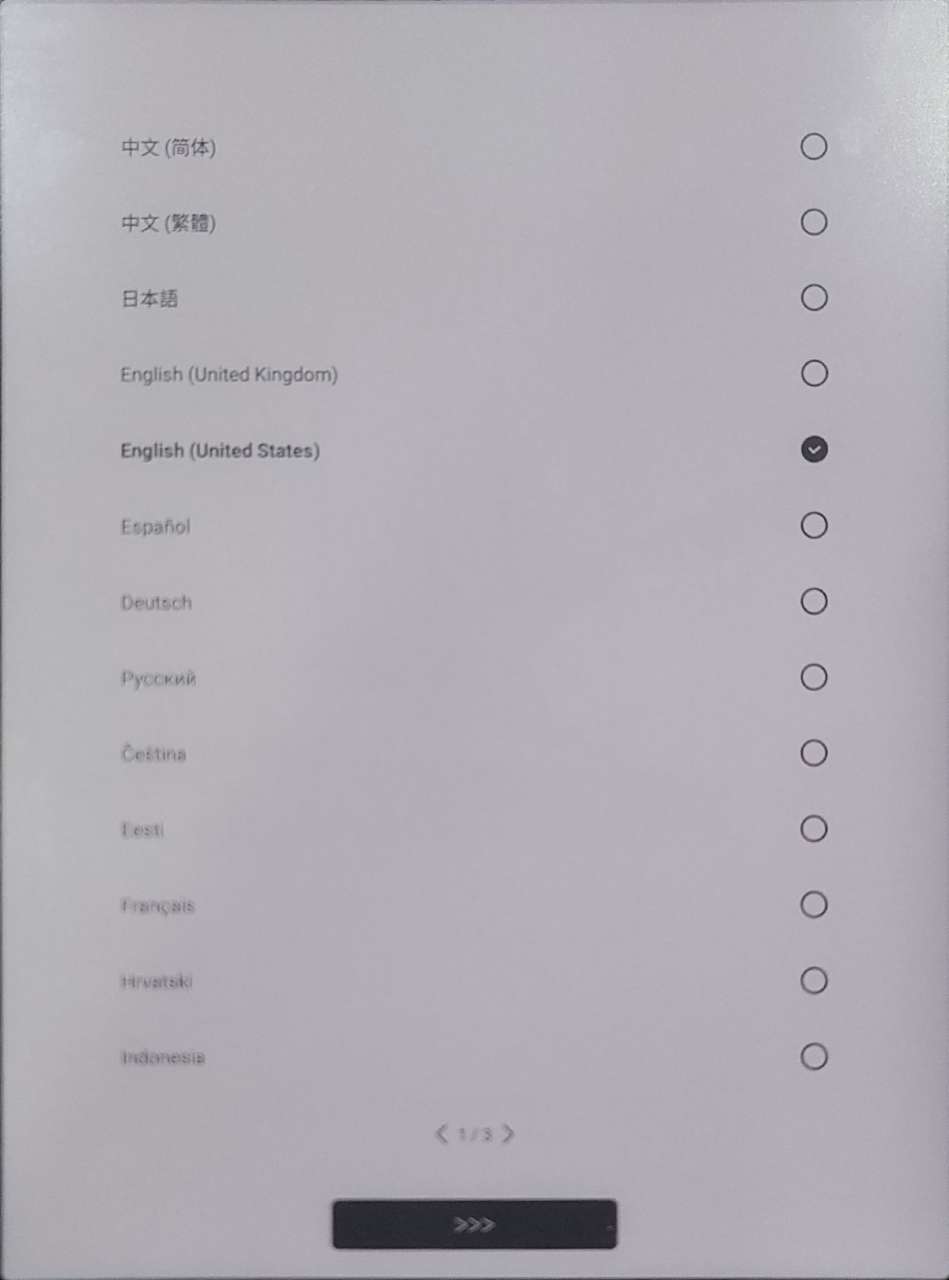
The first time powering it on, there are a few screens that are used to select the language and some UI preferences.
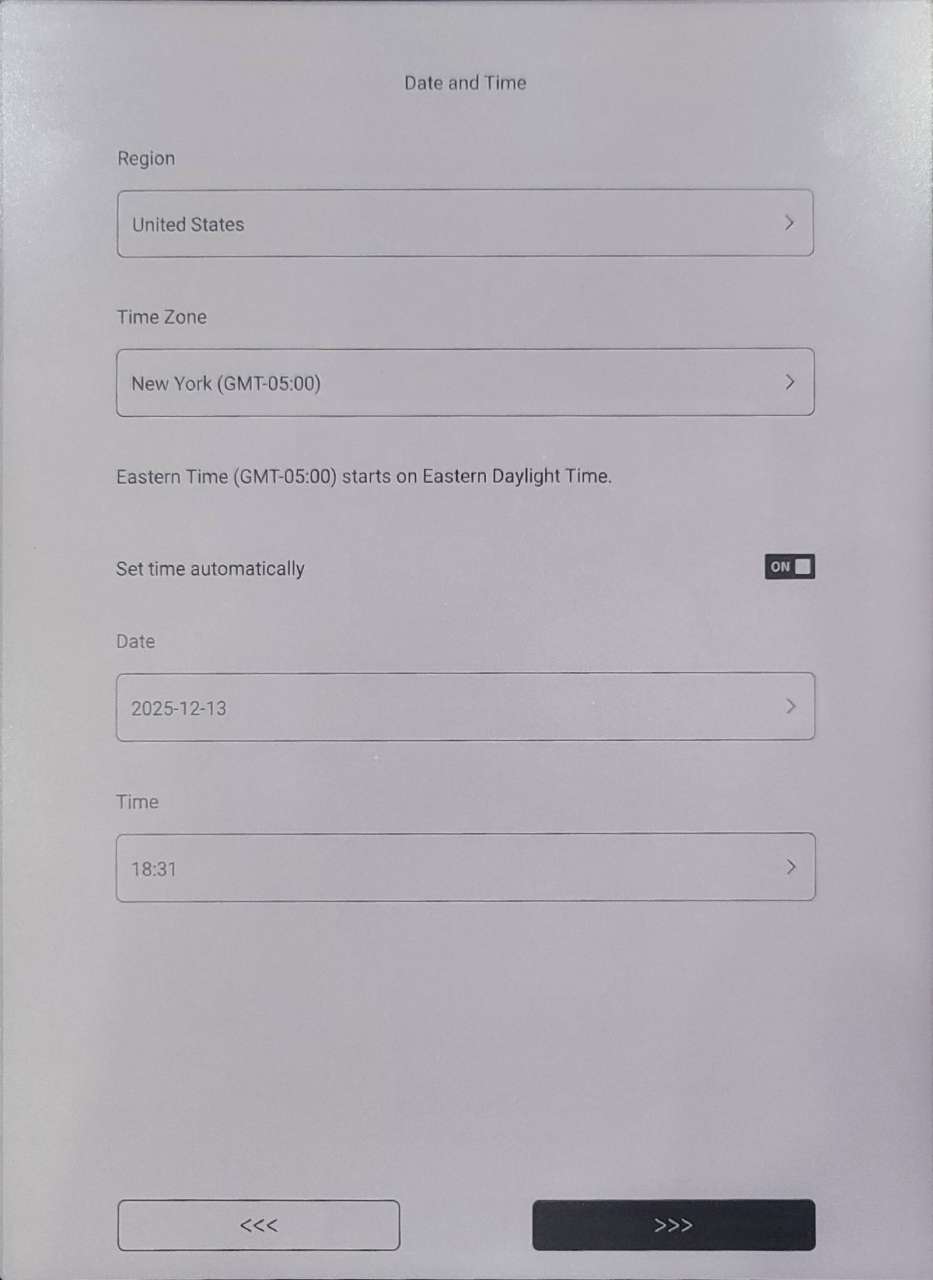
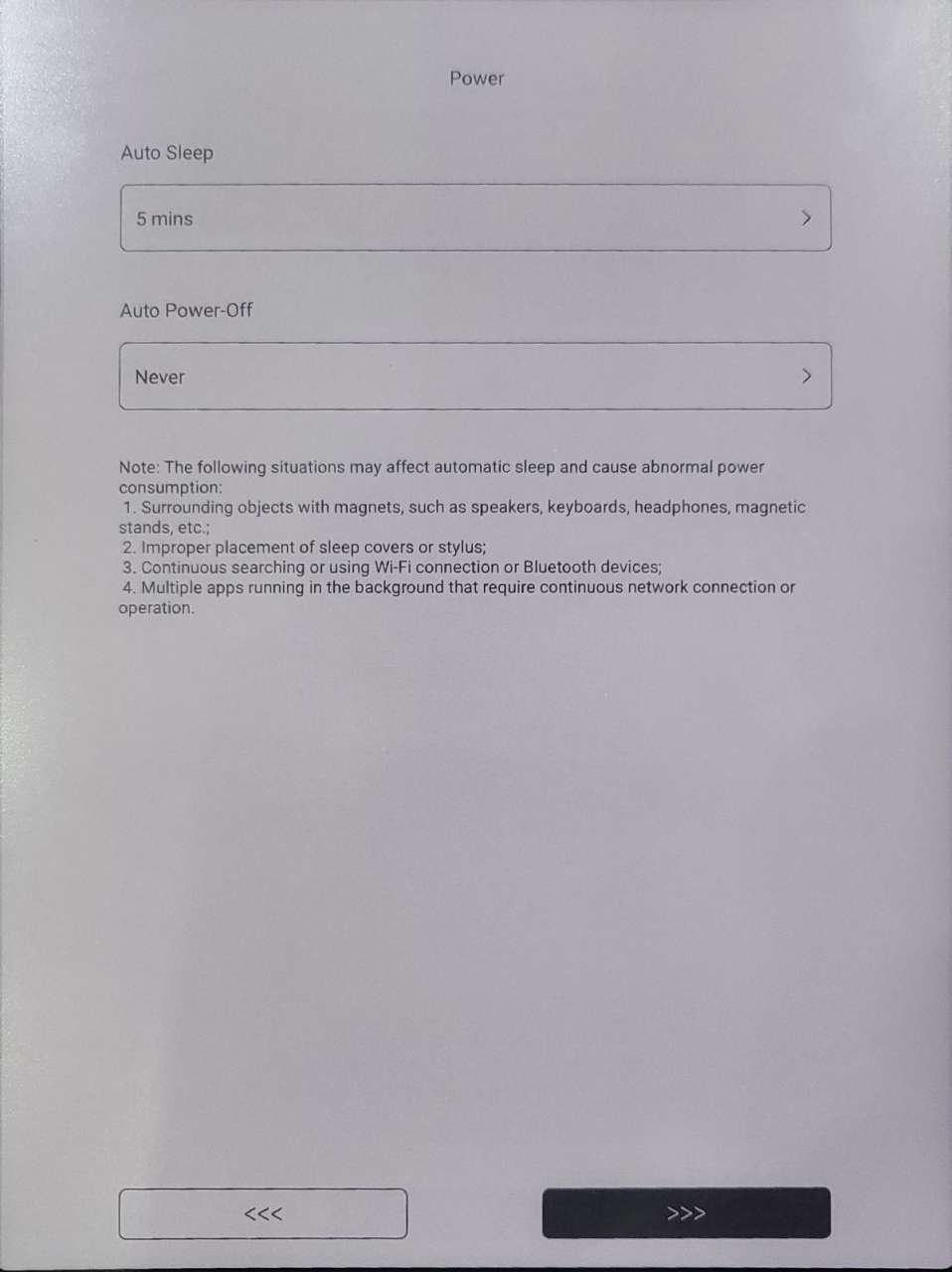
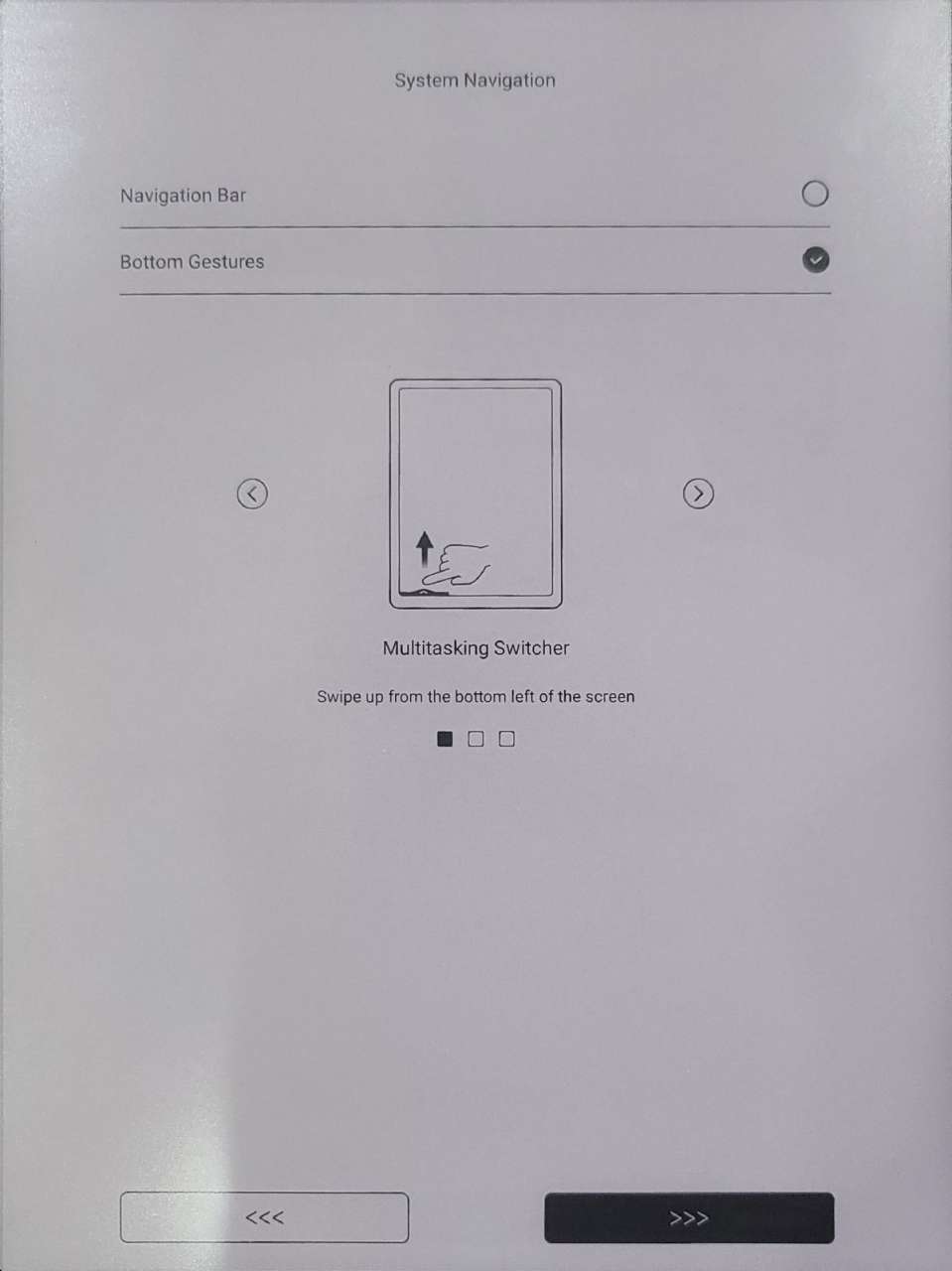
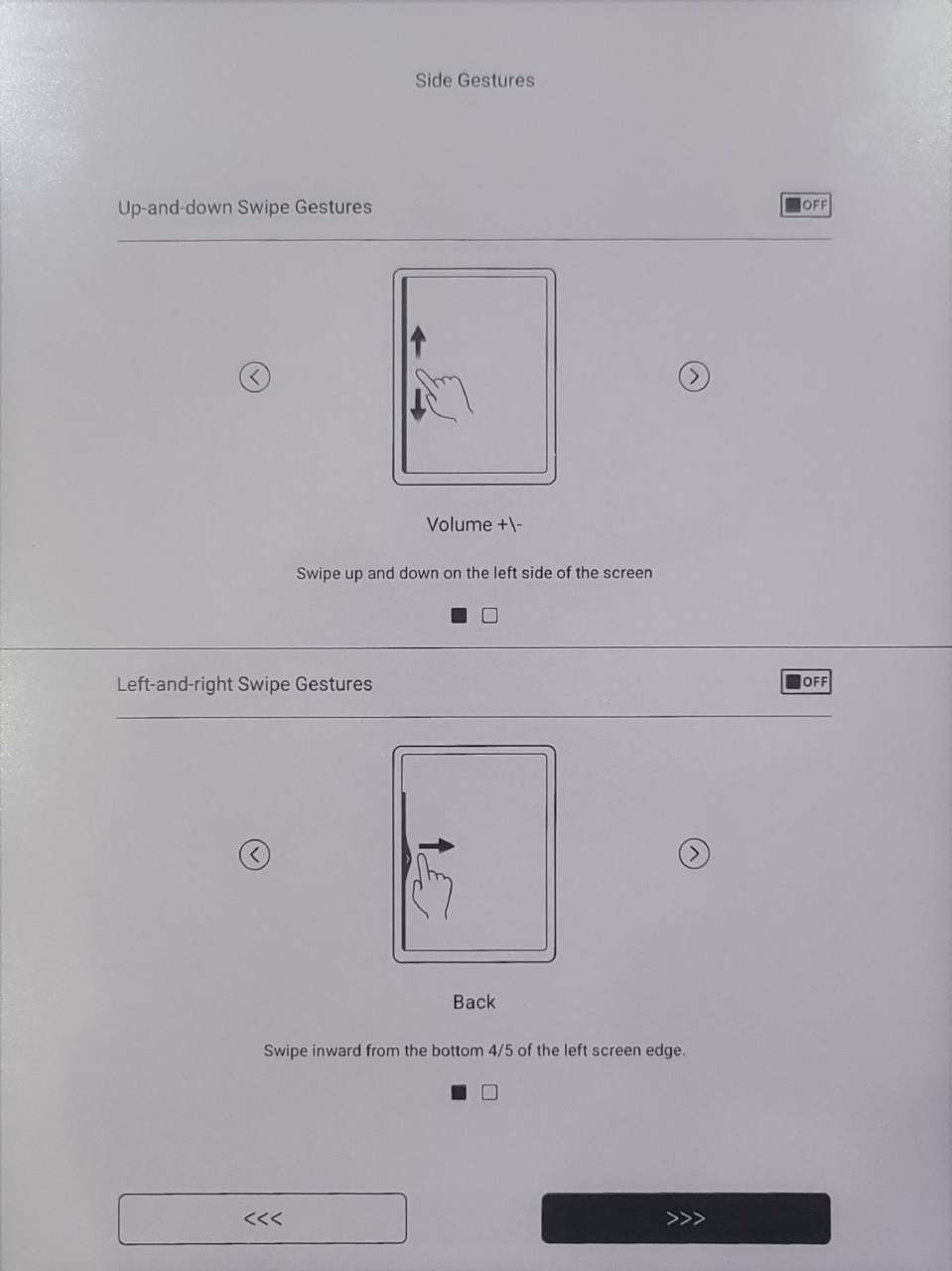
To optimally use the screen, the BOOX has a program called EinkWise that adjusts the screen operation to best suit different applications. There are presets for a number of different popular apps, and custom adjustments can be made to tailor the refresh, color, layout, contrast, and refresh frequency.
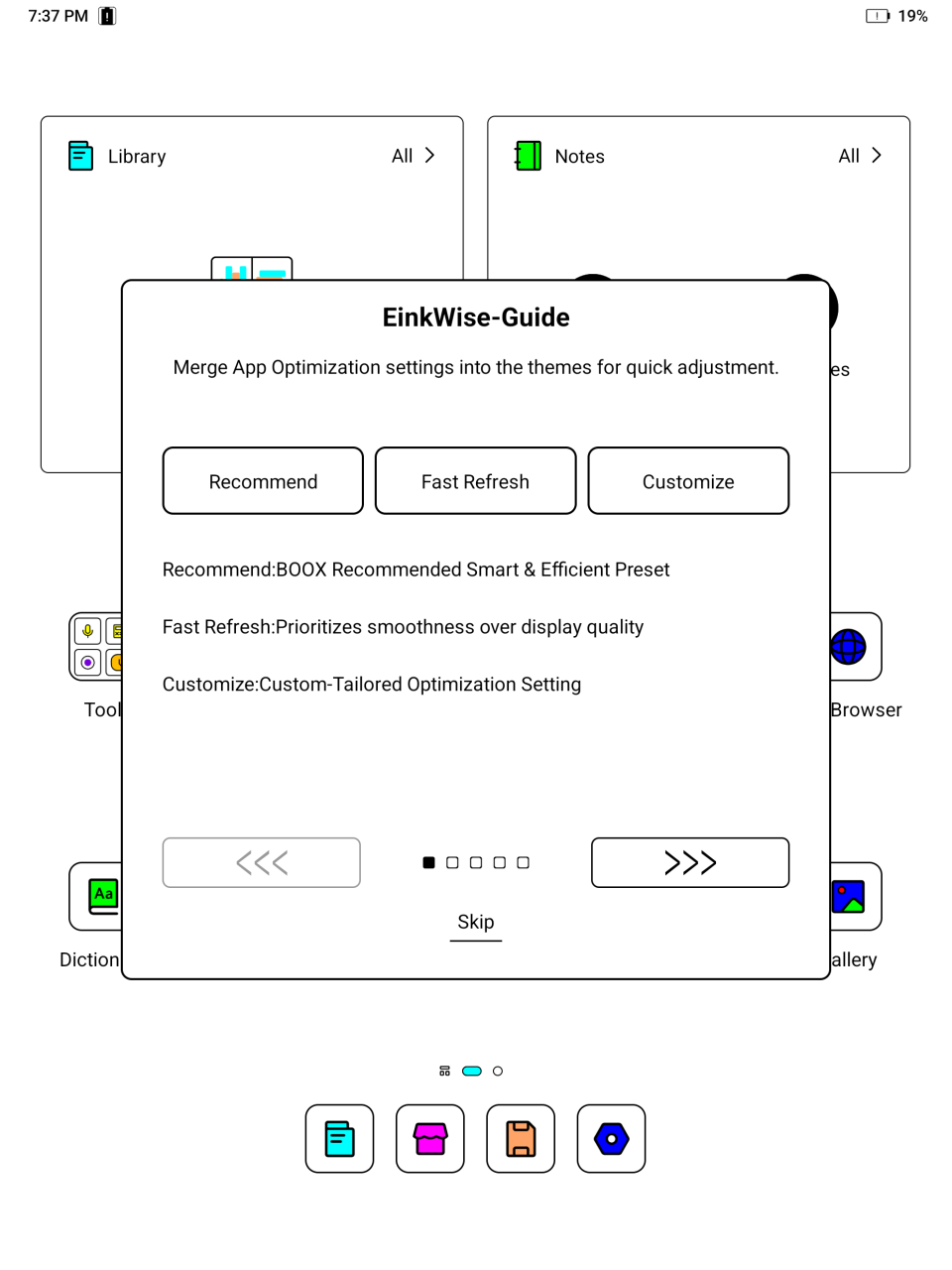
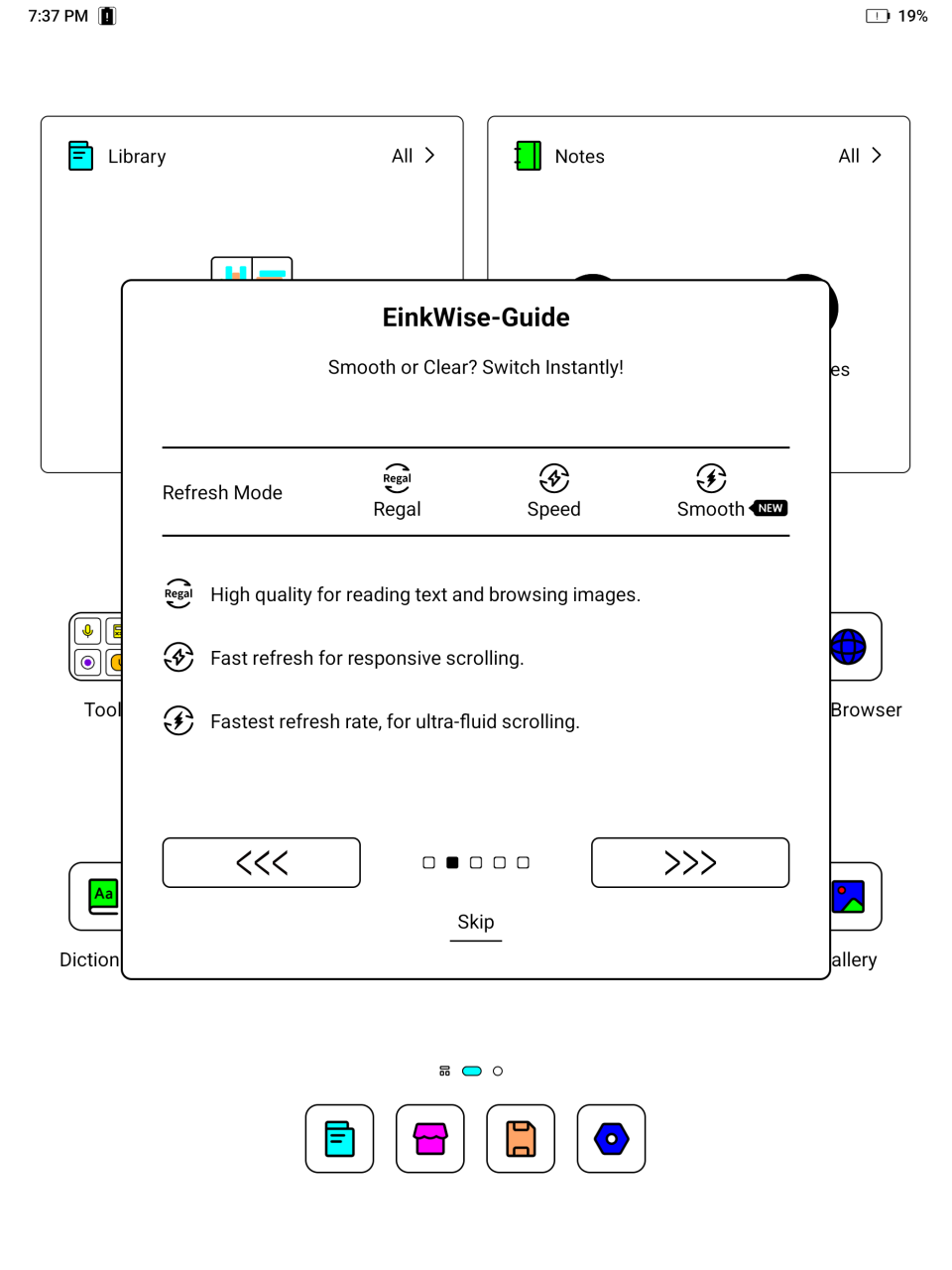
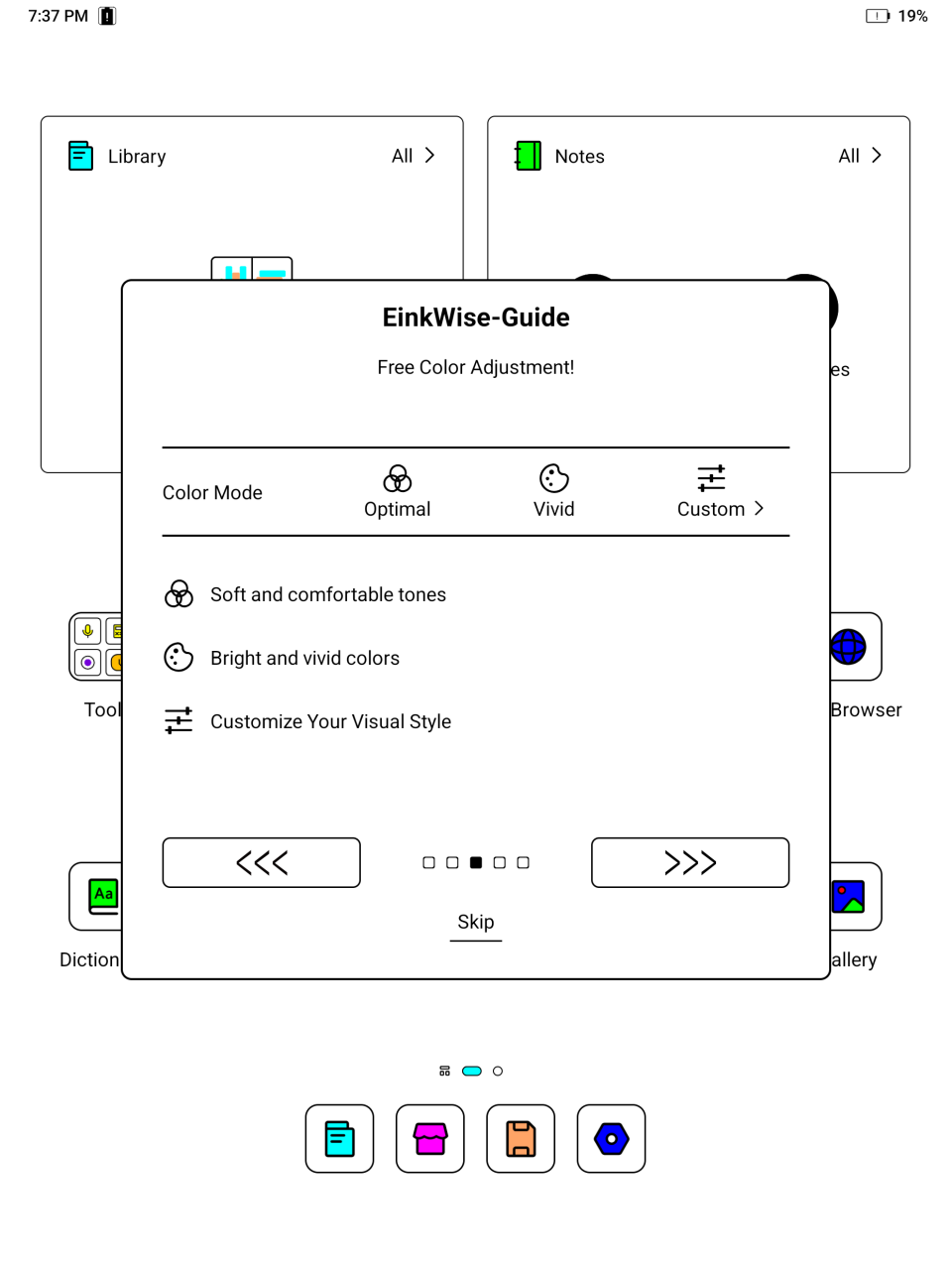
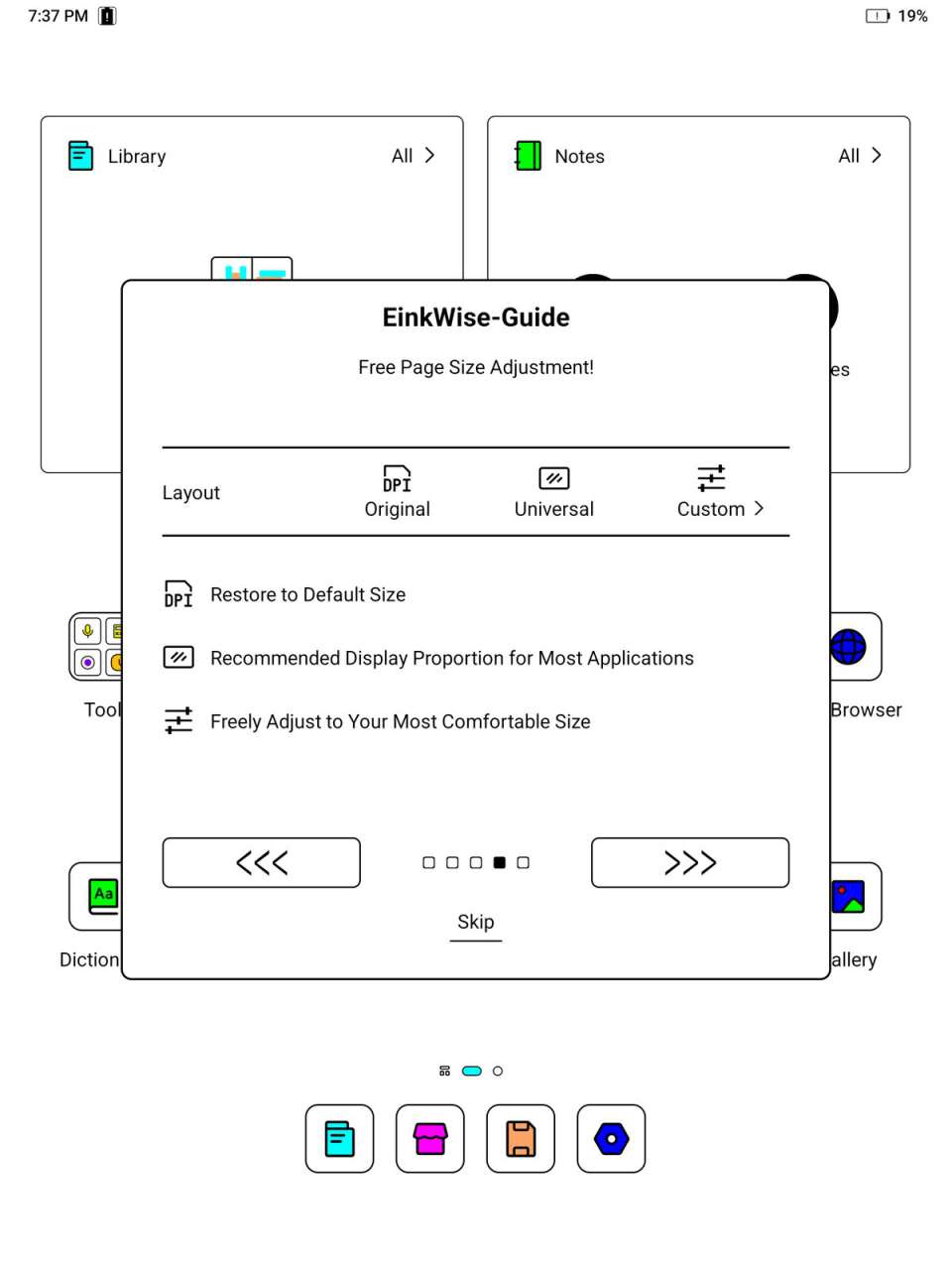
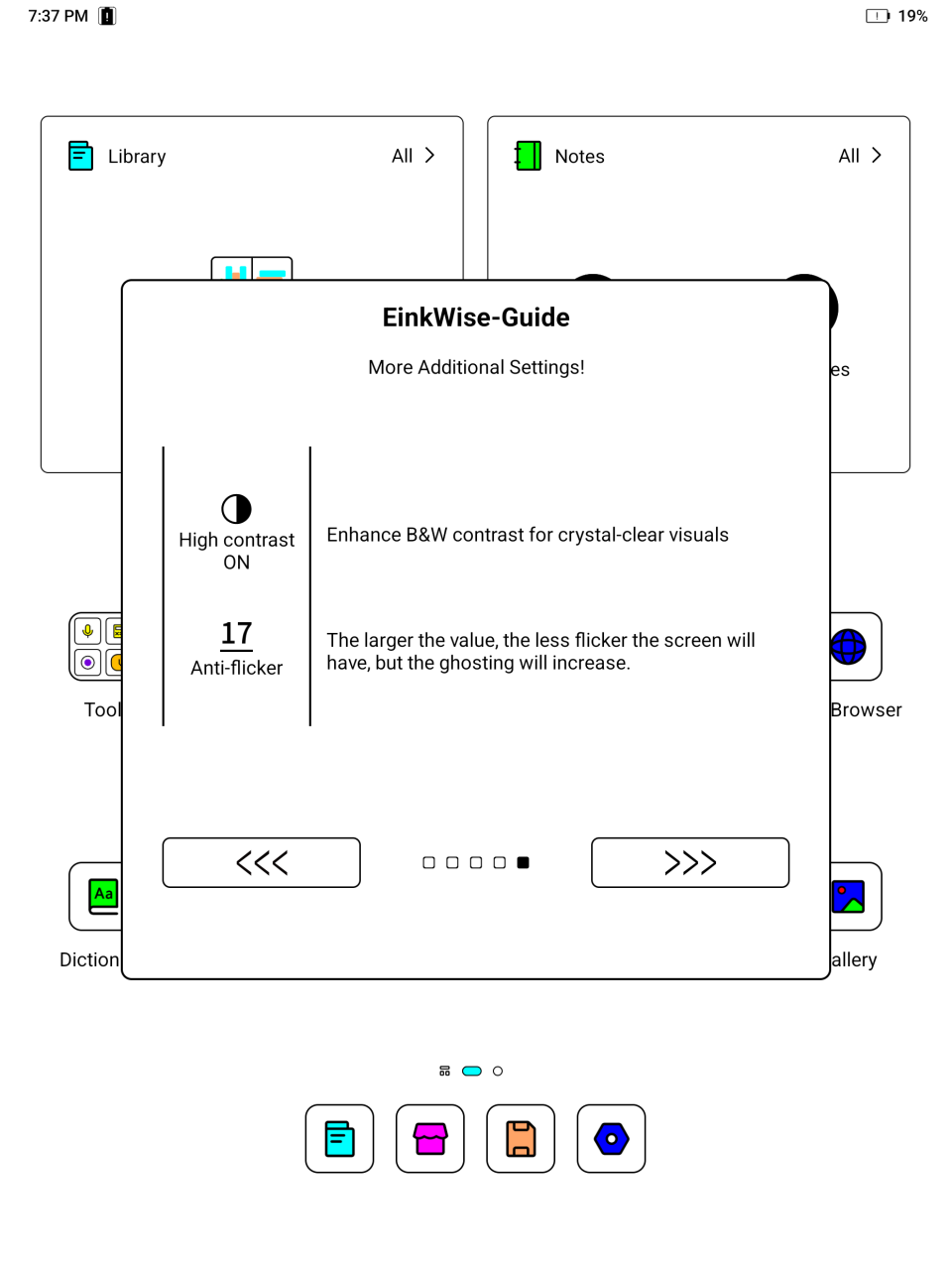
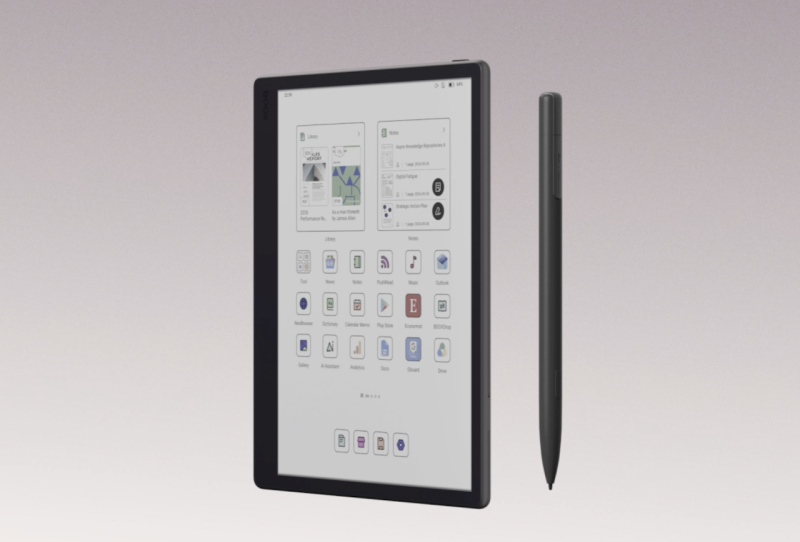
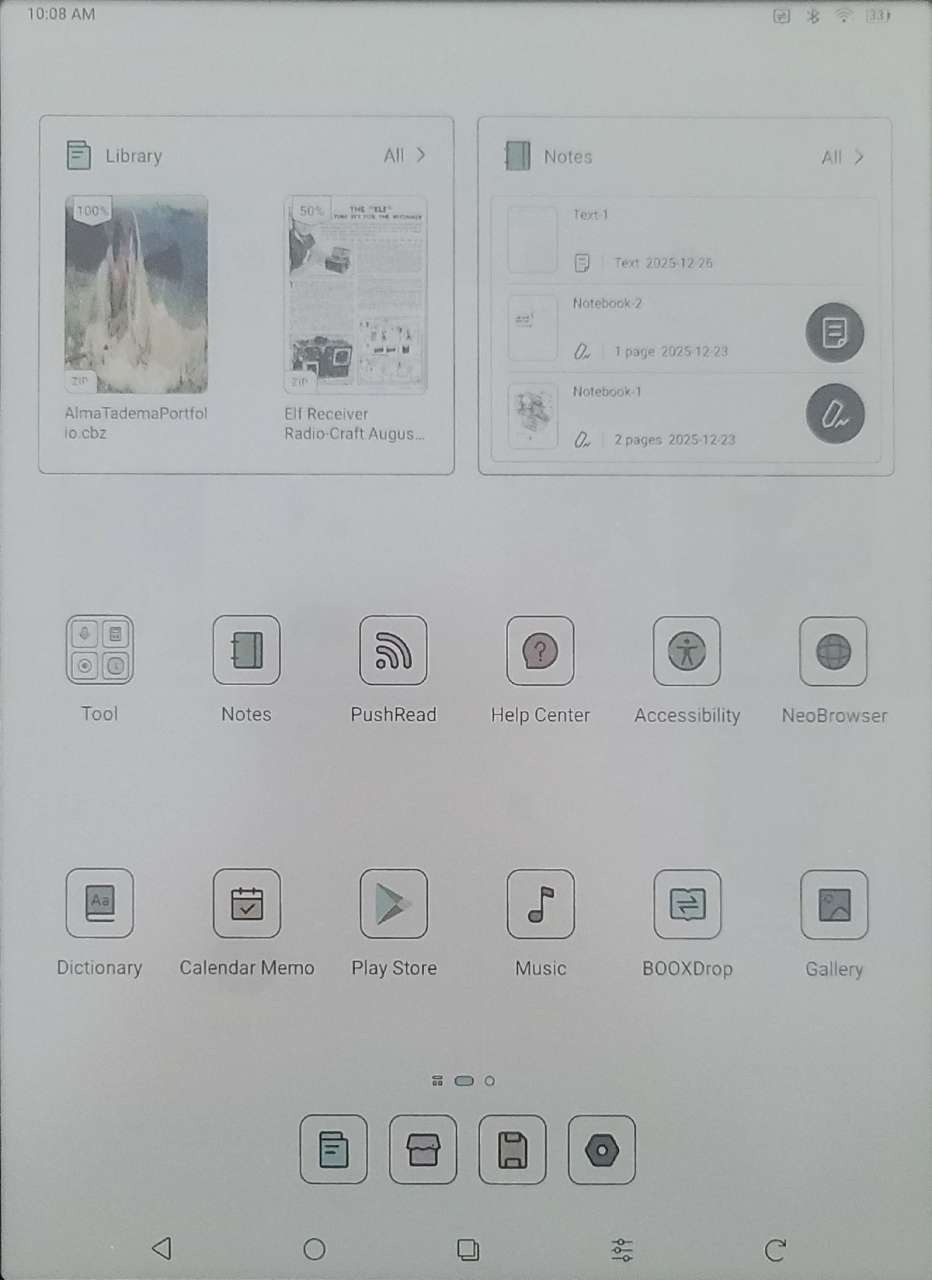
The UI is clean and uncluttered. Icons are well spaced, and a black square with rounded corners surrounds each icon.
The first page of the UI cannot be edited and contains a quick launcher set of apps (that appear at the footer of each subsequent page), a library widget that shows the cover of the last 4 documents opened, a memo widget that shows quick notes added to the memo app, and a notes widget, which contains thumbnails of the latest two documents opened in the notes app.
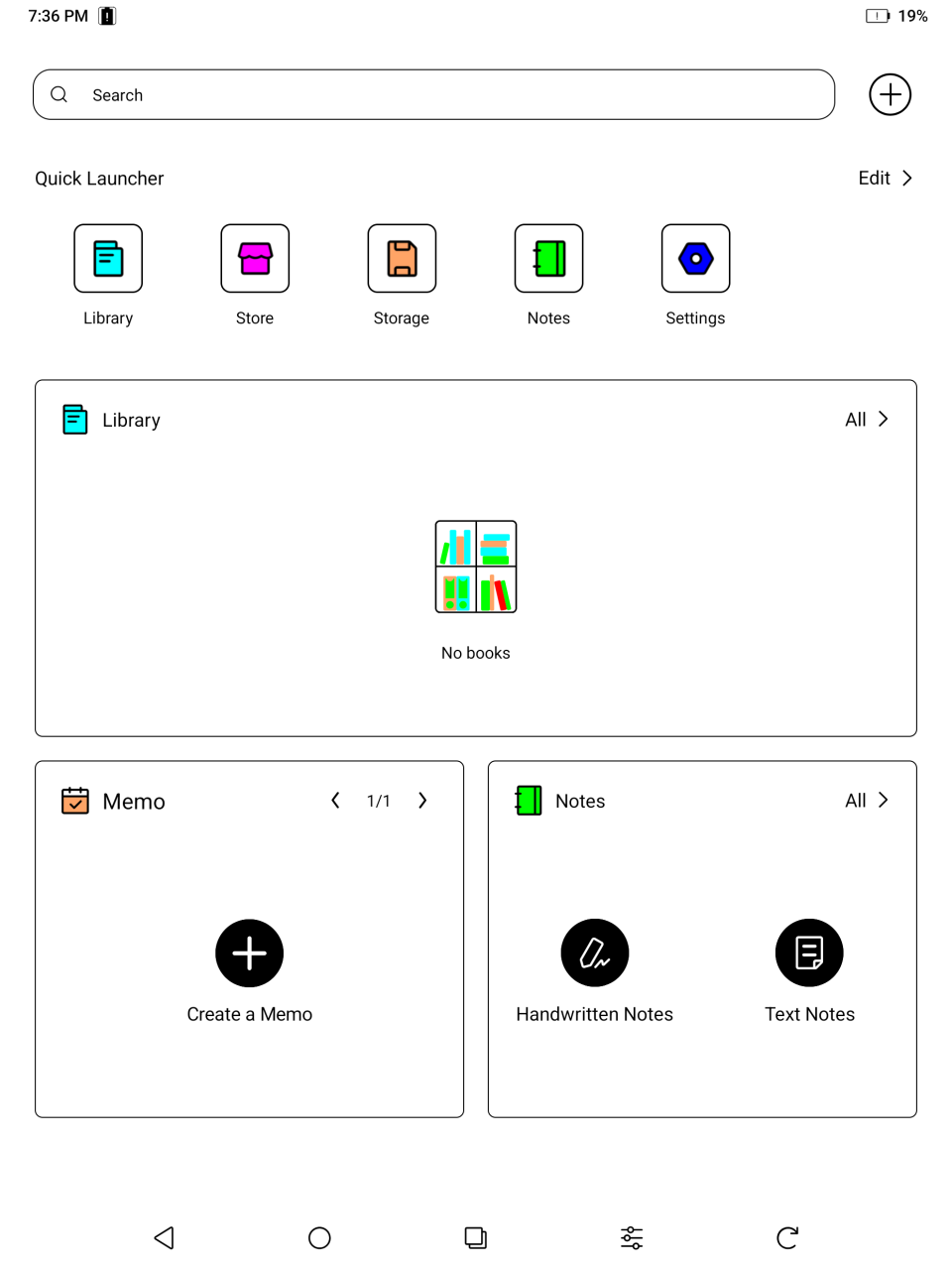
The Library organizes documents into Recent, Bookshelves, Storage, Favorites, and Cloud Storage. It auto‑scans preset folders and allows customizing list icons, filters, and sorting. Users can bind cloud services, download or upload files, and export annotations. Cloud downloads form an automatic sub‑bookshelf. Long‑pressing a book reveals properties like rename, lock, move, or delete. ONYX Sync syncs reading data, while Reading Statistics track usage. Library Settings manage scan paths and display options.
The store app shows what I expect are books from Project Gutenberg or similar. There is no link to a bookstore where current content may be purchased. However, since this is an Android 15 device, any app that supports this, including Kindle and Libby can be used to obtain current content. If digital content is downloaded directly to the BOOX, then the Neo Reader app can natively display any of the formats listed in the technical specifications section above.
Storage shows either a chronological display of when items were added to the BOOX or a categorized breakdown into Documents, Music, Download, APK, Images, Video, Bluetooth (files shared by Bluetooth), or fonts.
NeoReader is BOOX’s built‑in reading app, offering extensive tools for PDFs, scanned documents, comics, and reflowable formats. A floating, customizable toolbar provides quick access to brushes, shapes, lasso, zoom, eraser, and Smart Scribe features. Users can annotate, highlight, add handwritten notes, and convert handwriting or shapes into text. OCR supports multiple image‑based formats. The reading menu includes Contents, Progress, Style, Contrast, Navigation, and Split View. NeoReader supports cropping, zooming, reflow, dual‑page modes, embedded‑data detection, and exporting annotations or handwritten pages. It also integrates dictionaries, gesture controls, and stylus‑based page‑turning.
The BOOX Notes app serves as a powerful handwriting, annotation, and document‑based workspace. Notes are organized into four categories: Local Notes (created directly in the app), Reading Notes (generated through NeoReader’s Split View), Recent Notes, and Favorite Notes. Users with an ONYX account can sync existing notes before creating new ones. ONYX Sync is enabled by default and synchronizes notebook lists and content separately. Large notebooks may take longer to sync, and users are advised to wait for completion before opening them. Synced notes can be viewed via the BOOX Assistant app or push.boox.com.
When creating a new notebook, users can choose Handwritten Notes, Text Notes, Import from Local File, or Quick Notes. Handwritten notebooks support customizable brushes, erasers, templates (including imported PDF pages), layers, margins, shapes, fill colors, gesture controls, and Smart Scribe features such as shape perfection, lasso recognition, scribble‑to‑erase, and handwriting‑to‑text conversion. The notes app also supports reading handwritten notes for text search. Users can import supported file formats (PDF, CAJ, EPUB, MOBI, TXT under 10MB, PNG/JPG) as notebooks, though password‑protected PDFs are not supported. Users can insert text boxes, recordings, attachments, images, links, and timestamps. Additional tools include page insertion, tagging for search, and multi‑level outlines. Text Notes support typed input, formatting, attachments, and recordings, but do not allow stylus handwriting.
BOOXDrop enables fast, local‑network file transfer between your BOOX device and a PC or mobile phone. You can open BOOXDrop from the Apps page or Control Center. On a PC, connect either by entering the BOOXDrop‑displayed IP address (no login required) or by logging into your Onyx account at push.boox.com. Both devices must be on the same Wi‑Fi network. Once connected, you can browse all folders on your BOOX, send files from your PC (automatically sorted into categories like Books, Images, Music, Videos, Downloads, or Storage), and save BOOX files back to your computer. BOOXDrop stays connected until manually disconnected.
PushRead allows you to send web content and subscribe to online reading sources on your BOOX device. You can push webpages to your BOOX through push.boox.com or the BOOX Assistant app. The first time you use PushRead, you must log in with the same Onyx account on both your BOOX and the push service. PushRead supports adding RSS and OPDS feeds. You can choose from a list of public sources or manually enter any valid RSS/OPDS URL. Webpages load online the first time, then become available offline. The default view is Web Mode, preserving the original webpage layout. A tap on the center of the screen opens a menu where you can switch to Reading Mode, adjust font size, or trigger a full refresh.
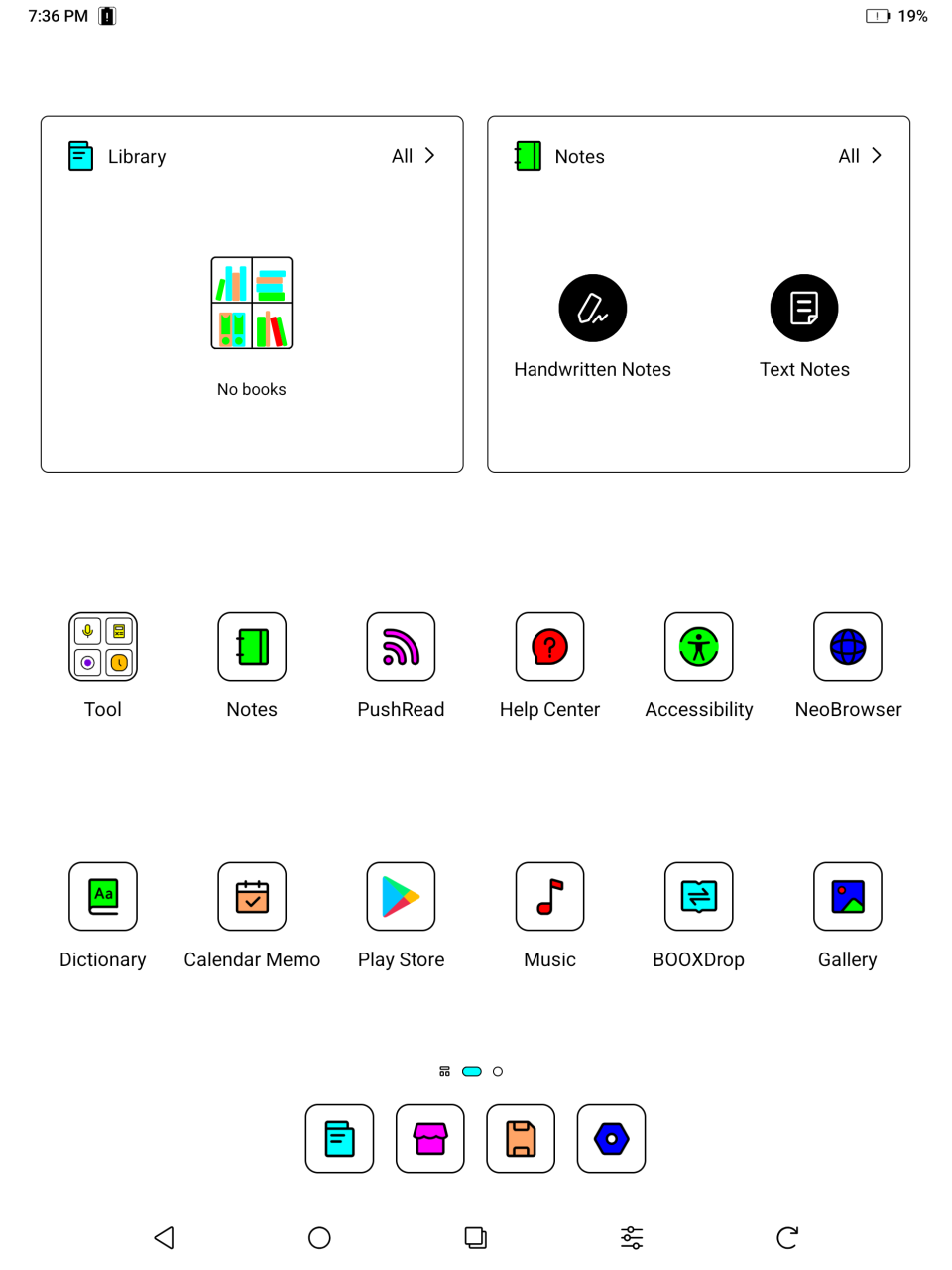
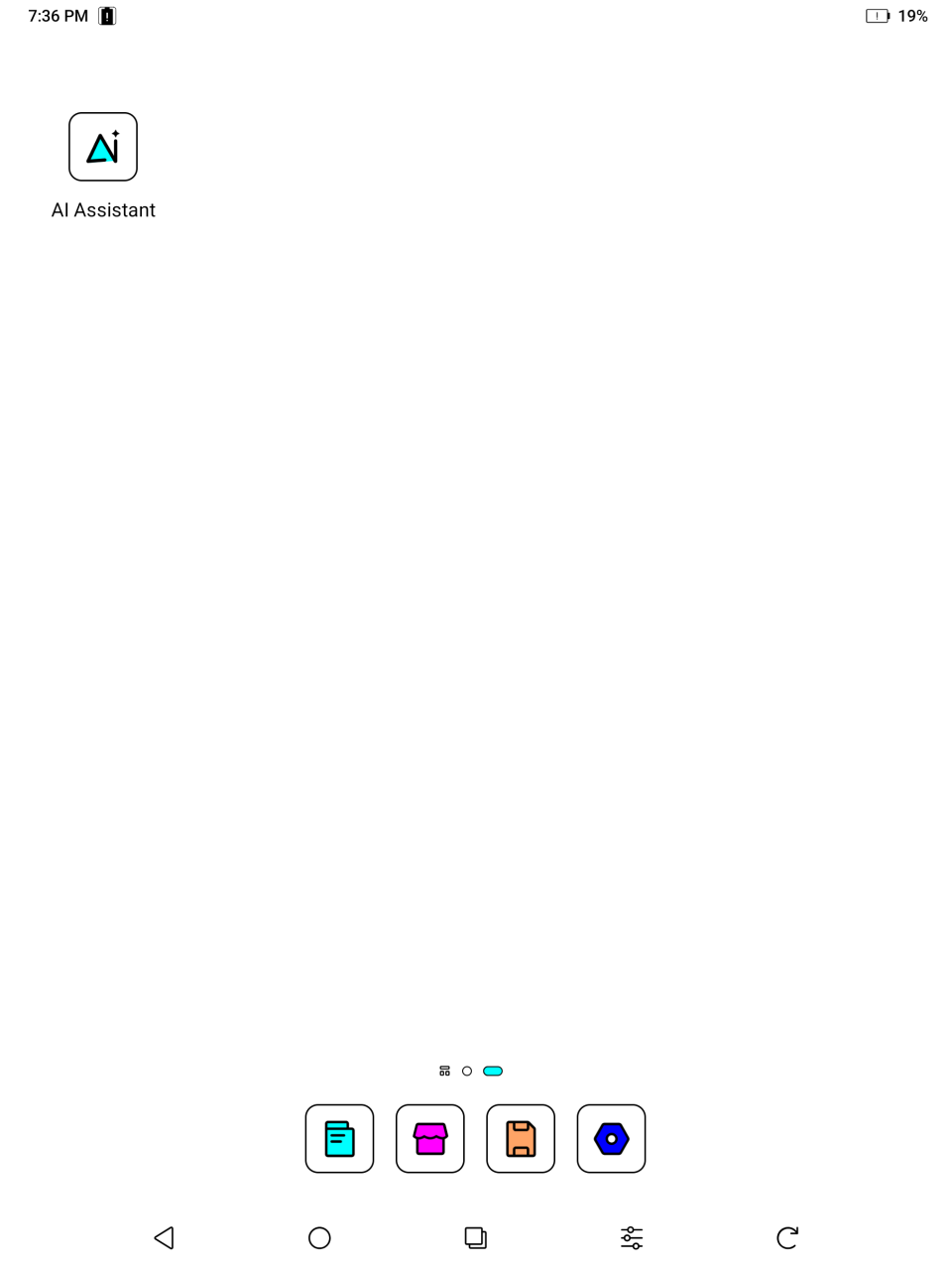
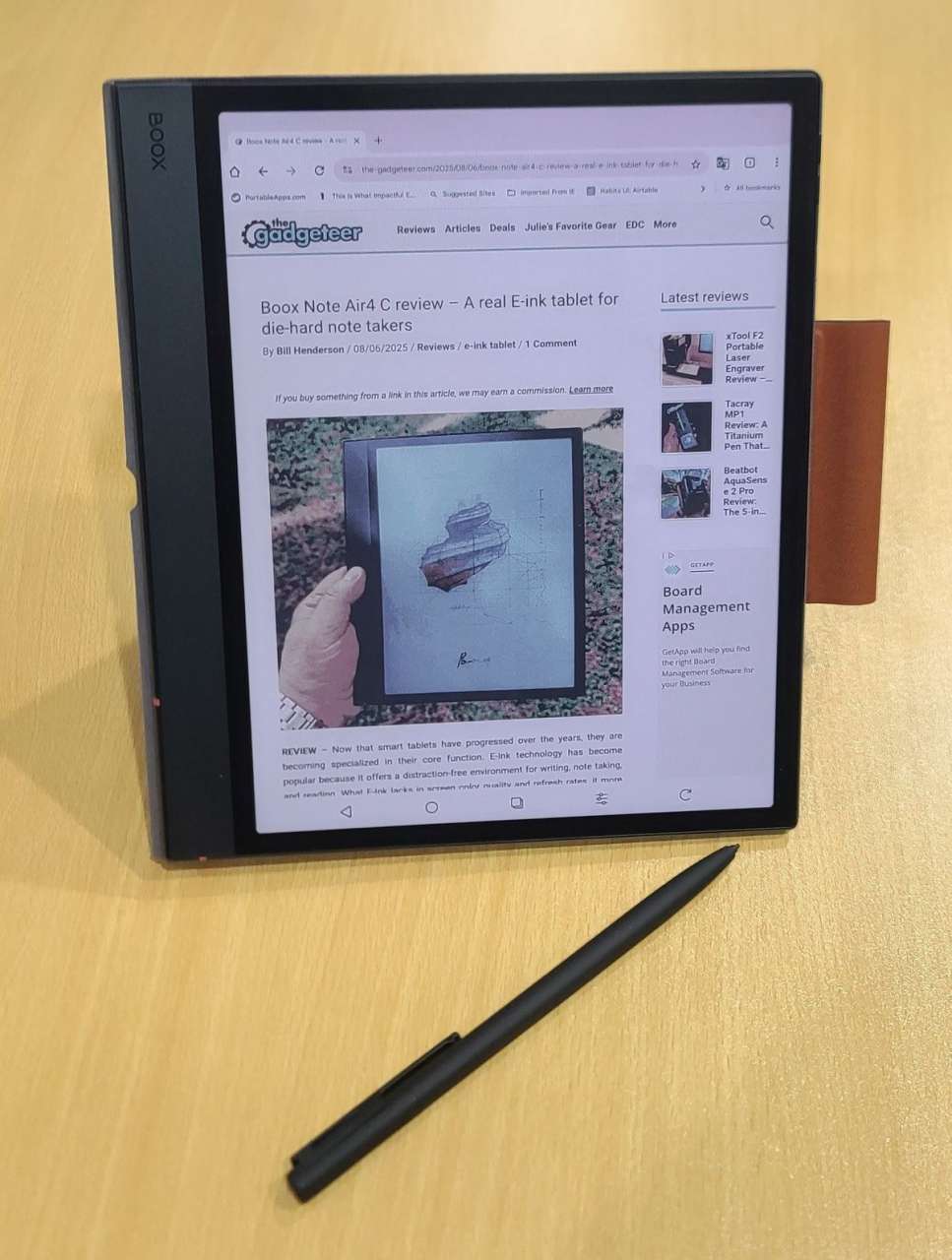
The above images are local screencaptures on the BOOX. The actual screen looks like the image below:
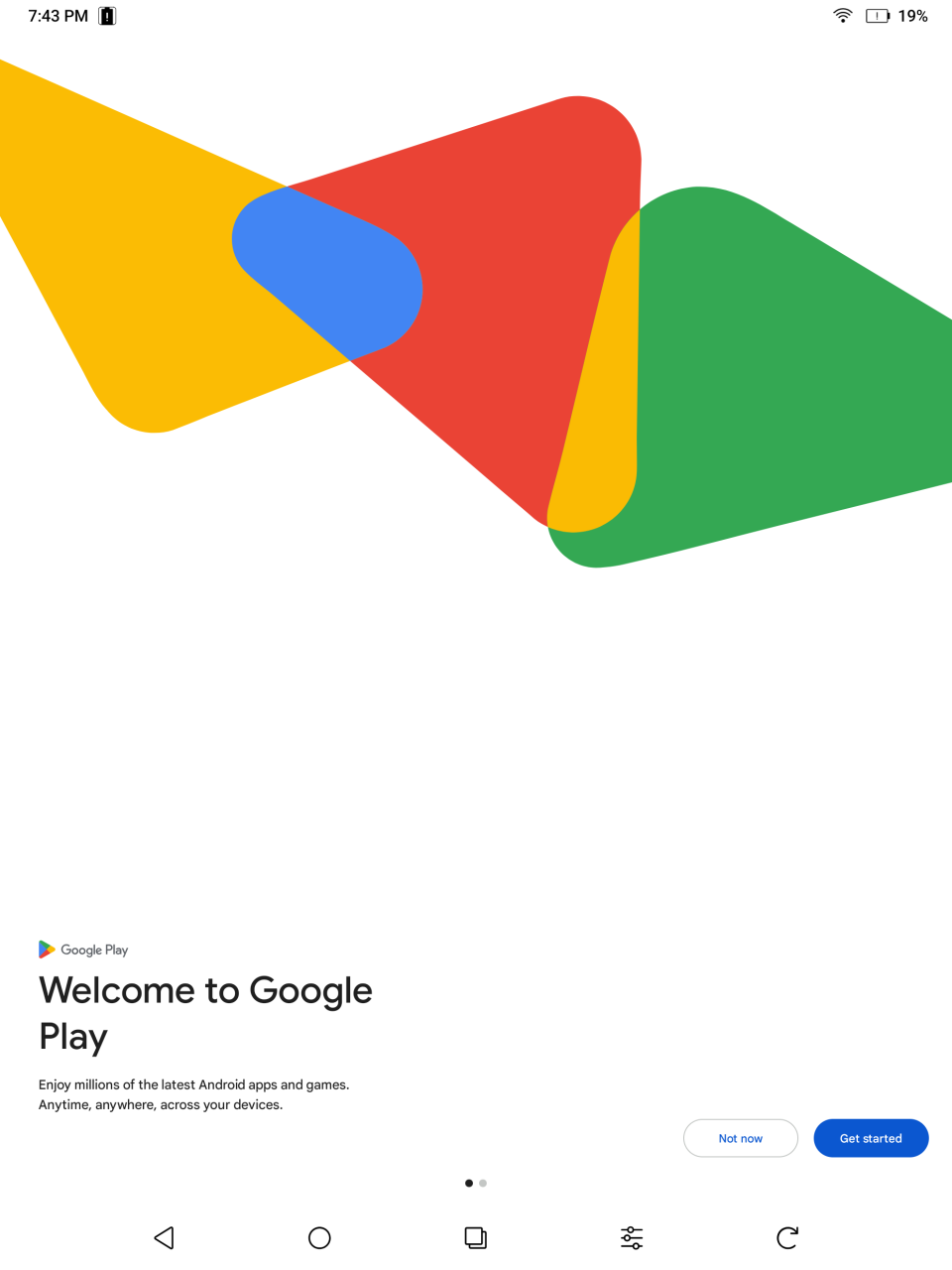
Of course, one of the biggest benefits of the BOOX is that it is an Android 15 tablet and is compatible with Google Play, meaning millions of apps can be used on it.
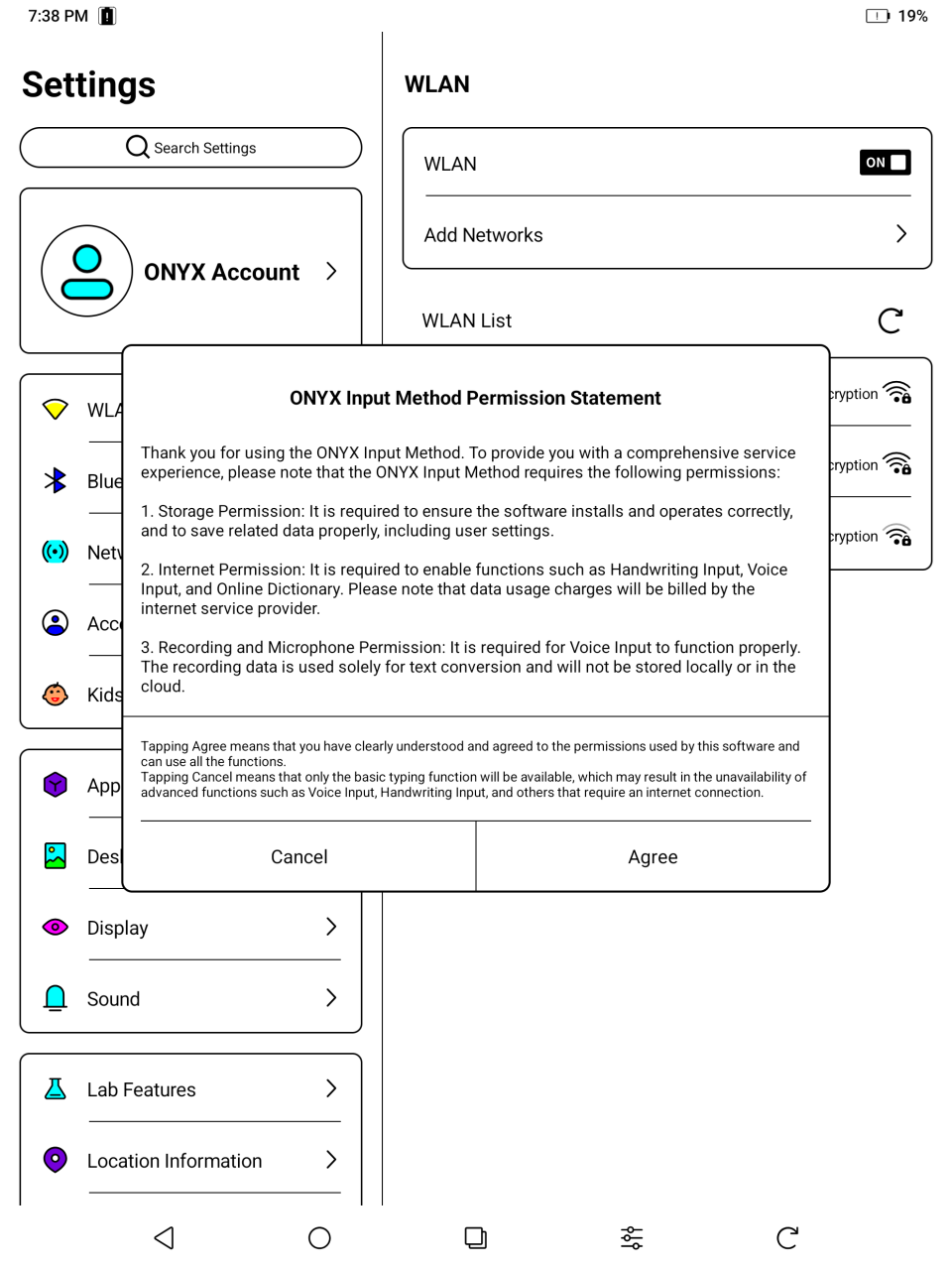
The BOOX comes with its own software keyboard. But I prefer to use the GBoard app for familiarity and for privacy reasons. The pen input method works especially well for handwriting input on the screen and using GBoard to convert the writing to text.
Performance
The battery capacity was tested to meet the actual charge by Accubattery. The full capacity is estimated by that program to be 3761.2 mAh. The usage profile is unavailable because the battery optimization on this device is very stringent, and start-up of applications does not seem to work well except for the native ones.
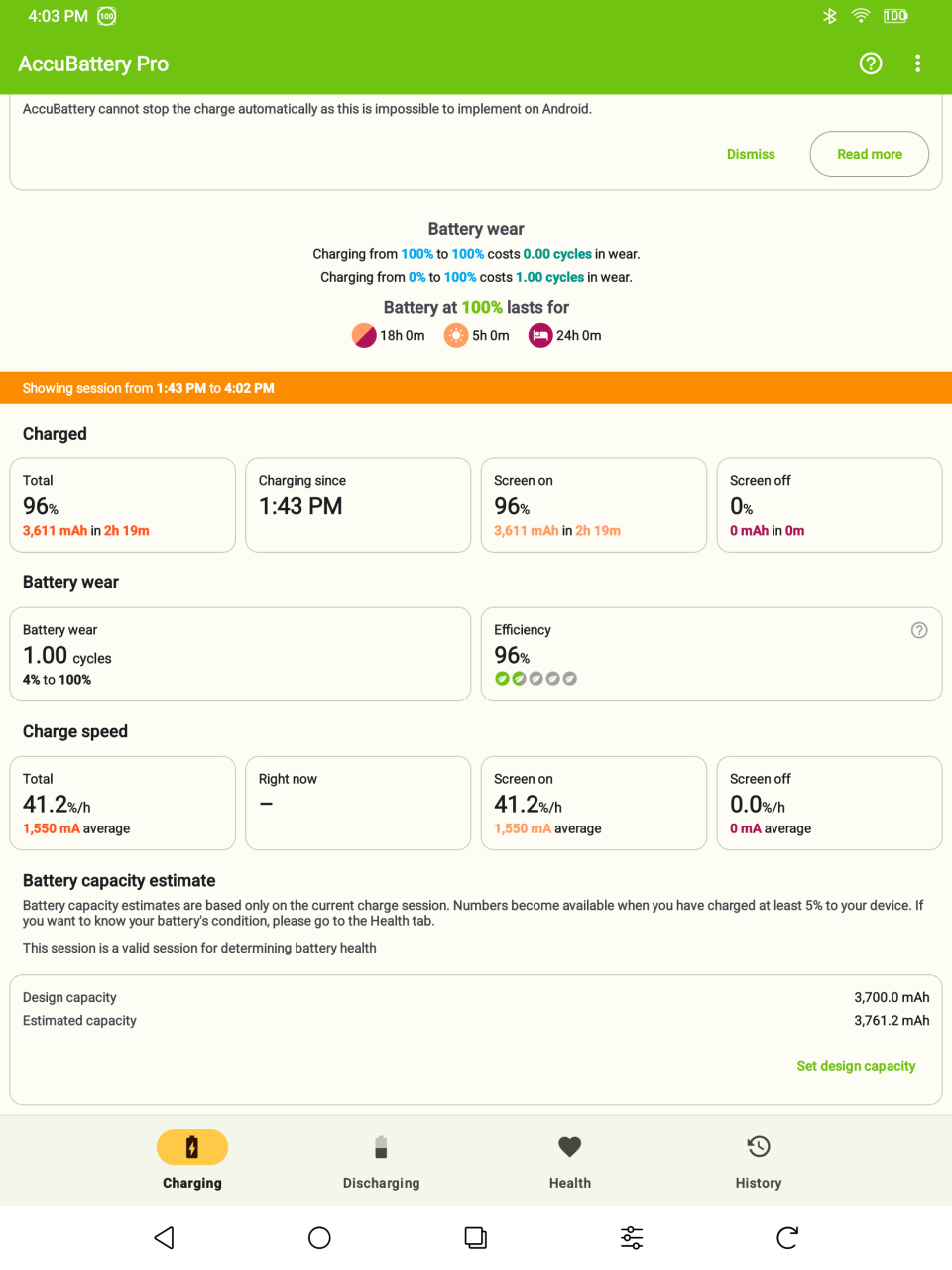
The charging current peaked at 8.4 W using the charger that I supplied. Charging time was about 2 1/2 hours, but the charging time slows considerably after 90%.
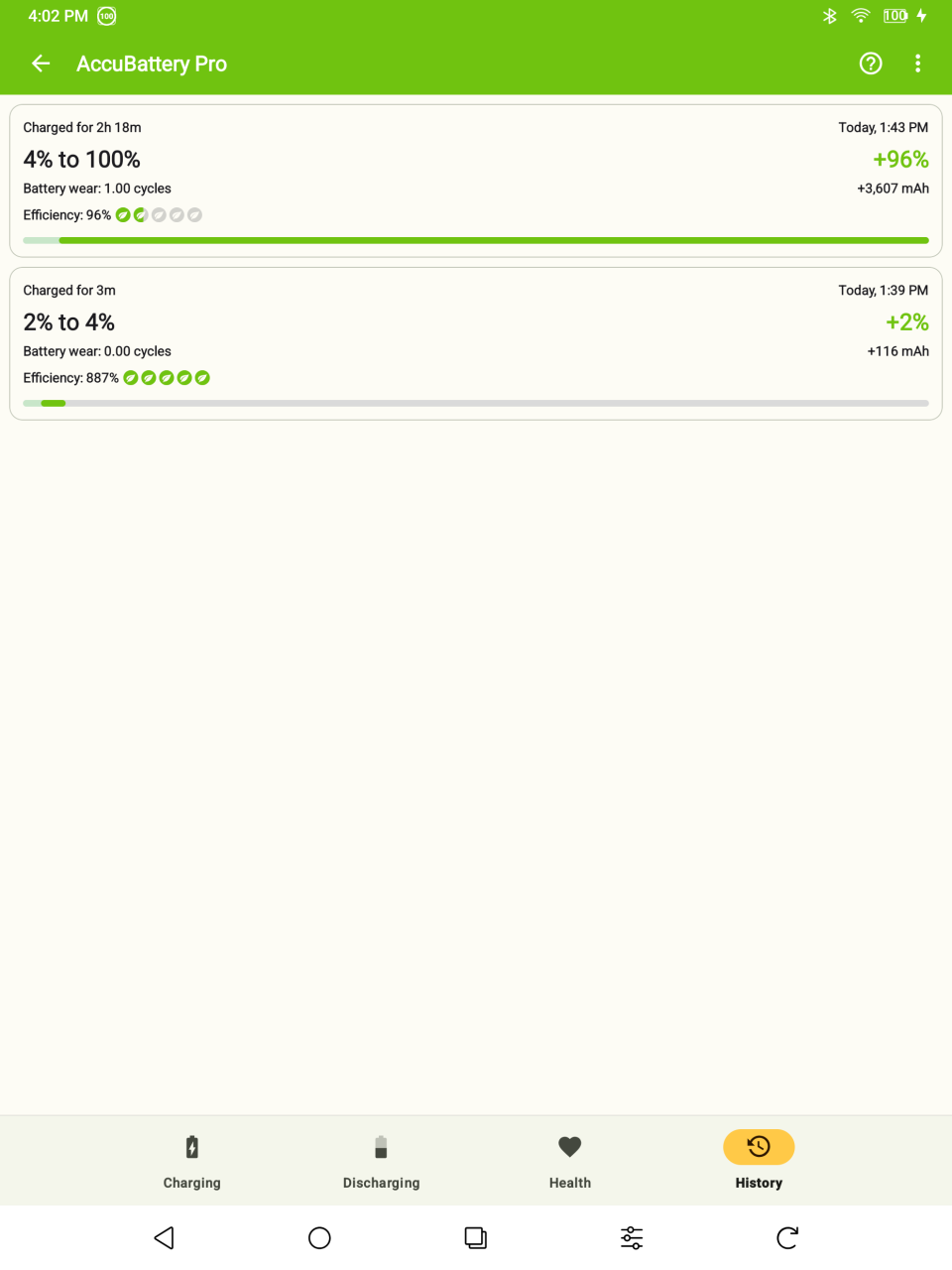
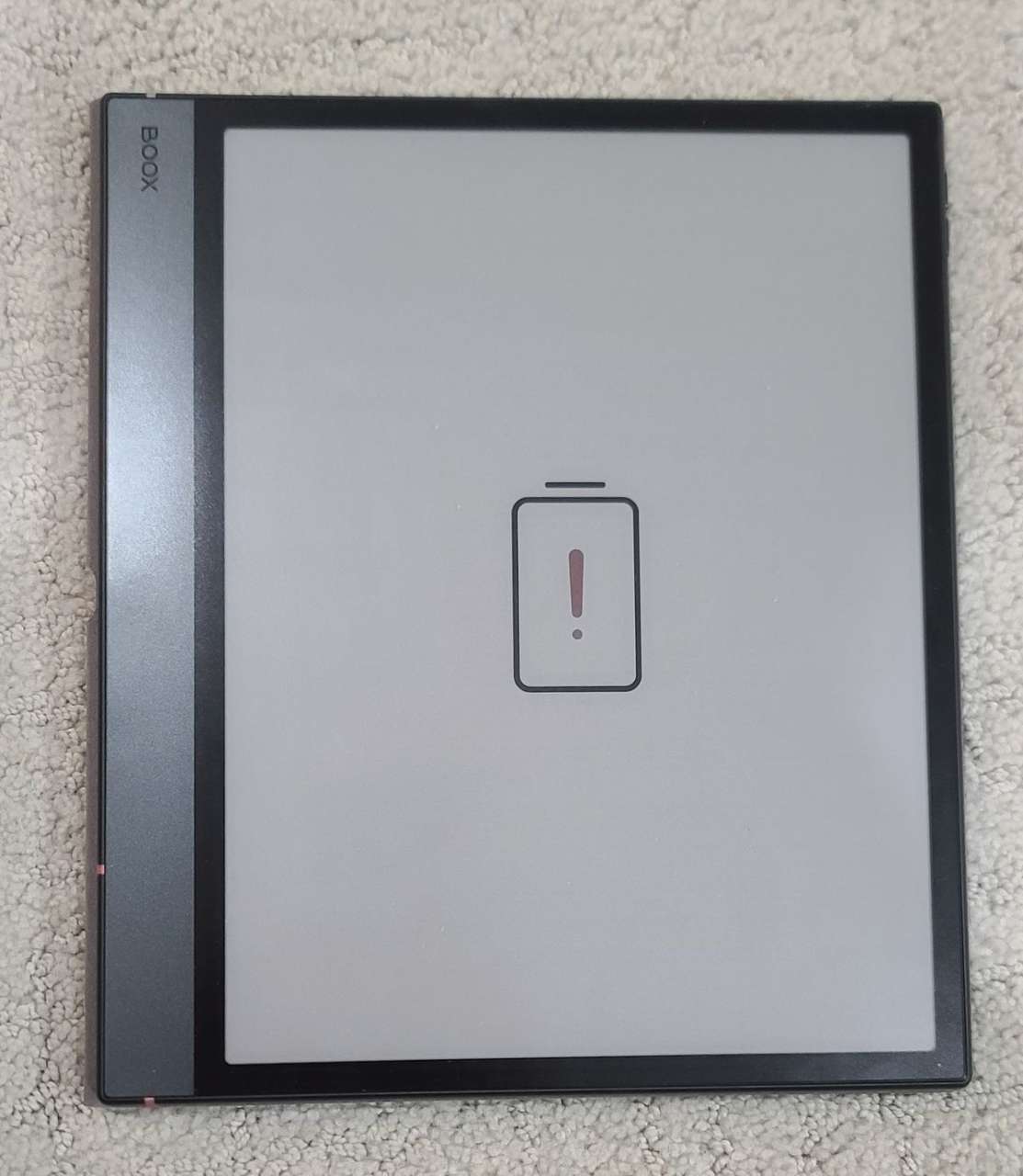
I opened Accubattery immediately after powering on the unit for a discharge cycle between 80% and 13% and the consensus is that the screen was on for 264 minutes during that time. I also had the WIFI and Bluetooth radios operating, and the screen backlight set to bright, soft, or off. The screen was on for fractions of the entire time the unit was powered. Overall, the unit was powered for 630 minutes during the same period. Extrapolating the operational times over the full battery capacity, the screen can operate for approximately 7 hours, and the unit can operate for about 15 3/4 hours. The screen could be off and still display a page that can be read, so depending on ambient lighting, you can expect between 7 and 15 hours of use per full charge. This usage compares well with other tablets, but other e-book readers can have significantly longer use between charges. When the battery is completely spent, it displays the screen below so that it is understood that the unit must be charged before operating.
I found that reading with the BOOX Note Air5 C was a delight. The reader has almost all of the features of the @Voice program, which has been my go-to reader for a few years. The TTS is not as good as @voice because it occasionally cuts words in half, and I can’t load the “en-us-x-msm00013-local” voice for some reason.
The included notes app can be used for abstract drawings, note-taking, or technical diagrams. There are sophisticated tools in the app for each; the pen strokes can be saved as vectors in the PDF, which allows for subsequent editing.
I was unsure of the tilt sensitivity in the native app, so I downloaded Infinite Painter and verified it worked as expected there. I did notice that non-native painting apps have a noticeable delay between the pen tip and the drawn line, but that the native app always draws the line as if it is coming right out of the pen.
The biggest downside to drawing or note-taking in color is that the color observed on the screen will not be the color exported in the screenshot. The muted teal, Irish green, magenta, and key lime appear as bright blue, green, red, and yellow when exported.
Here is a photo of the screen showing a test pattern to evaluate the resolution of the screen. In real life, the screen does an excellent job of differentiating the minute lines.
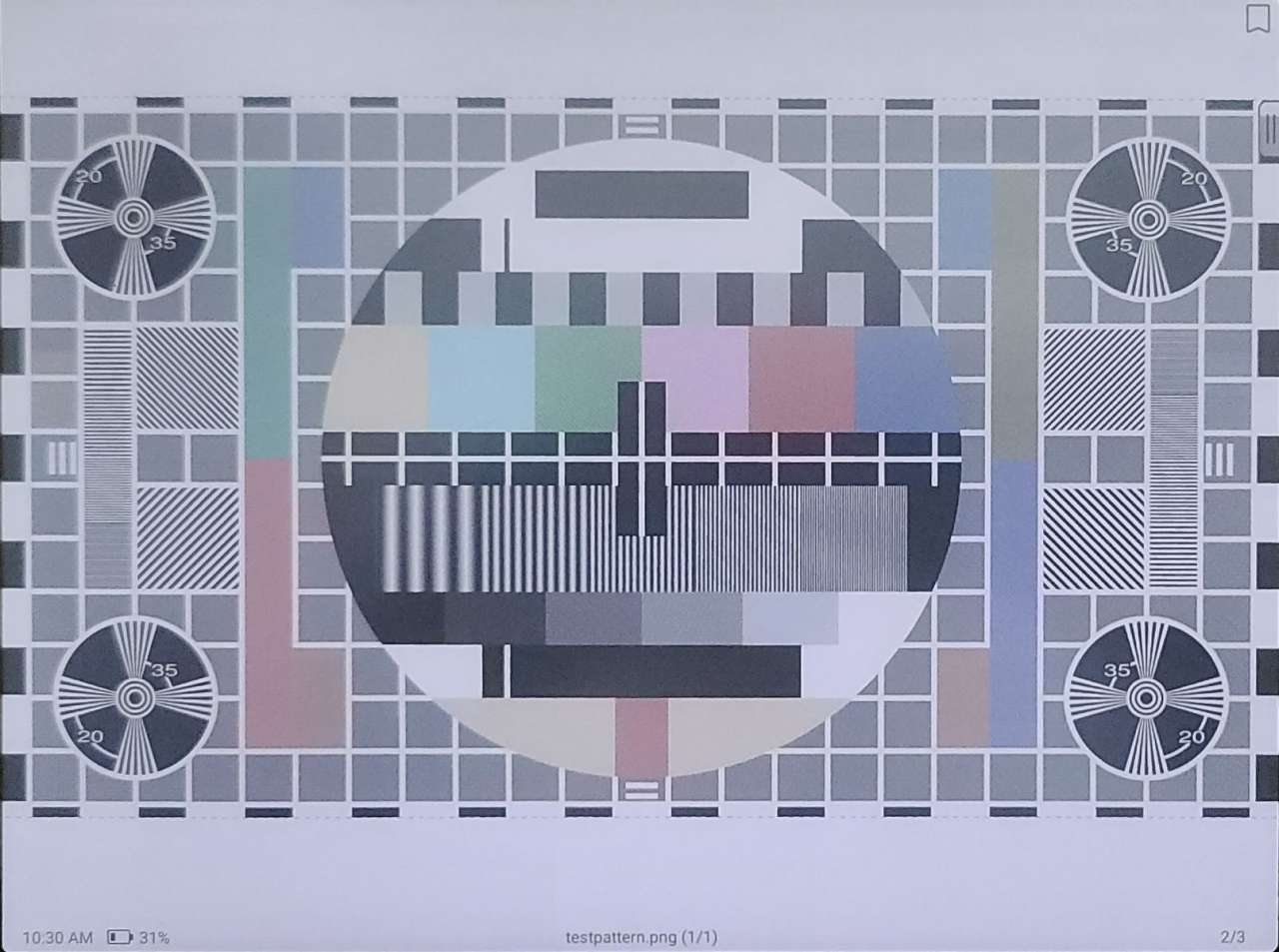
Here is the actual file displayed. Note the difference in the colors.
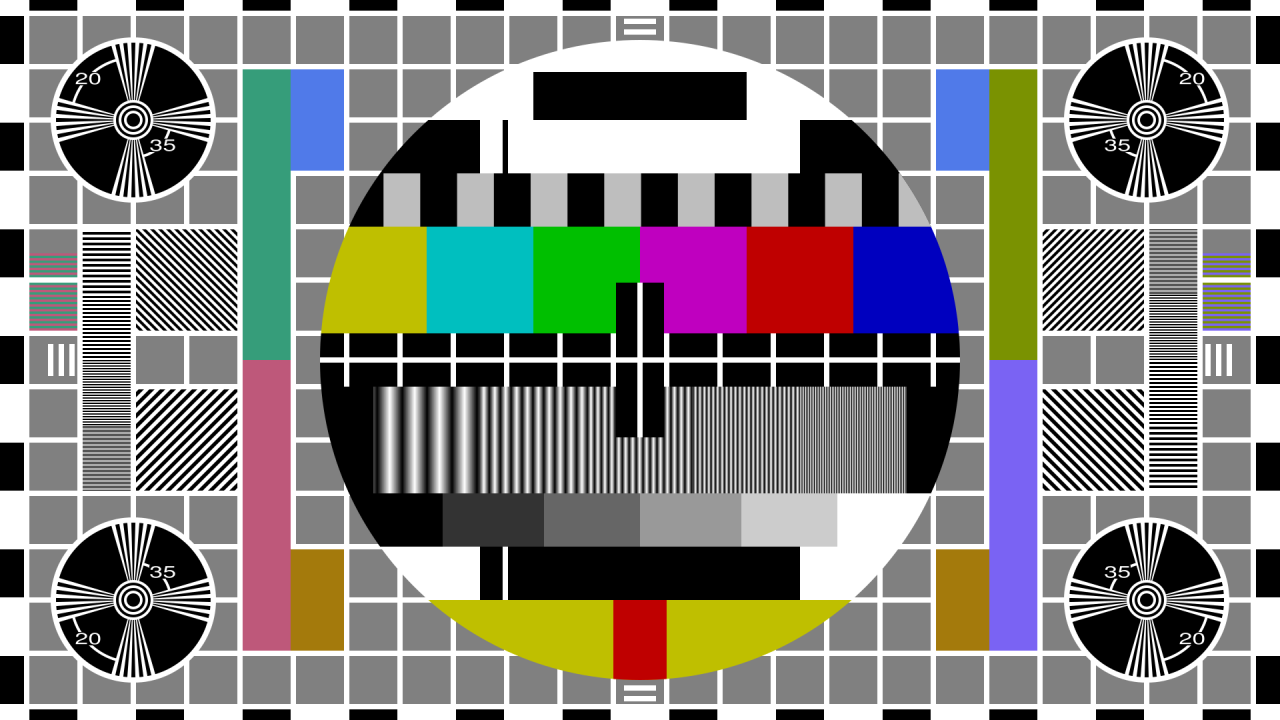
Obviously, this is a shortfall of any e-ink system that is operating with 12-bit color, versus the 24-bit color we are accustomed to using. Comparing the original versus the screen renderings of these color samples illustrates the differences that using an e-ink screen creates. Here are other examples:
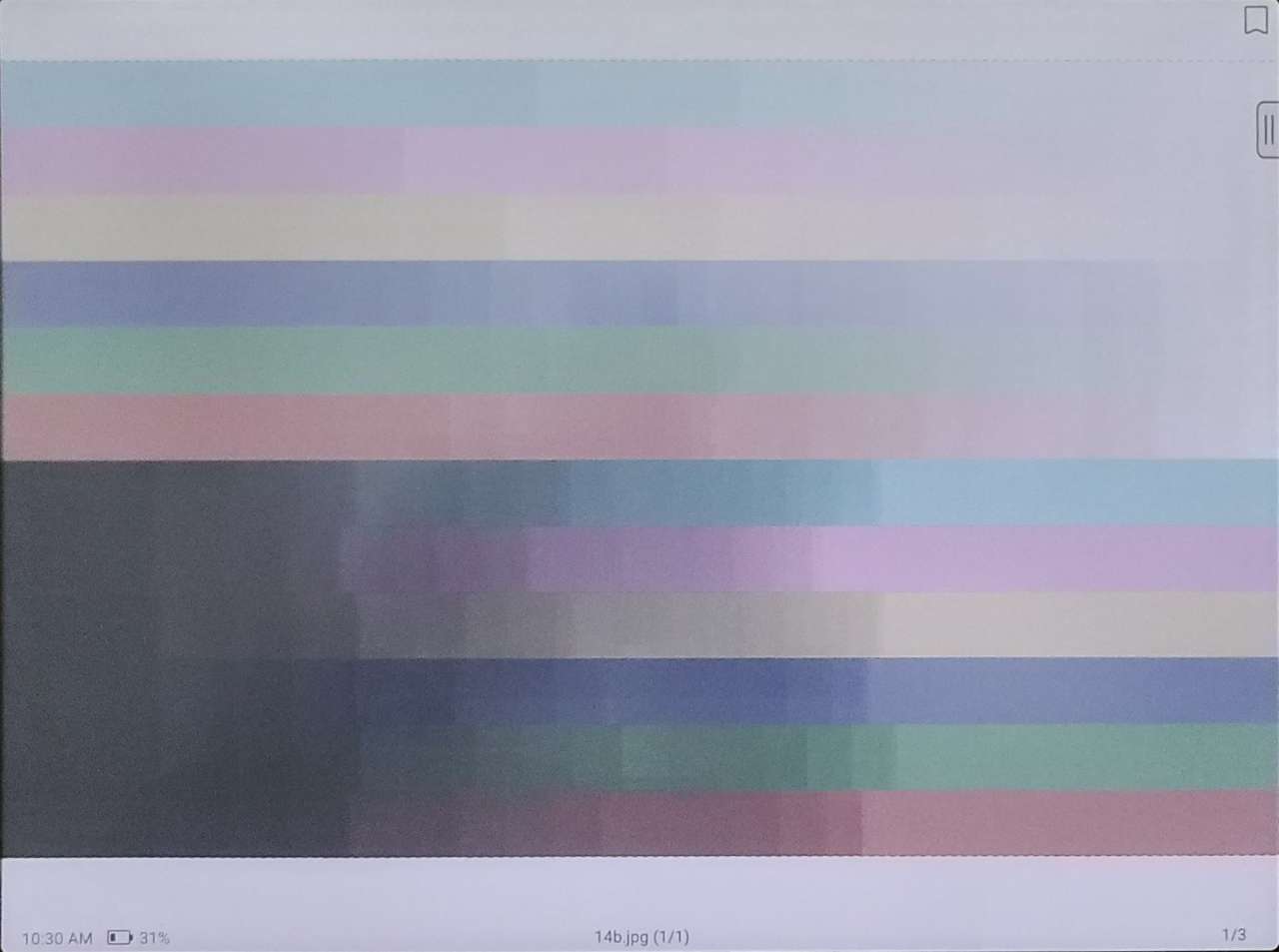
And the original:

Final thoughts
The BOOX Note Air5 C combines a motorsport‑inspired aesthetic with practical design choices centered around its Kaleido 3 color e‑ink display. BOOX Super Refresh technology minimizes ghosting and even enables smooth video playback. Hardware elements include a responsive fingerprint power button, dual microphones, stereo speakers, a centrally placed USB‑C port with OTG support, and a microSD slot supporting up to 2 TB. Side buttons are customizable, and magnets secure the Pen3, though occasional accidental button presses may occur. The Snapdragon 750C chipset performs adequately for e‑ink workloads. The Pen3 stylus offers excellent paper‑like friction, 4096 pressure levels, tilt support, and magnetic tip storage, though the cap design is prone to loss. The software experience is clean and functional. NeoReader provides robust annotation tools, OCR, reflow, split view, and Smart Scribe features. The Notes app supports layered drawing, handwriting recognition, multimedia insertion, and multiple notebook types. BOOXDrop enables local file transfer, while PushRead supports web clipping and RSS/OPDS subscriptions. Performance is strong for reading, note‑taking, and drawing, though third‑party art apps show latency. Color export limitations reflect inherent e‑ink constraints. Overall, the Note Air5 C excels as a reading and writing device with thoughtful hardware and powerful native software.
What I like about the Boox Note Air5 C
- Responsive e-ink display
- Nicely designed set of native apps and Google Play compliant
- BOOXDrop makes file transfer quick and easy
What needs to be improved?
- Pen3 can lose the cap and clip, and can interact with a volume button
- Power management is overly aggressive
- The keyboard folio has restricted power button access
Price: $529.99 (standard cover) $606.99 (keyboard cover)
Where to buy: BOOX, Amazon
Source: The sample of this product was provided for free by BOOX. BOOX did not have a final say on the review and did not preview the review before it was published.
Check out these other reviews!
- Onyx Boox Tab Ultra E Ink notebook with keyboard cover review
- reMarkable Paper Pro color e-ink paper tablet review – Does the price justify the upgrade?
📡 CES 2026 Coverage
Want more from the show floor?
We’re covering the biggest announcements, wildest concepts, and gear that actually matters from CES 2026.