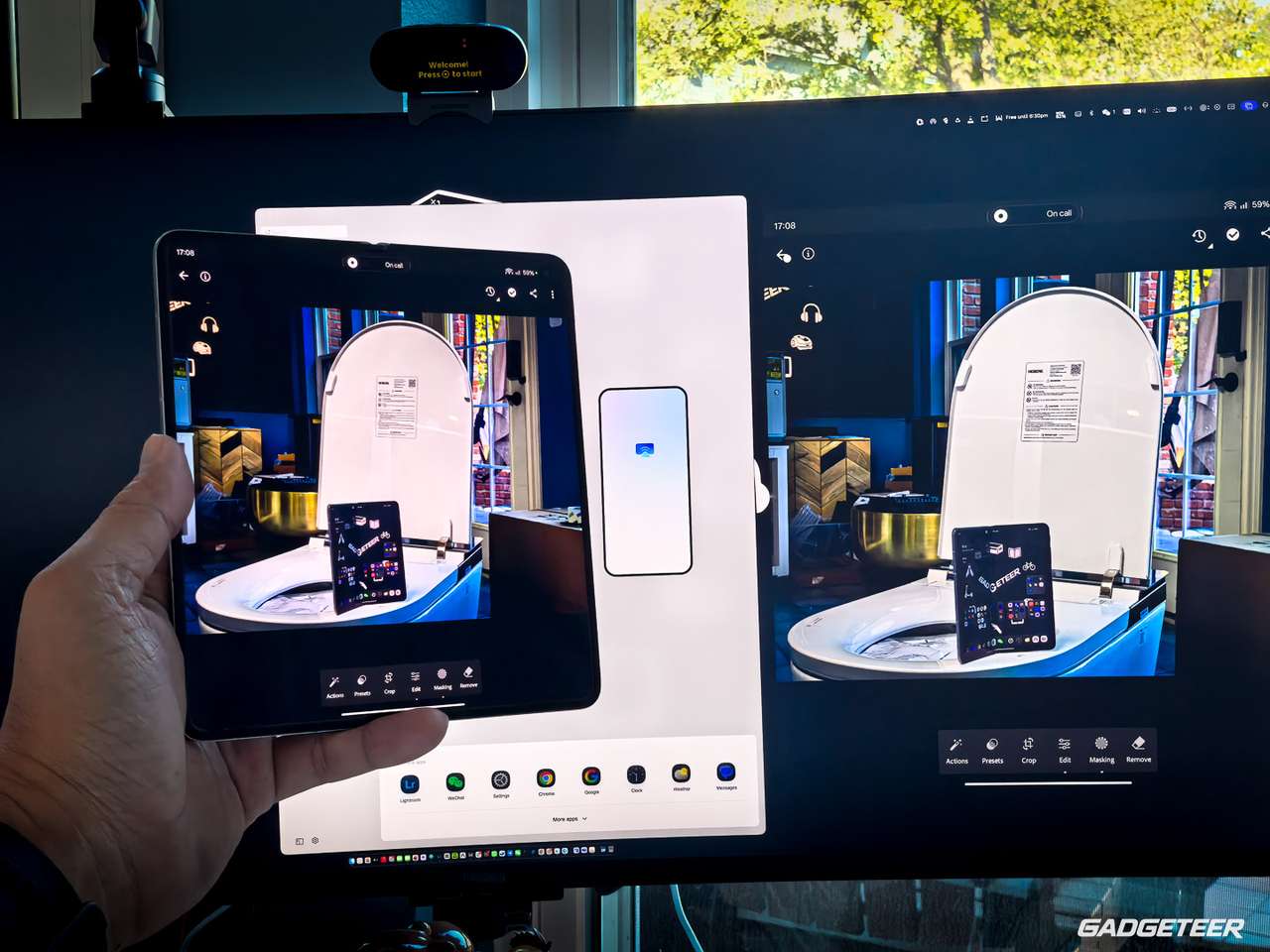
I rediscovered my king of the throne for 2026: the OPPO Find N6. Yes, the photo is having some fun with that title. I’d become so focused on getting Googlebook working with my phone that I nearly overlooked what this foldable could already do. It could put its apps on my Mac and let me control them with a keyboard and mouse.
Holy crap. I’d forgotten how much this phone could do.
I’d been disappointed that Google’s Better Together experience wasn’t working the way I wanted with my Samsung Galaxy Z Fold8. That sent me back to the full-size foldable I already owned. I started pulling on that thread, remembered O+ Connect, and suddenly the Find N6 looked a lot more interesting again.
The connection I’d been looking for
The idea that excited me was simple: keep using my phone’s apps while I’m working at my computer. I want the larger screen, the keyboard, and the mouse without having to keep picking up the phone.
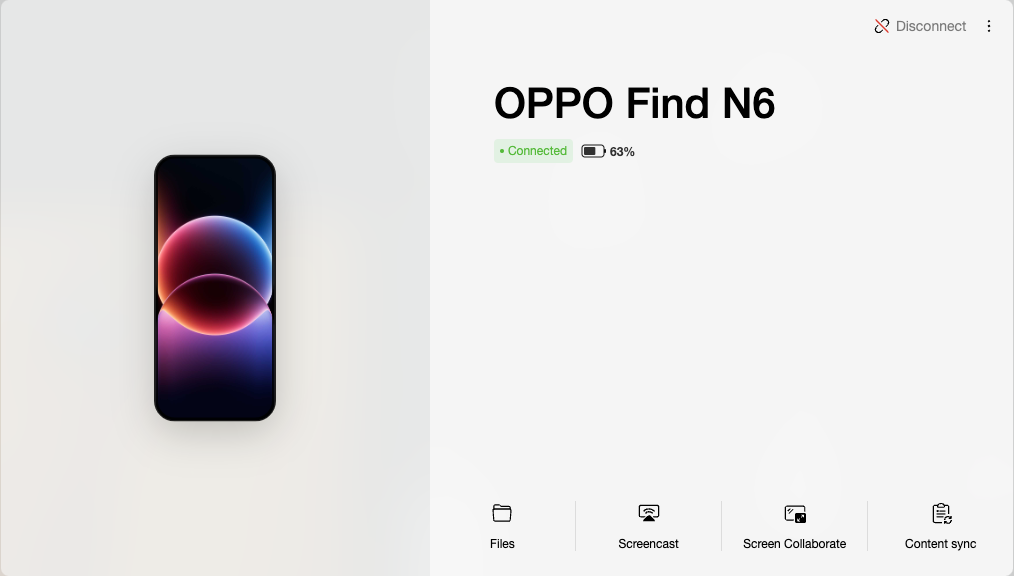
With O+ Connect running on my Mac, I could cast apps from the Find N6 and control them from the computer. The keyboard and mouse response felt very fast. That’s what got my attention. I could actually use the phone this way, rather than just look at a copy of its screen.
The app’s Screencast section puts the phone’s apps in a grid. Seeing familiar icons there makes the feature easy to understand. Pick the phone app you want to use, then work with it at your desk.
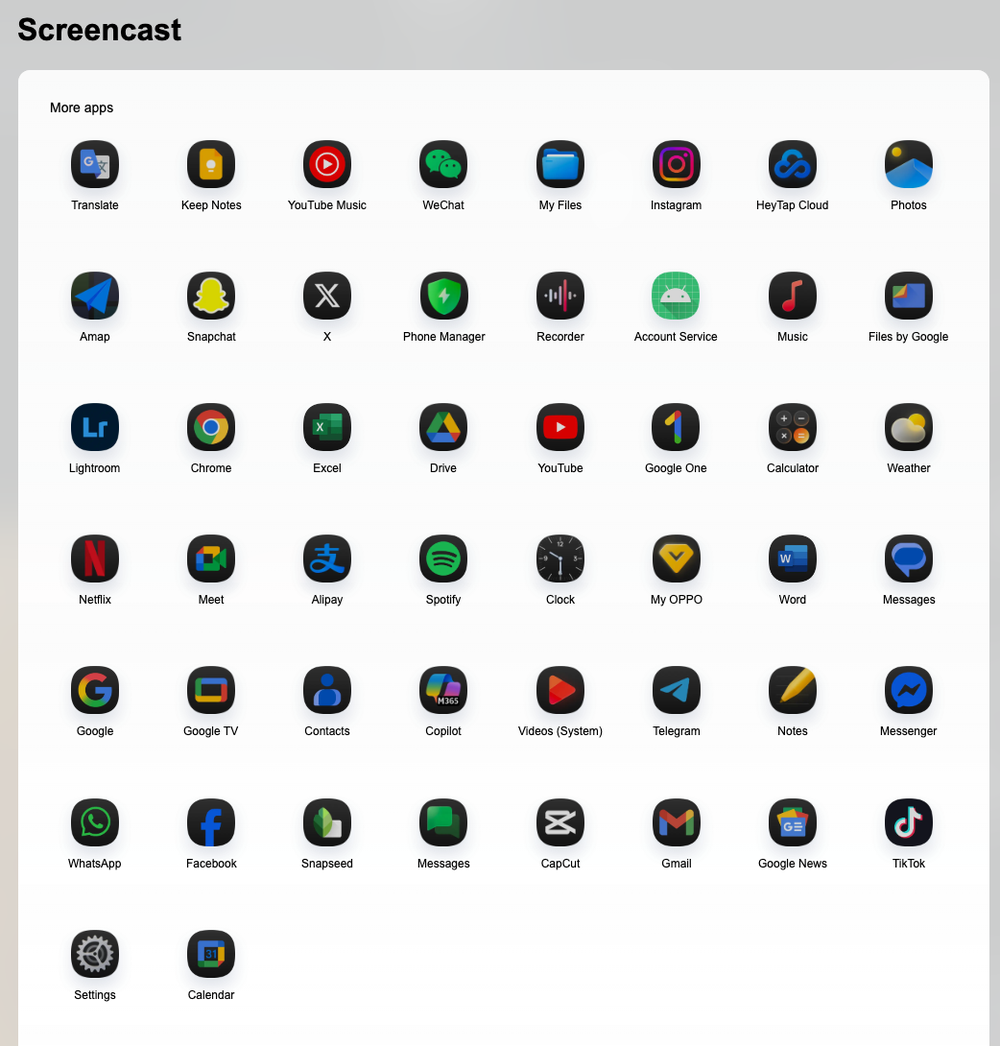
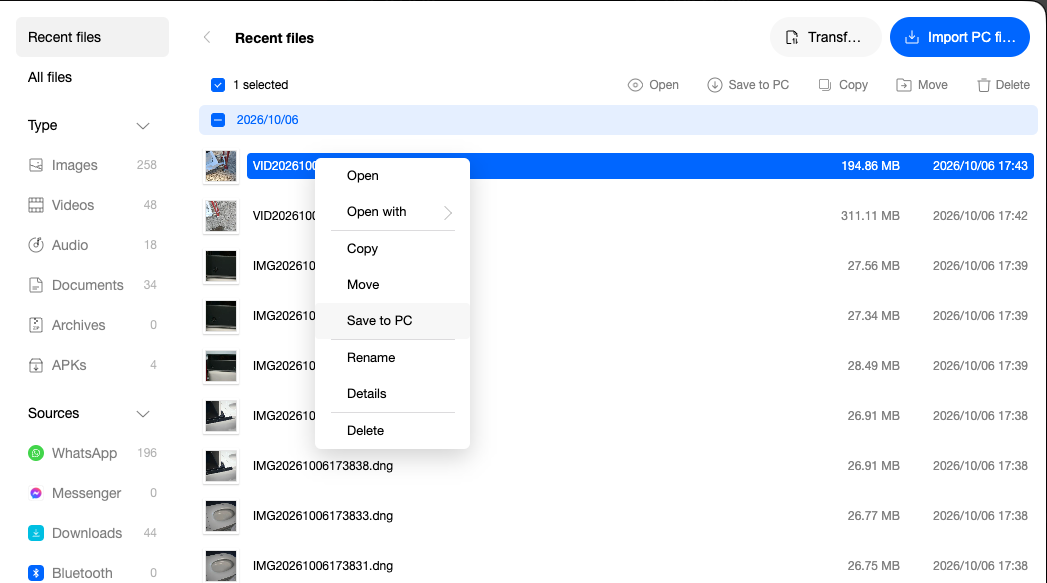
OPPO calls this PC Connect, and its Find N6 page describes phone mirroring, multiple app windows, and control from a computer. O+ Connect is available for Mac and Windows. My hands-on experience here is with the Mac app. Check the official compatibility list for your phone and software version.
I haven’t tested the two platforms head to head. What surprised me was finding the workflow I wanted already available through another phone I owned.
Open the foldable and the desktop view opens up too
The most satisfying detail was watching the computer view follow the phone.
With the Find N6 folded shut, I got the narrow view of its cover screen. Rotate the phone and the mirrored orientation changes. Unfold it and the computer gets the wider inner-screen view.
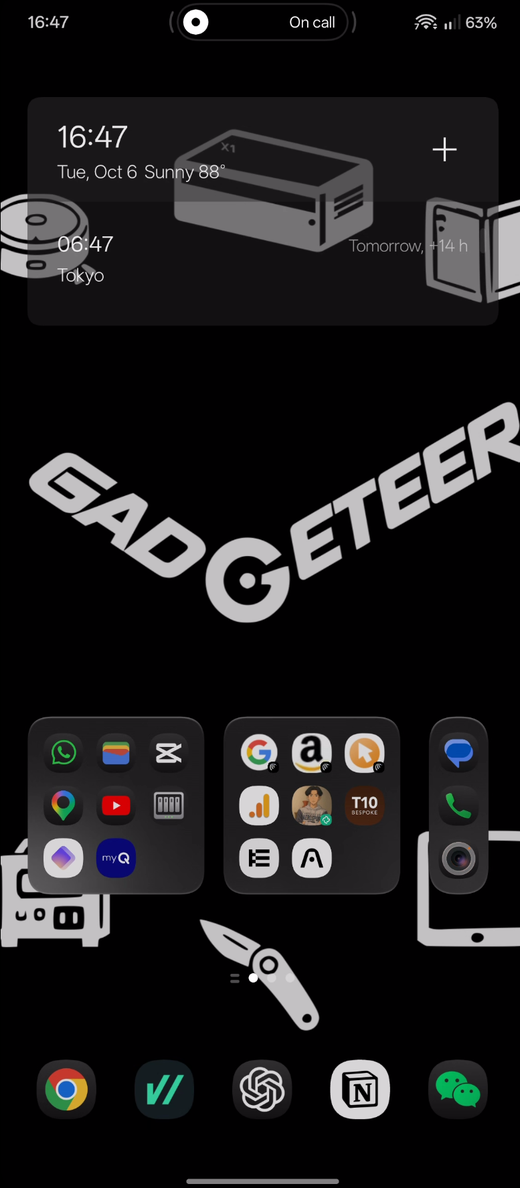
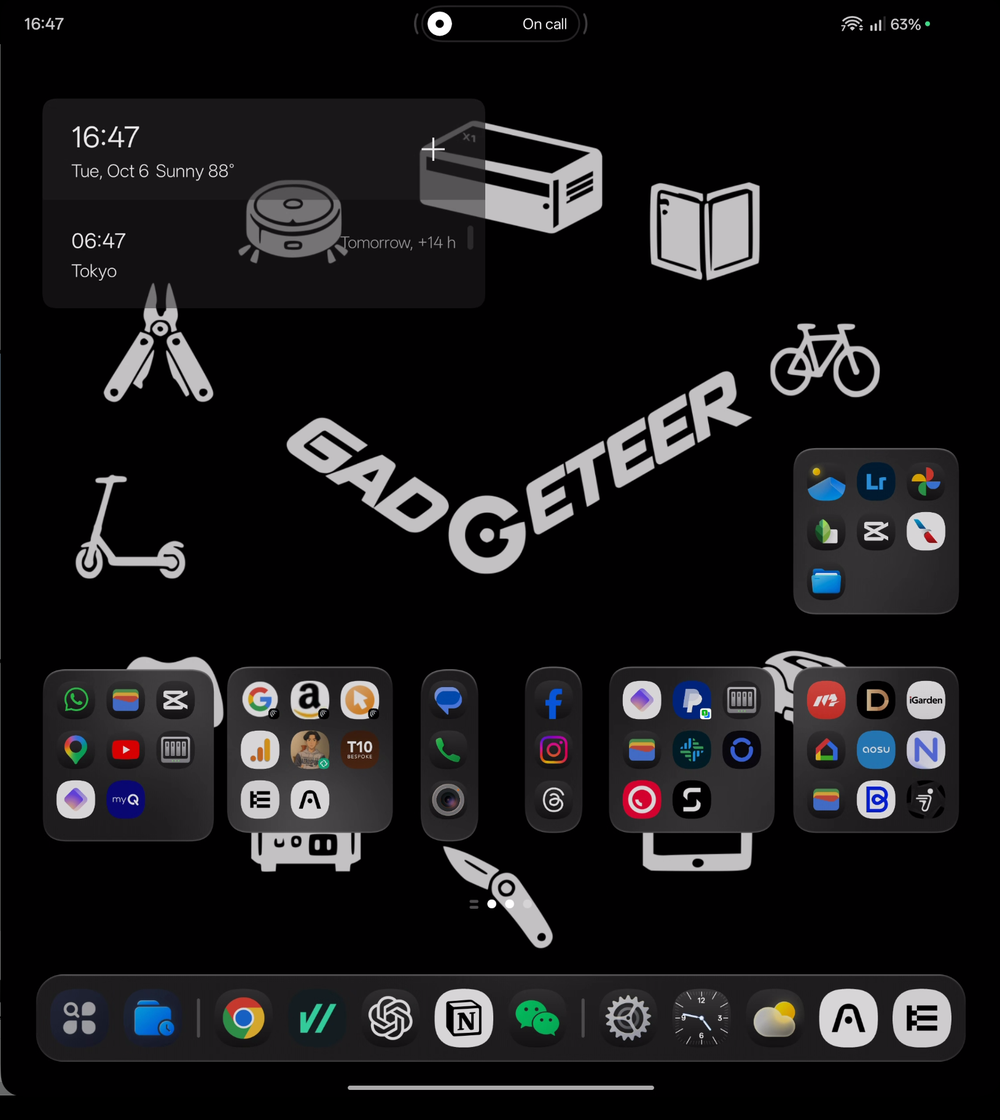
That makes the foldable part of the experience in a way I hadn’t been thinking about. I can choose the shape I want on the phone, and that choice carries over to the view on my Mac. The screenshots show how different the closed and open layouts look.
I’d already been reconsidering the Find N6 because I wanted more space when working directly on the phone. This gave me another reason to pick it up. Its large inner screen was useful in my hands, and now I was enjoying access to that same phone from my desk.
There are useful controls behind the connection
The screen-casting settings offer Auto, Smooth, HD, and UHD quality choices. UHD was selected in my screenshot. I like having those options, especially when the point is to read and use an app on a larger display.
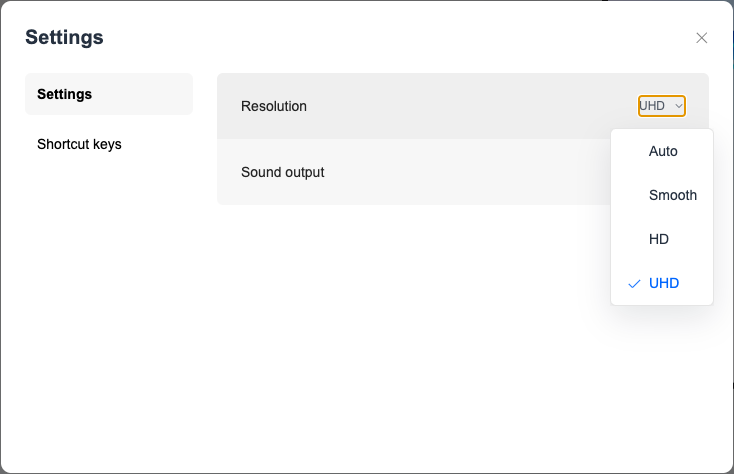
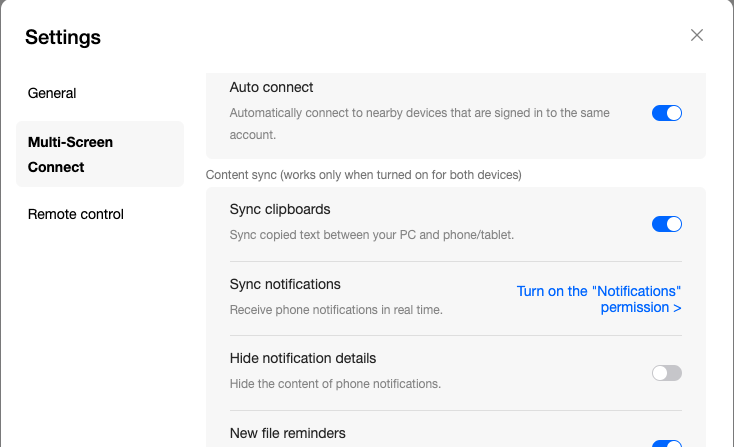
There are also settings to launch O+ Connect at startup and automatically connect nearby devices signed into the same account. My current connection stayed up while I was exploring it. That’s a good first impression, though I still want to see how it behaves as I move between real working sessions.
The settings also include clipboard syncing and an option to hide notification details. Notification syncing still needed permission in my screenshot, so that’s something to set up separately. It’s worth checking those controls before putting your phone’s content on a larger screen.
The Find N6 was already a phone I love
The funny part is that I didn’t need to be convinced the Find N6 was good. I already loved its inner display. In my use, the crease is so unobtrusive that I mostly stop noticing it. The larger working area is exactly what I’d been missing when typing on a smaller foldable screen.
I still love the Fold8’s compact size. Picking up the OPPO again doesn’t erase that. But as I ask more from a foldable, the Find N6 keeps reminding me why I liked it in the first place.
O+ Connect added something I hadn’t been giving it enough credit for. I was looking ahead to a phone-and-computer experience, then realized I could sit down and use one right now.
For U.S. readers, I’d still check the exact regional phone, seller, carrier support, and warranty before considering an import. This experience doesn’t settle those buying questions. It does give existing owners a good reason to explore a feature they might have overlooked.
Sometimes the answer is the phone you already own
I started this annoyed that a feature I wanted wasn’t working. I ended it excited about the Find N6 again.
That’s a pretty good outcome. The curiosity led somewhere useful: phone apps on my Mac, fast keyboard and mouse control, and a mirrored view that changes when I open the foldable.
Before chasing the next device or waiting for the next update, it’s worth taking another look at what your current hardware can do. I had a full-size foldable I already loved, with a connection feature I’d forgotten to appreciate.
The grass looked pretty green right here.
Where to buy: OPPO
In case you want to buy the HOROW smart toilet, here’s the link for that.
You can also read our HOROW X70 article.
Price: $1,599
Where to buy: HOROW