Editor’s quote
The matte OLED, touchpad, and speakers make a terrific first impression.
I’m super excited to get the ASUS Googlebook 14 in my hands. Setting it up is a new laptop experience with some familiar Android and ChromeOS roots. I’m an Android guy, I spend tons of time on my phone, and I want to see what Google can do when it brings more of that experience to a proper laptop.
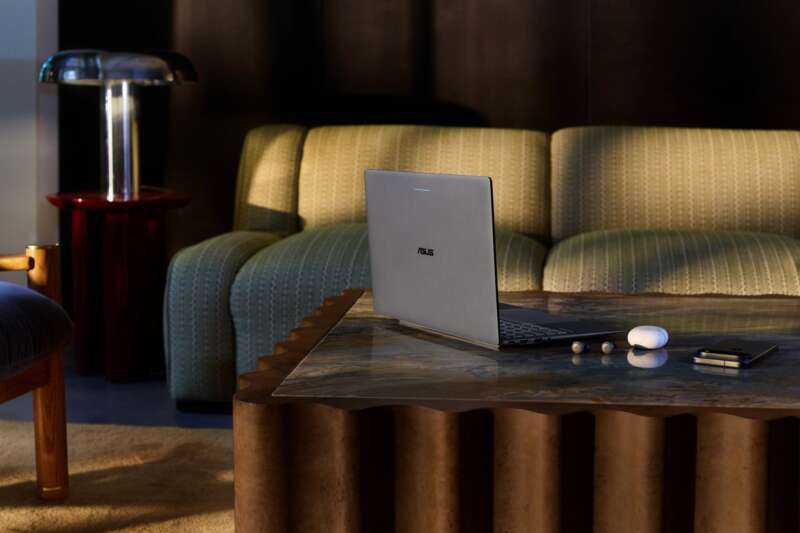
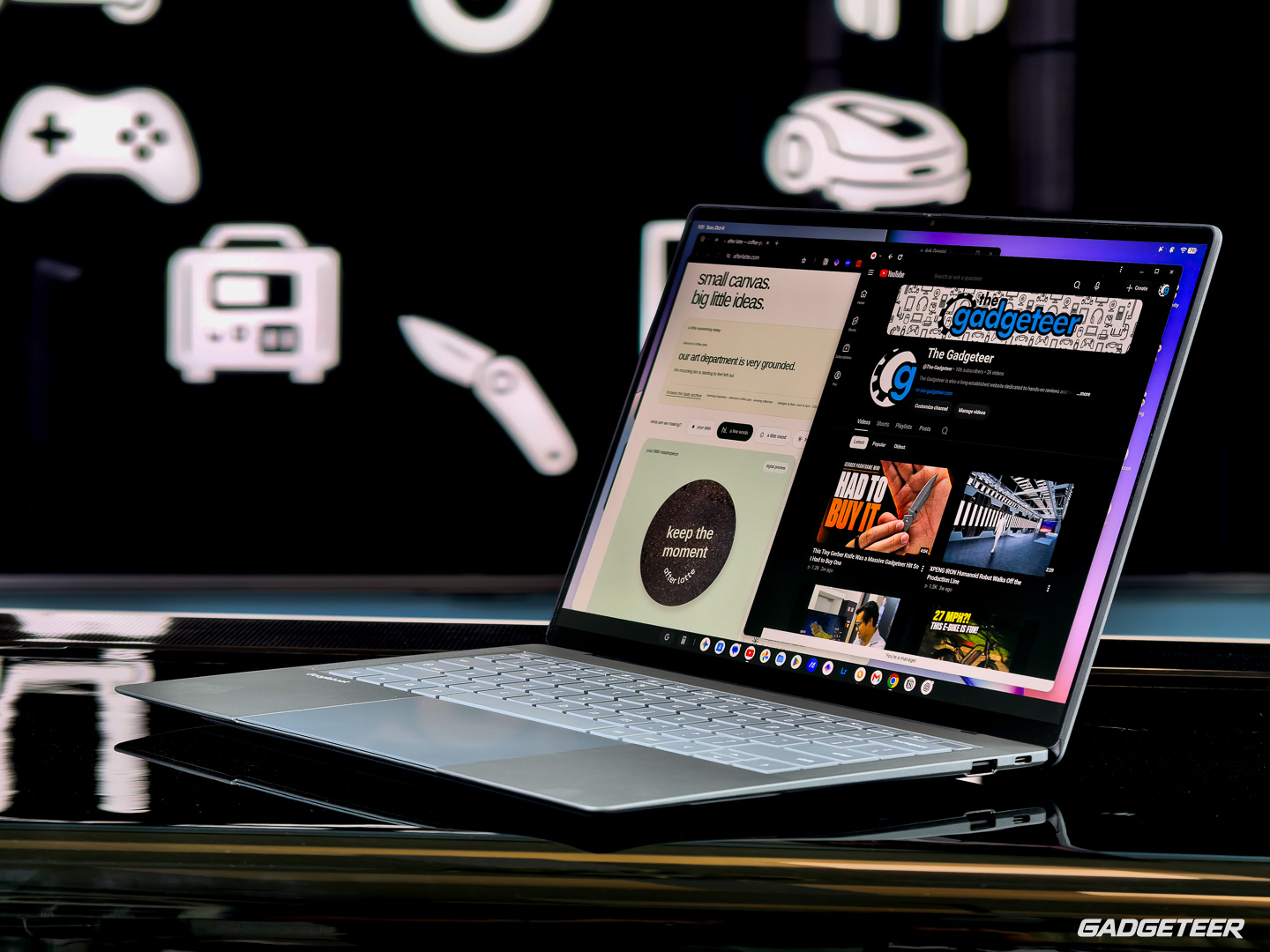
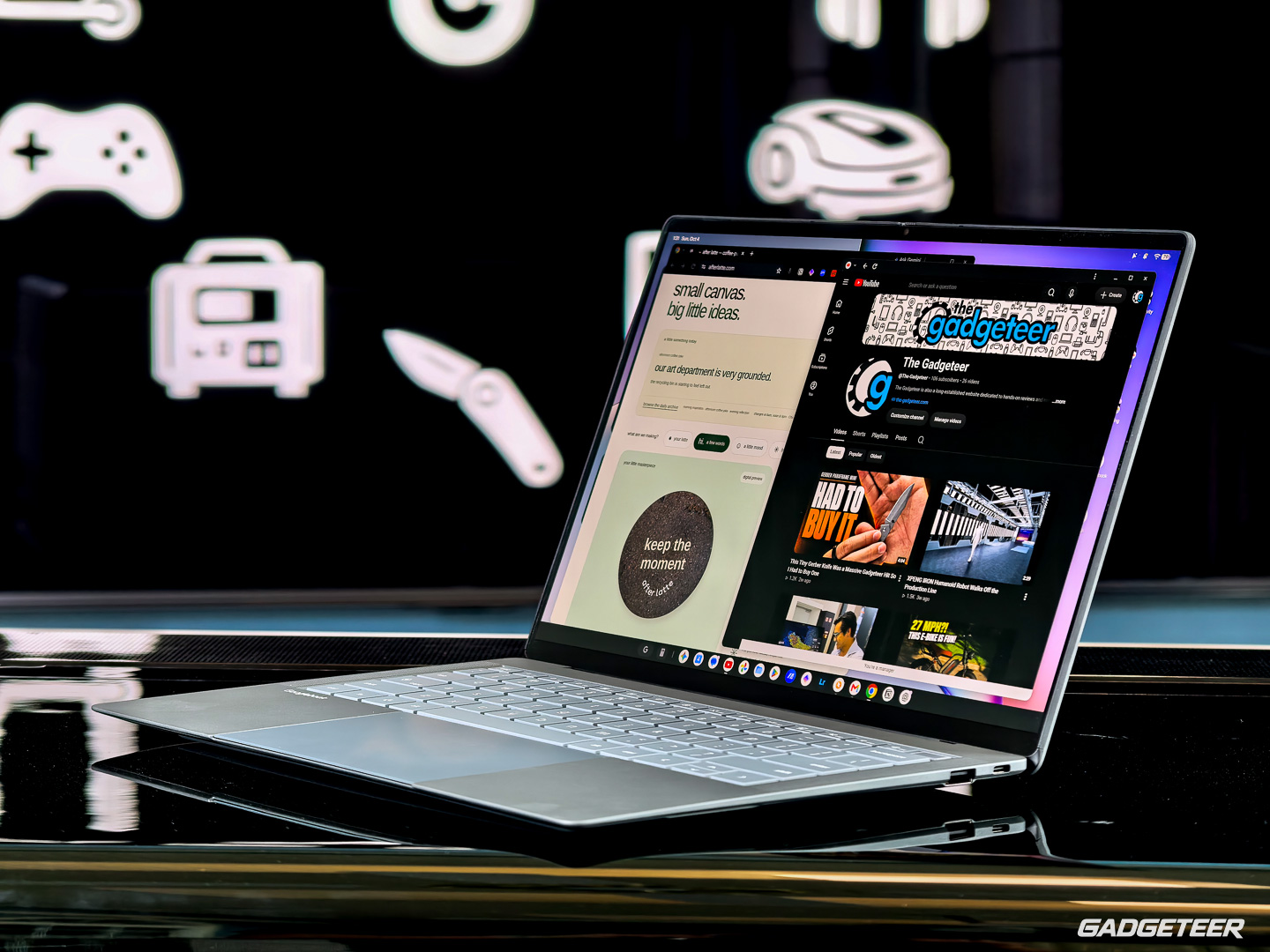
Then there’s the hardware. The matte OLED display is gorgeous. The speakers sound amazing to me. ASUS has put a large haptic touchpad, a fingerprint reader, and a useful collection of ports into a machine that weighs about 2.18 pounds. The finish, keyboard, smooth touchpad, and that display make a great first impression before I even get far into the software.
ASUS provided this review unit, and I’ve unboxed it, set it up, and I’ve started using it. My sample has 16GB of RAM and 512GB of storage. These are my first impressions of both the hardware and software. Battery endurance and sustained performance still need more time.
Price: $1,299
Where to buy: Best Buy, 512GB | ASUS Store, 256GB
A new operating system with familiar roots
Googlebook OS brings the Android technology stack together with desktop foundations from ChromeOS. It has a desktop-class Chrome browser with extensions, Android apps from Google Play, and Gemini features such as Magic Pointer, Rambler, and custom widgets.
I really like having the browser and controls of a laptop alongside more of the Android experience I use every day on my Fold8. That’s the appeal for me: familiar apps, a proper keyboard, a large touchpad, and enough screen to get some work done.
I’ve been opening Chrome, Gmail, Lightroom, Proton, ChatGPT, and other apps I use regularly. Moving between those everyday tasks feels really snappy so far.
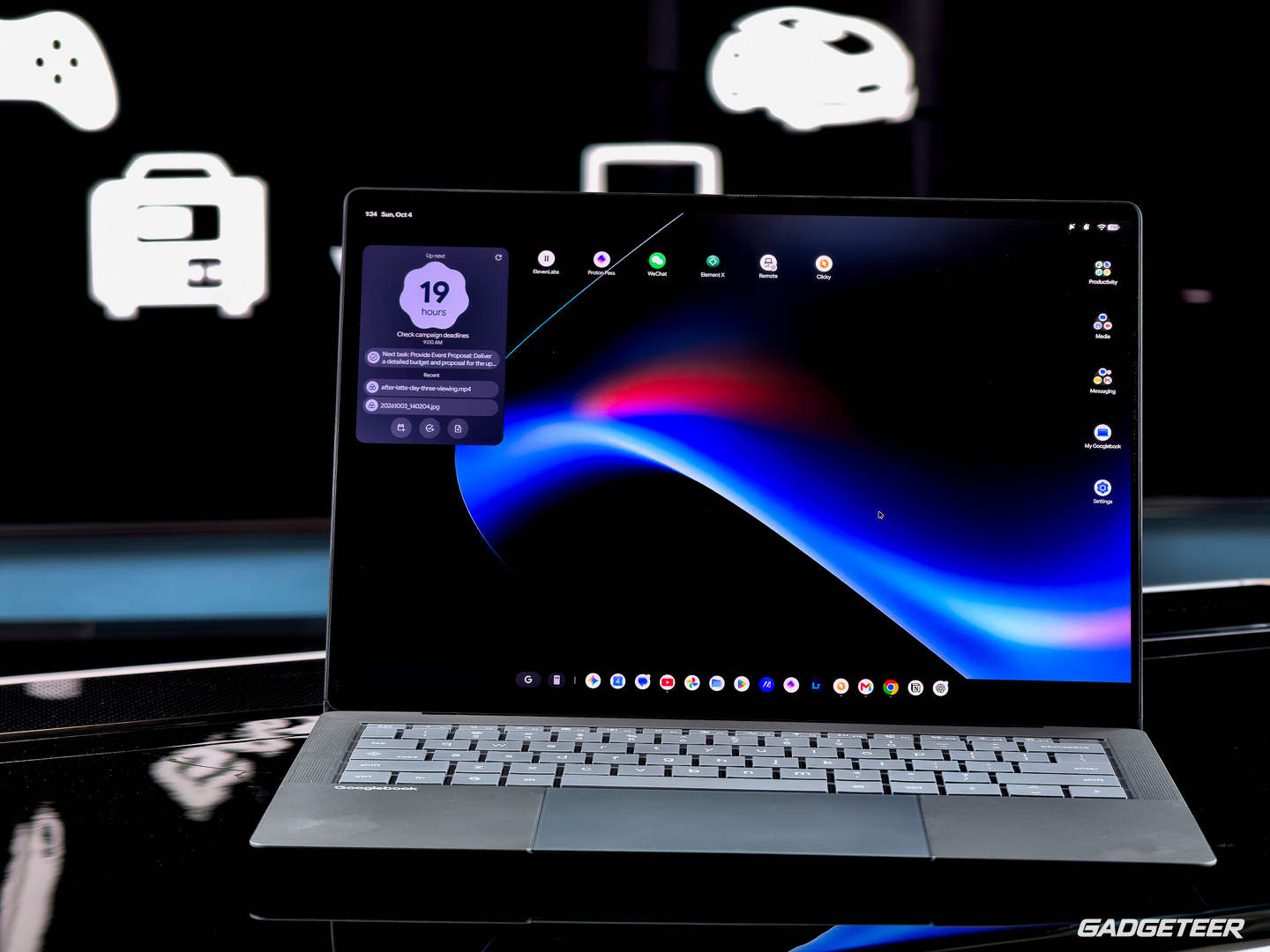
I’ve already found one small interaction that feels familiar. While looking at photos, I pressed the spacebar and got a quick preview, much as I do on my Mac. It was a nice little discovery in the middle of learning a different system.
Many of my usual Chrome extensions work, too. One exception has been the ChatGPT extension I tried: it installed and opened a prompt, but I couldn’t get it working on this unit. That’s separate from using ChatGPT itself, and it’s one of the things I’m still sorting out.
The phone connection is another part of Google’s pitch, and it’s something I’ve been looking forward to exploring as an Android user. For this first look, I’m concentrating on the ASUS hardware and the things I’ve actually tried. The phone features will get their own attention as I spend more time with the platform.
A flagship business chassis in a $1,299 Googlebook
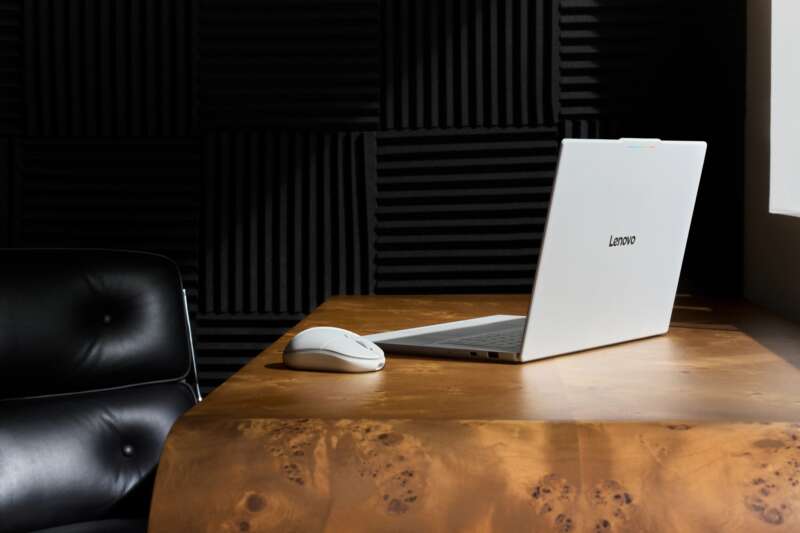
My earlier look at the Googlebook 14 asked what the extra money over Lenovo’s model buys. The materials, display, controls, and connections give me plenty to look at.
ASUS says the Googlebook 14 uses the same chassis as its flagship ExpertBook Ultra business laptop, along with the fluid dynamic bearing fan used in its business line. That helps explain how it combines a light, thin body with the display, controls, battery, and connections that make it a great laptop to use.
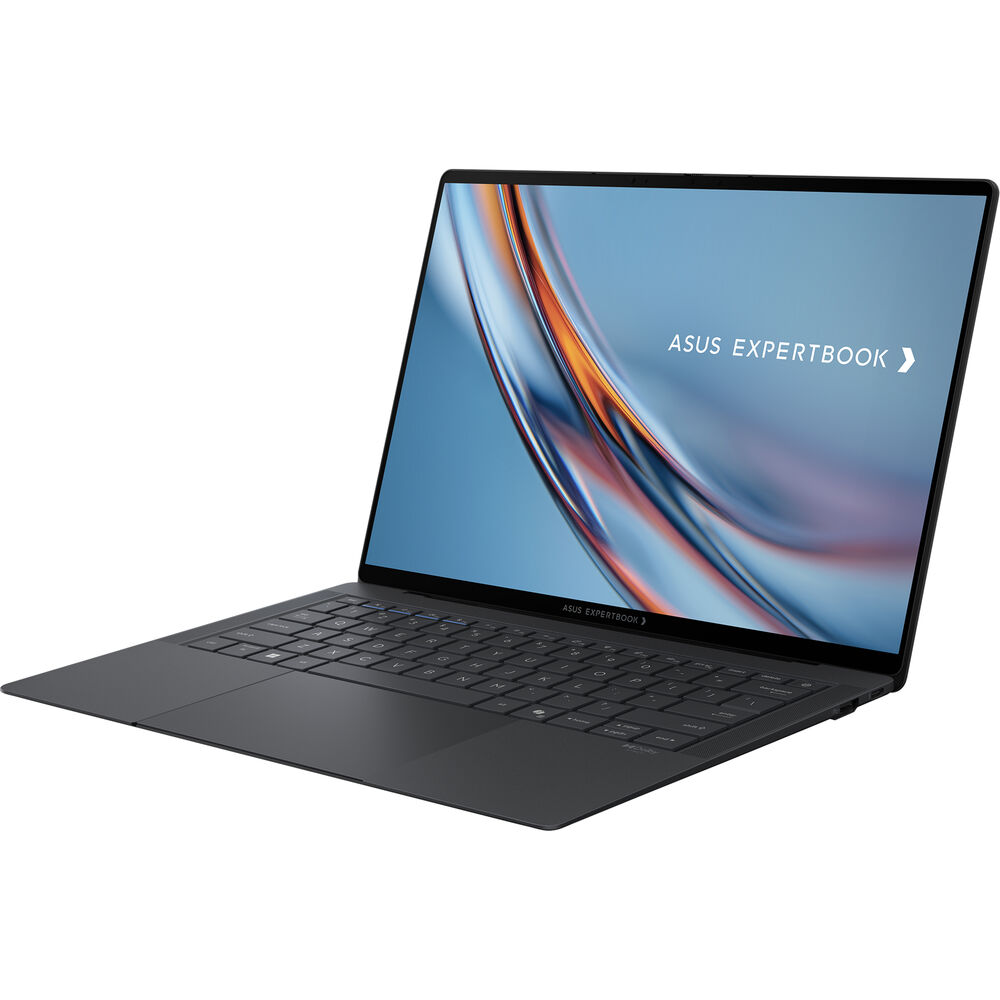
The ExpertBook Ultra is serious business hardware. Its U.S. Core Ultra X7, 32GB/1TB configuration launched at $3,599.99 and is listed at about $3,000 at B&H as I write this. It has a different processor, more memory and storage, and a tandem OLED display. The Googlebook’s $1,299 price buys its own configuration, but getting that business-laptop chassis and construction at this price is a big part of what appeals to me.
That emphasis on the physical experience matters to me. I can look at a processor and memory table all day, but the screen and touchpad are right in front of me every time I sit down to use the laptop.
Magnesium-aluminum, a ceramic-like layer, and Dusk Ash
The chassis is CNC-machined magnesium-aluminum alloy, which helps ASUS keep the weight down without giving up rigidity. It’s part of why this feels like such an appealing package: a 14-inch laptop with a full set of connections that still comes in at about a kilogram.
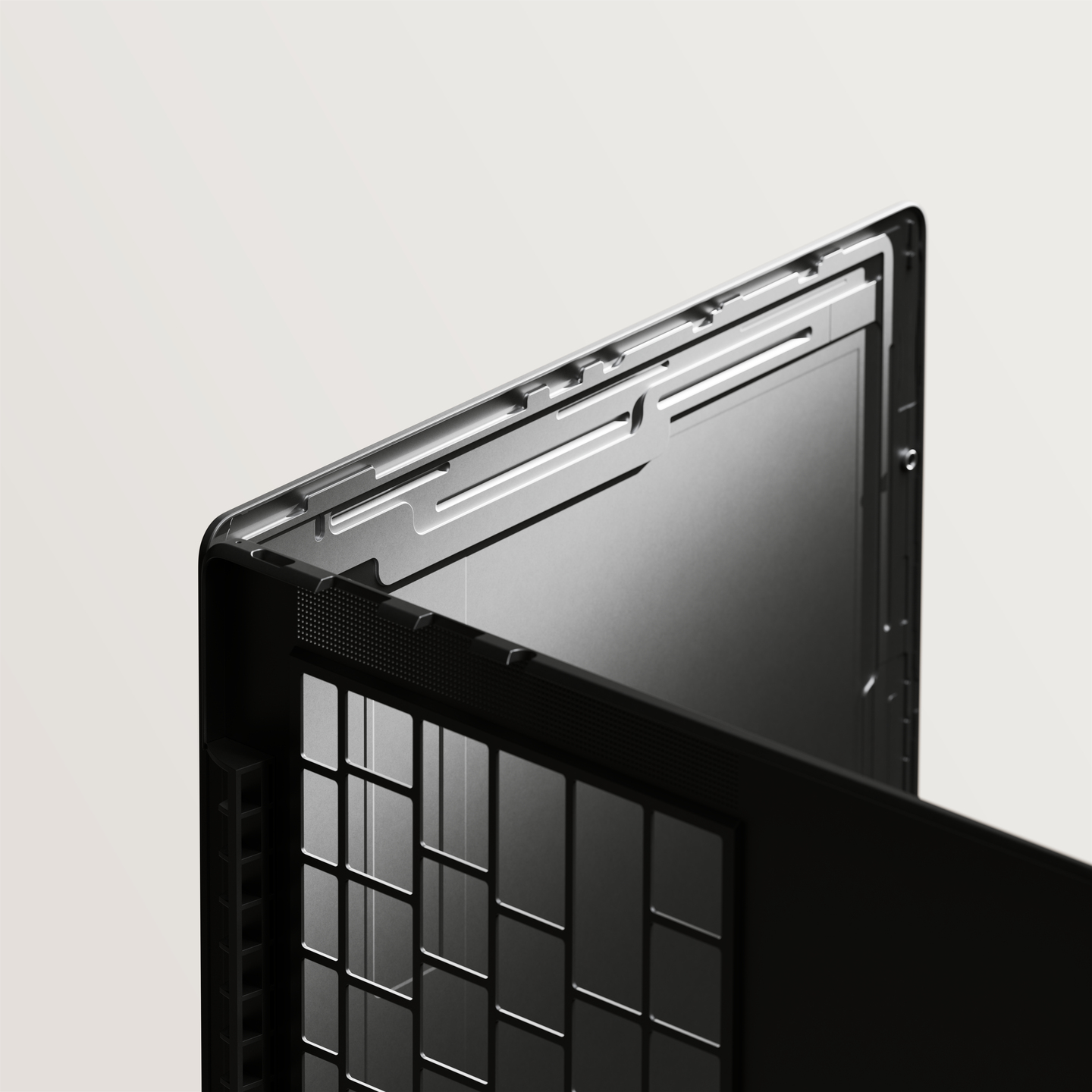
The finish has two stages worth separating. Plasma electrolytic oxidation converts the metal’s outer surface into a ceramic-like protective layer. ASUS then adds a nano-ceramic coating.
ASUS says the treatment helps resist scratches, stains, and abrasion. I like the finish now; time in my bag will tell me more about how it wears.
The color is Dusk Ash. I like the darker look; it fits my taste. I’d also be curious to see something more colorful with this finish.
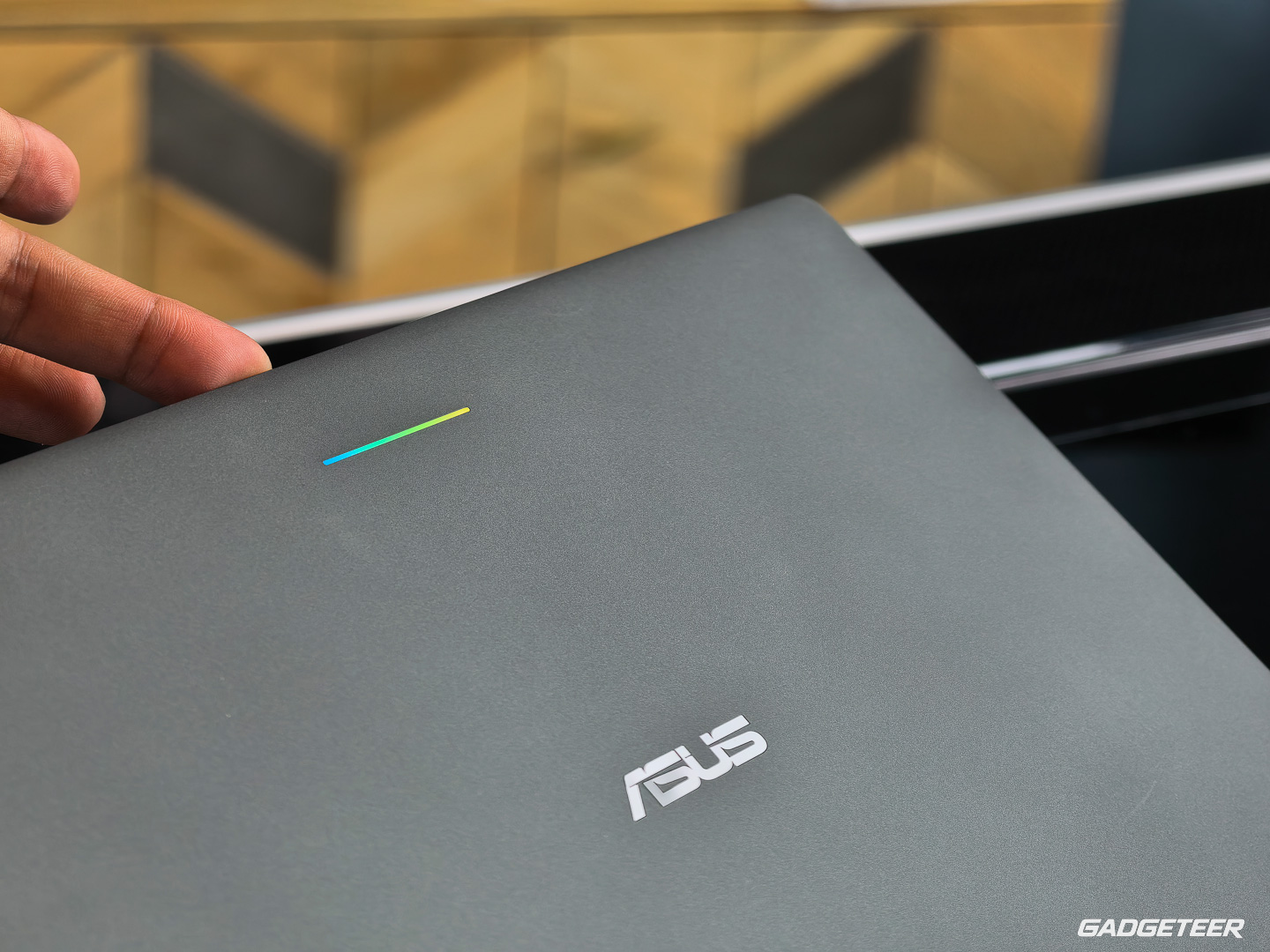
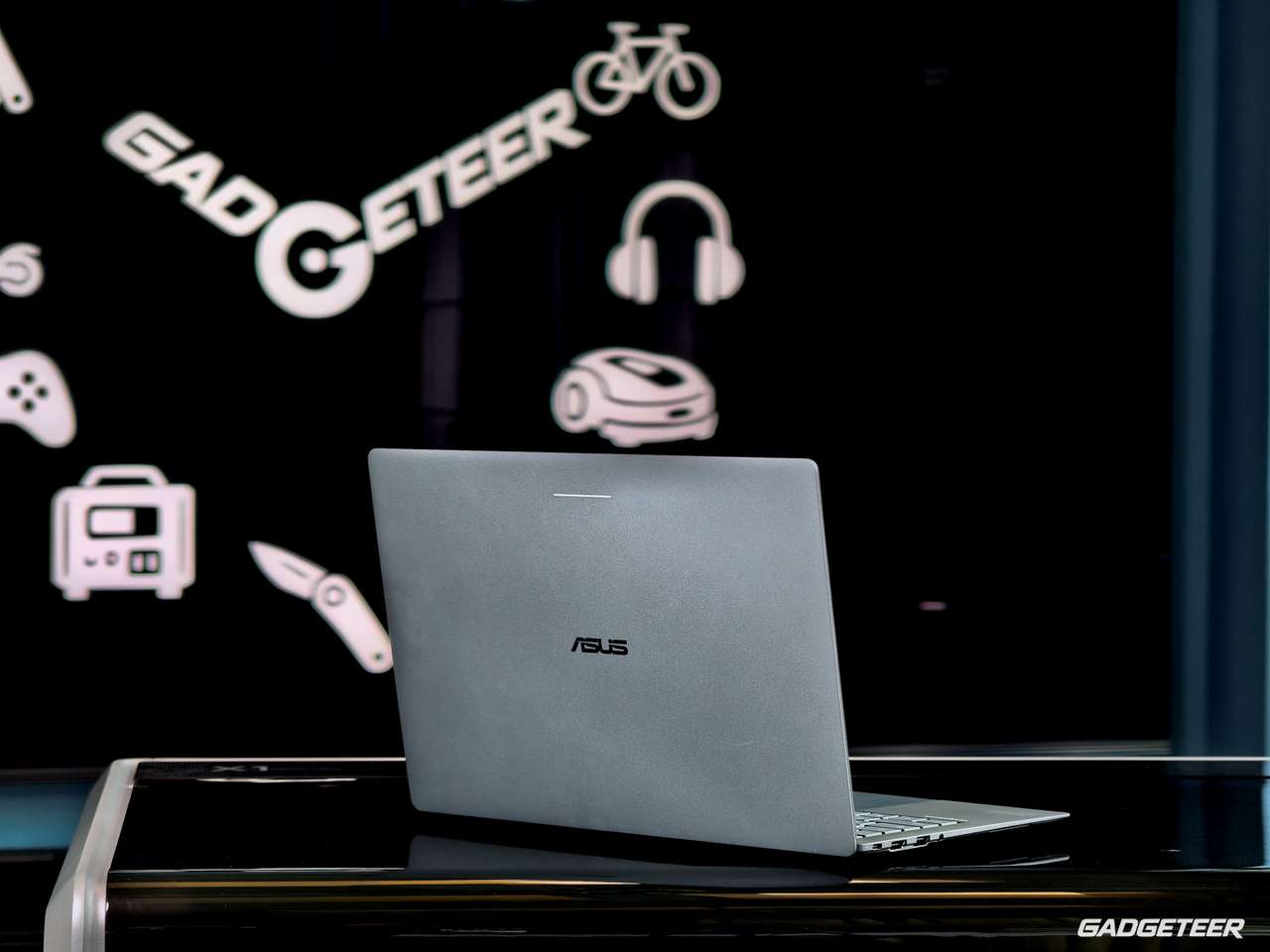
ASUS’s dimensions put the body at 10.9 to 16.45mm thick, roughly 0.43 to 0.65 inches, with a footprint of about 12.24 by 8.38 inches. That 2.18-pound figure is ASUS’s specification, equivalent to about 0.99kg. There’s quite a bit of laptop packed into that space.
I’ll take the HDMI, thanks
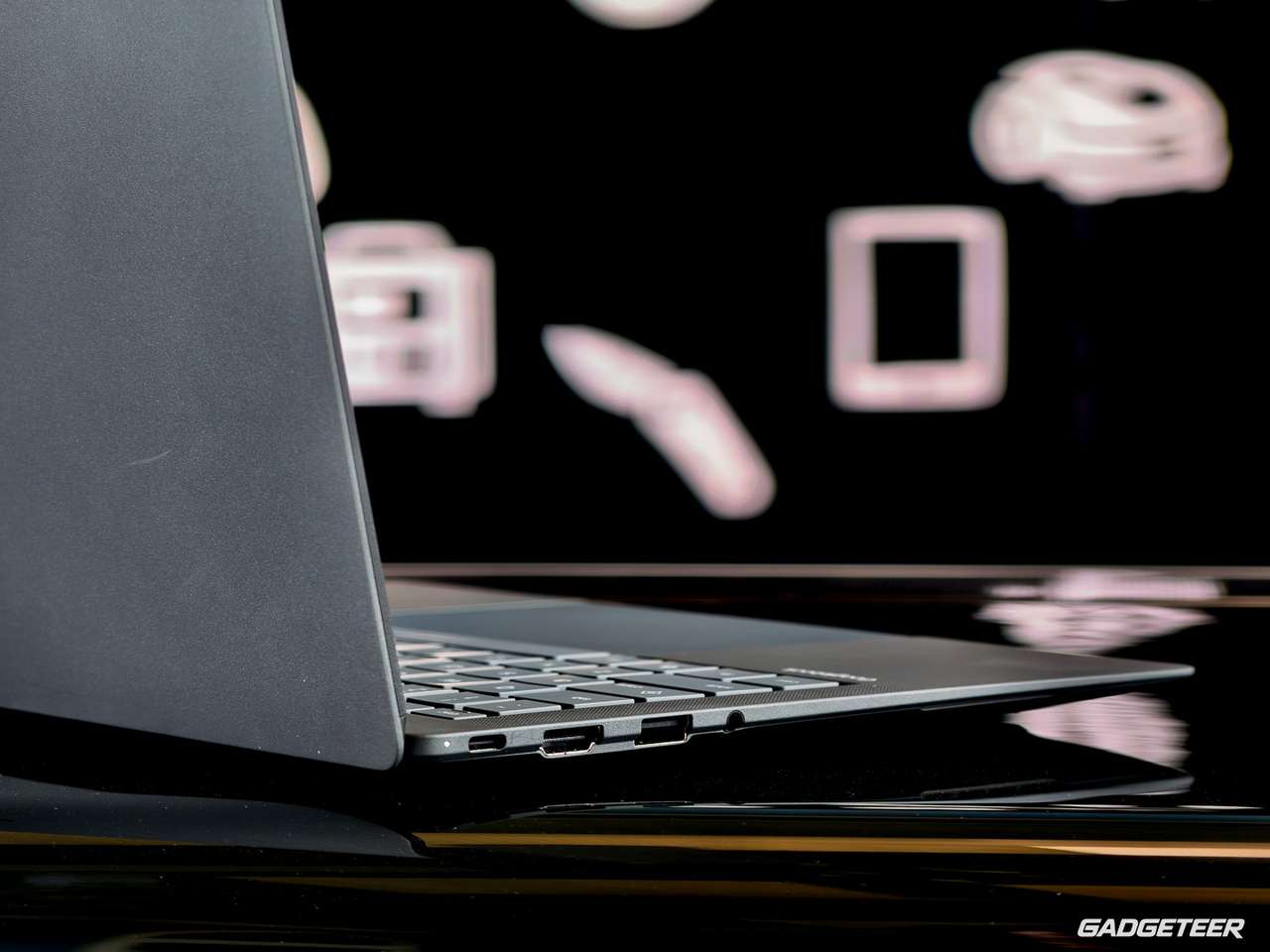
The connections include two Thunderbolt 4 USB-C ports, two USB-A 3.2 Gen 2 ports, HDMI, and a 3.5mm headset jack. There’s USB-C on both sides, and ASUS says either side can take charging power. That’s useful when the outlet is on the wrong side of wherever you’ve ended up working.
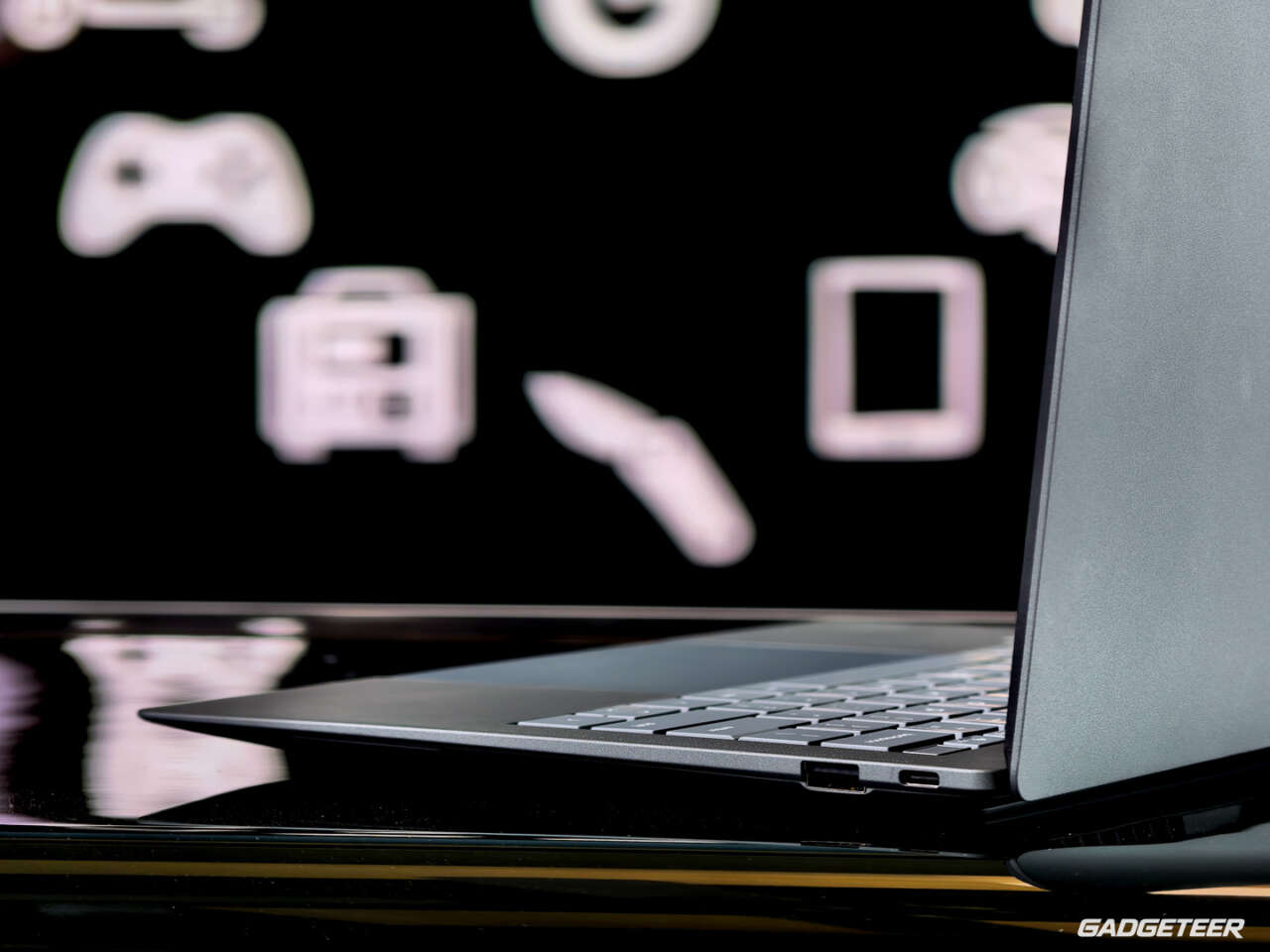
I’d rather trade one of the two USB-A ports for a third Thunderbolt port. The arrangement feels a little “un-2027” to me. That’s my preference, though. There are still plenty of accessories that plug straight into USB-A, and I’m glad ASUS kept HDMI.
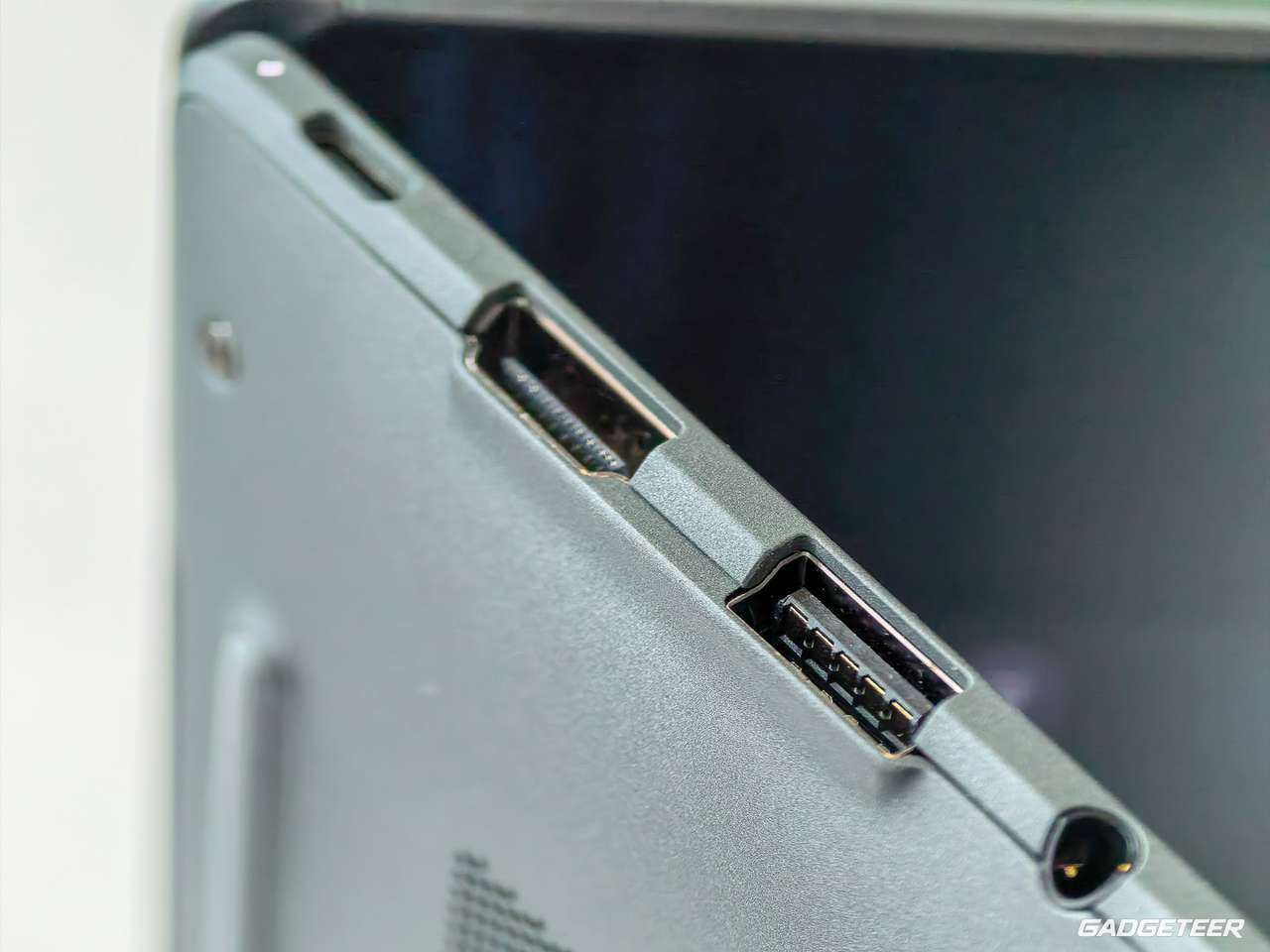
The Thunderbolt connections also support DisplayPort 1.4. ASUS specifies support for up to three external 4K displays through the available display outputs. I haven’t put that arrangement together yet, but it’s a useful capability to have on the specification sheet if this will spend time at a desk as well as in a bag.
Wireless connectivity includes Wi-Fi 7 and Bluetooth 6.0.
I’d also like the option of built-in cellular connectivity. For something I’d carry everywhere, getting online without reaching for my phone would be useful. Sharing my phone’s connection makes sense too, especially if it avoids another data plan, but I’d like the choice.
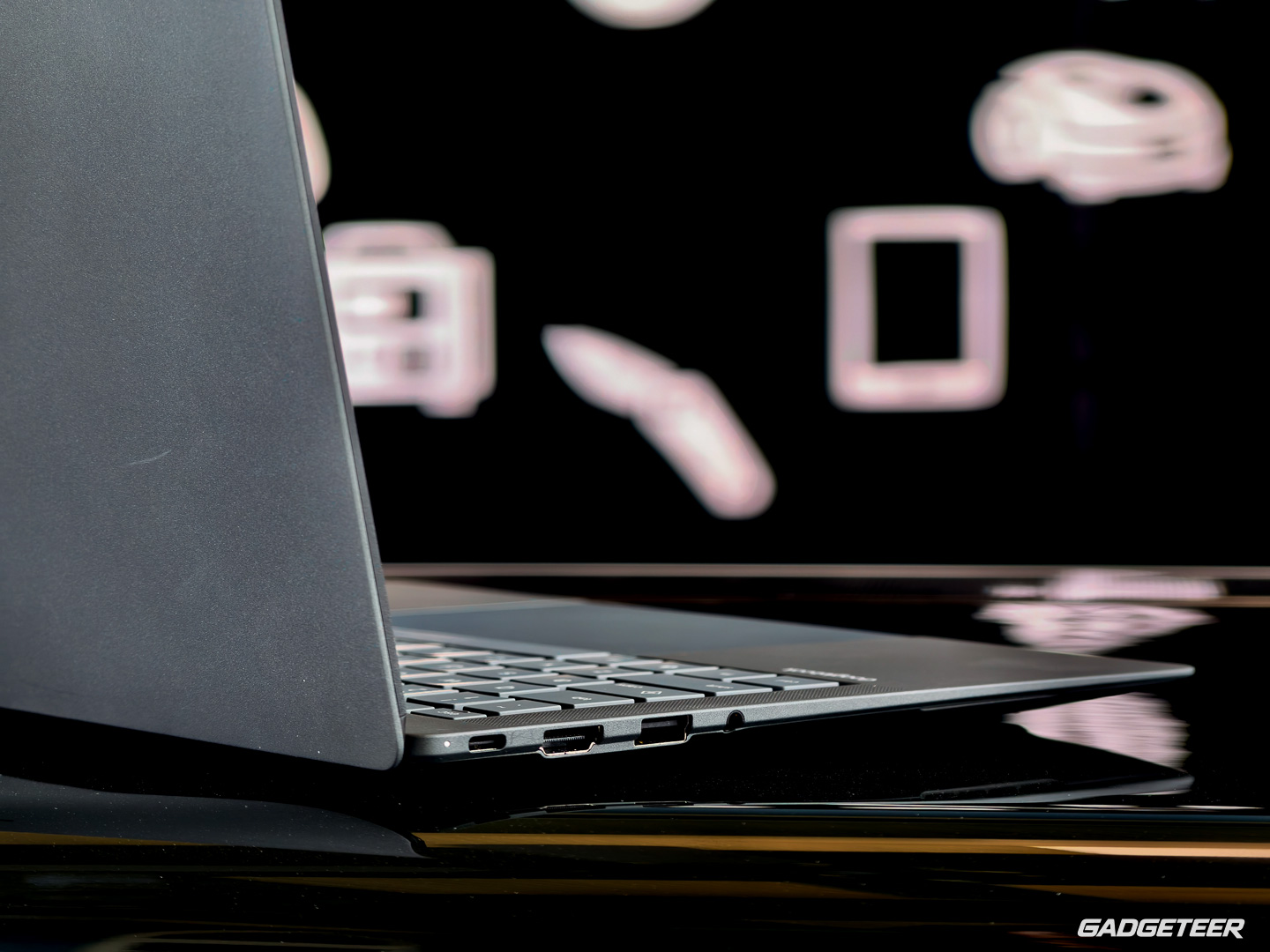
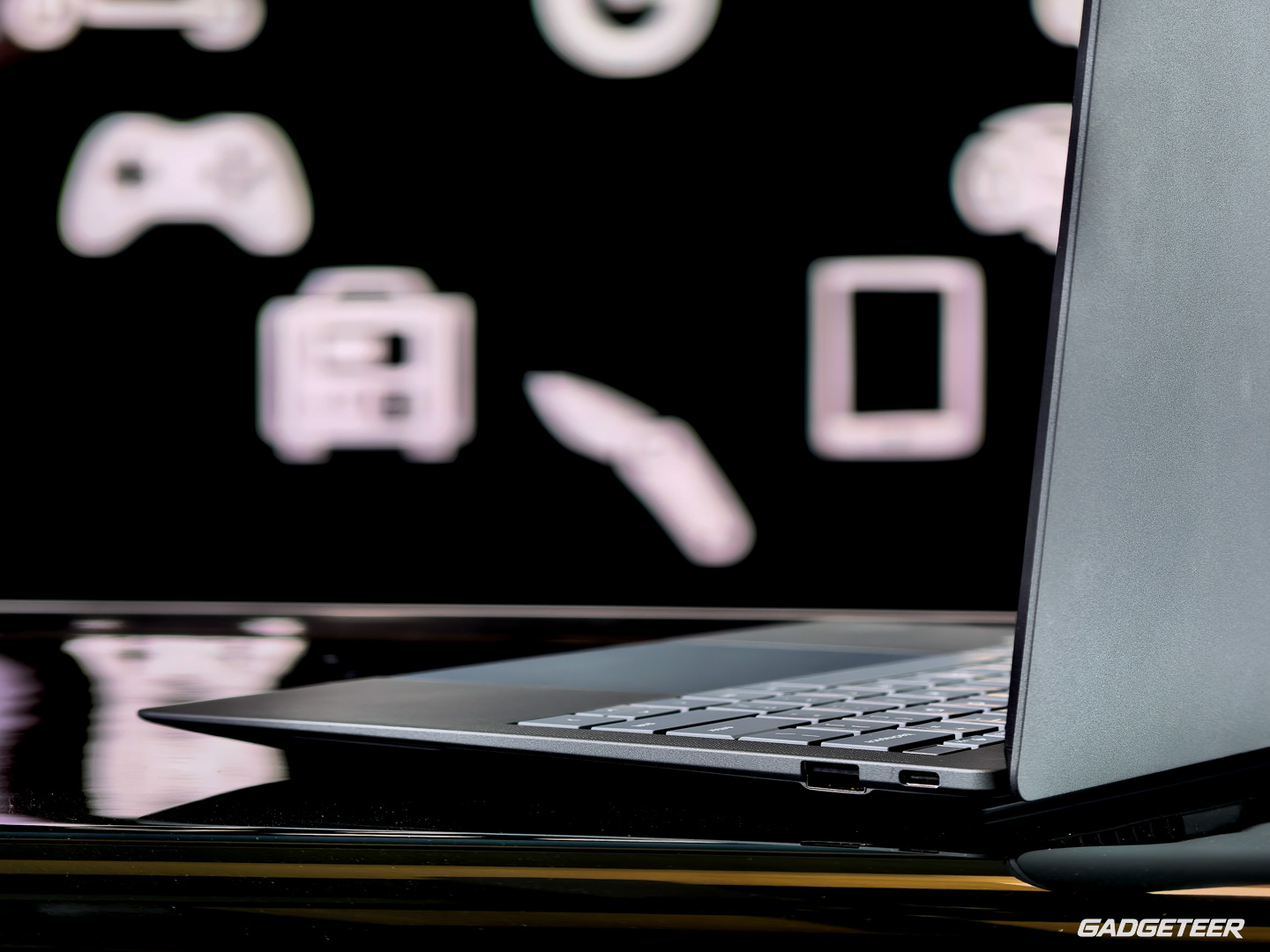
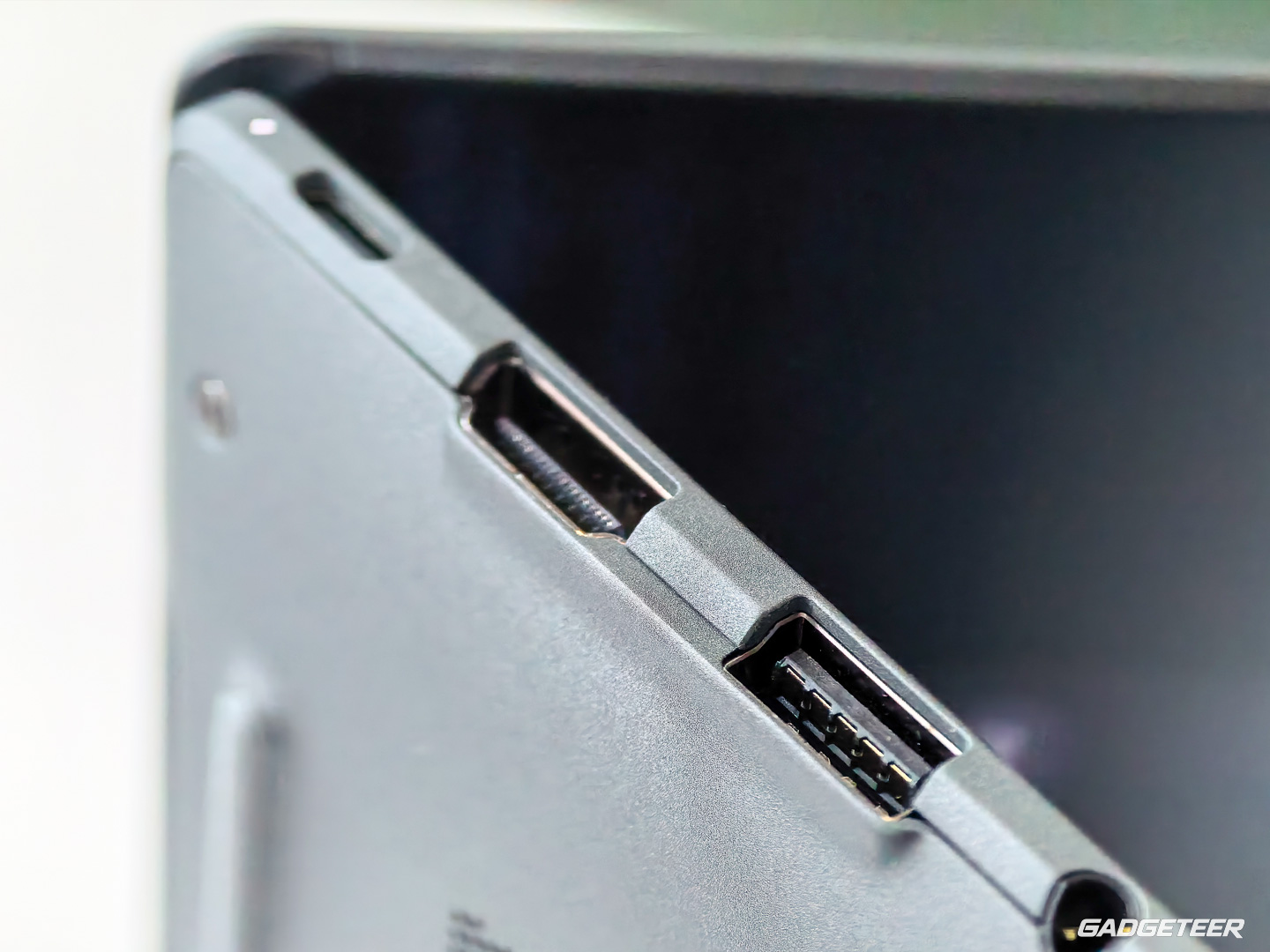
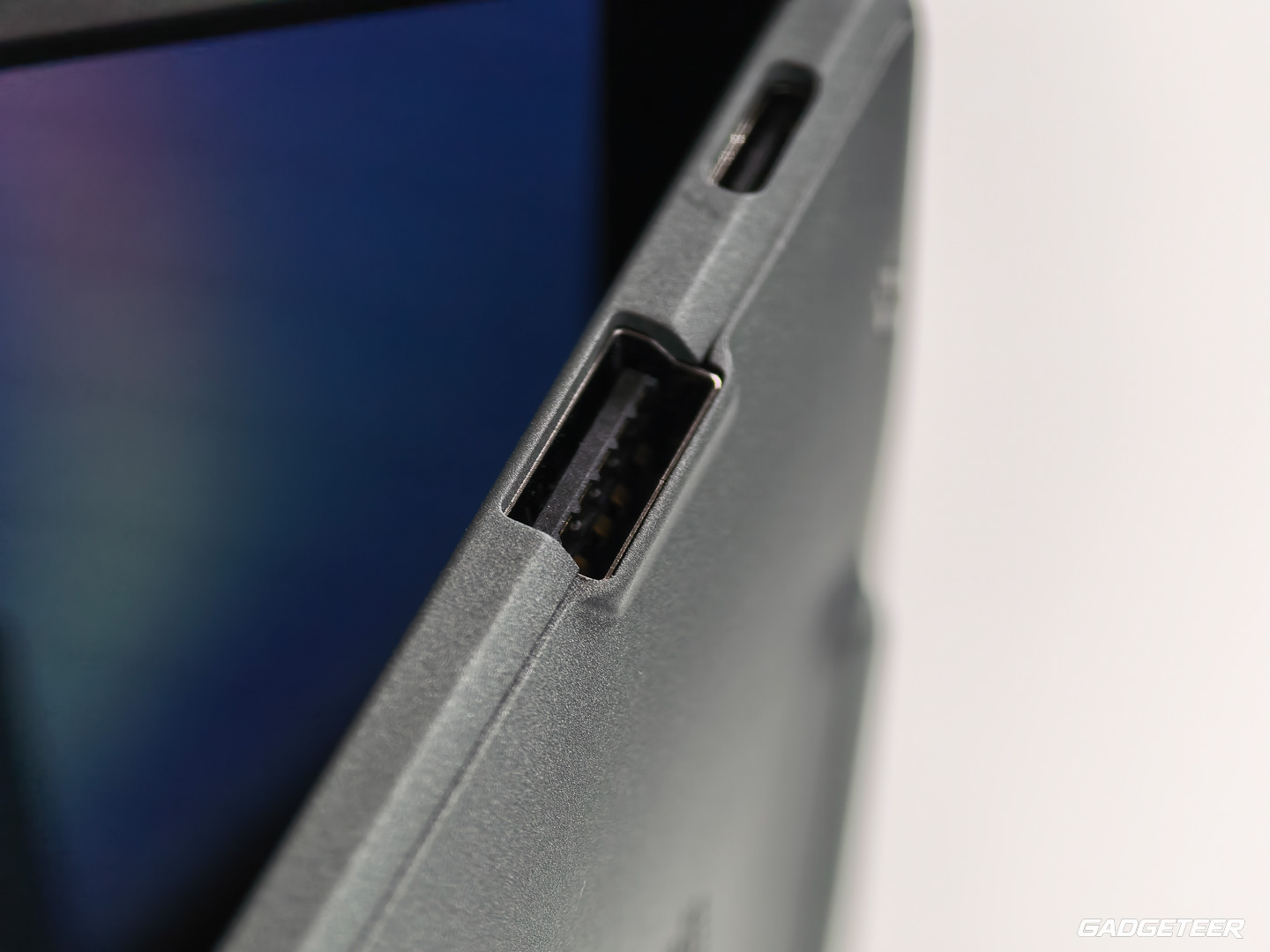
The lower edge is cut back around the larger ports, and the body tapers toward the front. That shaping makes the laptop look and feel thinner to me. I notice it when I look along the side and when I’m holding it.
The matte OLED is pretty damn close to what I like on my MacBook Pro
The display was one of the things I was most excited about before the unit arrived. Now that I’ve seen it, my reaction is even simpler: it’s gorgeous.
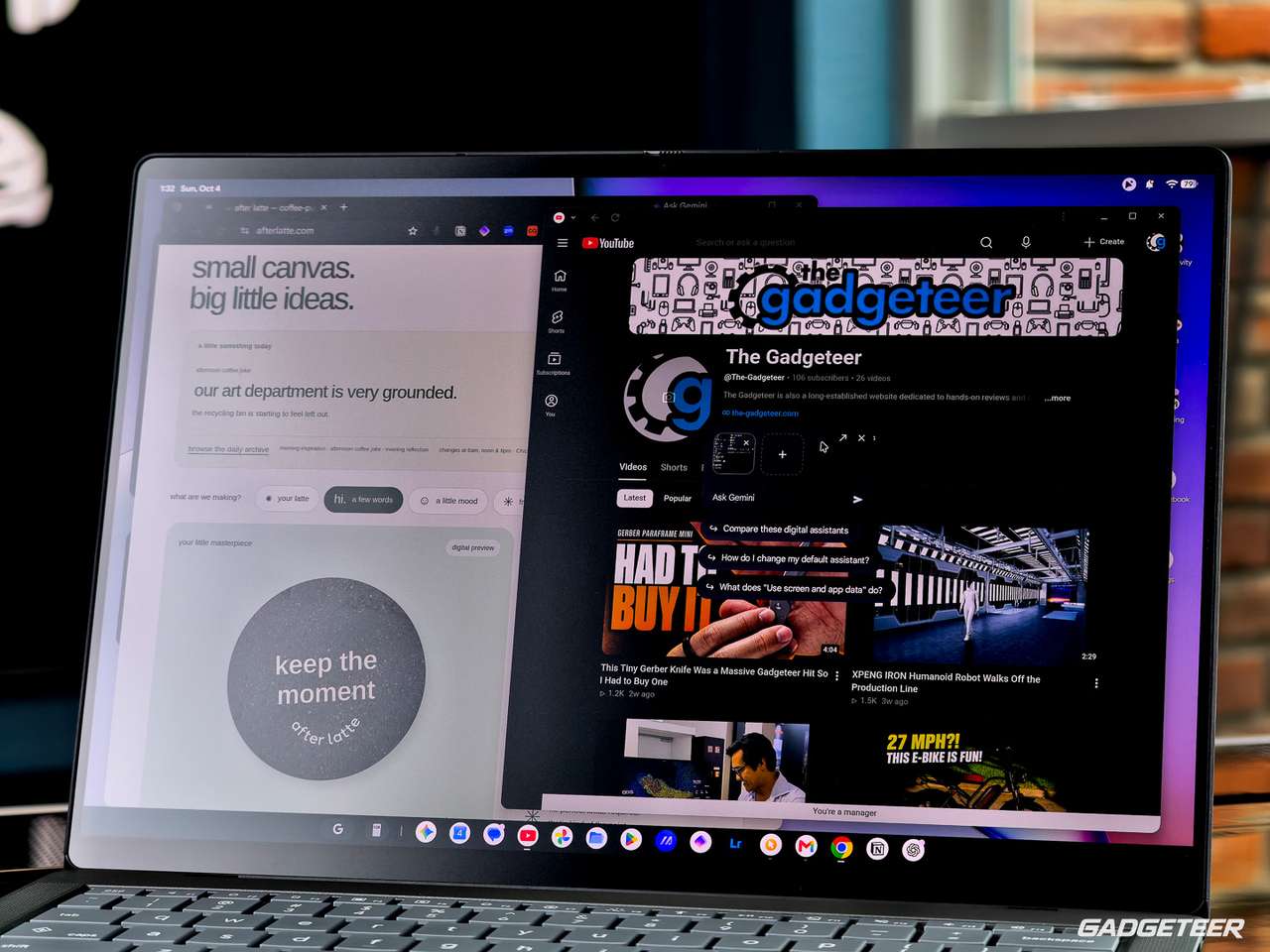
I already use a MacBook Pro with a matte display, and the ASUS is right up there with it for me. It’s pretty damn close. Having one of my favorite MacBook features on this new platform makes it immediately more appealing to me.
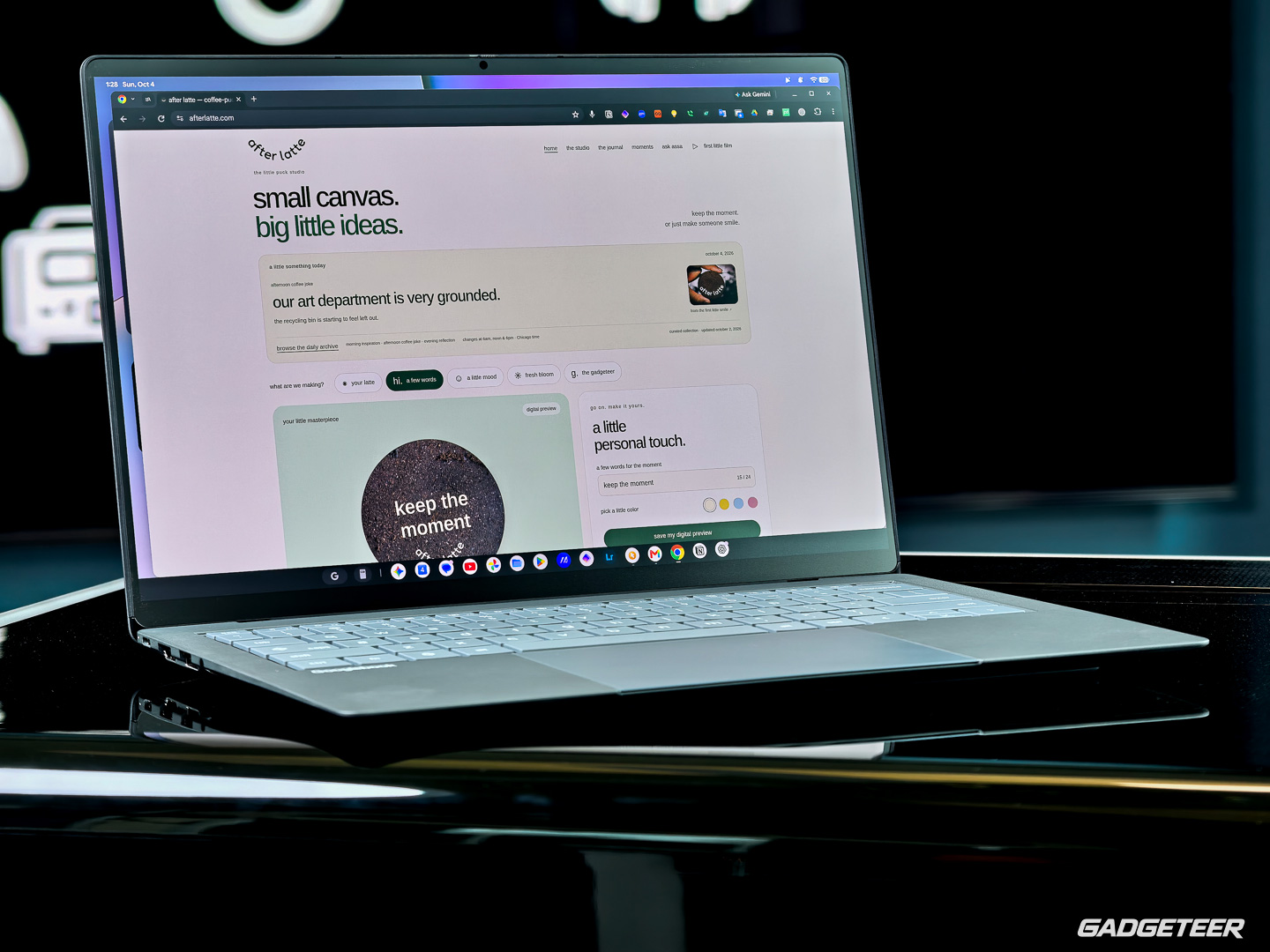
ASUS uses a 14-inch OLED touchscreen with a 2880 × 1800 resolution, a 16:10 aspect ratio, and a 120Hz refresh rate. The taller shape gives documents and webpages more vertical room than a comparable 16:9 screen. ASUS specifies 100% DCI-P3 color-gamut coverage and a 91% screen-to-body ratio.
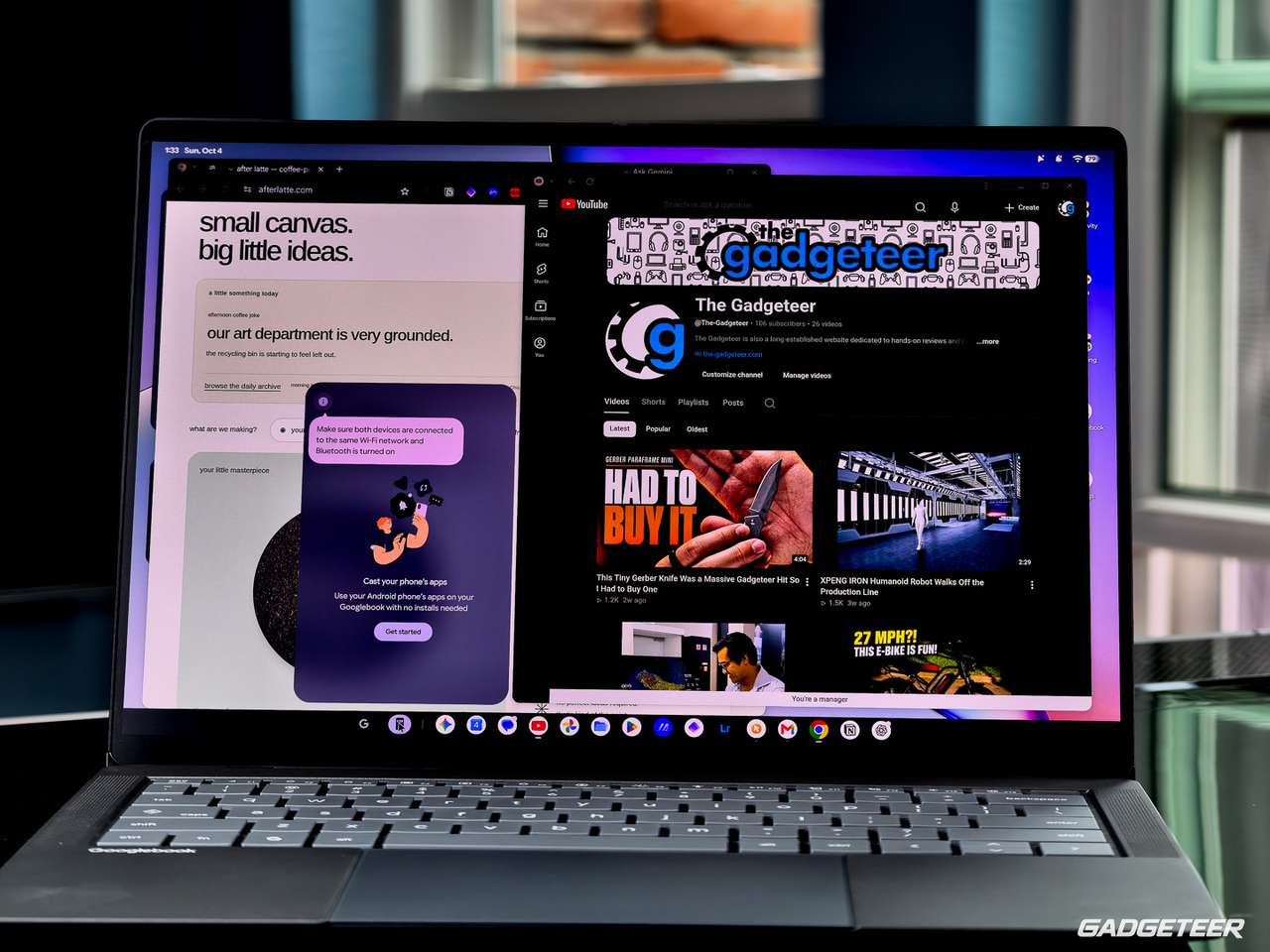
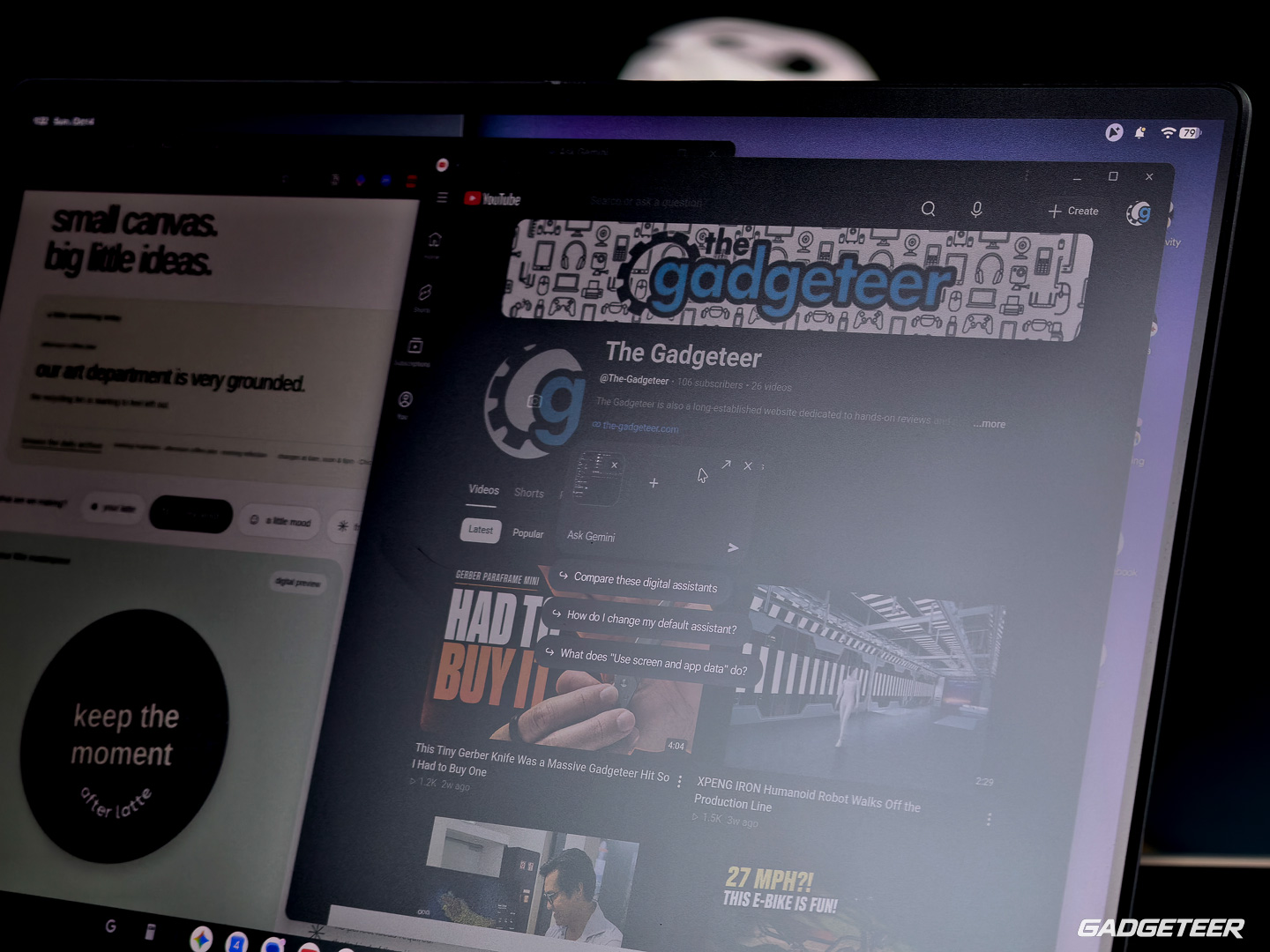
Corning deserves credit for the glass. This uses Gorilla Glass Victus together with Gorilla Matte anti-glare technology. Victus provides the protective glass, while Gorilla Matte addresses glare. The matte finish is Corning’s technology being used by ASUS.
ASUS describes Gorilla Matte as a surface treatment that reduces distracting reflections. That is particularly appealing to me on a touchscreen, where I’m interacting directly with the display as well as looking at it. I’ll spend more time with it under different lighting, including outside, before making stronger claims about those conditions.
Brightness is rated at 450 nits for ordinary use, with HDR highlights reaching up to 1,000 nits. What has me enthusiastic already is the combination of OLED, touch, and the matte finish I prefer.
A haptic touchpad should be part of the deal
The large haptic touchpad feels excellent. The click has a strong tactile response, and I can hear it too. I like that positive feedback under my fingers, along with the smooth glass surface. This is one of those features I think should be standard on Windows laptops as well, especially at this price.
The pad has a glass surface and measures about 128 by 87mm. ASUS uses six force sensors and a centrally placed vibration mechanism to deliver the click feedback. That’s the mechanism behind its goal of consistent clicking pressure across the surface.
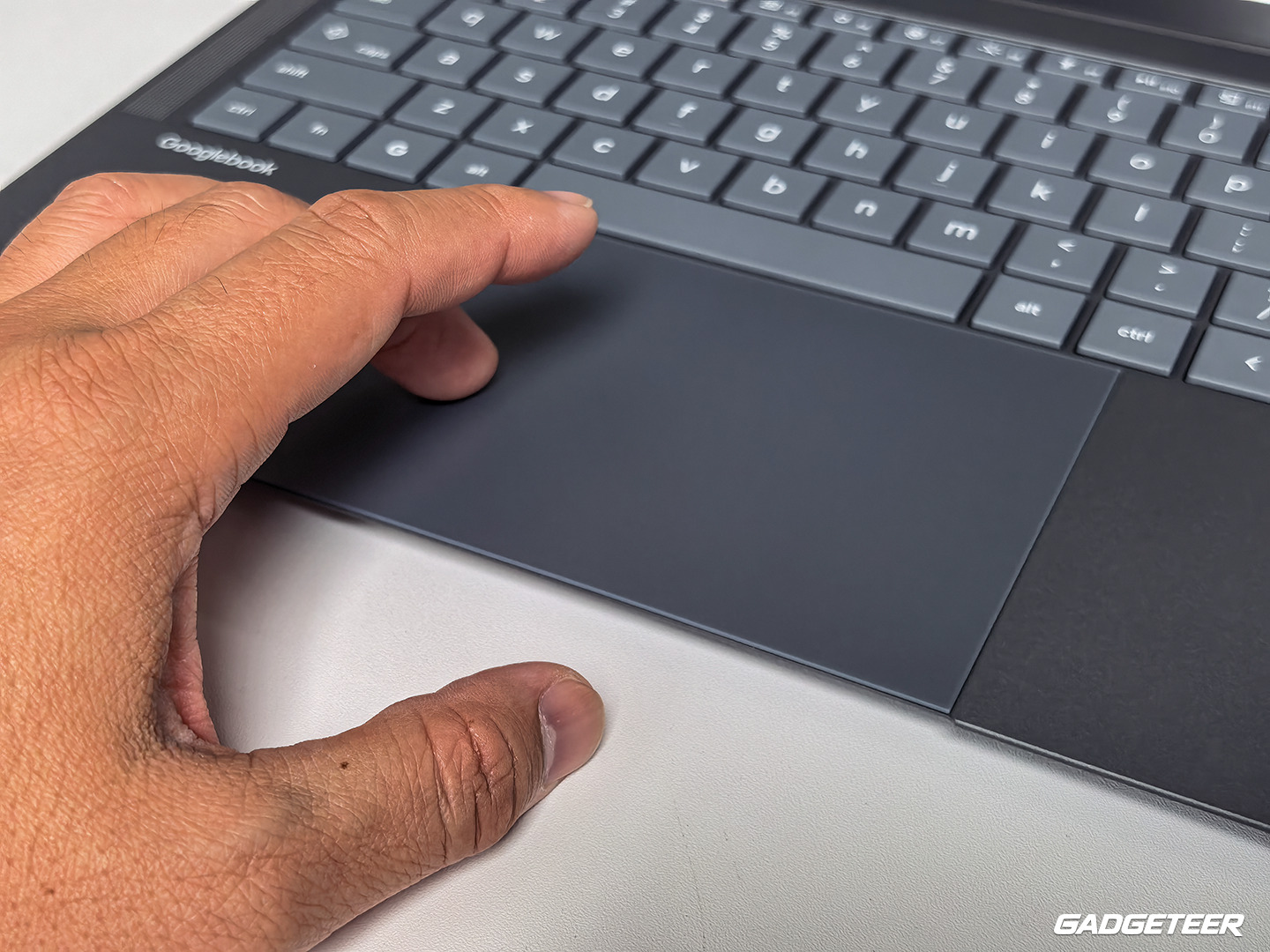
There’s useful customization here, too. I’ve set a three-finger tap to go Back. Googlebook also offers corner shortcuts: move the pointer into one of the four corners of the display to trigger an assigned action, such as showing recent apps or locking the screen.
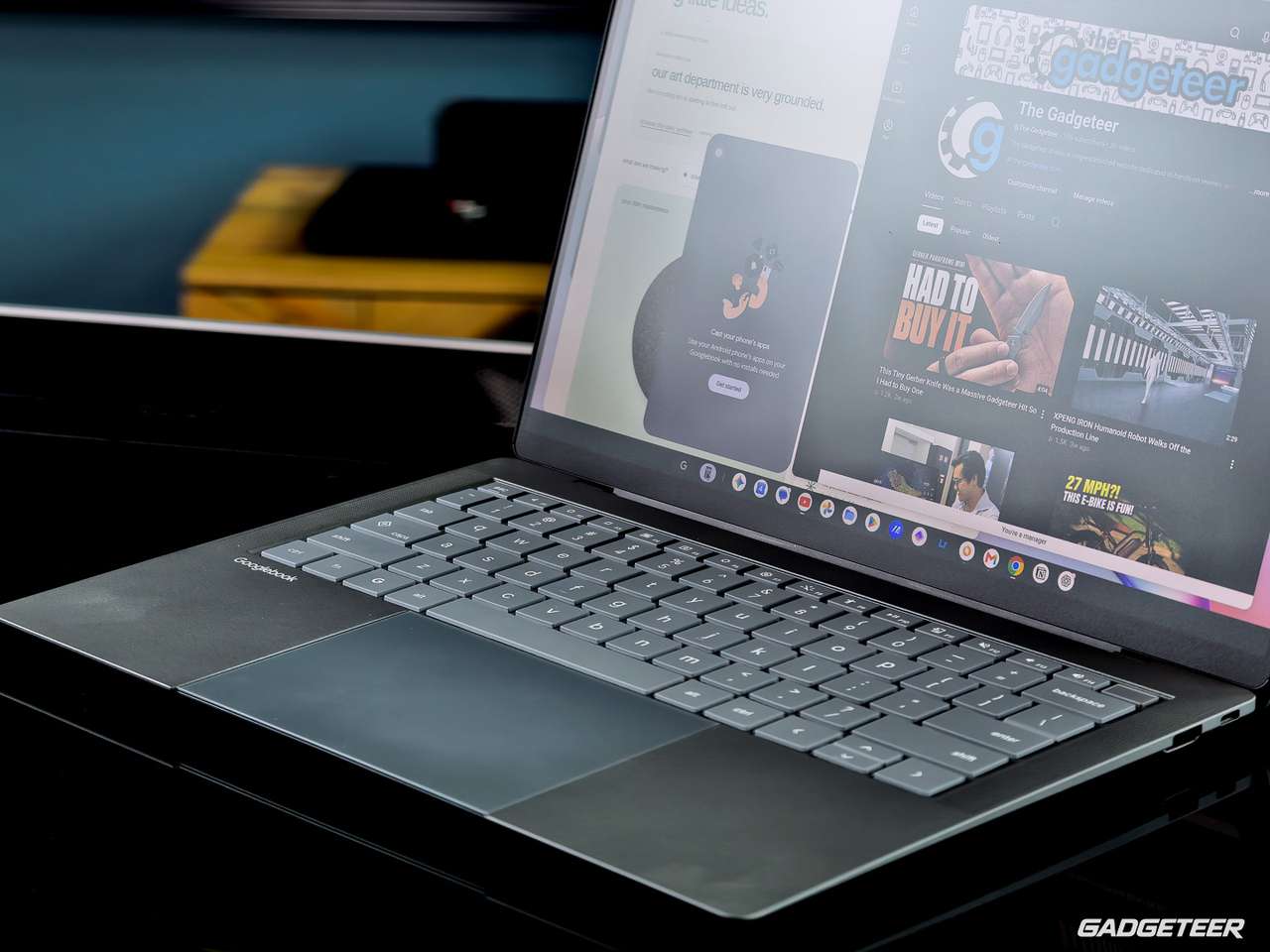
The keyboard is backlit, with 1.5mm of key travel and a shallow 0.2mm dish in the keycaps. ASUS uses a UV-cured resin coating on the keys to give them a smooth protective surface that resists wear.
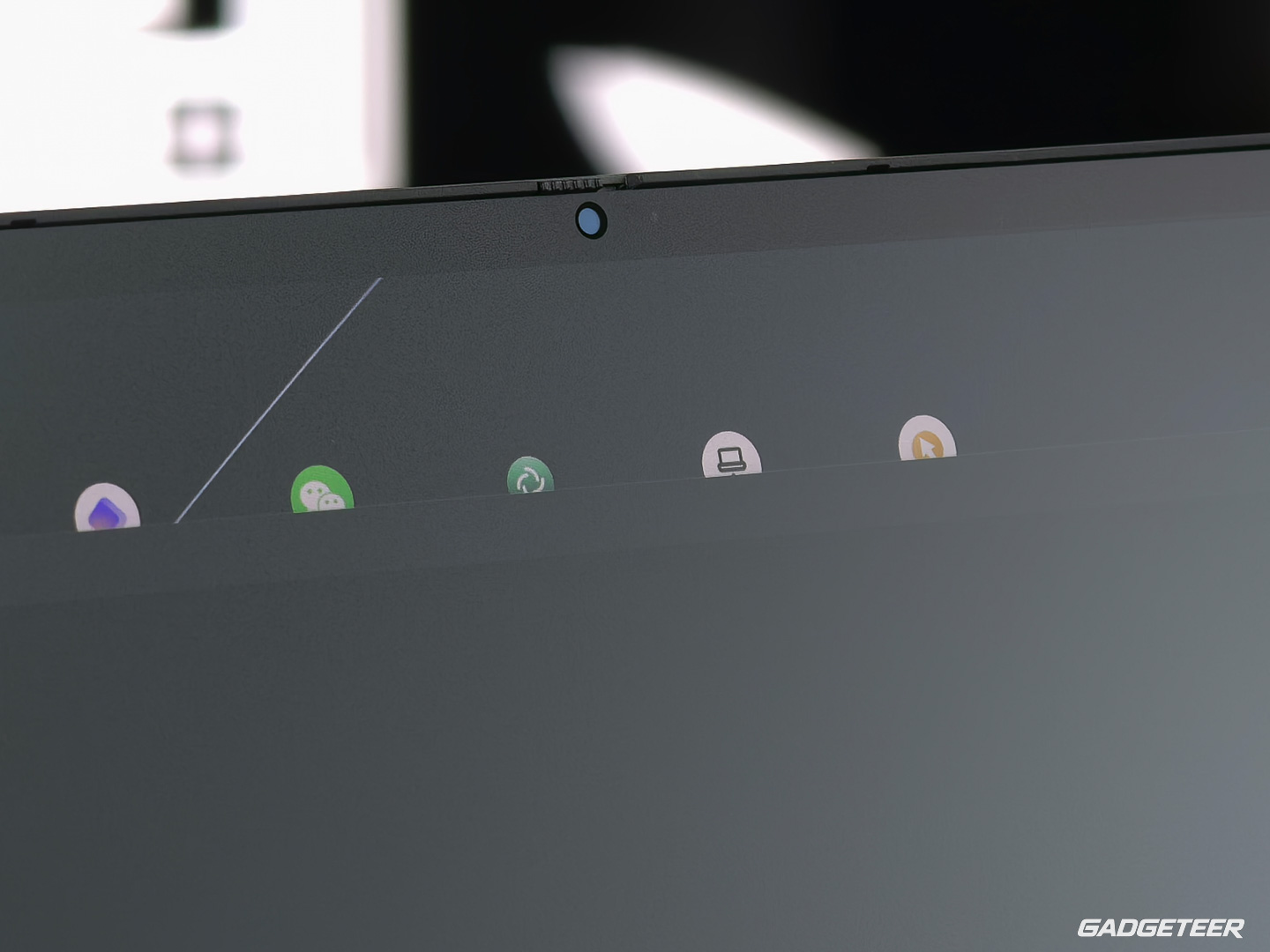
I also set up the fingerprint reader at the upper-right corner. It’s easy to point out in the keyboard photographs, next to the volume controls. Above the screen, the Full HD webcam has a physical privacy shutter. The shutter physically covers the lens, so I can see when it’s blocked.
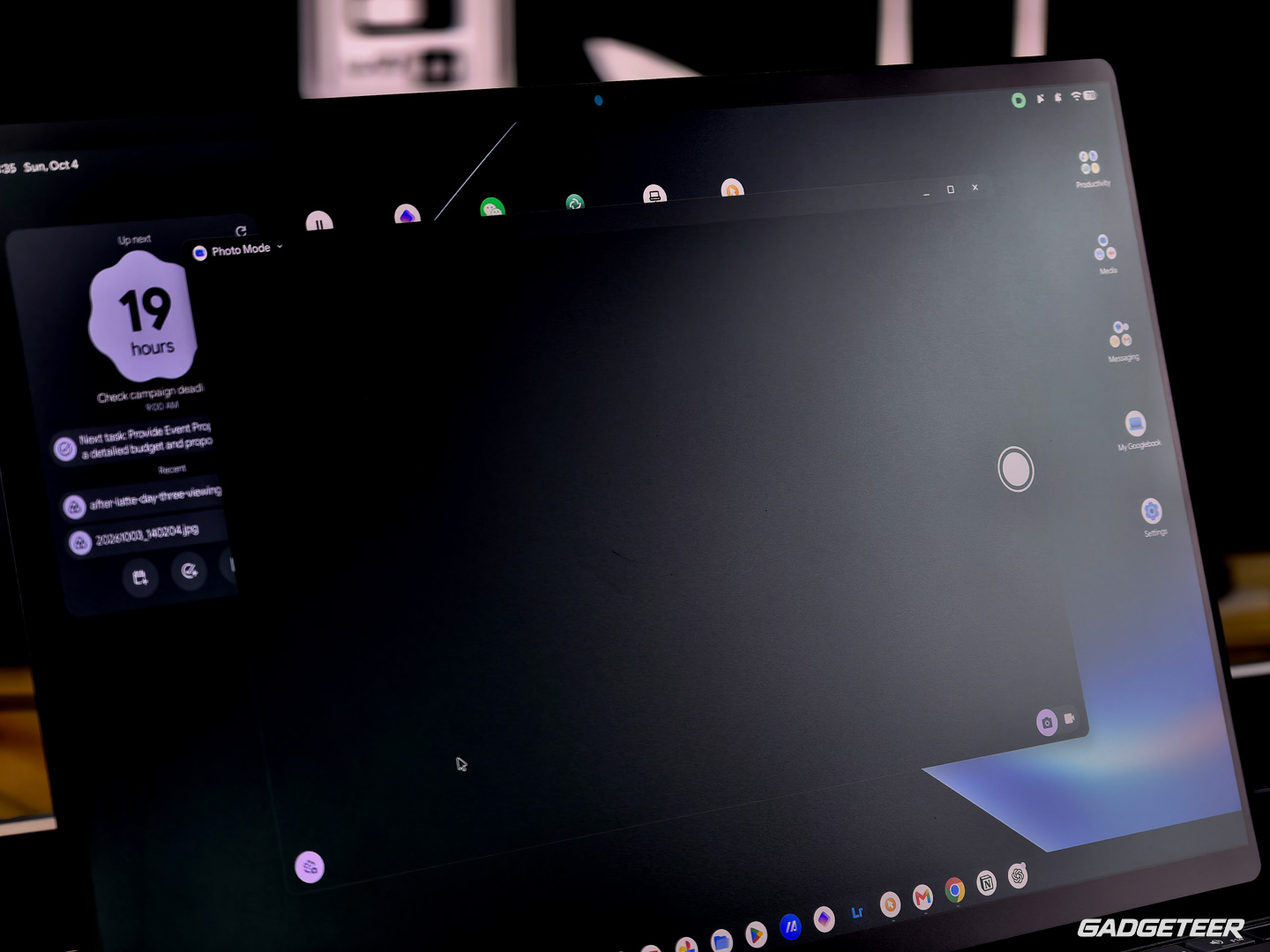
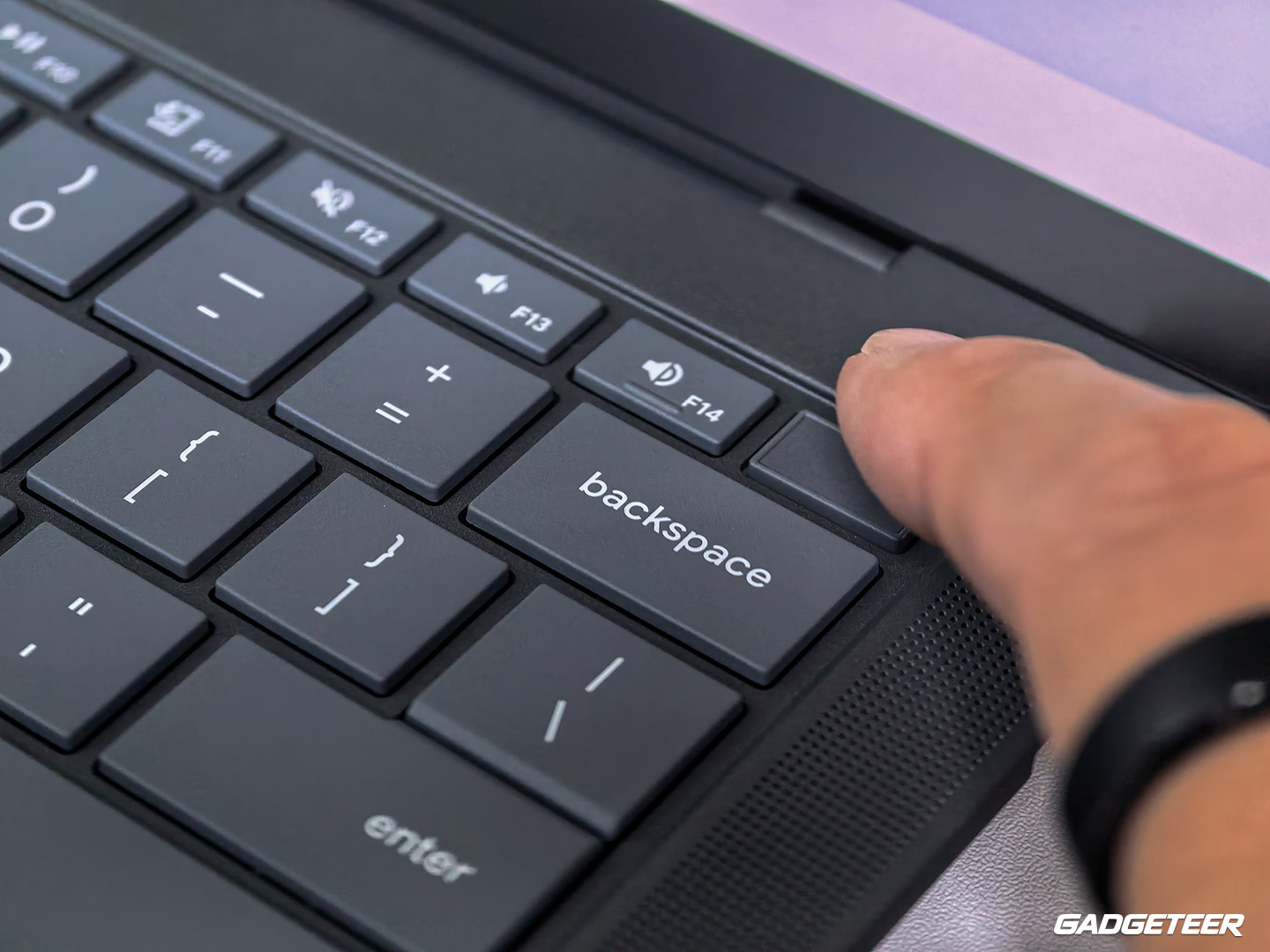
There’s a G key down near the spacebar, too. Google calls it the Action key. It opens searches for apps, files, and the web, and serves as part of shortcuts such as G plus H for the home screen and G plus slash for the shortcut helper. There’s an extensive set of keyboard shortcuts, which is handy while I’m finding my way around. The Quick Insert key is separate, providing access to items such as emoji, images, links, and writing tools.
ASUS also lists a Titan C security chip, part of the Googlebook’s hardware security foundation.
The speakers sound amazing
The speakers got my attention immediately. It’s the clarity and fidelity that impress me, with a presentation that feels almost surround-like. They sound amazing to me, and that’s about more than simply turning up the volume.
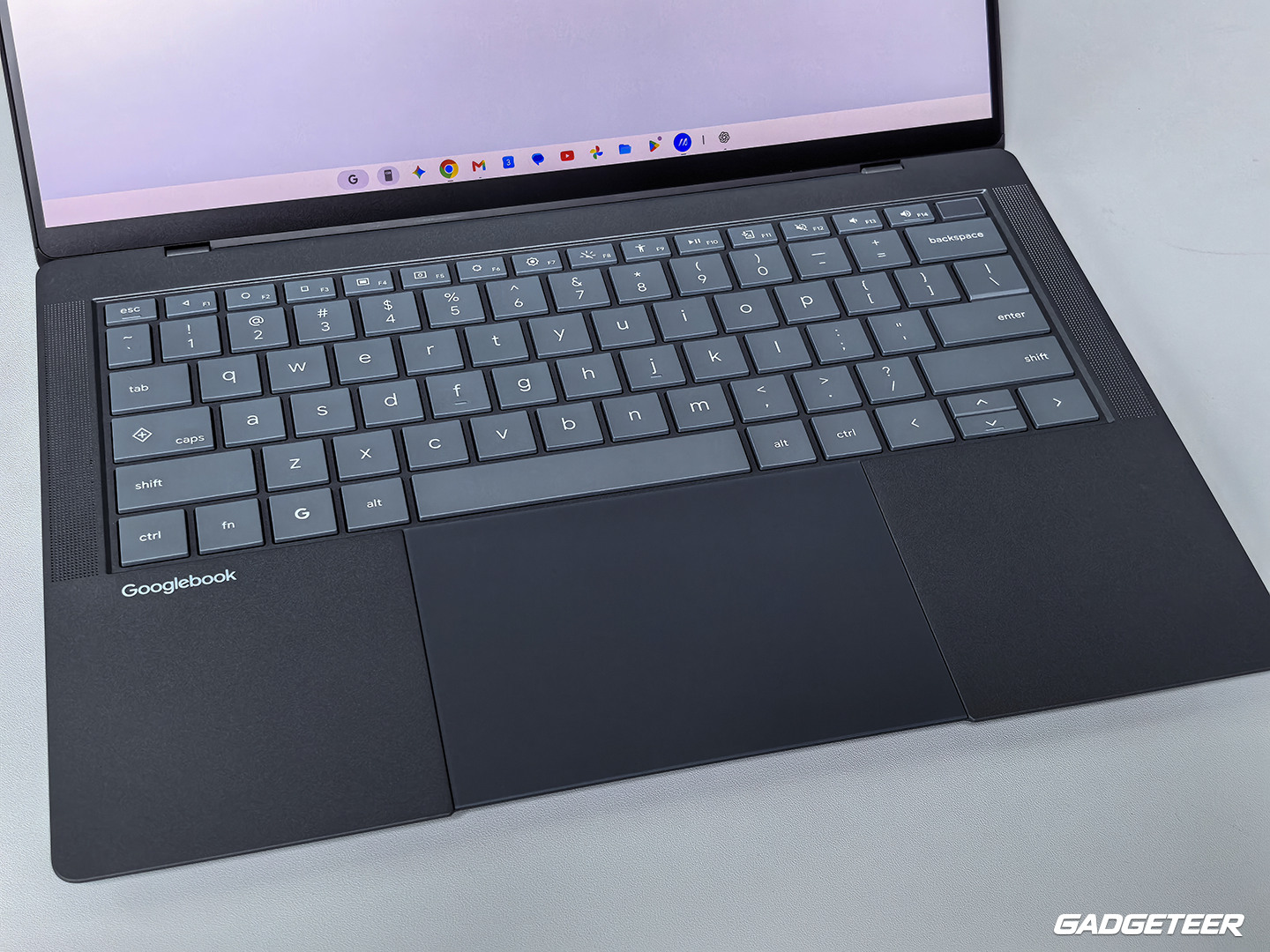
ASUS describes an arrangement of force-cancelling woofers and tweeters, designed to deliver bass and a wider soundstage in this slim body. My early listening reaction is that the audio belongs alongside the screen and touchpad as one of the hardware highlights.
I also used the Googlebook for a voice call with assa, my AI assistant, while working through these first impressions. I asked how my voice was coming through, and its response was “sounds clear.”
Rambler is good, but I miss my dictation safety net
I talk through a lot of my work. I’ve been using Wispr Flow on my Mac and Fold8, and I think it’s excellent. I haven’t been able to use it on this Googlebook, so I tried Google’s built-in Rambler.
My first reaction to Rambler was that it’s really good. I’m impressed with it.
I also managed to lose some words while trying it. I clicked out of the text field and kept talking, then realized the words hadn’t been saved. There went my train of thought. With Wispr Flow, I’ve been able to recover dictated text, and I missed having that fallback here.
What I’m still missing is consistency across my devices. I want the same voice-typing system on my Mac, Fold8, and Googlebook, so I don’t have to switch tools depending on which screen I’m using.
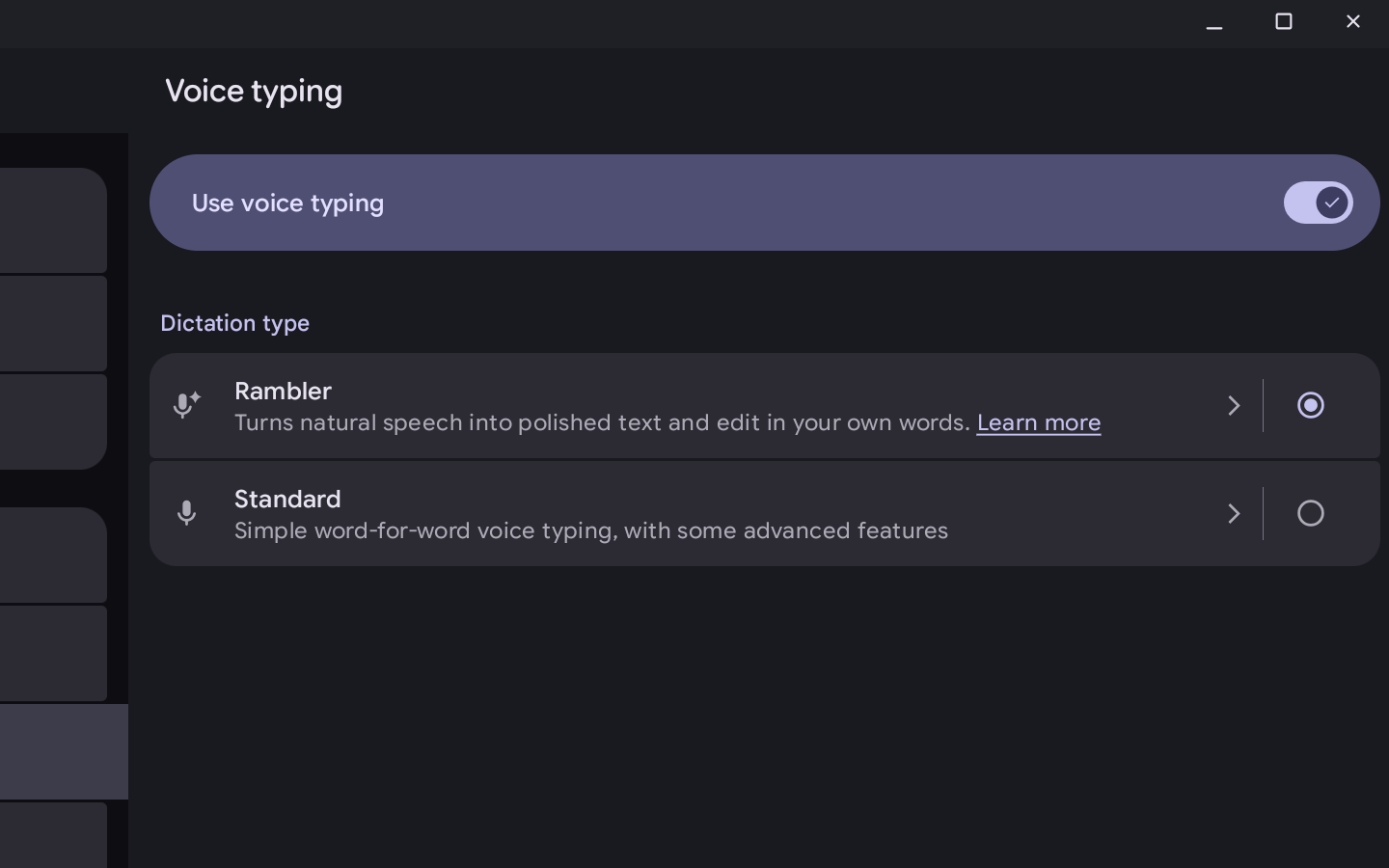
The Voice Typing settings offer two approaches: Rambler for polished text that you can edit with your own words, and Standard for word-for-word dictation. Google’s instructions let you invoke Rambler in a text field with the dictation button or Alt plus D, speak naturally, and have it clean up the resulting text. It also offers ways to edit the wording and return to the original transcript. The distinction is useful for someone like me who talks through ideas: sometimes I want the exact words, and sometimes I want help turning them into readable copy.
What happened when I switched assistants
Magic Pointer brings Gemini to the cursor when you wiggle it, offering contextual help for things on the screen. Google’s examples include turning a date into a calendar event and combining images.
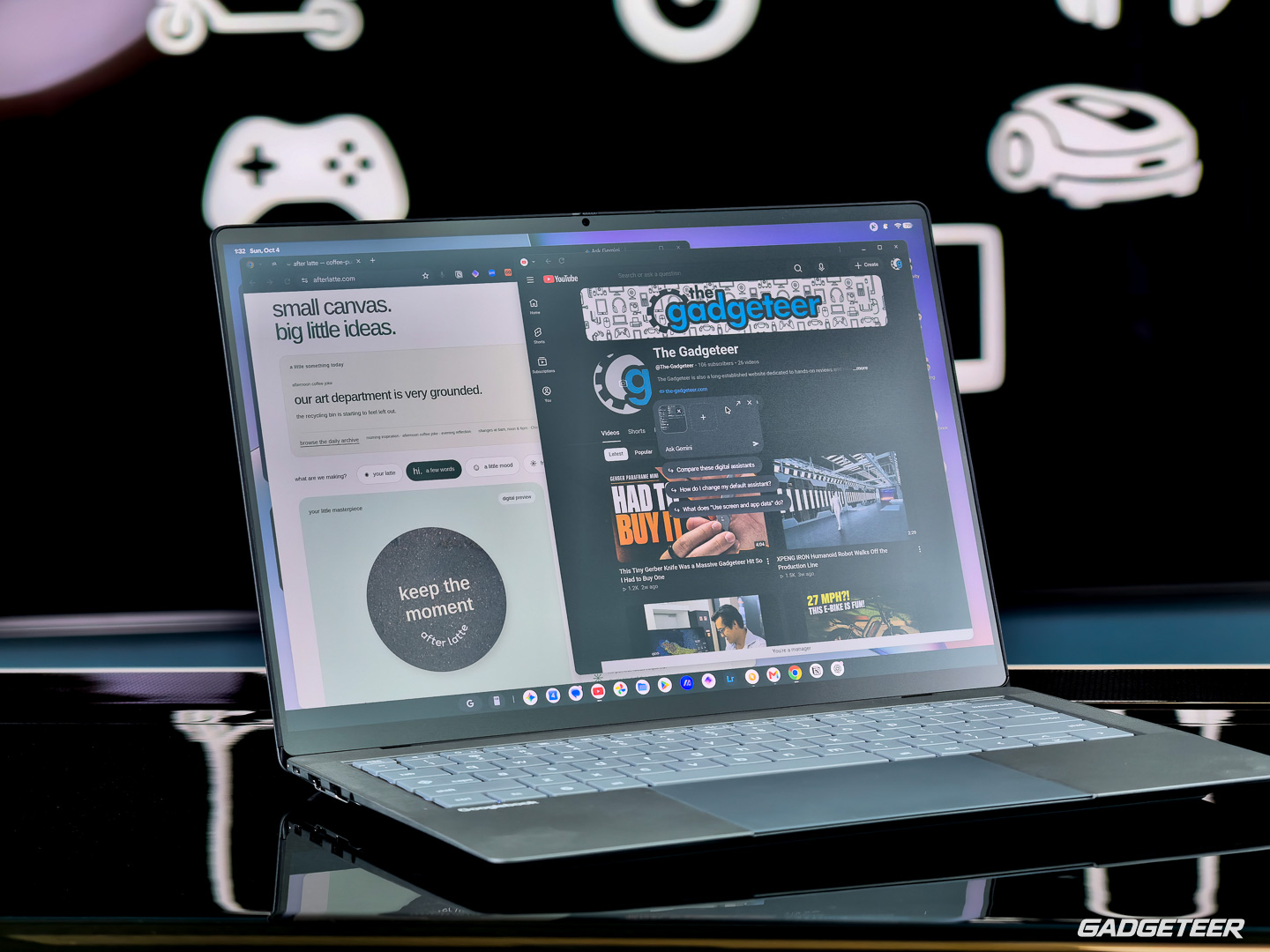
I found one setting worth paying attention to. Magic Pointer was working with Gemini selected as the assistant. I changed the assistant to ChatGPT, and Magic Pointer stopped working in my setup. Switching back to Gemini brought it back. Apparently, I was getting a little ahead of myself with that expectation. I’ll explore the individual tools more as I use them for actual work.
A 70Wh battery, with actual battery tracking still ahead
There’s a 70Wh battery inside. ASUS rates it for up to 18 hours of 1080p local-video playback with the screen at 50% brightness and wired headphones. That’s a controlled playback figure, and it doesn’t tell me how long my own mix of writing, calls, browsing, and media work will last.
I’ll be tracking my use separately, including charge percentage, whether it’s plugged in, display settings, and what I’m doing. I don’t have a measured endurance result to share yet. I also want to see how quickly it can recharge between work sessions. The U.S. specification lists a 65W USB-C adapter.
The cooling system uses a fluid dynamic bearing fan, the type ASUS also uses in its business model. An oil film supports the rotating shaft, reducing metal-to-metal contact. ASUS says that lower friction is intended to help noise and longevity. Thin aluminum fins and rear exhausts help move heat out of the compact body.
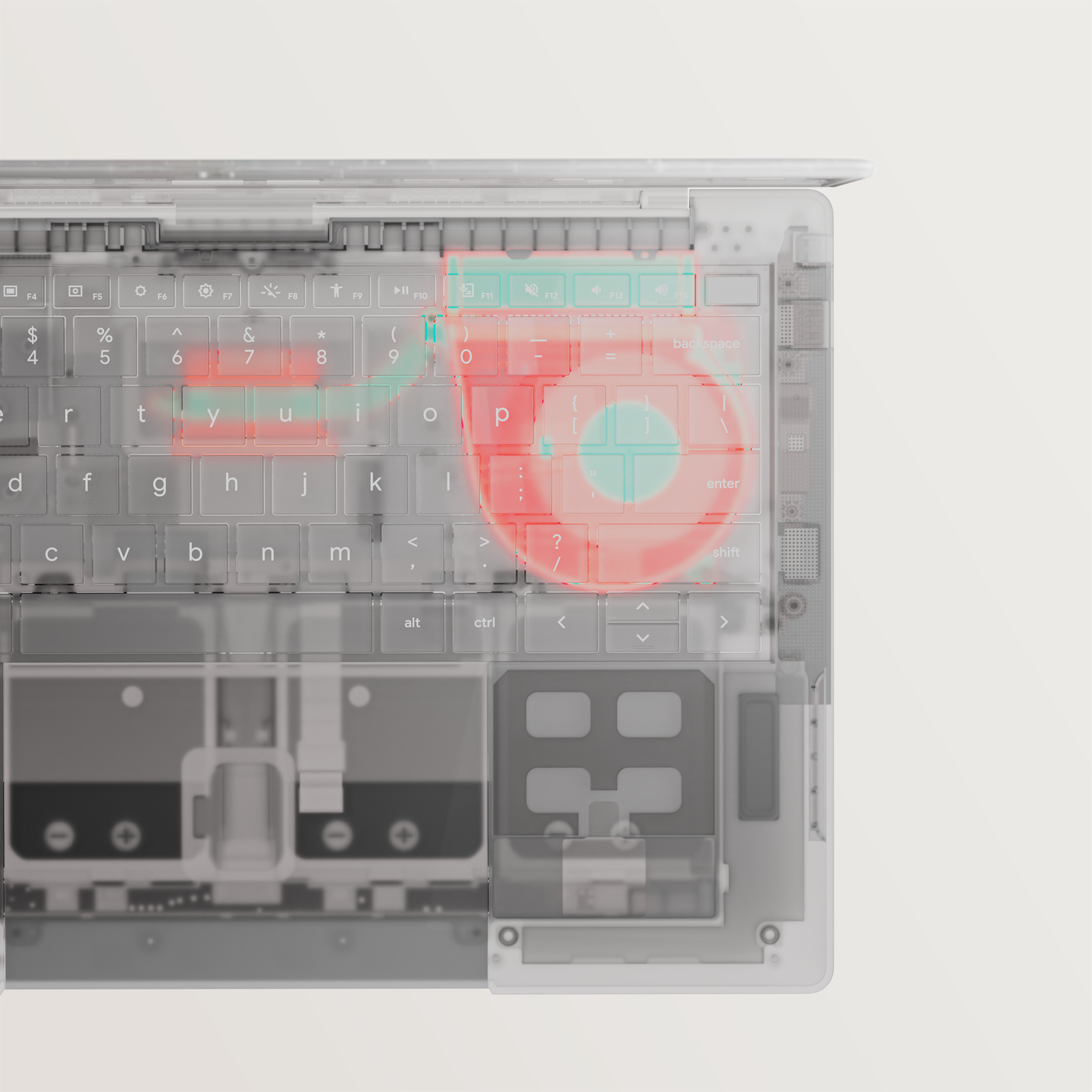
It’s been quiet in my use so far, though the laptop felt warm to the touch later in the session. I’ll take a closer look with a thermal camera during further testing; I don’t have temperature measurements yet.
The U.S. storage choices still leave me wanting more
ASUS has announced two U.S. configurations at the same $1,299 MSRP. Both use Intel’s Core Ultra 5 325 processor, 16GB of onboard LPDDR5X memory, integrated Intel graphics, and a PCIe 4.0 SSD.
The Best Buy version, model CX9406CAA-U5_16.512, has 512GB. The ASUS Store version, CX9406CAA-DH566T, has 256GB. At those announced prices, I’d pay attention to which one is in the cart. My review unit has the 16GB and 512GB combination.
Even 512GB feels chintzy to me in a premium $1,299 laptop. I’d like the option to pay for 1TB or more, especially for photos and video. It isn’t a dealbreaker, but I’d happily have another box to tick for a larger SSD. My frustration is with the U.S. options being offered; I’d like more room to choose a higher configuration.
Vincent’s quick take
I’ve only just set this thing up, and I’m already making a wish list for a bigger SSD. Apparently, that part of being a gadget reviewer transfers to a new operating system without any trouble.
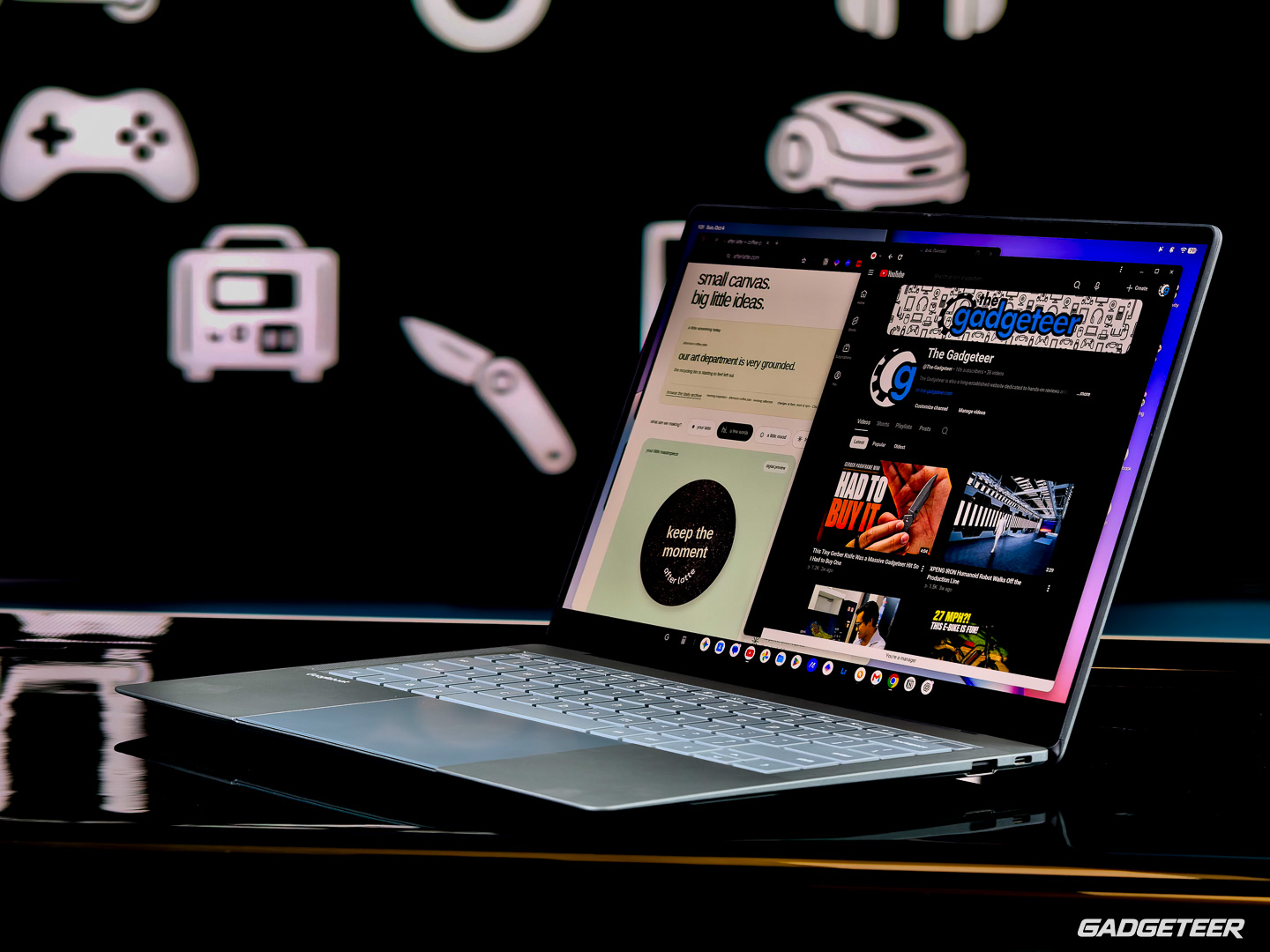
The ASUS Googlebook 14 has made a great first impression where I touch it, look at it, and listen to it. The matte OLED, haptic touchpad, speakers, and light business-laptop chassis give me a lot to like at $1,299. The software is giving me familiar tools and new things to figure out, with a few lessons already learned along the way.
Price: $1,299
Where to buy: Best Buy, 512GB | ASUS Store, 256GB
Now I want to spend more time doing my actual work on it, track the battery, and see how performance and temperatures hold up. Check back for the full review, or subscribe to The Gadgeteer newsletter to keep up with what we’re testing.