A new iPhone is a great holiday gift for a parent, until the setup screens start asking questions nobody warned them about. The fix is doing setup with them, slowly, in the right order, so the phone feels friendly fast. It takes one calm hour.
Apple’s own setup guide and its older adult accessibility guide cover every step below, from the Hello screen to Medical ID. You just bring the patience and the charger.
Start on the Hello screen and set the text size first
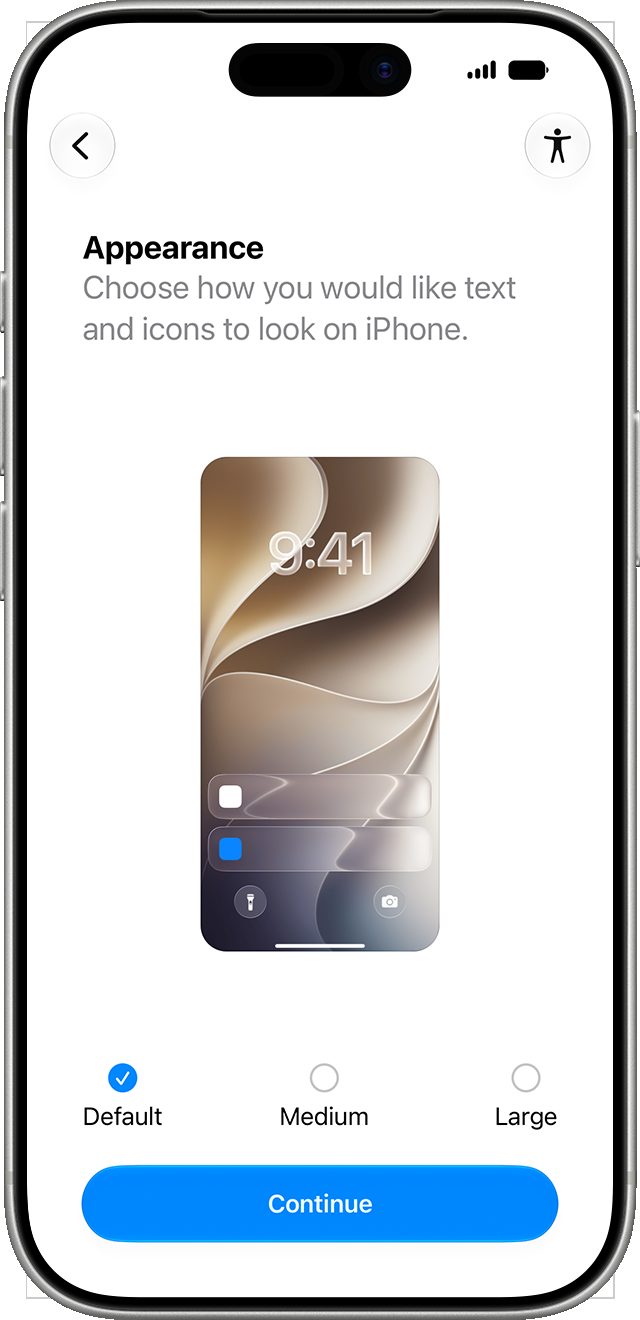
Press and hold the side button until the Apple logo shows, then follow the Hello screen prompts in your language. On the Appearance screen, pick Medium or Large for text and icons, since that choice sets how roomy everything looks later. You can preview each size before you tap Continue.
Bigger text helps immediately. Nobody squints at setup.
During setup the phone also asks about automatic iOS updates, Siri, Screen Time and data sharing with Apple and app developers. Answer each screen instead of tapping past it, since those choices shape how the phone behaves every day after the holidays. Setup choices stick around.
Turn on Face ID, a passcode and the safety basics
Set up Face ID or Touch ID when the phone asks, since a face or fingerprint unlock beats typing a passcode ten times a day. Then set a six digit passcode, because Face ID, Touch ID and Apple Pay all need one behind them. Write that code down together and keep it somewhere safe at home. Paper beats memory here.

Sign in with your parent’s Apple Account email or phone number and password, or create an account during setup if they need one. A verification code may arrive on their previous device, so keep the old phone nearby until setup finishes. Old phone stays close.
Finish the safety screens instead of skipping them, since an iPhone 14 or later explains Emergency SOS and Crash Detection during setup. Pressing and holding the side button later calls emergency services and messages emergency contacts.
Make text, sound and taps easier all at once
Open Settings, then Accessibility, then Display and Text Size, and turn on Larger Text and Bold Text if the regular type still looks small. That same screen holds contrast controls, color filters, Smart Invert and auto brightness, so you can tune the display in one visit. One visit fixes lots.

Add Magnifier for menus, medicine bottles and the tiny print on greeting cards, since it turns the camera into a digital magnifying glass with a flashlight option. Accessibility Reader can then show that captured text in a clean layout with fonts and background colors your parent picks.
For hearing, turn on Live Captions so phone calls, FaceTime calls and web audio get real time transcriptions on the screen. Sound Recognition can flag a doorbell, an alarm or a kitchen appliance beep and send a notification when it hears one. Speak Screen and Speak Selection read text aloud when eyes get tired. Reading help counts too.
If taps land wrong, Touch Accommodations can require a longer touch before the screen responds, and Ignore Repeat can drop accidental double taps. AssistiveTouch replaces tricky gestures with a tap, a chosen gesture or a connected mouse or trackpad. Small changes, calmer tapping.
Voice Control can run taps, swipes and clicks by voice, and Dictation types wherever talking beats typing for your parent. Both live in Accessibility too. No hunting through menus. Everything sits in one menu.
Add health details, reminders and the family safety net
In the Health app, set up Medical ID with allergies, conditions, medications and emergency contacts, since first responders can read it from the Lock Screen without the passcode. Add regular medications in Health too, and the app sends reminders to log each dose on its schedule every day.
Set labeled alarms in Clock for things like morning medication or a daily check in, and add Reminders lists for groceries and appointments. Widgets for Reminders, Calendar and medications put the day on the Home Screen at a glance. Fewer sticky notes everywhere. Daughters and sons can share the lists too, which spreads the remembering around the whole family this season.
Turn on Find My so a lost phone shows on a map, plays a sound and gives turn by turn directions to whoever helps look. The Help Message shortcut can send your parent’s location to chosen contacts with a single tap.
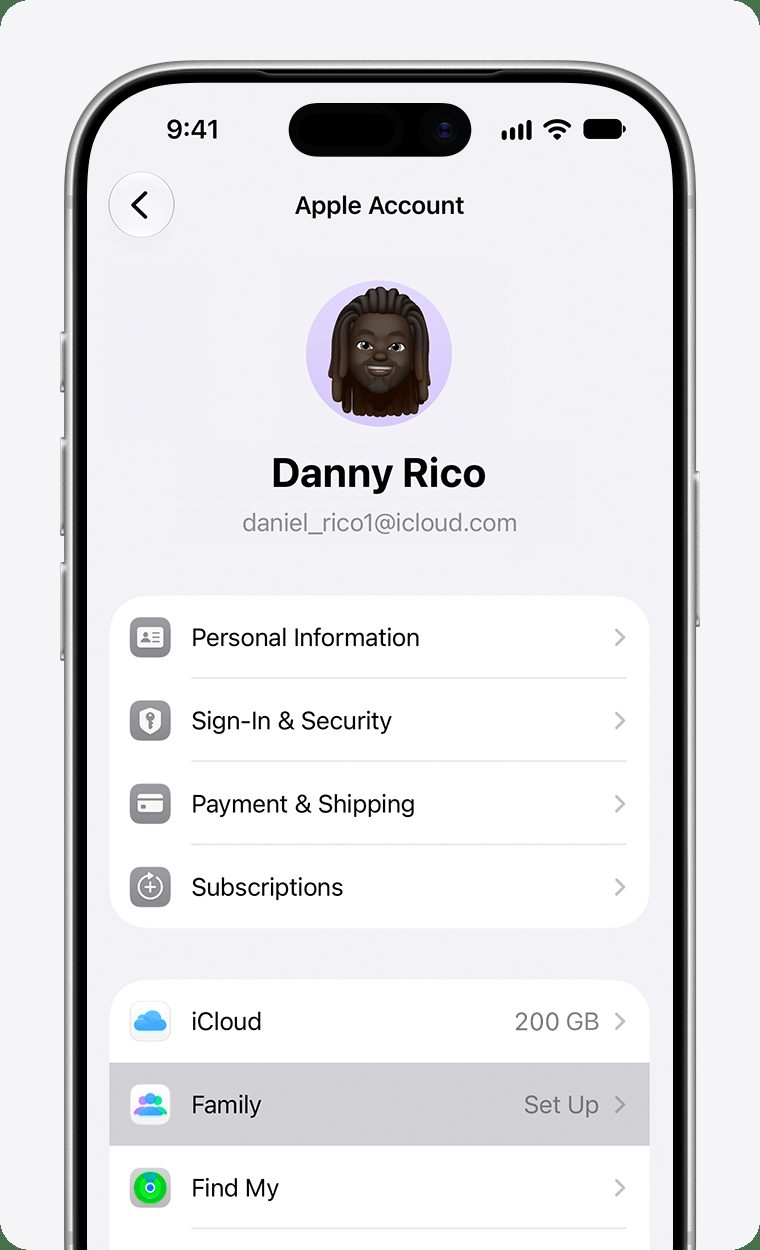
Add an account recovery contact, like you or a sibling, so a forgotten password never locks your parent out for good. That contact only holds a key they can pass back, and they never get access to the account itself. Then set up Family Sharing from Settings by tapping your name, then Family, then Continue. Your group can share iCloud+, Apple Music and Apple TV, plus purchases and location, without sharing one account.
Buy it if your parent wants a phone that feels calm, readable and hard to lose track of this holiday. Skip it if the old phone still works fine and setup help is the real gift.