xTool Studio V1.10 is a desktop update with a clear grudge against waste. Wasted plywood, wasted test pieces, wasted minutes redrawing settings you already dialed in last week. Thirteen additions land in this one, and the biggest ones change how jobs get laid out, carved, and prepped before the laser ever fires.
Three of them earn their keep on day one.
The update is free, with builds for Windows and both macOS families, Intel and Apple silicon. The downloads sit at the top of xTool’s V1.10 release notes.
Smart Nesting fills the gaps you used to throw away
Cut a batch of keychains, coasters, or ornament blanks and the sheet tells the story. Curves leave crescents. Corners leave triangles. Smart Nesting’s Auto Fill copies your selected elements into that empty space on its own, filling the whole sheet or stopping at the count you set, so the offcuts shrink before the job starts instead of after.
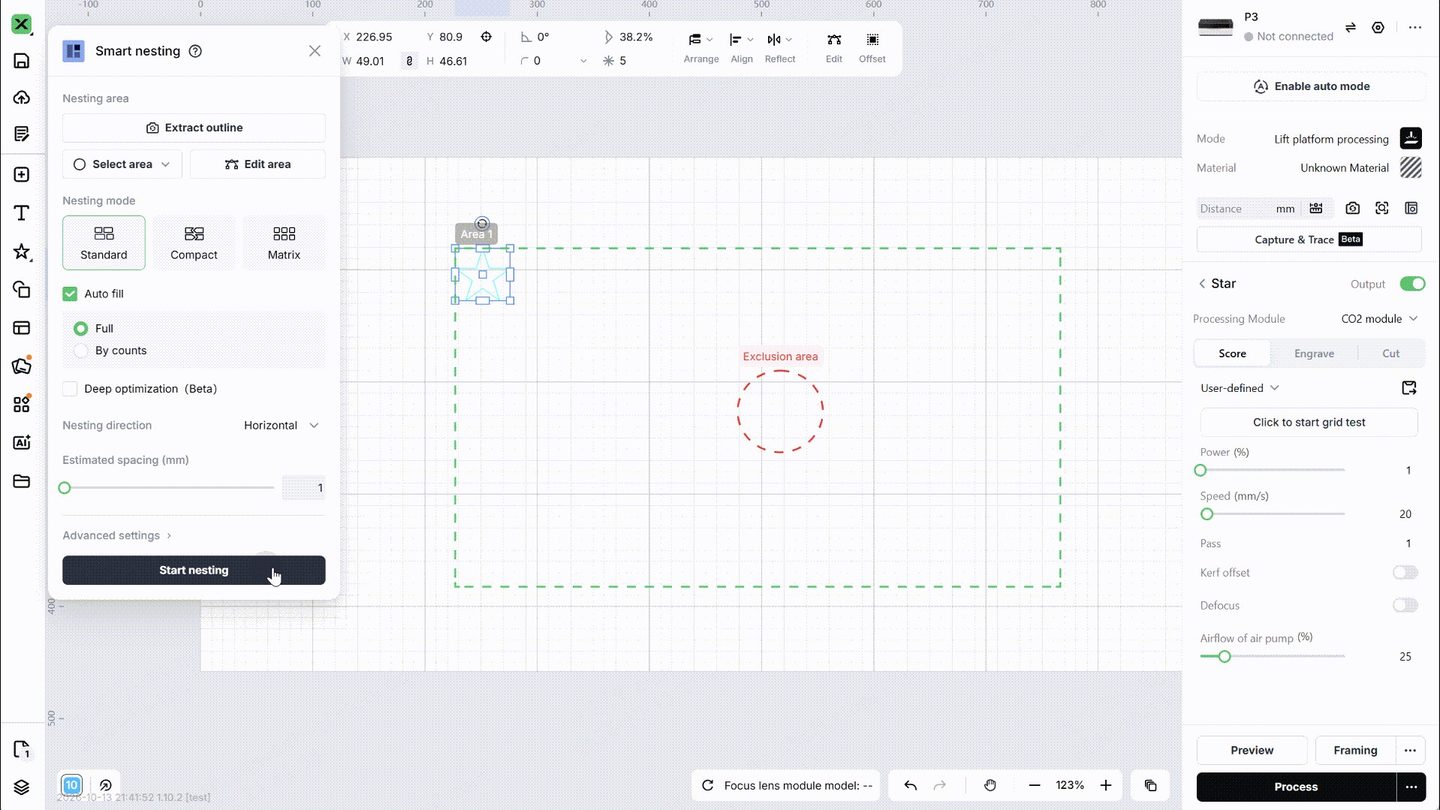
Multi-sheet work gets the smarter version. One camera capture pulls every sheet on the bed, and each sheet nests inside its own zone. Draw the zones yourself with the rectangle, ellipse, or pen tools, mark exclusion zones around knots, holes, and the ugly corner of the board, and the layout respects all of it. Anyone who has priced Baltic birch lately knows what a saved corner is worth on a production run.
Shared edges merge too, still in beta. Parts that sit edge to edge share one straight cut instead of two, which trims cut time and cuts the scorching that doubled passes leave behind. Fill engraving and printed elements sit this feature out.
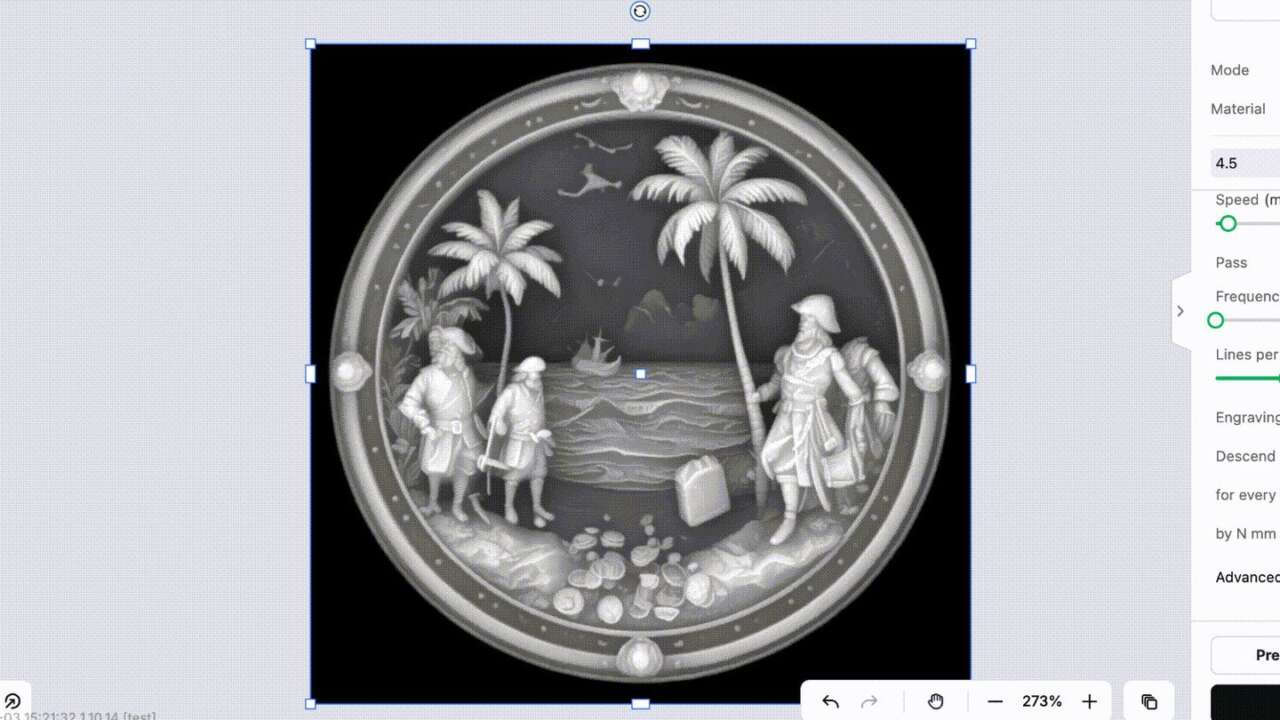
Relief carving gets 1,024 layers to play with
Relief mode now reads 16-bit depth maps, and the layer count climbs to 1,024. Depth maps drive embossing and relief carving, where every shade step becomes a physical step in the material. More layers mean smoother slopes, cleaner faces, and detail that survives in stone, wood, and metal instead of banding into stairs.
New cleaning layers ride along, tidying the shallow passes so fine relief holds its edges. Carve a coin, a plaque, a topographic map: the depth is there now.
Passthrough stops second-guessing your photos
Photo engravers often dither outside the laser software, in tools built for exactly that. Studio’s own conversion then reworks the pattern, and the dots you placed stop being the dots that burn. A new Passthrough image mode settles it. Studio outputs the image pixel by pixel with no processing at all, and your dithering survives untouched.
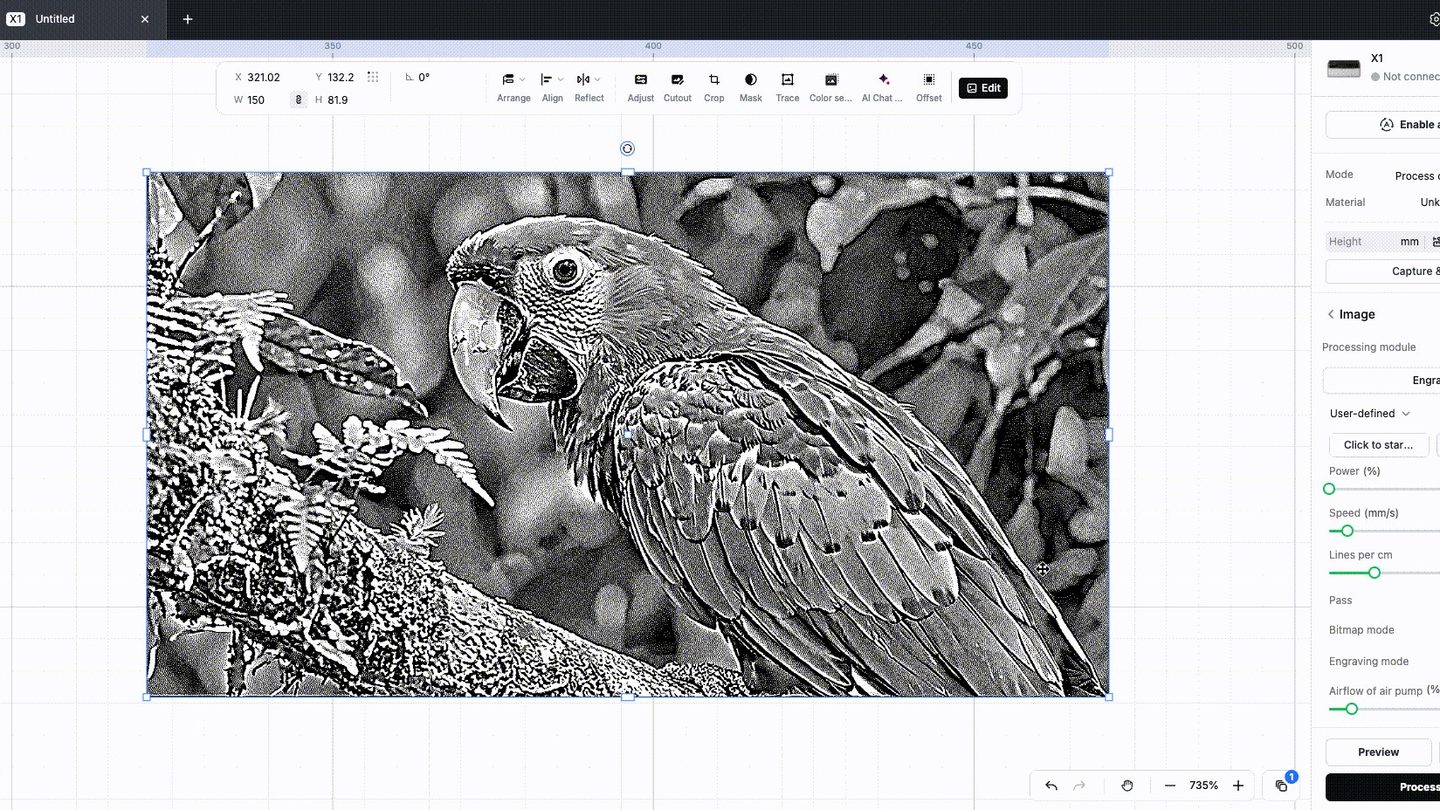
One limit applies: Passthrough takes dithered black-and-white images only, so the prep still happens upstream, in the tool you trust with it. Grayscale conversions and algorithm debates stay in your dithering app where they belong. Studio’s job in this mode is narrower, and better for it: read the file, fire the dots exactly where the file puts them, with nothing reinterpreted on the way to the material.
Materials turn into a shared library
Material settings stop living in your head and your notebook. Studio’s material selection now opens the community library, where other users post the materials they run and the settings that work on them. Apply a shared setup in one click, leave feedback and comments, and check the details before you commit a good blank. Dialing in a new material used to burn a Saturday and a stack of blanks.
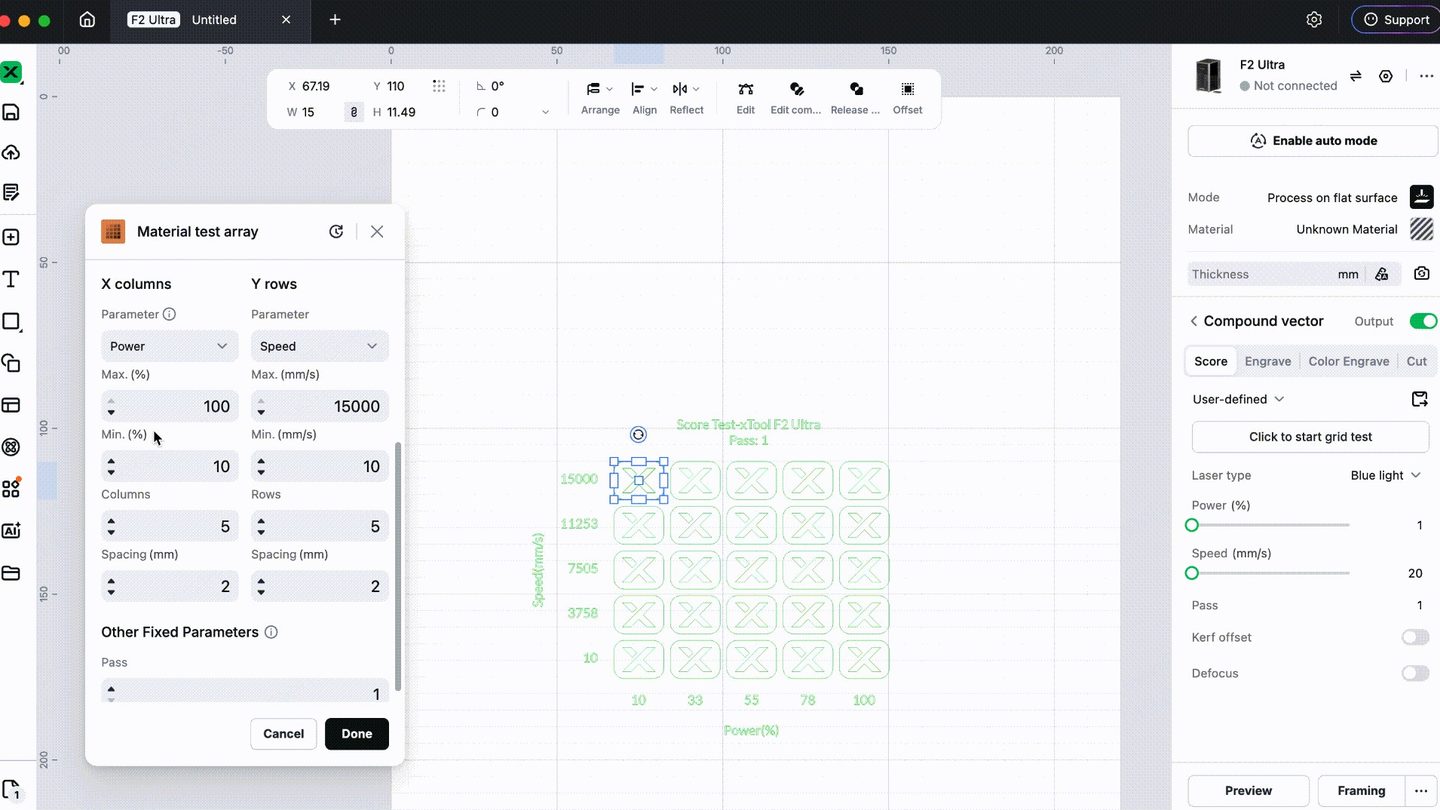
The test grid grows up too. A grid still sweeps power against speed across a scrap piece, but V1.10 adds Other Fixed Parameters, so passes and other locked settings show on the setup and stay editable outside the row and column variables. And material settings move home: build your own materials and save multiple presets there, no machine connected.
The small editor changes add up fastest
Box selection learns direction. Drag left to right and only fully enclosed objects select; drag right to left and the box grabs everything it touches. Batch resize scales a whole group at once, ratio locked or fit to a target. Origin switching lets you pick the XY origin your workflow assumes, and holding Option or Alt scales from the center.
The sidebar stretches full screen for Elements, Applications, Templates, and My Space, with smoother browsing inside Elements. Imports widen as well: several files at once, HEIC photos straight off a phone, and DXF files that arrive with their fills intact instead of stripped to outlines.
Print side gets its own upgrade. Mockups accept your own product photos now, with a product width you set for truer scaling and a wider template shelf. The catch is scope: apparel printing modes, the O1’s DTF and DTG, and the C1’s freestyle, sticker, vinyl, and iron-on modes carry it, while laser workflows skip it.
Describe the project, and the home screen finds it
Home search works by keyword or by image now, reaching across projects, generators, and hubs. Atomm AI goes further. Describe what you want in a sentence, or upload a photo, and Graphic Design builds artwork ready for engraving, cutting, or printing. Structure Build generates laser-cut structures that assemble into storage boxes, shelves, lampshades, and more. One click drops a result into the editor.
New machines and camera tricks ride along
V1.10 adds support for the xTool X1, the big gantry-and-galvo workstation we first looked at in October.
Capture & Trace arrives on the M2, P3, P2S, and P2: set a patterned item in the machine, and the built-in camera lifts the pattern and extracts a cut-ready outline in one tap. Hand drawings, printed art, magazine clippings all qualify, and the outline’s shape and offset stay adjustable before the cut.
The O1 Omni learns lenticular cards, scanning the card’s position, size, and LPI so nobody prints a test chart or aligns by hand. Irregular glass gets official inner-engraving presets for heart-shaped glass, candle holders, and mountain trophies, and a focus compensation pass evens out large-area glass work. White ink reduction now adjusts element by element on the apparel and Omni printers.
New owners get a guided first run as well, a connected onboarding on the M2, O1, and X1 that walks through connection, firmware, laser safety, and calibration before the first project.
Everyone else just updates. The sheet-packing alone pays for the download, and the download is free.