
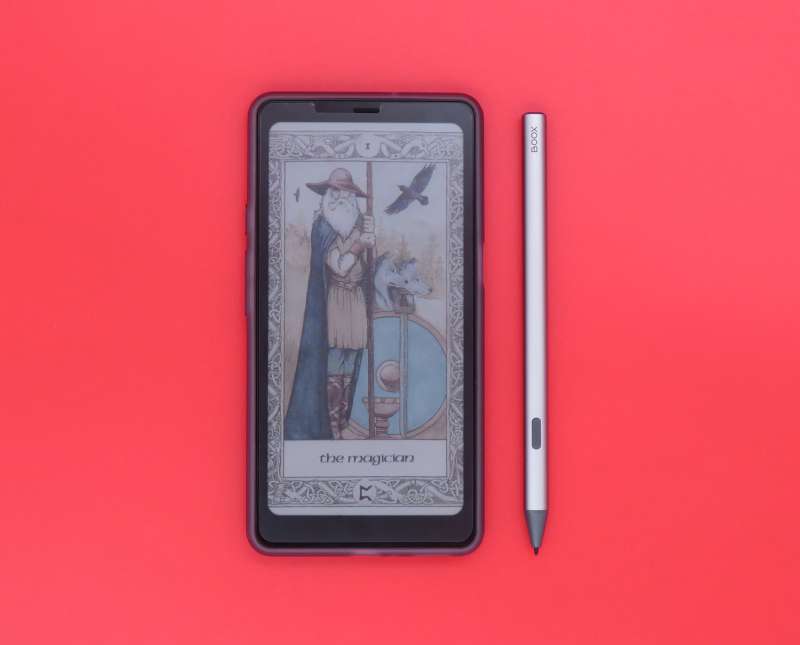
I’m a fan of e-paper devices. My first e-reader was a Sony PRS-505 (from Julie!), and much later, I joined the Kindle ecosystem when the devices were finally affordable. I have gotten a ton of use out of my Kindles over the years, until I upgraded to a Kobo Libra Colour shortly after its launch in early 2024. As an avid tarot enthusiast, the color e-ink display of the Kobo was a game changer, and it left me really wanting a Palma-sized device with two things: a color screen and an active pen. I’ve never managed to get exactly what I want from novel technology before, so to say I was excited about BOOX’s Palma 2 Pro product announcement is an understatement.
After waiting impatiently for the shipment to arrive, I finally had my Palma 2 Pro in hand. Is it everything I hoped for? Let’s find out!
⬇︎ Jump to summary (pros/cons)
Price: $399.99
Where to buy: BOOX | Amazon
What is it?
The BOOX Palma 2 Pro is the latest addition to the BOOX Palma line of phone-sized e-ink Android devices. Although it is phone-sized, it’s not marketed, or meant to be used, as a phone.
What’s included?
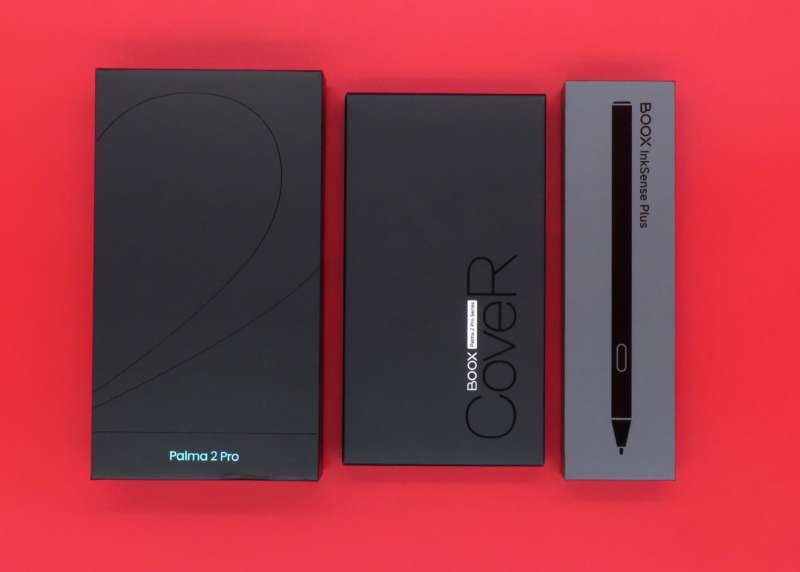
The standard Palma 2 Pro bundle includes the device and a magnetic 2-in-1 kickstand case. For an extra $49.99, you can also get the InkSense Plus pen.
Tech specs
The Palma 2 Pro is, as its name might imply, rather similar to the Palma 2. It shares the same chipset, camera, and storage capacity, but the Pro features some important upgrades, noted in bold.
- 6.13″ E-Ink Kaleido 3 color display with dual-tone frontlight
- Qualcomm Snapdragon 750G octa-core ARM CPU
- USI 2.0 digital pen support, including tilt and 4096 pressure levels
- 8GB LPDDR4 RAM (Palma 2 has 6GB)
- 128GB storage
- 802.11 AC, Bluetooth 5.1, 5G cellular, and GPS
- Hybrid MicroSD and nano SIM card slot
- USB-C data transfer and fast charging
- Multi-mode smart button
- Fingerprint reader
Design and features
The Palma Pro 2
This is the very first consumer e-ink device to feature both a color display and a pen in such a small form factor, and these are the biggest stars of this show, especially since this is a brand-new form factor for E-Ink’s line of panels!
Like most other color e-ink devices, the Palma Pro 2 uses a Kaleido 3 panel. This color technology makes use of a special RGB light filter which sits on top of the e-ink layers. This is more affordable technology than the Gallery 3 panel used by ReMarkable, but it comes at the cost of color depth: the Kaleido 3 tops out at 4,096 colors at 150 PPI. Grayscale content (text and monochrome illustrations) uses 16 levels of gray at 300 PPI.
One of the most common questions I see from prospective buyers in the Kobo subreddit is, “Is color e-ink right for me?” The answer is very subjective and depends on your primary use case(s).
The color depth on the Kaleido 3 isn’t really a problem, unless you consume a lot of detailed photographic content. Since the screen is limited to a little over four thousand colors, every image is reduced to a fixed palette. Between my Kobo Libra Colour and the Palma Pro 2, the color books and other content I use most often is tarot-related, and I’ve found the limited color depth doesn’t detract at all from displaying legible card images.
The RGB layer makes the base panel layers – the background shade of your e-reader with the frontlight fully disabled – significantly darker. This isn’t really a show-stopper, but it doews mean you will find yourself relying on the frontlight more often with a Kaleido 3 display versus a standard grayscale e-ink display, like the Carta models featured in a variety of monochrome BOOX, Kindle, Kobo, and other e-ink devices. The biggest drawback of this is battery life, which is considerably lower with any level of frontlight enabled. LED dimming can also bother some users – although most people can’t see a visible flicker from a partially-dimmed LED, some can, and for some, it’s too distracting (or painful) to be usable.
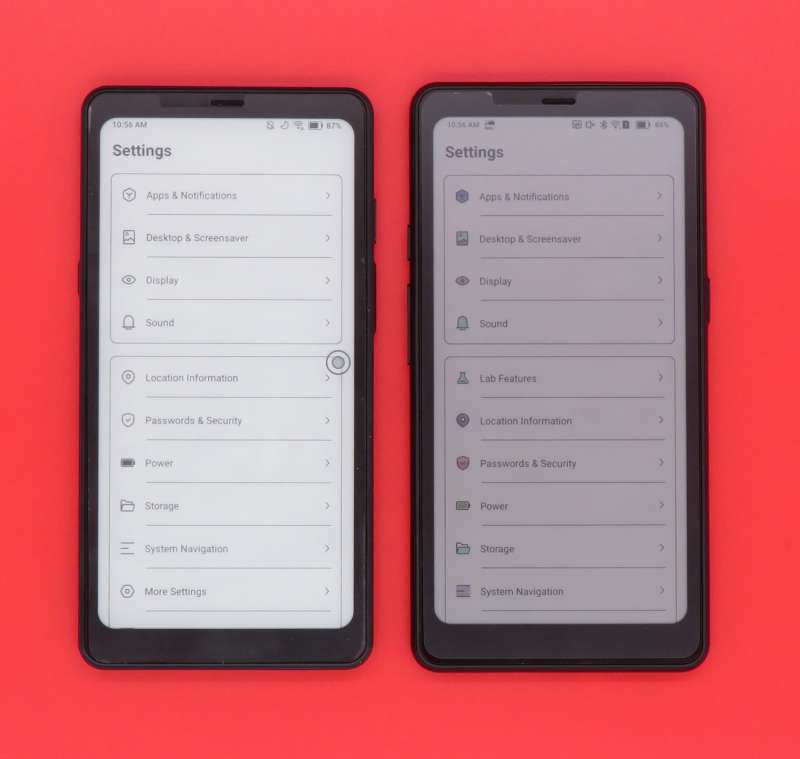
In addition to the dimmer display, the RGB layer also adds a “screen door” effect, which looks as described. This is another matter of personal preference. Some users can’t see the grid at all; for others, it is, again, too distracting to be usable. In my experience, this effect is barely visible on the Kobo Libra Colour and not visible at all on the Palma 2 Pro.
These two quirks of the technology are a bigger factor in user satisfaction than the depth and saturation of the color, from what I’ve observed. For this reason, it’s a good idea to make sure you’re clear on your chosen retailer’s return policy before buying any device with color e-ink.
The addition of both 5G and GPS make the Palma Pro 2 a pocketable mobile tablet, but it is not certified for voice calls. The added radios are to faciliate data for your device, and while you can probably manage to get some sort of voice calling and/or SMS working, you should never rely on this for emergency mobile communication.
This is a double-edged sword: without GPS, Android will have a much harder time tracking you everywhere. With GPS, the Palma is much more functional on-the-go, and you should be able to use high-security apps (like banking), with geolocation requirements, without any issue.
It’s a little annoying BOOX opted for a hybrid slot (located on the device’s bottom edge) instead of either two separate slots, or a dual slot, to simultaneously use both cards. That said, the 128GB internal storage is more than enough for a sizeable collection of ebooks.
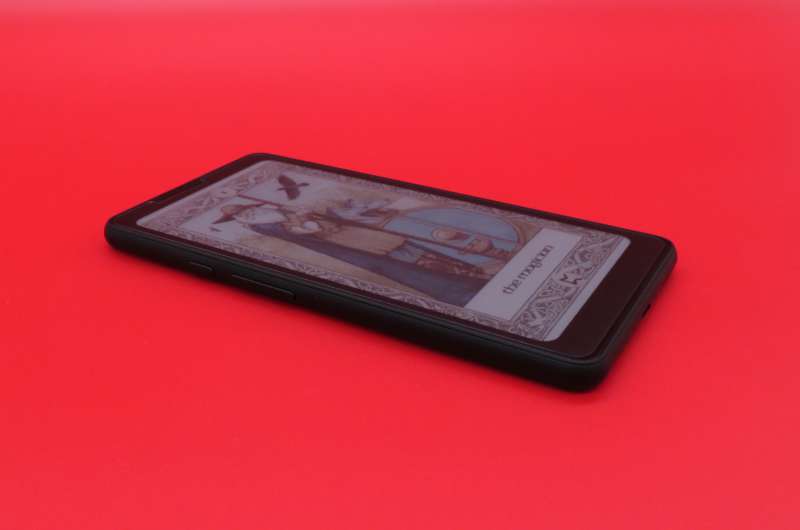
The mappable smart button on the left side of the device supports three discrete functions by clicking, double-clicking, and holding the button. This is really useful for accessing various system shortcuts you frequently use.
The volume buttons, like other BOOX hardware, can also function as page navigation in supported applications.
The power button features a fingerprint reader for biometric authentication. To shorten my Palma 2 review’s commentary on this: I don’t recommend using biometric authentication of any kind (including FaceID on iOS devices) to unlock your physical device. It’s generally safe for unlocking individual apps or integrating with security built into your banking and authenticator apps, but it’s a bad idea to use it for your device unlock. You can read more about this subject in my Palma 2 review.
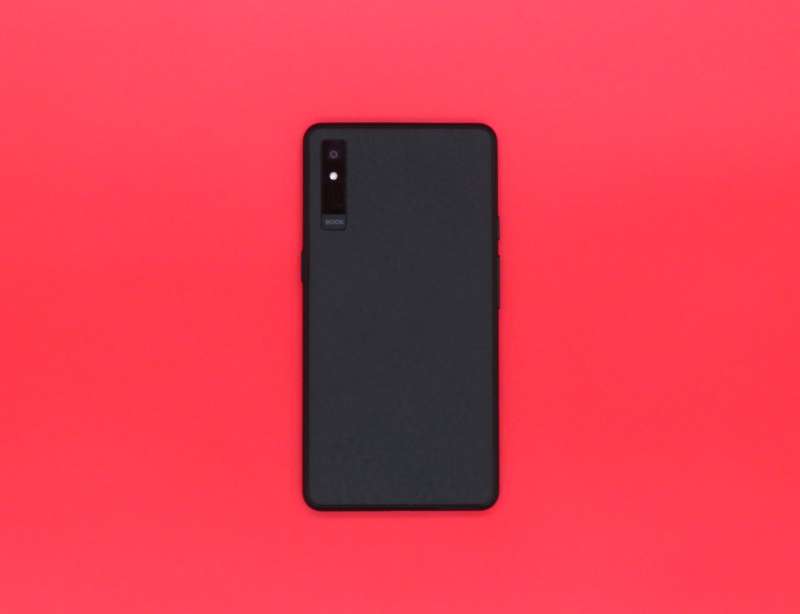
The camera is just as underwhelming as previous Palma models. It’s mostly intended for taking photos of documents for the inbox OCR tool, along with scanning QR codes. I’ve struggled to get it to read QR codes with annoying frequency. I really wish BOOX would implement decent camera firmware with more reliable autofocus. As it stands, the camera is almost pointless enough to just exclude it from the design entirely, which would also reduce the MSRP a bit.
The InkSense Plus stylus
BOOX went with USI 2.0 for the pen tech on the Palma 2 Pro, which is an open-source protocol developed by the Universal Stylus Initiative. These pens are mostly used by a variety of Chromebook devices. The stylus charges via USB-C and features a side button, which functions as an eraser in pen-enabled apps. There’s no apparent means of customizing the functionality of this button.
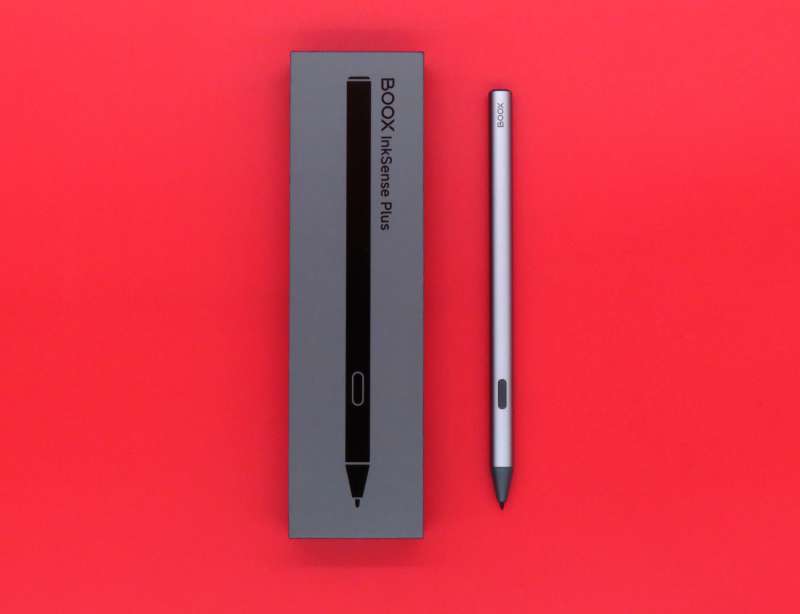
I’m disappointed this pen doesn’t feature an eraser opposite the nib. I have a Staedtler Noris digital jumbo I use with my ReMarkable 2, and I really like the soft eraser.
There is an endless debate between battery-powered active pens and EMR (electromagnetic resonance) passive pen technology pioneered by Wacom in the 1980s. In objective terms, no powered pen is capable of the same low latency enjoyed by those with EMR-equipped devices. This may or may not be an issue for you. The faster you write and draw by hand, the more noticeable the latency. I am a very fast thinker and writer, and my writing with any powered pen (and I’ve used many) is less intelligible compared to my EMR devices.
BOOX previously exclusively used EMR tech. I suspect the move is to bring the potential features of the pen more in line with the competition. I’d love to see the Palma 2 Pro also offered with EMR tech, but the display is still such a niche component, I don’t see this happening unless an OEM specifically asks for it.
The overall writing experience on the Palma 2 Pro is about like trying to write on a notepad held in your hand, except it’s more rigid. You probably won’t do much handwriting beyond doodling and scribbling out notes on-the-go, because the device just isn’t large enough. I have absurdly tiny hands and can rest my hand on the screen to write, but only just.
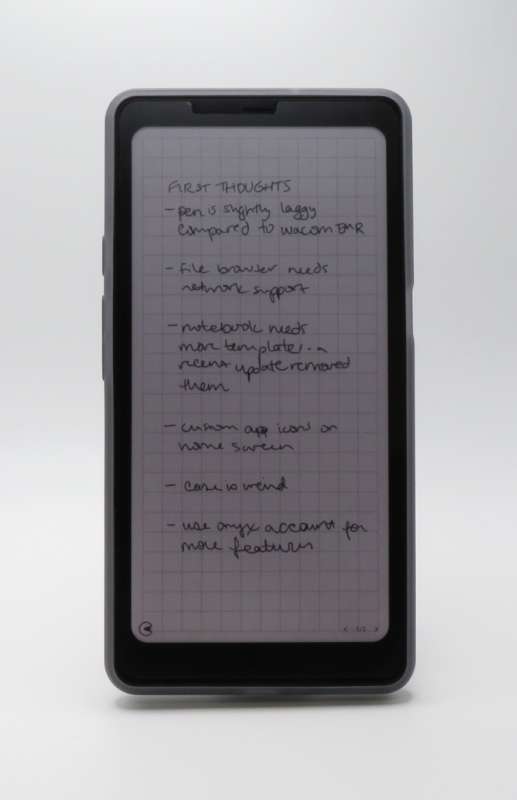
I have no idea how this might work, but it’d be cool if BOOX engineered some sort of origami cover which unfolds to become a larger writing surface.
I’ve been unable to find a titanium nib for this particular stylus, mostly because it’s only supported by three BOOX devices (Palma 2 Pro, Go 7, and Go Color 7 Gen II). I’m hoping options will eventually appear from third parties.
As an aside for those interested: a titanium nib will give you the feel of a high-quality gel rollerball and is excellent for users who write and draw with no pressure. If you’re an artist who does pressure variable sketching and designing, the rigidity of the titanium applies considerable excess force to the pressure sensor and will dramatically reduce the lifespan of the stylus.
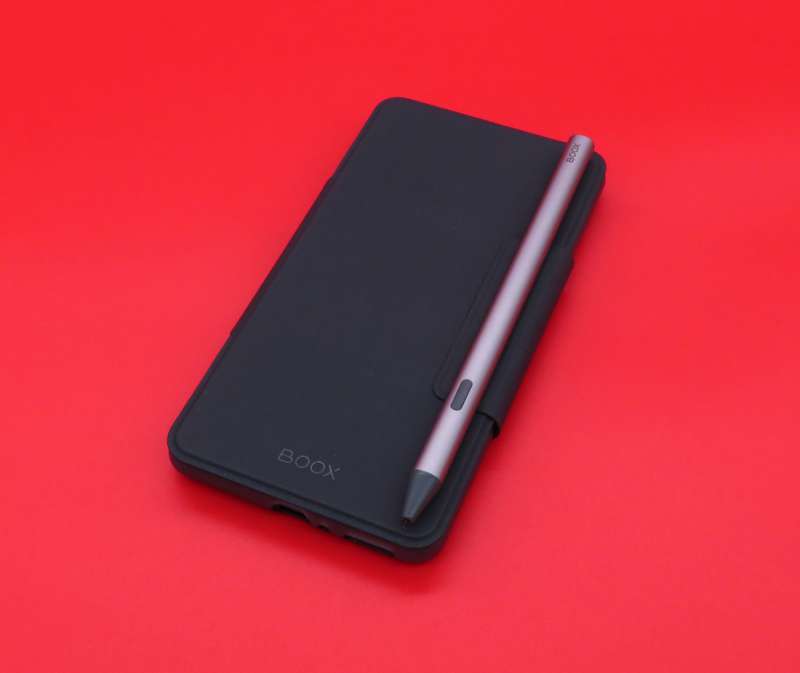
Overall, I think the pen is overpriced for its limited functionality and features. I really wish it also had a pen loop, because the pen magnetized to the front of the case just isn’t strong enough to guarantee you won’t lose it. I also would prefer if BOOX designed a case meant to securely hold the pen when not in use, which brings us to…
The 2-in-1 case
The official BOOX case is an unusual design. Like many magnetic folio cases, there is a separate flexible TPU shell for your device, which then attaches magnetically to the folio.
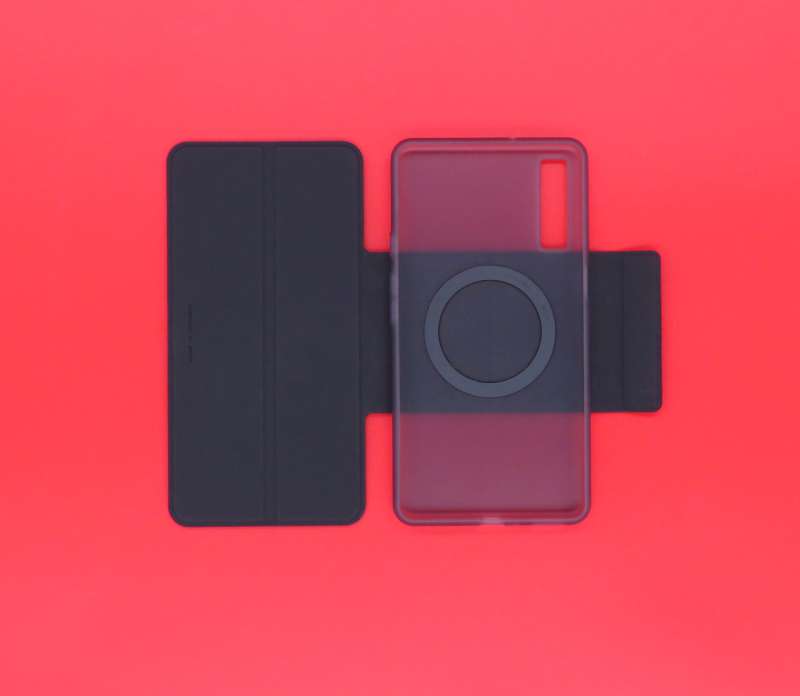
Unlike most folio cases, the back of the folio only covers the magnetic portion of the TPU shell. I’m not entirely sure what drove this design decision. It certainly stands out, but it also makes it a bit harder to properly align the phone, so the wrap often ends up cattywompus on the back side.
I do like how the case is easily removed and set aside. E-ink panels are rather fragile and vulnerable to permanent damage from pointed pressure, so a front cover is an absolute must when stowing the device. It gets in the way while reading, though, and the 2-in-1 magnetic design of the case makes it easy to accommodate both needs. The metal ring embedded in the TPU shell is the same dimensions as Apple’s iPhone MagSafe spec, which makes it easy to use your existing magnetic mounts with the device in the shell.
The case supports holding the Palma 2 Pro up on its side, but it cannot be adjusted to hold the device upright. This seems like a design miss to me. The unusual back half of the wrap could make it possible to use the device in both positions, but the magnetic polarity of the ring on the case prevents a secure upright hold.
I also noticed the edge of the magnetic flap on my case started to fray after only about a week of heavy use, which is disappointing.
Overall, I’m not very impressed with the case. There are full coverage 2-in-1 magnetic cases on Amazon which can also hold the device up on its side, and I think the full-length fold of the back of those cases is superior to BOOX’s design.
The software
The operating system
The Palma 2 Pro runs on Android 15. Like the previous Palma models, you shouldn’t expect BOOX to ever release a major version update in the future. The OS itself is a pared-down build of Android. It does have the Google Services Framework (GSF) and the Play store installed, so using your favorite Android apps is straightforward.
The system interface and inbox BOOX apps are all designed for e-ink, with monochrome shapes and text and minimal color using a limited palette. This makes the overall experience nice, but it doesn’t carry over into third-party apps. It’s also not possible to set custom app icons on the home screen. I hope BOOX changes this with a software update – the ability to use BOOX’s own icons with my preferred browser and file manager would be great!
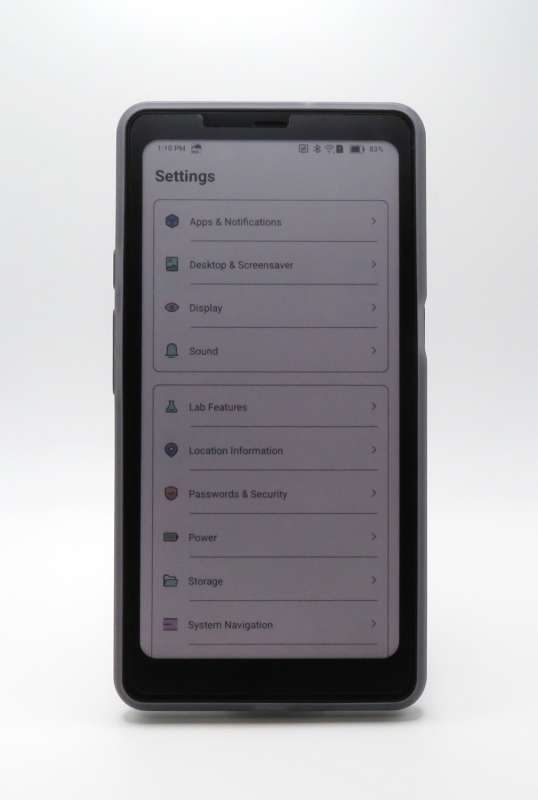
BOOX also adds some system-wide gestures which make it easy to control settings like display contrast and frontlight brightness and color temperature. I really like this feature, since it makes it easy to adjust the display while I’m reading in different environments.
Another unique feature of BOOX devices is its NaviBall overlay. This enables quick access to different system-level tasks, like taking screenshots and refreshing the display. Depending on how many different system shortcuts you need, you might not use the NaviBall, in which case it’s easily disabled in the system settings.
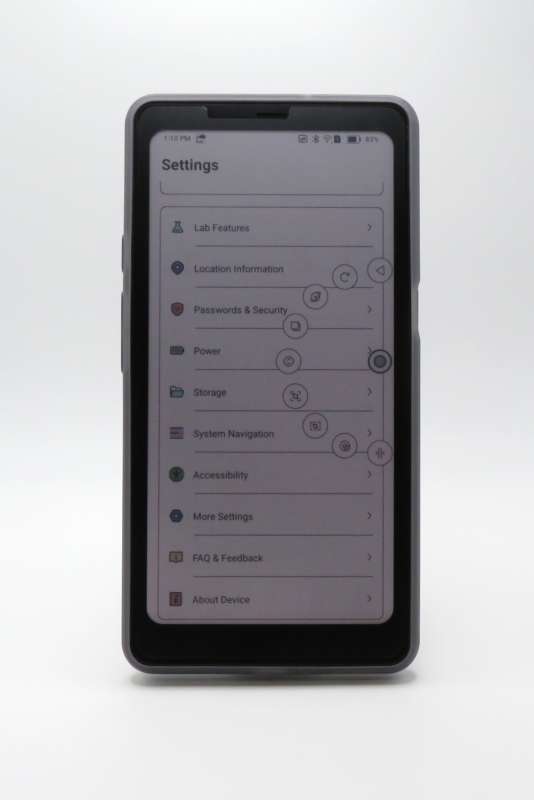
BOOX runs its own cloud account platform for some sync services, but a BOOX account is not required to use any the features of the OS or the built-in apps.
The included software
BOOX includes an assortment of applications with the same e-ink-friendly interface, so you can accomplish most basic tasks without needing to use third-party applications.
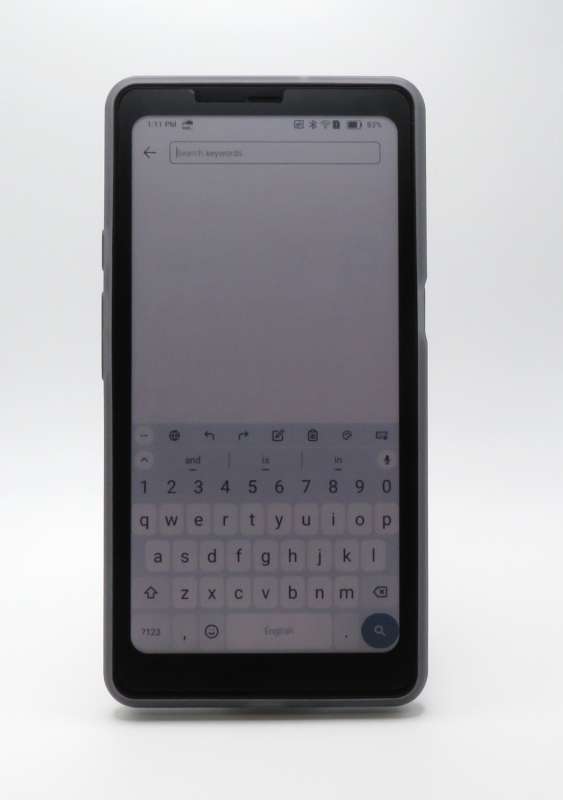
The built-in keyboard is very simple. It supports handwriting, but it doesn’t support swipe word input. I’ve tried several third-party keyboards, and the biggest challenge is how none offer a monochrome theme with solid black key outlines. Turning up the color contrast makes FUTO Keyboard usable, but only just.
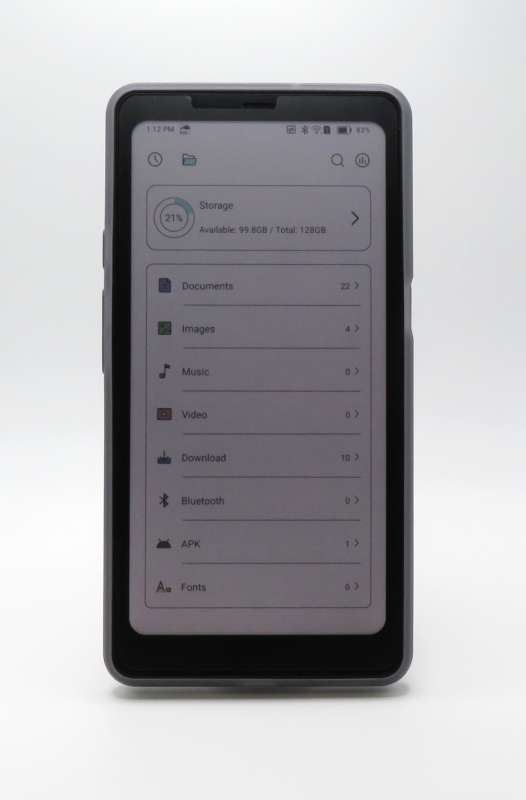
The file manager is very bare-bones. It does a good enough job making it easy to manage local storage, but it has no support for network shares or online storage services. I really would like to see BOOX add even basic network share support to its file manager. SMB is the standard for both Windows and Mac file sharing with robust native Android support now, so hopefully we’ll see this added in the future.
Both the Palma 2 and Palma 2 Pro include BOOX’s own AI chat app, which relies on either OpenAI or Google Gemini (user’s choice). It’s unclear whether BOOX will, in the future, allow users to add their own backend LLM services.
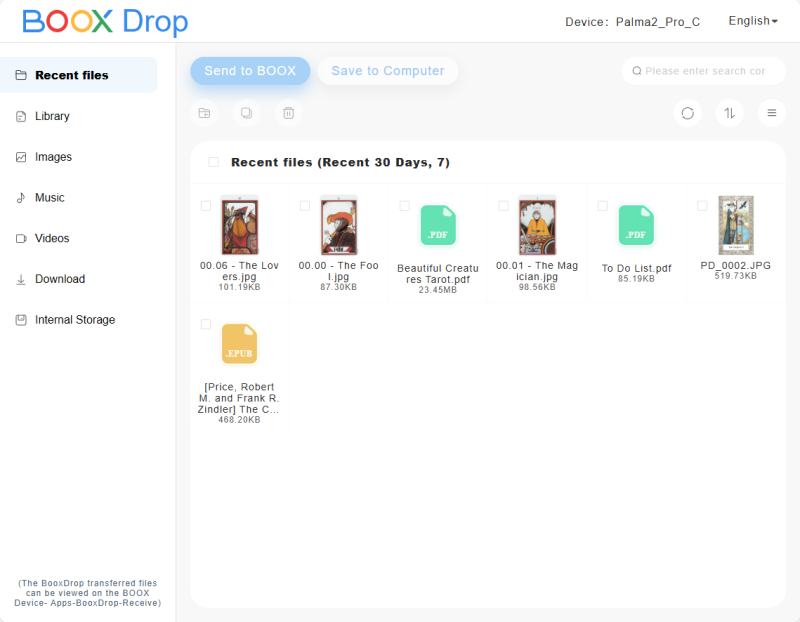
BOOXDrop is a BOOX-specific app for easily sharing files with your BOOX devices. This utility spins up a self-contained web server, allowing you to manage your device’s files from any compatible web browser.
The central software feature of all BOOX tablets is the Library app and accompanying NeoReader viewer, and the second central feature of all pen-enabled BOOX tablets is the Notebook.
NeoReader – the all-in-one eBook reader
I’ve been very happy with NeoReader as a general viewer of all sorts of digital document formats. I produce my own EPUBs and interactive PDFs, and I’ve had no problems using advanced features of either in NeoReader.
The size and aspect ratio of the Palma line is ill-suited for displaying standard letter-size PDFs without a lot of zooming and scrolling, but it’s great for PDF scans of deck-sized tarot books.
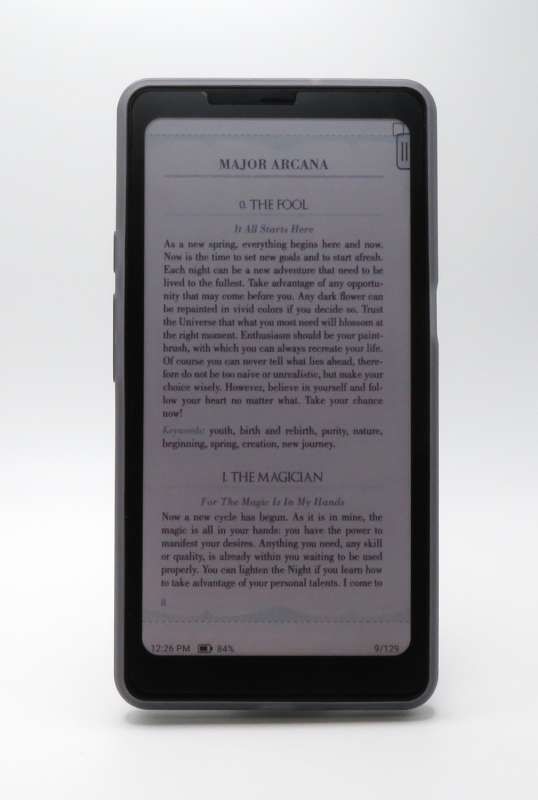
I’ve also used my large digital archive of tarot decks to make notebooks for some of my decks, and while it’s possible to write over images as a separate layer, the input lag is higher than normal, so I don’t really recommend it.
For general reading, you’ll want to source your ebooks in a real purpose-built format like EPUB or AWZ. NeoReader also offers basic Markdown support, but it can’t build a navigation tree from anything but the first header level as the table of contents.
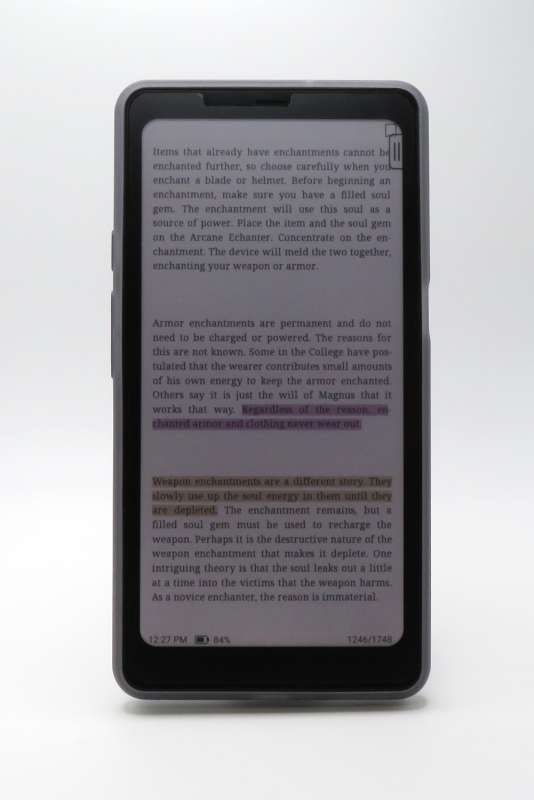
NeoReader makes it easy to toggle the stylus between handwriting and highlighting, with the latter also featuring translation and dictionary lookup. This mostly works well, but I’ve noticed the software struggles with palm rejection compared to the Notes app. This makes it impossible to use PDFs in NeoReader as notebooks, unless you cover your hand before trying to write.
Aside from the limited table of contents with Markdown files, I haven’t found a need to search for alternatives to NeoReader. BOOX has done a good job developing and maintaining this app.
Notes – because it’s what works best
The built-in BOOX Notes app is excellent compared to what I consider its biggest direct competition – the ReMarkable platform. There are plenty of notebook apps for managing digital data across all your devices and platforms and services, but not many are specifically oriented around pen input.
In fact, so far, none of major contenders I’ve tried support pen input as well as the native Notes app. OneNote at least supports pen input, but it doesn’t render properly until after you’re done writing, which makes it impossible to use larger tool sizes effectively.
With the native Notes app, I was able to quickly make a To-Do checklist template with nothing more than a copy-pasted box and a title written with the marker tool. I exported this notebook page as a template, making it very easy to reuse for new notebooks.
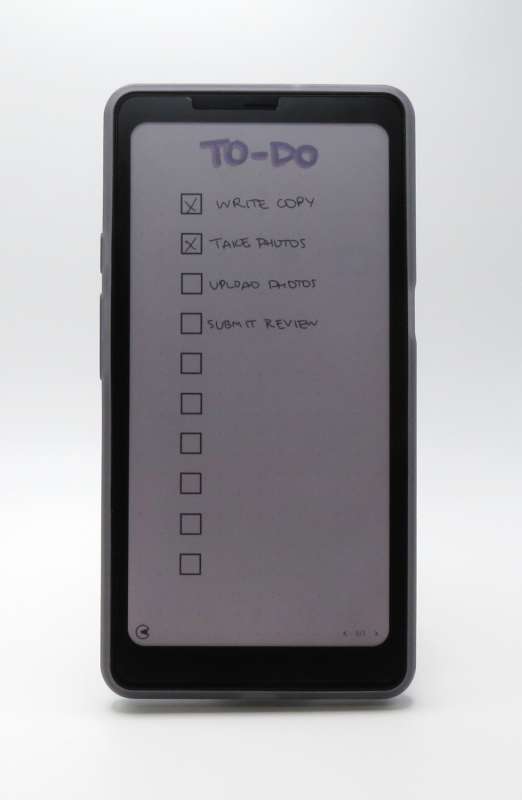
This is very nice for making other templates with geometric shapes. The built-in shape tools enable constructing diagrams and forms quickly.
Another excellent feature of the Notes app is its broad support for both cloud services and your own WebDAV server. The cloud support includes Google Drive, DropBox, and OneDrive, alongside several Chinese providers. It also features support for syncing with Evernote and OneNote, but I know firsthand just how fragile OneNote notebooks are, so I haven’t tried this particular feature.
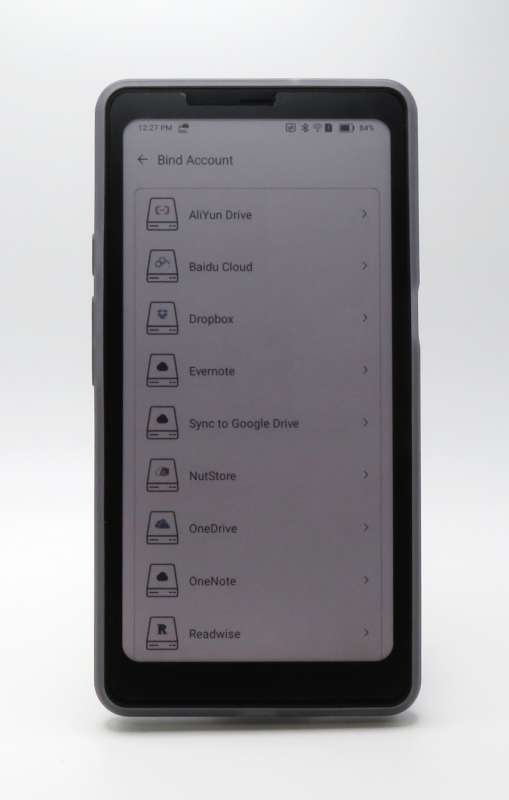
WebDAV support is more than enough for backing up your notes. Syncing with any regular storage provider creates PDFs for each notebook, making it very easy to go through your content on your computer, if necessary.
One thing I don’t like so much about the Notes app is how its method of PDF export seems to make a PDF which can’t be properly edited in any application other than Acrobat itself. Photoshop loads the layers as an image, while Illustrator and Affinity Publisher load nothing but the dot grid background layer. I’m not sure why this is, but it’s a small annoyance.
The third-party app experience
Third-party apps are where the benefit of color e-ink really shines, because so many Android apps use Google’s Material design language, which doesn’t use much contrast between controls and other UI elements. The color display makes it easier to navigate through various Android apps without spending time configuring the system-wide e-ink optimizer, although you’ll probably still want to optimize the apps you use most often.
You shouldn’t run into many problems with Android app compatibility, especially with the addition of GPS. The Palma 2 Pro is equipped with the radios and sensors various apps expect. The StarLink app, for example, requires both GPS and a gyroscope to support its self-service features for ensuring the best terminal position, and it runs great on the Palma 2 Pro.
As I previously mentioned in my Palma 2 review, I’ve been Google-averse for more than a decade now, and if you are, too, I recommend using F-Droid to install Aurora, which is a Google Play storefront app with support for anonymously downloading app packages directly from Google’s CDN.
One of the biggest advantages of BOOX e-ink devices over more purpose-built platforms is the flexibility afforded by installing whatever popular Android apps you use. It means your overall device experience is easier, because things like copying files and backing up data are made trivial by the expanse of apps for every setup imaginable.
Pros
- Color screen enables easier third-party app navigation
- GPS enables more app compatibility
- Included reader and notebook apps are excellent
- First e-ink device in its class with pen support
Cons
- OS needs some more refinement
- Kaleido 3 color e-ink display is dim with frontlight off
- 2-in-1 case is not well-designed (or durable)
- Pen latency is too high for fast writing
Final Thoughts
The Palma 2 Pro is a worthy addition to the Palma family of pocketable e-ink tablets. The Kaleido 3 color e-ink panel has some drawbacks, and depending on your personal primary use cases, you might be happier with the Palma 2.
If compatibility with all your favorite Android apps is important, the Palma 2 Pro has broader support for apps with specific sensor and radio requirements, and the color display makes third party apps much easier to navigate. If you mostly read ebooks and care a lot about battery life, you’ll probably be happier with the Palma 2.
The pen is okay but not great, so you might consider other UPI 2.0 stylus options. If you’re waffling on the Palma 2 versus the Palma 2 Pro because of the pen feature, it’s mostly good for quick notes. Don’t expect to hand write anything long form, or even notes during a meeting, without some frustration at the pen’s latency.
The case is good enough, but I have a feeling I’m going to end up buying one of the third-party cases now available.
I really want to see major Android software publishers start thinking about e-ink devices. Microsoft, for example, has a variety of Android apps, and none are easily usable on a grayscale e-ink device. Google’s own UI framework should enable drawing the UI with black borders around all controls, for example. That single change would make most Android apps significantly easier to use with e-ink devices.
My unicorn pocketable e-ink notebook device still doesn’t exist. The Palma 2 Pro comes tantalizingly close, but the use of UPI 2.0, rather than EMR, as the pen tech means the writing experience isn’t what I know it could be. That being said, I love my Palma 2 Pro and have found myself using it more often for reading and doodling than my Kobo Libra Colour, because it’s so pocketable and portable. This being the first device of its class on the consumer market, it’ll be fascinating to see what, if any, competition appears this year.
Price: $399.99
Where to buy: BOOX | Amazon
Source: The sample of this product was provided for free by BOOX. BOOX did not have a final say on the review and did not preview the review before it was published.

HP 14 Laptop, Intel Celeron N4020, 4 GB RAM, 64 GB Storage, 14-inch Micro-edge HD Display, Windows 11 Home, Thin & Portable, 4K Graphics, One Year of Microsoft 365 (14-dq0040nr, Snowflake White)
(as of April 9, 2026 11:23 GMT -05:00 - More infoProduct prices and availability are accurate as of the date/time indicated and are subject to change. Any price and availability information displayed on [relevant Amazon Site(s), as applicable] at the time of purchase will apply to the purchase of this product.)

Gadgeteer Comment Policy - Please read before commenting
I enjoyed how your review of the BOOX Palma 2 Pro dives into both practical features and real‑world usage – the way you balance color performance, handwriting, and even LTE capabilities helped make it feel like a device I could really imagine using. You tested it with thoughtful detail. Quick question: after spending time with it, what feature surprised you most in everyday use?