
An old bookmark opens in Chrome, but this time a warning gets in the way. The browser says the site doesn’t support a secure connection. Before you reach for the button that lets you continue, check what you’re opening. A public website and your router’s local setup page fall into different categories.
Google has been moving Chrome toward asking permission before opening public sites over unencrypted HTTP. Its October 2025 announcement targeted October 2026 for the default change. You can already check the protection in Chrome’s settings; whether you see a particular prompt also depends on your configuration and the site.
You don’t need a new laptop to deal with the warning. If an aging router still serves its admin page over HTTP, a current Wi-Fi 6 router with a proper HTTPS admin page is the hardware fix, not a browser add-on.
Amazon alternative: TP-Link Archer AX21 AX1800 Wi-Fi 6 router
Price: $51.99
Where to buy: Amazon
What the warning is telling you
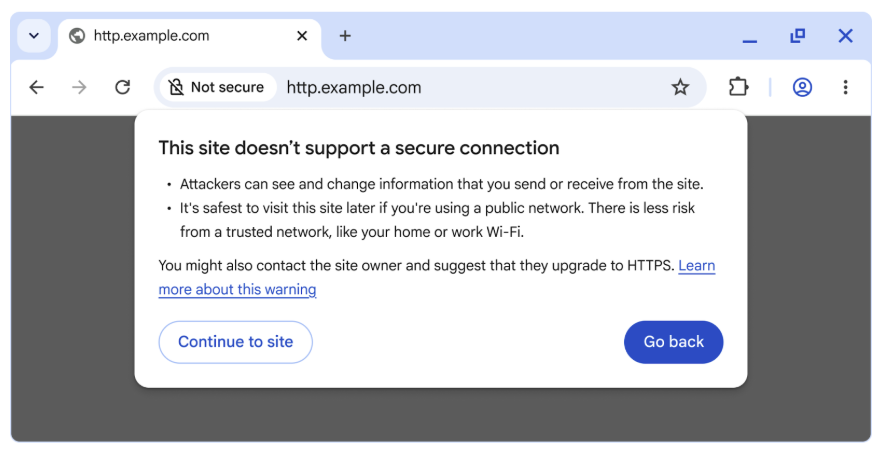
Chrome’s Ask-before-HTTP guidance describes a specific situation: the browser couldn’t connect using HTTPS, but thinks an HTTP connection may work. It asks before taking that less protected route.
A destination can eventually load with HTTPS and still trigger the warning. A link can pass through an unencrypted redirect first. The warning can flag that intermediate step, so seeing HTTPS at the end doesn’t make the earlier connection harmless.
For an old bookmark, go back and find the organization’s current official address. Check the domain carefully, open its HTTPS page, and save a replacement bookmark after confirming you’ve reached the right place. If its site still needs HTTP, contact the owner rather than turning off protection across your browser.
Why your router page is different
Google’s public-sites setting excludes private destinations such as local IP addresses and intranet names. A router page at an address such as 192.168.0.1 therefore doesn’t fit the same scope as a public website.
That exception doesn’t encrypt the router connection. Google notes that someone on the same local network can still pose a risk. Use your device maker’s documented setup address on a network you trust, and treat an unexpected destination or unfamiliar login page as a reason to stop.
Check the setting without switching it off
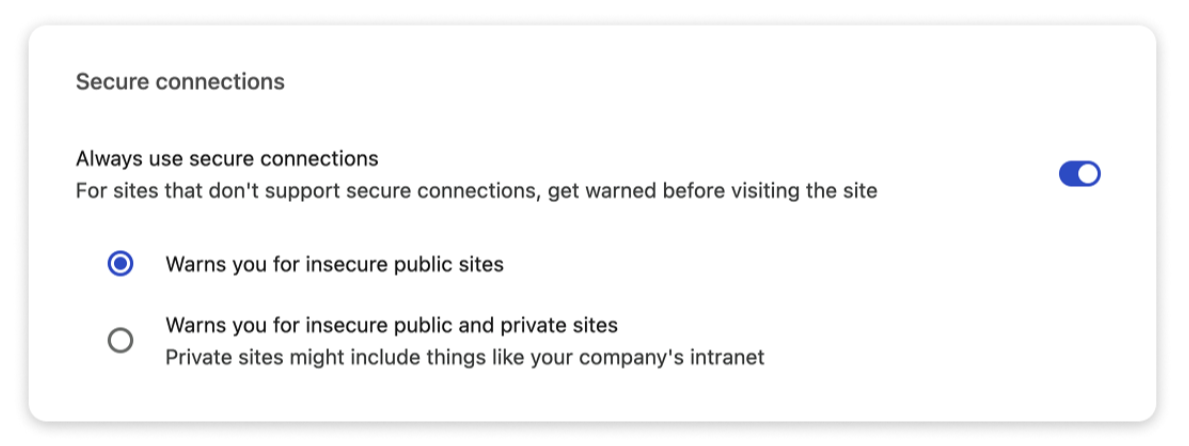
On a computer, open Chrome’s menu, choose Settings, then Privacy and security, then Security. Under Secure connections, look for Always use secure connections. Google’s current instructions list two options: warnings for public sites, or warnings for both public and private sites.
The broader option can explain why a private device page also produces a warning. Check which scope you selected before assuming a browser update broke your router. Chrome’s documentation also says it preserves a previously chosen setting when the default changes.
A secure connection still needs the right destination
HTTPS protects the connection, but you still need to check the site’s name. Google’s connection-security guide cautions users about personal information even on securely connected pages.
Also pay attention to the wording. “Your connection is not private” is a separate error involving the site, network, or device. A red Dangerous warning is another category, associated with an unsafe site. Don’t treat either as a routine old-bookmark prompt or enter personal information to get past it.
Amazon alternative: TP-Link Archer AX21 AX1800 Wi-Fi 6 router
Price: $51.99
Where to buy: Amazon
Keep the protection enabled, replace outdated links when there’s a verified secure address, and investigate the page that triggered the warning. You don’t need a new laptop or a paid security add-on to check this setting.