
Product Requirements:
Device:
Windows 98 and higher, USB port
I love webcams. Most of my family live overseas, and we rely on instant
messaging with webcams to stay in contact. I am always eager to try new webcams,
and was especially interested in this model from
Crayton Electronics.
The Qcam 530M is a very small webcam on a 6” flexible gooseneck cable attached
to a odd-shaped plastic stand, with a 42” USB cable. The physical design is
good… the cable is long enough to reach to a below-the-desk CPU, and the
flexible gooseneck means you can easily adjust the angle of the camera.
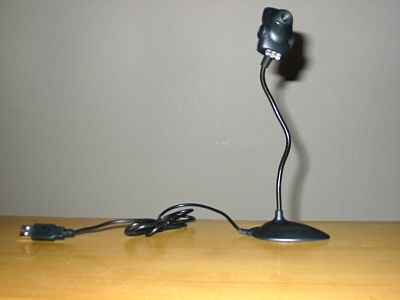
I know they made a compromise between size and function, but I do think the
bottom should have been more weighted, since you are limited in the angles you
can bend the cable just because the device won’t stay upright at more extreme
angles. And it is a little awkward to have the webcam on a stand directly in
front of the monitor, blocking some of my monitor view. But I like the
flexibility of camera angles to our current webcam, which, like most models,
sits in a small holder on top of the computer monitor and can’t be adjusted to
as many camera angles. Since I frequently use IM and the webcam while I have my
somewhat hyperactive 5-year-old daughter sitting in my lap, being able to
quickly bend the cable and reposition the camera is a major plus for me.
The size of the webcam is also terrific; I can easily see bringing this along
with my laptop on business trips, even though this is not the Q-cam model
specifically designed for laptop use.
Hardware Specifications
Camera Lens: 1/4" CMOS PC Camera
Pixel: CIF Format 352*288
Resolution: 640*482, 352*288, 320*240, 176*144, 160*120
Frame per second: Up to 30fps@352*288, 35fps@176*144
Capture Resolution: Up to 640*480
Focus Distance: 3cm~infinity (CIF)
Lens: wide angle 56 degree Diagonal
Brightness: Auto-Detect
Exposure control: Auto-Detect
Image format: RGB24
Power consumption Full Run: 300mw typical
Operating System: Windows 98/2000/Me/XP
I/O interface: USB 1.1 Full Speed
Microphone: -47 DB
Unfortunately, the first negative is that the Q-Cam wouldn’t work on our
powered and non-powered Belkin USB hubs, or the USB jack on our Microsoft
Natural Keyboard Pro. It would only work on a USB port directly on my CPU. I’ve
seen this problem with some other USB devices, and it is frustrating. If you
don’t have many USB devices, this won’t be a concern for you, but if you’re like
me, this is a problem.
I tested this on a Pentium III running Windows XP, and had to install Q-Cam’s
own drivers. Here was the screen that greeted me:
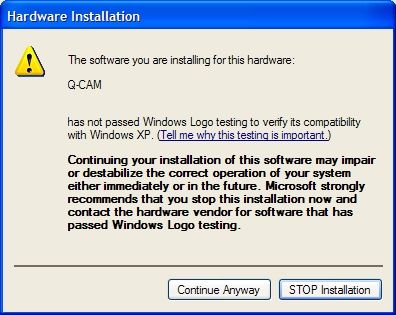
To be fair, there are many terrific hardware devices that have not passed
Windows driver certification. But it was still “edge of my seat” excitement
during the installation process and reboot. After rebooting, the device and
drivers were immediately recognized, and I put the camera to work:
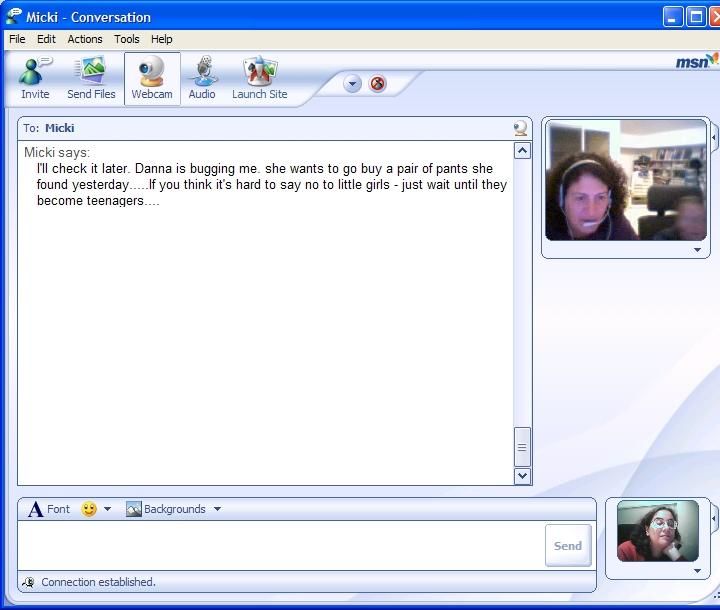
The streaming video image quality from the camera was good (the lower image)
for an inexpensive webcam, much better than my current (and also inexpensive)
SiPix webcam. It compares well to the slightly more expensive Logitech webcam
used for image above (though low lighting may have been part of the cause). Like
all other webcams I’ve used, this one performs best in a brightly-lit room.
You’re trading picture quality for the risk of glare, but I think it’s worth it.
There was some occasional freezing during video capture, but considering the
distance and lag-time of the international connection, that may not have been a
problem with the hardware.
Next, I added audio to the webcam chat. The audio was surprisingly clear.
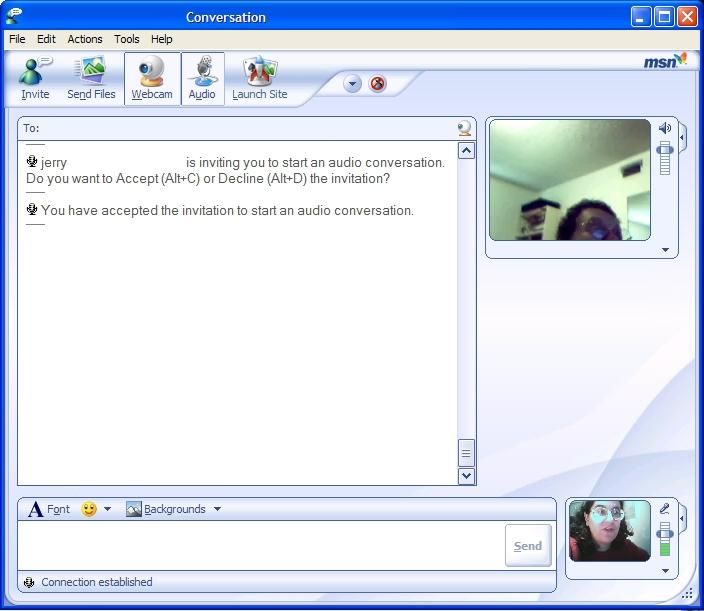
After a few minutes of IM chat, I began exploring the other software included
on the mini-CD. The two programs are Vidcap and Amcap (a rather aged Microsoft
video program.) Both programs have many features such as the ability to change
the video and audio settings, adjust the camera image parameters, etc., but
neither of them performed particularly well with the Q-cam. With Vidcap, the
video was noticeably darker and more grainy than when I used the MSN Messenger
webcam software. And if you want to access the Help file for Vidcap, well, this
is what you’ll see…
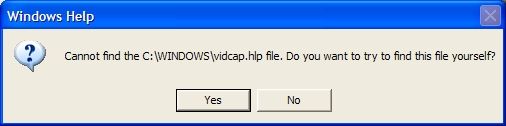
It is not included on the mini-CD. However, for my
intended use of the webcam (MSN Messenger streaming video webcam chat), the
missing file was not a problem. There are sufficient instructions on the back
of the package for me to easily get this webcam up and running.
Another odd aspect of this camera is that it has a button
on the back to activate three white LED lights. I’m not sure why they were
included, as they appear to have no effect on the webcam image quality.
In summary: if you need a high-end webcam with the ability
to capture quality streaming video and still images, or are very new to webcams
and will need substantial documentation to get you started… this is not the
webcam for you. But the Q-cam 530M is a very portable webcam that compares well
to other inexpensive webcam products.
Price: $44.99
Pros:
Small
Easy to install
Flexible cable
Reasonable video quality
Good audio
Cons:
Unable to work with USB hubs
Minimal documentation
L39 Ultra Slim UV Protective Filter for Leica Q3 43 Q2 Camera with Moisture-Proof Case & Removal Tool 19 Layers Mulit-Coated UV Ultraviolet Filter 99.3% Light Transmission Water Oil Scratch Resistant
(as of June 8, 2026 23:37 GMT -05:00 - More infoProduct prices and availability are accurate as of the date/time indicated and are subject to change. Any price and availability information displayed on [relevant Amazon Site(s), as applicable] at the time of purchase will apply to the purchase of this product.)
Ruilogod 32" 2-in-1 Light Mulit Collapsible Disc Reflector 80cm Silver Gold
(as of June 8, 2026 18:42 GMT -05:00 - More infoProduct prices and availability are accurate as of the date/time indicated and are subject to change. Any price and availability information displayed on [relevant Amazon Site(s), as applicable] at the time of purchase will apply to the purchase of this product.)Product Information
| Price: | 44.99 |
| Manufacturer: | Crayton Electronics |
| Pros: |
|
| Cons: |
|

Gadgeteer Comment Policy - Please read before commenting
Post your comments here on the Qcam 530ml Plus Webcam review.
http://www.the-gadgeteer.com/qcam-530ml-plus-review.html
Just click the POST REPLY button on this page.
Since this question was emailed to me, here’s some updated info about using the Qcam’s microphone with MSN or Widnows Messenger…
To set up the audio, you’ll need to go to the Audio Tuning option on Tools on the MSN Messenger menu. Unfortunately, Windows doesn’t detect the microphone automatically, so you’ll need to set it to use the microphone manually. It’ll call it “PC Camera” or something like that. Once you do that, you may still need to go to the Web Camera Settings (also on the Tools menu) and set some settings there, but otherwise, you should be good to go. You’ll know that the microphone is working because you’ll get a volume bar on your MSN Messenger window.
:blink: help! i bought this webcam but i dont know how to get the microphone/audio to work?!?!?!?
Can someone help me ? :confused:
I know it posted above but i dont get how to set it as PC Camera…?
-DeLeTrIuS-
I got this prob too and I cant fix it ! I need help ! Cant use the micropphone
What version of Windows are you using? I just know with XP, you have to set it manually. You might want to look under your audio options: there is a properties item under Options on the Speaker menu, which has a pulldown menu on it for your different audio devices. See if you can find the Qcam there.
If you’re not running on Windows XP, I don’t know how to help!
I bought this camera and have used it even though I got the “this product hasn’t passed the logo test”message.
OK so it works mostly, but It seems to be causing Internet explorer to crash.
When my pc recovers it tells me the system failure was caused by a faulty driver.
I suppose my question is: Is there a different or updated driver for this product which doesn’t cause this problem?
Heloo i am having a problem my cd for Qcam 530ml has broken and y search on internet for his software and i cand find it can some one give me a link or send me on my email the software plss help me i am dispred!!!!!!!!!!!!!!!!!!!!!!!!!!!!!!!!!!!!!!!cosminnedelcu@yahoo.com
cosminnedelcu:
Try here:
http://www.qcam.com.cn/jieshao.asp
Thanks a lot i apriciating your help lots of hugs and kisses for you.And by the way was not 560 it was tha 440 software and difrent from the original it is that sims to view lo in yelow y tray to go at colors of his preference and sims that not thake any efect but i am glad that is working in this maner.
Just 1 pleasement if someone knows how fix the cam so she can work not in yelow y tanks you and this syte for the care of the people and respect for that the one becouse they are smart people. Best for the best. Thanks a lot.