
Product Requirements:
Too much time on your hands…and you
must be over the age of three – preferably over the age of six
When I was a kid, I loved building things. As I progressed through childhood
it mattered not whether the medium was wooden blocks,
Lincoln Logs,
Tinker Toys, or
eventually Legos and my
Erector Set; I just loved putting things
together. Now that I have a teenager of my own, I have watched her go through a
similar progression of building toys.
Recently, Julie sent me a set of
PixelBlocks that ThinkGeek had
submitted for review. I have to admit that the yellow "Hello Kitty" styled
figure on the front was a bit cuter than most of the creatures I remembered
creating. Of course, I never had a medium quite like this.
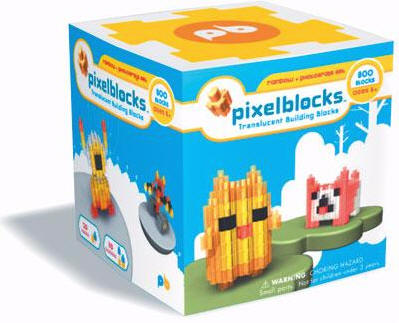
Image courtesy of the PixelBlocks website
What is a PixelBlock? According to their website, "The tiniest dots of color
you see on your computer or television screen are called picture elements,
or simply pixels for short. Together they make up an entire picture.
PixelBlocks are pixels made physical and set free from the computer screen.
They allow the young at heart of all ages to use their creativity in endless
ways."
PixelBlocks measure approximately 0.45" tall (including the nub) x 0.35"
wide. Each slightly translucent plastic block is exactly the same as any other,
except for the various colors. Each block will lock into another in the ways
shown here…
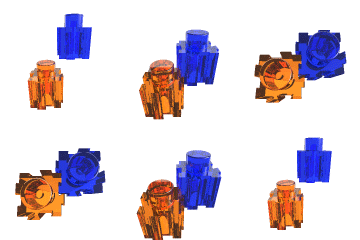
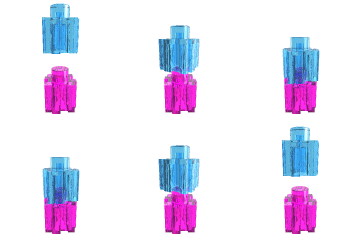
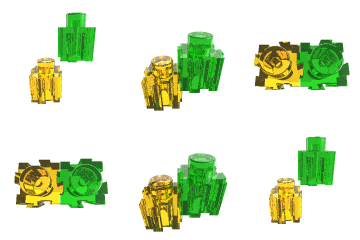
Images courtesy of the PixelBlocks website
Just like other building kits, PixelBlocks come in various sized sets. I was
sent the 800 block set, which is more than enough to build several small items
or something a bit larger. I would love to tell you that when the PixelBlocks
showed up, I sat down, got industrious and created the following items. Instead,
what happened was that Sarah took one look at the package and said, "Mine."
Well, oooookay.
This is where I should mention that if you have little kids or pets in the
house, then you will want to be careful about dropping any pieces. They are
choking hazards for the young ones and chew toys for the others.
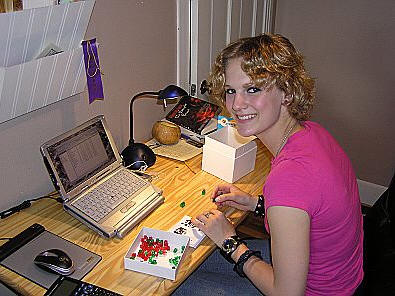
You’ll notice sitting on Sarah’s desk is the lid and bottom half of the
reusable white box in which the PixelBlocks are packaged. This is very handy for
organization and storage. Using the included 24 page idea book, Sarah’s first
project was a flat puppy – what I immediately started referring to as my new
"coaster".
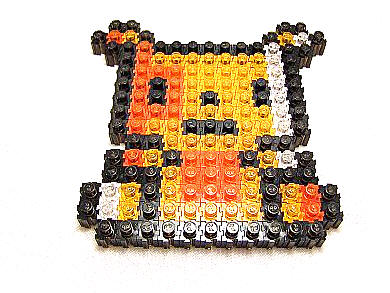
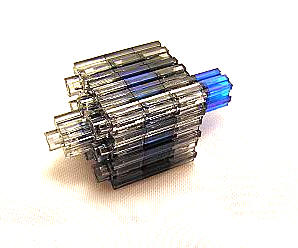
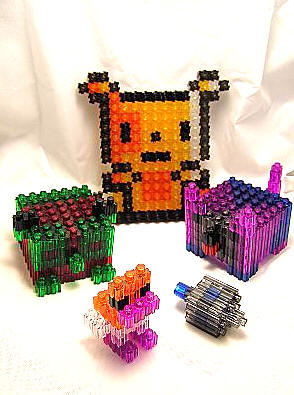
From there, she progressed to the 3-D animals, including this bear, dog and
working dreidel. The pieces stay together quite well and the finished items are
very sturdy.
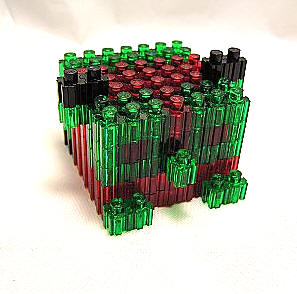
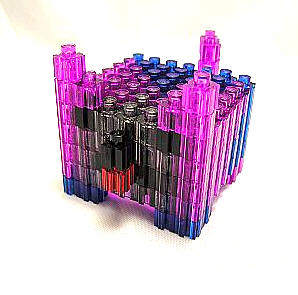
It wasn’t long before she had a menagerie assembled, and there were still
blocks left in the box.
One thing that she didn’t try and that interested me, was what PixelBlocks
calls
Digital Stained Glass. This is a process whereby the builder submits a
digital image in JPEG, GIF, PNG, or TIFF format (less than 5MB), and receives a
"pattern file" in PDF format from which they can create a "stained glass" image
from the PixelBlocks.
So I submitted this picture of my two guard dogs…
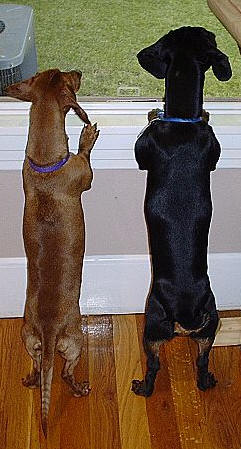
After displaying the uploaded image and offering me the chance to further
crop it, I was shown the final image and given the option to change its scaling.
Because my photo was 240 pixels by 435 pixels, that meant I would need
approximately 104,400 pixel blocks and 217.5 hours to create its PixelBlock
equivalent…! Of course, I would have something substantial to show for my
effort as the project’s finished size would be 6.2′ x 11.3′.Yikes! While that
might be a great project to take on one day, right now it’s not very
practical.
So I rescaled to under 55×99 pixels and found that I was still looking at
5455 PixelBlocks and over 11 hours creation time.
One last resize to 20×38 pixels produced this image which would take 760
PixelBlocks and a little more than an hour to complete. That’s more like it,
though now my image looks like this…
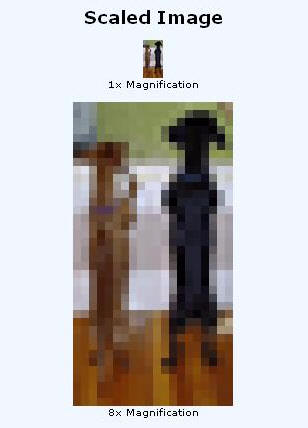
Image courtesy of the PixelBlocks website
Next I was allowed to enhance the brightness and contrast, which seemed to
make the already pixilated picture even more abstract. Following the tip on the
page, I adjusted the enhancement settings so that my image was a "little
brighter and its colors a little bolder" than I thought they should be. It was
cool though, because I could still tell what the image was supposed to be.
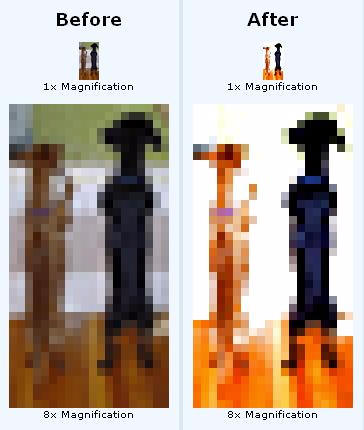
Image courtesy of the PixelBlocks website
According to another tip on the page: "Don’t be concerned if your scaled
image looks "blocky." The human brain has the amazing capacity to "fill in
detail" in images. To get a better idea of how your finished creation will
actually look when displayed, look at the 1x Magnification view, or look
at the magnified view while standing at a distance"
I could live with this image. So now it was time to "Dither" it…get your
mind out of the gutter, please. ;0)
Dithering is necessary because even that pixilated "after" picture on the
right uses thousands of colors, but PixelBlocks are only available in twenty.
According to the site, "The Dither Method section lets you choose between
Ordered dithering and Diffusion dithering. Ordered dithering uses
"checkerboard" patterns to approximate the original colors in your image, while
diffusion dithering has a more "sandy" look. This section also lets you enter a
percentage that specifies how "heavily" to dither your image. Low percentages
will result in large areas of your creation using a single color of PixelBlock,
while high percentages will result in most areas of your image using a mix of
colors."
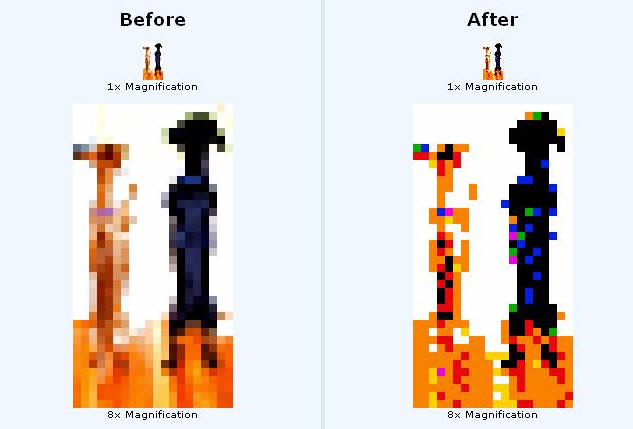
Image courtesy of the PixelBlocks website
I decided to go with the Diffusion method, and I selected "Rainbow" as my
palette, since that’s what the bulk of my box included. Unfortunately, my final
image called for a lot more clear blocks than I happened to have – over 300 of
them, so I knew when I got to the back ground I would have to improvise a bit.
Even in its shrunken condition, this picture will still measure a rather
substantial 6.3" x 11.9". Conveniently enough, when I went to print the file
with my pattern, a inventory and checkout form showed up telling me exactly what
I needed in order to create my pièce de résistance.
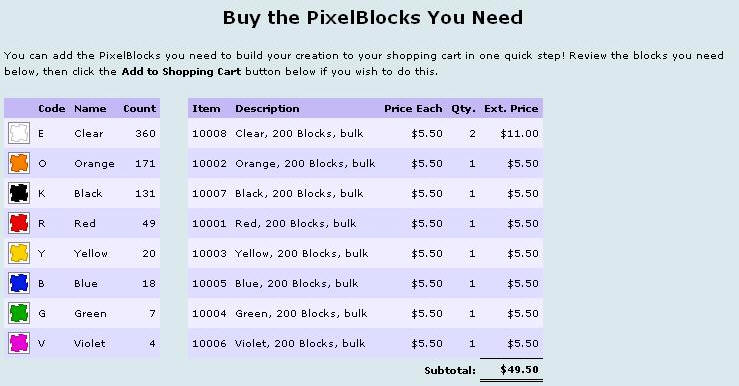
Image courtesy of the PixelBlocks website
I then downloaded the
blueprint PDF file,
which is printed as an almost full size plat. I had to piece pages 3 and the top
of page 4 together to create the full placement map. I can only imagine how many
pages my original 240×435 pixels picture would have been! :0/
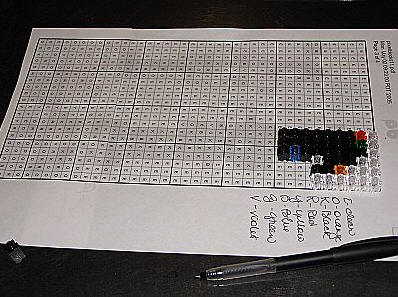
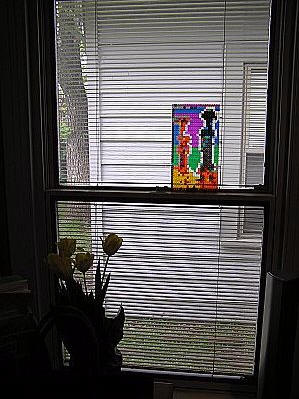
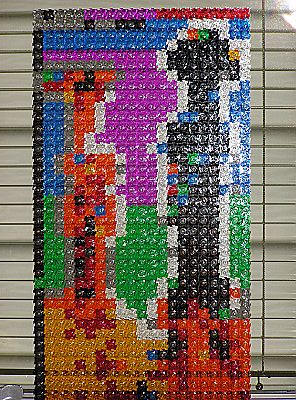
Using the colors on hand, and a bit of creative license, this was the
result…I kind-of like it, anyway. :0D
PixelBlocks are a great time waster for anyone that has a moment to
spare on something creative. If you do something really imaginative, then
you should submit a picture to the
PixelBlocks Builders Club.
PixelBlocks may be purchased
Online, or found in various brick and mortar stores listed
here.
Price: $5.50 to $60.00; $24.00 as tested
Pros:
Gets the creative juices flowing
Excellent time waster
Easy to do
Cons:
Very small pieces present a choking hazard for small children

GMKtec Mini PC, G3 PRO Intel Core i3-10110U (Beats 4300U/N150), 16GB DDR4 RAM (Dual Channel) 512GB Storage Drive, Desktop Computer 4K Dual HDMI/USB3.2/WiFi 6/BT5.2/2.5GbE for Office, Business
(as of June 9, 2026 13:54 GMT -05:00 - More infoProduct prices and availability are accurate as of the date/time indicated and are subject to change. Any price and availability information displayed on [relevant Amazon Site(s), as applicable] at the time of purchase will apply to the purchase of this product.)
KAMRUI Pinova P1 Mini PC Computer, AMD Ryzen 4300U (Beats i3-10110U/3500U), 16GB RAM 256GB SSD, Mini Desktop Computer Support Triple 4K, USB-C, WiFi, Bluetooth, Ethernet for Business, Education, Home
(as of June 9, 2026 13:54 GMT -05:00 - More infoProduct prices and availability are accurate as of the date/time indicated and are subject to change. Any price and availability information displayed on [relevant Amazon Site(s), as applicable] at the time of purchase will apply to the purchase of this product.)Product Information
| Price: | 5.5 |
| Manufacturer: | PixelBlocks |
| Pros: |
|
| Cons: |
|

Gadgeteer Comment Policy - Please read before commenting
Judie, That was a very informative article on Pixel Blocks Do you know who the creator is? I’m trying to find out if it is my long lost friend Jay If you have any info will you let me know Thank You!
When Pixel Blocks came out they were introduced to toy reps by a man named Bob LaRocca. Not sure if he is still involved or not. I was always under the impression they were his invention but he may have been part of a group of designers.