
In September 2005, my daily driver PDA was an
HP
iPAQ hx-4700 and my mobile phone was the
Samsung i550,
a Palm OS device that was never technically released in the US. I thought
that I was satisfied with the combination of the two devices – enjoying the best
of both PDA worlds in a sense – but there were times when I really longed to
have the freedom of carrying just one device that could do "everything".
Granted, the i550 could operate as a full fledged PDA and phone, but I
felt that its screen was just too small for full-time use since I enjoy reading
eBooks so much. The 4700’s comparatively enormous screen was perfectly suited
for eBooks and viewing everything else, but of course that PDA was not – and
would never be – a phone. Therefore my interest was raised when I heard about
the latest offerings from the Taiwan based company
High Tech Computer: the
i-mate branded
Jas Jar / HTC Universal
and the Sprint branded
PPC-6700 / HTC Apache.
Each was a Windows Mobile 5 Pocket PC Phone device with its own set of
special features. The Universal boasted a very appealing laptop/Tablet PC form
factor with a larger sized VGA screen, while the Apache had a more compact size,
EV-DO speeds (when/where available) and a sliding landscape-based keyboard.
For those of you that aren’t familiar with HTC, you should know that they are
the world’s largest producer of Pocket PC OS-based PDAs. HTC designs many of the
Pocket PCs and mobile phones
with which we are all familiar, but they never brand them with their name.
Instead, the designs are outsourced to other companies like Hewlett Packard,
i-mate, Audiovox, and others. But back to my story…
I wasn’t that surprised to learn that the HTC Universal would only be
offered on GSM/GPRS networks, such as T-Mobile and Cingular – because that is
almost always the case with cool new phones. I am a Sprint customer, which means
that I have to use a CDMA based mobile phone (no SIM card). While I miss out on
a lot of the trendy new phones, I generally enjoy great coverage and an
excellent data rate, so I guess in the end it more or less evens out.
So imagine my surprise when it was announced that Sprint would be the first
US carrier to offer the HTC Apache – the first Windows Mobile 5.0 Pocket PC
Phone Edition device to be sold in the United States.
Of course I had to get one!
Specifications:
Battery Type: User removable / rechargeable 1350mAh Li-Ion
Battery life: Up to 4.7 hours talk time, up to 200 hours standby
Measurements: 4.25′ x 2.3" x 1.0" (according to the Sprint site) / My
measurements with a micrometer: 4.25" x 2.3" x 0.92"
Weight: 6.07 ounces according to the Sprint site / 6.6 ounces on my scale
Processor: Intel 416 MHz
Wireless: CDMA EV-DO, Bluetooth (v1.2) and WiFi, IrDA FIR
Operating Mode: Digital dual-band; this device operates within the CDMA
frequency bands of 1900 MHz digital and 800 MHz digital
Platform: Windows Mobile 5.0
Expansion Card: MiniSD
Memory: Flash ROM – 128MB / RAM 64MB SDRAM
Screen: 2.8" diagonal, 240 x 320 TFT-LCD with back-light LEDs, 65K Color touch
screen
Audio: Receiver/Speaker, Hands-Free supported, microphone
Camera: 1.3 mega pixels CMOS, with video light
Sprint introduced the PPC-6700 in early October, and at the time it was only
offered to their business customers. Rumors were abounding that it would soon be
offered to non-business customers, but there were no firm dates and I didn’t
want to wait. I paid close attention to the postings at
pdaPhoneHome, as other
non-business customers posted strategies which had and hadn’t worked as they
tried to get theirs. I called various Sprint numbers repeatedly, talked to
multiple service reps and tried everything short of begging, all to no
avail.
In the end, I went where I have had good luck finding other hard to buy items
in the past – eBay.
Once I had found a few eBay sellers that actually had the device in hand, I
decided upon the maximum amount I was willing to pay and then proceeded to
lose quite a few auctions. Evidently I wasn’t the only person with the eBay
idea, and evidently I wasn’t willing to pay the "going" amount. After a few days
of searching, bidding and losing, I was finally able to purchase a brand new and
unopened 6700 from a reputable seller. I have to laugh when I think back to the
whole process and what I went through trying to get my hands on a 6700. But in
retrospect the hunt was rather fun – even if a bit frustrating – and it did
allow me to start using the device more than a month earlier than I would have
otherwise.
Around the end of November, Sprint began selling the PPC-6700 to non-business
users and about that time other CDMA providers also began to sell rebranded
versions of the device.
Verizon calls their version the XV6700,
Qwest has the PPC-6700Q,
while Alltel,
Telus and other regional
carriers are offering the UTStarcom PPC-6700. Whatever it’s called, these are
all basically the same re-branded HTC Apache. Because there is a chance that
some of the various rebranded models have different features or limitations than
the specific model I have been using and am reviewing, just bear in mind while
reading that my experience is specifically limited to the Sprint version.
Once I finally received the PPC-6700 I had to pause for a moment, as I always
do when I am about to set my current PDA to the side and move on to the next.
Would the Apache be my perfect convergent device? Would I miss the glorious
screen of my iPAQ 4700? Would I like the much anticipated Windows Mobile 5.0? Or
would the PDA form factor bug me, being a PDA first and a phone second? I had
plenty of questions, and I was ready to find some answers…
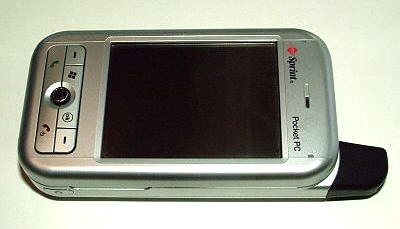
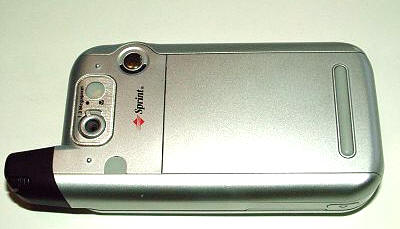
Included in the PPC-6700’s box are the device itself, a standard battery, a
mini-USB charger, a stereo headset, a carrying case, two styli, a dual-slot USB
Sync cradle, phone user guide, getting started CD, installation guide, and
various items of Sprint paperwork.
Similar to past iPAQs and PPC Phone Editions, the Apache uses a plastic body
which has been painted matte silver. Because of it’s weight, the phone feels
substantial, but the plastic has a rather cheap finish. The paint will
eventually flake or wear off on oft-handled areas, and I have noticed this
already occurring on the bottom of the PDA near where the mini-USB port connects
in the cradle. If I couldn’t have my first choice of an all metal body, then I
would have much preferred an all over matte black with a slightly rubbery
texture, similar to the finish on the matte black
Motorola PEBL phone.
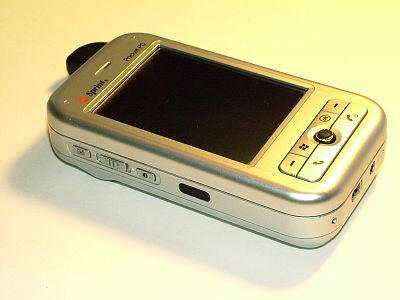
The 6700’s case is stiff and when flexed doesn’t have any obvious creaks,
however the battery cover does feel a bit thin and there is no locking mechanism
to keep it in place. If squeezed "just so", the moveable keyboard might trick
one into thinking that the case is flexing, but it is just the keyboard sliding
as it is supposed to do.
Once I actually had it in my hand, the 6700 seemed much smaller than expected
– even though I had known its measurements in advance. At 4.3" tall x
2.3" wide x 0.9" thick and weighing 6.6 ounces compared to the
iPAQ’s 5.2" tall x 3.0" wide x 0.6" thick and 6.8 ounces, the 6700 felt much
smaller overall. Of course, the smaller case size also means a smaller screen:
2.9" diagonal on the 6700 versus 4.0" diagonal on the iPAQ 4700. However,
the Apache’s screen was a definite size improvement over the i500’s sub-2"
screen. After reading many eBooks over the last couple of months on the
6700’s 3" screen, I have decided that this is the smallest size screen I am
comfortable using. Of course, there are still times when I will power on the
4700 and once again fall in love with the larger VGA screen. That extra inch
coupled with the VGA resolution really does make a difference.
For comparison’s sake, I am also showing the the 6700 next to the iPAQ 1945,
which measures 4.5" tall x 2.8" wide x 0.5" thick and weighs 4.3 ounces. While
the 6700 is nearly twice the 1945’s thickness, it is otherwise the smaller PDA.
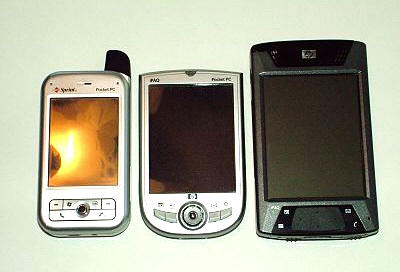
from left to right: PPC-6700, iPAQ 1945 & iPAQ 4700
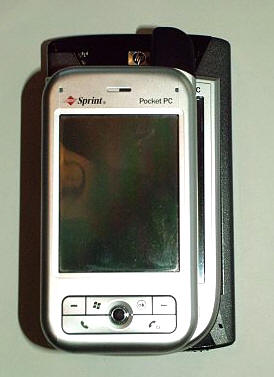
from top to bottom: PPC-6700, iPAQ 1945 & iPAQ 4700
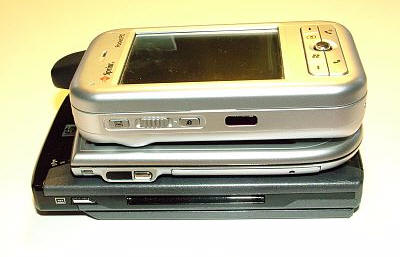
from top to bottom: PPC-6700, iPAQ 1945 & iPAQ 4700
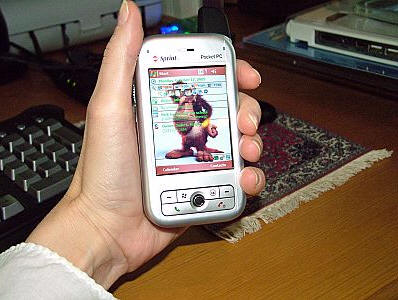
Since I usually keep the 4700’s extended battery installed, which raises its
depth to 0.8", the thickness of the 6700 has never seemed bothersome. As a
matter of fact, I think that the extra girth allows me to keep a more secure
grip on the phone.
Make no mistake about it though, dropping the 6700 is always a distinct
possibility. Its smooth silver plastic case does not have any type of rubber
grips on the side, nor does it have a slot for a wrist-lanyard. Cases aren’t
really an option just yet, as the majority of the ones available are pouch
style, which means the phone is completely naked when in use. At this time
Piel Frama is the only
manufacturer making a play-through case for this phone, but it does not allow
full use of the keyboard when the PDA is inserted. It is still better than a
naked phone however, for those that live in fear of the day when they’ll drop
the 6700 and crack its screen.
Of course, much of the reason why the PPC-6700 is so thick is because
of its sliding side keyboard, which transforms the 6700 from a portrait oriented
PDA to a landscape mini-laptop with a thumb-board.
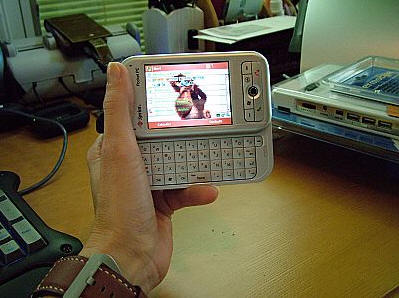
Opening the keyboard immediately flips the screen to landscape
orientation
I have spoken with some who think that the 6700’s sliding keyboard feels like
it won’t hold up over time, and others who have had experiences where it slid
open at the wrong time. In my opinion, the sliding mechanism on the 6700 is fine
and should last the life of the phone. The front half of the PDA is held to the
keyboard by two rails, the tracks of which can be seen when the keyboard is
opened. When the two halves are sliding against each other they don’t feel
wobbly and there is no play.
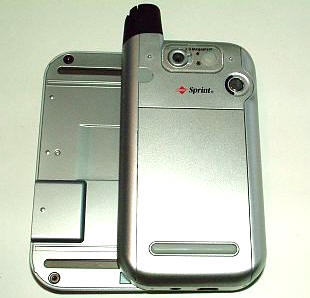
When the keyboard is fully extended, there is a clicking noise as it locks
into position. When the keyboard is shut, there is also a clicking sound as it
locks into place. However, there is some play between the top half of the PDA
against the bottom, by which I mean that it is possible to easily cause the two
halves to go slightly askew while they are in the "locked" position. As this
happens, there is an audible click as the two halves separate or come back
together. I would like to have seen a more secure method for joining the two
halves and keeping them shut. Perhaps this could have been solved if
there had been a button release for the keyboard, but then such a release would
have made the keyboard a bit less quick to open. I guess it was a trade-off.
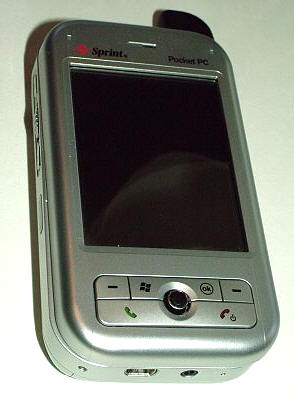
Sliding the keyboard takes a simple push against the top portion of the PDA,
while holding the bottom in place. This can be done by the fingers of whichever
hand is holding the 6700 as it sits in the palm. Sliding open the keyboard
causes the screen to switch from portrait mode to landscape mode almost
instantaneously. There can be a bit of a lag, but I have never found it to be
more than a second or so.
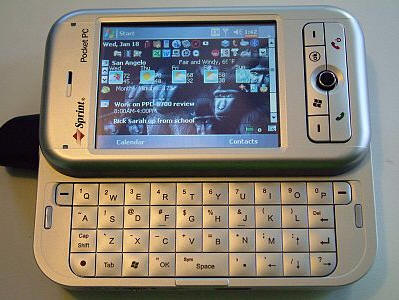
The screen 240 x 340 resolution screen is bright and quite easy on the eyes.
I generally keep the screen’s brightness set to about 3/4 when on battery power,
and it has not caused a huge drain on battery life. Even though the 6700’s
screen is not a VGA resolution, it’s smaller size makes it appear sharper than
the same resolution would appear on a larger screen.
It does not take much pressure to cause the keyboard to slide, which can lead
to the keyboard opening as the user grips the PDA in one hand while they are use
the stylus on the screen with the other hand. Because it is natural for a
right-handed user’s thumb to rest against the top of the sliding face, just a
little bit of push from that thumb can cause the screen to slide open.
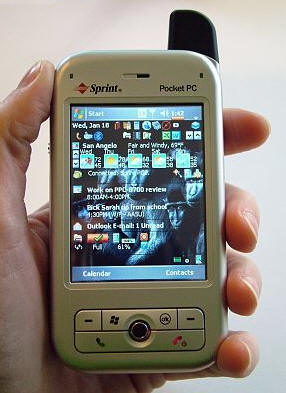
Left-handed users will find that the tips of their fingers curling around the
back of the PDA will cause the same unwelcome opening.
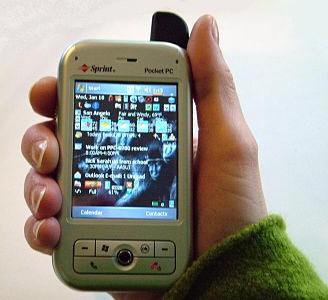
Unfortunately there is no fix for this phenomenon other than learning not to
push on the sliding half, which may be a real point of frustration for some
users. My hope is that if a proper play-through case is ever introduced it will
allow the opening of the keyboard while also keeping the two halves shut.
Because I have one of the earlier PPC-6700s, my keyboard has a white LED
backlight that is activated when the keyboard is open and any button is pushed.
The extended functions for each key are highlighted with a red LED backlight,
which is very easy to see. If no buttons are pressed the keyboard lights will
extinguish after a user-chosen 2, 4, 6, 8 or 10 seconds. I have read that more
recent PPC-6700s are shipping with a blue LED backlight and no red LED for the
extended key functions. In my opinion, that is a less desirable configuration.
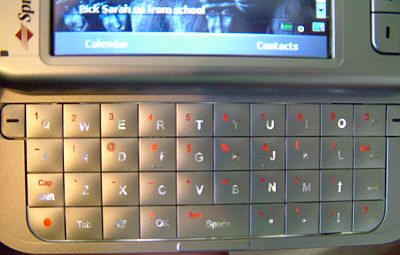
The keys on the board are quite squared off, and each has a hump at its
center which helps the thumb feel centered when rapidly pressing them. So far I
haven’t worn the silver paint from any of the keys, but I suspect that it is
just a matter of time. The "F" and "J" keys have faintly raised touch-bars,
presumably to help orient the user if they are touch-thumbing. The keys have a
satisfying muffled "click" when pressed, and they are large enough that I
haven’t felt particularly crowded while typing.
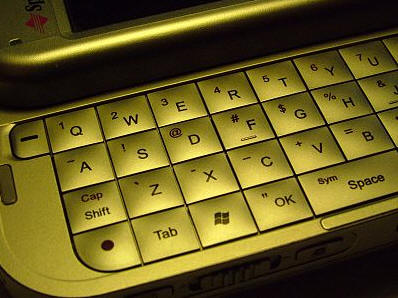
One of the things that takes a little bit of getting used to is the lack of
dedicated numbers keys on the keyboard. Because there is so little space for so
many keys, numbers and symbols are accessible by pushing and holding the red
function key. However, when the keyboard is open and the phone application is
also open, the red function key does not have to be pressed for the numbers to
work.
I was never much of a thumb-board user before I got the PPC-6700, but I have
actually grown quite proficient at its use. Whether it is firing off a reply to
a text message or composing an entry for my online gear diary, the keyboard is
quite handy to have as it offers a respite from manually entering text on the
screen.
Now is a good time to take a look at all of the buttons, indicator lights and
other features built into the exterior of the 6700…
The top of the Apache features a prominent antenna nub with a built-in stylus
silo, a miniSD slot and a power button which when quickly pressed will turn the
PDA on or off, but when pressed and held will turn the screen’s backlight on or
off.
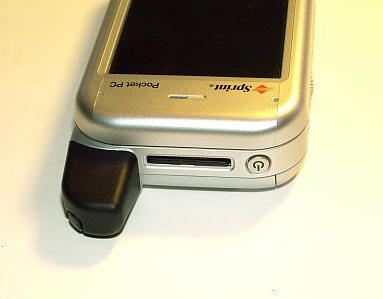
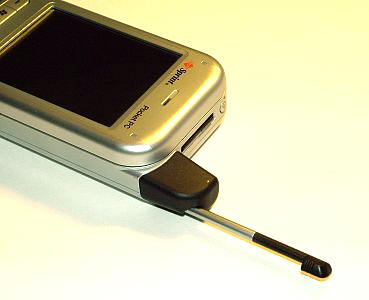
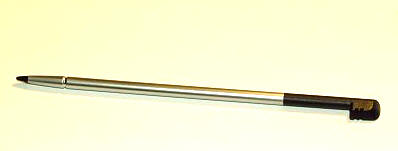
The stylus is rather thin, and while it works fine for quick data entry, a
fatter bodied replacement stylus would be the better choice for someone that
does a lot of data entry.
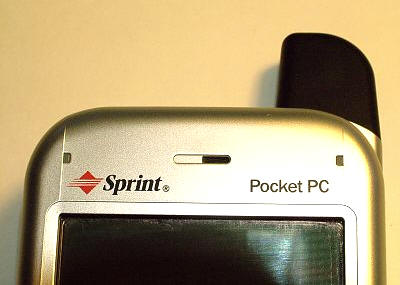
Above the screen on the right is an LED that glows orange while charging,
solid green when fully charged, and blinks green to show various notifications
that can be set by the user in the Start/Settings/Sounds &
Notifications/Notifications folder. On the left side, is a bi-color indicator
LED that blinks blue when Bluetooth is turned on and green for WiFi. In between
these two indicators is the phone’s speaker.
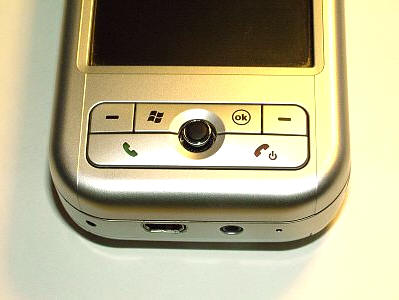
The button cluster on the lower front is as follows (starting in the upper
left corner and going clockwise): the non-assignable left soft key which
corresponds to the selection shown on the left bottom of the screen, the
user-assignable Start and OK buttons, the non-assignable right soft key which
corresponds to the selection shown on the right of the screen, the green phone
button which answers calls and pulls up the phone screen from any program, the
four-way navigation joystick which also presses in for entering
selections, and the red phone button which hangs up calls and exits from the
current screen.
The right side of the 6700 has a re-assignable camera button, which in its
default duty will activate the camera when pressed and held. I have found that
sometimes I can give what I think is a quick accidental touch and it will be
enough to activate the camera. This can be annoying, but it hasn’t been a big
enough problem to cause me to re-assign the button to <none>, which is one of
the options.
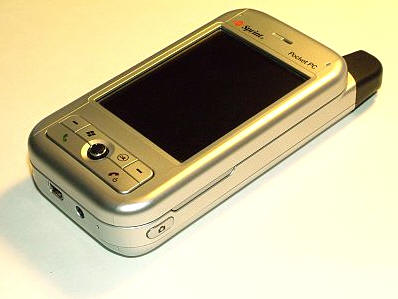
The left side features the re-assignable voice recorder button – I use it to
open eReader, the volume slider, the re-assignable Internet Explorer button and
the Infrared port.
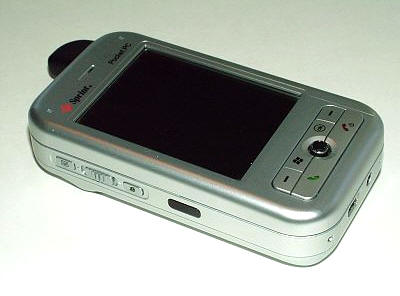
The very bottom of the Apache holds the reset button (activated by the tip of
the stylus), the mini-USB port, the headphone jack and the microphone.
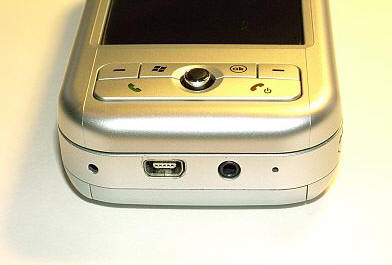
As you can see, my mini-USB port has been scraped by repeated
insertions in the cradle
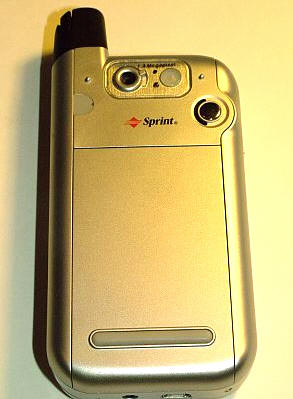
The back of the PDA houses an external antenna port, the camera lens with its
"normal" and "macro" slider setting, an LED spotlight which works with both the
camera and the camcorder, and a small shiny surface which is described as a
"self-portrait mirror", but which doesn’t do much more than draw attention to
the slit which makes up the speakerphone on its left.
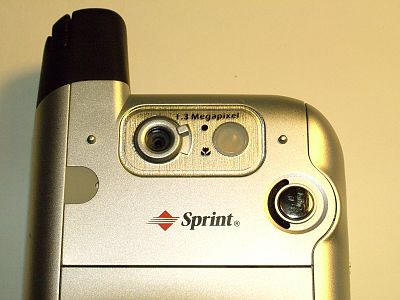
The speakerphone is a handy feature to have, but it is only effective in a
quiet room. Even when turned all the way up, background noises will cause it to
be almost useless.
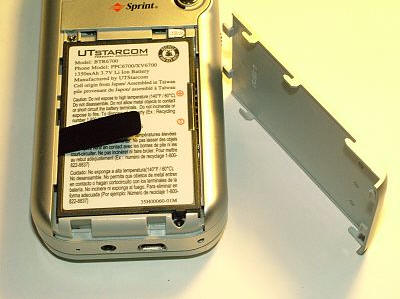
The battery door has one grippy 1.5" rubber strip which does help keep the
6700 from being too slippery on smooth surfaces, but is otherwise
ineffectual. As I previously mentioned, the battery door slides right off when
the correct pressure is applied, and there is no lock with which to keep it
securely shut. I am sure that there are quite a few 6700 users that have come up
with their own methods of keeping it shut, and I am sure that they would agree
that the lack of a lock was a severe oversight. Hopefully this is another issue
that will be resolved once a properly fitting play-through case is introduced.
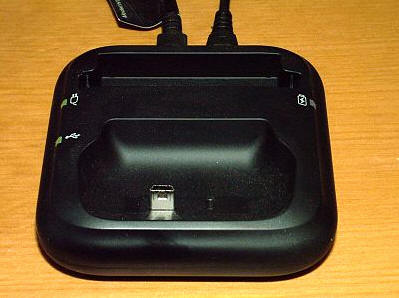
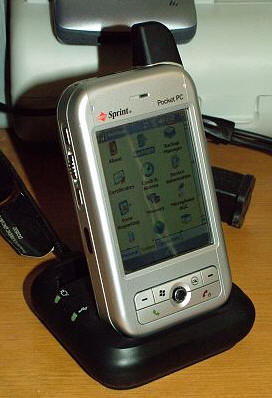
The cradle is a simple weighted black plastic base with green LEDs to
indicate that it is both charging and syncing, as separate cables power each
function. Behind the front slot which is sized o hold the 6700 even when
sporting its optional extended battery, is a second battery charging tray which
will fit both the standard and extended battery models.
I really like that the PPC-6700 uses the mini-USB connector for syncing and
charging. These are easy to find and work on a multitude of other devices.
There is an included wired stereo headset, but since the phone has Bluetooth,
I suspect that most users will opt for the unwired solution instead. The
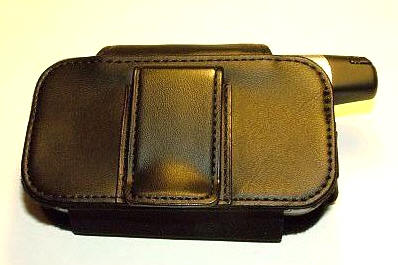
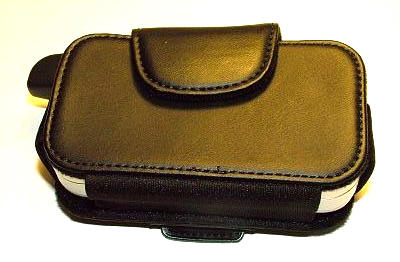
included belt-clip pouch is pretty lame. It offers no protection when using the
PDA whatsoever, and it is feels cheap. However, as is often the case (no pun
intended), it is better than nothing.
Battery life on the PPC-6700 has been quite good. I have found that I can
easily get through the day with Bluetooth on, answering and making calls as
needed, and using various PDA functions. WiFi use is obviously a bit more of a
drain, but I try to always keep a charging cable nearby just in case.
That covers the hardware portion of this review, now it’s time to take a look
at the software…
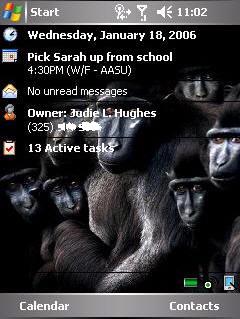
The Today Screen looks much the same as it has on other PPC Phone Editions.
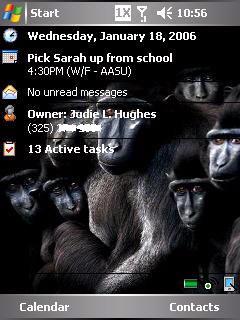
The upper menu bar shows the tappable buttons which access further features
and information. From left to right, are the Start Menu which opens a list of
pinned programs as well as recently opened applications, the call
status/connectivity information icon which displays what mobile network is
available (in my case 1X and not EV-DO). 1X surfing is similar to 56k dial-up. I
was able to experience EV-DO speeds while we were in Seattle, and they were
incredible. I get all the data surfing I can handle at 1X or EV-DO speeds for
$15 a month.I really am looking forward to the day when San Angelo gets EV-DO!
This icon also changes to show when the
network is being accessed…
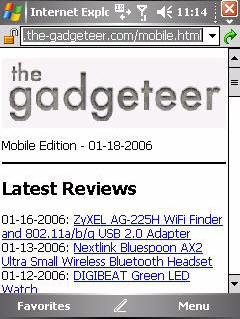
… and when WiFi is working.
There is a registry hack available which allowed me to get the connection
icon to tell how long I had been connected to the Sprint Vision network, as well
as a button to easily disconnect. That hack and many others that are just as
useful
can be found here. I highly suggest that anyone even thinking about getting
a PPC-6700 peruse this informative forum.
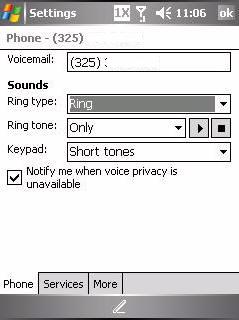
The next icon shows the phone’s signal strength in "bars", and when tapped
will display network status and related options. There is an option to turn off
the phone, also knows as "turning on" Flight Mode. Pressing Settings will take the
user to a screen which allows the customization of various phone settings.
The speaker status icon is directly controlled by the volume up and down
slider on the left side of the phone, and it is also accessible by tapping the
screen icon. This there are two sets of volume controlled by this icon, the
phones and the PDA’s. Each may be set to "On" and then different independent
volumes may be set, or they may be set to Vibrate or Off. The same slider button
will also control the volume of a call in progress if accessed during the call.
The last icon is Time and Next Appointment, which when tapped displays the
date, time, remaining battery life and next appointment.
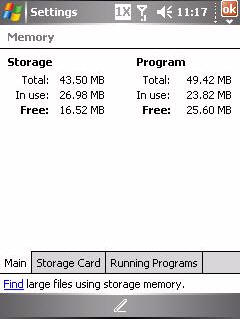
As I previously mentioned, the 6700 is the first US Pocket PC Phone Edition
to feature Windows Mobile 5. Perhaps the biggest difference between this newer
version and PPC2003 is memory management. Instead of the adjustable slider most
Pocket PC Users have grown used to, memory is now managed on a non-user
adjustable screen. No longer is the total main memory displayed. Instead, the
user is told how many MBs are available for storage, and how many are left for
running programs.
WM5 now stores all installed programs in Flash ROM, which has its good and
bad points. Good being that if the PDAs battery dies, none of the stored info or
programs will be lost. I found out the bad news when I asked Leonard with
Pocket PC Techs if they would be
able to perform a memory upgrade: If I understood his reply correctly, Since the OS is directly written to the same
memory that is used to store the user added programs, there are no after-market
options for upgrading the memory. It has been a major adjustment for me to go
from using a 128MB RAM Pocket PC Techs
upgraded iPAQ – meaning 61MB storage and 65MB program to the Apache’s
non-upgradeable 92MB – meaning 43.5MB storage and 49.42MB program. I have done
my best to only load programs in main memory that must be placed there to
operate correctly and all other programs on the
miniSD, but I am still just left with about 16MB free and I feel rather crowded.
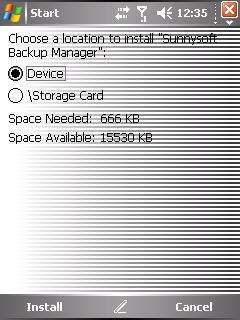
One of the new features is the way that programs are loaded during an
install. Instead of choosing from ActiveSync where a program will be stored, the
option is given on-screen, along with a reminder of how much space is needed and
how much is available.
The Sprint PPC-6700 comes with a CD which includes various add on software
titles, including:
Sprint PCS Software Store provided by Handango™: described as "an
intelligent on-device catalog of applications and digital media."
Action Info™ for access to your favorite brands: eBay®, Amazon.com®, FOX
Sports™, AP News, AP Stocks, Microsoft® MapPoint®, AccuWeather®, Restaurant
Row™, and Zap 2 it™ Movies. Included is a free month’s trial, but a subscription
is pretty pricey at $50. I did use the free month and while I enjoyed the easy
interface, I still haven’t taken the plunge and bough the program.
Audible Listener Info and Rebate Offer: Selection of more than 23,000
titles of audio books, magazines, newspapers, radio programs, and more with a
free month of AudibleListener®, or sign up for an AudibleListener® 12 month
membership and get $100 cash back.
Citrix® GoToMyPC®: for fast, easy, and secure access to everything on
your office PC from your Windows Mobile™ Pocket PC device.
There are several software titles loaded into ROM that I don’t use, including
Audible, Action Info and Sprint Business Connection. Since I don’t use them and
I can’t delete them, I have had to settle for deleting their icons so I at least
don’t have to look at them in my program list.
One of the earliest problems I discovered while using the PPC-6700 was that
there were huge issues when a Today Screen plug-in had to access the memory card
for information. This could be something as innocuous as Battery Pack Pro trying
to tell me how many MB were left on the memory card, or
Newsbreak trying to
store downloaded content onto the memory card. Lock-ups and slowdowns became the
order of the day. It took reconfiguring these programs to not access the storage
card and re-formatting my MiniSD card before the problems would cease.
A later issue with the 6700 involved the PDA’s becoming completely locked up with
a dark screen, needing a soft reset to revive. During this time if any calls
came in there would be no notification, as the unit was effectively dead. Almost every time I have run into
something like this, it has been the direct result of a program that I
installed – but that is not always the case. Which brings me to another issue…backups.
While it is great that the information on my PDA will never be erased because
the battery died, that has really never been a problem for me. I suspect that
whoever was responsible for determining what software would come preloaded on
the 6700 decided that since stored items would not be erased due to battery
loss, there was no reason to install a backup utility. Unfortunately, that is
not the only reason that such a program comes in handy. I have had to do no less
than five hard resets since I got the PPC-6700 because of issues that arose from
a software incompatibility that could not be solved by erasing all traces of the
program through an uninstall and registry scrub. Thankfully I have been able to
backup many of my applications and settings with
Sunnysoft Backup
Manager, although there are still little settings that never seem to make it
through a reset and restore intact.
The PPC-6700 came with a new version of ActiveSync, 4.0, which has since been
upgraded to
ActiveSync 4.1. I had little to no problems syncing with ActiveSync 4.0, but
since the "upgrade" I have noticed that connections between my PDA and desktop
have become a bit…quirkier. It is not uncommon to get multiple errors,
and I have seen a popup window telling me that anything added since my last sync
will be lost more times than I care to comment upon. I have done everything from
turning off my desktop firewall and anti-virus protection to starting from scratch, and somewhere in the
process I seem to have struck a balance so that I only see the errors once every
day or two. This is not exactly something a new Pocket PC user is going to
understand, and it is not something that an old Pocket PC user will want to
accept. Let’s just say that I am dealing with it. <sigh>
Some of the specialized features of the PPC-6700 are the ability to orient
the screen in just about any direction…
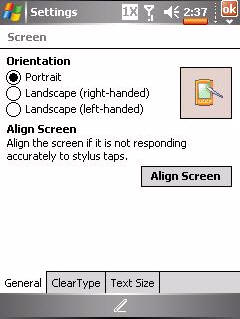
This feature is also accessible from the static menu on the lower bar of the
Today Screen. It is accessed from the third icon on the lower right of the
screen.
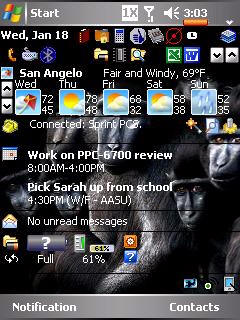
This first icon on the static bar allows quick access to the power settings
and battery display, while the circular icon is a quick link to the Wireless
Manager.
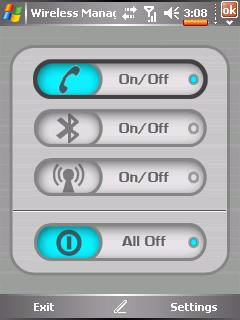
The Wireless Manager is also quickly accessible by pressing and holding the
Internet Explorer button on the left side of the case.
The 1.3 mega pixel camera is handy to have along, but it is not a feature
that I use regularly. Here are some shots taken by Julie and me when we were at
Mobius. These pictures were taken in a well lit room, while sitting next to a
window.


Not so great, but as always – better than nothing.
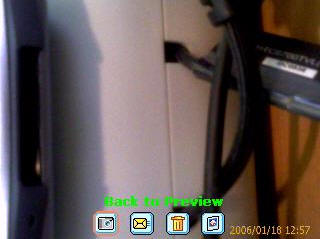
Here is the screen that is seen when the camera is in use. Accessible are the
flash/LED light, zoom, other settings and tools. Ordinarily, the item which the
camera is pointed at will fill the screen, not this blood red color.
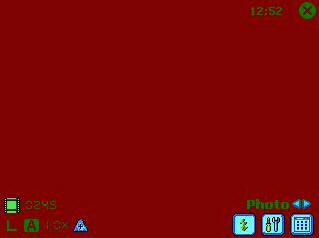
The LED light on the back of the PDA does help light things a bit, but it is
not really powerful enough to be a sufficient "flash’ in a darker room. It does
make for an excellent flashlight, however.
Photos taken may be directly attached and sent in emails, a process which is
easily accessible directly from the camera.
One of the features that I have enjoyed is the ability to add a photo to
incoming callers. A popup window will appear at the bottom of whatever screen is
open, announcing the caller’s number, as well as their name, company and photo
if they are in the user’s Contacts.
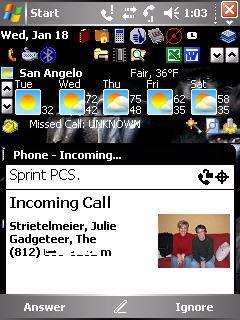
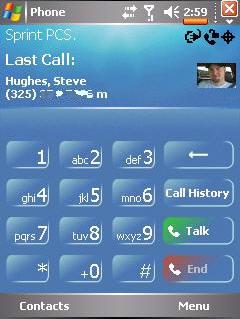
Their photo will also show when calls are made or calls are incoming.
Notice that there is an option to answer or ignore the call, and that if the
call is not answered an icon will appear showing that it was missed.

While the PPC-6700 does have a lot of cool phone features, in my opinion it
is first and foremost a PDA. I feel this way because the 6700 does not
have built-in numeric buttons which are easily accessible when the keyboard is
closed and because one handed phone operation is possible but not exactly intuitive.
While I have really been impressed with the form factor and all the things
that I am able to do with this small device, I do not feel that the Apache is a
phone I could ever recommend to a complete novice. Between the quirks that I
have found and the necessary work-arounds to get it to do things that it should
have done out of the box, there are enough problems present to frustrate someone
without infinite patience or online answer resources.
With that said, even though it has been an exercise in patience and
frustration, for the most part I am very happy with the PPC-6700. At this time, it is the best PDA for me.
Obviously I was not able to cover every nitty-gritty detail in this review,
and there are people who use their PPC-6700s entirely differently than I do. If
you have specific comments, tips, or questions, please post them in the
forum.
| PHONE | CARRIER | PRICE |
AFTER REBATE | |
Sprint PPC 6700
|
||||
 |
$429 |
$379 |
 |


Logitech M185 Wireless Mouse, 2.4GHz with USB Mini Receiver, 12-Month Battery Life, 1000 DPI Optical Tracking, Ambidextrous, Compatible with PC, Mac, Laptop - Swift Grey
(as of June 8, 2026 20:10 GMT -05:00 - More infoProduct prices and availability are accurate as of the date/time indicated and are subject to change. Any price and availability information displayed on [relevant Amazon Site(s), as applicable] at the time of purchase will apply to the purchase of this product.)
Apple AirPods Pro 3 Wireless Earbuds, Active Noise Cancellation, Live Translation, Heart Rate Sensing, Hearing Aid Feature, Bluetooth Headphones, Spatial Audio, High-Fidelity Sound, USB-C Charging
(as of June 9, 2026 02:44 GMT -05:00 - More infoProduct prices and availability are accurate as of the date/time indicated and are subject to change. Any price and availability information displayed on [relevant Amazon Site(s), as applicable] at the time of purchase will apply to the purchase of this product.)Product Information
| Price: | 599.99 |
| Manufacturer: | Sprint |
| Pros: |
|
| Cons: |
|
