
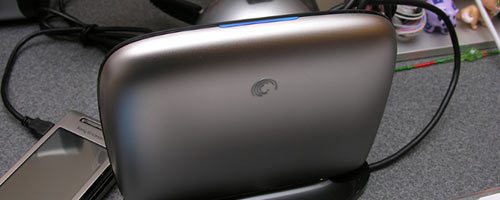
We all know that to be healthy we should exercise every day and drink plenty of water. But how many of us actually take this advice instead of making excuses or saying something like “I’ll start at the first of the month…”? It’s the same thing with backing up the files on your computer. We all know we should do it, but how many of you shrug your shoulders and say “I’ll set something up next week…” or “I’ve never had a hard drive failure, so I’ll be fine…”?
After my own laziness caused me to learn a painful lesson a couple years ago, I finally bought an external hard drive and software. Then using the software, I setup a schedule to automatically back up my files every night at a specific time. None of this was particularly difficult, but I know there are people out there who are even lazier than I am. For these people the solution has to be dirt simple, plug and play, fool proof. Mac users have enjoyed backup simplicity with Time Machine, and now Windows users have the Seagate Replica PC Backup Appliance.
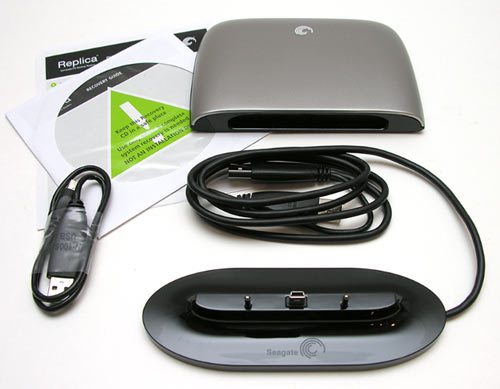
There are two versions of the Seagate Replica. A 500GB multi-PC version that also comes with a dock and a 250GB single PC version. I was sent the multi-PC version to review.
Package Contents
Seagate Replica 500GB external USB hard drive
Desktop dock
Short USB cable
CD with restore software
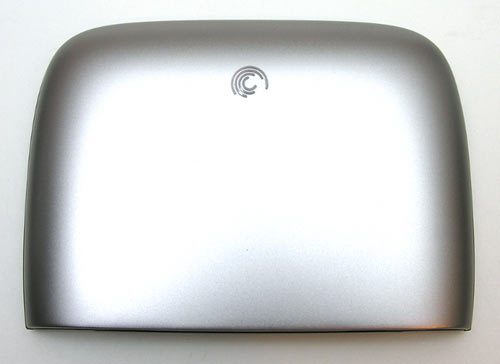
The sleek looking drive has a smooth aluminum cover with the Seagate logo etched at the top.
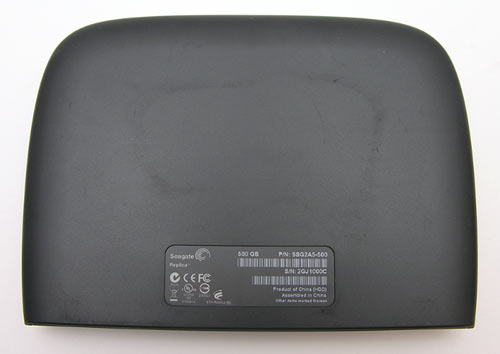
The back is made of slightly rubberized feeling Black plastic.
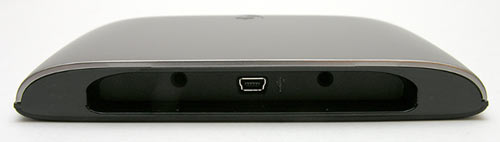
There’s a mini USB connector recessed on the bottom along with two holes for the desktop dock.
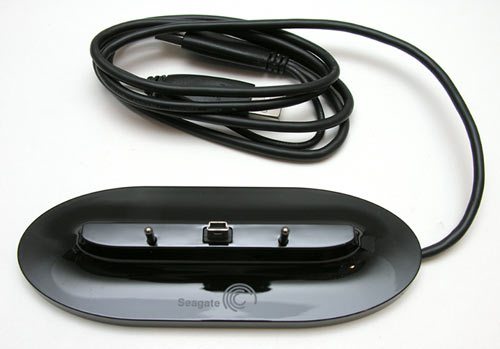
The dock has a shiny Black base and a dual USB cable.
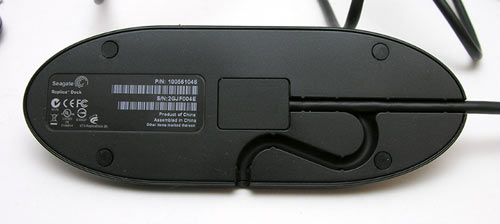
A nice touch is the ability to route the USB cable either out the side or back of the dock.
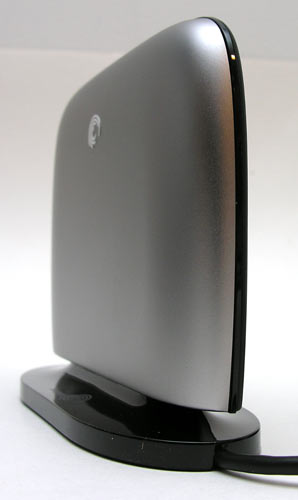
For some reason, this drive reminds me of a toaster. Yes, I’m warped…
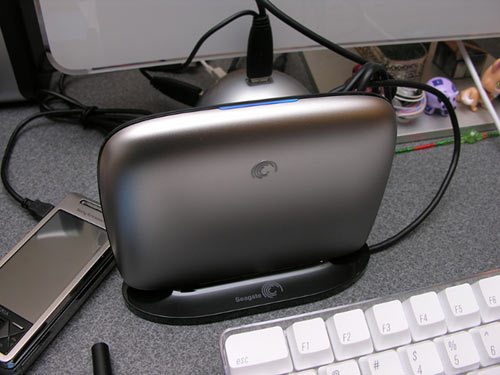
A long thin Blue LED along the top seam of the drive lights up and blinks during data transfer. For all my testing, I used the single USB cable to connect the drive to my computers. I’m not quite sure why the desktop dock requires two USB cables instead of one.
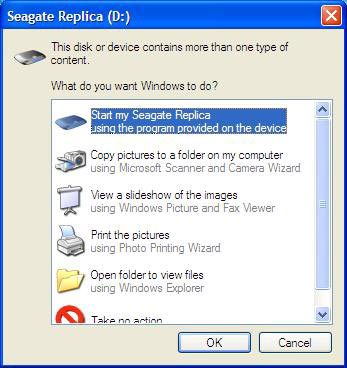
To use this drive, all you need to do is plug it into your Windows XP or Vista machine. All the necessary software will install automatically after you answer the registration questions.
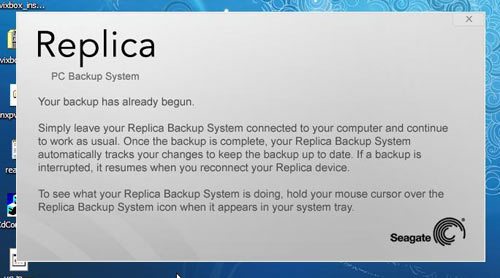
Once the software has installed, it will immediately begin backing up your files – all of your files. The entire operating system, your pictures, your music, everything. The back up will require no intervention from you and there are no special settings. You don’t have to tell it when to back up and what specific files to back up. It just does it automatically. Remember those one button backup systems that have been all the rage? Well, this is better because there are no buttons. You just plug it in and you’re done. You don’t even have to tell it to start backing things up, it just starts on its own.
The initial backup does take awhile. I didn’t actually time it on the two laptops that I tested, but it seemed to take a over 2hrs or so to backup 9GB on my HP mini 1000 netbook (running XP) and several hours to backup 40GB on the HP Touchsmart TX2 (running Vista).

The only indicator that something is happening can be found when you hover your cursor over the icon in the task tray.
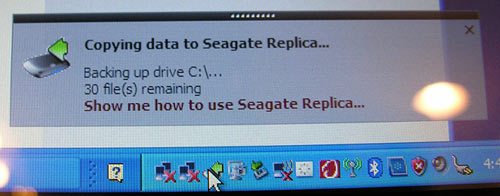
If it is backing up files when you do this, you’ll see a status of how many files are remaining to be backed up. If it’s not backing up anything, it will tell you the date and time it was last backed up. Right clicking this icon will give you just a few basic options. You can open the Replica drive in a file manager, safely disconnect the drive, set a password, remove a PC, select drives to backup and check for updates to the backup software.
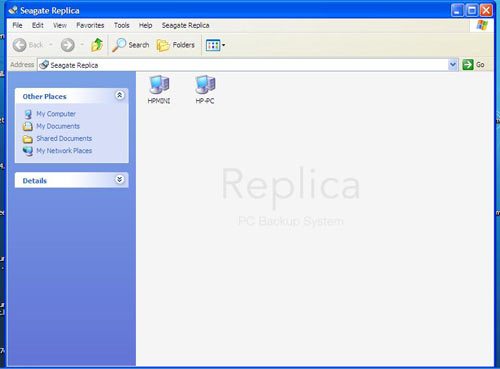
Opening the drive shows you all the files on the Replica drive. You can traverse the folders like you would any other drive and you can copy them back to your computer’s hard drive. You can not copy or delete files on the Replica drive though. It is nice that it’s protected so that you can’t inadvertently wipe something out.
If all the Replica drive did was keep a constant mirror of your hard drive, it would be great. But it does a lot more than that. It actually keeps multiple versions of files and system recovery points in case you need to restore the entire hard drive to rebuild your system.
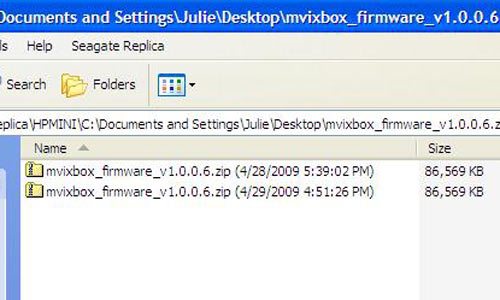
Even if you delete a file on your PC’s hard drive, the file will still be there on the Replica, so that you can restore it if needed. Multiple versions of the same file will show a date and time stamp in the name. This drive uses something called Neverfull technology to make sure that it doesn’t run out of room from saving multiple versions of really old files. When it needs to make room for newer ones, it will delete older copies as needed.
I’m impressed with the Seagate Replica PC Backup Appliance. I love the plug it in and walk away setup routine that is so easy your grandma could do it. It’s whisper quiet, doesn’t get in the way of day to day tasks and is always in the background keeping copies of your data. With this product like this one, there’s no longer any excuses for not backing up your hard drive.
Product Information
| Price: | $199.99 500GB Multi-PC version $129.99 250GB Single PC version |
| Manufacturer: | Seagate |
| Requirements: |
|
| Pros: |
|
| Cons: |
|

Gadgeteer Comment Policy - Please read before commenting
It probably needs two USB connectors for power. I assume there is a 3.5″ drive inside, and most of those need an external power supply. I am more surprised that there is a single USB cable option. Have you tried using that?
Sound to me is a big issue. I have a MyBook that is why too loud.
@Bryan While I was working on the review, I just used the single USB cable with two different laptops. It worked fine. That’s why I was confused that dock requires two. If you’re picky about sound like I am, then you’ll love the Replica.
i noticed a Xperia phone on your desk… when is the review ? :p
hahhahaha.
@anson Darn it. I knew including that pic would be a mistake 😉 Ha! I actually won that phone in a contest, so I haven’t been very motivated to review it.
Hello, I heard this product had issues if you were backing up a single machine with multiple partitions…..does anyone know?
If my laptop cannot support two USB connections, is it possible to operate it over a long period of time with only one USB connected? What are the likely problems associated with that option?
@PB I don’t see why there would be any problems using the single cable. I’m going to try to get some info on why the dock requires two connections.
Just heard back from my contact at Seagate as to why the dual USB cable is needed for the dock:
And there you have it 🙂
Well, I had two external HD’s die within a month of each other. Fortunately, I was able to get one working long enough to pull off my files, but it was a close call. One was backing up the other.
I really have nothing on my system drive…all my music and movies are on external drives.
Have you tried to do a restore of the OS from this drive? Some of the other solutions that I have used work great until you actually have a hard drive crash, then you find out where they lack.
@Chris I did not do a full restore. I will see about doing that test this weekend on my HP mini 1000.
Can I use this to back up my desktop at home and then carry it around with my laptop, operating off the desktop filing cabinet?
@John Not real sure what you mean by operating off your the drive for your laptop. It can be used to copy files from the drive to you laptop, but you can’t manually copy files to it.
I use two internal hard drives. Will the Replica autmatically back up both?
@CeeBee You can easily add and remove drives from the automated process.
Any idea if this would work for Windows Home Server? I’d like to find an backup product that could do a complete restore of the server if needed.
Hi
so will you say that it will work with:
(1) multiple partitions of one internal drive
(2) multiple internal drives
off a single pc?
thanks
@David yes, it’s supposed to. I was only able to test it with 1 internal drive with multiple partitions though. Not multiple drives. But it should work just fine as there’s a dialog box that allows you to turn drives on and off that you want to back up.
My hard drive is starting to hiccup. Can I use Replica to b/u the entire drive and move it to a new replacement drive ? Thx
@Kevin Replica will take a snapshot of the drive and then you can use it to restore the contents on to another drive.
@Kevin If you are taking a snapshot of a corrupt setup, the problems will follow you around and it will be difficult to restore to a different machine, if not impossible. I read up on Clickfree from the gadgeteers’ review on May 14. Julie commented today as well on those products. Seems like it may be the way to go for you.
Julie on April 30 you mentioned you may do a full restore, have you tried that? Is this drive doing what Acronis does, registry, operating system, programs and data?
Thanks Tim
@Tim I’m sorry, I haven’t made time to do it… this is a long weekend, so I’ll try to make time and report back.
Julie- Hi!was almost ready to buy clickfree when i saw your review of Seagate Replica.Luckily,I am ignorant restoring after a crash,since it has never never happened to me,but its time for me to stop pushing myluck and start backing up!
Are you saying that after a full crash,just plug in the Replica and it would be like looking at my computer pre-crash?All programs(with most recent updates),outlook settings,internet connection info etc, etc.If this is so, then it seems replica beats clickfree hands down! thanks for your advice, karen
Julie: Will Seagate Replica back up programs, such as Microsoft Office, word perfect, pictures, dvds, etc? Thanks.
@Ravi Yes, it will backup everything. It makes a ‘replica’ of your drive 🙂
Thanks to this review-I have decided that I will buy the Replica! This is a very thorough review and it helped make up my mind- Thanks for being so in depth. I guess all I need to hear about now is if it’s had any failures since you have been using it? Also will this owrk fine with Windows 7? Thx-Please let us know.. Also, I see you never got back to Karen’s comment/question on July 24….
My Replica is not working propertly, Is making noises and when os conected I can’t access any data……what should I do?
@Joe Have you tried reformatting it or doing a chkdsk for errors?
Hi, I’d bought a Seagate 250GB thinking there was no way my New SONY VAIO VGN-FW 5200 SERIES would require The Larger of the 2 Available Versions of These 2 Back-Up Drives! Although my SONY VAIO VGN-FW520F Came with a 500GB Drive, I’d only had the SONY VAIO for About 5 months, So I thought I’d be Okay Buying The Cheaper 250GB Version, But Just So You Guys Know, I WAS WRONG & I NEEDED THE LARGER 500GB BACK-UP VERSION OF THE SEAGATE REPLICA, I’M GUESSING B/C OF THE OPERATING SYSTEM AND AMOUNT OF PROGRAMS THE COMPUTER WAS SENT WITH WHEN DELIVERED!
Once I Actually Plugged up the Seagate Drive into my VAIO & YES, I HAD A SCARE, MY VAIO HAD JUST CRASHED THE PRIOR WEEK & IT REQUIRED A COMPLETELY NEW OPERATING BOARD, BUT IT COULD’VE NEEDED A HARD DRIVE AND I’D HAVE LOST EVERY PICTURE, FILE, EVERYTHING, SO IT’S JUST NOT WORTH THE RISK! THIS PRODUCT IS WORTH IT TO NOT BE THAT SCARED WHEN SOMETHING LIKE THAT HAPPENS. IT’S THE LAST TIME I WANT TO BE THAT SCARED WHEN MY COMPUTER WON’T BOOT UP; I’M TELLING YOU, I WAS WORRIED ENOUGH TO RUSH OUT AND RESEARCH EVERY BACK UP DRIVE I COULD LOCATE, THIS ONE BEING THE ONE I CHOSE, BUT I Decided to Buy the 250GB Version & When It Wasn’t Enough, Now I’M OFF TO THE STORE TO GET THE LARGER VERSION SO I’LL HAVE THE 500GB VERSION HOPING IT HANDLES WINDOWS 7 OKAY?
I guess I could sell the 250GB Version, but I HATE All The Haggling, So Anyone Need to Buy A 250GB VERSION REPLICA, SINCE IT WASN’T BIG ENOUGH FOR MY NEEDS, IT ALSO STATED, IT WOULD TAKE 22 HOURS TO PERFORM THE BACKUP, THIS WAS WITH ONE CORD PLUGGED IN AT THE TIME. I DIDN’T SEE THE 2 CORD NOTE; I’VE GOT MY ORIGINAL PAPERS, BOX AND ALL OF IT, BUT IT WASN’T BIG ENOUGH FOR MY SONY’S NEEDS. I’VE REGISTERED ON THE START UP SCREEN, BUT NOT FOR THE WARRANTY YET IN CASE I SELL IT, SO LET ME KNOW GUYS….IT CAN BE UPDATED TO THE NEW PERSONS NAME AS LONG AS THE PASSWORD IS KNOWN, THEN THAT CAN BE ALTERED OR CHANGED AS WELL.
Just So You Know, My Seagate Replica (The 250GB Version) Alerted Me I Didn’t Have Adequate Storage To Back-Up The SONY VAIO w/ Windows 7 & My 500GB Hard Disk Drive. I Guess I’m Going To The Store To Buy The 500GB Version Since The 250GB Version Did Say In The Description: It Could Be Used For: Multiple PC’s Back-Up, Which Leads Me To Believe I Can Either Sell It Since It’s Brand New, or I Can Use It For My Other Small Computers Which Had a 80GB Hard Disk Drive Which Was Really High When I Got The Computer!
The 500GB Version states In Description, it’s a: “COMPLETE BACK-UP SYSTEM FOR ONE PC” & I NOTICED THE 500GB ONE ALSO STATES THAT IT’S A COMPLETE SYSTEM, MEANING IT INCLUDES THE BLACK DOCK WHICH THE 250GB VERSION DID NOT INCLUDE, BUT IT IS CHEAPER THAN THE 500GB VERSION, SO I GUESS THAT’S ONE REASON WHY, BUT THE 500GB IS SELLING FOR A LOT HIGHER, SO I’M GOING TO GET SOME SORT OF WARRANTY BY BUYING THE 500GB ONE FROM AMAZON, THEN MAYBE I CAN FIND A FRIEND OR SOMEONE WHO WANT TO BUY THE SEAGATE 250GB BACK-UP SINCE THE 500GB SHOULD TAKE CARE OF ALL MY CURRENT NEEDS AS LONG AS IT’S OKAY TO USE IT WITH WINDOWS 7, BUT I THINK IT’LL DO JUST FINE, HOPEFULLY.
OH, SORRY….MY QUESTION,I ALMOST FORGOT
SO, HOW ABOUT WINDOWS 7 SINCE IT’S BEEN OUT & I DON’T SEE ANYTHING WHICH MENTIONS ITS USE WITH THE LARGER 500GB VERSION & THE WINDOWS 7 OPERATING SYSTEM, IT SEEMS TO STOP & ONLY MENTION VISTA & THAT’S THE LAST I’VE SEEN? HELP?
ANY HELP IS HELP I NEED
THANKS,
MICKEY